The “No audio output device is installed” message in Windows 10 means Windows has no enabled, working driver for your speakers or headphones, so the fix is to make Device Manager detect, enable or reinstall that audio device.
Start with the Device Manager check below, then work down through the troubleshooter, driver reinstall, driver update, Windows Update, the legacy hardware wizard and, as a last resort, Reset this PC.
How to enable a disabled audio device in Device Manager
A disabled or hidden sound device is the quickest cause to rule out, and checking it takes under a minute.
- Select Start, type Device Manager, and open it from the results.
- Expand Sound, video and game controllers.
- If your audio device is listed, right-click it and select Enable device when that option appears.
- If no audio device is listed, select View > Show hidden devices.
- Select Action > Scan for hardware changes and wait for the list to refresh.
- Select Start > Power > Restart, then hover over the speaker icon on the taskbar to see whether the error is gone.
If the Sound, video and game controllers category itself is gone, treat it as audio inputs and outputs missing from Device Manager and reinstall the driver from your PC maker.
Why does Windows 10 say no audio output device is installed?
Microsoft lists a missing, outdated, disabled or failed audio driver as the cause, often after a Windows update or a driver change. Match what you see to a row and jump to that fix.
| What you notice | Likely cause | Fix to try first |
|---|---|---|
| Device shows in Device Manager with a down-arrow or greyed icon | The device is disabled | Enable device (first section) |
| No sound device at all under Sound, video and game controllers | Driver missing or device not detected | Show hidden devices, then Scan for hardware changes |
| Error started right after a Windows update | A new driver replaced the working one | Roll back the audio driver |
| Error appears only when the HDMI or DisplayPort monitor is off | The monitor was the only audio endpoint | Turn the monitor on or connect another output |
| Sound settings are greyed out | Audio services or driver not running | Restart the Windows Audio service |
| Nothing above helps | Corrupted driver store or system files | Reinstall the driver, then reset Windows 10 |
Run audio troubleshooter
The audio troubleshooter checks the audio services, the default device and the driver state, then offers to fix what it finds. Microsoft now points to the version in the Get Help app first.
- Open the Get Help audio troubleshooter from the link
aka.ms/GetHelp-AudioTroubleshooterand let it run its diagnostics. - If Get Help does not open or does not fix it, select Start > Settings > Update & Security > Troubleshoot.
- Select Playing audio.
- Select Run the troubleshooter.
- Pick the audio device you expect to use when it asks, then apply each fix it recommends.
- Restart the PC and check the speaker icon again.
Disconnect and reconnect external audio output device
Windows only reports an output device that is connected and powered. A loose plug, a dead USB port or a monitor in standby can leave it with nothing to list.
- Unplug the external speakers, headset or USB audio adapter, wait a few seconds, and plug it back in.
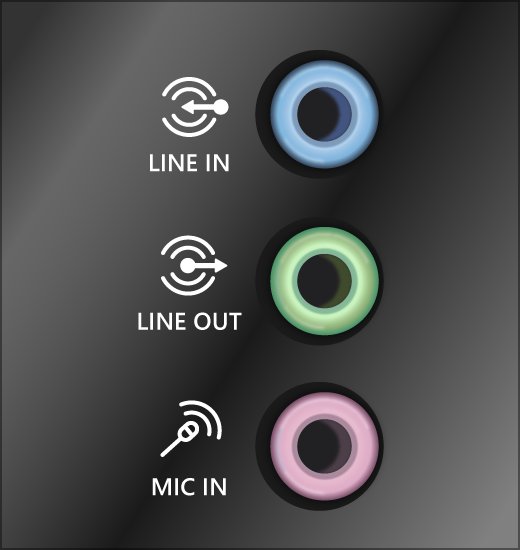
- For 3.5 mm plugs, use the green jack (or the one marked with a headphone symbol) for output, not the pink microphone jack.
- For USB audio, move the cable to a different USB port on the PC itself rather than a hub.
- Check that the speakers have power and that their own volume and mute controls are up.
- If your speakers are built into an HDMI or DisplayPort monitor, turn the monitor on and wake it before testing.
- For a Bluetooth headset, select Start > Settings > Devices > Add Bluetooth or other device and pair it again.
- In Device Manager, select Action > Scan for hardware changes after reconnecting.
Microsoft documents that when an HDMI or DisplayPort monitor is the only audio device, its audio endpoint disappears whenever the monitor is powered off. That is by design, so keep a second output connected if the monitor sleeps often.
Uninstall and reinstall audio device
Removing the device and its driver forces Windows 10 to detect the hardware again at the next startup and install a clean copy of the driver.
- Sign in with an administrator account, because the option to delete the driver software may not appear otherwise.
- Open Device Manager and expand Sound, video and game controllers.
- Right-click your audio device (for example a Realtek or High Definition Audio entry) and select Uninstall device.
- Tick Delete the driver software for this device, then select Uninstall.
- Restart the PC; Windows reinstalls the device and a driver during startup.
- If the device does not come back, open Device Manager and select Action > Scan for hardware changes.
If Windows reinstalls the same broken driver, you can reinstall the Windows 10 audio drivers from the maker’s package instead, as the next section explains.
Update audio drivers
An outdated or incompatible driver is one of the causes Microsoft names for this error. Windows can search for a newer one, but the PC or sound card maker usually has the version built for your model.
- Open Device Manager and expand Sound, video and game controllers.
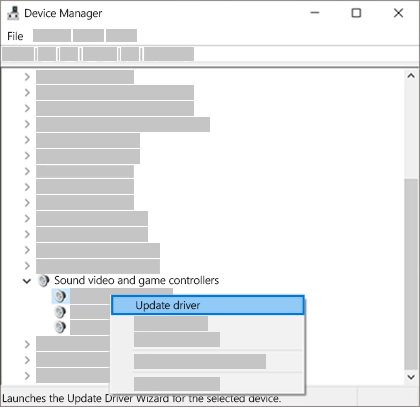
- Right-click your audio device and select Update driver.
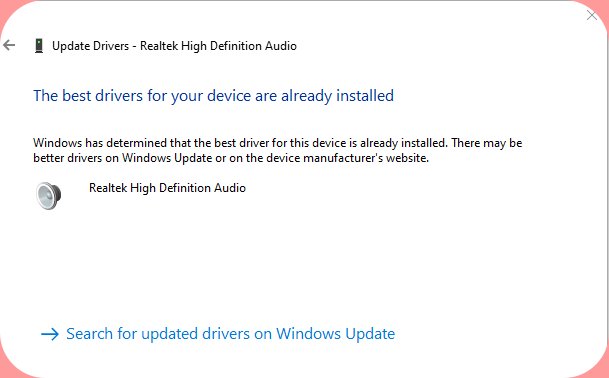
- Select Search automatically for updated driver software and install anything it finds.
- If Windows says the best driver is already installed, go to your PC or sound card manufacturer’s support website.
- Enter your model, download the latest audio driver for Windows 10, and run its installer.
- Restart the PC when the installer finishes.
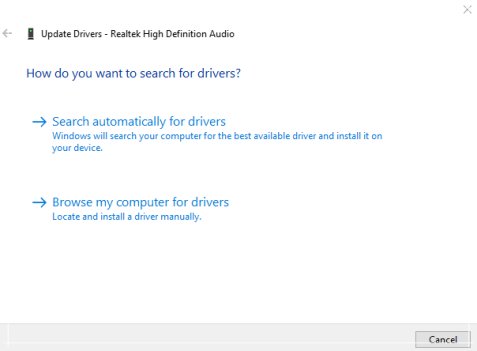
When a maker ships the driver as a folder of files rather than an installer, you can manually install the device driver through Browse my computer for drivers.
How to install the High Definition Audio Device driver in Windows 10
Windows includes a generic High Definition Audio Device driver. Switching to it often brings sound back when the maker’s driver is damaged, and Microsoft recommends it for PCs that list an IDT High Definition Audio CODEC.
- In Device Manager, right-click your audio device (or IDT High Definition Audio CODEC) and select Update driver.
- Select Browse my computer for drivers.
- Select Let me pick from a list of device drivers on my computer.
- Select High Definition Audio Device, then select Next.
- Confirm the warning if one appears, then restart the PC.
How to roll back an audio driver in Windows 10
If the error started straight after an update, the previous driver usually still sits on the PC and can be restored in a few clicks.
- In Device Manager, right-click your audio device and select Properties.
- Open the Driver tab.
- Select Roll Back Driver.
- Choose a reason, then select Yes.
- Restart the PC and test the sound.
When Roll Back Driver is greyed out, no earlier driver is stored. Restore the PC to a system restore point created before the update instead; restore points do not touch personal files.
How to restart the Windows Audio service in Windows 10
Greyed-out sound settings can mean the audio services stopped running even though the driver is fine. Restarting them takes a few seconds.
- Select Start, type Services, and open the Services app.
- Right-click Windows Audio and select Restart.
- Right-click Windows Audio Endpoint Builder and select Restart.
- Right-click Remote Procedure Call (RPC) and select Restart if the option is available.
- Close Services and check the speaker icon on the taskbar.
Update Windows 10
Windows Update can deliver audio driver fixes alongside other updates. Support for Windows 10 ended on October 14, 2025, but installing whatever updates the PC is still offered remains worth doing before a reset.
- Select Start > Settings > Update & Security > Windows Update.
- Select Check for updates.
- Install every update listed, including any driver updates offered for your audio hardware.
- Save your work, then select Start > Power > Update and restart if it appears.
- After the restart, open Device Manager and check Sound, video and game controllers again.
Install audio device as legacy hardware
The Add Hardware Wizard lets you choose a sound driver from a list when Windows will not detect the device on its own. Microsoft notes that since Windows 8, Plug and Play no longer creates entries for true non-Plug and Play (legacy) devices, so this works as a manual driver picker rather than a detector.
- Open Device Manager and select your computer’s name at the top of the device list.
- Select Action > Add legacy hardware.
- In the Add Hardware Wizard, select Next.
- Select Install the hardware that I manually select from a list (Advanced), then select Next.
- In Common hardware types, select Sound, video and game controllers, then select Next.
- Pick the manufacturer and the model that match your audio hardware, then select Next.
- Select Next to install the driver, then select Finish and restart the PC.
If the entry you added shows a warning icon after the restart, it was the wrong model. Uninstall that entry and go back to the maker’s driver instead.
pnputil command to rescan audio devices in Windows 10
PnPUtil does the same rescan as Device Manager from a command line, and it can list multimedia devices that report a problem. Open Command Prompt with Run as administrator first.
pnputil /scan-devices
pnputil /enum-devices /class Media /problem
/scan-devices scans for hardware changes and needs Windows 10 version 2004 or later. /enum-devices /class Media /problem lists devices in the Multimedia setup class (which includes audio devices) that have a problem, and needs version 1903 or later.
You should see: The scan finishes without an error, and the second command lists no audio device, or names the device and its problem code so you know which one to reinstall.
Reset Windows 10
Reset this PC reinstalls Windows and replaces every driver, so use it only after the fixes above fail. Back up your files first and have your BitLocker recovery key ready if the drive is encrypted.
- Select Start > Settings > Update & Security > Recovery.
- Under Reset this PC, start the reset.
- Choose Keep my files to reinstall Windows while keeping personal files (apps and settings are removed), or Remove everything for a clean start.
- Choose Cloud download for a fresh copy of Windows, or Local reinstall to use files already on the PC.
- Follow the on-screen prompts and leave the PC alone; the screen can stay black for 15 minutes or more.
- If Windows will not open Settings, hold Shift while you select Power > Restart, then choose Troubleshoot > Reset this PC.
Restarting the PC yourself during the reset can make it fail, so wait even if the screen stays dark.
How to check if Windows 10 detects your audio output device
- Hover over the speaker icon on the taskbar; it shows a volume level instead of “No audio output device is installed”.
- Open Device Manager and confirm your audio device is listed under Sound, video and game controllers without a warning icon.
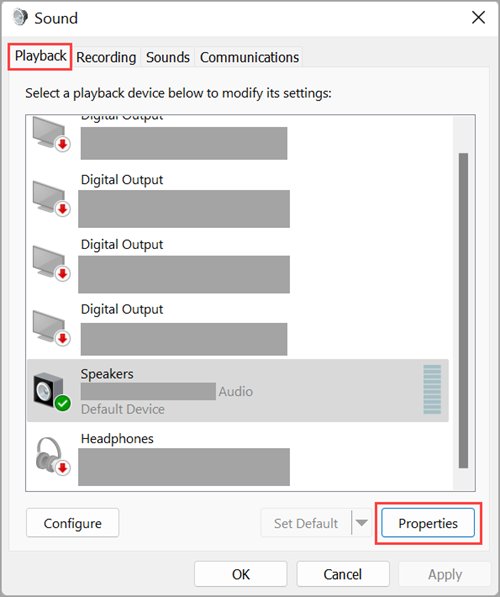
- Open Control Panel > Hardware and Sound > Sound and select the Playback tab.
- Right-click your speakers or headphones and select Set as Default Device, then select OK.
- Play a video or song to confirm sound comes out of the right device.
Windows 10 sound settings greyed out or no output devices listed
Sound settings are unavailable or greyed out
The audio driver is not loaded or the audio services have stopped.
- Restart Windows Audio and Windows Audio Endpoint Builder in the Services app.
- In Device Manager, enable the audio device or select Action > Scan for hardware changes.
- If neither helps, uninstall the device with Delete the driver software for this device ticked and restart.
Speakers or headphones don’t appear under Output
The device is unplugged, disabled or not set as the default.
- Reconnect the device and try a different port.
- Open Control Panel > Hardware and Sound > Sound > Playback.
- Right-click the device, select Set as Default Device, and select OK.
Error appeared after a Windows update
The update installed a driver that does not work with your hardware.
- Open the device’s Properties > Driver tab and select Roll Back Driver.
- If the button is greyed out, restore a system restore point from before the update.
- Install the maker’s driver for your model afterwards.
Error appears only when the monitor is off
An HDMI or DisplayPort monitor was the only audio endpoint, and it disappears when the monitor powers off.
- Turn the monitor on and wake it before playing audio.
- Connect headphones or speakers to the PC so Windows has a second output.
- Set that device as the default on the Playback tab.
No audio output device is installed FAQ
What does “No audio output device is installed” mean?
It means Windows 10 cannot find an enabled audio output with a working driver. The hardware is usually fine; the driver is missing, outdated, disabled or failed to load. Device Manager, a driver reinstall or the audio troubleshooter clears it in most cases.
Can a Windows update cause “No audio output device is installed”?
Yes. Microsoft lists Windows updates and driver changes as common triggers. Open the audio device’s Properties in Device Manager and select Roll Back Driver, or restore a system restore point created before the update, then install the maker’s driver.
Will uninstalling the audio driver delete my files?
No. Uninstalling the audio device in Device Manager removes only the device entry and, if you tick the box, its driver software. Your documents, music and apps stay untouched, and Windows reinstalls a driver at the next restart.
Why does the error appear when my monitor turns off?
If an HDMI or DisplayPort monitor is your only audio device, Windows removes its audio endpoint when the monitor powers off. Microsoft describes this as by design. Connect speakers or headphones to the PC so another output stays available.
What is the High Definition Audio Device driver?
It is the generic audio driver built into Windows. You can select it through Update driver, Browse my computer for drivers and Let me pick from a list. It lacks maker-specific extras but often restores sound when the original driver is corrupted.
Where do I get the right audio driver for Windows 10?
Get it from your PC maker’s support site for laptops and branded desktops, or from the sound card or motherboard maker for custom builds. Enter your exact model, download the Windows 10 audio driver, install it and restart.
Does Reset this PC fix missing audio devices?
It usually does when the cause is software, because a reset reinstalls Windows along with its built-in drivers. Choose Keep my files to keep personal files, but expect to reinstall your apps. If audio is still missing after a reset, suspect the hardware.