Mobile device management (MDM) is the built-in Windows feature that lets an organization's management server, usually Microsoft Intune, enroll a PC and push security policies, apps and settings to it.
This overview covers how MDM works in Windows 11 and Windows 10, the MDM security baseline, edition and licensing rules, how to enroll, check and unenroll a device, and fixes for common enrollment errors.
What is MDM in Windows?
Windows ships with its own management component, so an MDM server never has to install a separate client on the PC. That component has two parts, and both talk to whichever MDM server the device enrolls with.
| Part | What it does | Who controls it |
|---|---|---|
| Enrollment client | Enrolls the device and configures it to talk to the organization's management server | Built into Windows 11 and Windows 10 |
| Management client | Synchronizes with the server on a schedule, checks for updates and applies the latest policies IT has set | Built into Windows 11 and Windows 10 |
| MDM server | Holds the policies, apps and certificates the organization wants on the device | IT: Microsoft Intune or a third-party MDM server |
| MDM protocols | MS-MDE2 (Mobile Device Enrollment Protocol v2) and MS-MDM (Mobile Device Management Protocol) | Published by Microsoft so any vendor can build a compatible server |
Third-party servers get the same first-party enrollment experience as Intune, because Windows handles the enrollment screens itself.
Does Microsoft have MDM? Microsoft Intune explained
Yes. Microsoft Intune is Microsoft's cloud-based endpoint management service, and MDM is one of its two management modes. It runs entirely in the cloud, so no on-premises server is needed.
| Question | Answer |
|---|---|
| What does Intune manage? | Enrollment, device configuration, endpoint security, app deployment and protection, and updates |
| Which platforms? | Android, iOS/iPadOS, Linux, macOS, tvOS, visionOS and Windows |
| Where do admins work? | The Microsoft Intune admin center, a web console; every action is also exposed through Microsoft Graph |
| Who handles sign-in? | Microsoft Entra ID handles authentication, users and groups, and Conditional Access; Intune does not store identities |
| How do devices enroll? | Users enroll through the Company Portal, or devices enroll automatically through Windows Autopilot, Apple Automated Device Enrollment or Android Enterprise |
| How do organizations get it? | Most get Intune inside a Microsoft 365 bundle such as Microsoft 365 E3 or E5; Intune Plan 1 for Education is included in Microsoft 365 Education A3 and A5 |
| Who needs a license? | Each managed user or device needs an Intune license, but administrators can manage Intune without one |
| How are AI and automation changing it? | Copilot in Intune, included with Security Copilot, answers plain-language questions about devices, policies and compliance, and Security Copilot agents automate tasks such as policy configuration, device offboarding and vulnerability remediation |
Intune also manages Macs, iPhones and iPads, so you can manage Apple devices with Microsoft Intune from the same admin center.
MDM vs MAM in Microsoft Intune: which one fits the device?
Intune can manage the whole device (MDM) or only the work apps and their data (MAM). The two work independently or together.
| Your situation | Use this | Why |
|---|---|---|
| Corporate-owned laptop or phone | MDM | IT manages settings, security and apps on the whole device and can wipe it if it is lost or stolen |
| Personal phone used for work email (BYOD) | MAM | Only Outlook, Teams and other managed apps are protected; personal apps and content stay under the user's control |
| Employee leaves the organization | MAM selective wipe | Organization data is removed without touching personal content |
| Corporate phone handling especially sensitive data | MDM plus MAM | App protection policies add a second layer on top of device management |
How does mobile device management (MDM) work?
MDM works in a loop: the device enrolls once, then keeps checking in with the management server for new instructions. In Windows, that conversation uses Open Mobile Alliance Device Management (OMA DM) messages sent over HTTPS.
| Stage | What happens |
|---|---|
| 1. Enroll | The user signs in with a work account, or the device enrolls automatically through Windows Autopilot, Apple Automated Device Enrollment or Android Enterprise |
| 2. Provision | Windows configures its built-in management client to talk to the MDM server, and the server issues certificates |
| 3. Configure | The server pushes settings for Wi-Fi, VPN, certificates, email and device features, plus apps |
| 4. Protect | Compliance rules, disk encryption and security baselines are enforced, and the device reports its compliance state |
| 5. Check in | The device syncs on a schedule, or when IT triggers a sync, to pick up policy changes |
| 6. Retire | When a device is lost, replaced or no longer needed, IT wipes organization data, factory-resets it or unenrolls it |
The components of mobile device management are the same on every platform: an enrollment client and a management client on the device, an MDM server that holds the policies, and an identity service such as Microsoft Entra ID that authenticates the user.
What do MDM policies cover?
MDM policies cover the whole device lifecycle. In Microsoft Intune, these are the main features of mobile device management. To let standard users run approved apps as administrator without local admin rights, set up Endpoint Privilege Management in Intune.
| Policy area | Examples |
|---|---|
| Device configuration | Wi-Fi, VPN, certificates, email profiles and thousands of platform settings in the settings catalog |
| Compliance | Rules a device must meet to count as compliant; noncompliant devices can be blocked from company resources through Conditional Access |
| Security | Disk encryption, security baselines and mobile threat defense integration |
| Apps | Deploy, configure, protect and update store apps and line-of-business apps |
| App data protection | Require a PIN, block copy-paste to personal apps, prevent backups to personal cloud services and encrypt data at rest |
| Remote actions | Sync, remote lock, reset passcode, locate device, retire and wipe |
Why is mobile device management important? Benefits and drawbacks
Mobile device management is critical because laptops and phones now carry company email, files and apps outside the office. MDM gives IT one place to secure them, but it has costs and limits.
| Benefits of mobile device management | Drawbacks of mobile device management |
|---|---|
| Lost or stolen devices can be locked or wiped remotely | Each managed user or device needs a license, such as Intune |
| Only compliant devices reach company resources when compliance feeds Conditional Access | Windows Home cannot join Microsoft Entra ID, so it needs an upgrade first |
| Settings, apps and updates reach every device from one admin center | A device can be enrolled in only one MDM at a time |
| Security baselines give a recommended starting configuration | Full MDM on a personal device puts settings and apps on hardware the employee owns under IT control |
| Departing staff can have organization data removed with retire or selective wipe | Disconnecting from MDM removes the organization's apps, certificates and policies, and can delete data |
MDM, EMM, UEM, MAM and MCM: key full forms and definitions
Vendors use several overlapping acronyms. Expanding beyond MDM, the other terms describe managing apps, content or every endpoint type from one console.
| Term | Full form | What it means |
|---|---|---|
| MDM | Mobile device management | Manages the entire device: settings, apps and data; typical for organization-owned hardware |
| MAM | Mobile application management | Manages only work apps and the data inside them; typical for bring-your-own-device (BYOD) |
| MCM | Mobile content management | Protects work documents and data on the device; in Intune, app protection policies handle this |
| EMM | Enterprise mobility management | Combines device, app and data protection; Microsoft describes Intune as a cloud-based EMM service |
| UEM | Unified endpoint management | Manages phones, tablets, laptops and desktops from one console; Microsoft also calls Intune cloud-based UEM |
BYOD and mobile device management
Bring your own device (BYOD) lets staff use personal phones and PCs for work. MDM can assist in a BYOD environment, but it is not the only option.
| BYOD approach | Advantages | Disadvantages |
|---|---|---|
| MAM only (app protection without enrollment) | Protects data in Outlook, Teams and other managed apps; the user keeps control of the rest of the device | IT cannot configure device settings or wipe the whole device |
| Full MDM enrollment | Gives the user full access to organizational resources that require a compliant device | IT manages settings and apps on a device the employee owns |
| Register the device with Microsoft Entra ID | Signs the user in with a work account; autoenrollment can add MDM in the same flow | Behaviour depends on how IT has configured autoenrollment |
When an employee leaves, the Retire action removes company data and settings and leaves personal data intact, while Wipe restores the device to factory settings.
What MDM can and cannot see on a personal device
Enrolling a device in Microsoft Intune does not hand your personal information to IT. Microsoft splits the data into three groups.
| Visibility | What it covers |
|---|---|
| Never visible | Calling and web browsing history, email and text messages, contacts, calendar, passwords, pictures and the content of your own documents |
| Always visible | Device owner, name, serial number, model, manufacturer, operating system version and IMEI |
| Phone number | Only the last four digits on a personal device |
| Location | Visible for a lost corporate-owned device, never for a personal device |
| Apps | The managed work and school apps on a personal device; all installed apps on most corporate-owned devices |
Where MDM falls short for BYOD and unmanaged laptops: many employees will not enroll a personal device, and a device that is never enrolled cannot be checked for compliance. App protection policies and Conditional Access cover that gap by protecting work data in managed apps and blocking unmanaged devices from company resources.
Mobile device management solutions: Intune, Configuration Manager and Exchange
Microsoft has offered three MDM technologies over the years. For new deployments, use cloud-based Intune.
| Solution | How it works | Status |
|---|---|---|
| Microsoft Intune (cloud-based) | All management runs in cloud services on top of the built-in OMA DM client | Current Microsoft MDM service |
| On-premises MDM in Configuration Manager | Uses the Configuration Manager site and database with no cloud connection; needs Intune licenses and offers no task sequencing or Software Center | Deprecated since November 2021 |
| Configuration Manager Exchange Server connector | Manages ActiveSync devices through Exchange Server or Exchange Online: password rules, allow, block or quarantine access rules and remote wipe | Cannot install software or enroll devices in MDM |
| Third-party MDM servers | Use Microsoft's published MS-MDE2 and MS-MDM protocols for the same Windows enrollment experience | Vendor-supported |
When choosing a mobile device management solution, check which platforms it manages, how it works with your identity provider, how it is licensed, and whether it protects personal devices with app protection alone. Platform-native management is now the baseline: Windows includes its own enrollment and management client, so any MDM server that speaks Microsoft's protocols manages a PC without a separate agent.
How much does MDM cost? Microsoft Intune pricing
Microsoft lists these US prices per user per month, paid yearly. Prices can vary with your Microsoft agreement.
| Plan | Listed price | What it includes |
|---|---|---|
| Microsoft Intune Plan 1 (standalone) | $8.00 | Core device management, built-in security, mobile app management and endpoint analytics |
| Microsoft 365 E3 | $39.00 with Teams, $30.45 without | Microsoft 365 with cloud-based Intune device and app management |
| Microsoft 365 E5 | $60.00 with Teams, $51.45 without | Everything in E3 plus advanced security and Security Copilot |
| Intune Plan 2 add-on | $4.00 | Microsoft Tunnel for MAM, specialty and shared devices, firmware-over-the-air updates; requires Plan 1 |
| Intune Suite | $10.00 | The advanced Intune capabilities in one bundle |
Microsoft says Plan 2 capabilities are included in Microsoft 365 E3 and E5 from July 2026, so check what your existing licenses cover before buying add-ons.
MDM security baseline
Microsoft publishes MDM security baselines that work like its Group Policy security baseline. Any MDM solution can import them, so cloud-managed PCs start from Microsoft's recommended values instead of a blank policy set.
| Baseline area | What it covers |
|---|---|
| Inbox security technologies | BitLocker, Windows Defender SmartScreen, Exploit Guard, Microsoft Defender Antivirus and Firewall |
| Remote access | Restricting remote access to the device |
| Credentials | Requirements for passwords and PINs |
| Legacy technology | Restricting legacy technology, and policies that point to modern replacements |
| Published versions | Windows 11, and Windows 10 versions 2004, 1909, 1903 and 1809 |
| Intune customers | A separate Windows security baseline inside Intune carries its own settings list |
BitLocker is one of the baseline's core controls; on home PCs the same protection appears as device encryption in Windows 11.
Windows edition and licensing requirements
MDM enrollment needs a business or education edition of Windows and an administrator account. Windows Home cannot join Microsoft Entra ID, so upgrade to Pro, Enterprise or Education first.
| Requirement | Supported | Notes |
|---|---|---|
| Windows Pro | Yes | License entitlement included with Pro, Pro Education and SE |
| Windows Enterprise | Yes | Entitlement granted by Windows Enterprise E3 and E5 |
| Windows Pro Education / SE | Yes | Entitlement included |
| Windows Education | Yes | Entitlement granted by Windows Education A3 and A5 |
| Windows Home | No | Microsoft Entra join is not available on Home edition |
| Account type | Administrator only | Standard users and the built-in Administrator account cannot enroll |
| Number of MDM servers | One | A Windows device can be enrolled in only one MDM at a time |
Enroll a Windows PC in MDM only (Enroll only in device management)
Use this route when IT wants the device managed but not joined to Microsoft Entra ID. It works on Windows 11 and Windows 10 Pro, Enterprise and Education.
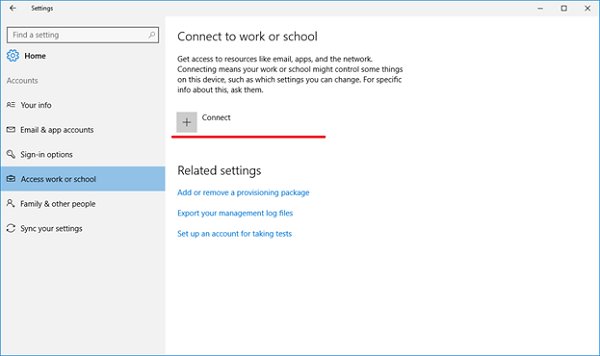
- Open Settings and select Accounts.
- Select Access work or school.
- Select the Enroll only in device management link.
- Type your work email address and continue.
- Enter your password, or complete your organization's federated sign-in page if one opens.
- Approve the second-factor prompt if your IT policy asks for one.
- Wait for the progress screen to finish; the device is now connected to your organization's MDM.
Join Microsoft Entra ID and auto-enroll in MDM
Corporate-owned PCs usually join Microsoft Entra ID. If the tenant has MDM autoenrollment configured, the same flow enrolls the device in MDM; if not, run the MDM enrollment separately afterwards.
- Open Settings > Accounts > Access work or school.
- Select Connect.
- Under Alternate actions, select Join this device to Microsoft Entra ID.
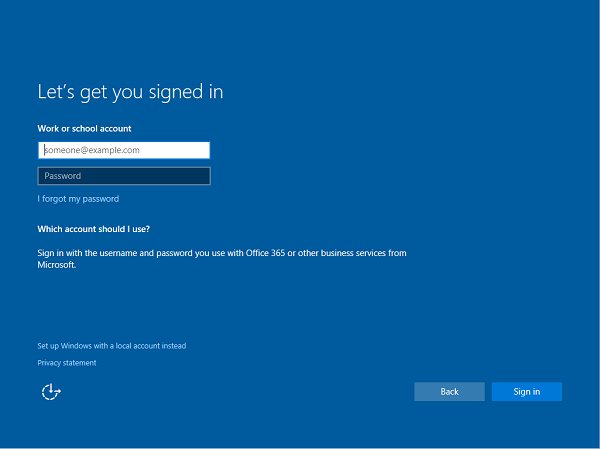
- Type your Microsoft Entra username, the email address you use for Microsoft 365.
- Enter your password on the branded sign-in page, or sign in through your organization's federation server.
- Complete multifactor authentication if prompted.
- Sign out and sign back in with your Microsoft Entra username.
During first-time setup (OOBE), choose My work or school owns it and then Join Microsoft Entra ID to do the same thing before the desktop appears.
Connect a personal device to a work or school account
Bring-your-own-device PCs register with Microsoft Entra ID instead of joining it. Autoenrollment, when configured, adds MDM during the same flow.
- Open Settings > Accounts > Access work or school.
- Select Connect.
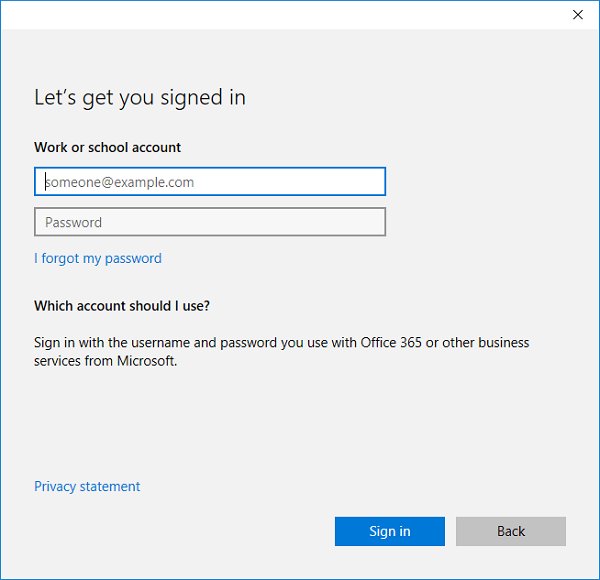
- Type your Microsoft Entra username and continue.
- Enter your password or finish the federated sign-in, then approve any second-factor prompt.
- Wait for the status page to finish setting up the device.
Several work accounts can also live side by side in Office apps when you manage multiple Microsoft 365 accounts on one PC.
How to check if a Windows PC is enrolled in MDM
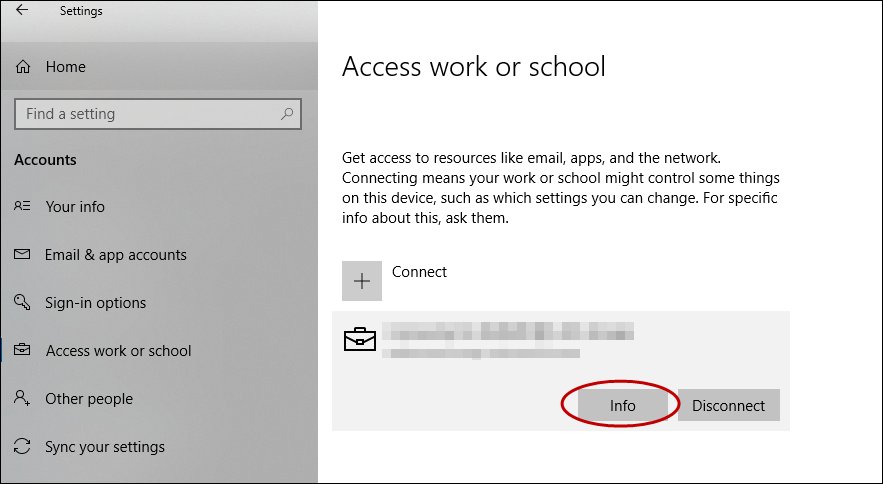
- Open Settings > Accounts > Access work or school.
- Select your work or school connection to expand it.
- Look for the Info button; it appears only on connections that involve MDM.
- Select Info to see your organization's support details and the policies and line-of-business apps it has applied.
- Start a sync from that page to force the PC to contact the MDM server and fetch any policy changes.
No Info button means the connection is a plain work account without MDM enrollment.
Collect MDM diagnostic logs with mdmdiagnosticstool
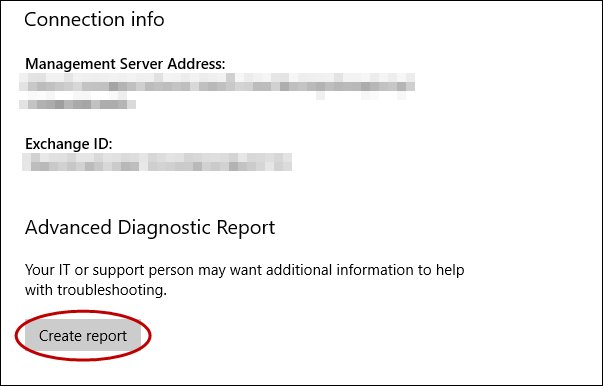
Run this from an elevated Command Prompt when enrollment or policy delivery fails and IT asks for logs. In Settings, the same report comes from Info > Create report > Export.
mdmdiagnosticstool.exe -area "DeviceEnrollment;DeviceProvisioning;Autopilot" -zip "c:\users\public\documents\MDMDiagReport.zip"Collects enrollment, provisioning and Autopilot logs into one zip file, including MDMDiagHtmlReport.html (management URL, MDM device ID, certificates and policies) and the DeviceManagement-Enterprise-Diagnostics-Provider event logs.
You should see: MDMDiagReport.zip appears in C:\Users\Public\Documents, and the Settings export lands in C:\Users\Public\Documents\MDMDiagnostics.
Live MDM events also appear in Event Viewer under Applications and Services Logs > Microsoft > Windows > DeviceManagement-Enterprise-Diagnostic-Provider > Admin.
Set the maximum number of Microsoft Entra joined devices per user
Tenant admins control how many devices one user can join. Raise it when users hit the device cap during enrollment.
- Sign in to the Azure portal at portal.azure.com as a tenant admin.
- Open Microsoft Entra ID and select Devices.
- Select Device settings.
- Change the number under Maximum number of devices per user and save.
What is dmwappushsvc?
dmwappushsvc is the Windows service that queues management messages and starts sync sessions with the MDM server. Stopping it breaks MDM management, so leave it running on any managed PC.
| Question | Answer |
|---|---|
| Display name | Device Management Wireless Application Protocol (WAP) Push message Routing Service |
| What it does | Categorizes and processes WAP messages, including Windows management messages, and orchestrates sync sessions with the MDM server |
| What data it handles | Management messages the device receives remotely; it routes and authenticates them to other OS components |
| Does it send telemetry? | No |
| Can you stop it? | Yes, from services.msc, but Microsoft recommends against it because management fails without it |
How to unenroll a Windows device from MDM
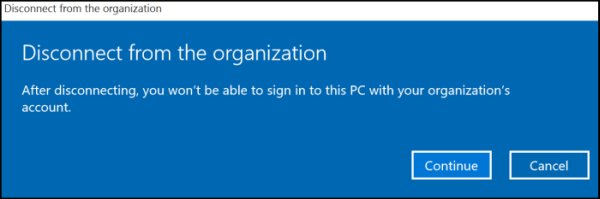
Disconnecting removes the organization's apps, certificates and policies from the PC. Back up any work files first, because disconnecting can delete data on the device.
- Open Settings > Accounts > Access work or school.
- Select the work or school connection you want to remove.
- Select Disconnect.
- Confirm the prompt; Windows notifies the MDM server and removes the management configuration.
Unenrollment removes the enterprise app token and its business apps, MDM-issued certificates, enforced policies and the scheduled management task. If Disconnect is missing, IT has set the AllowManualMDMUnenrollment policy and must unenroll the device from the server.
Mobile device management best practices
These practices come straight from how Intune is designed to be run.
| Practice | Why |
|---|---|
| Enroll every organization-owned device in MDM | Do not rely on users to manage company hardware themselves |
| Decide each device's purpose before enrollment | User-assigned, shared and kiosk devices need different enrollment methods |
| Use MAM app protection for personal devices | Work data stays protected without managing the whole device |
| Connect compliance policies to Conditional Access | Only devices that meet your rules can reach company resources |
| Start from a security baseline | Microsoft's recommended values beat a blank policy set |
| Limit admin rights with roles and scope tags | A regional help desk can wipe only the devices in its region |
| Use dynamic device groups for large fleets | Devices join and leave groups automatically based on rules you define |
Fix common Microsoft MDM enrollment errors
"You don't have the right privileges to perform this operation"
Standard users cannot enroll in MDM; only administrator accounts can.
- Sign out and sign in with a local or domain administrator account (not the built-in Administrator account).
- Open Settings > Accounts > Access work or school and start the enrollment again.
"Your device is already being managed by an organization"
The PC is already enrolled in another MDM or in Microsoft Configuration Manager, and Windows allows only one MDM.
- Open Access work or school and check for an existing connection with an Info button.
- Ask the owner of that management service to unenroll the device, or select Disconnect if allowed.
- Restart and run the new enrollment.
"Your device is already connected to your organization's cloud"
The PC is already joined to Microsoft Entra ID, connected to a work account or joined to an Active Directory domain.
- Open Settings > Accounts > Access work or school and review the listed connections.
- Use the existing connection, or disconnect it before joining a different tenant.
"We couldn't autodiscover a management endpoint matching the username entered"
Windows could not find an MDM server for the domain in your email address.
- Check the spelling of the work email address.
- Ask IT for the MDM server URL and enter it when Windows asks for it.
"We couldn't find your identity in your organization's cloud"
The username does not exist in the Microsoft Entra tenant.
- Confirm the exact sign-in address with IT.
- Retry with the corrected username.
Error 80180002, 80180003 or 80180004 during enrollment
The MDM server could not authenticate you (80180002), you are not authorized to enroll (80180003), or the certificate template or certificate authority is unavailable (80180004).
- Retry once in case the error was temporary.
- Send IT the error code; authorization and certificate errors are fixed on the server side.
- Collect logs with mdmdiagnosticstool if IT asks for them.
Join Microsoft Entra ID option missing or failing on Windows Home
Microsoft Entra join is not available on Windows Home edition.
- Check which Windows edition the PC runs.
- Upgrade to Windows Pro, Enterprise or Education, then join again.
Enrollment is blocked on a domain-joined PC
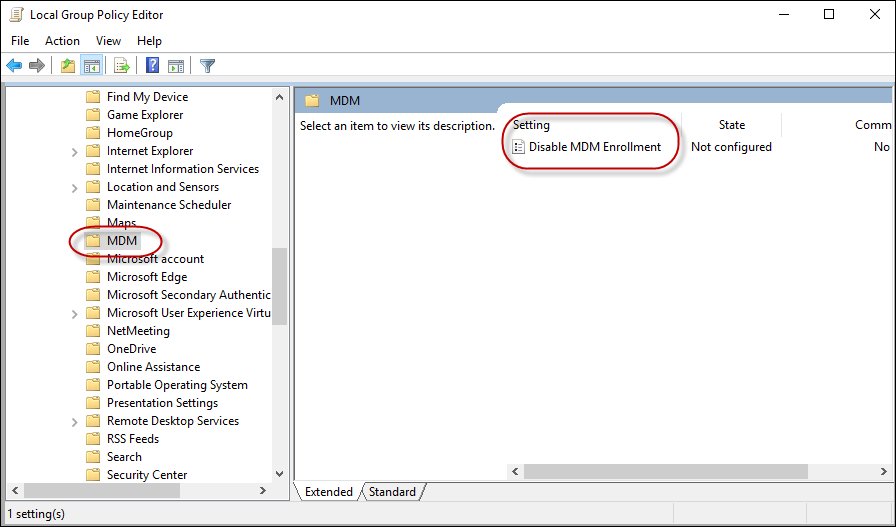
IT has turned on the Disable MDM Enrollment Group Policy.
- Ask IT whether Computer Configuration > Administrative Templates > Windows Components > MDM > Disable MDM Enrollment is enabled.
- Let IT change the policy; do not remove it yourself on a managed PC.
Microsoft MDM FAQs
What is Microsoft MDM?
Microsoft MDM usually means Microsoft Intune's mobile device management mode. Intune enrolls devices, applies settings and security policies, deploys apps and can wipe a lost device, all from the cloud-based Microsoft Intune admin center.
What is MDM in Windows?
MDM in Windows is the built-in enrollment and management client that connects a PC to an organization's management server. It syncs on a schedule and applies the policies IT sets, without installing any extra agent.
What is MDM software?
MDM software is a server or cloud service that manages devices remotely: enrolling them, pushing policies and apps, and wiping them if lost. Microsoft Intune is Microsoft's MDM service, and third-party servers can use the same Windows MDM protocols.
Does Microsoft have MDM?
Yes. Microsoft Intune is Microsoft's MDM and mobile application management service. It manages Windows, macOS, iOS/iPadOS, Android, Linux, tvOS and visionOS devices, and most organizations get it inside a Microsoft 365 bundle such as E3 or E5.
How can MDM help prevent data breaches on mobile devices?
MDM enforces disk encryption, passcodes and compliance rules, and Conditional Access blocks noncompliant devices from company resources. App protection policies add a second layer by blocking copy-paste to personal apps and preventing backups to personal cloud services.
What measures does MDM take to protect against malicious apps?
In Intune, IT deploys approved apps from managed stores and line-of-business packages, and can integrate mobile threat defense so a device above the allowed threat level, or one that is jailbroken or rooted, is marked noncompliant. Conditional Access then keeps that device away from company data.
What if a device is lost or stolen?
IT can remotely lock the device, locate it on a map where the platform supports it, or wipe it back to factory settings. On a personal device, the Retire action removes only company data and settings and leaves personal data intact.
Is Microsoft Intune an MDM?
Yes. Intune supports full mobile device management, where it manages the whole device, and mobile application management, where it protects only work apps and their data. Organizations can use either mode or both together.
Can there be more than one MDM server to enroll and manage devices in Windows?
No. A Windows device can be enrolled in only one MDM at a time. To move to a different MDM server, unenroll the device from the current one first.
Which Windows editions support MDM?
Windows Pro, Enterprise, Pro Education, SE and Education support MDM. Windows Home cannot join Microsoft Entra ID, so upgrade to Pro or higher before enrolling a PC with Intune.
Is MDM good for Windows laptops?
Yes. MDM is how organizations manage Windows laptops that rarely touch the office network, because policies, apps and updates arrive over the internet. Microsoft's MDM security baseline gives those laptops a recommended starting configuration.
Can I remove MDM from my Windows PC?
Usually yes. Open Settings > Accounts > Access work or school, select the connection and choose Disconnect. If Disconnect is missing, your organization has blocked manual unenrollment and IT must remove the device.