To install Windows 95 on VirtualBox, create a VM with the Windows 95 type, a small IDE hard disk and 64 MB of RAM, boot it from your own licensed Windows 95 boot disk or CD, partition and format the disk with FDISK and FORMAT, then run Setup from the CD.
This guide covers the media you need, the VM settings, every DOS-stage step, what Guest Additions can and cannot do for a Windows 95 guest, and fixes for the protection error and boot loops.
Install Windows 95 on VirtualBox: the short version
You need your own licensed Windows 95 installation media and product key. Microsoft does not offer Windows 95 for download, and this guide does not point to any copy.
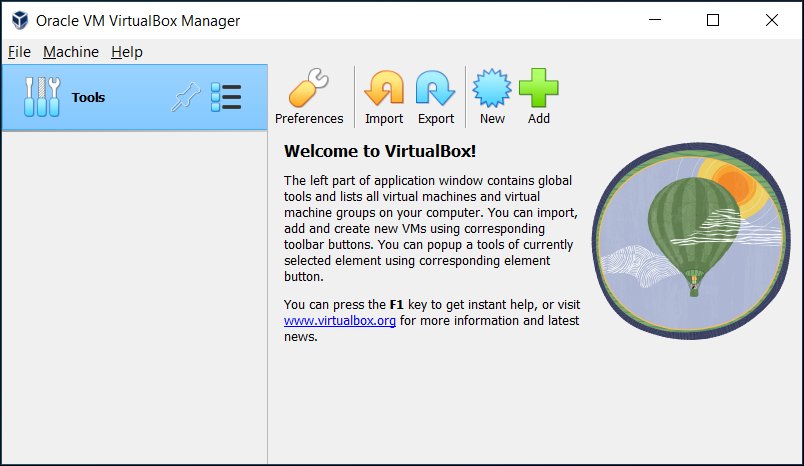
- In VirtualBox Manager, click New, name the VM, set Type to Microsoft Windows and Version to Windows 95, and tick Skip Unattended Installation if an ISO is selected.
- Give it 64 MB of Base Memory, 1 processor, and a new virtual hard disk of 2 GB or less.
- Attach your Windows 95 boot floppy (or a bootable Windows 95 CD) and the Windows 95 CD in Settings > Storage.
- Start the VM, run
FDISKto create a primary DOS partition, restart, then runFORMAT C:. - Switch to the CD drive and run
SETUP, then enter your product key when Setup asks for it. - Remove the floppy and CD when Setup restarts the VM so it boots from the hard disk.
The full settings, each DOS command and the fixes for common failures follow below.
What do you need before creating the Windows 95 VM?
Windows 95 is not on Oracle's list of fully supported or limited-support guest operating systems, so Oracle cannot promise a fix if something fails. VirtualBox still runs DOS-era systems, because it emulates older hardware that a modern PC no longer has.
| Item | What you need | Notes |
|---|---|---|
| VirtualBox | A current Oracle VirtualBox release on Windows, macOS, Linux or Solaris | Install it from virtualbox.org only |
| Windows 95 media | Your own licensed Windows 95 CD, plus the boot (startup) floppy if your CD does not boot | No legitimate download source exists; use the disks you own |
| Product key | The key or certificate number that came with your copy | Setup asks for it before it copies files |
| Floppy access | A host floppy drive, or a RAW-format image you made from your own floppy | VirtualBox accepts floppy images only in RAW format |
| CD access | The physical CD in a host drive, or an ISO image made from your own CD | Host CD/DVD passthrough is an experimental VirtualBox feature |
| Host disk space | About 2 GB free for the virtual disk, plus room for snapshots | Snapshots grow with every change you make |
Which Windows 95 installation media path should you choose?
The route depends on what is in your Windows 95 box. Each row below uses only media you already own.
| What you have | Boot from | Install from |
|---|---|---|
| A Windows 95 CD that starts on its own when the PC boots | The CD (set Optical first in Boot Order) | The same CD, after FDISK and FORMAT |
| A Windows 95 boot floppy plus the CD | The floppy (set Floppy first in Boot Order) | The CD, if the floppy loads a CD-ROM driver |
| A boot floppy with no CD-ROM support, plus the CD | The floppy, to partition and format only | Not possible from that disk alone; use a startup disk from your own package that loads a CD-ROM driver |
| The CD, no boot floppy, and a CD that will not boot | Nothing on its own | Find the startup disk from your own licensed package; do not use a downloaded boot disk |
How should you configure VirtualBox for Windows 95?
Choosing the right Version matters: VirtualBox switches settings on or off to suit the selected guest. Older guest types get an IDE controller only, because old systems do not support SATA without extra drivers.
- Open VirtualBox Manager and click New.
- Enter a Name such as Windows 95, check the Folder has free space, and set Type to Microsoft Windows and Version to Windows 95.
- Leave ISO Image empty, or tick Skip Unattended Installation if you select your CD image, because unattended installation does not cover Windows 95.
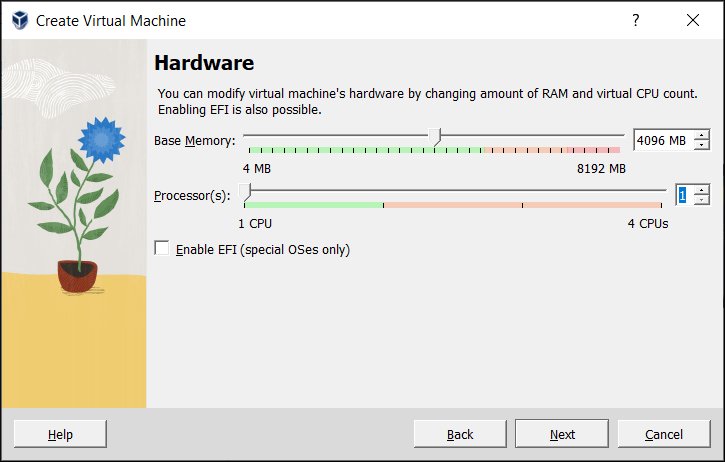
- On the Hardware page, set Base Memory to 64 MB and Processor(s) to 1. Leave Enable EFI unticked so the VM uses the legacy BIOS.
- On the Virtual Hard Disk page, choose Create a Virtual Hard Disk Now and set Disk Size to 2 GB or less. Tick Pre-Allocate Full Size if you prefer a slightly faster fixed-size file.
- Click Finish, select the new VM and open Settings > System > Motherboard. Confirm Chipset is PIIX3 and Floppy is in the Boot Order list.
- Open Display > Screen, keep Graphics Controller on VBoxVGA, and leave Enable 3D Acceleration off.
- Open Audio and set Audio Controller to SoundBlaster 16 instead of the Intel AC'97 or Intel HD Audio options.
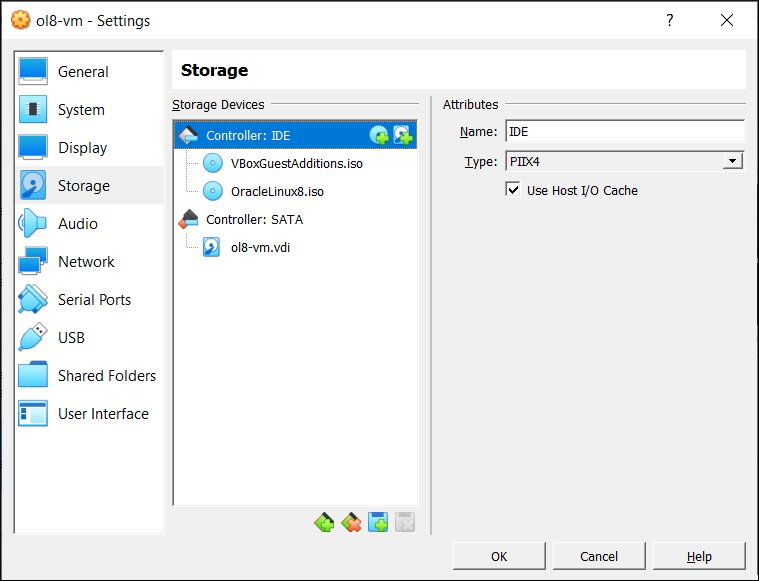
- Open Storage, select the floppy controller and attach your floppy image or host floppy drive. Attach your Windows 95 CD or ISO to the optical drive on the IDE controller.
VirtualBox defaults the network adapter to AMD PCnet-FAST III, which suits most older systems. The Windows 95 network driver setup itself is outside this guide.
How much RAM and disk space should Windows 95 get?
Windows 95 was built for far smaller PCs than any current host, so generous settings add nothing. Memory you assign is taken from the host for as long as the VM runs.
| Setting | Recommended value | Reason |
|---|---|---|
| Base Memory | 64 MB | Covers Windows 95 and period software while leaving the host untouched |
| Processors | 1 | More than one virtual CPU requires the I/O APIC, which adds overhead for no gain here |
| Virtual disk size | 2 GB or less | MS-DOS FAT partitions top out at 2 GB; FAT32 only arrived with Windows 95 OSR2 |
| Disk type | Dynamically allocated or fixed size | Dynamic starts small and grows; fixed size is slightly faster |
| Video Memory | Default value | Extra video memory only helps when a guest display driver can use it |
| Controller | IDE (PIIX3 or PIIX4) | Windows 95 has no SATA driver |
If you later need more space, add a second small virtual disk on the IDE controller rather than one large disk.
How do you install Windows 95 in VirtualBox?
Click inside the VM window to give it the keyboard. Press the Host key (right Ctrl on Windows and Linux hosts, left Command on a Mac) to give the keyboard and mouse back to your PC.
- Attach the boot and installation media. Start the VM with your boot floppy or bootable CD attached. Choose the option that starts the PC with CD-ROM support if your boot disk offers one.
- Create the DOS partition with FDISK. At the
A:\>prompt, typeFDISKand press Enter. Create a primary DOS partition that uses the whole virtual disk, then press Esc to leave FDISK. - Restart the VM. Press Host key + Del to send Ctrl+Alt+Del, so the guest sees the new partition.
- Format the C: drive. At the prompt, type
FORMAT C:and press Enter. Type Y to confirm that all data on C: will be lost. - Copy WIN95 to the virtual hard disk. Switch to your CD drive letter (often
D:), then typeXCOPY D:\WIN95 C:\WIN95 /S /Eand press Enter. Setup can then find its files later without asking for the CD. - Run Windows 95 Setup. Type
C:and press Enter, thenCD \WIN95, thenSETUP. Follow the wizard and enter your own product key when asked. - Make sure the VM boots from the hard disk after restart. When Setup restarts the VM, open Devices > Floppy Drives and Devices > Optical Drives in the VM window and remove both disks.
- Let Setup finish detecting hardware and restarting, then set the time zone and user name it asks for.
If your boot disk does not load a CD-ROM driver, skip the copy step and run Setup straight from the CD drive letter instead. The /S /E switches copy every subfolder, including empty ones.
How to check the Windows 95 VM installed correctly
- With the floppy and CD removed, restart the VM from the Windows 95 Start menu.
- Confirm the VM boots straight past the BIOS screen to the Windows 95 desktop without a protection error.
- Open My Computer and confirm drive C: shows the size you created.
- In VirtualBox Manager, select the VM, open Snapshots and click Take to save this clean state with a name such as Fresh Windows 95 install.
A snapshot lets you return to the clean install in one click if a driver or program breaks the guest. Restoring it discards everything done since.
What should you expect from Guest Additions and VM integration?
Oracle's Windows Guest Additions support Windows NT 4.0 and later, not Windows 95. Every feature that depends on them stays unavailable in a Windows 95 guest.
| Feature | Windows 95 guest | What to do instead |
|---|---|---|
| Guest Additions installer | Not supported | Do not run VBoxWindowsAdditions.exe in Windows 95 |
| Mouse integration | No; the mouse is captured inside the VM | Press the Host key to release it |
| Automatic screen resizing | No | Use Scaled Mode (Host key + C) to enlarge the window |
| Shared folders | No; they need Windows 2000 or later | Put files on a CD image or a second virtual disk |
| Shared clipboard and drag and drop | No | Move files through a disk image |
| 3D acceleration | No; Windows guests need Windows 2000 or later | Keep Enable 3D Acceleration off |
| Snapshots | Yes; they are a VirtualBox feature | Take one after each milestone |
On a modern guest such as Windows 11, VirtualBox Guest Additions add all of these features.
How can you get a higher display resolution?
Oracle provides no Windows 95 display driver, because Guest Additions do not cover this guest. The practical way to get a bigger picture is to scale the VM window.
- Start the Windows 95 VM.
- Press Host key + C, or choose View > Scaled Mode in the VM window.
- Drag the window edge to the size you want; VirtualBox keeps the aspect ratio unless you hold Shift.
- Press Host key + C again to leave scaled mode.
- To set a default zoom for every VM, open File > Preferences > Display and choose a Scale Factor up to 200%.
Scaling enlarges the image but does not add pixels. Any higher guest resolution would need a display driver from a third party, which Oracle does not provide or support.
Why does Windows 95 show a protection error in VirtualBox?
A Windows protection error means a Windows 95 device driver failed to start while Windows was loading. On a VM, it usually traces back to a setting that differs from the hardware Windows 95 expects.
"Windows protection error. You need to restart your computer" at startup
The VM exposes hardware or timing that a Windows 95 driver does not handle.
- Power off the VM and open Settings > System > Processor.
- Set Processor(s) to 1 and Execution Cap to 100%; Oracle notes that a lower cap can cause guest timing problems.
- On the Motherboard tab, keep Chipset on PIIX3, since ICH9 is experimental and not for guests that do not need it.
- Leave I/O APIC as it was during installation; Windows installs a different kernel depending on it.
- Start the VM again; if the error returns, restore your last good snapshot or reinstall with these settings from the start.
Windows 95 VirtualBox troubleshooting matrix
The VM keeps booting back into the floppy or CD after Setup restarts
Removable media is still attached and comes first in the boot order.
- Open Devices > Floppy Drives in the VM window and remove the disk.
- Open Devices > Optical Drives and remove the CD.
- Press Host key + Del to restart the guest.
"No operating system" or a blank screen on first boot
The VM has no bootable media, or the floppy image is not in RAW format.
- Open Settings > System > Motherboard and put Floppy or Optical first in Boot Order.
- Check that the floppy is a RAW image of your own boot disk, or attach the host floppy drive directly.
- Confirm Enable EFI is unticked, because Windows 95 needs the legacy BIOS.
FDISK or Setup does not see the hard disk
The virtual disk sits on a SATA controller that Windows 95 cannot use.
- Power off the VM and open Settings > Storage.
- Remove the disk from the SATA controller and attach it to the IDE controller.
- Start the VM and run
FDISKagain.
The CD drive letter does not exist at the DOS prompt
The boot floppy did not load a CD-ROM driver.
- Restart and choose the startup option with CD-ROM support, if your boot disk has one.
- If it has none, use a startup disk from your own Windows 95 package that loads a CD-ROM driver, or a bootable Windows 95 CD.
The mouse is stuck inside the Windows 95 window
Without Guest Additions, the VM captures the mouse.
- Press the Host key shown at the bottom right of the VM window.
- Click inside the VM again when you want to use it.
Guest Additions will not install
Oracle's Windows Guest Additions do not support Windows 95.
- Choose Devices > Optical Drives and remove the Guest Additions CD image.
- Use Scaled Mode and the Host key instead of the missing integration features.
What should you not promise from a Windows 95 VirtualBox installation?
Set expectations before you rely on this VM for anything that matters.
| Expectation | Reality |
|---|---|
| Oracle support | Windows 95 is not a supported or limited-support guest, so fixes are not assured |
| Seamless integration | No Guest Additions, so no shared clipboard, shared folders or mouse integration |
| High resolution and 3D games | No Oracle display driver and no 3D acceleration for Windows 95 |
| Safe internet use | Windows 95 receives no security updates; keep the VM offline |
| A legal shortcut | You still need your own licensed media and product key |
Modern Windows guests have stricter needs: Windows 11 virtual machines require TPM 2.0 and Secure Boot, none of which apply to Windows 95.
Windows 95 on VirtualBox: frequently asked questions
How do I run Windows 95 on VirtualBox?
Create a VM with the Windows 95 type, 64 MB of RAM and a 2 GB IDE disk, then boot your own Windows 95 boot disk or CD. Partition with FDISK, format C:, run SETUP from the CD, and remove the media when Setup restarts.
How do I get Windows 95 on VirtualBox?
Use the Windows 95 CD and product key you own. Attach the CD, or an ISO image made from it, to the VM's IDE optical drive. Neither Microsoft nor Oracle offers Windows 95 as a download, and third-party copies are not licensed.
Can I download Windows 95 for VirtualBox?
There is no official Windows 95 download from Microsoft or Oracle. VirtualBox is a free download from virtualbox.org, but the Windows 95 media and key must come from a licensed copy you already own.
Can I install Windows 95 from an ISO in VirtualBox?
Yes, if the ISO is an image of your own Windows 95 CD. Attach it to the IDE optical drive in Settings > Storage. If the CD is not bootable, you still need the boot floppy from your package to start the installation.
Do I need a physical floppy drive to install Windows 95 in VirtualBox?
No. VirtualBox can use a RAW-format floppy image instead of a host floppy drive. You still need the original boot floppy to make that image, unless your Windows 95 CD boots on its own.
Do Windows 95 Guest Additions work in VirtualBox?
No. Oracle's Windows Guest Additions support Windows NT 4.0 and later only. A Windows 95 guest has no mouse integration, shared folders, shared clipboard or automatic resizing; use the Host key and Scaled Mode instead.
What should I do if Windows 95 shows a protection error in VirtualBox?
Power off the VM, set one processor with a 100% execution cap, and keep the PIIX3 chipset. Leave I/O APIC as it was at install time. If the error persists, restore a snapshot or reinstall with those settings from the start.
How do I install Windows 95 on VMware?
The Windows 95 steps are the same: boot your own boot disk or CD, run FDISK and FORMAT, then SETUP. Only the VM creation differs, so follow VMware's own documentation for creating a virtual machine with a legacy BIOS and IDE disk.
How do I install Windows 95 on a modern PC?
Run it in a virtual machine rather than on the bare hardware. Current PCs lack the drivers, IDE controllers and BIOS that Windows 95 expects, while VirtualBox emulates them. Install VirtualBox on Windows 11 or Windows 10, then follow the steps above.
Can Windows 95 run in a virtual machine on Windows 11?
Yes. VirtualBox runs on Windows 11 and can host a Windows 95 guest, although Oracle does not list Windows 95 as a supported guest. If Hyper-V features are turned on, expect slower VirtualBox performance on that host.
How much RAM does a Windows 95 virtual machine need?
64 MB is enough for Windows 95 and software of its era. Giving it more brings no benefit, and VirtualBox reserves the assigned memory from your host for as long as the VM runs.
The bottom line on a Windows 95 VirtualBox VM
Build a small, offline Windows 95 VM with the Windows 95 type, 64 MB of RAM, one CPU and a 2 GB IDE disk, install it from your own licensed media, and snapshot it the moment Setup finishes. Those settings match the hardware Windows 95 expects, which avoids most protection errors, and the snapshot gives you a clean restore point because Guest Additions and Oracle support are not available for this guest.
If you need a supported Windows for everyday work instead, install Windows 10 in a VM or on the PC.