To change file or folder permissions in Windows 11, right-click the item, select Properties, open the Security tab, select Edit, then tick Allow or Deny for each user or group and select OK.
This guide covers what each permission level means, how to check who has access, files you do not own, icacls commands, share permissions, inheritance, resetting permissions and fixes for access errors.
How to change file and folder permissions in Windows 11/10
These steps work the same way in Windows 11 and Windows 10. You must own the file or folder, or have been given permission to change it, and the drive must use NTFS.
- Open File Explorer and right-click the file or folder.
- Select Properties, then open the Security tab.
- Select Edit to open the Permissions for dialog. Approve the User Account Control prompt if it appears.
- To change an existing entry, select the user or group under Group or user names.
- To add someone new, select Add, type the user or group name, and select OK.
- Tick Allow or Deny next to each permission, for example Modify or Full control.
- To take a user or group off the list, select it and select Remove.
- Select Apply, then OK to save the change.
A user or group you add starts with Read & execute, List folder contents and Read. Raise it to Modify if that person needs to edit or delete files.
Understanding file and folder permissions
Windows 11 shows six basic NTFS permissions on the Security tab. Each one is a bundle of special permissions, and the higher levels include everything below them.
| Permission | What it allows | Applies to |
|---|---|---|
| Full control | Everything Modify allows, plus change permissions, take ownership and delete any file inside the folder | Files and folders |
| Modify | Read, run, write and delete the item | Files and folders |
| Read & execute | Open files and run programs; inherited by files and subfolders | Files and folders |
| List folder contents | See the names of files and subfolders; inherited by subfolders only | Folders only |
| Read | Open the item and view its attributes and permissions | Files and folders |
| Write | Create files and folders, change data and attributes | Files and folders |
| Special permissions | A custom mix set under Advanced, such as delete without write | Files and folders |
Deny takes precedence over Allow when both are set for the same person. Windows also processes explicit entries before inherited ones, so a Deny set directly on a file beats an Allow inherited from its folder.
A user or group with Full control on a folder can delete any file in it, even a file whose own permissions protect it.
Types of users in Windows and their file permissions
Every file and folder has an owner and a list of users and groups. The names you see on the Security tab usually belong to these built-in accounts.
| Name on the Security tab | Who it is | Typical access |
|---|---|---|
| Administrators | Every administrator account on the PC | Full control on most folders; an administrator can take ownership of any file |
| Users | Every standard and administrator account; includes Authenticated Users | Whatever the folder grants this group; a common entry on shared locations |
| Authenticated Users | Anyone who has signed in with a valid account | Whatever the folder grants; often seen on data drives |
| SYSTEM | The Windows operating system itself | Full control; leave this entry in place |
| CREATOR OWNER | Whoever creates a file or subfolder inside the folder | Gets the permissions set on this entry for the items they create |
| Everyone | All users; it does not include anonymous logons | Used mostly for network shares |
| TrustedInstaller | The Windows servicing account | Owns protected system folders such as WinSxS |
| Your own account name | The person who created the file | The owner can always change the permissions |
The account type itself (administrator or standard) is set elsewhere; you can switch an account to administrator or standard from Settings > Accounts.
Checking current permissions
The Security tab shows what is set, but Effective Access shows what a person actually gets after group memberships and Deny entries are combined.
- Right-click the file or folder and select Properties > Security.
- Select a name under Group or user names to see its ticks in the Permissions for list below.
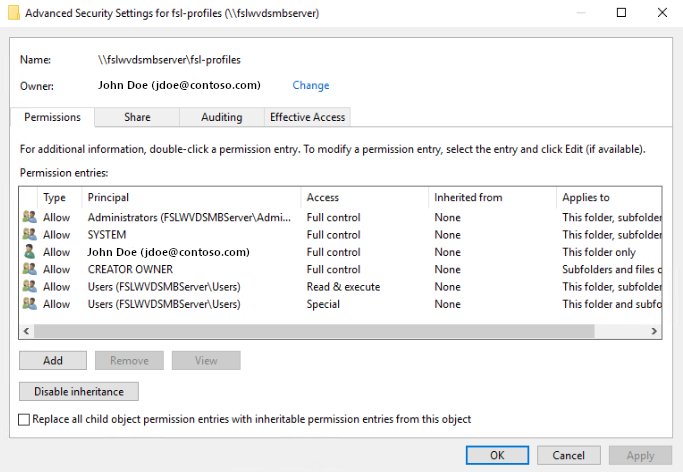
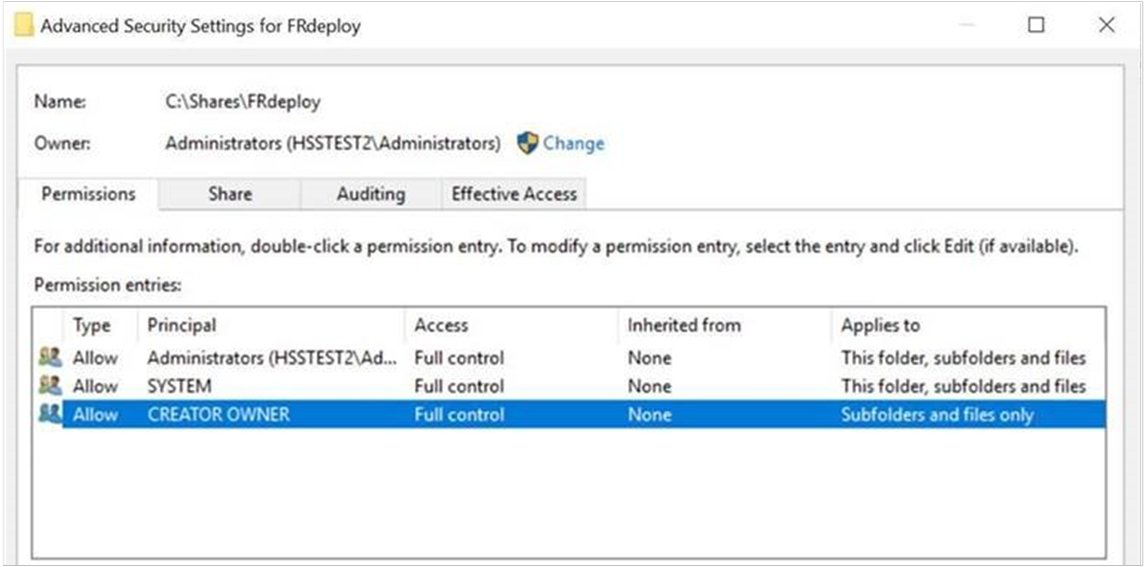
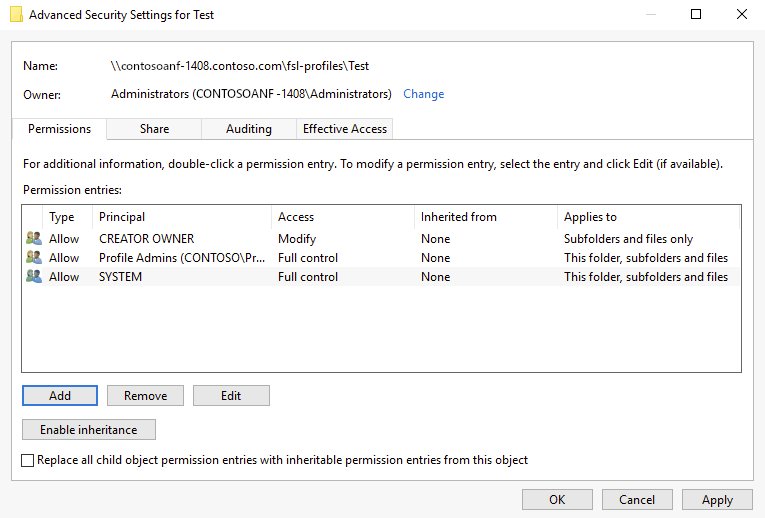
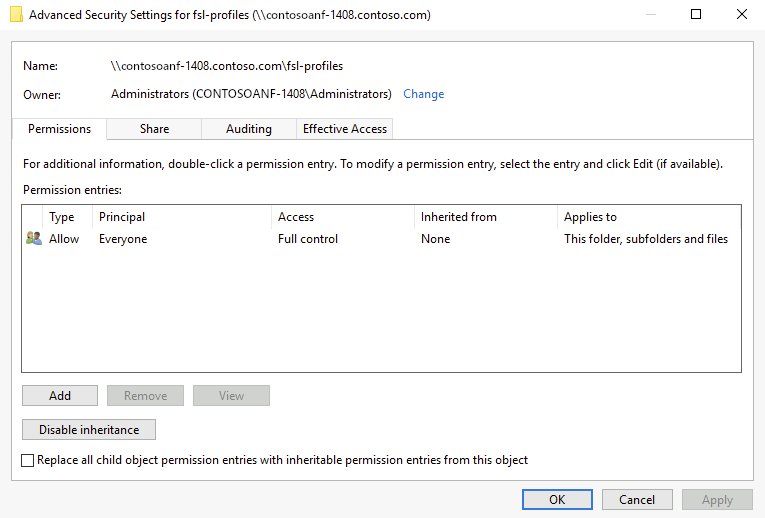
- Select Advanced to open Advanced Security Settings. The Owner line at the top names the current owner, and the Permissions tab lists every entry with its Inherited from source.
- Open the Effective Access tab and choose Select a user.
- Type the user or group name, select OK, then select View effective access.
- Read the ticked rows: each tick is a right that person has on this item.
Effective Access is read-only and leaves out share permissions. A person reaching the folder over the network can still be blocked by the share even when this tab shows access.
How to view folder permissions with icacls and PowerShell Get-Acl
Run either command in Command Prompt, PowerShell or Terminal. Viewing permissions does not need an elevated PowerShell window unless your account cannot read the item.
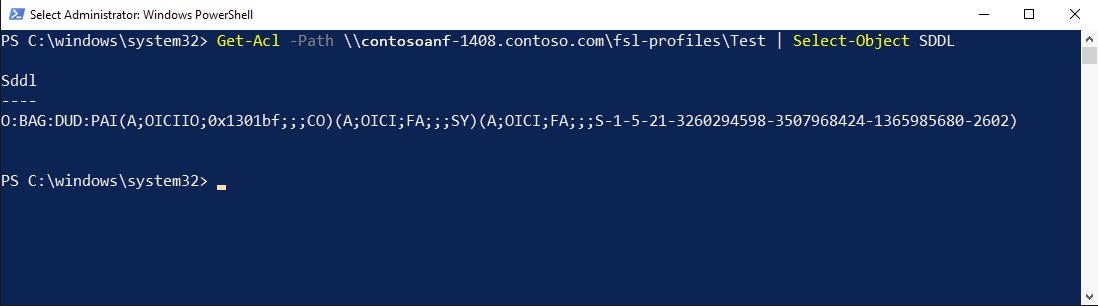
icacls "D:\Projects"Lists every entry on the folder, one per line, such as BUILTIN\Administrators:(OI)(CI)(F). The letters are the rights: F full, M modify, RX read and execute, R read, W write. (I) marks an inherited entry, (OI) means files inside inherit it and (CI) means subfolders inherit it. In PowerShell, Get-Acl "D:\Projects" | Format-List shows the owner and the same access list in plain words.
You should see: One line per user or group with its rights in brackets, such as BUILTIN\Administrators:(F), followed by a count of processed files.
Changing permissions in Windows 10
Windows 10 uses the same Security tab, Advanced Security Settings dialog and commands as Windows 11, so every step in this guide applies to both.
| Task | Windows 11 | Windows 10 |
|---|---|---|
| Change NTFS permissions | Right-click > Properties > Security > Edit | Right-click > Properties > Security > Edit |
| Check owner, inheritance and effective access | Security > Advanced | Security > Advanced |
| Share permissions | Properties > Sharing > Advanced Sharing > Permissions | Properties > Sharing > Advanced Sharing > Permissions |
| Command line | icacls and takeown |
icacls and takeown |
In Windows 11 the quick Give access to sharing menu sits under Show more options on the right-click menu.
If the Security tab is missing on either version, the drive is not formatted as NTFS; FAT32 and exFAT drives have no file permissions.
Change files and folders permissions which you don't own
If Edit is greyed out or Windows says you need permission, your account is neither the owner nor allowed to change permissions. Take ownership first; the owner can always change the permissions afterwards. You must be signed in as an administrator.
- Right-click the file or folder and select Properties > Security > Advanced.
- At the Owner line, change the owner to your own account name and confirm with OK.
- For a folder, tick Replace owner on subcontainers and objects so every file and subfolder inside changes owner too.
- Select Apply, approve the User Account Control prompt, and close all the Properties windows.
- Open Properties > Security > Edit again.
- Add your account if it is not listed, tick Allow for Full control, then select Apply and OK.
Never take ownership of Windows system folders such as WinSxS or Program Files. They belong to TrustedInstaller, and changing them can break updates.
Take ownership of a folder with takeown in Command Prompt
Open Command Prompt as administrator first. This is faster than the dialog for a folder with thousands of files.
takeown /f "D:\OldBackup" /r /d Y/f names the file or folder, /r repeats the change on every file and subfolder, and /d Y answers yes when you lack list rights on a subfolder (Windows then gives you full control of that subfolder). Add /a to make the Administrators group the owner instead of your account. Then run icacls "D:\OldBackup" /grant YourName:F /t to give your account full access to everything inside.
You should see: Properties > Security > Advanced now shows your account as the Owner, and icacls lists your account with (F) on the folder.
icacls grant full control to a folder in Windows 11
icacls changes the same permissions you see on the Security tab. Run it in an administrator Command Prompt, and wrap any path with spaces in quotes.
icacls "D:\Projects" /grant Alex:F /tGives the user Alex full access to the folder and, with /t, to every file and subfolder in it. Swap F for M (modify), RX (read and execute), R (read only) or W (write only). /grant adds to the user's existing explicit rights; /grant:r replaces them. /deny Alex:W blocks writing, /remove Alex deletes every entry for that user, and /c keeps going past files that return errors.
You should see: No failed files in the summary line. Running icacls "D:\Projects" now lists an entry for Alex with (F).
Manage permission when sharing a file or folder with other users
Share permissions only apply to people who open the folder over the network. Windows applies whichever of the share and NTFS permissions is more restrictive, so set both.
- Right-click the folder and select Properties.
- Open the Sharing tab and select Advanced Sharing.
- Tick Share this folder if the folder is not shared yet.
- Select Permissions, then select a user or group, or select Add to add one.
- Tick Allow for Full Control, Change or Read, and select OK twice.
- Open the Security tab and set the matching NTFS permission for the same person.
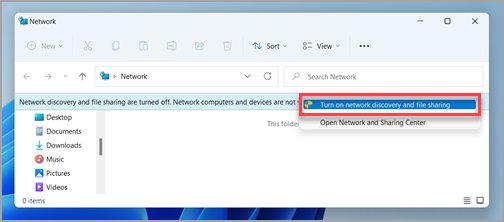
For a quick share in Windows 11, right-click the folder, select Show more options > Give access to > Specific people and pick the user. Network discovery and file sharing must be on before others can share files over a network with you.
How to disable inheritance on a folder in Windows 11
Files and subfolders copy the permissions of the folder they sit in. Greyed-out ticks on the Security tab mean the entry is inherited, so break the inheritance to edit it on this item alone.
- Right-click the subfolder or file and select Properties > Security > Advanced.
- Select Disable inheritance.
- Choose Convert inherited permissions into explicit permissions on this object to keep the current entries as editable ones.
- Select Apply, then OK.
- Back on the Security tab, select Edit; the ticks and the Remove button now work.
The command-line equivalent is icacls "D:\Projects\Private" /inheritancelevel:d, which disables inheritance and copies the entries. Use /inheritancelevel:e to turn inheritance back on.
How to reset file and folder permissions to default in Windows 11
If a change locked people out, reset the item to the permissions it inherits from its parent folder. Back up the current entries first so you can undo a bulk change.
- Open Command Prompt as administrator.
- Save the current permissions:
icacls "D:\Projects\*" /save D:\acl-backup.txt /t. - Reset the folder and everything in it:
icacls "D:\Projects" /reset /t /c /q. - Open Properties > Security and check that the entries now match the parent folder.
- To roll back to the saved state, run
icacls "D:\Projects\" /restore D:\acl-backup.txt.
/reset replaces explicit entries with the default inherited ones, so any custom user you added disappears from that folder.
Common scenarios for permission changes
| Scenario | Permission to set | Where |
|---|---|---|
| Let another account on the PC edit your project folder | Modify for that user | Security > Edit > Add |
| Let a family member view photos but not delete them | Read & execute only | Security > Edit |
| Stop one person opening a private folder | Remove their entry, or Deny Read | Security > Edit |
| Recover files from an old user profile or another PC's drive | Take ownership, then Full control for yourself | Advanced > Owner, or takeown and icacls |
| Share a folder with everyone on the home network | Share Read or Change plus matching NTFS rights | Sharing > Advanced Sharing > Permissions |
| Give one subfolder different rights from its parent | Disable inheritance, then edit | Security > Advanced > Disable inheritance |
| Apply the same change to thousands of files | icacls ... /grant ... /t |
Administrator Command Prompt |
Troubleshooting permission issues
"You need permission to perform this action" or Access is denied
Your account has no entry that allows the action, or a Deny entry blocks it.
- Check Security > Advanced > Effective Access for your account.
- If you own the item, add Modify or Full control for your account on the Security tab.
- If you do not own it, take ownership with the dialog or
takeown, then grant yourself access withicacls. - Remove any Deny entry that applies to you or a group you belong to.
Permission check boxes are greyed out or Remove is unavailable
The entry is inherited from the parent folder.
- Change the permission on the parent folder if every item inside should follow it.
- Or select Advanced > Disable inheritance on this item and convert the inherited entries to explicit ones.
- Edit the entry again on the Security tab.
The Security tab is missing from Properties
The drive is formatted as FAT32 or exFAT, which has no NTFS permissions.
- Right-click the drive in File Explorer and select Properties to see its File system.
- Copy the files off the drive if you need permissions on it.
- Format the drive as NTFS, which erases it, and copy the files back.
A network user is denied even though the Security tab allows them
The share permission is more restrictive than the NTFS permission.
- Open Properties > Sharing > Advanced Sharing > Permissions on the host PC.
- Add the user or Everyone and tick Allow for the level they need.
- Select OK twice and ask the user to reconnect.
Windows Update fails after changing permissions on Windows folders
The ownership or permissions on WinSxS were changed from their defaults.
- Open Command Prompt as administrator.
- Run
icacls "%windir%\WinSxS" /reset /t /c /q. - Run
icacls "%windir%\WinSxS" /setowner "NT SERVICE\TrustedInstaller" /t /c /q. - Restart the PC and try the update again.
When access denied errors cover a whole drive or appear after a Windows reinstall, use the wider steps to restore access to the affected files.
Best practices for managing permissions
| Practice | Why it matters |
|---|---|
| Grant permissions to groups instead of single users | One group change updates everyone in it, and Windows checks access faster |
| Give the lowest level that does the job | Modify lets someone edit and delete; Full control also lets them change permissions and take ownership |
| Remove entries instead of adding Deny | A Deny entry overrides every Allow and is easy to forget about later |
| Leave SYSTEM and Administrators in place | Windows services, backups and indexing rely on them |
| Keep away from Windows, Program Files and WinSxS | TrustedInstaller owns them; changing them can stop updates installing |
| Save permissions before a bulk change | icacls ... /save lets you restore the exact previous state |
Windows 11 file and folder permissions FAQ
How do I give myself full permission to a folder in Windows 11?
Open the folder's Properties > Security > Edit, select your account or add it, tick Allow for Full control, and select OK. If Edit is unavailable, take ownership of the folder first from Advanced, then repeat the steps.
Why can't I change permissions on a folder in Windows 11?
You can only change permissions on items you own or were given permission to change, and only on NTFS drives. Greyed-out ticks mean the entries are inherited from the parent folder, so change the parent or disable inheritance on that folder.
How do I take ownership of a folder in Windows 11?
Sign in as an administrator, open Properties > Security > Advanced, change the Owner to your account and tick Replace owner on subcontainers and objects. From Command Prompt, takeown /f "D:\Folder" /r /d Y does the same.
What is the difference between share and NTFS permissions?
NTFS permissions on the Security tab apply to everyone, on the PC and over the network. Share permissions on the Sharing tab apply only to network access. When both apply, Windows uses whichever is more restrictive.
Does Deny override Allow in Windows file permissions?
Yes. A Deny entry takes precedence over an Allow entry for the same right, and explicit entries are processed before inherited ones. Removing a user's Allow entry is usually safer than adding a Deny, because a Deny set on a group blocks every member of that group.
Do files inside a folder get the folder's permissions?
Yes, by default. New files and subfolders inherit the folder's inheritable permissions, and their inherited ticks appear greyed out. Disable inheritance under Advanced if one subfolder needs different rights from its parent.
Can I set permissions on a USB drive in Windows 11?
Only if the drive is formatted as NTFS. FAT32 and exFAT drives have no Security tab, so anyone who connects the drive can open its files. Formatting it as NTFS adds permissions but erases the drive.
How do I see who has access to a file in Windows 11?
Open the file's Properties > Security tab to see every user and group with an entry. For one person's real access, select Advanced > Effective Access, choose the user and select View effective access.