Open the Photos app, tap Collections, then tap the profile button in the upper corner to see your iCloud Photos sync status below your name and photo count.
The sections below cover the same status on iPad, Mac, a Windows PC and iCloud.com, what each status message and File Explorer icon means, and how to pause or prioritize uploads.

How to check iCloud Photos sync status on iPhone
The library status line lives inside the Photos app, not in Settings. The steps are the same on iPad.
- Open the Photos app.
- In iOS 26 or later, tap Collections, then tap the profile button in the upper corner.
- In iOS 18, tap the profile button at the top of the Photos screen.
- Read the library status below your name and photo count.
- If the status says syncing is paused and offers Sync Now, tap it to resume.
- In iOS 17 or earlier, tap the Library tab, tap All Photos and scroll to the bottom to see the status instead.
A large library on slow Wi-Fi can take a day or more to finish. Apple suggests leaving the iPhone on power and Wi-Fi overnight so syncing runs uninterrupted.
How to check iCloud Photos sync status on Mac
On a Mac, the status sits at the very end of the library grid, under the newest photos.
- Open the Photos app.
- Select Library in the Photos sidebar.
- Click All Photos in the toolbar at the top of the window.
- Scroll to the bottom of the library to read the status message.
- Follow any onscreen directions the message gives, such as freeing iCloud storage.
You can keep using Photos while the first upload runs. Apple notes that turning on iCloud Photos for the first time can take a while to upload a big library.
How to see iCloud Photos upload status on a Windows PC
iCloud for Windows shows upload and download progress from its icon in the notification area at the right end of the taskbar.
- Click the iCloud icon in the Windows notification area.
- If the icon is not there, click Show hidden icons in the notification area, then click iCloud.
- Read the progress of current uploads and downloads in the panel that opens.
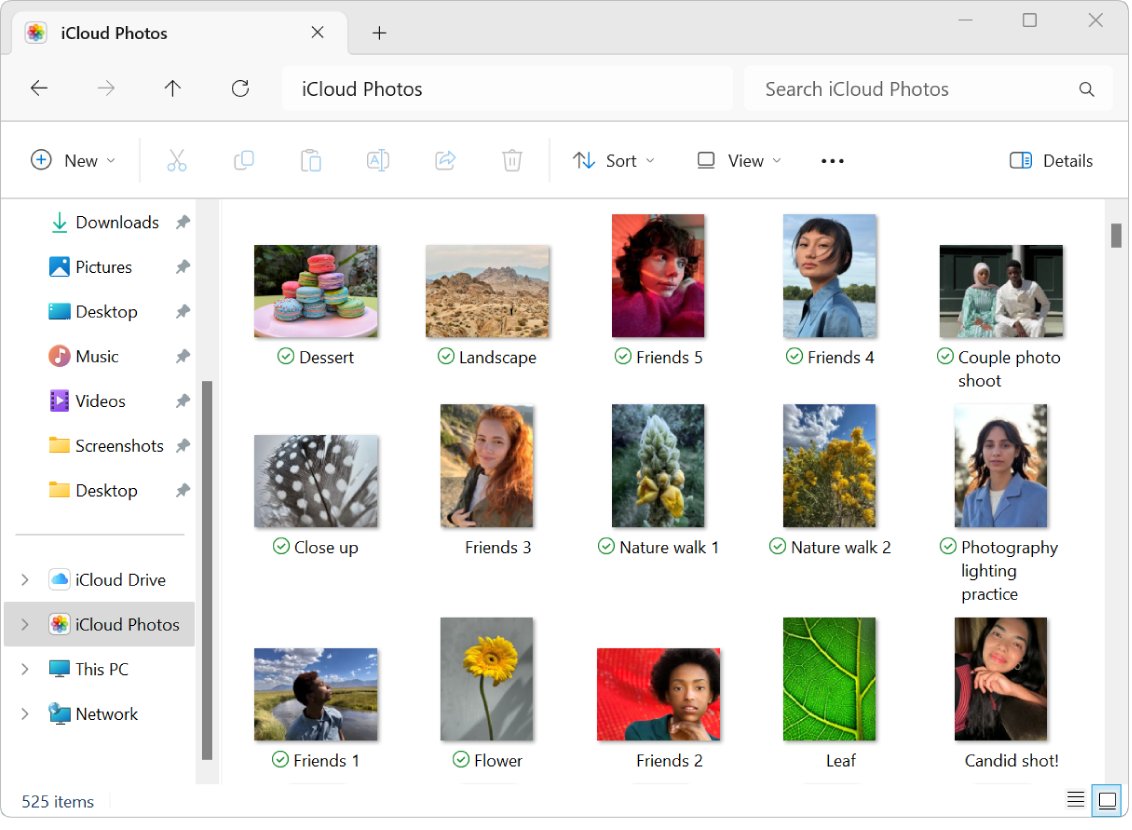
- Open File Explorer and click iCloud Photos in the navigation pane to check individual items.
- If iCloud Photos is missing from the navigation pane, click Pictures, then double-click iCloud Photos.
iCloud Drive files on the same PC have their own states, and a stuck iCloud Drive sync pending status needs different fixes from Photos.
What do iCloud status icons mean in File Explorer?
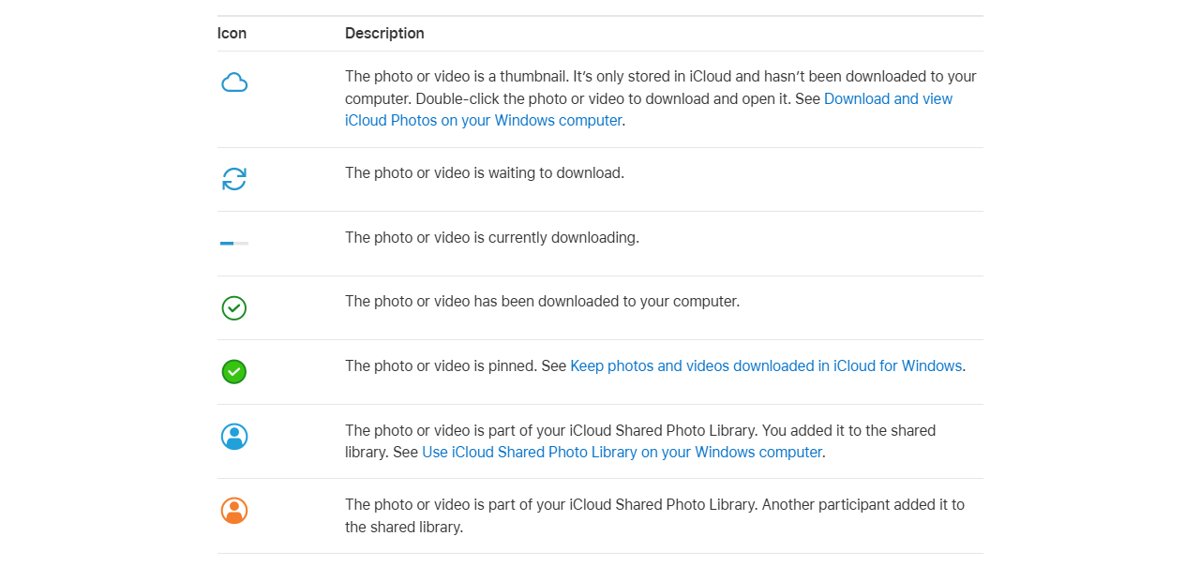
In the iCloud Photos folder, an icon next to each file name shows whether it is downloaded and whether it belongs to an iCloud Shared Photo Library.
| Icon | What it means | What to do |
|---|---|---|
| Cloud | The item is a thumbnail stored only in iCloud, not downloaded to the PC | Double-click it to download and open the full photo or video |
| Blue circular arrows | The item is waiting to download | Keep the PC online and iCloud for Windows running |
| Progress bar | The item is downloading now | Wait for the bar to finish |
| Green checkmark in a white circle | The item is downloaded to the PC | Open it offline; nothing else is needed |
| White checkmark in a green circle | The item is pinned with Always keep on this device | Right-click it and choose Always keep on this device again to unpin |
| Blue shared icon | The item is in your iCloud Shared Photo Library and you added it | No action needed |
| Orange shared icon | The item is in your iCloud Shared Photo Library and another participant added it | No action needed |
Pinning is not available in iCloud for Windows version 7. A pinned photo deleted on another device with iCloud Photos turned on is still deleted from the PC, so copy anything you want to archive to a different folder.
iCloud Photos sync status messages and what they mean
When syncing stops, the library status names the reason. Apple advises against turning iCloud Photos off to force it, because that restarts the whole sync.
| Status message | What it means | How syncing resumes |
|---|---|---|
| Low Data Mode or Low Power Mode | Syncing paused to cut network data use or save battery | Turn the mode off in Settings |
| Optimizing Battery Power, Optimizing System Performance or Poor Network Connection | Syncing paused to protect power, performance or a weak connection | Tap Sync Now, or wait a few minutes |
| Low Battery | The battery is below 20 percent | Charge the device |
| [Device] Needs to Cool Down | Syncing paused to stop the device overheating | Tap Sync Now if shown, or let it cool |
| iCloud storage is full | Your iCloud plan has no space left for new uploads | Free iCloud storage or upgrade the plan |
| Move Photos to Personal Library to Continue Syncing | The Shared Library owner has hit their storage limit | Move the items back to your Personal Library |
When a pause message stays for more than a day, work through the fixes for photos not syncing with iCloud, including the Unable to Upload album.
How to pause iCloud Photos sync on iPhone and Mac
Pausing stops library uploads for one day, which helps on a metered connection. Depending on the current status, Pause might not be offered.
- On iPhone or iPad with iOS 26 or later, open Photos, tap Collections, tap the profile button and tap Pause.
- On iOS 18, open Photos, tap the profile button and tap Pause.
- On iOS 17 or earlier, open Photos, tap Library, select All Photos, scroll down and tap Pause.
- On a Mac, open Photos, select Library in the sidebar and click All Photos.
- Scroll to the bottom of the Mac library and click Pause.
To push uploads ahead instead, iOS, iPadOS and visionOS 27 or later offer Sync Immediately: open Settings, tap your name, tap iCloud, tap Photos under Saved to iCloud, tap Sync Immediately and choose For Today. It can raise cellular data use if Photos is allowed to use cellular data.
How to know if iCloud Photos is on
No status appears until iCloud Photos is switched on. Every device must be signed in with the same Apple Account for photos to match.
| Device | Where to look | What on looks like |
|---|---|---|
| iPhone or iPad | Settings > your name > iCloud > Photos | Sync this iPhone or Sync this iPad is turned on |
| Mac, macOS Sequoia or later | Apple menu > System Settings > your name > iCloud > Photos under Saved to iCloud | Sync this Mac is turned on |
| Mac, macOS Sonoma or earlier | Apple menu > System Settings > your name > iCloud > Photos under Apps Using iCloud | Sync this Mac is turned on |
| Mac, Photos app | Photos > Settings > iCloud | The iCloud Photos checkbox is selected |
| Apple TV 4K or Apple TV HD | Settings > Users and Accounts > iCloud | iCloud Photos is turned on |
| Windows PC | iCloud for Windows, then the arrow to the right of iCloud Photos | iCloud Photos is turned on |
iCloud Photos keeps devices in step, but deletions sync too and the library is not part of iCloud Backup. Keep a separate backup of your photos and videos as well.
How to see what's in my iCloud Photos on iCloud.com
The web library shows what has actually reached iCloud, which makes it the clearest proof that an upload finished.
- On any computer, phone or tablet, go to
icloud.com/photosand sign in to your Apple Account if asked. - Select Library in the sidebar to see thumbnails of every photo and video in iCloud.
- Look for the newest photos from the device you are checking.
- Select an album or folder in the sidebar to check a specific set.
- If you use an iCloud Shared Photo Library, switch between your personal library, the shared library or both.
If photos show on iCloud.com but not on another device, the problem is on that device, not the upload. If the Photos tile itself is gone, restore the missing Photos option on iCloud.com first.
How to check iCloud storage used by Photos
When iCloud storage runs out, new photos and videos stop uploading to iCloud Photos. The free plan is 5 GB.
- On iPhone or iPad, open Settings, tap your name, then tap iCloud.
- Tap Storage or Manage Account Storage to see how much space Photos and other apps use.
- On a Mac, choose Apple menu > System Settings, click your name, click iCloud, then click Manage.
- On the web, go to
icloud.com/storageand sign in. - Read the list below the storage bar, where the apps using the most space are at the top.
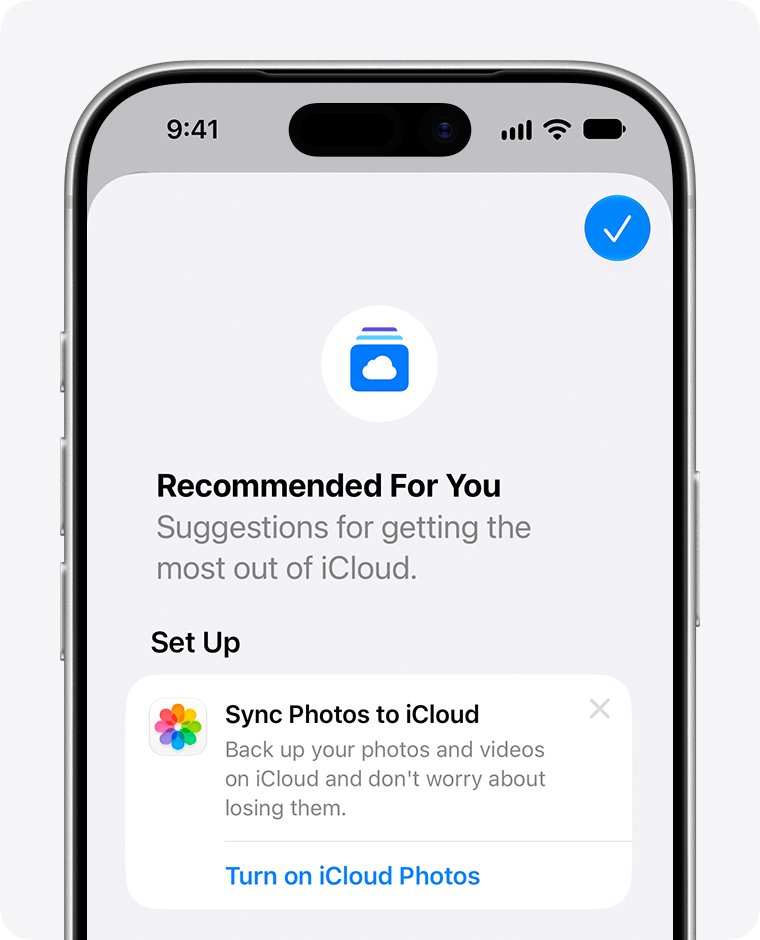
On iOS 17 or iPadOS 17 or later, Recommended for You in iCloud settings suggests large items, photos and old backups you can delete to make room.
How to check iCloud status for an outage
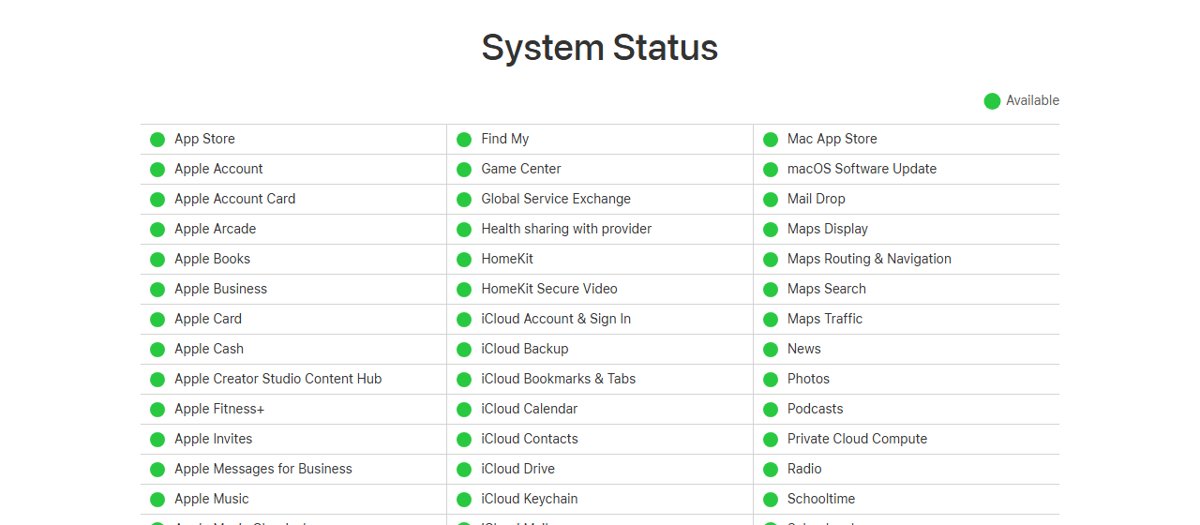
If the status never changes on any device, iCloud itself may be having trouble rather than your library.
- Update the device to the latest version of iOS, iPadOS or macOS.
- Check whether other iCloud services you use, such as Mail, Contacts or Messages, are working.
- If they also fail, test your Wi-Fi connection with another site or app.
- Open Apple's System Status page at
apple.com/support/systemstatusand look for reported outages. - Once services are back, reopen the library status and give syncing time to resume.
iCloud Photos sync status FAQ
How do I check iCloud status?
For iCloud Photos, open the Photos app, tap Collections and tap the profile button to read the library status. For an outage, check whether Mail, Contacts or Messages work, then look at Apple's System Status page.
How do I know if iCloud is on for Photos?
On iPhone, open Settings, tap your name, tap iCloud, then tap Photos. iCloud Photos is on when Sync this iPhone is turned on. On a Mac, the matching switch is Sync this Mac in System Settings.
How do I see what's in my iCloud?
Go to icloud.com and sign in with your Apple Account. Photos shows every photo and video in iCloud Photos, and icloud.com/storage lists how much space each app and feature uses.
What do iCloud status icons mean?
In File Explorer on a PC, a cloud means the photo is only in iCloud, circular arrows mean it is waiting, a progress bar means it is downloading, and a green check means it is on the PC. Shared icons mark Shared Library items.
How do I view my iCloud photos on a computer?
Open a web browser, go to icloud.com/photos and sign in to your Apple Account. Select Library in the sidebar to see all your photos and videos, or select an album to view its contents.
How do I find my iCloud information on iPhone?
Open Settings and tap your name at the top, then tap iCloud. The iCloud screen lists the apps saving to iCloud, including Photos under Saved to iCloud, and Storage shows how much space each one uses.
How long does iCloud Photos take to sync?
It depends on the size of your library and your internet speed. A large library or large video files can take overnight or longer, so leave the device on power and Wi-Fi while it syncs.
Should I turn iCloud Photos off if the sync looks stuck?
No. Apple warns that turning off iCloud or iCloud Photos restarts the syncing process. Read the library status message, fix what it names, and leave the device on power and Wi-Fi.