To fix Apple Watch health data not syncing with the iPhone Health app, reconnect the watch and iPhone, turn on Fitness Tracking for the watch in Health, then restart both devices.
This guide covers the connection checks, the Health and heart rate settings, data source priority, iCloud Health sync, software updates, re-pairing and moving Health data to a new iPhone.
How to fix Apple Watch health data not syncing with iPhone
Work through these steps in order and look at the Health app after each one. Most gaps close as soon as the two devices reconnect.
- Keep your Apple Watch and paired iPhone close together.
- Make sure Bluetooth and Wi-Fi are on and Airplane Mode is off on both devices.
- Unlock your iPhone and open the Health app.
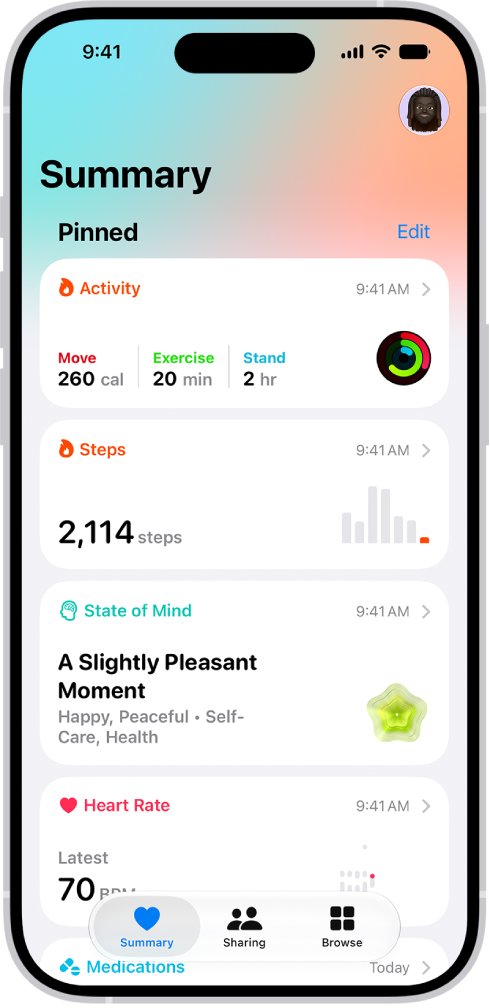
- Tap your profile picture, tap Devices, tap your Apple Watch, tap Privacy Settings and turn on Fitness Tracking.
- Restart your Apple Watch, then restart your iPhone.
- Open Health, tap Browse and look for new entries in a category such as Heart or Activity.
If the watch still shows a red iPhone icon or a red X in its Control Center, the devices are not connected yet. The reconnect steps below go further.
Why is my Apple Watch not syncing with the Health app?
After pairing, Apple Watch sends periodic heart rate and blood oxygen readings to Health automatically. Activity, workouts and app data depend on settings that can be switched off, so match what you see to a row.
| What you see | Likely cause | Fix |
|---|---|---|
| Red iPhone icon or red X in the watch's Control Center | The watch and iPhone are disconnected | Turn on Bluetooth and Wi-Fi, turn off Airplane Mode, restart both devices |
| Steps, Activity or exercise minutes missing from Health | Fitness Tracking is off for that watch | Turn it on under Devices > your watch > Privacy Settings in Health |
| Heart rate gaps in Health | Heart rate data is off, or the sensor lost skin contact | Turn on Heart Rate in the watch's Health privacy settings and check the fit |
| Watch data is there, but Health shows other numbers | Another source sits above the watch in the priority list | Move the watch up in Data Sources & Access |
| A third-party app's data never arrives | The app has no permission to write to Health | Turn on its categories under Privacy > Apps in Health |
| Health history missing on a new iPhone or iPad | iCloud Health sync is off, or the devices use different Apple Accounts | Use one Apple Account and turn on Health in iCloud settings |
Apple Watch not syncing with phone? Reconnect it to your iPhone
Health data travels from the watch to its paired iPhone, so a broken connection stops it at the source. After each step, check whether the devices connect.
- Bring your Apple Watch and paired iPhone close together so they are in range.
- On your iPhone, swipe down from the top-right corner to open Control Center.
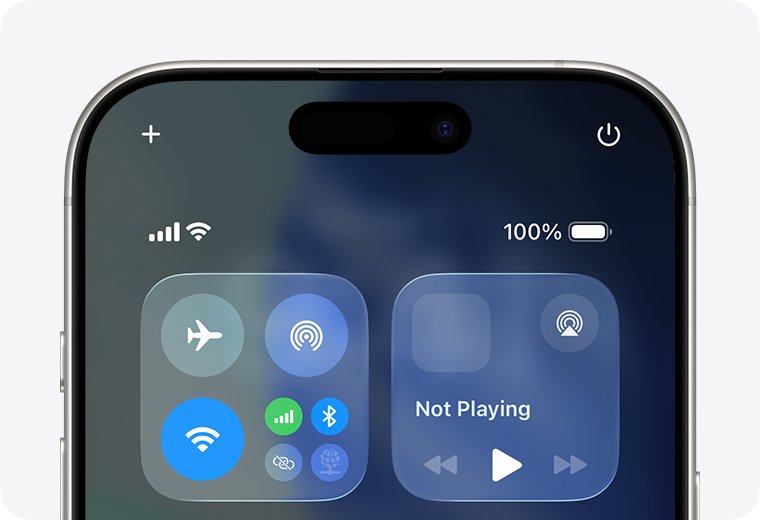
- Make sure Airplane Mode is off and that Wi-Fi and Bluetooth are on.
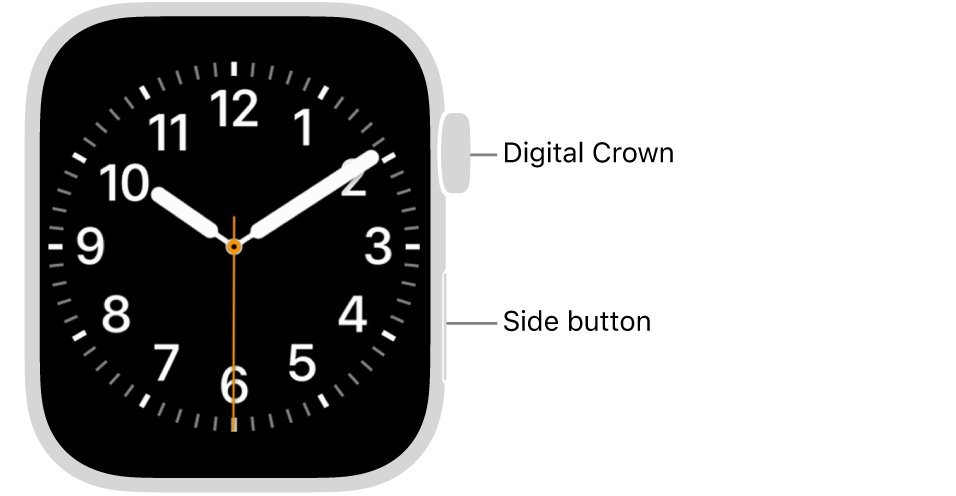
- On your Apple Watch, press the side button to open Control Center and make sure Airplane Mode is off.
- Look for the green iPhone icon in the watch's Control Center, which appears when the watch connects again.
- If the red iPhone icon or red X stays, restart your Apple Watch and your iPhone.
- If the watch still cannot connect, unpair it from your iPhone and pair the two again.
Turn on Fitness Tracking for Apple Watch in the Health app
When Health does not track steps or other activity from the watch, Fitness Tracking for that watch is the setting to check first.
- Open the Health app on your iPhone.
- Tap the Profile button, your picture or initials in the upper corner.
- Tap Devices.
- Tap your Apple Watch.
- Tap Privacy Settings.
- Turn on Fitness Tracking.
Fitness Tracking covers activity data such as steps and exercise minutes. Heart rate has a separate switch, covered in the next section.
Turn on Apple Watch heart rate data for the Health app
Apple Watch monitors your heart rate by default for the Heart Rate app, workouts, and Breathe and Reflect sessions. If heart rate data was turned off, those readings stop reaching Health.
- Open the Settings app on your Apple Watch.
- Tap Privacy & Security, then tap Health.
- Tap Heart Rate and turn on Heart Rate.
- From the iPhone instead, open the Apple Watch app, tap My Watch, tap Privacy and turn on Heart Rate.
- Wear the watch so its back touches your skin, snug but not too tight.
- Keep your wrist and the watch clean and dry, because water and sweat can spoil a reading.
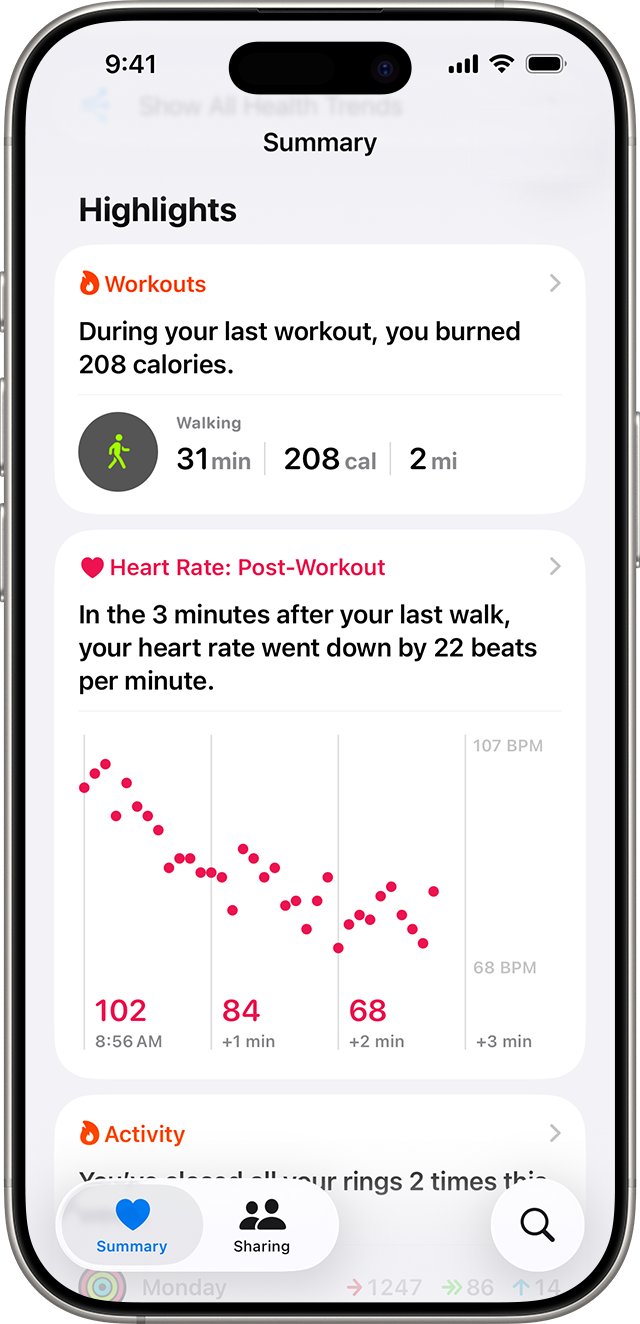
To see your heart rate history on the iPhone, open Health, tap Browse, tap Heart and tap an entry.
Health app not syncing with Apple Watch apps: turn on Health access
Watch apps and iPhone apps only write to Health with your permission. An app you denied during setup stays silent until you turn its categories on.
- Open the Health app on your iPhone.
- Tap Summary, then tap your picture or initials.
- Below Privacy, tap Apps or Devices.
- Tap the app or device whose data is missing.
- Turn on permission for the categories it should write to Health.
- On Apple Watch, open Settings, tap Health, then tap Apps to manage watch apps the same way.
Some apps also need their own setting changed before they share data with Health. If the app is not on the watch at all, install the watch version of the app first.
Change Apple Health data source priority for Apple Watch
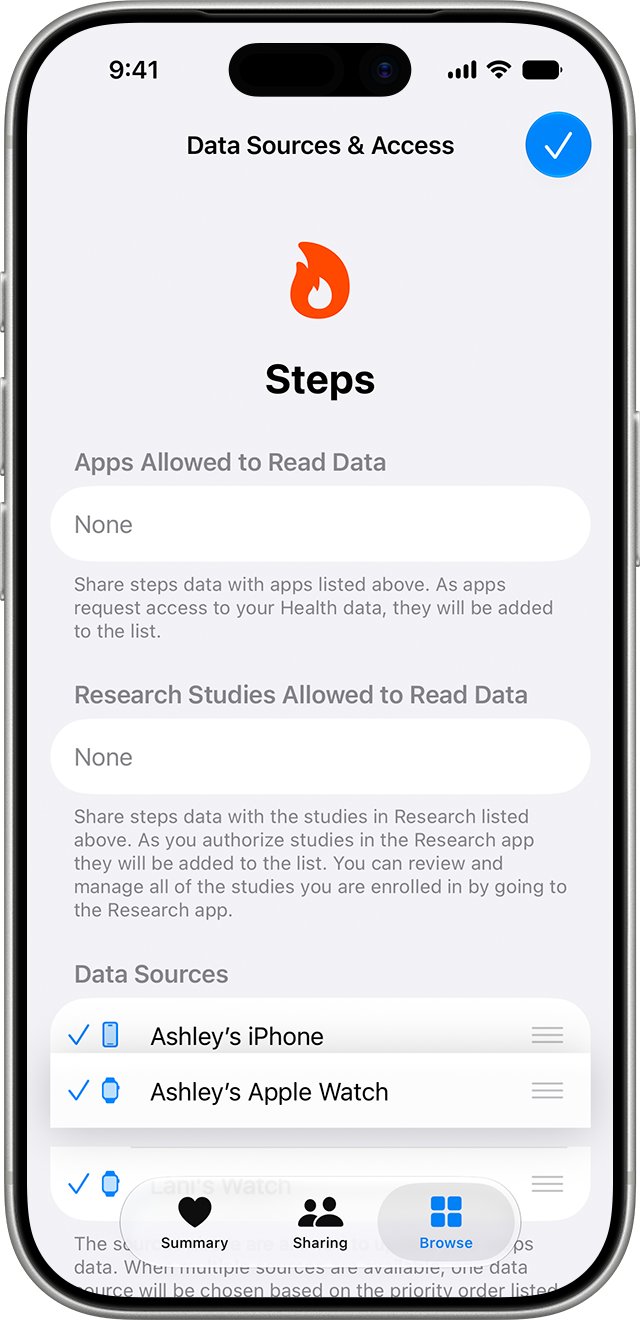
Health keeps data from every source and ranks them. By default, manual entries come first, then iPhone, iPad and Apple Watch, then apps and Bluetooth devices.
- Open Health on your iPhone and tap Browse.
- Tap a category, then a subcategory such as Steps.
- Scroll down and tap Data Sources & Access.
- Tap Edit.
- Touch and hold the Change Order button next to your Apple Watch and drag it to the top.
- Tap Done.
When several sources record the same data type, Health uses the one at the top. A newly added app or device lands at the top automatically, above your iPhone, so a new tracker can push the watch down the list.
Sync Apple Health data with iCloud on iPhone
Health stores your data in iCloud when you sign in with your Apple Account. For it to sync across devices, each one must use the same Apple Account, be online and run the latest OS version.
- Open the Settings app on your iPhone.
- Tap your name, then tap iCloud.
- Next to Saved to iCloud, tap See All (some iOS versions label it Show All).
- Tap Health.
- Turn on Sync this iPhone.
- Repeat on your other iPhone or iPad, signed in to the same Apple Account.
Health data stays encrypted in iCloud and on the way there. End-to-end encryption needs two-factor authentication on your Apple Account. With iCloud sync on, deleting Health data on one device removes it from every synced device.
Update watchOS and iOS when Apple Watch is not syncing
Health sync expects current software on every device. Update the iPhone first, then the watch.
- On your iPhone, open Settings, tap General, then tap Software Update and install any update.
- Open the Apple Watch app on your iPhone.
- Tap My Watch, then go to General > Software Update.
- Tap Download and Install if an update is available.
- To update from the watch instead, open Settings, tap General, then tap Software Update.
Restart or force restart Apple Watch to resume syncing
A restart of both devices clears a stalled connection without touching your data. Force restart the watch only when a normal restart does not work, and force restart the iPhone if it freezes and will not shut down.
- Take the watch off its charger, because Apple Watch cannot restart while charging.
- Press and hold the side button until the sliders appear, tap the power button and drag the Power Off slider to the right.
- Hold the side button until the Apple logo appears.
- On an iPhone with Face ID, press and hold the side button and a volume button, then drag the slider, or go to Settings > General > Shut Down.
- Hold the iPhone's side or top button until the Apple logo appears.
- If the watch will not turn off, hold the side button and the Digital Crown together for at least 10 seconds, until the Apple logo appears.
Unpair and re-pair Apple Watch to fix syncing
Re-pairing rebuilds the link when nothing else reconnects the devices. Unpairing erases the watch and removes Activation Lock, but it backs the watch up to the iPhone first.
- Keep the watch and iPhone close together.
- Open the Apple Watch app on your iPhone.
- Tap My Watch, then tap All Watches.
- Tap the info button next to your watch, then tap Unpair Apple Watch.
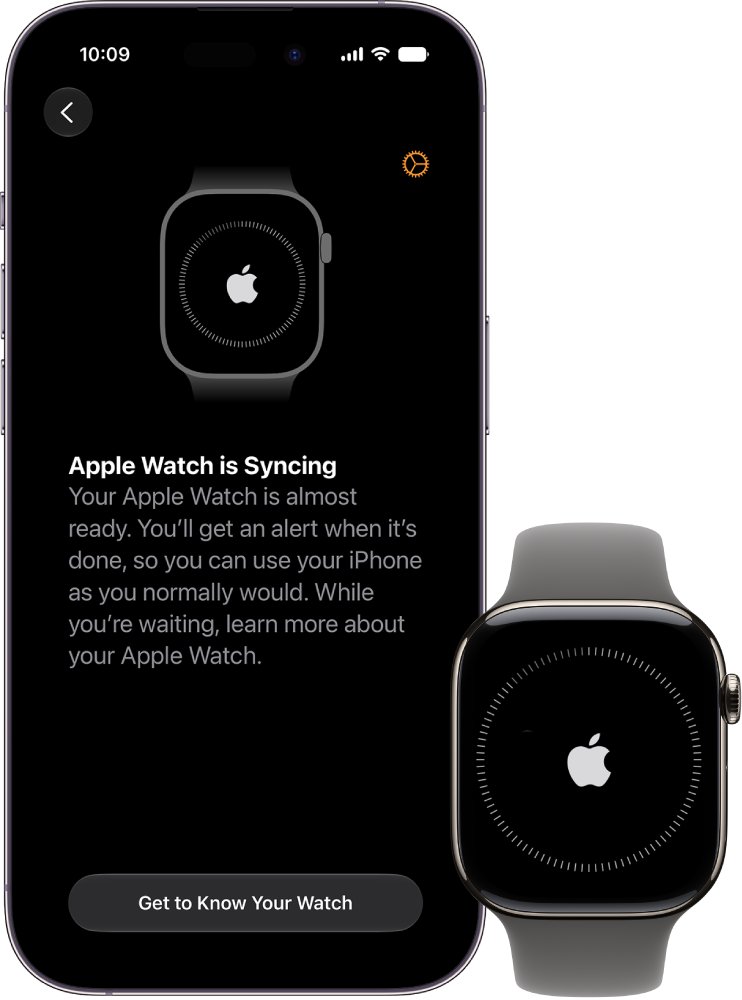
- When the watch restarts, hold your iPhone near it and tap Continue on the pairing screen, or tap Start Pairing in the Apple Watch app.
- Follow the setup screens and choose to restore from a backup when asked.
The watch backup includes Health and Fitness data, but an iPhone backup only keeps that data in iCloud or in an encrypted computer backup. Before you re-pair, turn on iCloud Health sync or make an encrypted backup on a Windows PC.
Health data not syncing to new iPhone
A new iPhone gets your Health history from iCloud or from a backup of the old iPhone. The watch alone does not refill it.
- Sign in to the new iPhone with the same Apple Account as the old one.
- Connect it to the internet and update it to the latest iOS.
- Open Settings, tap your name, tap iCloud, tap See All, tap Health and turn on Sync this iPhone.
- If you restore from a backup instead, use an iCloud backup or an encrypted computer backup, because only those include Health and Fitness data.
- Then pair the watch with the new iPhone and restore the watch from its backup when asked.
An iPhone backup includes your Apple Watch data, so restoring the new iPhone from that backup also brings back the latest watch data.
How to see Apple Watch data in the iPhone Health app
- Open Health on your iPhone and tap Browse.
- Tap Heart, then tap an entry such as heart rate to view the last hour, day, week, month or year.
- Scroll down and tap Data Sources & Access to see that your Apple Watch is listed as a source.
- Go back, scroll to Options and tap Show All Data to see individual records with their times.
- Open the Fitness app, tap Summary and compare today's Activity rings with the rings on the watch.
Apple Watch health data still not syncing with iPhone
"iCloud Data Not Syncing" message on iPhone
Your Apple Account needs attention before iCloud, including Health sync, can continue.
- Open Settings on the device that shows the message.
- Tap any badge you see at the top of Settings.
- Follow the onscreen instructions and sign in to your Apple Account if prompted.
- Contact Apple Support if the message still appears after you authenticate.
Apple Health not syncing between iPhone and iPad
The devices use different Apple Accounts, one is offline, or one runs older software.
- Sign in to the same Apple Account on both devices.
- Connect both to the internet.
- Update each device to the latest OS version.
- Turn on Health under Settings > your name > iCloud on each device.
Third-party workouts not showing in Activity rings
The workout app is not linked to Fitness or has no permission to share data with Health.
- Open the Fitness app on your iPhone.
- Tap the Activity rings, then scroll to Add To Your Rings.
- Choose the app and download it, or open it if you already have it.
- Grant permission to share data with the Health app when prompted.
Apple Watch distance and calorie data looks wrong after syncing
The watch has not been calibrated, or the iPhone settings it relies on are off.
- On your iPhone, open Settings > Privacy & Security > Location Services and make sure it is on.
- Tap System Services and turn on Motion Calibration & Distance.
- Wear the watch, open the Workout app and start an Outdoor Walk or Outdoor Run in an open area with good GPS reception.
- Walk or run at your normal pace for about 20 minutes.
- To start over, open the Apple Watch app, tap My Watch > Privacy and tap Reset Fitness Calibration Data.
Heart rate missing for some hours
The sensor lost skin contact, or heart rate data was switched off.
- Tighten the band so the back of the watch touches your skin.
- Clean and dry your wrist and the back of the watch.
- Open Settings > Privacy & Security > Health > Heart Rate on the watch and turn on Heart Rate.
Apple Watch health data syncing FAQ
Why is my Apple Watch not syncing?
Usually the watch and iPhone are disconnected: Bluetooth or Wi-Fi is off, Airplane Mode is on, or the devices are out of range. A red iPhone icon or red X in the watch's Control Center confirms it. Restart both devices, then unpair and pair again if it continues.
How do I sync my Apple Watch to the Health app?
Pairing sets it up automatically. After you pair Apple Watch with your iPhone, periodic heart rate and blood oxygen readings go to Health on their own, and Fitness Tracking adds activity data such as steps and exercise minutes.
Why is the Health app not showing my Apple Watch steps?
Fitness Tracking is usually off for that watch. In Health, tap your profile picture, tap Devices, tap your Apple Watch, tap Privacy Settings and turn on Fitness Tracking. Also check that the watch sits near the top of Data Sources & Access for Steps.
Why is my health data not syncing to my new iPhone?
The new iPhone needs the same Apple Account, an internet connection, current iOS and Health turned on in iCloud settings. If you restore from a backup, only an iCloud backup or an encrypted computer backup carries Health and Fitness data.
Where are the Health settings on Apple Watch?
Open Settings on the watch and tap Health, then Apps, to choose which watch apps can read and write Health data. Heart rate monitoring has its own switch under Settings, Privacy & Security, Health, Heart Rate.
Does Apple Watch need to be near the iPhone to sync health data?
Yes, keep them close. Apple Watch backs up its data, including Health and Fitness data, to the paired iPhone automatically as long as the two are near each other, and Apple's own connection steps start with bringing them together.
Does unpairing Apple Watch delete health data?
Unpairing erases the watch, but it first backs the watch up to the iPhone, and that backup includes Health and Fitness data. To keep the history safe beyond the iPhone, use iCloud Health sync or an encrypted computer backup.
Can I add missing Apple Watch data to Health manually?
Yes. In Health, tap Browse, tap a category and a subcategory such as Steps, tap Add Data, enter the date, time and value, then tap Done. Manual entries rank first among data sources by default.