To install Windows 10, download Microsoft's Media Creation Tool, write it to a USB drive of at least 8 GB, boot the PC from that drive and choose a Custom installation.
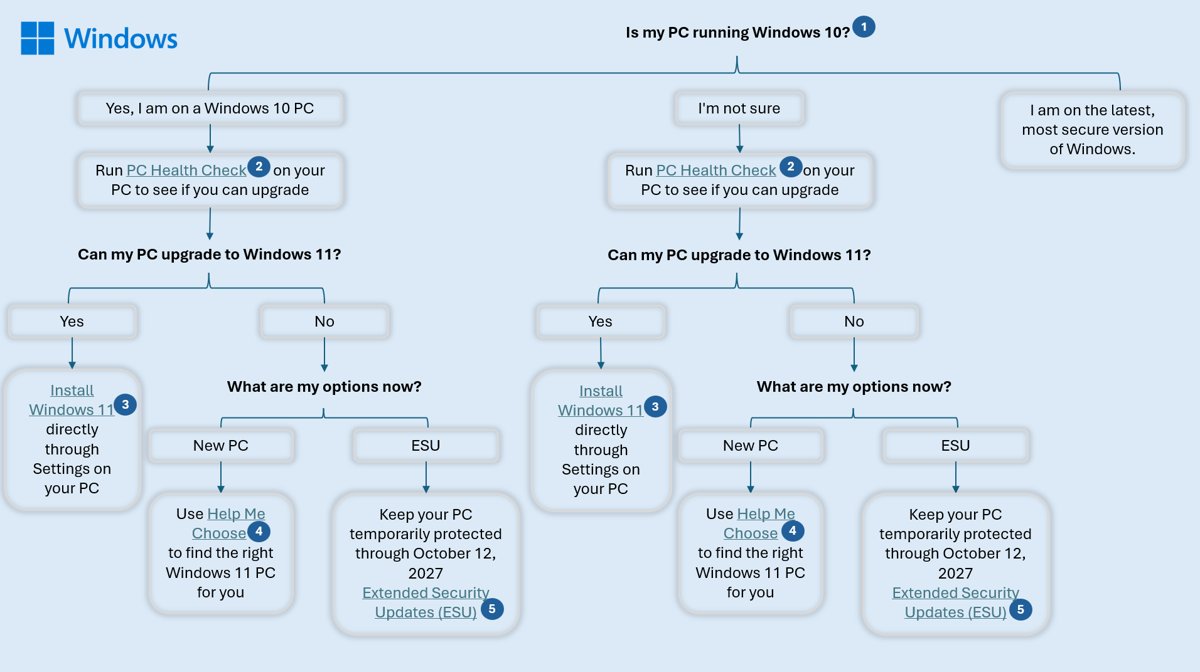
Windows 10 reached end of support on October 14, 2025, so a fresh install only gets security fixes if the PC is enrolled in Extended Security Updates (ESU), which Microsoft now runs until October 12, 2027 for home users.
This guide covers the clean install, the in-place reinstall that keeps your files, the steps after setup, and fixes for the errors that stop an installation.
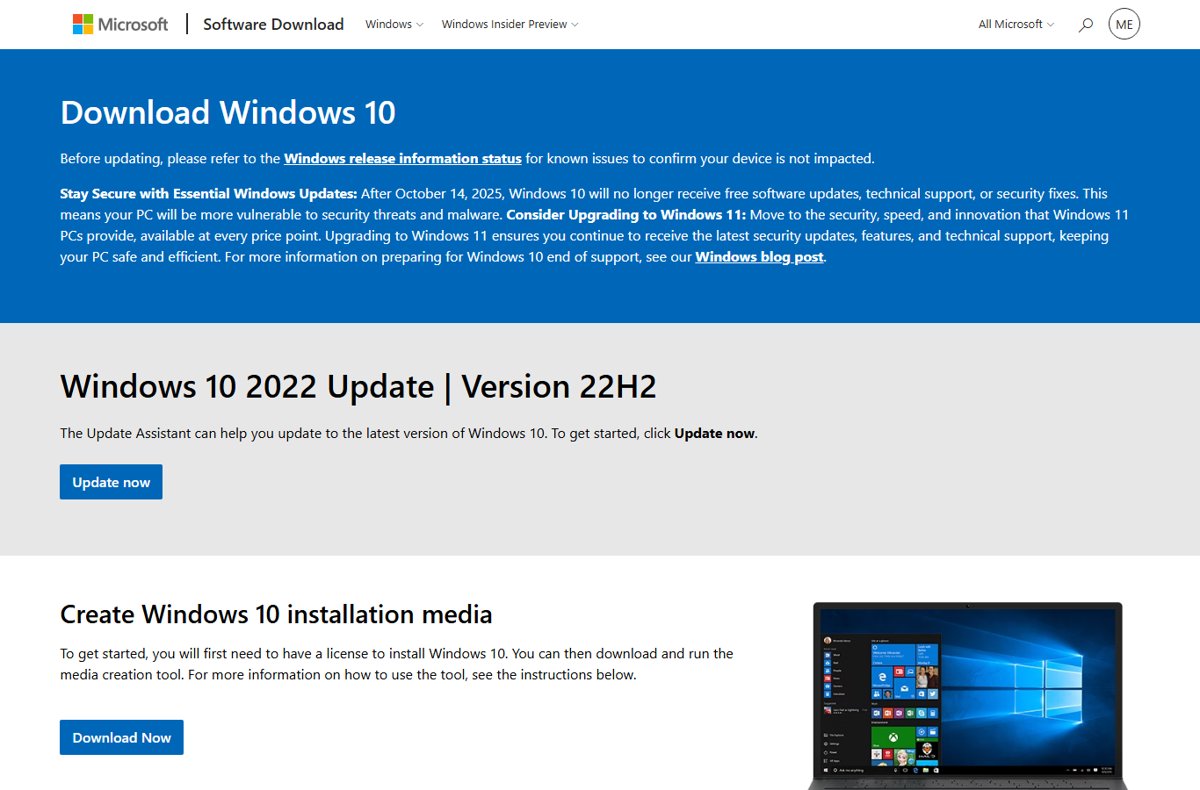
The fastest way to install Windows 10
Use only Microsoft's own download page. The media creation tool there builds a bootable USB with version 22H2, the final Windows 10 release.
- On a working PC, open the Download Windows 10 page on microsoft.com.
- Under Create Windows 10 installation media, select Download Now and run MediaCreationTool.exe.
- Accept the licence terms, choose Create installation media for another PC, and pick USB flash drive with a blank drive of 8 GB or more.
- Plug the USB into the target PC, power it on and press the boot-menu key (often Esc, F10 or F12) to start from the drive.
- Pick your language and keyboard, enter your product key or select I don't have a product key, then accept the licence terms.
- Choose Custom as the installation type, select the drive to install on, and select Next.
- Let the PC restart several times, then sign in with your Microsoft account so a digital licence activates Windows.
Which way of installing Windows 10 fits your PC?
| Your situation | Use this | What happens to your data |
|---|---|---|
| Windows 10 already runs but is misbehaving | Run setup.exe from the USB inside Windows (in-place reinstall) | You choose: keep files and apps, keep files only, or keep nothing |
| The PC will not start, or you want a fresh start | Boot from the USB and choose Custom | Everything on the deleted partitions is erased |
| New drive or a PC with no operating system | Boot from the USB and choose Custom | Nothing to lose; enter the product key when asked |
| You want Windows 10 in a virtual machine (VirtualBox, Hyper-V) | Create an ISO file with the media creation tool and attach it to the VM | The host PC is untouched |
| Your PC meets the Windows 11 requirements | Install Windows 11 instead, which still gets free updates | Upgrade keeps files; see the Windows 11 guide linked below |
For the Windows 11 route, follow How to Download Windows 11: A Complete Step-by-Step Installation Guide.
Why Install or Reinstall Windows 10?
Reinstalling fixes corrupted system files, removes leftover software and prepares a PC for a new owner. Before you commit, know where Windows 10 stands today.
| Question | Current answer (September 2026) |
|---|---|
| Is Windows 10 still supported? | No. Home, Pro, Pro Education and Pro for Workstations reached end of support on October 14, 2025. |
| Does it still work? | Yes. It keeps running, but gets no technical support, feature updates or security fixes without ESU. |
| What is ESU? | Extended Security Updates, a program that delivers critical and important security fixes only. Microsoft states it covers home PCs until October 12, 2027. |
| Which version do you need for ESU? | Windows 10 version 22H2, which is also the final Windows 10 version. |
| Is Windows 10 LTSC different? | Yes. LTSC editions follow their own fixed lifecycle; Enterprise LTSC 2021 runs to January 12, 2027. |
| Good reasons to reinstall | A slow or unstable PC, a replaced drive, malware cleanup, or wiping a PC before you sell it. |
Preparation Before Installing Windows 10
| Item | What you need | How to check or get it |
|---|---|---|
| 1. Backup of your data | Copies of documents, photos and anything on the desktop | Copy them to an external drive, a USB stick or OneDrive. A clean install deletes them. |
| 2. System requirements | 1 GHz processor, 1 GB RAM (32-bit) or 2 GB (64-bit), 32 GB storage, DirectX 9 graphics with a WDDM 1.0 driver, 800 x 600 display | Compare against the PC's spec sheet or Settings > System > About. |
| 3. A Windows 10 licence | A 25-character product key or a digital licence | A digital licence reactivates automatically. Many PCs store the key in firmware, so Setup applies it without asking. |
| 4. The Windows 10 download | Microsoft's media creation tool, or an ISO file made with it | Only from microsoft.com/software-download/windows10. Avoid copies hosted anywhere else. |
| 5. Installation media | A blank USB flash drive of at least 8 GB, or a blank DVD | Everything already on the drive is deleted. |
| 6. BIOS/UEFI settings | The PC must be able to boot from USB | Use the boot-menu key (often Esc, F10 or F12) or your PC maker's instructions to change the boot order. |
| Same edition and bit version | Reinstall the edition your licence covers, for example Home for Home | Check Edition and System type under Settings > System > About. |
Create the Windows 10 USB installer with the Media Creation Tool
The media creation tool needs an internet connection and runs on a working Windows PC. The same tool can save an ISO file instead of writing a USB drive.
- Insert a blank USB flash drive of 8 GB or more.
- Go to microsoft.com/software-download/windows10 and select Download Now under Create Windows 10 installation media.
- Run MediaCreationTool.exe and select Yes if User Account Control asks.
- Accept the licence terms, then select Create installation media for another PC and Next.
- Choose the language, edition and architecture (64-bit or 32-bit) that match the target PC and its licence.
- Select USB flash drive (or ISO file for a DVD or virtual machine) and pick your drive.
- Wait for the download and write to complete before you unplug the drive.
Choose the same language you plan to use during setup. A 32-bit copy cannot be upgraded to 64-bit later without another clean install.
Installing Windows 10: The Step-by-Step Process
This is the clean install. It removes personal files, apps, manufacturer customisations and settings from the partitions you delete.
- Step 1: Boot from your installation media. Plug in the USB, power on and press the boot-menu key to choose the USB drive.
- Step 2: Start Windows Setup. Select your language, time and keyboard settings, select Next, then start the installation.
- Step 3: Enter your product key. Type the 25-character key, or select I don't have a product key if the PC already had an activated Windows 10, then pick the matching edition.
- Step 4: Accept the licence terms and select Next.
- Step 5: Choose the installation type. Select Custom for a clean install.
- Step 6: Partition the drive. On Where do you want to install Windows?, select each partition on the target drive and select Delete until it shows one area of unallocated space. Leave other drives alone.
- Step 7: Select the installation drive. Highlight the unallocated space and select Next. Setup creates the partitions it needs and copies files.
- Step 8: Set up Windows settings. After several restarts, choose your region and keyboard, connect to the internet and sign in.
- Step 9: Complete the setup. Pick your privacy settings and wait for the desktop to appear.
If Setup finds a key in the PC's firmware, the product key screen is skipped and the matching edition installs automatically.
Reinstall Windows 10 without losing your files
Use this when Windows 10 still starts. It repairs the system while keeping what you choose.
- Plug in the USB installer you created.
- Open File Explorer and select the USB drive.
- Open setup.exe from the root of the drive and select Yes when asked to allow changes.
- Select Change what to keep.
- Pick Keep personal files and apps, Keep personal files only or Keep nothing, then select Next.
- Select Install and leave the PC switched on while it restarts several times.
The media creation tool also offers Upgrade this PC now, which runs the same in-place process without a USB drive.
Fix the GPT partition error from inside Setup
The message "Windows cannot be installed to this disk. The selected disk is not of the GPT partition style" means the PC booted in UEFI mode but the drive uses MBR. The simplest fix is to delete the partitions on that drive in the Custom screen. If that fails, wipe and convert the drive by hand.
diskpart
list disk
select disk <disk number>
clean
convert gpt
exit
Press Shift + F10 in Windows Setup to open Command Prompt. list disk shows the drives; select disk picks the target; clean erases every partition on it; convert gpt sets the GPT partition style that UEFI boot needs.
You should see: Back in Setup, the drive shows as one area of unallocated space. Select it and select Next. Pick the wrong disk number and clean erases that drive instead.
How to check Windows 10 installed and activated
- Open Start > Settings > Update & Security > Activation.
- Confirm it reads Windows is activated with a digital license linked to your Microsoft account, or at least Windows is activated.
- If it says Windows is not activated, select Change product key and enter your 25-character key.
- Open Settings > System > About and check that Edition matches your licence and System type shows 64-bit where expected.
- Open Settings > Update & Security > Windows Update, select Check for updates and confirm version 22H2 updates install.
Post-Installation Steps
- Install drivers. Run Windows Update first, then open Device Manager and look for any device with a yellow exclamation mark. Get missing drivers from the PC or component maker's website.
- Update Windows. Go to Start > Settings > Update & Security > Windows Update and select Check for updates until nothing new appears.
- Install essential software. Reinstall your browser, office suite and security tools from their official sites; see How To Install Apps On Laptop & PC On Windows for the safe routes.
- Activate Windows. Sign in with the Microsoft account linked to your digital licence, or enter your key under Activation.
- Enrol in ESU if you stay on Windows 10. Without it, the PC receives no security fixes after October 14, 2025.
- Configure personal settings and back up. Set your display, privacy and account options, then turn on Windows Backup to OneDrive so the next reinstall or move to Windows 11 is quicker.
Troubleshooting Common Installation Issues
The PC will not boot from the Windows 10 USB
The firmware boot order skips USB, or the boot menu was not opened in time.
- Restart and press the boot-menu key repeatedly as the PC starts (often Esc, F10 or F12).
- Check your PC maker's website for the exact key and how to change the boot order.
- Recreate the USB with the media creation tool if the drive is not listed at all.
"The selected disk is not of the GPT partition style"
The PC booted in UEFI mode but the drive is formatted MBR.
- Back up anything on that drive first.
- In Custom, delete every partition on the target drive and select the unallocated space.
- If the error remains, use the
diskpartcommands in the section above, or boot in legacy BIOS mode instead.
Setup fails with a 0xC1900101 error
Usually a driver problem during an in-place reinstall or upgrade.
- Free up space: 16 GB for a 32-bit system or 20 GB for 64-bit.
- Unplug docks, external drives, printers and other hardware you do not need.
- Open Device Manager, fix devices showing a yellow exclamation mark, and install updated drivers from the manufacturer.
- Run
chkdsk /f C:from an administrator Command Prompt, restart and try again.
Windows 10 22H2 won't install
Low disk space, damaged update files, an interrupted restart or no connection to Windows Update.
- For 0x80070070 errors, free disk space and retry.
- For 0x80073712, run
DISM.exe /Online /Cleanup-image /Restorehealthfrom an administrator Command Prompt. - For 0x800F0922, disconnect any VPN and retry.
- If Windows Update keeps failing, run setup.exe from a fresh USB and choose Keep personal files and apps.
Setup says the PC does not meet the requirements
Errors 0xC1900200 or 0xC1900202 – 0x20008 mean the hardware falls below the minimum.
- Compare the PC with the requirements in the preparation table.
- Add RAM or storage if the shortfall is there, then rerun Setup.
You can't install anything, such as Chrome, on Windows 10
The app's requirements are not met; Chrome, for example, needs Windows 10 or later on an SSE3-capable Intel processor.
- Run Windows Update until it reports you are up to date, then restart.
- Download the installer again from the app maker's own site, not a mirror.
- Check the app's system requirements; Chrome on an ARM processor needs Windows 11.
Windows is not activated after the clean install
The edition installed does not match the licence, or the Microsoft account with the digital licence was not used.
- Open Settings > Update & Security > Activation and read the status.
- Sign in with the Microsoft account linked to the digital licence and wait for activation online.
- If the edition is wrong, reinstall the edition your licence covers, or select Change product key and enter a matching key.
Tips for a Smooth Installation Experience
| Tip | Why it matters |
|---|---|
| Link your digital licence to a Microsoft account before wiping | Reactivation after a reinstall or hardware change depends on it. |
| Delete partitions only on the drive you install to | A second disk listed in Setup may hold your data. |
| Keep a laptop on mains power | An interrupted restart causes error 0x80200056 and a failed install. |
| Unplug extra USB devices and docks | Nonessential hardware is a common cause of installation errors. |
| Download only from microsoft.com | Repackaged ISOs can carry malware and tampered setup files. |
| Plan the move to Windows 11 | Windows 10 security fixes stop for good when ESU ends on October 12, 2027. |
Frequently Asked Questions
How do I install Windows 10 from a USB?
Create a bootable USB with Microsoft's media creation tool on a working PC, using a blank drive of 8 GB or more. Boot the target PC from it with the boot-menu key, choose Custom, select the drive and select Next.
How do I install Windows 10 on a laptop?
The steps match a desktop: make the USB, boot from it and choose Custom. Keep the laptop on mains power, and check the maker's website for its boot-menu key and Windows 10 drivers before you start.
How do I install Windows 10 Home or Pro?
The media creation tool writes a USB that holds both editions. Your product key decides the edition, and a firmware or digital licence selects it automatically. Reinstall the edition your licence covers, or activation fails.
Can I install Windows 10 for free?
Only if the PC already has a Windows 10 licence. A PC that ran activated Windows 10 before, including one upgraded free from Windows 7 or 8.1, holds a digital licence and reactivates when you select I don't have a product key.
How do I install Windows 10 from Windows 11?
Within about 10 days of upgrading, use Settings > System > Recovery > Go back while the windows.old folder remains. After that, a clean install from Windows 10 media is the only route, and it erases the drive.
How do I install Windows 10 LTSC?
LTSC is not on the public download page. Organisations get Enterprise and LTSC media through the Microsoft 365 admin center or Visual Studio Subscriptions, and each LTSC release has its own support dates.
How do I install Windows 10 in VirtualBox?
Use the media creation tool's ISO file option, then create a new virtual machine in VirtualBox, choose Windows 10 as the OS type and attach the ISO. Install Guest Additions inside the VM once Windows is running.
Why reinstall Windows 10?
A reinstall repairs damaged system files, clears persistent slowdowns and removes leftover software. The in-place option keeps files and apps, while a clean install gives a fresh start before selling or repurposing the PC.
Can I install Windows 10 on this computer?
Yes, if it has at least a 1 GHz processor, 1 GB RAM for 32-bit or 2 GB for 64-bit, 32 GB of storage, DirectX 9 graphics and an 800 x 600 display. You also need a valid licence.
Can I install Windows 11 on this computer?
Run Microsoft's PC Health Check app or check Windows Update for the upgrade offer. Windows 11 needs TPM 2.0, Secure Boot and a supported 64-bit processor, and still receives free security updates.
Why install Windows 11 instead of Windows 10?
Windows 10 lost support on October 14, 2025 and only gets security fixes through ESU until October 12, 2027. Windows 11 is free to upgrade to on eligible Windows 10 PCs and keeps getting updates.
Conclusion
Install Windows 10 only when the PC cannot run Windows 11 or an app needs it, and enrol the PC in ESU straight away. Windows 10 no longer gets free security fixes, and ESU ends on October 12, 2027. On eligible hardware, the same USB-and-Custom process installs Windows 11, which stays supported.



![How to Manage Power Management Settings in Windows 11/10 [Guide]](https://techdows.com/wp-content/uploads/2026/10/How-to-Manage-Power-Management-Settings-in-Windows-1110-Guide-600x338.jpg)