The PIN that iCloud Passwords asks for on a Windows PC is your Windows Hello PIN, the one you use to sign in to Windows, so reset it in Settings > Accounts > Sign-in options if you have forgotten it.
This guide covers which PIN or code each iCloud Passwords prompt wants, how to reset the Windows PIN with or without signing in, how to set one up, and fixes when the PIN, password or verification code is refused.
How to reset the PIN for iCloud Passwords on Windows
Your Apple Account password and your iPhone or iPad passcode are not this PIN. The prompt points to Settings > Accounts > Sign-in options because that is the Windows page where the Windows Hello PIN is kept.
- On the PC, open Settings and select Accounts > Sign-in options.
- Select PIN (Windows Hello).
- Select I forgot my PIN and follow the prompts to verify your account.
- Create the new PIN and confirm it.
- Open the iCloud Passwords app again and enter the new PIN when Windows asks for it.
If you still know the old PIN and only want a different one, select Change PIN instead; Windows asks for the old PIN first.
What PIN does iCloud Passwords ask for?
Setting up iCloud Passwords on a PC can show several different code prompts. Each one comes from a different place, which is why typing the wrong one fails.
| Prompt you see | What it wants | Where it comes from |
|---|---|---|
| A PIN prompt that mentions Settings > Accounts > Sign-in options | Your Windows Hello PIN | Set on this PC under PIN (Windows Hello); it never syncs from Apple devices or other PCs |
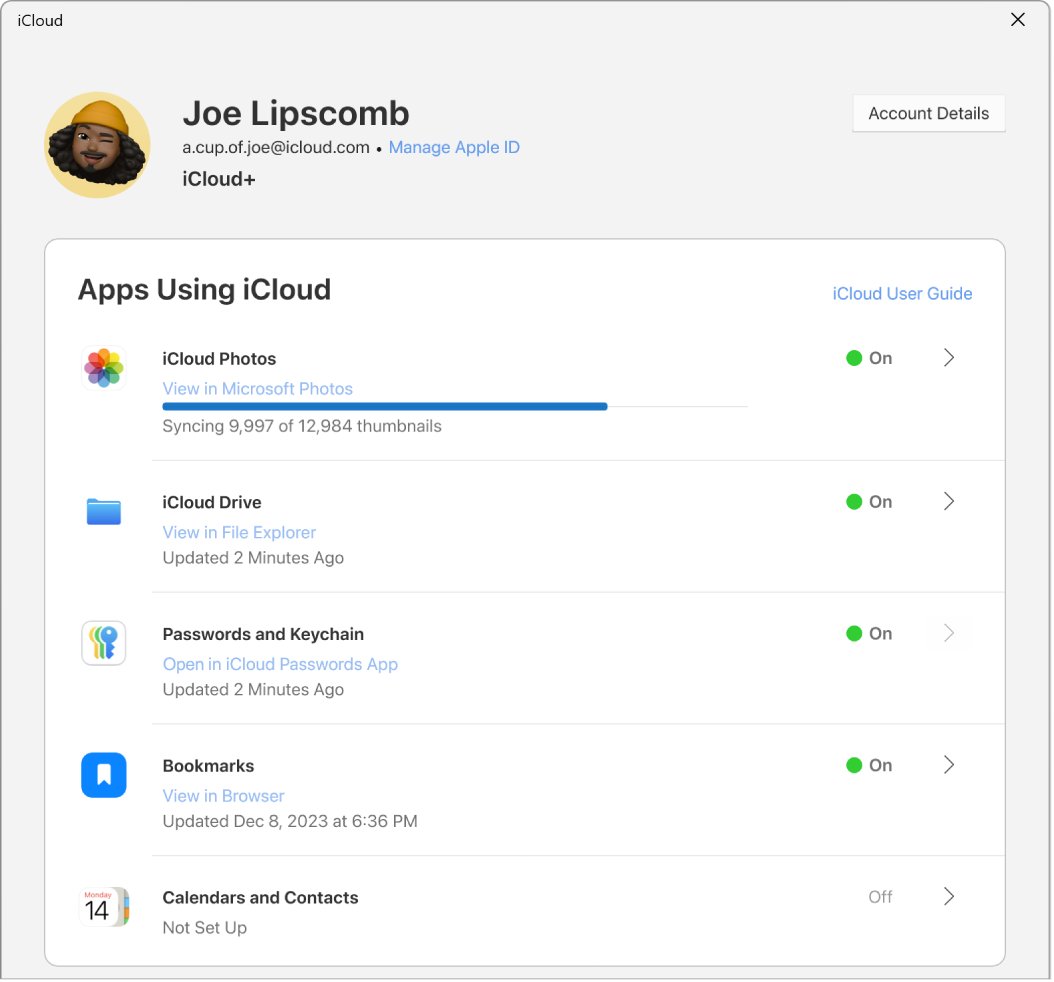
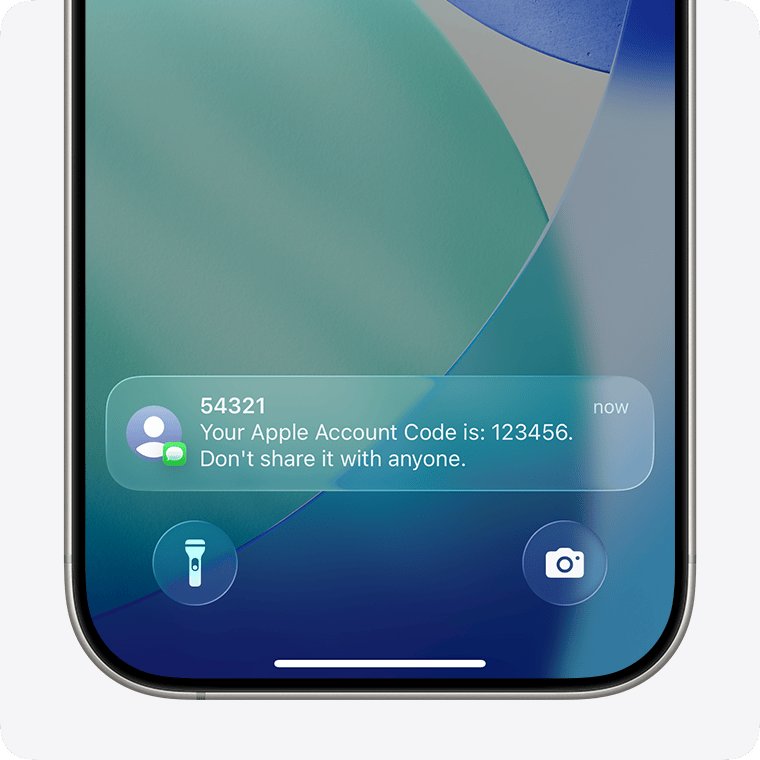
| Approve under Passwords and Keychain in iCloud for Windows | A six-digit two-factor verification code | Shown on a trusted iPhone, iPad or Mac, or sent to your trusted phone number |
| A six-digit code after clicking the iCloud Passwords button in Chrome, Edge or Firefox | The code shown in the pop-up window | Generated on the PC by iCloud Passwords for that browser |
| Sign-in screen in iCloud for Windows | Your Apple Account email or phone number and password | Your Apple Account |
| Passcode of another device | An iPhone or iPad passcode or Mac login password | Asked on Apple devices for end-to-end encrypted iCloud data, not by the Windows PIN prompt |
A Windows Hello PIN belongs to one user on one device. A PIN from a different PC or a different Windows account on the same PC will not work.
How to retrieve my PIN number in Windows
Windows does not display a saved PIN anywhere. The only ways forward are to prove the PIN you remember works, or to replace it.
- Sign out of Windows or restart the PC.
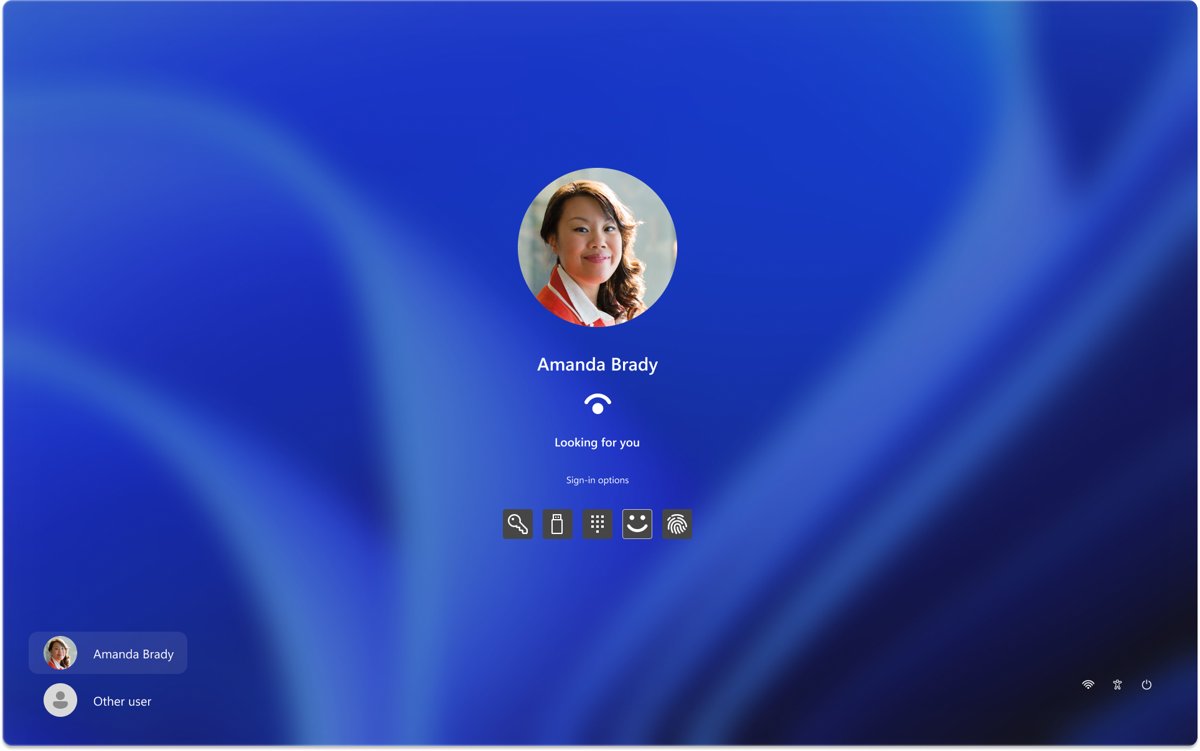
- At the sign-in screen, type the PIN you think is right.
- If Windows signs you in, use that same PIN at the iCloud Passwords prompt.
- If the PIN is refused, select I forgot my PIN below the PIN box to reset it.
- If that link is missing, select Sign-in options, then Enter your password, and reset the PIN from Settings after signing in.
The Windows PIN is also different from your Microsoft account password, so the account password will not work in the PIN box either.
How to reset your PIN on Windows without signing in
The sign-in screen reset only works for a Microsoft account. A local account must sign in with its password first.
- At the Windows sign-in screen, look below the PIN text box.
- Select I forgot my PIN. If several accounts use the PC, choose yours.
- Verify your Microsoft account with the code or method Windows offers.
- Set a new PIN and sign in with it.
- For a local account, select Sign-in options > Enter your password, sign in, then go to Settings > Accounts > Sign-in options > PIN (Windows Hello) > I forgot my PIN.
If the password is forgotten too, reset the Windows password first. A Microsoft account can use I forgot my password on the sign-in screen, and a local account answers its security questions.
Set up a Windows Hello PIN for iCloud Passwords
If you never created a PIN on this PC, there is nothing to find: create one in Settings and use it at the iCloud Passwords prompt.
- Open Settings and select Accounts > Sign-in options.
- Under Ways to sign in, select PIN (Windows Hello).
- Select Set up.
- Follow the instructions to type and confirm the new PIN.
- Open the iCloud Passwords app and enter the PIN you just created.
Each person who uses the PC needs their own Windows account and their own Windows Hello PIN; a PIN is never shared between accounts.
How to set up iCloud Passwords on a Windows PC
iCloud Passwords needs two-factor authentication on your Apple Account and a trusted Apple device on iOS 14, iPadOS 14, macOS 11 or later. Either Advanced Data Protection must be on, or that device must be within Bluetooth range of the PC.
- Install iCloud for Windows from the Microsoft Store and sign in with the Apple Account used on your iPhone, iPad or Mac.
- Open iCloud for Windows.
- Turn on Passwords & Keychain next to Passwords and Keychain.
- If you see Approve instead, click it and enter the six-digit code shown on your trusted device or sent to your trusted phone number.
- Open the iCloud Passwords app and enter your Windows Hello PIN when Windows asks for it.
With Advanced Data Protection on, iCloud for Windows 14.2 or later signs in only when a trusted Apple device is within Bluetooth range or on the same Wi-Fi router. Turn off any VPN during sign-in.
How to enable the iCloud Passwords extension in Chrome or Edge
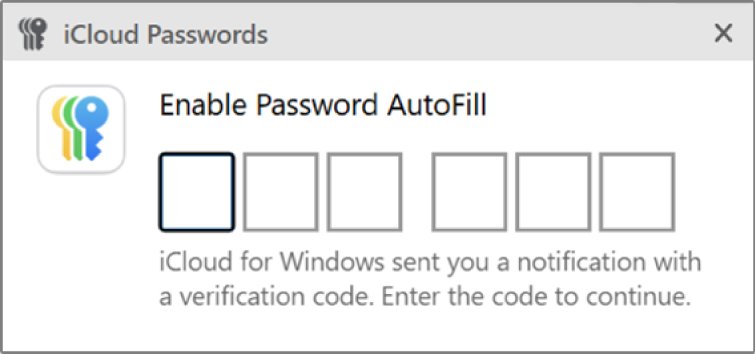
The browser extension uses its own six-digit code, separate from the Windows PIN. Turning it on also switches off the browser's built-in password saving.
- Open iCloud for Windows and click the button next to Passwords and Keychain.
- Click Install Extension next to Chrome, Edge or Firefox and follow the onscreen instructions, then click Done.
- In the browser, click the iCloud Passwords button in the toolbar.
- Read the six-digit verification code in the pop-up window.
- Enter that code in the browser dialog.
After that, clicking in a user name field on a saved site offers your iCloud accounts, and the iCloud Passwords button in the toolbar lists them too.
Reset Apple Account password for iCloud for Windows
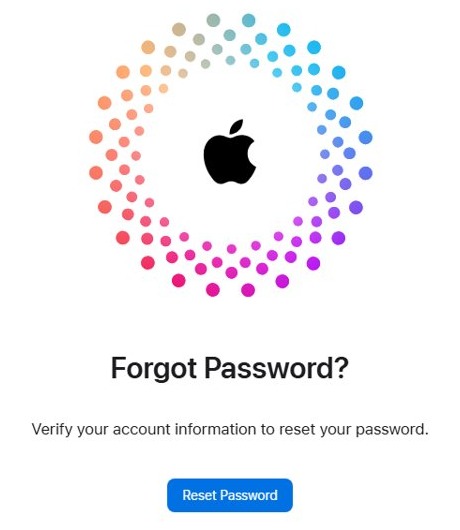
If iCloud for Windows refuses your Apple Account password before you ever reach the PIN prompt, reset the Apple password on a trusted device instead of guessing.
- On the Apple Account sign-in screen, look for Forgot password? or Forgot password or don't have an Apple Account?.
- Follow the onscreen instructions; they send you to a trusted device or ask for recovery factors such as a code sent to your trusted phone number.
- Set a new Apple Account password.
- Sign in to iCloud for Windows with the new password and the six-digit verification code.
- Turn on Passwords & Keychain again and enter your Windows Hello PIN in the iCloud Passwords app.
Without a trusted device or phone number, Apple's account recovery can take several days, so reset the Apple Account password from a trusted iPhone, iPad or Mac whenever one is at hand.
How to check iCloud Passwords is working on Windows
- Open the iCloud Passwords app and sign in with your Windows Hello PIN.
- Check that your saved accounts appear in the list.
- Click an account to see its user name, password and website.
- Open a saved website in Chrome, Edge or Firefox and click in the user name field.
- Choose the account; the user name and password fill in automatically.
If the list is empty, check that iCloud for Windows is signed in to the same Apple Account as your iPhone, iPad or Mac.
Windows PIN not working for iCloud Passwords
I forgot my PIN option is not available
The account is a local account, and the sign-in screen reset only works for Microsoft accounts.
- At the sign-in screen, select Sign-in options > Enter your password and sign in.
- Go to Settings > Accounts > Sign-in options > PIN (Windows Hello).
- Select I forgot my PIN and create a new PIN.
Forgot both the Windows PIN and password
The PIN reset needs you to verify the account, which needs the password or a Microsoft account recovery.
- For a Microsoft account, select I forgot my password on the sign-in screen, or use the Reset password page in any browser.
- For a local account, select the arrow next to the password box, then OK and Reset password, and answer your security questions.
- Sign in with the new password and reset the PIN from Sign-in options.
My PIN was reset and Windows asks to create it again
Security updates or system changes can make Windows ask for a new PIN.
- Create the PIN again when prompted.
- Check for Windows updates if the prompt keeps returning.
- Use the new PIN at the iCloud Passwords prompt.
Error while creating the PIN
PIN setup can fail on a session that needs refreshing.
- Sign out of Windows and sign back in.
- Go to Settings > Accounts > Sign-in options > PIN (Windows Hello) and try again.
- If Windows sign-in itself keeps failing, repair Windows Hello and the PIN before returning to iCloud.
iPhone passcode or Apple password rejected as the PIN
The PIN box wants the Windows Hello PIN of this PC, not an Apple credential.
- Type the PIN you use to sign in to Windows on this PC.
- If you do not know it, reset it under PIN (Windows Hello) > I forgot my PIN.
- Keep the Apple Account password for the iCloud for Windows sign-in screen only.
Verification code for Approve never arrives
The trusted device is not nearby, or the code needs to go to your trusted phone number instead.
- Look for a sign-in notification on your trusted iPhone, iPad or Mac and choose Allow.
- If none appears, select Didn't Get a Code? or Can't get to your devices? and send the code to your trusted phone number.
- Check the Unknown Senders filter in Messages if the text does not show up.
iCloud Passwords PIN FAQ
Is the iCloud Passwords PIN my iPhone passcode?
No. On a Windows PC, the PIN prompt wants the Windows Hello PIN for that PC, the one you use to sign in to Windows. Your iPhone passcode and Apple Account password are refused in that box.
How to retrieve my PIN number?
Windows never shows a saved PIN. Try the PIN you remember at the Windows sign-in screen; if it fails, reset it with I forgot my PIN on the sign-in screen or in Settings > Accounts > Sign-in options.
Where to reset Microsoft PIN?
Open Settings > Accounts > Sign-in options, select PIN (Windows Hello) and choose I forgot my PIN. When you are not signed in, the same I forgot my PIN link sits below the PIN box on the sign-in screen for Microsoft accounts.
How to reset PIN on computer without the old PIN?
Use I forgot my PIN instead of Change PIN. Change PIN asks for the old PIN, while I forgot my PIN verifies your account and then lets you create a new PIN without it.
Is the Windows PIN the same as my Microsoft account password?
No. The PIN is tied to one device and one Windows account, while the Microsoft account password works on any device and website. Resetting one does not change the other.
Why is there no PIN option on my iPad?
The PIN belongs to the Windows PC, so it is managed in Windows Settings, not on the iPad. The iPad's Sign-In & Security screen holds Apple Account settings such as two-factor authentication.
What is the six-digit code for iCloud Passwords in Chrome?
It is a one-time code iCloud Passwords generates on the PC when you click its button in the browser toolbar. The code appears in a pop-up window, and you type it into the browser dialog to turn on the extension.
What do I need to set up iCloud Passwords on Windows?
You need iCloud for Windows from the Microsoft Store, two-factor authentication on your Apple Account, and a trusted device on iOS 14, iPadOS 14 or macOS 11 or later. Advanced Data Protection must be on, or the device must be within Bluetooth range.