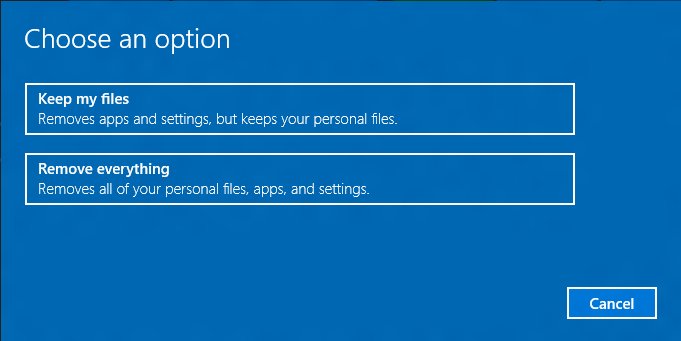
To reset Windows 10 keeping files, open Settings > Update & Security > Recovery, select Get started under Reset this PC, and choose Keep my files.
Windows then reinstalls itself from a cloud download or from the files already on the PC, keeps your documents and user accounts, and removes the apps you installed. This guide covers both reinstall sources, the Windows Recovery Environment route for a PC that will not start, and what to do when the reset fails.
Reset Windows 10 keeping files (cloud download)
Cloud download fetches a fresh copy of Windows 10 from Microsoft, so it still works when local system files are damaged. Connect the PC to power and the internet before you start.
- Select Start > Settings > Update & Security > Recovery.
- Under Reset this PC, select Get started.
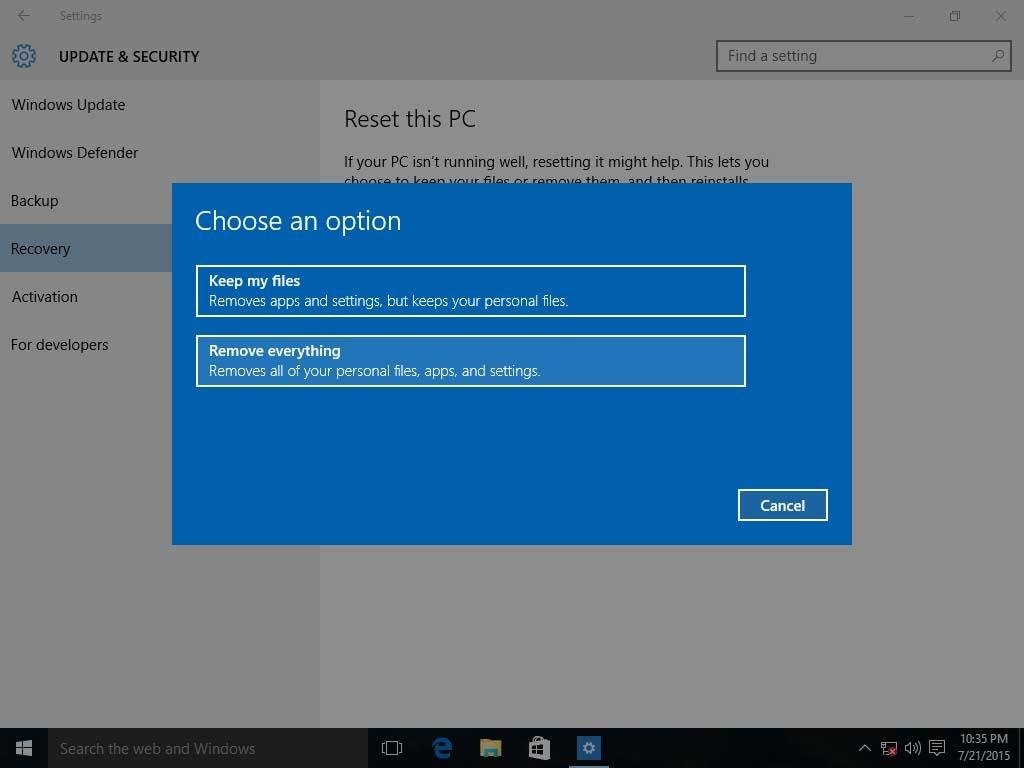
- Select Keep my files.
- Select Cloud download.
- Review the settings Windows shows, including Restore preinstalled apps, and continue through the prompts.
- Confirm the reset and leave the PC alone until the Windows sign-in screen returns.
The screen can stay black for 15 minutes or more, and the PC may restart several times. Restarting it yourself during this stage can make the reset fail.
What does Keep my files remove in Windows 10?
Keep my files reinstalls Windows but preserves your personal data and the settings you need to sign in, which a full factory reset of Windows 10 does not. Everything you installed yourself has to go back on afterwards.
| Item | After a Keep my files reset |
|---|---|
| Documents, photos and other personal files | Kept |
| User accounts (local, Microsoft account, domain) and group memberships | Kept |
| Wireless network profiles, lock screen background, desktop themes, privacy settings | Kept |
| Files on other partitions and drives, File History data | Kept |
| Apps that came with the PC | Restored, updated ones to their updated state |
| Desktop programs you installed | Removed; reinstall them manually |
| Microsoft Store apps you installed | Removed; reinstall them from Microsoft Store |
\Windows, \Program Files, \ProgramData and each profile's AppData folders |
Refreshed; old AppData copies are kept in C:\Windows.old |
| Installed Windows updates and drivers | Kept in their updated state |
Because app settings live in AppData and ProgramData, programs come back with default settings even after you reinstall them.
Reset Windows 10 keeping files (local reinstall)
Local reinstall rebuilds Windows from the system files already on the PC. Use it on a slow or metered connection, since nothing needs to be downloaded.
- Select Start > Settings > Update & Security > Recovery.
- Under Reset this PC, select Get started.
- Select Keep my files.
- Select Local reinstall.
- Check the summary of settings and continue through the prompts.
- Confirm the reset and wait for the sign-in screen.
If the local system files are corrupted, the local reinstall can fail. Run the reset again with Cloud download in that case.
Cloud download vs local reinstall in Windows 10
| Your situation | Choose | Why |
|---|---|---|
| Fast, unmetered internet connection | Cloud download | Downloads a clean copy of Windows, which can also be quicker overall |
| Windows reports damaged or missing system files | Cloud download | Does not rely on the files already on the PC |
| Slow or metered connection | Local reinstall | Uses the files on the PC, so nothing is downloaded |
| Windows 10 Enterprise LTSC | Local reinstall | Cloud download is not supported on LTSC editions |
| A local reinstall already failed | Cloud download | Replaces the source files that caused the failure |
Reset Windows 10 keeping files from WinRE
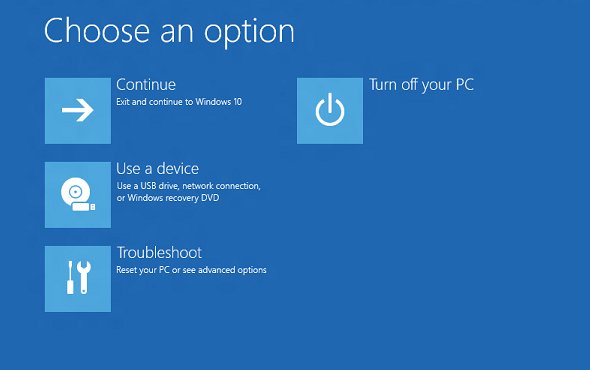
Use the Windows Recovery Environment (WinRE) when Windows 10 will not reach the desktop or Settings will not open. The same Keep my files choice is available there.
- On the sign-in screen, hold Shift and select Power > Restart. From a working desktop, you can instead go to Settings > Update & Security > Recovery and select Restart now under Advanced startup.
- If Windows will not start at all, turn the PC on and hold the power button as soon as the Windows logo appears. Repeat once, then let it start a third time to reach Automatic Repair and select Advanced options.
- On the Choose an option screen, select Troubleshoot > Reset this PC.
- Select Keep my files.
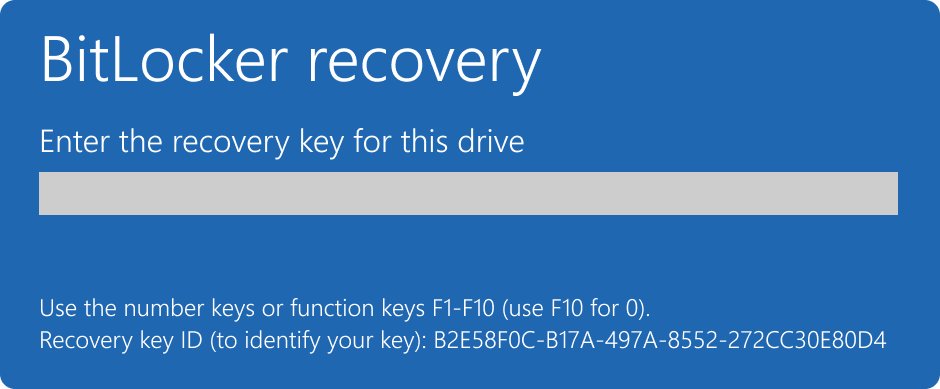
- Enter the BitLocker recovery key if the drive is encrypted.
- Select Cloud download or Local reinstall and confirm the reset.
If you cannot sign in at all, reset your Windows 10 password first, because a Keep my files reset keeps the same accounts.
Back up Windows 10 before a Keep my files reset
Keep my files is designed to preserve your data, but Microsoft still advises a backup first. A failed or interrupted reset is the case the backup covers.
| Item | Why it matters |
|---|---|
| A copy of important files on an external drive or OneDrive | Protects your data if the reset is interrupted |
| Your BitLocker recovery key | WinRE asks for it on an encrypted drive |
| Your account password | The reset keeps the same accounts, and WinRE may ask you to sign in |
| A list of installed programs and their license keys | Every program you installed is removed |
Exported app data, such as browser profiles or email archives in AppData |
Those folders are refreshed; the old copy only survives in C:\Windows.old |
| Mains power for a laptop | The reset can take a long time and must not lose power |
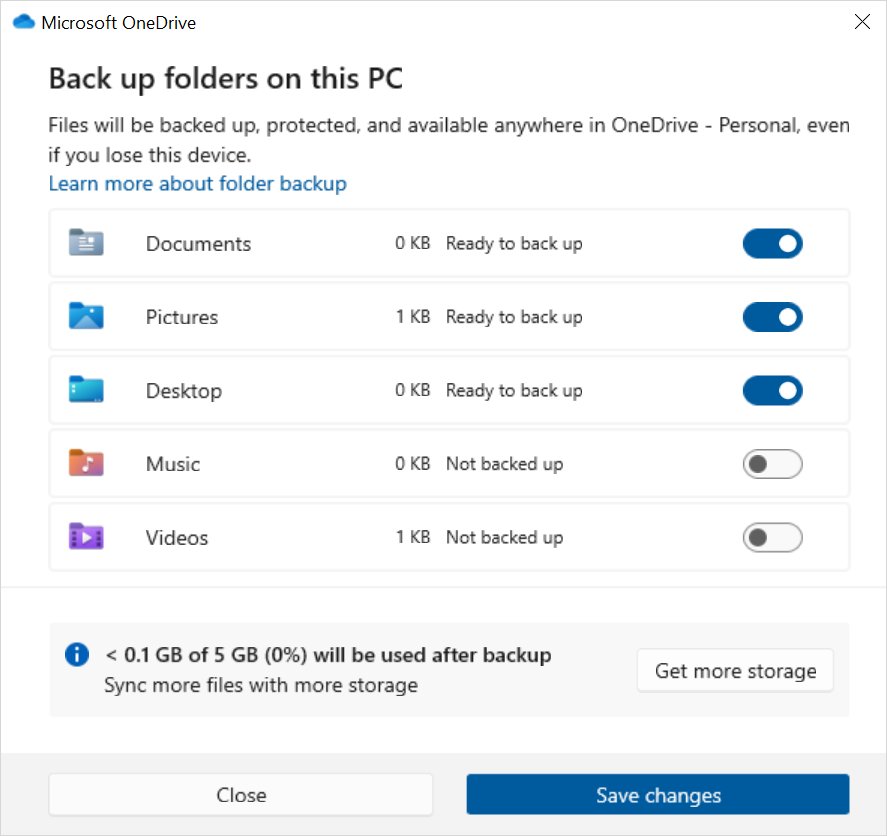
Where to find your files after resetting Windows 10
- Sign in with the same account you used before the reset.
- Open File Explorer and check Documents, Pictures, Desktop and any other folders you use.
- Open other drives or partitions; their contents are untouched.
- For old app data, open
C:\Windows.old\Users\<username>\AppDataand copy what you need into your new profile. - Reinstall your programs and Microsoft Store apps, then sign back in to them.
Copy anything you need out of C:\Windows.old soon after the reset, before you free up space on the drive.
Reset this PC not working on Windows 10
Black screen for a long time during the reset
Reinstalling Windows can keep the screen black for 15 minutes or longer, with restarts in between.
- Leave the PC switched on and plugged in.
- Do not press the power button or restart it yourself.
- Wait until the sign-in screen or an error message appears.
Keep my files is missing after booting from a USB drive
When the PC starts from recovery or installation media, Keep my files and Remove everything are not supported.
- Remove the USB drive and restart the PC.
- Enter WinRE from the PC itself: hold Shift and select Power > Restart on the sign-in screen.
- Select Troubleshoot > Reset this PC > Keep my files.
Reset fails or rolls back
Damaged local system files or pending updates can stop the reinstall.
- Install any waiting updates from Settings > Update & Security > Windows Update, then try again.
- Run the reset with Cloud download instead of Local reinstall.
- If it still fails, use a USB recovery drive to reinstall Windows. That route does not keep your files, so back them up first.
WinRE asks for a BitLocker recovery key
The Windows drive is encrypted, and WinRE needs the key to read it.
- On another device, look up the recovery key from where it was saved when BitLocker was turned on, such as your Microsoft account or a printout.
- Enter the key on the WinRE screen.
- Continue with Reset this PC > Keep my files.
Reset Windows 10 keeping files FAQ
Will I lose my files if I reset Windows 10?
Not if you choose Keep my files. That option reinstalls Windows 10 and keeps your personal files, user accounts and key settings. It removes the desktop programs and Microsoft Store apps you installed, and it resets app settings stored in AppData.
Does Keep my files remove programs in Windows 10?
Yes. Desktop programs and Microsoft Store apps you installed are removed and must be reinstalled. Apps that came with the PC are restored, and updated preinstalled apps return in their updated state. Windows updates and drivers stay installed.
How long does it take to reset Windows 10 keeping files?
The time depends on drive speed, the reinstall source and the amount of data on the PC. The screen can stay black for 15 minutes or more, and the PC may restart several times. Keep it plugged in and do not restart it yourself.
Should I choose Cloud download or Local reinstall?
Choose Cloud download on a fast connection or when system files are damaged, because it fetches a clean copy of Windows. Choose Local reinstall on a slow or metered connection. Cloud download is not available on Windows 10 LTSC editions.
Can I reset Windows 10 keeping files if it will not boot?
Yes. Interrupt startup twice to reach Automatic Repair, select Advanced options, then Troubleshoot > Reset this PC > Keep my files. Booting from a USB installation drive does not offer Keep my files.
Does resetting Windows 10 remove updates?
No. Reset this PC rebuilds Windows 10 from the system files already installed, so the updates on the PC are restored with it. Drivers installed at the time of the reset are also kept, which cuts the time spent reinstalling updates afterwards.
Is resetting Windows 10 still worth it after end of support?
A reset still repairs Windows 10, but support for Windows 10 ended on October 14, 2025, so it no longer gets free security fixes. Microsoft recommends moving to Windows 11, where Reset this PC works the same way.
On a Windows 11 PC, Reset this PC in Windows 11 offers the same Keep my files option under System > Recovery.