To install optional features on Windows 11, open Settings > System > Optional features, select View features, tick the features you want and select Add.
This guide covers the Settings page, the legacy Turn Windows features on or off dialog, PowerShell and DISM commands, removal, and fixes for failed installs.
Install optional features on Windows 11
Optional features are Windows components that are not installed by default but can be added at any time. Microsoft calls them Features on Demand, and Windows Update supplies the files, so the PC must be online.
- Right-click the Start button and select Settings.
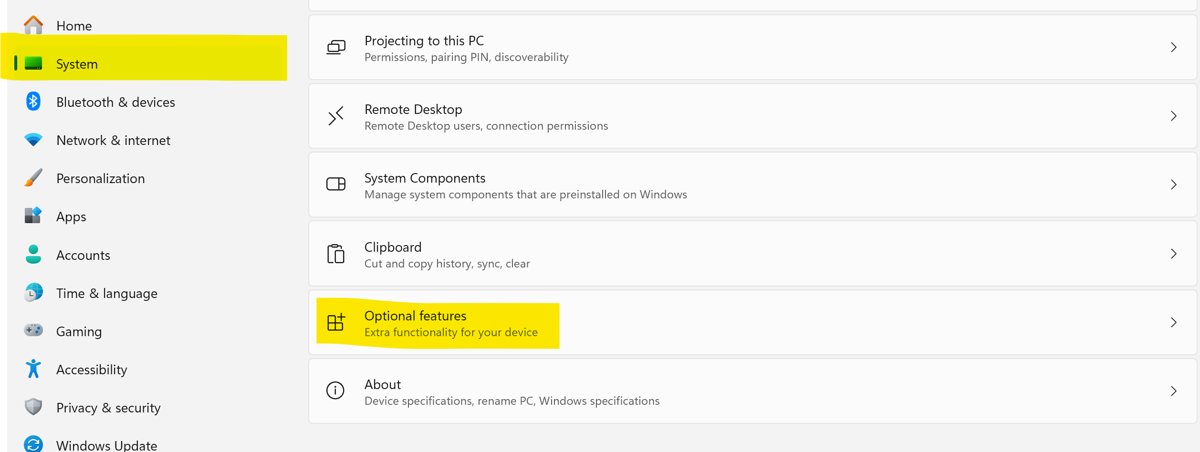
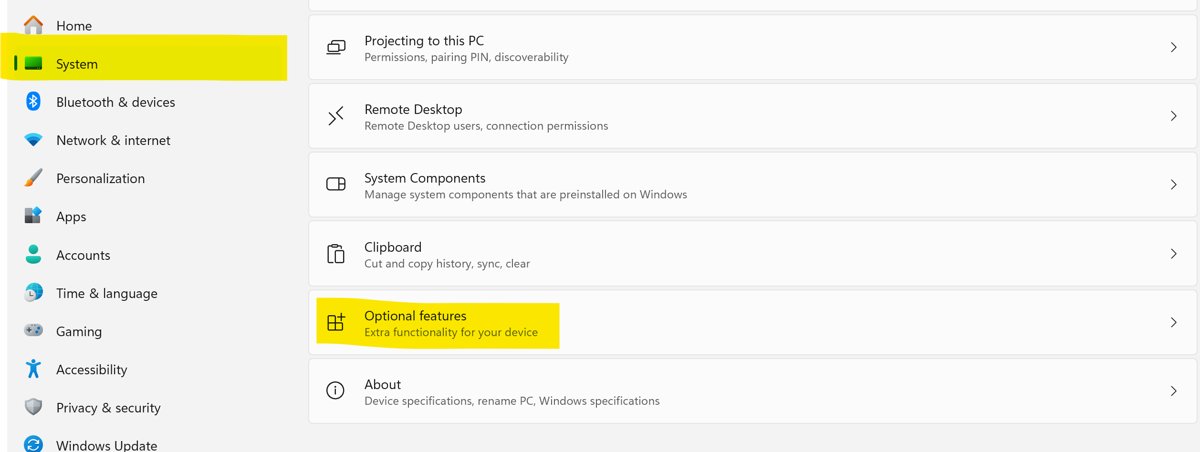
- Select System in the left pane, then select Optional features on the right.
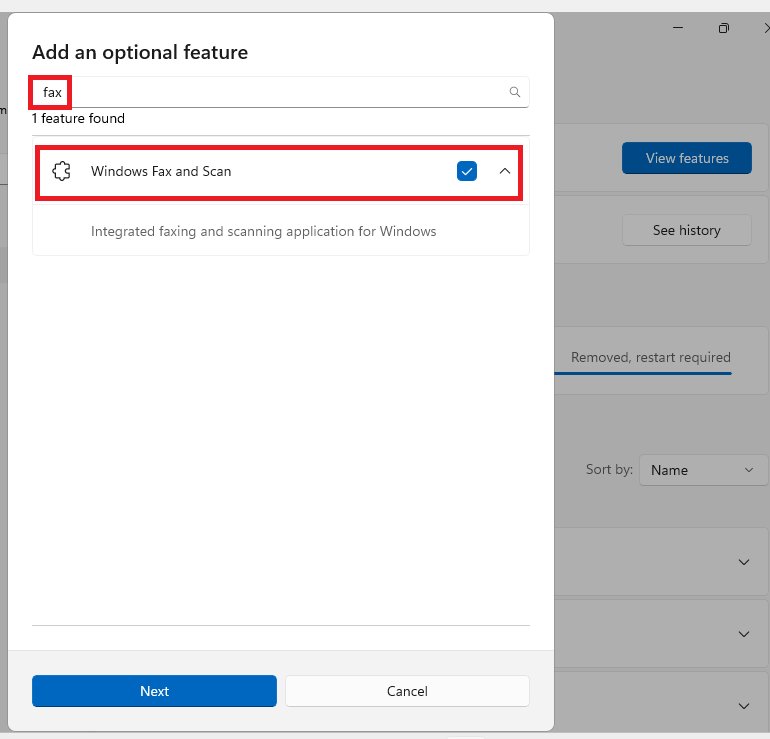
- Select View features next to Add an optional feature.
- Tick the box next to each feature you want. You can pick several at once.
- Select Next, review the list, then select Add.
- Wait while Windows Update downloads and installs the features, and restart if Windows asks.
A faster way into the same page: press Win + R, type ms-settings:optionalfeatures and select OK.
Optional features vs Windows features: which tool to use
Windows 11 keeps two separate lists. Features on Demand (capabilities) live on the Settings page, while legacy Windows features such as Hyper-V, Windows Sandbox and the Windows Subsystem for Linux sit in the older Turn Windows features on or off dialog.
What are Windows features? They are components built into Windows that stay off until you turn them on, so adding one installs nothing from a third party.
| Your situation | Use this | Why |
|---|---|---|
| Adding Wireless Display, WMIC, OpenSSH, Notepad (system) or a language extra | Settings > System > Optional features | These are Features on Demand, listed only on the Settings page |
| Turning on Hyper-V, Windows Sandbox, WSL or Virtual Machine Platform | Turn Windows features on or off (optionalfeatures.exe) | These are legacy Windows features with a checkbox in that dialog |
| Scripting one feature across many PCs | Add-WindowsCapability or Enable-WindowsOptionalFeature in PowerShell | Runs unattended and can be pushed by Intune or a scheduled task |
| PC has no internet or uses WSUS | DISM /Add-Capability with /Source and /LimitAccess | Installs from a mounted Languages and Optional Features ISO instead of Windows Update |
| Command Prompt only, no PowerShell | DISM /Online /Add-Capability or /Enable-Feature | DISM.exe works from any elevated console |
Add legacy optional features via Control Panel
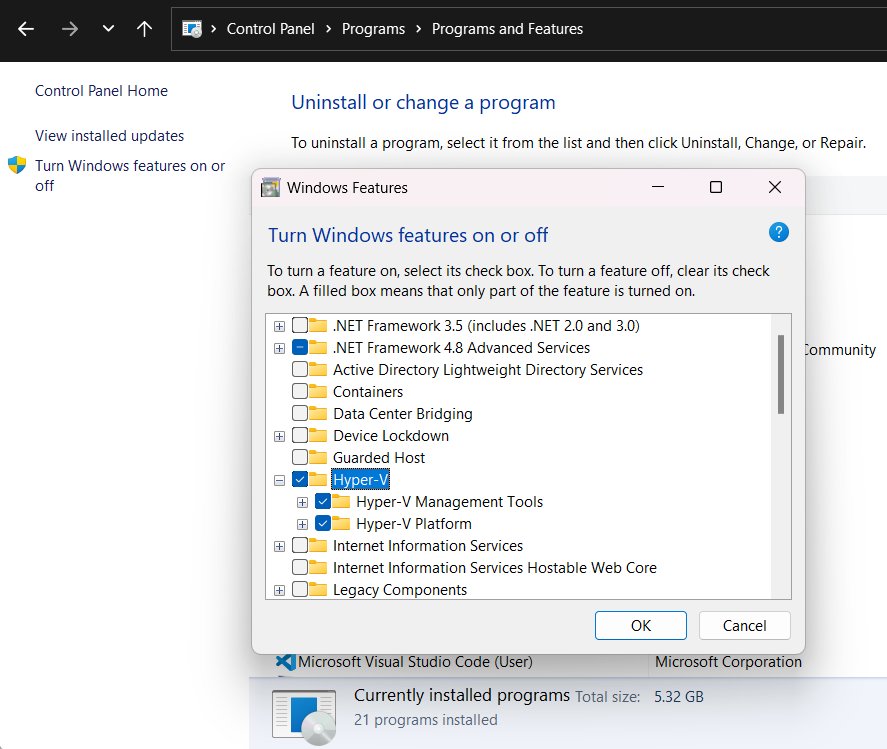
The legacy dialog is the Windows Optional Features tool, and its program file is optionalfeatures.exe.
- Type Turn Windows features on or off in the taskbar search box and open the result. You can also open Control Panel > Programs > Turn Windows features on or off, or press Win + R and run
optionalfeatures.exe. - Tick the feature you want, for example Windows Sandbox or Hyper-V.
- Select OK.
- Wait while Windows applies the changes, and restart the PC if it asks.
If an entry such as Windows Sandbox is missing or greyed out, the PC does not meet that feature's requirements. Hyper-V, for example, cannot be installed on Windows 11 Home.
Install optional features from PowerShell or Command Prompt
Open PowerShell or Command Prompt as administrator first, either on its own or as a tab in Windows Terminal; the commands fail without elevation. Capabilities (Features on Demand) and legacy Windows features use different commands.
- Select Start, type PowerShell, right-click Windows PowerShell and select Run as administrator.
- List every Feature on Demand and its state with
Get-WindowsCapability -Online. Narrow it with a filter, for exampleGet-WindowsCapability -Online | Where-Object Name -like 'OpenSSH*'. - Install a capability by its full name, for example
Add-WindowsCapability -Online -Name OpenSSH.Client~~~~0.0.1.0. - List legacy Windows features with
Get-WindowsOptionalFeature -Online. - Turn on a legacy feature and its parent features with
Enable-WindowsOptionalFeature -Online -FeatureName Microsoft-Hyper-V -All. - In Command Prompt, use DISM instead:
DISM /Online /Get-CapabilitiesandDISM /Online /Add-Capability /CapabilityName:App.WirelessDisplay.Connect~~~~0.0.1.0for capabilities. - For legacy features in Command Prompt, run
DISM /Online /Get-Features, thenDISM /Online /Enable-Feature /FeatureName:Containers-DisposableClientVM /All. - Enter Y or restart when the command reports that a restart is needed.
To install from local media instead of Windows Update, mount the Windows 11 Languages and Optional Features ISO and add /Source:E:\ /LimitAccess to the DISM command, or -Source "E:\" -LimitAccess to Add-WindowsCapability. The ISO must match your Windows version.
Uninstall optional features from PowerShell or Command Prompt
Removal mirrors installation. Use the same elevated PowerShell or Command Prompt window and the exact name the list commands return.
- Remove a capability in PowerShell with
Remove-WindowsCapability -Online -Name OpenSSH.Client~~~~0.0.1.0. - Remove a capability in Command Prompt with
DISM /Online /Remove-Capability /CapabilityName:OpenSSH.Client~~~~0.0.1.0. - Turn off a legacy feature in PowerShell with
Disable-WindowsOptionalFeature -Online -FeatureName Microsoft-Hyper-V. - Turn off a legacy feature in Command Prompt with
DISM /Online /Disable-Feature /FeatureName:Microsoft-Hyper-V. - Restart the PC when prompted so the change completes.
A capability that other packages depend on cannot be removed. For example, the basic language capability stays while a handwriting capability for that language is installed.
Where to find Optional features in Windows 11 and Windows 10
Microsoft has moved the page between releases, so the path depends on your version and update level.
| Windows version | Path to Optional features | Add button label |
|---|---|---|
| Windows 11, current updates | Settings > System > Optional features | View features next to Add an optional feature |
| Older Windows 11 builds | Settings > Apps > Optional features | View features |
| Windows 10 22H2 | Settings > System > Optional features | + Add a feature |
| Older Windows 10 builds | Settings > Apps > Apps & features > Optional features | Add a feature |
| Any version | Win + R, then ms-settings:optionalfeatures | Opens the page directly |
| Legacy features, any version | Control Panel > Programs > Turn Windows features on or off | Tick the box, then OK |
Check that an optional feature installed
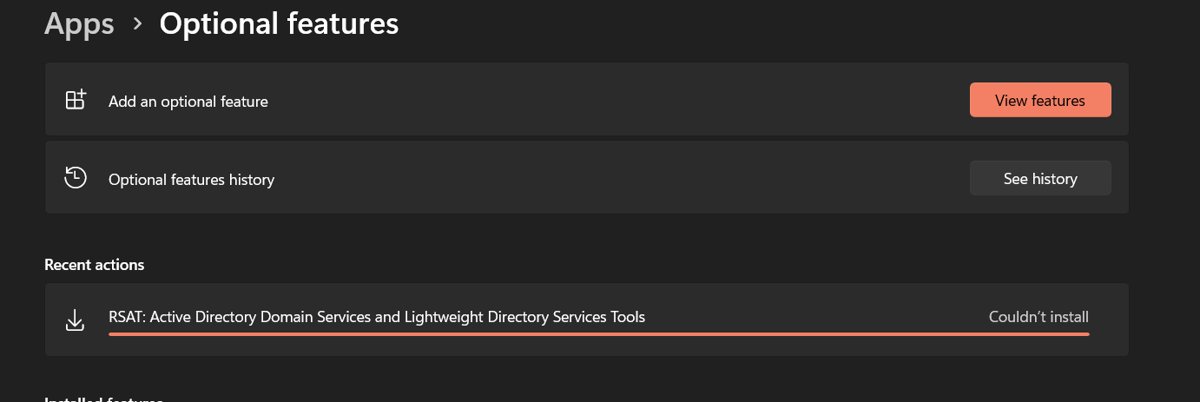
- Open Settings > System > Optional features and type the feature name in Search installed features. An installed feature appears in that list.
- In elevated PowerShell, run
Get-WindowsCapability -Online -Name OpenSSH.Client~~~~0.0.1.0and confirm the State line no longer reads NotPresent. - For a legacy feature, run
DISM /Online /Get-FeatureInfo /FeatureName:Microsoft-Hyper-Vand read the State line. - If the state shows Enable Pending, restart the PC to finish the install.
- Open the feature itself, for example select Windows Sandbox on the Start menu, to confirm it runs.
What optional features Windows 11 offers
The Settings list changes with each release. These are common Features on Demand with the capability names used in commands.
| Feature | What it adds | Capability name |
|---|---|---|
| Wireless Display | Adds the Connect app so other devices can project wirelessly to this PC | App.WirelessDisplay.Connect~~~~0.0.1.0 |
| WMIC | The WMI command-line utility, not preinstalled from Windows 11 version 24H2 | WMIC~~~~ |
| OpenSSH Client | The ssh command for remote connections | OpenSSH.Client~~~~0.0.1.0 |
| OpenSSH Server | Accepts incoming SSH connections | OpenSSH.Server~~~~0.0.1.0 |
| Notepad (system) | Classic Notepad for when the Store Notepad app is unavailable | Microsoft.Windows.Notepad.System~~~~0.0.1.0 |
| Steps Recorder | Captures individual steps with screenshots to save or share | App.StepsRecorder~~~~0.0.1.0 |
| Windows PowerShell ISE | The PowerShell scripting editor | Microsoft.Windows.PowerShell.ISE~~~~0.0.1.0 |
| Print Management | The Print Management console | Print.Management.Console~~~~0.0.1.0 |
| Extended Inbox Theme Content | Additional built-in theme assets | Microsoft.Wallpapers.Extended~~~~ |
Optional features are Windows components, not apps. To install apps on a Windows PC, use the Microsoft Store or the app's own installer instead.
The most important Windows features in Windows 11
The legacy Turn Windows features on or off dialog holds a different set of components. These are the ones most readers turn on, with the names that DISM and PowerShell expect.
| Windows feature | What it does | Feature name for commands |
|---|---|---|
| Hyper-V | Runs virtual machines; needs Windows 11 Pro or Enterprise, not Home | Microsoft-Hyper-V |
| Windows Sandbox | Opens a disposable desktop for testing untrusted files | Containers-DisposableClientVM |
| Windows Subsystem for Linux | Runs Linux distributions on Windows | Microsoft-Windows-Subsystem-Linux |
| Virtual Machine Platform | Supplies the virtualization layer that WSL 2 needs | VirtualMachinePlatform |
| .NET Framework 3.5 (includes .NET 2.0 and 3.0) | Runs older apps built for .NET Framework 1.1 through 3.5 | NetFx3 |
Pass the name to Enable-WindowsOptionalFeature -Online -FeatureName <name> -All or DISM /Online /Enable-Feature /FeatureName:<name> /All from an elevated console.
What optional features does WSL use?
The Windows Subsystem for Linux relies on two legacy Windows features rather than a Feature on Demand. The manual install steps enable both with DISM.
| Feature name | Purpose | DISM command |
|---|---|---|
| Microsoft-Windows-Subsystem-Linux | Windows Subsystem for Linux, required for WSL 1 and WSL 2 | dism.exe /online /enable-feature /featurename:Microsoft-Windows-Subsystem-Linux /all /norestart |
| VirtualMachinePlatform | Virtual Machine Platform, required for WSL 2 | dism.exe /online /enable-feature /featurename:VirtualMachinePlatform /all /norestart |
Restart the PC after enabling both features to complete the WSL setup.
Install .NET Framework 2.0, 3.0 and 3.5 on Windows 11
Windows 11 ships with .NET Framework 4, which does not run apps built for .NET Framework 1.1 through 3.5. One feature, .NET Framework 3.5, covers versions 2.0, 3.0 and 3.5. Microsoft advises checking for an updated version of the app first, because .NET Framework 3.5 dates from 2008.
- If an app shows a prompt asking for an older .NET Framework, select Download and install this feature. The PC must be online.
- Otherwise, search for Windows Features on the taskbar and open Turn Windows features on or off.
- Tick .NET Framework 3.5 (includes .NET 2.0 and 3.0) and select OK. Leave the two WCF child items cleared unless you are a developer or server administrator who needs them.
- Restart the PC if Windows asks.
- From an elevated Command Prompt, the same feature installs with
DISM /Online /Enable-Feature /FeatureName:NetFx3 /All. - On a PC without internet, insert matching Windows installation media and run
DISM /Online /Enable-Feature /FeatureName:NetFx3 /All /LimitAccess /Source:D:\sources\sxs, replacing D: with the media drive letter.
Use installation media from the same Windows version only. A mismatched source either installs the wrong .NET Framework 3.5 build or fails. Errors 0x800f0906, 0x800f0907, 0x800f081f and 0x800F0922 during this install usually point to a source problem.
From Windows 11 26H1 (build 28000), .NET Framework 3.5 is no longer a Windows component. It is available only as a standalone installer from Microsoft, and ASP.NET 3.5, .NET Extensibility 3.5 and the WCF activation components that depend on it were removed.
Uninstall optional features on Windows 11
- Open Settings > System > Optional features.
- Type the feature name in Search installed features, or scroll the Installed features list.
- Select the feature to expand it, then select Remove.
- For a legacy feature, open Turn Windows features on or off, clear its checkbox and select OK.
- Restart the PC if Windows asks.
Use Group Policy or MDM policies to hide Windows features
On organization-owned PCs, administrators can stop users from adding or removing features, and can push feature changes to many PCs at once. Group Policy needs Windows 11 Pro, Enterprise or Education.
- Press Win + R, type
gpedit.mscand select OK, or edit a domain Group Policy Object. - Go to User Configuration > Administrative Templates > Control Panel > Programs.
- Open Hide "Windows Features", select Enabled and select OK. The Settings page for adding optional features is then hidden on the device.
- To hide the whole Apps area of Settings instead, enable Hide "Programs and Features" page in the same folder.
- In Microsoft Intune, apply the same restriction with an administrative template or a settings catalog profile.
- Group Policy cannot turn off a specific feature. For that, deploy a PowerShell script that runs
Disable-WindowsOptionalFeature -Online -FeatureName <name>through a scheduled task or Intune PowerShell scripts, and useEnable-WindowsOptionalFeaturethe same way to turn features on across many PCs.
Fix optional features install failed on Windows 11
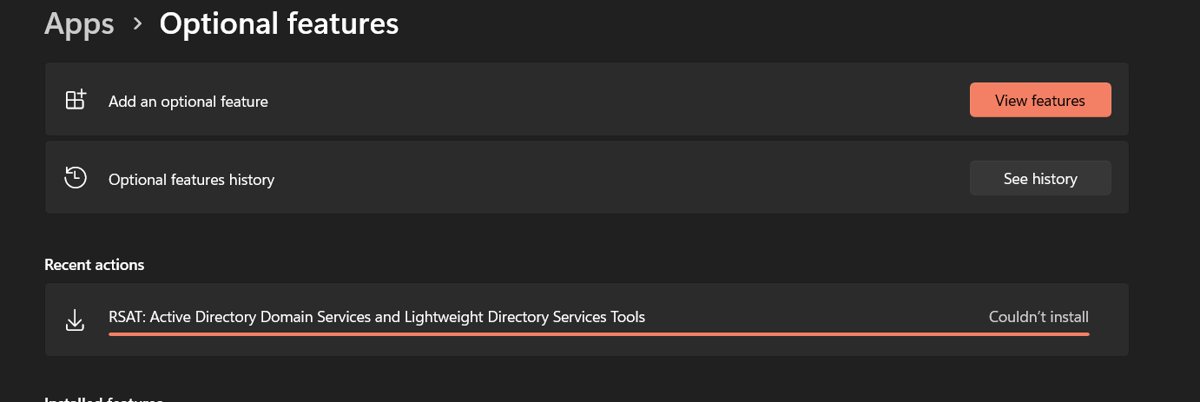
Optional features install failed with 0x800F0954 or 0x800F0950
Windows cannot reach the feature files, usually because the PC is offline, managed by WSUS or restricted by Group Policy.
- Confirm the PC is online and that Windows Update can check for updates.
- On Pro or higher, open Edit group policy and go to Computer Configuration > Administrative Templates > System.
- Open Specify settings for optional component installation and component repair and set it so Windows can download from Windows Update.
- If the PC must stay offline, mount the matching Languages and Optional Features ISO and run
DISM /Online /Add-Capability /CapabilityName:<name> /Source:E:\ /LimitAccess. - Retry the install from Settings or PowerShell.
Optional features not showing in Settings or missing on Windows 11
An administrator enabled the Hide "Windows Features" policy, or the page sits under a different menu on your build.
- Press Win + R, type
ms-settings:optionalfeaturesand select OK to open the page directly. - Check Settings > Apps if the page is not under System on your build.
- On a work PC, ask IT whether User Configuration > Administrative Templates > Control Panel > Programs > Hide "Windows Features" is enabled.
- Use
Add-WindowsCapabilityin elevated PowerShell if you have admin rights and the page stays hidden.
Windows Sandbox or Hyper-V is not listed in Turn Windows features on or off
The PC does not meet the feature's requirements, such as edition, virtualization or memory.
- Check your Windows edition. Hyper-V needs Windows 11 Pro or Enterprise and cannot be installed on Home.
- Turn on virtualization in the PC's firmware (BIOS or UEFI) settings.
- Confirm the PC has at least 4 GB of RAM and a 64-bit processor; Hyper-V also needs Second Level Address Translation (SLAT).
- Reopen Turn Windows features on or off and look for the entry again.
Windows optional features slow to install or stuck
Every feature downloads through Windows Update, so a slow connection or a pending update holds it back.
- Open Settings > Windows Update and install any pending updates first.
- Restart the PC to clear changes waiting on a reboot.
- Add one feature at a time rather than a large batch.
- Use the DISM command with a local ISO source if the connection is the bottleneck.
Windows 11 optional features FAQ
Where is Optional features in Windows 11?
Optional features is in Settings > System > Optional features on current Windows 11 builds. Older builds place it under Settings > Apps. On any build, press Win + R, type ms-settings:optionalfeatures and select OK to open it directly.
How do I enable optional features in Windows 11?
Open Settings > System > Optional features, select View features, tick the features you want, select Next and then Add. For legacy features like Hyper-V, use Turn Windows features on or off and tick the checkbox instead.
How do I open optional features as admin?
Select Start, type PowerShell, right-click Windows PowerShell and choose Run as administrator. From that window, Add-WindowsCapability installs Features on Demand and Enable-WindowsOptionalFeature turns on legacy features, both with full administrator rights.
How do I open optional features in CMD?
Type optionalfeatures.exe in Command Prompt to open the Turn Windows features on or off dialog. To manage features without a window, use DISM /Online /Get-Capabilities and DISM /Online /Get-Features.
What is optional features.exe?
OptionalFeatures.exe is the Windows Optional Features tool, the dialog titled Turn Windows features on or off. It turns legacy Windows features such as Hyper-V, Windows Sandbox and the Windows Subsystem for Linux on or off.
Where is optional features in Windows 10?
On Windows 10 22H2 it is under Settings > System > Optional features, and older Windows 10 builds keep it in Settings > Apps > Apps & features > Optional features. Select Add a feature to install one.
Do optional features need an internet connection?
Yes, by default. Windows Update supplies the files, so the PC must be online. Offline PCs can install from a matching Languages and Optional Features ISO with DISM and the /Source and /LimitAccess options.
What optional features does WSL use?
WSL uses two legacy Windows features: Microsoft-Windows-Subsystem-Linux and VirtualMachinePlatform. WSL 1 needs only the first, while WSL 2 needs both. Enable them in Turn Windows features on or off or with DISM, then restart.
What optional features should I install on Windows 11?
Install only what you will use. Wireless Display helps if other devices need to project to the PC, WMIC helps if old scripts call it, and OpenSSH Client helps for remote servers. Each feature takes disk space, so skip the rest.
Why does an optional features install fail?
Most failures, such as error 0x800F0954, mean Windows cannot reach the files. The PC may be offline, managed by WSUS, or blocked by the optional component installation policy. Allow Windows Update or install from a local ISO.