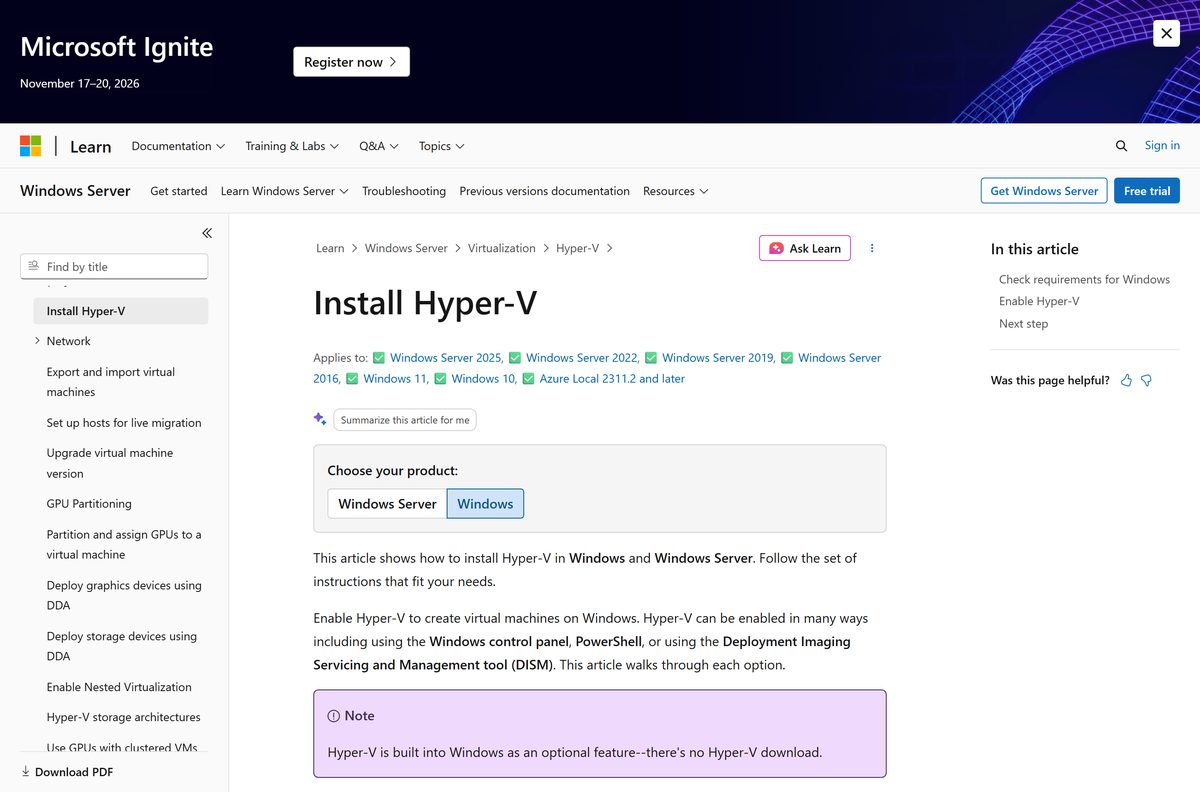
Hyper-V comes with Windows 11 Pro, Enterprise and Education, so you switch it on instead of running an installer. Press Windows, type Turn Windows features on or off, tick Hyper-V, then restart.
Windows 10 Pro and Enterprise carry the same feature, and Windows Server 2016 and later carry it as a server role. A free standalone product, Hyper-V Server 2019, is still offered as an ISO from the Microsoft Evaluation Center.
This guide covers which edition gets the hypervisor, the Control Panel and PowerShell routes, the hardware checks, your first virtual machine, what Mac owners use instead, and fixes when the feature will not turn on.
Which Hyper-V download do you need?
Match your edition to the row below. The edition decides everything else.
| Your system | What you use | Official source |
|---|---|---|
| Windows 11 Pro, Enterprise or Education | Built-in Hyper-V optional feature | Enable Hyper-V on Windows |
| Windows 10 Pro or Enterprise | Built-in Hyper-V optional feature | Enable Hyper-V on Windows |
| Windows 11 Home or Windows 10 Home | Not available; run Linux tools through WSL | Install WSL |
| Windows Server 2016 or later | Hyper-V server role | Install the Hyper-V role |
| A spare machine with no Windows licence | Hyper-V Server 2019 ISO, out of mainstream support | Microsoft Evaluation Center |
| A Mac | Windows 365 Cloud PC in the browser | Windows 365 |
Home editions cannot run the role at all, and no update or registry edit changes that.
Download Hyper-V for Windows 11 and Windows 10
Microsoft publishes the feature inside Windows itself, so the links below take you to the enable instructions and to the separate server products.
- Install Hyper-V in Windows and Windows Server — The feature already sits on your disk; this page shows the Control Panel, PowerShell and DISM routes
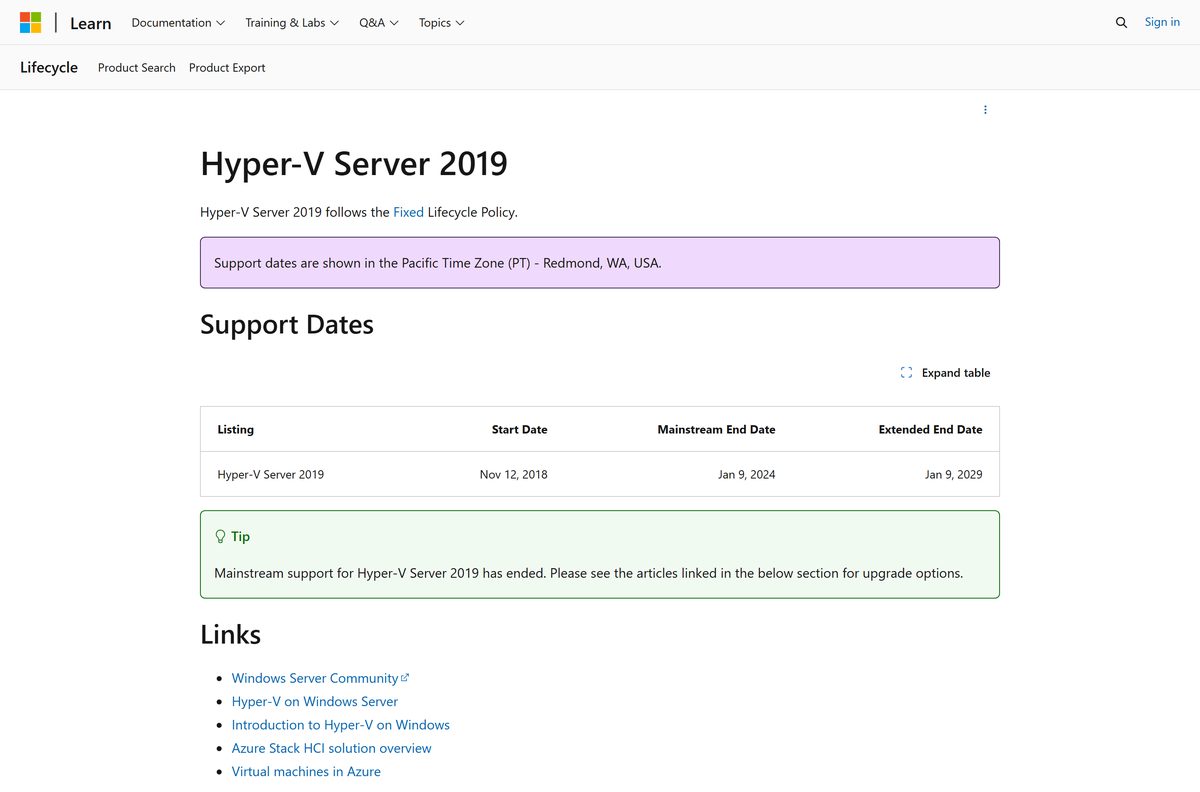
- Hyper-V Server 2019 ISO — Free standalone build, released 13 November 2018, mainstream support ended 10 January 2024
- Windows Server 2025 evaluation — Current server release that carries the Hyper-V role
- Windows Admin Center — Browser console for managing hosts, clusters and virtual machines
- Create a virtual machine in Hyper-V — Wizard and New-VM instructions for your first VM
How to turn on Hyper-V in Windows 11 and Windows 10
This route needs no command line and takes one restart.
- Select Start, type Control Panel and open it.
- Select Programs, then Programs and Features.
- Select Turn Windows features on or off.
- Tick Hyper-V so that both Hyper-V Platform and Hyper-V Management Tools are selected.
- Select OK and wait while Windows applies the changes.
- Restart the computer when Windows prompts you.
- After the restart, select Start, type Hyper-V Manager and open it.
On Windows 10 the same dialog opens from Settings > Apps & features > Programs and Features > Turn Windows features on or off.
If the Hyper-V entry is greyed out or missing, your edition or your processor is the reason, and the troubleshooting section below sorts out which.
How to enable Hyper-V with PowerShell or DISM
Use this route for scripted setups, or when the Control Panel dialog is locked down by policy.
- Select Start and type Windows PowerShell.
- Right-click Windows PowerShell and select Run as Administrator. The commands fail without elevation.
- Run Enable-WindowsOptionalFeature -Online -FeatureName Microsoft-Hyper-V -All .
- Enter Y when PowerShell offers to restart the computer.
- To use DISM instead, run DISM /Online /Enable-Feature /All /FeatureName:Microsoft-Hyper-V in the same elevated window.
- Wait for the line The operation completed successfully, then restart.
- Open Hyper-V Manager from Start once Windows is back.
The -All switch pulls in the dependent features, which is why it appears in both commands.
How to install the Hyper-V role on Windows Server
Windows Server treats the hypervisor as a role rather than an optional feature, so the commands differ.
| Task | Command or path | Notes |
|---|---|---|
| Install the role with its tools | Install-WindowsFeature -Name Hyper-V -ComputerName |
Drop -ComputerName when you are signed in to the server itself |
| Confirm the role afterwards | Get-WindowsFeature Hyper-V -ComputerName |
Run it after the server comes back from its restart |
| Use the wizard instead | Server Manager: Add Roles and Features | Manage menu, then Role-based or feature-based installation, then Hyper-V |
| Install the management tools only | add-windowsfeature rsat-hyper-v-tools | Gives you Hyper-V Manager on hardware that cannot host virtual machines |
| Manage a host from another machine | Remotely manage Hyper-V hosts | Run Enable-PSRemoting on both computers first |
On a Server Core installation, -IncludeManagementTools installs only the PowerShell module, so plan to manage that host from a machine with the graphical console.
How to check that Hyper-V is running on your PC
Two built-in tools answer this, and they answer it differently depending on whether the hypervisor has already started.
- Select Start, type cmd and open Command Prompt.
- Run Systeminfo.exe .
- Scroll to the Hyper-V Requirements section.
- Read the four lines. Every one must say Yes before the feature can be turned on.
- If the section instead reads A hypervisor has been detected. Features required for Hyper-V will not be displayed, the hypervisor is already running.
- For a second opinion, press Windows, type msinfo32.exe and open System Information, then read the same entry in the Details pane.
- In an elevated PowerShell window, run Get-WindowsOptionalFeature -Online -FeatureName Microsoft-Hyper-V and read the State value.
A No on any requirement line points at firmware or at the processor, not at Windows.
How to create your first virtual machine
The New Virtual Machine Wizard walks the whole build. Have an ISO ready before you start.
- Select Start, type Hyper-V Manager and open it.
- In the left pane, select your computer name.
- In the Actions pane, select New, then Virtual Machine, then Next.
- On Specify Name and Location, name the machine and choose where its configuration files go.
- On Specify Generation, pick Generation 2 unless you have a reason to pick generation 1.
- On Assign Memory, set the startup memory. The wizard accepts 32 MB at the low end.
- On Configure Networking, select a virtual switch, or skip it and add one later.
- On Connect Virtual Hard Disk, select Create a virtual hard disk and set its size.
- On Installation Options, select Install an operating system from a bootable image file and browse to your ISO.
- Select Finish, right-click the machine, select Connect, then select Action > Start.
The PowerShell equivalent is New-VM , and Microsoft documents every parameter on the create a virtual machine page.
Your account must belong to the local Administrators group or the Hyper-V Administrators group, or the wizard refuses to finish.
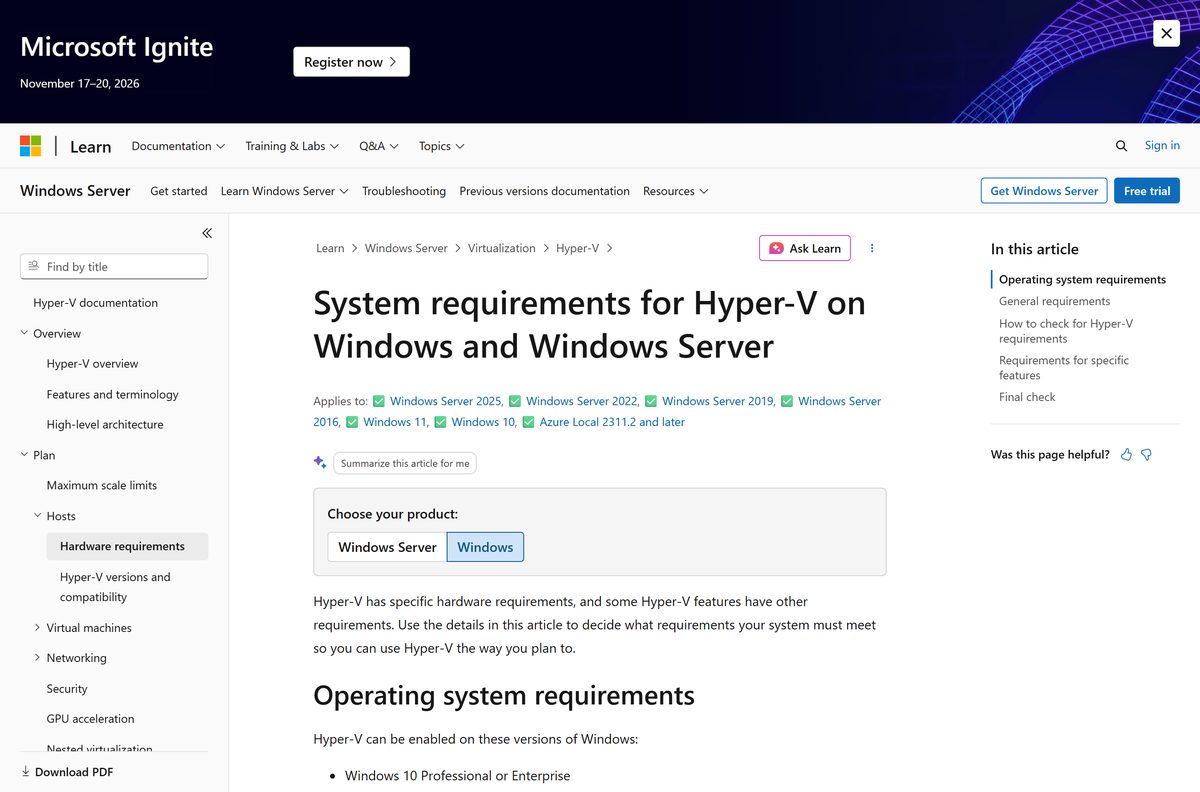
Check the Hyper-V system requirements
Firmware settings trip up more machines than processors do, so check the BIOS or UEFI before you blame the hardware.
| Field | Value |
|---|---|
| Software | Hyper-V |
| Developer | Microsoft Corporation |
| Latest version | Ships with Windows 11 version 25H2 (OS build 26200.9457) |
| Price | Free, included with the Windows licence |
| Supported editions | Windows 11 Pro, Enterprise, Education; Windows 10 Pro, Enterprise; Windows Server 2016 and later |
| Not supported | Windows 10 Home, Windows 11 Home, macOS |
| Processor | 64-bit with second-level address translation (SLAT) and VM Monitor Mode extensions |
| Firmware | Intel VT-x or AMD-V turned on, plus hardware-enforced DEP (Intel XD bit or AMD NX bit) |
| Memory | 4 GB minimum, plus enough for every virtual machine you run at once |
| Delivery | Built-in Windows optional feature, enabled from Windows Features, PowerShell or DISM |
| Standalone product | Hyper-V Server 2019, extended support ends 10 January 2029 |
| Last verified | 2026-09-22 |
Is Hyper-V free?
Yes. Hyper-V costs nothing on top of the Windows licence you already own. Microsoft includes the hypervisor in Windows 11 Pro, Enterprise and Education, in Windows 10 Pro and Enterprise, and in every Windows Server edition, so there is no separate hypervisor licence to buy. Windows Server Datacenter adds unlimited virtual machine rights for Windows Server guests. Guest operating systems still need their own licences, and any site selling you a Hyper-V installer is not Microsoft.
Hyper-V in Windows or Hyper-V Server 2019: which should you install?
Enable the role inside Windows 11 Pro or Windows Server 2025 and leave the 2019 standalone build for existing hosts only. Mainstream support for Hyper-V Server 2019 ended on 10 January 2024, extended support ends on 10 January 2029, and Microsoft released no standalone successor. The role built into a current Windows release runs the same hypervisor with full servicing, and Microsoft points 2019 owners at Windows Server, Azure Local or Azure virtual machines for upgrades.
What runs alongside Hyper-V on the same PC
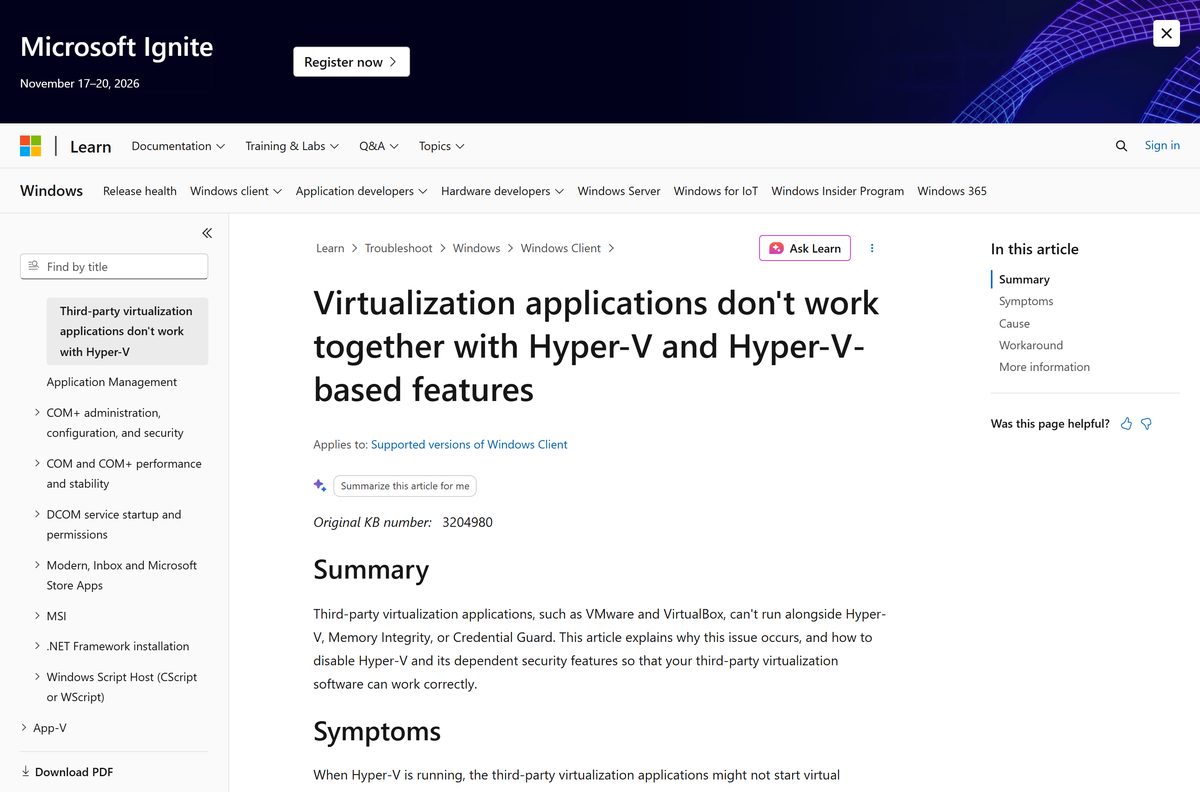
Only one component at a time can hold the hardware virtualization extensions, which is why some tools stop working the moment the hypervisor starts.
| Software or feature | Runs with the hypervisor? | What to do |
|---|---|---|
| VMware Workstation and VirtualBox | No | Clear the Hyper-V Hypervisor checkbox, or they fall back to slow emulation |
| Memory Integrity | Yes, it depends on the hypervisor | Turn it off as well if you need VMware or VirtualBox |
| Credential Guard | Yes, it depends on the hypervisor | Turn it off with the hypervisor, using Intune, Group Policy or the registry |
| WSL 2 | Yes | It uses the same virtualization platform and installs on Home editions too |
| Windows Sandbox | Yes, on Pro, Enterprise, Pro Education and Education | One instance at a time, and everything is deleted when you close it |
| Windows 11 Home | No hypervisor at all | Run Linux through WSL or move to a Pro licence |
Microsoft calls this behaviour by design in its support article on virtualization app conflicts.
Which Hyper-V option do you have on a Mac?
Microsoft ships the hypervisor for Windows only, so a Mac reaches it over the network or not at all.
| What you want to do | What to use | Official source |
|---|---|---|
| Run a full Windows desktop on macOS | Windows 365 Cloud PC in Safari, Edge or Chrome | Windows 365 |
| Manage an existing host from macOS | Windows Admin Center in a browser | Windows Admin Center |
| Run local virtual machines on Apple silicon | Apple’s own Virtualization framework and the apps built on it | Apple Virtualization framework |
| Run the hypervisor itself | A PC with Windows 11 Pro or a Windows Server host | Enable Hyper-V on Windows |
Fix Hyper-V not installing or missing from Windows Features
Hyper-V is missing from Turn Windows features on or off
Home editions do not carry the role, and nothing you install adds it.
- Open Settings > System > About and read the Edition line.
- If it reads Windows 11 Home or Windows 10 Home, stop here: the role cannot be installed.
- Move to a Pro, Enterprise or Education licence, or run Linux tooling with wsl –install instead.
- On a Pro machine that still shows nothing, check the requirements section below for a firmware cause.
You see Windows Hypervisor Platform instead of Hyper-V
Windows hides the entry when the machine fails a hardware or firmware check.
- Open Command Prompt and run Systeminfo.exe .
- Read the Hyper-V Requirements section and note any line that says No.
- Restart, open the BIOS or UEFI setup, and turn on Intel VT-x or AMD-V.
- Turn on hardware-enforced DEP, listed as the XD bit on Intel boards and the NX bit on AMD boards.
- Save the firmware settings, boot back into Windows and run Systeminfo.exe again.
VMware or VirtualBox virtual machines will not start
The hypervisor holds the processor’s virtualization extensions, and they cannot be shared.
- Press Windows, type msinfo32.exe and open System Information.
- Look for A hypervisor has been detected in the Details pane to confirm the cause.
- Open an elevated PowerShell window and run Disable-WindowsOptionalFeature -Online -FeatureName Microsoft-Hyper-V-Hypervisor .
- Or open Turn Windows features on or off, expand Hyper-V and Hyper-V Platform, then clear Hyper-V Hypervisor.
- Turn off Memory Integrity and Credential Guard, because both start the hypervisor again.
- Restart, then start the third-party virtual machine.
Hyper-V Manager cannot connect to the local computer
Only the management tools are present, so there is no local host to connect to.
- Press Windows, type services.msc and press Enter.
- Look for the Virtual Machine Management service in the list.
- If the service is missing, turn on Hyper-V Platform in Turn Windows features on or off and restart.
- In the console, right-click Hyper-V Manager, select Connect to Server, choose Local computer and select OK.
- Confirm your account sits in the Administrators or Hyper-V Administrators group.
How to uninstall Hyper-V from Windows 11 and 10
Removing the whole feature and removing only the hypervisor are different jobs. Pick the smaller one if you simply want another virtualization app to work.
- Export or copy any virtual machine you want to keep before you start.
- Open Control Panel > Programs > Programs and Features.
- Select Turn Windows features on or off.
- Clear the Hyper-V checkbox and select OK.
- Restart when Windows prompts you.
- To remove only the hypervisor and keep the console, run Disable-WindowsOptionalFeature -Online -FeatureName Microsoft-Hyper-V-Hypervisor in an elevated PowerShell window.
- The DISM equivalent is DISM /Online /Disable-Feature /FeatureName:Microsoft-Hyper-V-Hypervisor .
- Delete the .vhdx files of any virtual machine you no longer need, because removing the feature leaves them on disk.
Which Hyper-V alternative should you use?
Home edition owners and Mac owners have real options, and two of them cost nothing.
| If you need | Use | Cost |
|---|---|---|
| Linux tools on Windows Home | WSL | Free, one command to install |
| A disposable Windows desktop for testing | Windows Sandbox | Free on Pro, Enterprise and Education |
| Desktop virtual machines on Home or macOS | Oracle VirtualBox | Free, open source |
| Windows on a Mac or a tablet | Windows 365 | Paid monthly subscription |
| A server lab without new hardware | Windows Server 2025 evaluation | Free evaluation |
Frequently asked questions
Is the Hyper-V download free?
Yes. The hypervisor is part of Windows 11 Pro, Enterprise and Education, Windows 10 Pro and Enterprise, and every Windows Server edition. You pay nothing extra, and there is no licence key for the feature itself.
What is the official Hyper-V download page?
Microsoft Learn’s install article at learn.microsoft.com is the official source. It explains that the feature is built into Windows and gives the Control Panel, PowerShell and DISM routes for turning it on.
Does Hyper-V work on Windows 11?
Yes, on Windows 11 Pro, Enterprise and Education. Open Turn Windows features on or off, tick Hyper-V and restart. Windows 11 Home cannot run the role.
How big is the Hyper-V download?
There is no download. The files ship with Windows, so enabling the feature only unpacks components that are already on your disk. The separate Hyper-V Server 2019 product is a full ISO instead.
Is there a Hyper-V offline installer?
No standalone installer exists. DISM handles the offline case: run DISM /Online /Enable-Feature /All /FeatureName:Microsoft-Hyper-V on a live system, or service a Windows image with the same feature name.
Can you run Hyper-V on a Mac?
No. Microsoft builds the hypervisor for Windows only. A Mac can open a Windows 365 Cloud PC in a browser, or manage a remote Windows host with Windows Admin Center.
Does Hyper-V need a 64-bit processor?
Yes. Microsoft requires a 64-bit processor with second-level address translation and VM Monitor Mode extensions. Hardware-assisted virtualization and hardware-enforced DEP must also be turned on in the BIOS or UEFI.
Is Hyper-V safe to enable?
It is a Microsoft component signed and serviced with Windows. The one trade-off is that VMware Workstation and VirtualBox cannot start virtual machines while the hypervisor is running.
What is the latest Hyper-V version?
The feature has no version of its own. It is serviced with Windows, so the current release is whatever Windows build you run. On Windows 11 that is version 25H2, OS build 26200.9457.
Why will Hyper-V not install on my PC?
Three causes cover almost every case: a Home edition, virtualization turned off in the BIOS or UEFI, or a processor without SLAT. Run Systeminfo.exe and read the Hyper-V Requirements section to tell them apart.
Is Hyper-V Server 2019 still supported?
Mainstream support ended on 10 January 2024 and extended support ends on 10 January 2029. Microsoft published no standalone successor and points users at Windows Server, Azure Local or Azure virtual machines.
Can you install Hyper-V Manager without the hypervisor?
Yes. Select only Hyper-V Management Tools in Turn Windows features on or off, or run add-windowsfeature rsat-hyper-v-tools on Windows Server. The console then manages remote hosts.