To format a hard drive in Windows 11, open File Explorer, right-click the drive, select Format, choose a File system such as NTFS, and select Start.
This guide covers File Explorer, Disk Management, DiskPart, the format command and PowerShell, plus new drives that do not show up, the Windows drive, full wipes and DiskPart volume errors.
How to format a hard drive or disk in Windows 11
Formatting erases everything on the drive. Copy any files you want to keep to another drive before you start.
- Connect the drive to your PC if it is external.
- Open File Explorer and select This PC.
- Right-click the drive you want to format.
- Select Format from the menu.
- Choose NTFS or another option in the File system drop-down menu.
- Type a name in Volume label if you want one.
- Select Start, then confirm the warning that all data will be erased.
This works for any drive that already has a drive letter. A brand-new disk that does not appear in File Explorer needs you to open Disk Management first.
Which Windows 11 format method fits your drive
| Your situation | Use this | Why |
|---|---|---|
| Drive shows up in File Explorer | File Explorer > Format | Fewest clicks, no admin tools needed |
| New disk is missing from File Explorer | Disk Management: Initialize Disk, then New Simple Volume | The disk needs a partition style and a volume first |
| You want to change partitions as well as the file system | Disk Management or DiskPart | Both can delete and create volumes |
| Format greyed out or the drive is stuck | DiskPart clean, then create partition primary | Removes all partitions so you can start again |
| You want a scripted or repeatable format | format command or PowerShell Format-Volume | One line sets file system, label and quick or full |
| You want to erase the drive Windows runs from | Reset this PC with Clean data, or Windows Setup | Windows cannot format the volume it is running from |
Types of file systems in Windows
| File system | Best for | Notes |
|---|---|---|
| NTFS | Internal hard drives, SSDs and Windows backup drives | The usual choice in Disk Management; volumes up to 8 PB on Windows 10 version 1709 and later |
| exFAT | External drives shared with Macs, cameras and other devices | Supported by the format command and File Explorer |
| FAT32 | Older devices that only read FAT32 | Limited cluster counts make it a poor fit for large drives |
| ReFS | Dev Drive and server storage | Format command supports it; Dev Drive uses the /DevDrv switch |
| UDF | Optical and some specialised media | Rarely needed on a hard drive |
Pick NTFS unless another device needs to read the drive. The Xbox USB update and repair method also expects a flash drive formatted to NTFS.
Format a drive or partition in Disk Management
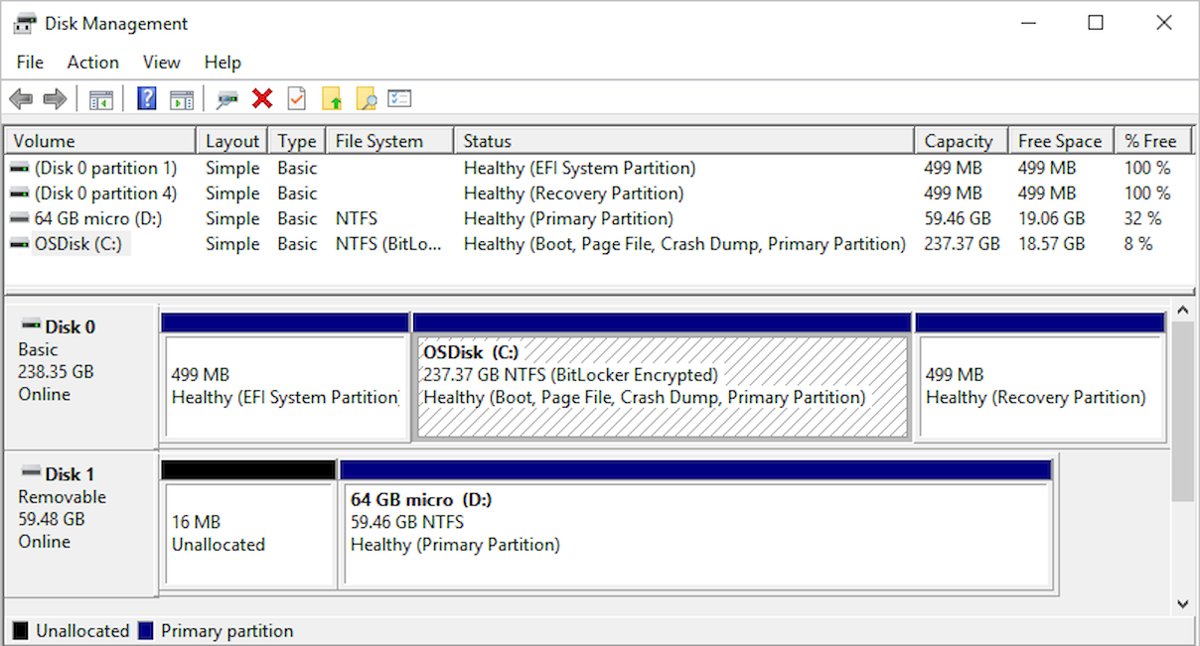
Disk Management shows every disk, including partitions that have no drive letter in File Explorer.
- Right-click the Start button and select Disk Management.
- Find the volume you want to format in the lower pane.
- Right-click the volume and select Format.
- Set the Volume label and File system, usually NTFS.
- Keep the quick format option on for a drive you know is healthy, or turn it off for a full format.
- Select OK, then confirm the data-loss warning.
You can also press Windows + R, type diskmgmt.msc and press Enter to open the same tool.
Format a new hard drive that won't show up in File Explorer
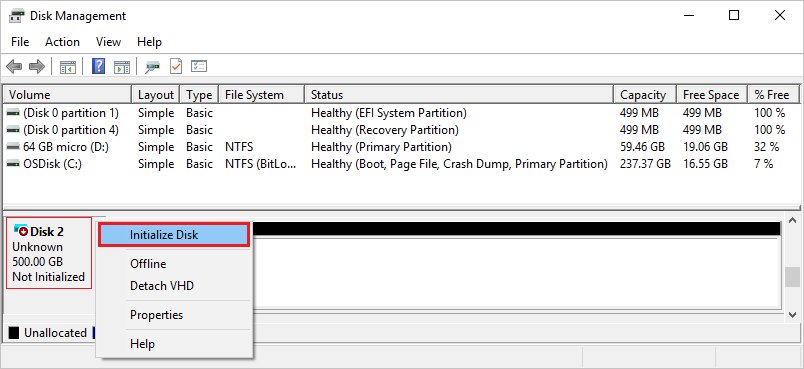
A new internal or external disk stays hidden in File Explorer until it is initialized and has a volume. Some USB drives skip initialization and only need formatting.
- Open Disk Management with administrator rights.
- If the disk shows Offline, right-click it and select Online.
- Right-click the disk and select Initialize Disk.
- Keep GPT (GUID Partition Table) selected for most PCs, then select OK.
- Right-click the Unallocated space and select New Simple Volume, then Next.
- Accept the default size to use the whole drive, then select Next.
- Choose a drive letter, select NTFS as the file system, and select Next.
- Select Finish.
The same wizard lets you add an E drive by creating a smaller volume and leaving space for another.
How to format a hard drive using CMD and DiskPart
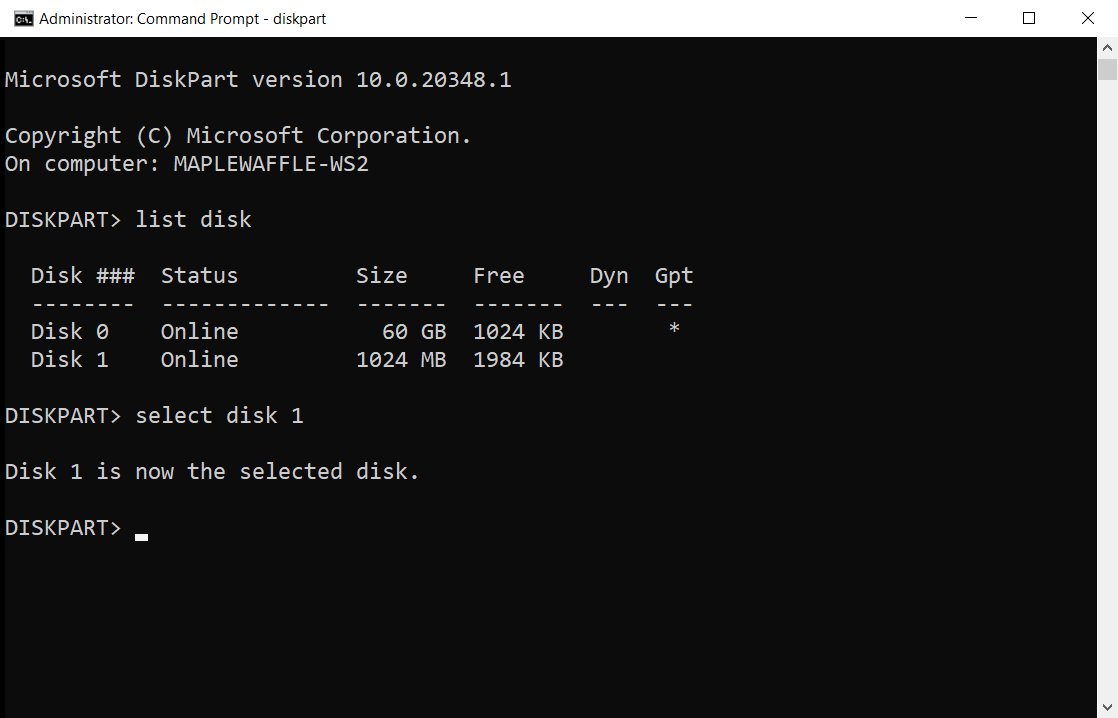
DiskPart works when File Explorer and Disk Management refuse. Run it from an administrator Command Prompt or Terminal, and check the disk number twice before you type clean.
- Search for Command Prompt, right-click it, select Run as administrator, then Yes.
- Type
diskpartand press Enter. - Type
list diskand note the number of the drive you want to erase. - Type
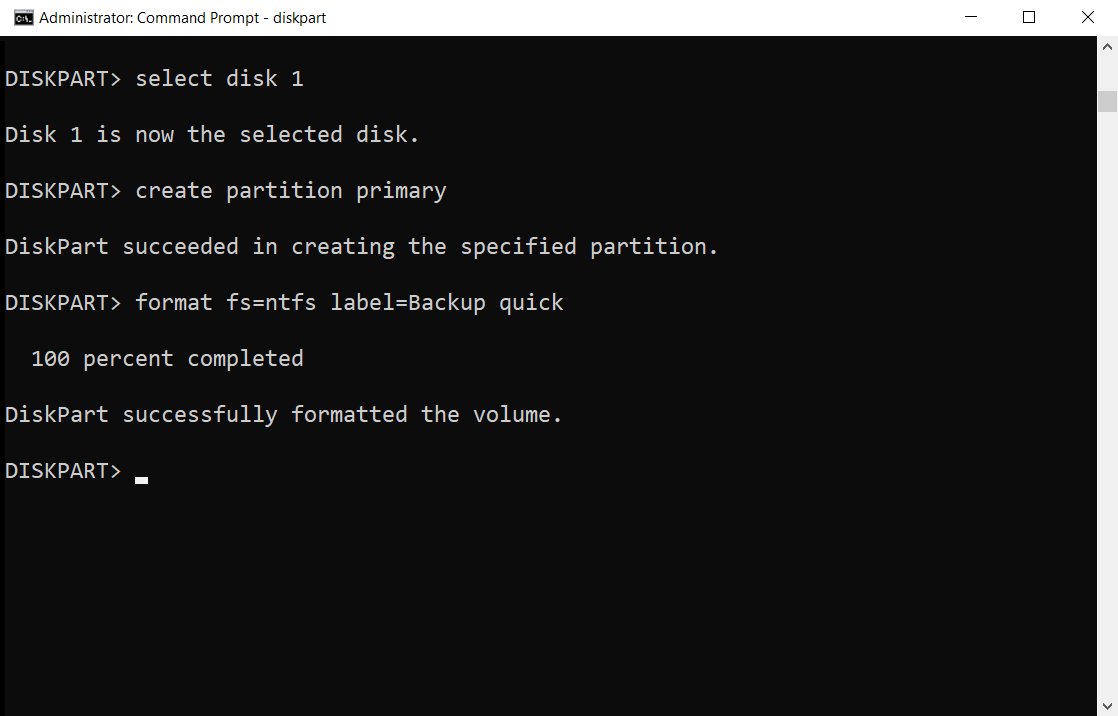
select disk 1, replacing 1 with your disk number. - Type
cleanto remove every partition on that disk. - Type
create partition primaryto make one partition across the disk. - Type
format fs=ntfs label=Backup quickto quick-format it as NTFS. - Type
assign letter=Eto give it a drive letter, then typeexit.
To format an existing volume without wiping the partition table, use list volume, then select volume E, then the same format line.
Format a drive with the format command in Command Prompt
format E: /FS:NTFS /V:Data /QFormats drive E: as NTFS with the label Data. /Q makes it a quick format, which deletes the file table and root folder but skips the bad-sector scan. Swap NTFS for exFAT or FAT32 as needed, and drop /Q for a full format.
You should see: After you press Y at the Proceed with Format (Y/N)? prompt, the command reports total disk space and space available. Exit code 0 means success.
Run it from an administrator Command Prompt. Add /X if the drive is in use and needs to dismount first.
Format a hard drive with PowerShell Format-Volume
Format-Volume -DriveLetter E -FileSystem NTFS -NewFileSystemLabel DataQuick-formats volume E as NTFS with the label Data. Add -Full for a full format, or use -FileSystem exFAT or FAT32 for other file systems.
You should see: PowerShell returns a line showing the drive letter, label, file system and size of the freshly formatted volume.
Run PowerShell as administrator. Get-Volume lists every volume first, so you can confirm the letter.
How to format the system drive with Windows on it
Windows cannot format the volume it is running from, so the C: drive has no working Format option. Reset this PC or Windows Setup does the job instead.
- Back up your files and note your BitLocker recovery key if the drive is encrypted.
- Open Settings > System > Recovery.
- Next to Reset this PC, select Reset PC.
- Select Remove everything.
- Turn on Clean data to erase the drive so files are harder to recover.
- Choose Cloud download or Local reinstall, then follow the prompts.
To start from an empty disk instead, boot from Windows 11 installation media. In Select location to install Windows 11, delete each partition on Disk 0 until only Unallocated Space remains, then select Next.
How to completely format a hard drive before selling it
A quick format leaves old data readable by recovery tools. To make it unrecoverable, overwrite every sector.
- Copy any files you need from the drive.
- Open an administrator Command Prompt or Terminal.
- Run
format E: /FS:NTFS /P:1to zero every sector and then overwrite it once with random data. - Or open
diskpart, runselect disk 1, thenclean allto zero every sector on the whole disk. - After
clean all, runcreate partition primary,format fs=ntfs quickandassignto use the drive again.
Overwriting every sector takes far longer than a quick format. For the Windows drive, use Clean data in Reset this PC instead.
There is no volume selected in DiskPart error on Windows
"There is no volume selected" when you run format or assign
DiskPart only acts on the object with focus, and format and assign need a selected partition or volume.
- Type
list volumeand find your drive by size or letter. - Type
select volume Eorselect volume 3to give it focus. - Type
list volumeagain and check the asterisk sits next to that volume. - Run the
formatcommand again.
Volume selection is lost after selecting a disk
Selecting a new disk moves focus away from the volume you chose earlier.
- Type
select diskwith your disk number. - Type
list partitionandselect partition 1for the partition you want. - Run
format fs=ntfs quick.
There are no volumes DiskPart error in Windows 11
"There are no volumes" or the disk lists no volumes
The disk is new, or clean removed every partition, so there is nothing to format yet.
- Type
select diskwith your disk number. - Type
create partition primaryto make a partition across the free space. - Type
format fs=ntfs label=Data quick. - Type
assignto give the volume the next free drive letter.
Disk is missing from list disk
Windows has not picked up the disk since it was connected.
- Type
rescanin DiskPart to look for newly added disks. - Type
list diskagain. - If it is still missing, reconnect the cable or try another port, then check Disk Management for an Offline disk.
Why can't I format my hard drive in Windows 11
Format is greyed out or refused on the C: drive
Windows cannot format a volume that is in use, including the one Windows runs from.
- Use Reset this PC with Remove everything and Clean data.
- Or boot from installation media and delete the Disk 0 partitions in Windows Setup.
External hard drive won't format because it is in use
An open file, app or Explorer window holds a handle on the volume.
- Close any apps and windows using the drive.
- Run
format E: /FS:NTFS /Q /Xto force the volume to dismount first. - In DiskPart, add
overrideto the format line for the same effect.
Hard drive won't show up for formatting
The disk is offline, not initialized, or has only unallocated space.
- Open Disk Management and look for the disk by size.
- Right-click it and select Online if it is offline.
- Select Initialize Disk, then create a New Simple Volume.
Format fails partway or reports bad areas
The drive has damaged sectors or file system errors.
- Run a full format without the quick option so Windows scans for bad areas.
- Run chkdsk to scan the drive for errors.
- Replace the drive if errors keep returning.
How to check the hard drive formatted correctly
- Open File Explorer > This PC and confirm the drive shows its new label and full free space.
- Right-click the drive, select Properties, and check the File system line on the General tab.
- In Disk Management, confirm the volume lists the file system and drive letter you chose.
- Copy a test file to the drive and open it.
Tips for how to format a hard drive in Windows 10 and 11
| Tip | Why it matters |
|---|---|
| Back up first | Every method here erases the volume or disk |
| Check the disk number in DiskPart twice | clean wipes whichever disk has focus, with no undo |
| Use quick format only on healthy drives | Quick skips the bad-sector scan that a full format runs |
| Keep default allocation unit size | Microsoft recommends defaults for general use |
| Choose GPT for new disks | GPT is the default and supports volumes larger than 2 TB |
| Same tools work in Windows 10 | File Explorer, Disk Management, DiskPart, format and Format-Volume behave the same |
If you only want space back rather than a blank drive, clean up the hard drive instead of formatting it.
Format a hard drive in Windows 11 FAQ: frequently asked questions
How do I format a hard drive using CMD?
Open Command Prompt as administrator and run format E: /FS:NTFS /Q, replacing E with your drive letter. Press Y to confirm. For a disk with no partitions, use DiskPart: select disk, create partition primary, format fs=ntfs quick, then assign.
How do I format a hard drive to FAT32?
Choose FAT32 in the File system menu in File Explorer, or run format E: /FS:FAT32 in Command Prompt. PowerShell also accepts Format-Volume -DriveLetter E -FileSystem FAT32. FAT32 suits older devices; use exFAT or NTFS for large drives.
How do I format a hard drive to NTFS?
Right-click the drive in File Explorer, select Format, pick NTFS in the File system menu and select Start. NTFS is the standard choice for internal drives and Windows backup drives.
How do I format a drive for Xbox?
For updating or repairing an Xbox from USB, Xbox Support asks for a flash drive of at least 4 GB formatted to NTFS. Format it in File Explorer by selecting NTFS in the File system menu and selecting Start.
Can I format a hard drive from BIOS?
Windows formats drives from Windows tools or Windows Setup. To erase a drive before Windows loads, boot from Windows 11 installation media and delete the partitions in the Select location to install Windows 11 screen.
How do I format a hard drive with Windows on it?
Use Settings > System > Recovery > Reset PC and choose Remove everything with Clean data. Windows cannot format its own running volume, so Reset this PC or a clean install from installation media is the supported route.
How do I format a bootable hard drive?
Open DiskPart as administrator, select the disk, and run clean to remove its boot and data partitions. Then run create partition primary, format fs=ntfs quick and assign to turn it into a normal data drive.
How do I completely format a hard drive?
Run format E: /P:1 to zero every sector and overwrite it once, or use DiskPart clean all on the whole disk. A quick format only clears the file table, so old files stay recoverable.
Why should I format my external hard drive?
Format an external drive to switch file systems for another device, to clear it before giving it away, or to start fresh after errors. A new drive also needs a volume and file system before Windows can store files on it.
Why can't I format my external hard drive?
The drive is usually in use, offline, or has no volume. Close apps using it, add /X to the format command, or open Disk Management to bring it online and create a new simple volume.
Bottom line: the best way to format a hard drive in Windows 11
Use File Explorer for any drive with a letter, Disk Management for new or hidden disks, and DiskPart clean when the partitions themselves are the problem. Each step up gives more control and more risk, so start with the simplest tool that sees your drive and only move to DiskPart when the others cannot finish the job.