To configure reservable bandwidth in Windows 11, open gpedit.msc, go to Computer Configuration > Administrative Templates > Network > QoS Packet Scheduler, open Limit reservable bandwidth, select Enabled and set the Bandwidth limit value.
This guide explains what the 80 percent default controls, how to change and reset it, how to check the policy applied, and how to limit bandwidth on Windows 11 Home, where Group Policy Editor is missing.
Limit reservable bandwidth setting in Windows 11/10
The setting is part of Windows Group Policy, so it needs Windows 11 or Windows 10 Pro, Enterprise or Education and an administrator account. The same steps work in both versions.
- Press Windows + R, type
gpedit.mscand press Enter to open the Local Group Policy Editor. - Go to Computer Configuration > Administrative Templates > Network > QoS Packet Scheduler.
- Double-click Limit reservable bandwidth in the right pane.
- Select Enabled.
- Type a percentage in the Bandwidth limit box, for example
0or20. - Select Apply and then OK.
- Open Command Prompt as administrator and run
gpupdate /force, or restart the PC, so the new value takes effect.
If a bandwidth limit is set for a specific network adapter in the registry, Windows ignores this policy for that adapter.
What is limit reservable bandwidth in Windows 11?
Limit reservable bandwidth sets the share of a connection's bandwidth that programs can reserve through the QoS Packet Scheduler. It caps the combined reservations of all programs running on the PC.
| Policy state | What Windows does | Reservable share |
|---|---|---|
| Not configured (default) | The Packet Scheduler uses its built-in limit | 80 percent of the connection |
| Enabled, value set | Uses the number in the Bandwidth limit box | The value you type, from 0 to 100 |
| Enabled, 0 | Programs cannot reserve any bandwidth through the Packet Scheduler | 0 percent |
| Disabled | Falls back to the built-in limit | 80 percent of the connection |
The policy lives in the QOS.admx template and writes to the HKEY_LOCAL_MACHINE\SOFTWARE\Policies\Microsoft\Windows\Psched registry key.
Does limit reservable bandwidth increase internet speed?
Do not expect a faster connection from setting the value to 0. The policy only limits bandwidth that programs reserve through QoS, and ordinary browsing, streaming and downloads do not make such reservations. Microsoft documents the 80 percent figure as a ceiling on the combined reservations of all programs, not as bandwidth Windows holds back from everyday traffic. A slow connection is almost always another app, a background update or the network itself, which the sections below help you find.
How to reset limit reservable bandwidth to the default
- Open
gpedit.mscand go to Computer Configuration > Administrative Templates > Network > QoS Packet Scheduler. - Double-click Limit reservable bandwidth.
- Select Not Configured.
- Select Apply and OK.
- Run
gpupdate /forcein an administrator Command Prompt, or restart the PC.
Not Configured and Disabled both return the system to the default 80 percent limit.
Limit reservable bandwidth registry key in Windows 11
- Reopen Limit reservable bandwidth in
gpedit.mscand confirm it shows Enabled with your percentage. - Press Windows + R, type
regeditand press Enter. - Go to
HKEY_LOCAL_MACHINE\SOFTWARE\Policies\Microsoft\Windows\Psched. - Look for a policy value in the Psched key: it appears when the policy is enabled on this PC.
On a work PC, a domain policy can override the local one at the next Group Policy refresh. If your value keeps changing back, the setting is managed by your organization.
How to limit bandwidth in Windows 11 Home without gpedit
The Local Group Policy Editor is not available on Windows 11 Home, and the Limit reservable bandwidth policy is listed for Pro, Enterprise and Education only. Home users still have three built-in ways to control bandwidth.
| What you want to limit | Setting to use | Edition |
|---|---|---|
| Windows Update and Microsoft Store background downloads | Delivery Optimization bandwidth limits | Home, Pro and above |
| Overall data use on a capped Wi-Fi or Ethernet plan | Metered connection | Home, Pro and above |
| Outbound traffic from one app or port | A QoS policy with New-NetQosPolicy | Pro and above, run as administrator |
| QoS bandwidth reservations by programs | Limit reservable bandwidth policy | Pro, Enterprise, Education |
How to limit Windows Update bandwidth in Windows 11
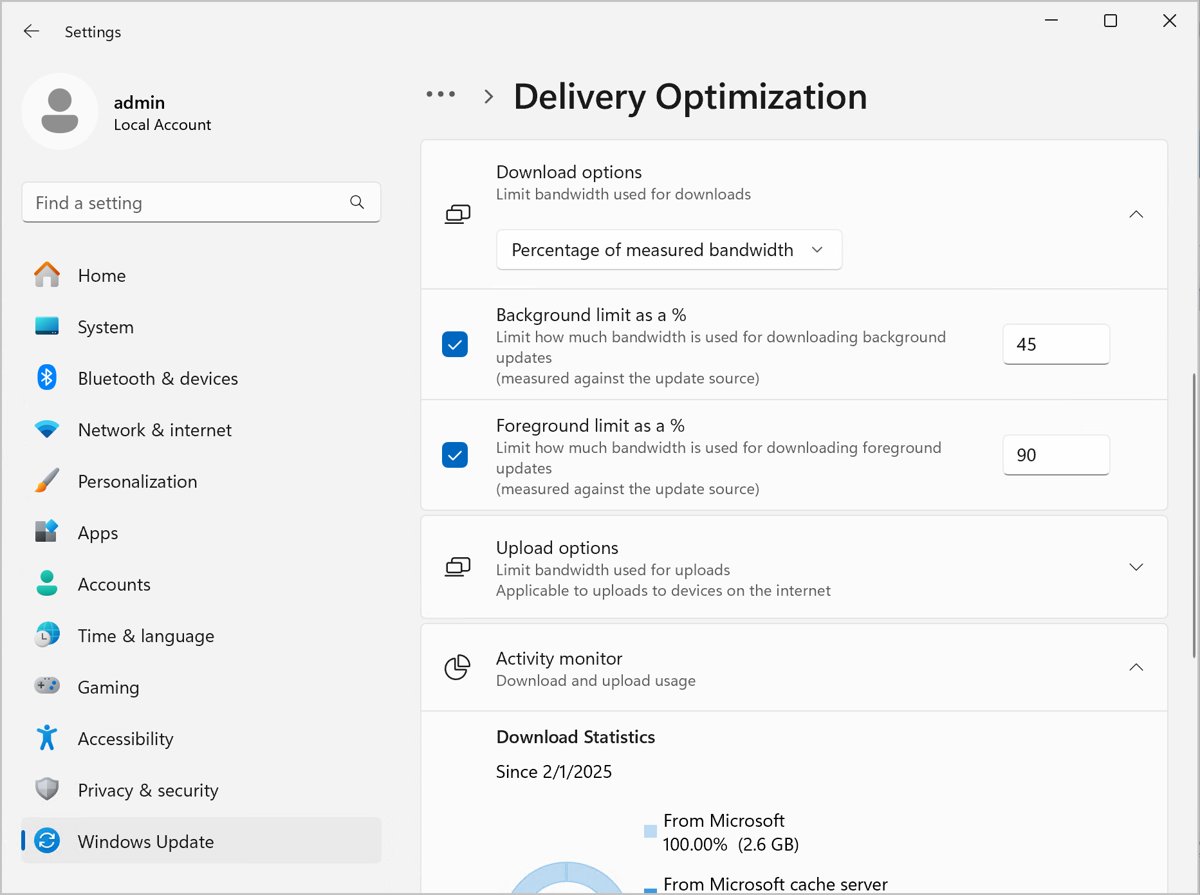
Delivery Optimization downloads Windows updates and Store apps, and it has its own download and upload caps.
- Open Settings > Windows Update > Advanced options > Delivery Optimization.
- Under Download options, choose Absolute bandwidth limit and type a limit in Mbps, or choose Percentage of measured bandwidth and move the slider.
- Set the limit for background downloads, foreground downloads, or both.
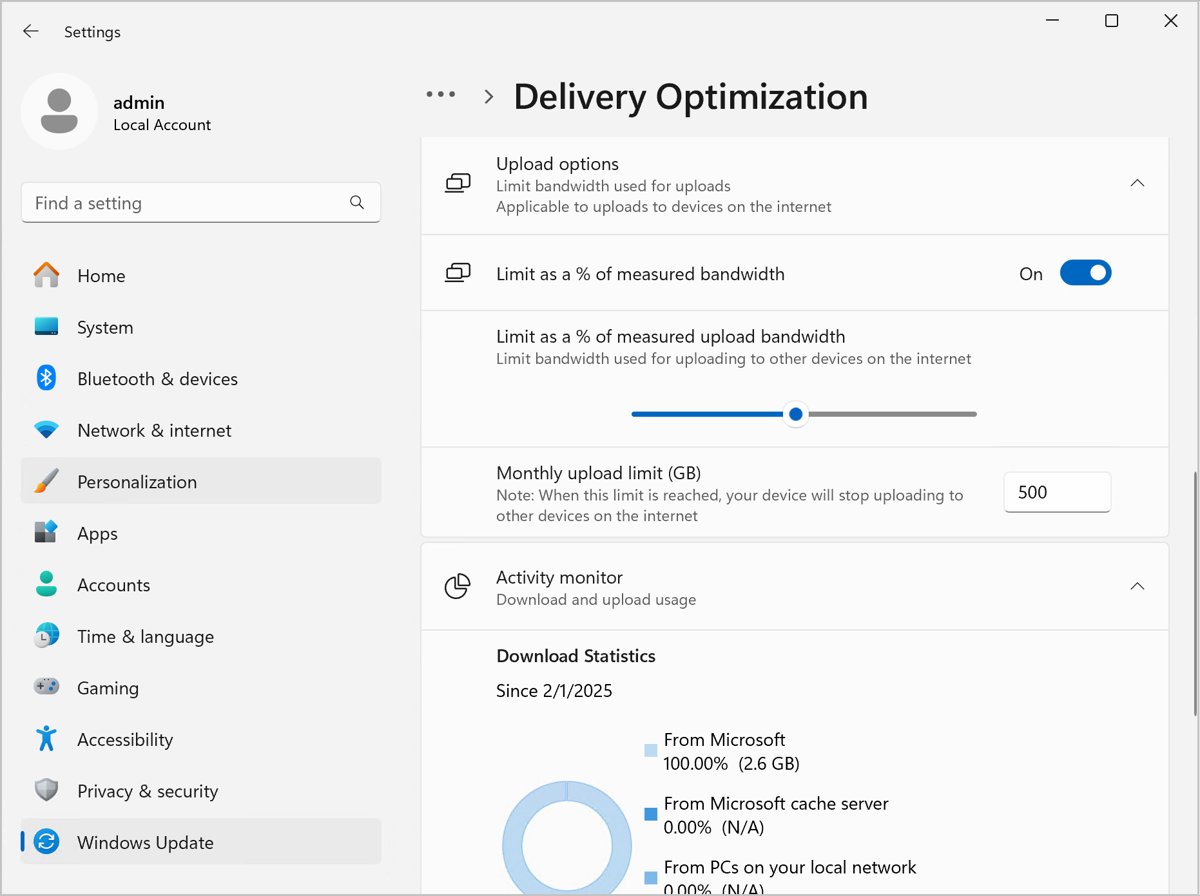
- Under Upload options, set the percentage for uploads to other devices on the internet and a Monthly upload limit between 1 and 500 GB.
These limits apply only to automatic update downloads. An update you start yourself from Settings > Windows Update, or an app you install from the Microsoft Store, ignores them.
Set a metered connection in Windows 11 to limit data use
- Open Settings > Network & internet.
- For wireless, select Wi-Fi and then the network you are connected to.
- For wired, select Ethernet and then the connected network.
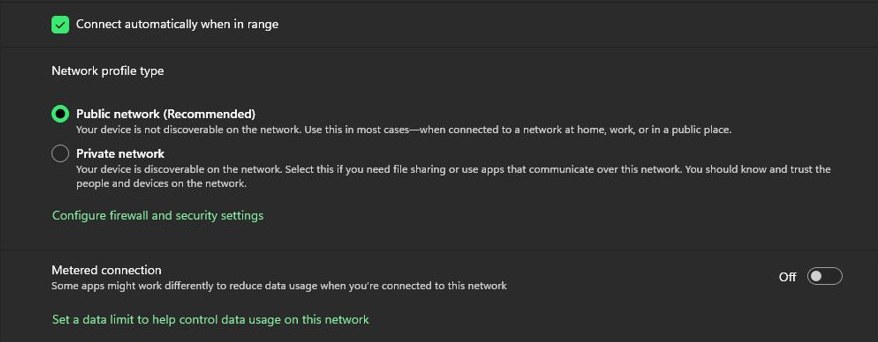
- Turn on Metered connection.
On a metered Wi-Fi or Ethernet connection, Windows tries to reduce data use, some apps work differently and some Windows updates are not installed automatically. If the switch is greyed out, your organization manages the setting.
Limit bandwidth for an app with New-NetQosPolicy in PowerShell
A QoS policy can throttle the traffic an app sends. It acts on outbound traffic from this PC, so it limits uploads, not downloads. Run PowerShell as administrator first.
New-NetQosPolicy -Name "UploadCap" -AppPathNameMatchCondition "app.exe" -ThrottleRateActionBitsPerSecond 10000000Creates a policy named UploadCap that matches traffic sent by app.exe and caps it at 10,000,000 bits per second (10 Mbps). Replace app.exe with the program's file name. Add -PolicyStore ActiveStore for a test that disappears after a restart. Remove the cap later with Remove-NetQosPolicy -Name "UploadCap".
You should see: PowerShell prints the new policy with its Name, AppPathName and ThrottleRate values.
Domain administrators can deploy the same kind of throttle centrally under Computer Configuration > Policies > Windows Settings > Policy-based QoS, using the Specify Throttle Rate option.
What is using my bandwidth in Windows 11?
Before changing any limit, find the app that is actually using the connection.
- Press Ctrl + Shift + Esc, or right-click Start and select Task Manager.
- On the Processes page, select the Network column header to sort apps by current network use.
- Close or pause the app at the top of the list if it is not one you need right now.
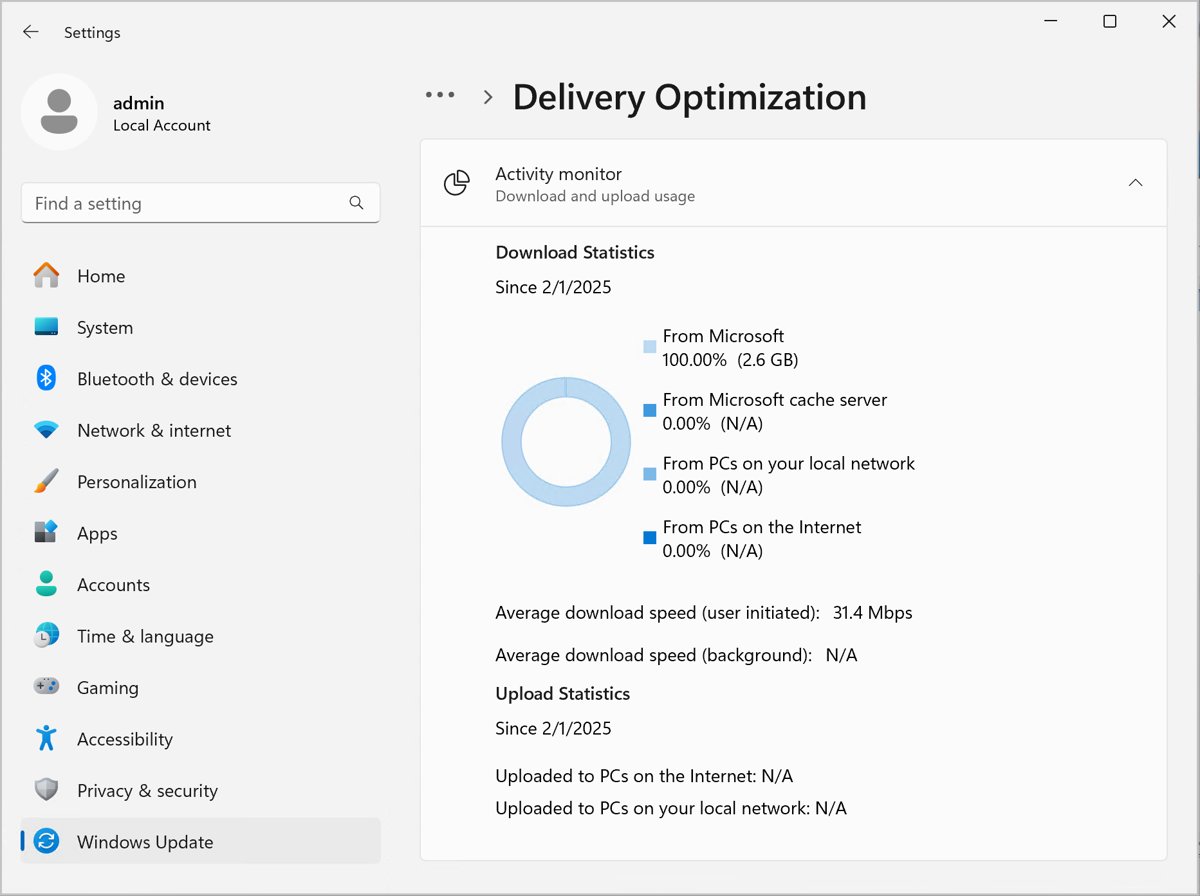
- For update traffic, open Settings > Windows Update > Advanced options > Delivery Optimization > Activity monitor to see this month's downloads and uploads.
Limit reservable bandwidth not working in Windows 11
Windows cannot find gpedit.msc
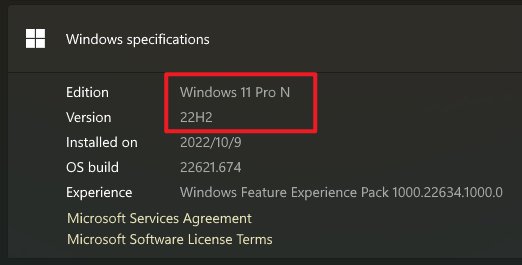
The PC runs Windows 11 Home, which does not include the Local Group Policy Editor.
- Open Settings > System > About and check the Edition line under Windows specifications.
- On Home, use Delivery Optimization limits or a metered connection instead.
- To get the policy itself, upgrade the PC to Windows 11 Pro.
Internet is still slow after setting the limit to 0
The policy limits QoS reservations only, so it does not change the speed of ordinary traffic.
- Sort Task Manager's Processes page by Network and look for a heavy app.
- Check Delivery Optimization > Activity monitor for a large update download.
- Restart the router and test again with an Ethernet cable to rule out Wi-Fi.
Delivery Optimization settings are greyed out
The device is managed, and the page shows Some of these settings are managed by your organization.
- Ask your IT administrator to change the limit, because local changes are blocked.
- Use a metered connection if the organization allows it.
Reservable bandwidth in Windows 11 FAQ
What is the default reservable bandwidth in Windows 11?
By default the QoS Packet Scheduler limits the system to 80 percent of a connection's bandwidth for reservations. The same 80 percent applies when the Limit reservable bandwidth policy is disabled or not configured.
Does Windows 11 reserve 20 percent of my bandwidth?
No. The policy caps how much bandwidth programs can reserve through QoS at 80 percent by default. It is a ceiling on reservations, not a slice of your connection that Windows keeps back from browsing or downloads.
Is it safe to set limit reservable bandwidth to 0?
Yes, the value is a supported policy setting. With 0, programs cannot reserve bandwidth through the Packet Scheduler. It rarely makes a measurable difference on a home PC, and you can return it to Not Configured at any time.
Can I change reservable bandwidth on Windows 11 Home?
Not through the policy, because Windows 11 Home has no Local Group Policy Editor and the setting is listed for Pro, Enterprise and Education. Use Delivery Optimization limits or a metered connection to control bandwidth on Home.
What is using my bandwidth in Windows 11?
Open Task Manager with Ctrl + Shift + Esc and sort the Processes page by the Network column. The app at the top is using the most bandwidth now. Delivery Optimization's Activity monitor shows update downloads and uploads for the month.
How do I fix limited bandwidth problems?
Find the heavy app in Task Manager first, then cap update downloads under Delivery Optimization and turn on a metered connection if your plan is capped. Restart the router and test over Ethernet to separate a Wi-Fi problem from a PC problem.
Does the reservable bandwidth setting affect gaming?
Only if a game reserves bandwidth through the QoS Packet Scheduler, which most games do not. For lag, close apps that use the network in Task Manager and limit background update downloads under Delivery Optimization instead.