Fix STATUS_ACCESS_VIOLATION by updating Chrome or Edge, restarting the browser, and turning off extensions until the crashing page loads again.
This guide covers what the code means, how to tell a site fault from a browser fault, clearing one site's data, resetting Chrome, repairing Edge on Windows 11 and Windows 10, and what to do when the crash keeps returning.
Quickest fix for STATUS_ACCESS_VIOLATION in Chrome and Edge
Most cases clear with a browser update and a full restart, so start here before changing any settings.
- In Chrome, select More (three dots) > Help > About Google Chrome. In Edge, select Settings and more > Settings > About Microsoft Edge.
- Let the browser download any update it finds.
- Select Relaunch when it appears, or close every browser window and reopen the browser.
- Reload the page that crashed.
- If it crashes again, open it in an Incognito window with Ctrl + Shift + N in Chrome.
- If the page loads in Incognito, turn off your extensions as shown in method 4 below.
Chrome reopens your tabs after Relaunch, but Incognito windows do not come back.
What does STATUS_ACCESS_VIOLATION mean?
| Question | Answer |
|---|---|
| What the code is | A Windows status code, value 0xC0000005. Microsoft's description reads: "The instruction at 0x%08lx referenced memory at 0x%08lx. The memory could not be %s." |
| What it means in plain terms | A program tried to read or write a block of memory it had no right to use, and Windows stopped that process. |
| Where you see it | Usually on a Chrome or Edge crash page, where the tab is replaced by an error page carrying the code. Because it is a Windows code, other programs can raise it too. |
| Is a website to blame? | Sometimes. If one site crashes while others open normally, Google says that site might be the cause. |
| Is it a sign of malware? | Not on its own. Google lists unwanted software among the causes of browser problems, so a scan is worth running if crashes come with pop-ups or changed settings. |
| Has it happened before? | Yes. Chrome users reported a wave of crashes with this code in 2020, and browser-wide crashes like that are fixed in browser updates, which is why updating comes first. |
Which STATUS_ACCESS_VIOLATION fix to try first
| Your situation | Do this | Why |
|---|---|---|
| One site crashes, every other site loads | Clear that site's data (method 5), then contact the site owner | The fault sits in that site's stored data or code |
| Many sites crash in Chrome only | Update Chrome, test extensions, then reset Chrome settings | The fault sits inside the Chrome profile |
| Many sites crash in Edge only | Update Edge, remove extensions, then repair Edge | Repair reinstalls Edge without touching browsing data |
| The page works in Incognito | Turn off extensions one at a time | Incognito runs without most extensions and stored cookies |
| Crashes appear with many tabs open | Close tabs and turn on Memory Saver | Google lists memory use among the causes of loading errors |
| Pop-ups, a changed homepage or unknown extensions appear too | Run a Windows Security scan, then reset Chrome | Unwanted software can change browser settings |
| Other Windows programs crash as well | Check Windows itself rather than the browser | 0xC0000005 is a Windows code that any program can raise |
1. Find out whether the STATUS_ACCESS_VIOLATION problem is site-specific
This one test decides whether you fix the browser or simply report a broken page.
- Check the address bar for a typo, then select Reload this page.
- Open two or three other websites in new tabs.
- If they load and only the first site crashes, treat it as a site problem and go to method 5.
- Open the crashing page in the other browser, Edge or Chrome.
- If it crashes in both browsers, the site is the likely cause. Contact the site owner to report it.
- If it crashes in one browser only, continue with methods 2 to 8 in that browser.
2. Restart the browser and reduce memory use
A full exit clears every browser process, which a closed tab alone does not.
- In Chrome, select More > Exit. In Edge, close every Edge window.
- Close other apps you are not using, and pause any downloads.
- Reopen the browser from the Start menu and load only the crashing page.
- In Chrome, select More > Settings > Performance.
- Turn on Memory Saver and choose Balanced (recommended) or Maximum.
- If the crashing site must stay loaded, select Add next to Always keep these sites active and add it there.
- Restart the PC if the crash continues, then try the page again.
Memory Saver deactivates idle tabs to free memory for the active one. Maximum deactivates them soonest.
3. Update Chrome or Edge
Browser updates carry the crash fixes for this code, and both browsers apply them on restart.
- In Chrome, select More > Help > About Google Chrome.
- Wait for the check to finish, then select Relaunch. If there is no Relaunch button, Chrome is already on the latest version.
- In Edge, select Settings and more > Settings > About Microsoft Edge.
- Let Edge download the update, then restart it when prompted.
- Reload the page that crashed.
If you select Not now in Chrome, the update applies the next time you restart the browser.
4. Test Chrome and Edge extensions without guessing
Turn everything off first, then bring extensions back one at a time. That isolates the culprit in a single pass.
- In Chrome, select More > Extensions > Manage extensions.
- Turn off every extension with its toggle, then reload the crashing page.
- If the page now loads, turn one extension back on and reload the page.
- Repeat until the crash returns. The last extension you turned on is the cause.
- Select Remove on that extension, then Remove again to confirm.
- If an extension shows as corrupted, select Repair, then Repair extension.
- In Edge, select Extensions next to the address bar, then Manage extensions, and run the same test there.
Remove an Edge extension through More actions > Remove from Microsoft Edge. In Chrome, you can also repair a corrupted extension instead of removing it.
5. Clear the affected site’s data
Deleting one site's data signs you out of that site only, and leaves every other login alone.
- In Chrome, select More > Settings > Privacy and security > Third-party cookies.
- Select See all site data and permissions.
- Search for the crashing site's name in the box at the top right.
- Select Delete next to the site, then Delete again to confirm.
- Reload the site and sign in again.
- If more than one site crashes, select More > Delete browsing data, choose All time, tick Cookies and other site data and Cached images and files, then select Delete data.
In Edge, select Settings and more > History > Open history page > Delete browsing data, set Time range to All time, tick Cached images and files, then select Clear now.
6. Check antivirus, firewall, and suspicious software
Security software can block a browser, and unwanted software can tamper with one. Check both without turning protection off.
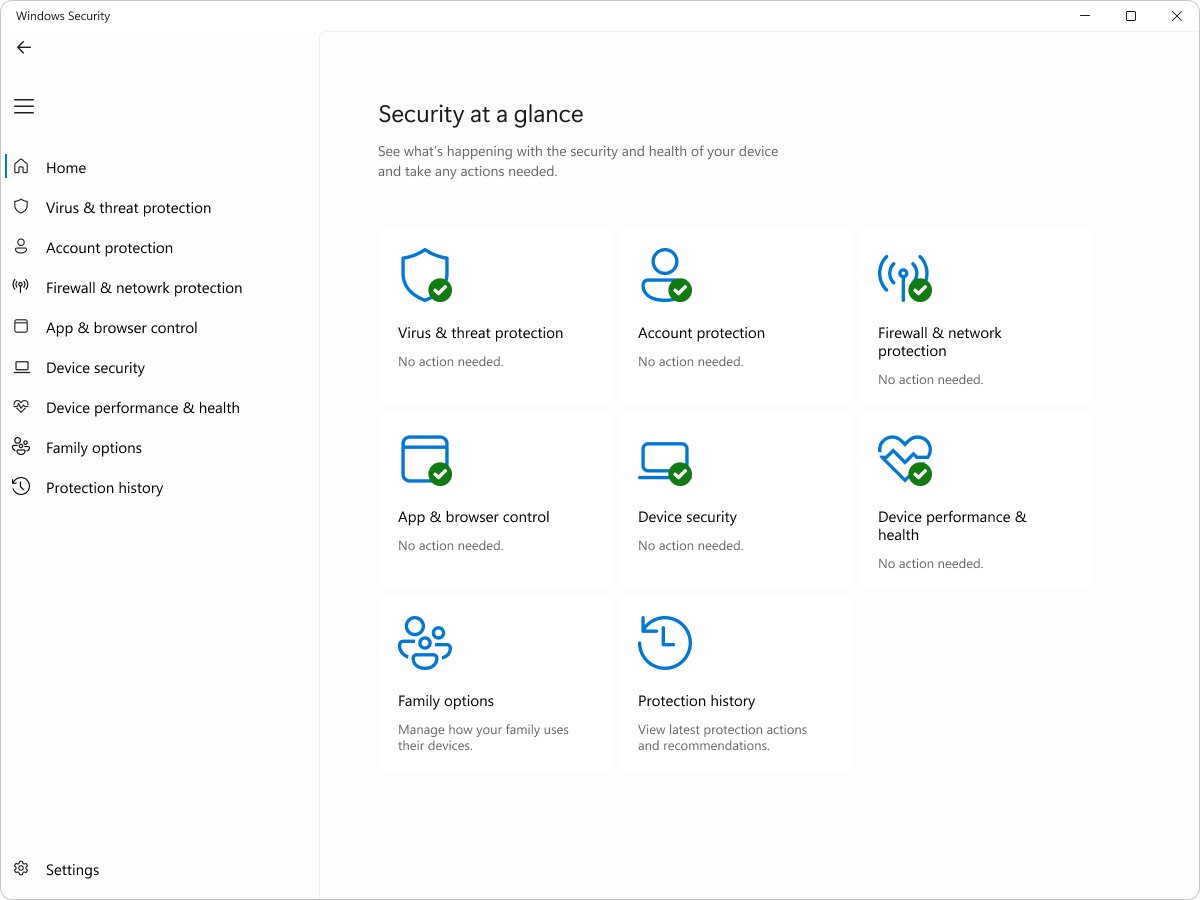
- Search for Windows Security in the Start menu and open it.
- Select Virus & threat protection > Quick scan.
- Remove anything the scan finds, then restart the PC.
- In Windows Security, review the firewall and network protection settings to confirm Chrome or Edge is not blocked.
- If you use third-party antivirus, check for updates in the app or on the vendor's website.
- Open Settings > Apps > Installed apps and uninstall programs you do not recognise or did not install.
- In Chrome, run Safety check from Settings.
Pop-ups that will not go away, a homepage that keeps changing, and extensions that keep coming back are Google's listed signs of unwanted software.
7. Reset Chrome settings
A reset keeps bookmarks and saved passwords, but it clears cookies and turns off extensions.
- Open Chrome and select More > Settings.
- Select Reset settings.
- Select Restore settings to their original defaults.
- Select Reset settings to confirm.
- Reload the page that crashed before turning any extension back on.
- Turn back on only the extensions you trust from More > Extensions > Manage extensions.
The reset returns the default search engine, homepage, new tab page, pinned tabs, content settings, cookies and site data, extensions and themes to their defaults. Fonts and accessibility settings stay as they are.
8. Repair Microsoft Edge on Windows
Repair reinstalls Edge in place. Microsoft says it should not affect your browser data or settings, but it needs an internet connection and administrator rights.
- Close Edge for all users signed in to the PC.
- Select Start > Settings > Apps > Installed apps.
- Select Microsoft Edge, then Modify.
- Select Yes when Windows asks for permission.
- Confirm the PC is online, then select Repair.
- Open Edge when the repair finishes and reload the page that crashed.
If Modify is missing, your organisation probably manages Edge, so contact your system administrator. When Edge crashes on every site rather than one, more fixes for Microsoft Edge crashing on Windows 11 and 10 apply.
9. When the STATUS_ACCESS_VIOLATION error still occurs
These steps rule out a damaged profile or install and get the crash in front of the people who can fix it.
- In Chrome, add a new user profile, then open the crashing page in that profile.
- If the new profile works, move to it and leave the old profile unused.
- If it still crashes, uninstall Chrome, reinstall it, and sign in to get your synced data back.
- Turn on automatic error reporting in Chrome, or report the crash to Chrome, so Google receives the details.
- Contact the site owner if the crash happens on one site only.
- If other Windows programs crash as well, stop changing the browser and work through the Windows-wide steps in the troubleshooting section below.
Crashes across many programs point away from the browser. Repeated WerFault.exe errors in Windows 11 are one sign of that.
How to check the STATUS_ACCESS_VIOLATION fix worked
- Reload the page that crashed. It should render instead of the crash page.
- Leave it open for several minutes and use it as you normally would.
- Open a few other tabs alongside it to confirm the crash does not return under load.
- Restart the browser and load the page again, so the fix survives a fresh start.
- If you removed an extension, open the page in a normal window, not Incognito, to prove the profile is clean.
Fix STATUS_ACCESS_VIOLATION when it keeps coming back
The crash comes back after every restart
An extension, a stale site cookie or a changed setting reloads with the profile.
- Open the page in an Incognito window with Ctrl + Shift + N.
- If it loads there, turn off all extensions under Manage extensions.
- Delete the site's data from See all site data and permissions.
- Run Reset settings > Restore settings to their original defaults if the crash survives.
Only one website shows the error code
The site's stored data or its own code triggers the crash.
- Delete that site's data and reload it.
- Open the page in the other browser.
- If it fails in both browsers, report the problem to the site owner.
Chrome works but Edge shows the error
The Edge install or one of its extensions is damaged.
- Update Edge from Settings > About Microsoft Edge.
- Turn off Edge extensions under Manage extensions.
- Run Modify > Repair from Settings > Apps > Installed apps.
Windows programs other than the browser show the error
0xC0000005 is a Windows code, so the problem sits below the browser.
- Update the program that crashes from its vendor's own site or app.
- Run a Quick scan in Windows Security.
- Install pending Windows updates and restart the PC.
- If the PC also shows blue-screen memory errors, troubleshoot the hardware rather than the browser.
STATUS_ACCESS_VIOLATION FAQ
How do you fix STATUS_ACCESS_VIOLATION?
Update Chrome or Edge, exit and reopen the browser, and reload the page. If it still crashes, test it in Incognito, turn off extensions, clear the site's data, then reset Chrome or repair Edge from Settings > Apps > Installed apps.
What is the STATUS_ACCESS_VIOLATION error code?
It is Windows status code 0xC0000005. Windows raises it when a program's instruction references memory it is not allowed to read or write. Chrome and Edge show it on the crash page that replaces the tab.
What does STATUS_ACCESS_VIOLATION mean?
It means a browser or program process tried to use memory it had no permission to access, so Windows stopped it. In Chrome and Edge the usual triggers are an outdated browser, a faulty extension, a site's stored data or unwanted software.
Does STATUS_ACCESS_VIOLATION mean my RAM is broken?
Usually not. The code reports a software access to forbidden memory, not a hardware fault. Suspect RAM only when many programs crash, or the PC also shows blue-screen errors such as PAGE_FAULT_IN_NONPAGED_AREA.
Why does the website work in Incognito mode?
Incognito runs without your stored cookies and with most extensions off. If the page loads there, an extension or the site's saved data is the cause. Turn off extensions one at a time, then clear that site's data.
Will resetting Chrome delete my bookmarks and passwords?
No. Google states that saved bookmarks and passwords are not deleted or changed. The reset does clear cookies and site data and turns off extensions and themes, so you sign in to sites again.
What should I do if Edge's Modify button is missing?
A missing Modify button usually means your organisation manages Edge. Contact your system administrator, who controls repairs and updates on that PC. Updating Edge and removing extensions still work without it.
What does error code STATUS_ACCESS_VIOLATION mean on Windows outside the browser?
The same thing: a program referenced memory it could not use, and Windows stopped it. Update or reinstall the program that crashes, install Windows updates, and run a Windows Security scan.
The bottom line on fixing STATUS_ACCESS_VIOLATION
Update the browser and restart it first, then use the Incognito test to decide between turning off extensions and clearing the site's data. Keep the Chrome reset and the Edge repair for crashes that survive both. An update and a clean restart cost nothing, and the Incognito test separates a profile fault from a site fault in under a minute, so you avoid resetting settings you did not need to lose.