Fix ERR_CACHE_MISS by reloading the page and letting Chrome send your form data again, unless that form placed an order or made a payment.
This guide covers the safe way to resend, each browser fix in order, the Android steps, the network reset as a last resort, and the server change that removes the error from a website you run.
How to fix ERR_CACHE_MISS in Chrome
Google describes this error in one line: the page needs information you entered earlier to be submitted again. That makes it a form problem first and a browser problem second.
- Look at what the page was doing. If it took a payment or placed an order, check your email or account history before you continue.
- Select Reload next to the address bar, or press F5 on Windows.
- If Chrome asks you to confirm, accept so that it sends the form data again.
- If the page still fails, go back to the form on the site, fill it in, and submit it once.
Most cases end here. Move to the browser fixes below only if the error returns on pages that have no form behind them.
What is an Err_Cache_Miss error in Google Chrome?
| Question | Answer |
|---|---|
| What does the error mean? | Google's error list says the page needs information you entered earlier to be submitted again. |
| When does it usually appear? | After you reload or return to a page created by a form submission, such as a login, a search or a checkout. |
| Why can't Chrome just show the page? | That page was built from data your browser sent, so getting it again means sending the same data again. |
| Why does resending carry a risk? | Repeating a form submission can repeat what it did. Identical POST requests can create the same order several times. |
| Is Chrome's cache damaged? | Usually not, despite the name. Google's explanation is about resubmitting data, so a damaged cache is rarely the first thing to check. |
| Is the website down? | Not necessarily. A site that is down normally gives a different code, such as ERR_EMPTY_RESPONSE or ERR_CONNECTION_REFUSED. |
What causes ERR_CACHE_MISS in Chrome
Find the row that matches what you were doing, then use the fix it names.
| Your situation | Do this | Why |
|---|---|---|
| You reloaded right after submitting a form | Reload and confirm, or submit the form again | The page needs that form data resent |
| The form was a payment, order or booking | Check your email or account history first | Sending it twice can repeat the transaction |
| You pressed Back to reach a form result | Reload and confirm, or open the page from the site's menu | A fresh visit needs no old form data |
| It repeats on one website only | Delete that site's cookies and data | Stored data for that site may be stale |
| The page works in Incognito mode | Test your extensions, then delete browsing data | Incognito runs without your normal cookies, and extensions are usually off |
| It happens on many websites | Update Chrome, then reset Chrome settings | The fault is more likely in the browser |
| You run the website | Redirect with a 303 after each POST | A reload then repeats only the confirmation page |
Refresh the page
A plain reload resends the request, and a hard reload also skips cached content.
- Select Reload next to the address bar, or press F5 or Ctrl + R on Windows.
- Accept the prompt if Chrome asks to send the data again. Decline it if the form took a payment.
- If the error stays, press Shift + F5 or Ctrl + Shift + R on Windows, or Command + Shift + R on Mac.
- Check that the page shows the expected result, such as your account page or a confirmation message.
Clear cookies and other saved data
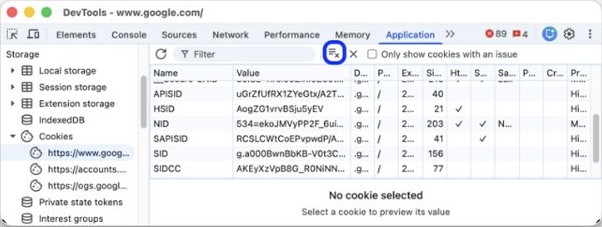
If one website keeps failing, delete only that site's data first. This keeps you signed in everywhere else.
- To clear one site, select More > Settings > Privacy and security, then open the third-party cookies section.
- Select See all site data and permissions, search for the site, select the remove icon, and confirm with Delete.
- Reload the page and test it.
- To clear everything, select More > Delete browsing data.
- Choose a time range, such as Last hour or All time.
- Select Cookies and other site data and Cached images and files.
- Select Delete data, then open the page again.
Deleting cookies signs you out of many websites, so have your passwords ready. If you are signed in to Chrome, data saved to your Google Account is also removed from your other devices.
Check for browser updates
Google lists updating and restarting Chrome among its standard fixes for loading errors. Chrome saves your open tabs and reopens them after the restart.
- Select More at the top right of Chrome.
- Select Help > About Google Chrome.
- Wait while Chrome checks for an update.
- Select Relaunch if one is ready.
- Open the page again and retest it.
Disable any conflicting Google Chrome extensions
An Incognito window gives you a fast test. If the page loads there, an extension or your stored browsing data is the likely cause.
- Press Ctrl + Shift + N on Windows or Command + Shift + N on Mac.
- Load the failing page in the Incognito window.
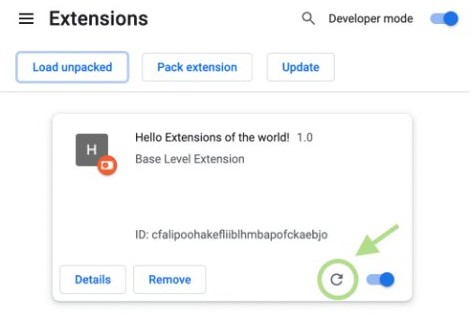
- If it works, return to a normal window and select More > Extensions > Manage Extensions.
- Turn every extension off with its switch, then reload the page.
- Turn the extensions back on one at a time, testing the page after each.
- Select Remove on the extension that brings the error back, and confirm.
How to reset Chrome settings for ERR_CACHE_MISS
Use this when the error appears across many sites and the fixes above did not clear it. Your saved bookmarks and passwords are not deleted or changed.
- Select More > Settings.
- Select Reset settings.
- Select Restore settings to their original defaults.
- Select Reset settings to confirm.
- Reopen the page and test it, then turn back on the extensions you need.
The reset returns your search engine, homepage, new tab page, pinned tabs, content settings, cookies, site data, extensions and themes to their defaults on every device where you are signed in.
Reset your network settings
ERR_CACHE_MISS is rarely a network fault, so try this only if other connection errors appear too. Microsoft says a full network reset should be the last step you try.
- Select Start, type
cmd, and choose Run as administrator. - Run
netsh winsock reset, thennetsh int ip reset. - Run
ipconfig /release, thenipconfig /renew, thenipconfig /flushdns. - Restart the PC and test the page.
- If the problem remains on Windows 11, open Settings > Network & internet > Advanced network settings > Network reset.
- On Windows 10, open Settings > Network & internet > Status > Network reset.
- Select Reset now > Yes, then wait for the PC to restart.
Network reset removes your installed network adapters and their settings. You may need to reinstall VPN client software afterward, and known networks can switch to a public profile.
Disable Google Chrome caching
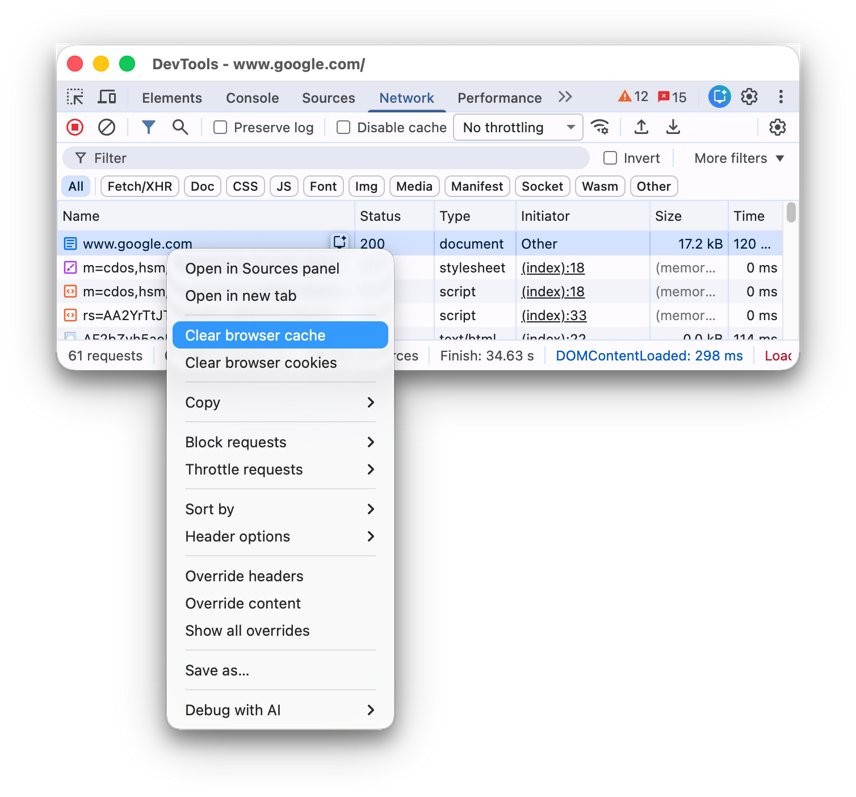
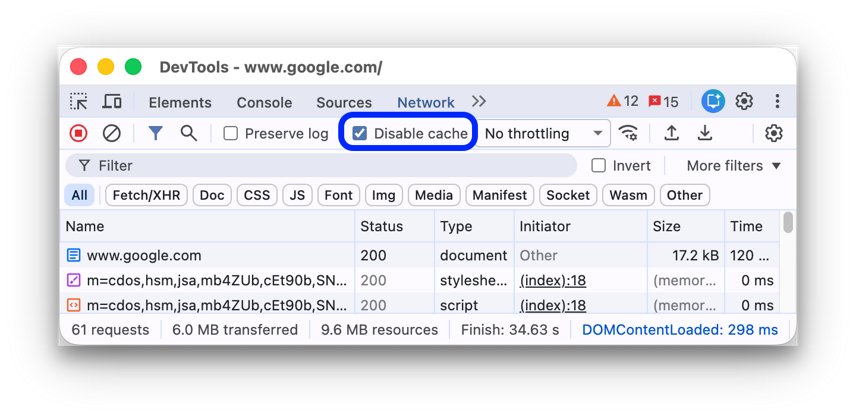
Chrome's documented switch for this sits in DevTools and works only while DevTools stays open. It is a test, not a permanent setting.
- Press F12 or Ctrl + Shift + J on Windows, or Command + Option + I on Mac, to open DevTools.
- Select the Network panel.
- Turn on Disable cache in the panel's action bar, next to Throttling.
- Reload the page with DevTools still open.
- Turn Disable cache off and close DevTools when you finish testing.
If the page loads only with this box on, delete your cached files using the steps above. Normal browsing returns to the cache as soon as DevTools closes.
How to fix ERR_CACHE_MISS in Chrome on Android
The cause is the same on a phone, and the menu labels are different.
- Tap More, then Refresh.
- Confirm you are on the latest version of Chrome, then close and reopen the app.
- Open the same page in an Incognito tab to test it without your normal data.
- If it loads there, tap More > Delete browsing data.
- Tap More options, select Cookies and site data and Cached images and files.
- Tap Delete data, then load the page again.
How to fix ERR_CACHE_MISS on your own website
If visitors report this on your site, the page they reload was served directly as the response to a POST request. A press of the reload button then resends that request.
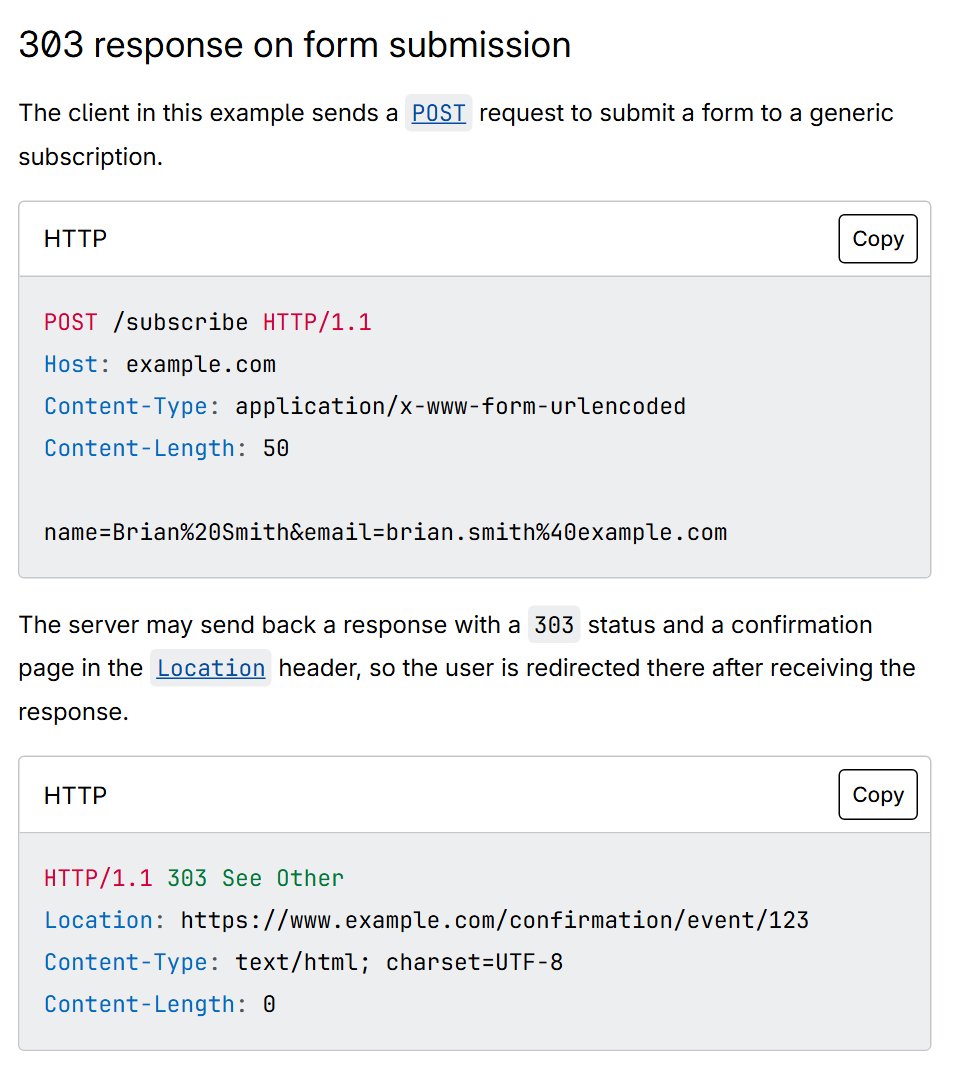
Handle the POST, then send a 303 redirect to a results page. The browser follows the redirect with a GET, so a reload repeats only the results page.
HTTP/1.1 303 See Other
Location: https://www.example.com/confirmation/123
Content-Length: 0
Send this response after the server finishes processing the form. Replace the Location value with your own confirmation page.
You should see: Reloading the confirmation page shows it again without any prompt to resend the form, and no second order or submission is created.
ERR_CACHE_MISS keeps coming back in Chrome
ERR_CACHE_MISS appears after pressing Back
The page you returned to was the result of a form, so showing it again needs the same data.
- Select Reload and accept the prompt, if the form did not take a payment.
- If you would rather not resend it, open the same page from the site's own menu or home page.
- Use the site's links instead of Back for the rest of that session.
ERR_CACHE_MISS appears on one website only
The site's form handling is the common factor, or the data Chrome stores for that site has gone stale.
- Delete that site's cookies and data under See all site data and permissions.
- Go to the site's home page and repeat the action from the start.
- Try the same page in Incognito mode.
- Tell the site owner if it still fails, because the fix may be on their server.
ERR_CACHE_MISS appears on many websites
Something in the browser is more likely when no single site is the common factor.
- Select More > Help > About Google Chrome and install any update.
- Test the pages in an Incognito window.
- Turn off your extensions under Manage Extensions.
- Delete cookies and cached files for All time.
- Select Settings > Reset settings > Restore settings to their original defaults.
ERR_CACHE_MISS appears on a payment page
The payment may already have gone through, and resending the form could repeat it.
- Do not accept a resend prompt yet.
- Check your email for a confirmation message.
- Sign in to your account on the site and open your order history.
- Check your bank or card activity for the charge.
- Start the checkout again only if you find no record of the order.
Resolving Google Chrome issues
A different code on the error page points to a different problem. Google's error list describes these related codes, and you can enter chrome://network-errors/ in the address bar to view the full list.
| Error code | What it means | Where to go next |
|---|---|---|
| ERR_CACHE_MISS | The page needs information you entered earlier to be submitted again | The fixes above |
| ERR_NETWORK_CHANGED | The network changed while the page was loading | Fix ERR_NETWORK_CHANGED in Chrome |
| ERR_CONNECTION_RESET | The connection was interrupted, possibly by an unstable network, an outdated browser, a VPN or security software | Fix the ERR_CONNECTION_RESET error |
| ERR_CONNECTION_TIMED_OUT | The connection is slow or the page is busy | Fix ERR_CONNECTION_TIMED_OUT on Windows |
| ERR_NAME_NOT_RESOLVED | The hostname does not exist or its IP address changed | Check the address for typos, then try again later |
| ERR_INTERNET_DISCONNECTED | The device is offline | Reconnect to Wi-Fi or Ethernet, then reload |
| ERR_EMPTY_RESPONSE | The server sent no data, possibly because the site is down | Wait a while and reload the page |
Err_Cache_Miss error FAQ
What is ERR_CACHE_MISS in Chrome?
It is a Chrome error meaning the page needs information you entered earlier to be submitted again. It usually appears when you reload or return to a page that a form created, such as a login or checkout result.
How do I fix ERR_CACHE_MISS in Google Chrome?
Reload the page and accept the prompt to send the data again, or go back to the form and submit it once. If it repeats, delete that site's data, test your extensions, and update Chrome.
Is it safe to reload a page showing ERR_CACHE_MISS?
Usually yes, for logins and searches. It is not always safe for payments, orders or bookings, since resending a form can repeat the action. Check your email or order history first on those pages.
Does ERR_CACHE_MISS mean Chrome's cache is broken?
Usually not. Despite the name, Google's explanation is about data that must be submitted again. Clearing the cache is a fair second step, but reloading and resending the form should come first.
Why do I get ERR_CACHE_MISS when I press Back?
The earlier page was built from data you sent through a form, so showing it again needs that data. Reload and accept the prompt, or open the same page from the site's own menu.
Can I turn off the Chrome cache permanently?
The documented switch is the Disable cache setting in DevTools, and it applies only while DevTools remains open. Use it to test a page, then delete cached files if the page loads only with that setting on.
Does resetting Chrome delete my bookmarks and passwords?
No. Google says saved bookmarks and passwords are not deleted or changed. The reset does restore your search engine, homepage and pinned tabs, clear cookies and site data, and return extensions and themes to their defaults.
Is ERR_CACHE_MISS a network problem?
Rarely. It relates to form data rather than the connection, so a network reset is a last resort. Try it only when other connection errors appear too, because it removes network adapters and their settings.
How do I fix ERR_CACHE_MISS on Android?
In Chrome on Android, tap More, then Refresh. If that fails, update Chrome, test the page in Incognito, then tap More and Delete browsing data, and remove cookies and cached files before loading the page again.
Can a website owner stop ERR_CACHE_MISS?
Yes. After handling a form, the server should send a 303 redirect to a results page instead of serving the response directly. A reload then repeats only the results page, without resending the form.