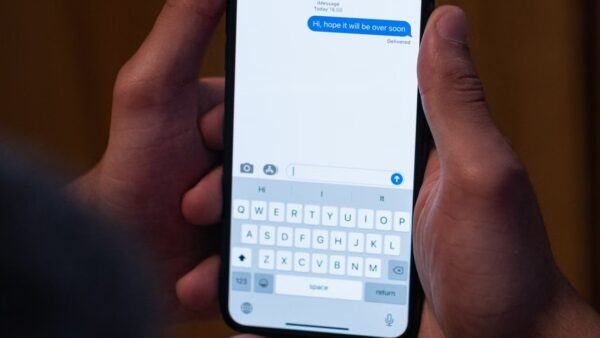
To send a fax from iPhone free, scan the page to a PDF in the Files or Notes app, then upload it to Dropbox Fax in Safari, which gives every new account 5 free outbound pages.
This guide also covers how far the free pages go, faxing from Notes and email, signing a form first, receiving faxes, and what to do when a fax fails.
Step by step tutorial: How to send fax from iPhone free
This route needs no fax app and no phone line. The Files app makes the PDF, and Dropbox Fax delivers it to the fax number.
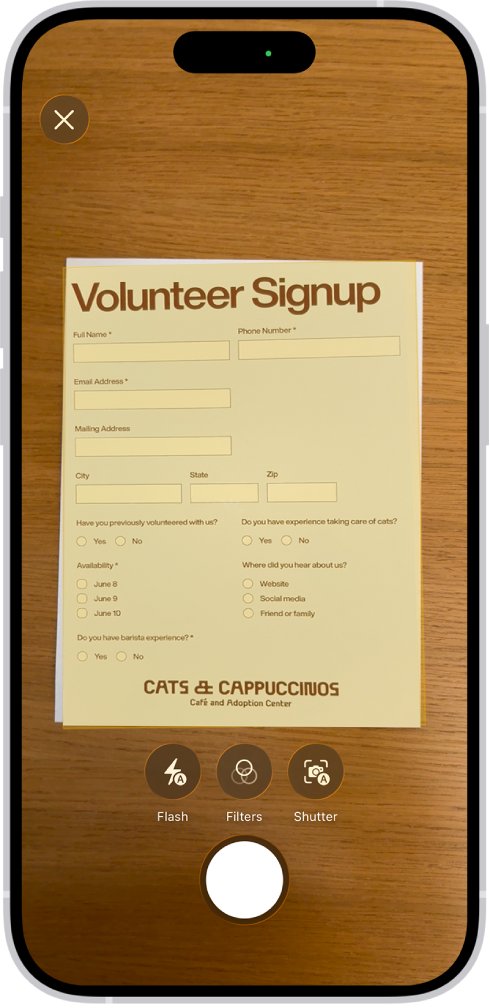
- Open the Files app, tap the More button, then tap Scan Documents.
- Place the page in view of the camera. It scans automatically in Auto mode, or you can tap the Shutter button.
- Drag the corners to fit the page, then tap Keep Scan.
- Tap Done, choose a location, then tap Save.
- Open Safari, go to fax.dropbox.com, and create an account.
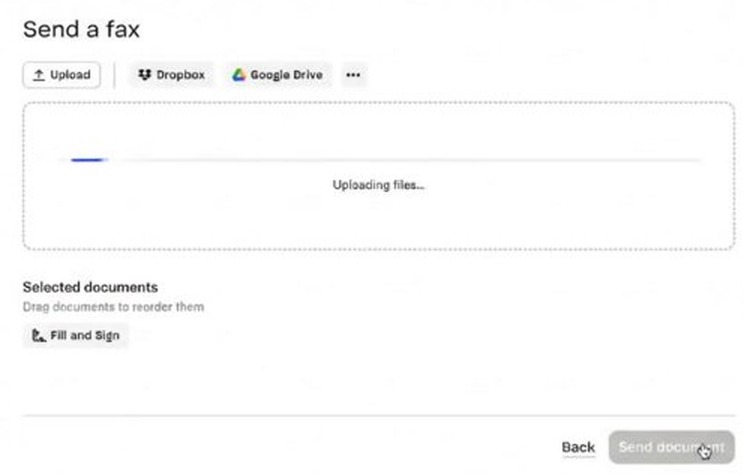
- Select Send a fax and upload the PDF you saved.
- Enter the recipient's fax number, plus an optional title or message.
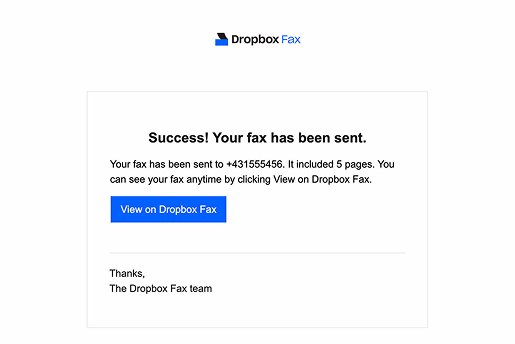
- Select Send document, then watch your inbox for the email showing the transmission status.
Can my iPhone send a fax?
Yes, your iPhone can send a fax through an online fax service. The iPhone scans the page and uploads it over your internet connection, and the service handles delivery to the fax number. You do not need a fax machine or a landline.
The same kind of service works on a desktop, so you can also send a fax from a computer when the document is already there.
How does fax work on iPhone?
A traditional fax machine sends data over a phone line. An online service replaces that machine, so each stage moves to a different place.
| Stage | Where it happens | What you get |
|---|---|---|
| Capture the page | Files, Notes or Mail on your iPhone | A PDF of the document |
| Upload the file | The fax service, in Safari or by email | A fax job addressed to one fax number |
| Deliver the fax | The fax service | The pages reach the recipient's fax number |
| Report the result | Your email inbox | A confirmation of the transmission status |
Is it really free to send a fax from my iPhone?
It is free for a limited number of pages, then you pay. RingCentral states the wider point plainly: free fax services are limited, and regular faxing eventually needs a paid plan.
| Dropbox Fax allowance | Pages or price | What it means for you |
|---|---|---|
| New account | 5 free outbound pages | Enough for a short form or a signed letter |
| Quick actions or sharing | Up to 20 more free pages | Worth doing if your document runs past 5 pages |
| Free total | 25 pages, one time | The allowance does not refill each month |
| Pay-as-you-go | $0.99 for the first 10 pages of each fax, then $0.20 per page | A 12-page fax costs $1.39 once the free pages are gone |
| Paid plan | Includes a fax line and monthly pages | Suits you if you fax every month or need to receive faxes |
Other fax services and App Store apps set their own page limits, which vary widely. Read the limit before you upload a private document.
How to send fax from iPhone Notes
Notes prepares the page, and the fax service still does the sending. Use it when you keep paperwork in a note or want to mark up the scan first.
- Open Notes and select a note or create a new one.
- Tap the Attachment button, then tap Scan Documents.
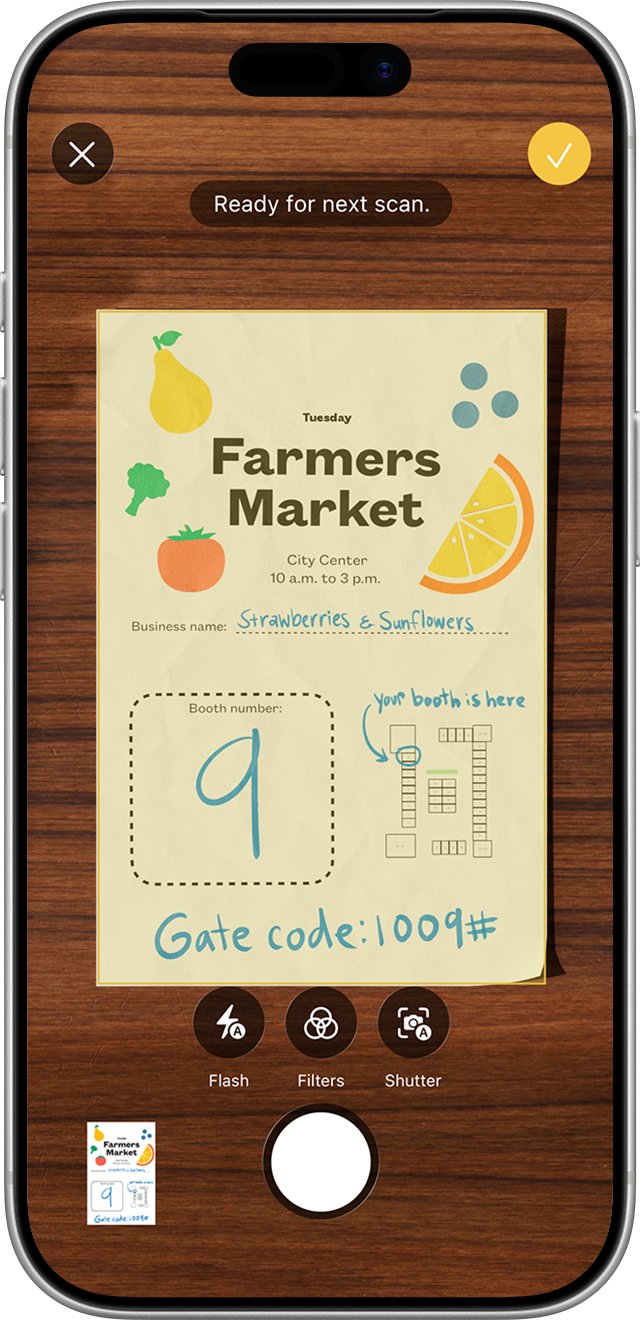
- Place the page in view of the camera. On iOS 26, you can also choose flash or an image filter.
- Let Auto mode capture the page, or tap the Shutter button or press a Volume button.
- Drag the corners to fit the page, tap Keep Scan, then tap Done. The scan is saved as a PDF in the note.
- Open the menu on the PDF in the note, choose the share action, and save a copy to the Files app.
- Upload that copy with Send a fax at fax.dropbox.com.
Send to fax from iPhone using email
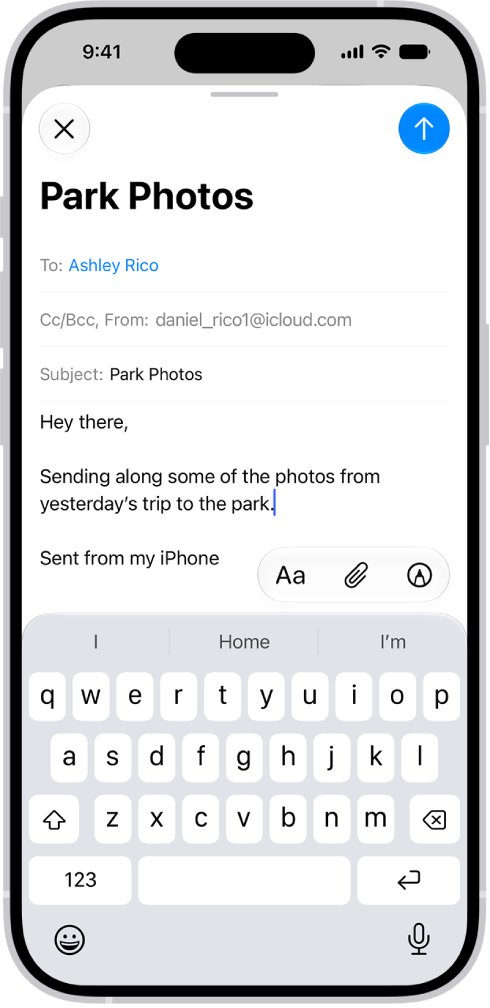
Email-to-fax sends the PDF from the Mail app, but it needs an account with the service. RingCentral documents the address format below, and its fax service is paid, so this is not the free route.
Dropbox Fax also lets you send from your email. Take its address format from its own help pages, because it differs from the one shown here.
- Open the Mail app and start a new message from the email account linked to your RingCentral account.
- In the To field, enter the recipient's fax number followed by
@rcfax.com. - Type your cover page text in the subject line.
- Tap in the message body, then tap the attachment button above the keyboard.
- Tap Attach File to choose a saved PDF, or tap Scan Document to scan the page now.
- Send the message.
RingCentral accepts attachments up to 20 MB, including PDF and DOCX files.
How to sign a fax on iPhone
Forms sent by fax often need a signature. Add it in Notes so you do not have to print from your iPhone, sign and scan the page again.
- Open Notes and tap the scanned document in the note.
- Tap the Markup button.
- Tap the Add button, then tap Signature.
- Choose a saved signature, or sign with your finger to create a new one.
- Drag the signature into place and resize its box to fit the line.
- Tap Done, then save a copy to the Files app for upload.
iPhone saves the signature for the next form, so later documents take only a few taps.
Tips: Maximizing efficiency when sending fax from iPhone free
The free allowance is counted in pages, so these habits decide how far it goes.
| Tip | How to do it | Why it helps |
|---|---|---|
| Fax only the pages required | Scan just the pages the recipient asked for | Each extra page uses your free allowance |
| Keep one document together | Scan every page before tapping Done | The pages arrive as one fax in the right order |
| Scan rather than photograph | Use Scan Documents instead of the Camera app | The page is fitted to its edges and saved as a PDF |
| Fix faint pages before sending | On iOS 26, use the flash or an image filter while scanning | A resend would use more pages |
| Check the number twice | Read the fax number back before you select Send document | A wrong number can waste the pages you sent |
| Keep the confirmation email | Move it to a folder in the Mail app | It records the transmission status for later |
How to check if a fax sent from iPhone
Proof of delivery comes from the fax service's email and, when it matters, from the recipient.
- Open the confirmation email from the fax service.
- Read the transmission status it reports.
- If the status shows a failure, fix the cause listed under the fax problems below and send again.
- For anything urgent, ask the recipient to confirm the page count.
iPhone fax send and receive
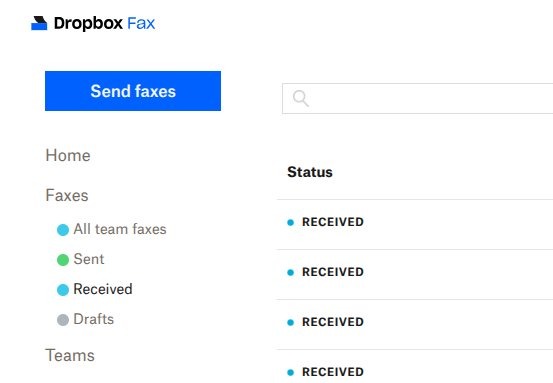
Sending and receiving have different costs. The free pages cover outbound faxes only, and receiving needs your own fax number.
| Task | Dropbox Fax free pages | Dropbox Fax paid account |
|---|---|---|
| Send a fax | Yes, up to the one-time allowance | Yes, with a monthly page allowance |
| Receive a fax | No | Yes, your fax number works like a fax line |
| Where received faxes appear | Not applicable | As PDFs, delivered to your email inbox |
| Keep an existing fax number | Not applicable | Number porting is available in the US and Canada |
Send to fax from iPhone problems
The free fax pages have run out
The Dropbox Fax allowance is a one-time total of 25 pages, and it does not refill.
- Check how many pages your document has.
- Choose pay-as-you-go for a one-off fax, or a paid plan if you fax every month.
- Send the document again.
The fax fails to send
A wrong number or an unsupported file can stop the transmission.
- Read the status in the confirmation email.
- Check the recipient's fax number digit by digit.
- Make sure the file is a PDF, DOCX or another common document type.
- Send the fax again.
The scanned PDF is missing when you upload
The scan was saved in a note or in a different Files location.
- Open the Files app and tap Recent, or tap Browse and open the location you chose.
- If you scanned in Notes, open the note and save a copy of the PDF to the Files app.
- Return to Safari and upload the file again.
The fax arrives hard to read
The scan was crooked, dark or faint.
- Scan the page again with Scan Documents in even light.
- Drag the corners to fit the page before you tap Keep Scan.
- On iOS 26, turn on the flash or try an image filter.
- Send the new PDF.
If the PDF still does not turn up, you can find your files on iPhone by browsing each storage location.
Send fax from iPhone FAQ
How do I send a fax from my iPhone?
Scan the document to a PDF with Files or Notes, then upload it to an online fax service such as Dropbox Fax in Safari. Enter the recipient's fax number and send. The service delivers the pages and emails you the transmission status.
How many pages can I fax for free from my iPhone?
Dropbox Fax gives a new account 5 free outbound pages. You can earn up to 20 more by completing quick actions or sharing, for a one-time total of 25. After that, you pay as you go or choose a paid plan.
Do I need to add credit or a payment method to use a free fax app?
It depends on the service. Dropbox Fax describes its free pages as part of creating an account, with payment options starting once they are used. Other apps set their own terms, so read the sign-up screen before you enter card details.
Can I send a fax from iPhone 12?
Yes. The steps do not depend on the iPhone model, because scanning happens in Files or Notes and sending happens in Safari. Flash and image filter options while scanning are described for iOS 26, so an older iOS version may not show them.
What types of documents can I send as a fax?
Dropbox Fax accepts PDF, DOCX and other common document types, and it can pull files from Dropbox, Google Drive or Box. A scan from your iPhone is already a PDF, so it can be uploaded without any conversion.
How secure is sending a fax from my iPhone?
Dropbox Fax says all transmissions are encrypted, and RingCentral notes that traditional faxing runs over non-secure public phone lines. Encryption varies by provider, so check the service's own security page before you send tax forms, contracts or account numbers.