A Firestick remote that stops working usually needs new alkaline batteries or a fresh pairing, which you start by holding Home for about 10 seconds within 10 feet (3 m) of the Fire TV.
This guide covers the full fix order, the remote reset, no-light and orange-blink symptoms, volume problems on your TV, new remotes that will not pair and how to control the stick with your phone.
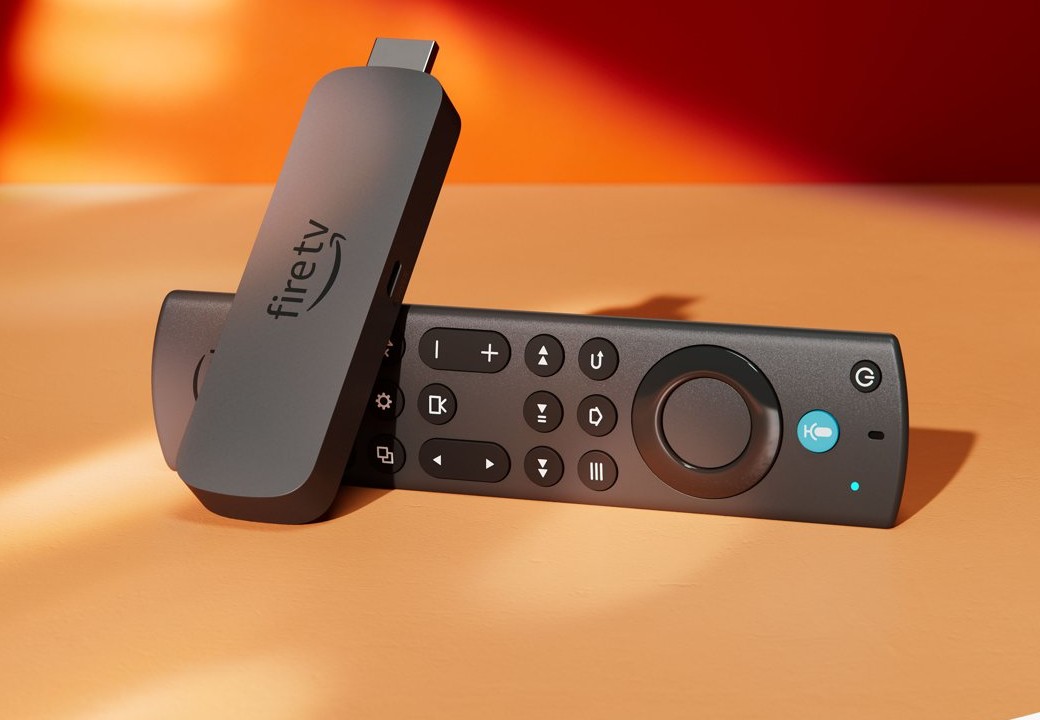
How to fix a Firestick remote that is not working
Work down this list and test the remote after each step, because you can stop as soon as it responds.
- Move within 10 feet (3 m) of the Fire TV and clear anything sitting between the remote and the stick.
- Press and hold Home for about 10 seconds, until the on-screen prompt to start appears.
- Remove the batteries, wait 30 seconds, put them back and hold Home again.
- Fit a new pair of alkaline batteries and hold Home once more.
- Press and hold Left, Menu and Back together for 12 seconds, then hold Home again.
- Unplug the Fire TV from power, wait one minute, plug it back in and test the remote.
A confirmation message in the lower-right corner of the screen means the remote has paired. If nothing has worked by the last step, run the full reset further down this page.
Which fix should you try first?
Match what the remote is doing to a row. The right first move depends on whether the remote is dead, unpaired or only failing on the TV buttons.
| What you see | Try this first | Why |
|---|---|---|
| Remote worked yesterday and now does nothing | Hold Home for 10 seconds | It reconnects a remote that lost its pairing |
| Presses are missed or pairing keeps failing | New alkaline batteries | Amazon lists new alkaline batteries as a pairing fix |
| "Pairing failed" on screen | Move within 10 feet, then take the batteries out for 30 seconds | Amazon lists range and a battery re-seat as early checks |
| Arrows work, but volume, power or mute do not | Equipment Control in Settings | The remote is paired; the TV brand is wrong |
| Brand-new or replacement remote | Pair it with Add New Remote or at the remote detection screen | A new remote has never been paired, so there is nothing to reset |
| Remote is lost or completely dead | Fire TV app on your phone | It controls the stick without any remote |
Why does a Firestick remote stop working?
| Cause | Typical sign | Where to go next |
|---|---|---|
| Weak batteries | Missed presses or a failed pairing | New alkaline batteries, then hold Home |
| Lost pairing | No response, or the remote detection error on screen | Hold Home for 10 seconds, then reset |
| Too far from the Fire TV | Pairing fails during setup | Stay within 10 feet (3 m) |
| Seven controllers already paired | A new remote will not pair | Remove one controller first |
| Wrong TV brand saved | Only volume, power or mute fail | Equipment Control > Change TV |
| Remote not compatible with this Fire TV | A replacement never pairs | Amazon's remote compatibility page |
| Fire TV itself needs a restart | The remote still fails after a reset | Unplug the stick for one minute |
Firestick remote not working with new batteries
New batteries only rule out power, because the remote can still have lost its pairing. Alkaline is the type Amazon names in its pairing steps, and the Alexa Voice Remote Enhanced takes two AAA.
- Replace both batteries with a new pair of alkaline batteries.
- Press and hold Home for about 10 seconds.
- If no prompt appears, remove the batteries for 30 seconds and put them back.
- Hold Home again, this time within 10 feet (3 m) of the Fire TV.
- If the remote still ignores you, run the reset steps below.
Firestick remote not working no light
A dark remote is not proof of a dead remote, because Amazon notes that not all Fire TV remotes have an LED indicator. Judge it by what the TV screen does instead.
- Fit a new pair of alkaline batteries.
- Press and hold Home for about 10 seconds while you watch the TV.
- Look for the on-screen prompt or a confirmation message in the lower-right corner.
- If the screen shows nothing, test the stick with the Fire TV app on your phone.
- If the app controls the stick, the Fire TV is fine and the fault is the remote or its pairing, so reset the remote.
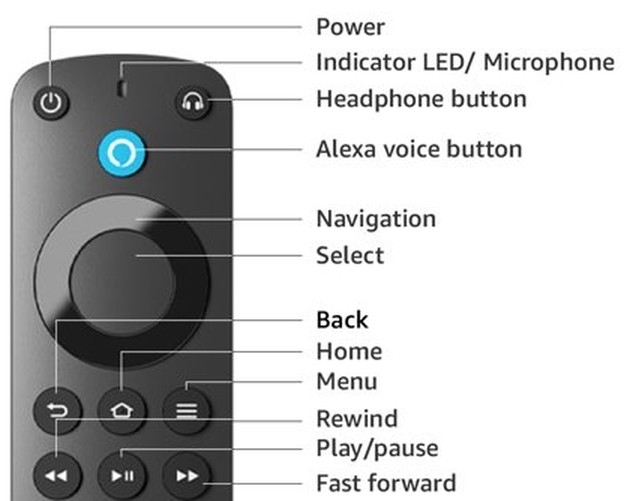
Firestick remote not working blinking orange
The only LED signal in Amazon's pairing and reset steps is a blue blink, which means the remote paired. Those steps do not define an orange blink or orange light, so treat it as a remote that has not paired.
- Hold the remote within 10 feet (3 m) of the Fire TV and press Home for about 10 seconds.
- If the light keeps blinking orange, take out the batteries for 30 seconds and fit a new alkaline pair.
- Run the reset below if the remote still has not paired.
- Watch for a blue blink or the on-screen confirmation message.
How to restart a Firestick without the remote
A power cycle needs no remote at all, so it is the restart to use when the remote is dead. Amazon's restart steps call for unplugging the power adapter for one minute.
- Unplug the power adapter from the Fire TV.
- Wait one minute.
- Plug it back in and let the Fire TV start.
- If the remote detection error appears, press Home on the remote.
- If you control the stick through the Fire TV app, you can instead open Settings, select Device or System, then Restart.
Reset a Firestick remote that is not working
These are Amazon's steps for most Fire TV remotes, including current Alexa Voice Remotes. Run them once the Home button and new batteries have failed.
- Unplug the Fire TV from its power supply and HDMI input, then wait 60 seconds.
- Press and hold Left, Menu and Back together for 12 seconds.
- Release the buttons, wait five seconds and remove the batteries.
- Plug in the Fire TV and wait for the on-screen remote detection error message.
- Put the batteries back and press Home.
- If the remote has not paired, press and hold Home for 10 seconds.
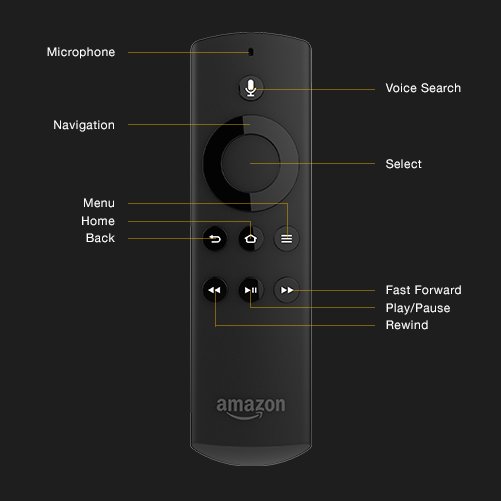
The Basic Edition Remote and the Alexa Voice Remote (1st Generation) use different button combinations, so use the reset sequences for those remotes instead.
Firestick remote volume not working on Samsung and other TVs
When the arrows work but volume, power or mute do nothing, the Fire TV is set up for the wrong TV brand. A Samsung TV must show Samsung under Change TV, and the same check applies to every other brand.
- Go to Settings from the Fire TV menu.
- Select Equipment Control, then Manage Equipment.
- Select TV.
- Under Change TV, check that the brand shown matches your TV.
- If it does not match, select Change TV and follow the on-screen instructions.
These steps do not apply to Fire TV Smart TVs. The Alexa Voice Remote Enhanced controls TVs over infrared and only on compatible models, so keep a clear path between the remote and the TV while you test. Some functions may not be available on every TV.
New Firestick remote not working
Not every remote works with every Fire TV device, so note which Fire TV Stick model you own before you buy or return one. Amazon lists the matches on its page titled Amazon Fire TV and Alexa Devices Compatible with Fire TV Remotes.
- With your old remote or the Fire TV app, go to Settings from the Fire TV menu.
- Select Controllers & Bluetooth Devices, then Amazon Fire TV Remotes.
- Select Add New Remote and insert the batteries in the new remote.
- With no old remote, unplug the Fire TV, plug it back in and wait for the remote detection error message.
- Insert the batteries in the new remote; it should pair by itself.
- If it does not pair either way, press and hold Home for 10 seconds.
Update Fire TV software on a Firestick
Amazon lists this check under app problems rather than remote pairing, so run it after the fixes above. An outdated system can cause other faults, and a working remote or the Fire TV app gets you to the menu.
- Go to Settings from the Fire TV menu.
- Select My Fire TV or Devices & Software.
- Select About.
- Select Check for System Update.
Alternative solutions if the remote still will not respond
Each of these gets you watching again without the original remote.
| Option | When it helps | What you need |
|---|---|---|
| Fire TV app as a backup remote | The remote is lost or dead and the stick is on Wi-Fi | A phone or tablet, an Amazon account and the same Wi-Fi network |
| Pair the remote through the Fire TV app | The remote works but will not pair by itself | The Fire TV app and Add New Remote in Settings |
| Replacement remote | The full reset failed or the remote is gone | A model Amazon lists as compatible with your Fire TV |
| Amazon Customer Service | Every fix failed on a remote you expected to work | The Contact Us link on Amazon's Fire TV help pages |
Use the Fire TV app as a Firestick remote
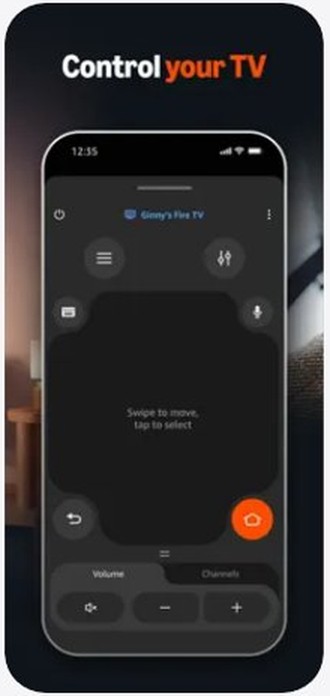
The free Amazon Fire TV app gives you navigation, a keyboard and voice search on iPhone, iPad and Android.
- Install Amazon Fire TV from the App Store or Google Play.
- Connect your phone or tablet to the same Wi-Fi network as the Fire TV.
- Sign in with an Amazon account.
- Follow the on-screen prompts to connect the app to your Fire TV.
- Use the app's controls to move through the Fire TV menus.
Some features require a compatible Fire TV. The stick must already be on Wi-Fi, so the app cannot help on a Fire TV that has never connected to your network.
How to tell if a Firestick remote is paired
- Watch the remote's LED, if it has one: a blue blink means pairing succeeded.
- Look for the confirmation message in the lower-right corner of the screen.
- Open Settings > Controllers & Bluetooth Devices > Amazon Fire TV Remotes and check that the remote is listed.
- Test the arrows, then the volume and power buttons, because those two sets fail for different reasons.
Tips to keep your Firestick remote working
| Tip | Why it helps |
|---|---|
| Keep a spare pair of alkaline batteries nearby | New batteries are one of Amazon's own pairing fixes |
| Install the Fire TV app before you need it | You can still reach Settings when the remote fails |
| Remove old remotes and game controllers | A Fire TV holds up to seven paired controllers |
| Re-check Change TV after you swap TVs | Volume, power and mute depend on the saved brand |
| Check compatibility before you buy a spare | Not every remote works with every Fire TV device |
Firestick remote still not working?
Firestick remote not working anymore after a full reset
The remote itself may be faulty, or it may not suit this Fire TV.
- Connect the Fire TV app and check that the stick responds to it.
- Use the app to open Add New Remote and try pairing the remote from there.
- If it still will not appear, buy a replacement that Amazon lists as compatible, or contact Amazon Customer Service.
Remote detection error keeps appearing
The Fire TV started and found no paired remote.
- Put the batteries in the remote and press Home.
- Press and hold Home for 10 seconds if the message stays.
- Move within 10 feet (3 m), then repeat the reset with new batteries.
"Pairing failed" with seven controllers paired
One Fire TV has reached its limit of seven paired controllers.
- Use the Fire TV app or a working controller to open Settings > Controllers & Bluetooth Devices.
- Remove a remote or game controller you no longer use.
- Press and hold Home on the remote you want to pair.
For problems beyond the remote, such as app activation, work through these streaming TV setup fixes, and if a parental-controls prompt is what blocks you, reset the Fire Stick PIN.
Firestick remote not working FAQ
Why is my Firestick remote not working?
It has usually lost power or its pairing. Other causes are being more than 10 feet (3 m) from the Fire TV, seven controllers already paired, or a remote that is not compatible. If only volume and power fail, the saved TV brand is wrong.
How do I fix a Firestick remote that is not working?
Move within 10 feet of the Fire TV and hold Home for about 10 seconds. Next, take the batteries out for 30 seconds, fit a new alkaline pair and hold Home again. If that fails, reset the remote with Left, Menu and Back for 12 seconds.
Why is my Amazon Firestick remote not working even with new batteries?
New batteries restore power but do not restore a lost pairing. Press and hold Home for about 10 seconds after you fit them. If the remote still does not respond, reset it with the Fire TV unplugged and pair it again at the remote detection screen.
How do I reset my Firestick remote without the remote?
You cannot, because the reset uses the remote's own buttons. To pair a replacement instead, unplug the Fire TV, plug it back in and wait for the remote detection error message. Then insert the batteries in the new remote, and it should pair by itself.
Why does my Firestick remote light blink but nothing happens?
The remote has power but has not paired. A blue blink means pairing succeeded, so look for the confirmation message on screen. If none appears, stay within 10 feet of the Fire TV, hold Home for 10 seconds, and run the full reset if needed.
Can I use my Firestick without the remote at all?
Yes. The free Amazon Fire TV app for iPhone, iPad and Android gives you navigation, a keyboard and voice search. It needs an Amazon account and the same Wi-Fi network as the Fire TV, so the stick must already be connected to your network.
How long should a Firestick remote last?
Amazon's remote pairing and reset pages give no lifespan in months or years, for the remote or its batteries. Change the batteries when pairing fails or presses are missed, and only buy a replacement once new batteries and a full reset have both failed.
Why is my Firestick remote volume not working?
The Fire TV usually has the wrong TV brand saved, which only affects volume, power and mute. Open Settings, Equipment Control, Manage Equipment and TV, then check the brand under Change TV. These steps do not apply to Fire TV Smart TVs.
How many remotes can pair with a Firestick?
Amazon's limit is seven paired controllers on one Fire TV, and game controllers count toward it. If seven are already paired, remove one under Controllers & Bluetooth Devices in Settings before you pair another remote.
What batteries does a Firestick remote use?
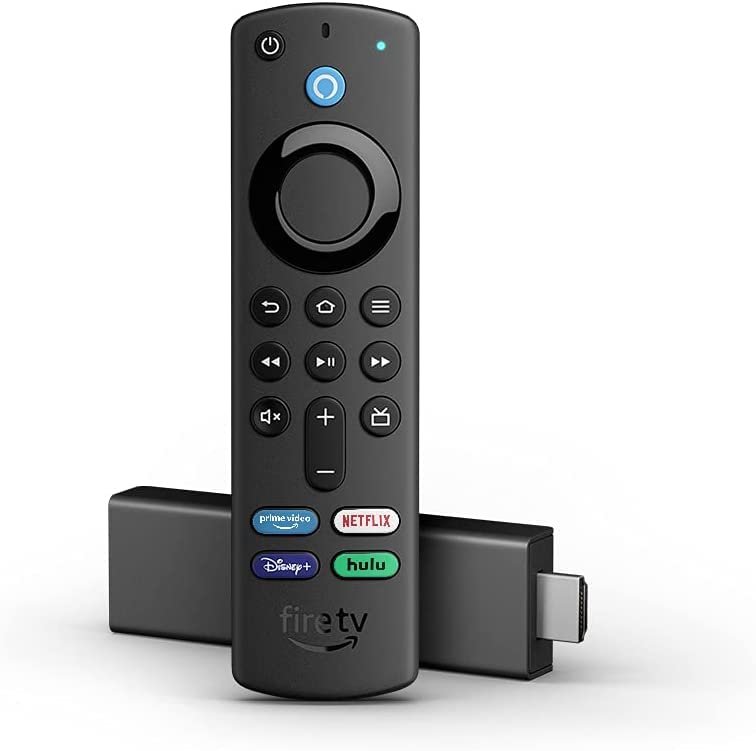
The Alexa Voice Remote Enhanced takes two AAA batteries, and they come in the box with the Fire TV Stick 4K Max. Amazon's pairing steps call for new alkaline batteries when a remote will not connect, so keep that type on hand.
Quick summary
Hold Home for 10 seconds with new alkaline batteries in the remote, then run the Left, Menu and Back reset if it still will not pair. Those two fixes deal with power and pairing, the causes Amazon addresses first. Volume and power faults are a TV brand setting in Equipment Control, and the Fire TV app keeps the stick usable while you sort out a replacement.