To manage local users and groups in Windows Home from the command line, open Command Prompt as administrator and use net user for accounts and net localgroup for groups.
This guide covers creating, changing, disabling and deleting local accounts, group membership, the matching PowerShell cmdlets and the errors these commands return.
Open & manage local user and group management in Windows 11
Microsoft's net user reference applies to Windows 11 and Windows 10 and names no edition limit. Neither command needs the Local Users and Groups console, so they are the direct route on a Home PC.
- Select the Search box and type cmd.
- Right-click Command Prompt and select Run as administrator.
- Select Yes, or enter an administrator password if Windows asks for one.
- Run
net userto list every local account on the PC. - Run
net localgroupto list every local group. - Run
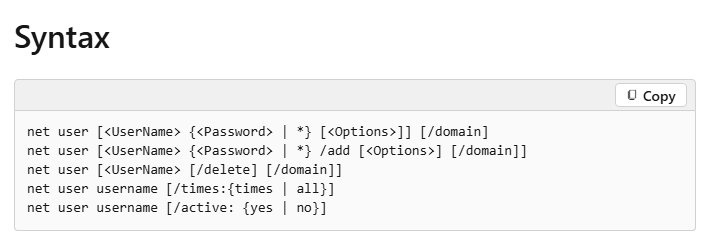
net user jays * /addto create an account, replacing jays with the name you want, then type the password at the prompt. - Run
net user jaysto display the details of the new account.
Local user management command: net user, net localgroup or PowerShell
| Your situation | Use this | Why |
|---|---|---|
| Add, change, disable or delete one account | net user |
One short command for each account change |
| Add or remove group members, or create a group | net localgroup |
Handles the local groups stored on this PC |
| Rename an account | Rename-LocalUser |
The net user reference lists no rename option |
| Repeat the same change in a script | PowerShell Local Accounts module | Each task has its own cmdlet with named parameters |
| Set sign-in hours or an expiry date | net user with /times or /expires |
Both limits fit on one command line |
| You prefer menus to commands | Settings > Accounts > Other user | Covers adding, removing and changing an account type |
How to create a local user with net user
The asterisk makes Windows prompt for the password, and the password stays hidden while you type it. Avoid typing the password into the command itself, because it then appears on screen.
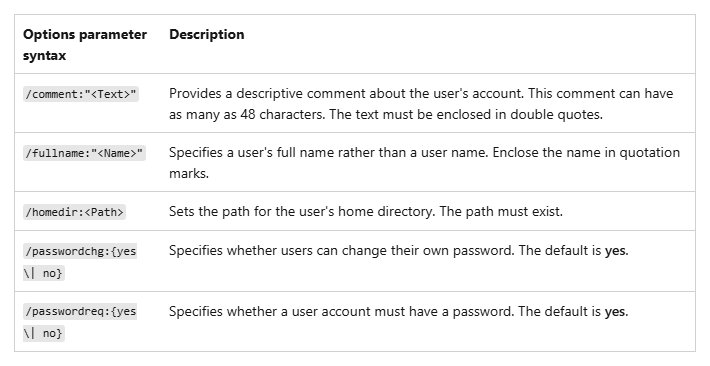
net user jays * /add /fullname:"Jay Samson" /comment:"Family PC account"This creates the account jays. A user name can have up to 20 characters, a comment up to 48 and a password up to 127. Both /fullname and /comment are optional, and their text must sit in double quotes.
You should see: Run net user again. The new name now appears in the list of local accounts.
The password must also meet the minimum length set on the PC with net accounts /minpwlen.
How to change a local user password in Command Prompt
An administrator can set a new password for a local account without knowing the old one. Use this when a family member is locked out and another administrator account still works.
net user jays *Windows prompts for the new password and keeps it hidden as you type. Replace jays with the account name shown by net user.
You should see: The person can sign in to that account with the new password.
How to use net localgroup
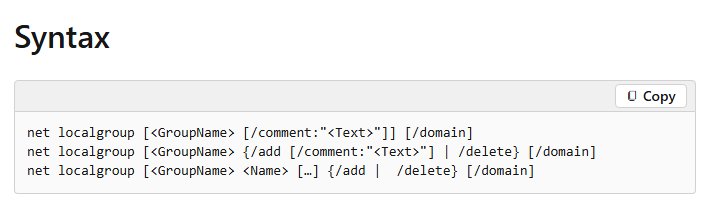
net localgroup adds, displays and changes local groups. When you give a right to a local group, every member of that group receives it.
| Task | Command | What to know |
|---|---|---|
| List every local group | net localgroup |
Shows the computer name and all local groups |
| List a group's members | net localgroup Administrators |
Works with any group name from the list |
| Create a group | net localgroup Editors /add /comment:"Shared folder editors" |
A comment can have up to 256 characters |
| Add a member | net localgroup Editors jays /add |
The account must already exist |
| Add several members | net localgroup Editors jays maria sam /add |
Separate the names with spaces |
| Remove a member | net localgroup Editors jays /delete |
The account stays on the PC |
| Change a group's comment | net localgroup Editors /comment:"Photo editors" |
Put the text in double quotes |
| Delete a group | net localgroup Editors /delete |
Removes the group, not the accounts inside it |
A group can hold local users, but it cannot hold another local group.
How to add a user to the Administrators group in Command Prompt
Members of Administrators have full control of the PC, so add only the people who need it. To return someone to a limited account, run the same command with /delete in place of /add.
net localgroup Administrators jays /addThis adds the existing account jays to the local Administrators group. Create the account with net user first, because the command cannot add a name that does not exist.
You should see: Run net localgroup Administrators. The name jays now appears among the members.
How to disable a local user account from Command Prompt
Disabling keeps the account on the PC while blocking access to its resources. It is the safer first step when you may need the account again.
net user jays /active:noReplace no with yes to turn the account back on. New accounts are active by default.
You should see: Run net user jays to display the account details and check its active state.
How to delete a local user with net user
Run net user first and copy the exact name, because the command acts on the name you type. Back up anything you still need from that account before you run it.
net user jays /deleteThis deletes the account jays from the PC. Windows has no matching undo command, so disable the account instead if you are unsure.
You should see: Run net user again. The name no longer appears in the list.
net user command options for local accounts
Add these options when you create an account, or run them later against an existing one.
| Option | What it does | Example |
|---|---|---|
/fullname |
Sets the person's full name | net user jays /fullname:"Jay Samson" |
/comment |
Adds a description of up to 48 characters | net user jays /comment:"Guest laptop user" |
/expires |
Ends the account at the start of a date, or use never |
net user jays /expires:never |
/passwordchg |
Sets whether the person can change their own password | net user jays /passwordchg:no |
/passwordreq |
Sets whether the account must have a password | net user jays /passwordreq:yes |
/times |
Sets allowed sign-in days and hours, in one-hour steps | net user jays /times:monday-friday,8am-5pm |
/homedir |
Sets the home directory, and the path must already exist | net user jays /homedir:D:\Users\jays |
Date formats for /expires depend on the PC's country or region code. Use /times:all to allow sign-in at any time again.
How to see local users and group members in Command Prompt
Run these after every change. They read the accounts as Windows now holds them, so they show exactly what the last command did.
- Run
net userand check that the account list matches what you expect. - Run
net user jaysto read the details of one account, including its comment and active state. - Run
net localgroup Administratorsand check that only the intended people are listed. - Sign out, then sign in with the new or changed account to test it.
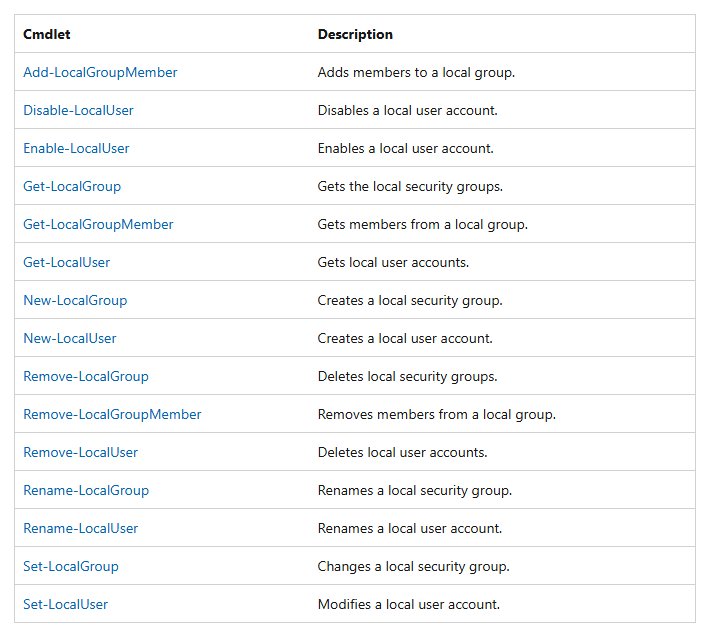
PowerShell Local Accounts module commands for users and groups
Open the Start menu, type Windows PowerShell, select it and then select Run as administrator. The cmdlets below come from the Microsoft.PowerShell.LocalAccounts module, which needs 64-bit PowerShell on a 64-bit system.
| Task | Cmdlet | net command equivalent |
|---|---|---|
| List local users | Get-LocalUser |
net user |
| List local groups | Get-LocalGroup |
net localgroup |
| List a group's members | Get-LocalGroupMember -Group "Administrators" |
net localgroup Administrators |
| Create a user | $Password = Read-Host -AsSecureString, then New-LocalUser -Name 'User03' -Password $Password -FullName 'Third User' |
net user User03 * /add |
| Create a group | New-LocalGroup -Name "Editors" |
net localgroup Editors /add |
| Add a group member | Add-LocalGroupMember -Group "Administrators" -Member "User03" |
net localgroup Administrators User03 /add |
| Remove a group member | Remove-LocalGroupMember -Group "Administrators" -Member "User03" |
net localgroup Administrators User03 /delete |
| Disable or enable a user | Disable-LocalUser -Name "User03" or Enable-LocalUser -Name "User03" |
net user User03 /active:no |
| Rename a user | Rename-LocalUser -Name "User03" -NewName "User04" |
No equivalent option |
| Delete a user | Remove-LocalUser -Name "User04" |
net user User04 /delete |
New-LocalUser also accepts -NoPassword for an account without a password, but a password is the better choice on a shared PC.
Manage local user accounts in Settings on Windows Home
Settings is the menu route when you only need to add, remove or change an account. You can also manage accounts through the control userpasswords2 dialog.
- Go to Settings > Accounts > Other user.
- To create an account, select Add account, then choose the option to add a user without a Microsoft account.
- To change a role, open the account, select Change account type, choose the type and select OK.
- To delete an account, open it and select Remove next to Account and data.
Removing an account here deletes its sign-in information and its data from the device, so back up that person's files first.
Local users and groups in Computer Management vs command line
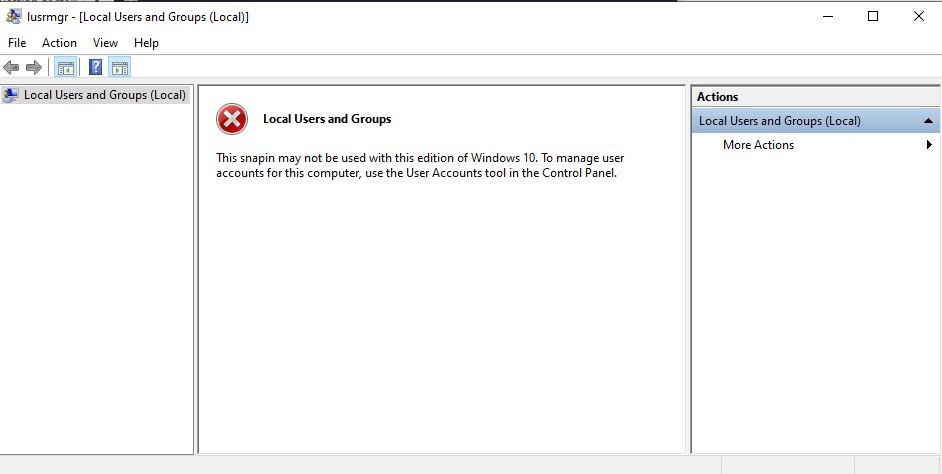
Local Users and Groups is the graphical console for the same accounts, and you can open Local Users and Groups with lusrmgr.msc where it is available. Microsoft notes that the tools in Windows Tools can vary by edition, so use the commands here if the console does not open on your Home PC.
| Task | In the console | From the command line |
|---|---|---|
| Find the accounts | Local Users and Groups > Users | net user |
| Find the groups | Local Users and Groups > Groups | net localgroup |
| Set a new password | Right-click the user and select Set Password | net user jays * |
| Repeat a change on another PC | Repeat each click by hand | Run the same command again |
Local administrator account risks in Windows Home
| Risk | Why it matters | What to do |
|---|---|---|
| Too many administrators | Members of Administrators have full control of the PC | Keep the group small and use standard accounts every day |
| Built-in Administrator switched on | Windows setup disables this account and creates a separate administrator | Leave it disabled unless you have a specific need |
| Guest switched on | Microsoft advises limited rights for Guest and regular monitoring if it is enabled | Keep it off, and create a standard account for visitors |
| Removing your only working administrator | With no administrator account and a forgotten password, Microsoft's fallback is to reset the device | Keep a second administrator account with a password you know |
The Administrator account cannot be removed from the Administrators group, so a command that tries this will fail.
net user and net localgroup errors in Command Prompt
Access is denied (error 5)
The window lacks administrator rights, or your account is a standard user.
- Close the Command Prompt window.
- Type cmd in the Search box, right-click Command Prompt and select Run as administrator.
- Enter an administrator password if Windows asks for one, then run the command again.
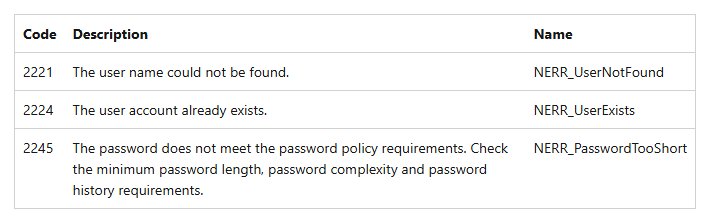
The user name could not be found (error 2221)
The name is misspelled, or no local account has that name.
- Run
net userto list the real account names. - Run your command again with the exact name.
The user account already exists (error 2224)
/add was used with a name that is already taken.
- Run
net userto check the existing name. - Choose a different name, or drop
/addto change the existing account.
The password does not meet the password policy requirements (error 2245)
The password fails the PC's length, complexity or history rules.
- Run the command again with
*in place of the password. - Type a longer password that mixes different kinds of characters.
- Avoid a password this account used recently.
The specified account name is already a member of the group (error 1378)
The account is already in that group, so no change is needed.
- Run
net localgroupwith the group name to read the members. - Move on if the name is listed. Membership is already correct.
The specified local group does not exist (error 1376)
The group name is misspelled, or the group was never created.
- Run
net localgroupto list the real group names. - Run your command again with the exact group name, or create the group with
/add.
PowerShell does not recognize Get-LocalUser
The module is not available in 32-bit PowerShell on a 64-bit system.
- Close the window whose title or Start menu entry is marked (x86).
- Open Windows PowerShell without the (x86) label, using Run as administrator.
- Run the cmdlet again.
Local user and group management FAQ
How do I manage local users?
Open Command Prompt as administrator and use net user. Run it alone to list accounts, add a name to view one, and add /add, /delete or /active:no to change one. Settings also handles adding and removing accounts.
What is the local user management command?
The command is net user, and its group partner is net localgroup. In PowerShell, the matching cmdlets include Get-LocalUser, New-LocalUser and Add-LocalGroupMember. Changes need a window opened with Run as administrator.
What is the local user and group management tool?
It is Local Users and Groups, a console inside Computer Management that opens with lusrmgr.msc. It lists accounts in a Users folder and groups in a Groups folder. The net commands and PowerShell cmdlets manage the same local accounts.
Where are local users and groups in Computer Management?
Open Computer Management and expand System Tools > Local Users and Groups. Accounts sit in the Users folder, including the default ones and any you create. Groups sit in the Groups folder next to it.
How do I manage users and groups without the management console?
Use net user for accounts and net localgroup for groups in an elevated Command Prompt. The PowerShell Local Accounts module covers the same tasks and adds renaming. Settings covers adding, removing and changing an account type.
How do I manage local user accounts in Settings?
Go to Settings > Accounts > Other user. Select Add account to create one, Change account type to change its role, or Remove to delete it. Removing an account also removes that person's data from the device.
What is user and group management in Windows?
It controls who can sign in and what they can do on one PC. Rights let a user perform actions such as shutting down the computer, and permissions control access to objects such as files, folders and printers.
Can I use Group Policy to manage local users on Windows Home?
The Local Group Policy Editor is not available on Windows Home, so net user options handle limits such as sign-in hours and expiry dates. You can enable the Local Group Policy Editor on Home if you still want its policies.