To fix ERR_CONNECTION_RESET, reload the page on a working connection, then clear the browser's cookies, turn off any proxy and reset the Windows network stack if the error stays.
This guide covers the 10 methods in order from quickest to most involved, for Chrome and Microsoft Edge on Windows 11 and Windows 10.
What causes the “ERR_CONNECTION_RESET” error?
ERR_CONNECTION_RESET means the connection to the website was cut off while the browser was still talking to it. Something between your PC and the server closed the link.
| Where the problem sits | Typical cause |
|---|---|
| Your connection | Dropped Wi-Fi, a modem or router fault, or airplane mode |
| The browser | Corrupt cookies or cache, an extension, or changed settings |
| Windows network settings | A proxy you no longer use, a bad DNS server or a damaged TCP/IP configuration |
| Security software | A firewall or antivirus filtering the site's traffic |
| The other end | Server downtime or maintenance, or an ISP blocking or throttling the site |
How do I fix the “ERR_CONNECTION_RESET” error?
Work down the list. Each method is quick to undo, and the later ones change more of your system.
| If this is true | Start with | Method |
|---|---|---|
| Every site fails | Check the connection and router | 1 |
| Only one browser fails | Clear cache and cookies, then reset the browser | 2 and 8 |
| You use a work or school network | Check proxy settings | 3 |
| Error started after installing security software | Check antivirus or firewall | 4 |
| Some sites load and others do not | Change DNS server | 5 |
| Every browser on the PC fails but other devices work | Reset TCP/IP stack | 6 |
| Error began after a Windows change | Check for Windows updates | 7 |
| Sites fail only over IPv6 networks | Prefer IPv4 over IPv6 | 9 |
| One site fails on every device | Contact the ISP or website admin | 10 |
1. Check your internet connection
Rule out the connection first. If other devices on the same network also fail, the problem is the router or the ISP, not your PC.
- Check the address for typing errors, then press F5 to reload the page.
- Open another website to see whether only one site fails.
- Make sure Airplane mode is off in Settings > Network & internet.
- Connect another phone or laptop to the same network and open the same site.
- Turn the modem and router off, wait a minute, then turn them back on.
2. Clear browser cache and cookies
Corrupt cookies or cached data can break the connection to one site. Clearing them signs you out of websites.
- In Chrome, select More (three dots) at the top right, then Delete browsing data.
- Choose a time range such as All time.
- Select Cookies and other site data, plus any cached items you want to remove.
- Select Delete data.
- In Microsoft Edge, go to Settings and more > Settings > Privacy, search, and services > Clear browsing data, select Choose what to clear, pick the items and select Clear now.
To test without clearing anything, open the site in an Incognito or InPrivate window first. If it loads there, cookies or an extension are the cause.
3. Disable proxy settings
A proxy left over from a VPN app or an old network routes traffic through a server that may drop the connection.
- Open Settings > Network & internet > Proxy.
- Under Manual proxy setup, next to Use a proxy server, select Set up.
- Turn off Use a proxy server and select Save.
- Under Automatic proxy setup, check whether Use setup script is on, and turn it off unless your organization requires it.
- Reload the page.
On a work or school PC, the proxy may be required. Ask your IT department before you change it.
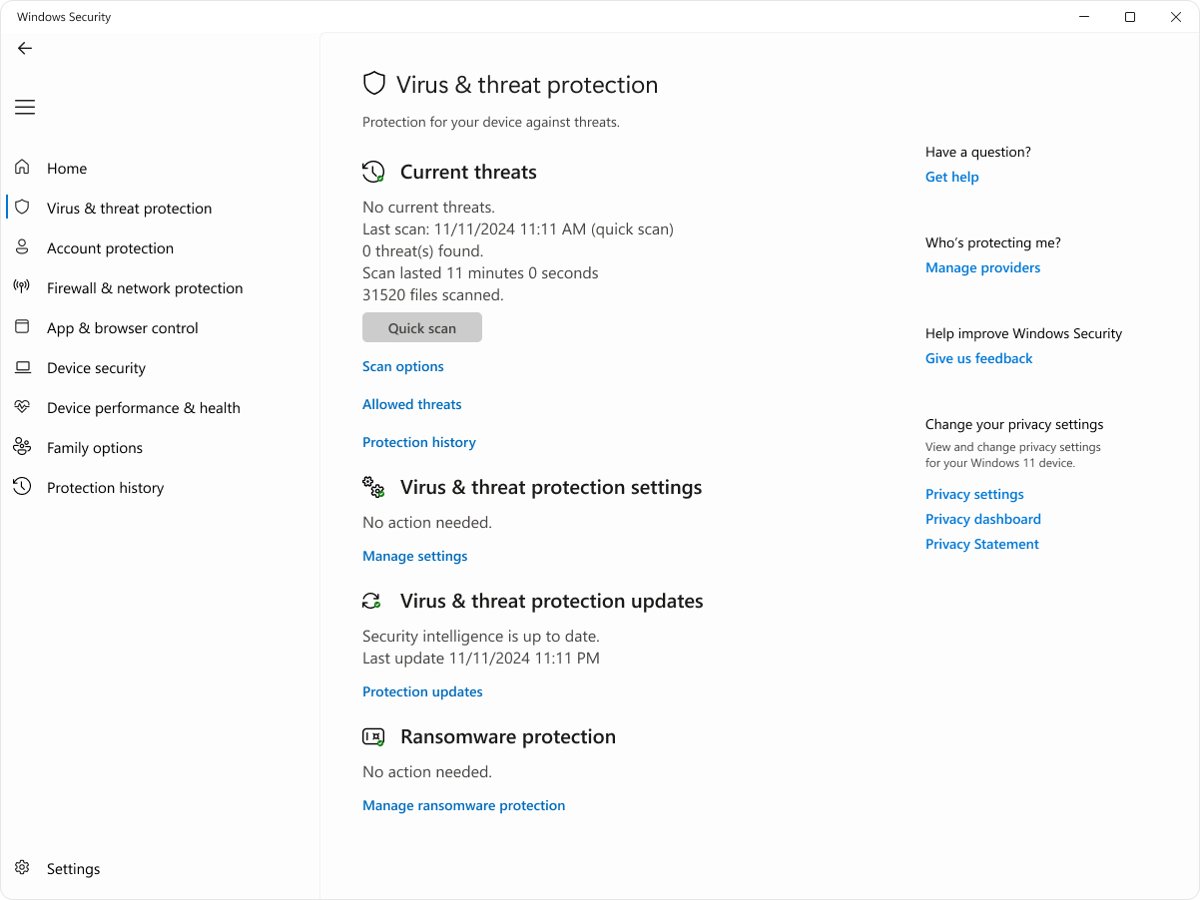
4. Check your antivirus or firewall
Chrome lists firewall and antivirus software as a cause of connection errors, because web filtering can cut a connection it flags. Keep protection on and check what it blocked instead.
- Open Windows Security and select Virus & threat protection.
- Select Protection history and look for an entry that matches the site or your browser.
- If you use third-party security software, open its web protection or firewall log and look for the same site.
- If the site you trust is listed as blocked, follow that product's own steps to allow it, or contact its support.
- Reload the page.
5. Change DNS server
A DNS server that returns bad answers can send the browser to an address that resets the connection. Point Windows at a different DNS server to test.
- Open Settings > Network & internet.
- For Wi-Fi, select Wi-Fi > Manage known networks and choose your network. For a wired connection, select Ethernet and your network.
- Next to IP assignment or DNS server assignment, select Edit.
- Choose Manual and turn on IPv4.
- Type the addresses in Preferred DNS and Alternate DNS, then select Save.
- Run
ipconfig /flushdnsin Command Prompt to clear the old cached entries.
To undo the change, return to the same screen and select Automatic (DHCP).
6. Reset TCP/IP stack
Resetting Winsock and TCP/IP repairs damaged network settings that affect every browser. Open Command Prompt as administrator and run these commands in order.
netsh winsock reset
netsh int ip reset
ipconfig /release
ipconfig /renew
ipconfig /flushdns
The first two commands reset Winsock and the TCP/IP stack, the ipconfig commands release and renew your IP address, and /flushdns empties the DNS resolver cache.
You should see: Each command reports that it completed. Restart the PC, then reload the page.
If the commands do not help, reset network settings with Settings > Network & internet > Advanced network settings > Network reset on Windows 11 (Status > Network reset on Windows 10). It removes network adapters and their settings, so you may need to reinstall VPN software afterwards.
7. Check for Windows updates
Updates can carry network driver and networking fixes. Install anything pending.
- Select Start > Settings > Windows Update.
- Select Check for updates.
- Select Download & install if updates are available.
- Restart the PC when prompted, then reload the page.
8. Reset your browser settings
Extensions and apps can change browser settings without asking. A reset restores the defaults but keeps your bookmarks and passwords.
- In Chrome, select More (three dots) > Settings.
- Select Reset settings.
- Select Restore settings to their original defaults, then Reset settings.
- Reload the page that showed the error.
The reset turns off extensions and clears cookies and site data, along with the search engine, home page, pinned tabs and site permissions.
9. Disable IPv6
Microsoft does not recommend disabling IPv6, because some Windows components stop working without it. Set Windows to prefer IPv4 over IPv6 instead, which has the same effect on most browsing problems.
- Back up the registry before you change it.
- Press Win + R, type
regeditand press Enter. - Go to
HKEY_LOCAL_MACHINE\SYSTEM\CurrentControlSet\Services\Tcpip6\Parameters. - Create or edit the DWORD (32-bit) Value named
DisabledComponents. - Set its value to hexadecimal
20to prefer IPv4 over IPv6. - Restart the PC, then run
ping bing.comto confirm it replies over an IPv4 address.
To undo the change, set DisabledComponents back to 0 and restart. Never use the value 0xffffffff, which delays startup.
10. Contact your ISP or website admin
If one site fails on every device and every network you try, the fault is on the server or with your provider.
- Open the site on mobile data instead of your home network.
- If it loads on mobile data only, contact your ISP and tell them which address resets.
- If it fails everywhere, contact the website's owner or check its status page for downtime or maintenance.
- Give them the exact error text, the time it happened and the browser you used.
Check if ERR_CONNECTION_RESET is fixed
- Close and reopen the browser.
- Open the page that showed the error and reload it twice.
- Open the same page in a second browser, such as Edge if you use Chrome.
- Run
ping bing.comin Command Prompt and confirm you get replies.
If a related error such as ERR_CONNECTION_TIMED_OUT appears instead, the connection now reaches further but still fails, so return to methods 5 and 6.
ERR_CONNECTION_RESET error FAQ
What does ERR_CONNECTION_RESET mean?
It means the connection to the website closed unexpectedly while the browser was loading the page. The cause can be your network, the browser, Windows network settings, security software or the website's server.
Is ERR_CONNECTION_RESET a problem with my PC or the website?
Open the site on another device on a different network. If it loads there, the problem is your PC or network. If it fails everywhere, the website or its hosting is at fault.
Does clearing cookies fix ERR_CONNECTION_RESET?
Often, when only one site fails in one browser. Corrupt cookies or cached files can break the connection. Test the site in an Incognito or InPrivate window first to see whether stored data is the cause.
Can a proxy cause ERR_CONNECTION_RESET?
Yes. A proxy left behind by a VPN app or an old network routes traffic through a server that may drop it. Turn off Use a proxy server in Settings > Network & internet > Proxy and reload the page.
Does resetting TCP/IP delete anything?
It deletes no files. netsh winsock reset and netsh int ip reset return network settings to their defaults, so restart the PC afterwards and re-enter any static IP address you used.
Should I disable IPv6 to fix ERR_CONNECTION_RESET?
Microsoft recommends preferring IPv4 over IPv6 rather than disabling it, because some Windows components need IPv6. Set the DisabledComponents registry value to 0x20 instead of 0xFF.
Does ERR_CONNECTION_RESET happen in Microsoft Edge too?
Yes. Edge is built on Chromium and shows the same error code. The Windows fixes are identical, and Edge clears cookies under Settings > Privacy, search, and services > Clear browsing data.
Back to browsing after ERR_CONNECTION_RESET
Most ERR_CONNECTION_RESET errors clear after a router restart, deleting cookies or turning off an unused proxy; reset TCP/IP only when every browser fails. The early methods change nothing permanent, while network reset and registry changes affect the whole PC. If one site fails on every network, contact its owner or your ISP.