To fix the Microsoft Teams meeting button missing in Outlook, close Outlook and Teams, start Teams and sign in, then start Outlook again.
This guide covers that restart, the separate fixes for classic and new Outlook, re-registering or reinstalling the add-in, and the admin settings that hide the button.
How to get the Teams meeting button back in Outlook
Microsoft's first fix is a restart in a set order, because Teams has to be running and signed in before Outlook loads the integration.
- Close Outlook.
- Right-click the Teams icon and select Quit Teams.
- Start Teams and sign in.
- Start Outlook.
- In classic Outlook, select the dropdown arrow next to New Email on the Home tab, select Meeting, and look for Teams Meeting on the Meeting tab.
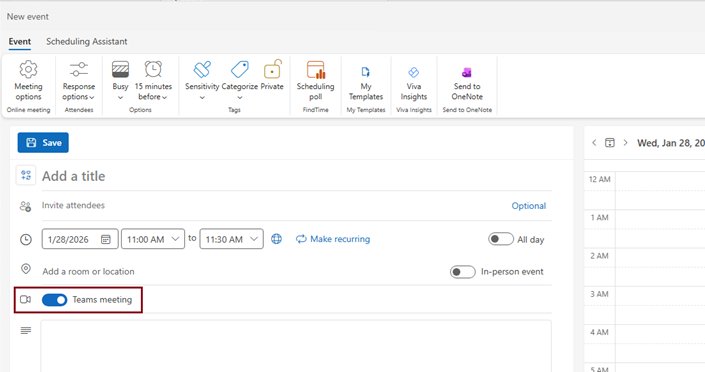
- In new Outlook, select Calendar, select New event, and look for the Teams meeting toggle next to Title.
Identify your Outlook version first
The two Windows versions handle Teams differently, so a fix for one does nothing on the other. Classic Outlook uses a COM add-in; new Outlook has Teams built in and does not support that add-in.
| What you see in Outlook | Your version | Where Teams meeting lives |
|---|---|---|
| A File tab on the ribbon, no Settings button at the top right | Classic Outlook | Teams Meeting button on the Meeting tab, supplied by an add-in |
| A Settings button at the top right, with Home, View and Help tabs | New Outlook | Teams meeting toggle next to Title in a new event |
If you want the add-in's ribbon button rather than the toggle, you can switch from new Outlook to classic.
Error and symptom quick reference
Match what you see to a row, then go straight to that fix.
| Symptom | Likely cause | Fix |
|---|---|---|
| Button gone in classic Outlook, add-in listed under Disabled Application Add-ins | The add-in is turned off | Re-enable it under COM Add-ins |
| Button gone in classic Outlook, add-in enabled or not listed | Registration failed or the load setting changed | Re-register the add-in, then check LoadBehavior |
| Button gone after moving from classic Teams to new Teams | The upgrade removed the add-in | Reinstall the add-in |
| No toggle in new Outlook | Accounts differ, or the new Teams client is not in use | Match the accounts and restart both apps |
| No button or toggle on a personal, Gmail or Yahoo account | Those accounts are not supported | Use a Microsoft 365 business Exchange account |
| Toggle on, but no join link in a draft | Join details are added only after Send | Select Send, not Save as draft |
| Delegate's meeting has no URL, ID, passcode or dial-in numbers | The delegator's mailbox is hidden from the global address list | An admin unhides the mailbox with Set-Mailbox |
The delegate fix is Set-Mailbox -Identity [email protected] -HiddenFromAddressListsEnabled $false in Exchange Online PowerShell. The delegate then restarts Outlook and creates a new meeting request.
Fixes for classic Outlook
Fix #1: Re-enable the Teams add-in in COM add-ins
The add-in sits in the disabled list, so Outlook does not load the button.
- In Outlook, select File > Options.
- Select the Add-ins tab in the Outlook Options dialog box.
- Look for Microsoft Teams Meeting Add-in for Microsoft Office in the Active Application Add-ins list.
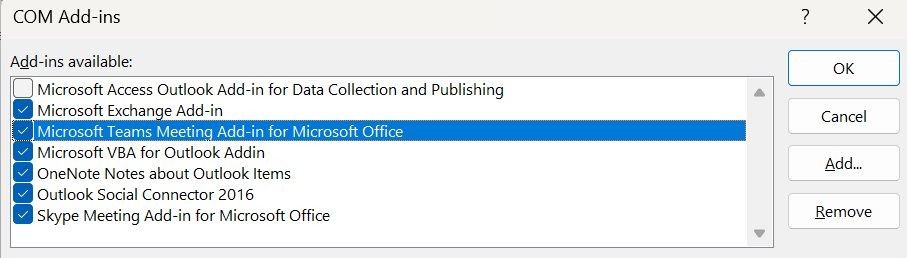
- If it appears under Disabled Application Add-ins, select Manage > COM Add-ins, then select Go.
- Select the checkbox next to Microsoft Teams Meeting Add-in for Microsoft Office.
- Select OK on every open dialog box, then restart Outlook.
Fix #2: Restart Teams and Outlook in the correct order
Outlook can need a restart after a Teams install or upgrade to pick up the latest add-in.
- Close both Outlook and Teams.
- Restart Teams and sign in.
- Restart Outlook without using Run as administrator.
- Open a new meeting and check the Meeting tab for Teams Meeting.
The same dialog box is where you manage other Outlook add-ins if one is causing trouble.
Fixes for new Outlook
New Outlook needs no add-in, so there is nothing to re-enable under COM Add-ins. Its toggle depends on the account and the Teams client.
Fix #1: Confirm Teams and Outlook use the same work account
Microsoft requires both apps to be signed in with the same work or school account.
- Check the address Teams is signed in with.
- Check the address of the account you schedule from in Outlook.
- If they differ, sign in to Teams with the work or school address that Outlook uses.
- Make sure you are using the new Teams client.
- Close Outlook, select Quit Teams, start Teams and sign in, then start Outlook.
Fix #2: Turn on the Teams meeting toggle
The toggle is off by default on a new event unless every meeting is set to go online.
- Open Outlook and select Calendar.
- Select New event.
- Next to Title, turn on the Teams meeting toggle.
- Add the details and attendees, then select Send.
Why the toggle doesn't show up on personal accounts
Microsoft limits Teams scheduling in Outlook to Microsoft 365 business Exchange accounts, and POP or IMAP accounts such as Gmail, Yahoo and iCloud are not supported.
- Check which account the new event is being created in.
- Switch to your Microsoft 365 business Exchange account if Outlook has one.
- If you only have a personal account, schedule the meeting in the Teams app instead.
Fixes that work for both versions
Fix: Update Teams to the latest version
Teams installs and maintains the add-in, so an outdated client can leave the integration behind.
- Look for the update notice at the top of the Teams window.
- Select Update > Update and restart Teams.
- Open Teams manually if it does not reopen after installing.
- Restart Outlook.
Fix: Repair your Office installation
Corrupted Office files can stop Outlook from working correctly.
- Open Start > Settings > Apps > Installed apps in Windows 11, or right-click Start and select Apps and Features in Windows 10.
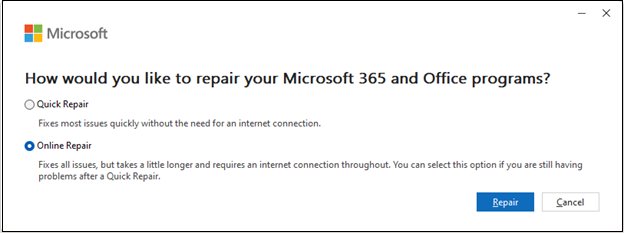
- Select your Microsoft 365 or Office product, then select Modify.
- On a Click-to-run install, select Online Repair > Repair.
- On an MSI-based install, select Repair under Change your installation, then select Continue.
- Follow the on-screen instructions, then restart the computer if asked.
Quick Repair is faster but only detects and replaces corrupted files, and any repair covers the whole Office suite. If Teams shows no notice, update Microsoft Teams on Windows another way before you repeat the restart.
How to re-register the Teams add-in for Outlook
This is Microsoft's fix when the add-in is missing or its install failed in classic Outlook. It re-registers Microsoft.Teams.AddinLoader.dll for your user account.
- Confirm the Teams desktop app is installed, because the add-in cannot be installed from the Teams web client alone.
- Confirm you run Outlook 2016 or later with all updates applied, then exit Outlook and Teams.
- In File Explorer, go to
%LocalAppData%\Microsoft\TeamsMeetingAddin. - Open the subfolder with the highest version number and copy its path, for example
%LocalAppData%\Microsoft\TeamsMeetingAddin\1.0.23334.11. - Open Command Prompt as administrator.
- For 64-bit Office, run
%SystemRoot%\System32\regsvr32.exe /n /i:user %LocalAppData%\Microsoft\TeamsMeetingAddin\1.0.23334.11\x64\Microsoft.Teams.AddinLoader.dll, using your own version number. - For 32-bit Office, run
%SystemRoot%\SysWOW64\regsvr32.exe /n /i:user %LocalAppData%\Microsoft\TeamsMeetingAddin\1.0.23334.11\x86\Microsoft.Teams.AddinLoader.dll, using your own version number. - Restart Teams, then sign out and sign back in.
- Restart Outlook normally, not in Administrator mode.
To see whether Office is 32-bit or 64-bit, select File > Office Account > About Outlook in classic Outlook.
Teams meeting add-in LoadBehavior registry value
If the add-in still does not appear, check the value that tells Outlook to load it. Back up the registry first, because incorrect entries can cause serious system problems.
- Open
RegEdit.exe. - Go to
HKEY_CURRENT_USER\SOFTWARE\Microsoft\Office\Outlook\Addins\TeamsAddin.FastConnect. - Read the value of the
LoadBehaviorentry. - If it is anything other than 3, change it to 3.
- Restart Outlook.
Teams meeting add-in missing after updating to new Teams
Uninstalling classic Teams can remove the add-in from Outlook. Microsoft's reinstall uses one of two PowerShell scripts, chosen by the add-in version; these steps apply outside VDI environments.
- Quit Teams and close Outlook.
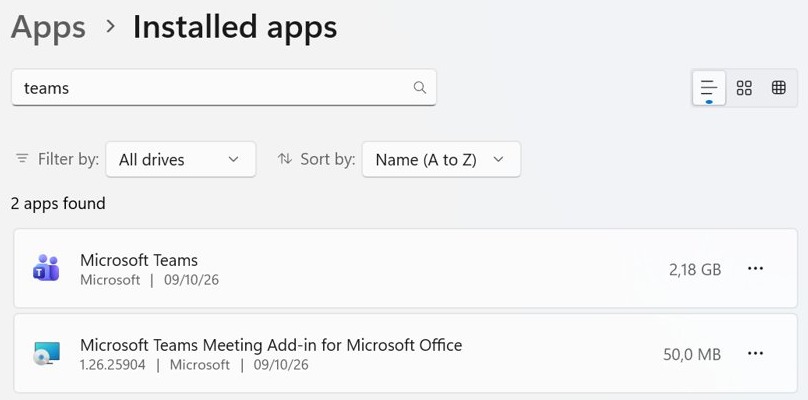
- Select Start > Settings > Apps > Installed apps and search for Teams Meeting Add-in.
- If there is no result, or the version of Microsoft Teams Meeting Add-in for Microsoft Office starts with 1.23, download
UninstallOldTMA.ps1fromaka.ms/TMARepairand run it in PowerShell as administrator. - If the version starts with anything else, download
UninstallTMA.ps1fromaka.ms/AAsllbband run it in a normal PowerShell window. - Start the new Teams app.
- Wait until the add-in appears in Installed apps.
- Restart Outlook.
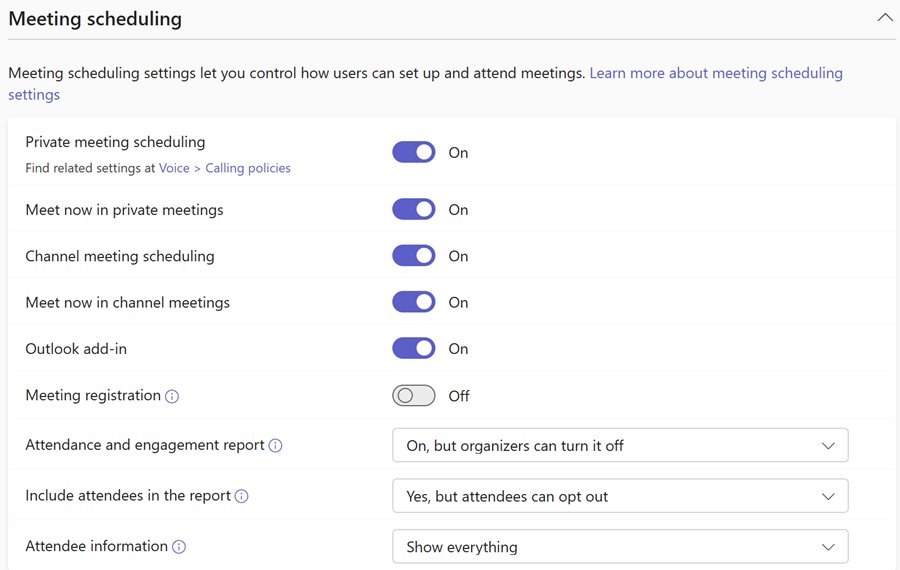
Teams admin center Outlook add-in policy
If the button is missing across a whole team, the meeting policy may be the cause. A Teams administrator has to make this change.
- Open the Teams admin center.
- Expand Meetings in the navigation pane and select Meeting Policies.
- Select the existing policy or create a new one.
- Go to the Meeting scheduling section.
- Set Private meeting scheduling and Outlook add-in to On.
- Select Save.
Where is the Teams meeting button in Outlook
| Outlook app | Where to find it | Note |
|---|---|---|
| Classic Outlook for Windows | Home > arrow next to New Email > Meeting > Teams Meeting > Schedule meeting | Add-in; join info appears below the details |
| New Outlook for Windows and Outlook on the web | Calendar > New event > Teams meeting toggle next to Title | Built in; join details are added after Send |
| Outlook for Mac | Button on the ribbon | Needs build 16.24.414.0 or later and a Microsoft 365 or Office 365 subscription |
| Outlook for iOS and Android | Calendar > New Event > Teams Meeting toggle | May depend on your organization's release schedule |
How to tell if the Teams add-in is active in Outlook
- In classic Outlook, select File > Options > Add-ins.
- Check that Microsoft Teams Meeting Add-in for Microsoft Office is listed under Active Application Add-ins.
- Create a meeting and select Teams Meeting > Schedule meeting; the join info should appear below the details.
- In new Outlook, create an event, turn on Teams meeting and select Send; the join details are added to the invite.
- Open the invite and confirm that attendees have what they need to join the Teams meeting.
Common configuration mistakes
When the restart and add-in fixes change nothing, one of these setup problems is usually the reason.
| Mistake | What it does | Correct setup |
|---|---|---|
| Running Outlook in Administrator mode | Microsoft's re-registration fix requires Outlook to run normally | Start Outlook without Run as administrator |
| Using Teams only in a browser | The add-in cannot be installed | Install the Teams desktop app |
| Outlook installed from the Microsoft Store | The add-in is not supported | Install the Click-to-Run version of Office |
| No Exchange mailbox in the Outlook profile | The add-in requires one for the meeting organizer | Add an Exchange mailbox and schedule from it |
| Cancelling the Teams sign-in prompt | Teams still works, but the classic add-in cannot schedule meetings without Modern Authentication | Sign in again and complete multifactor authentication |
| An authentication proxy between the PC and Teams services | The add-in does not work | Ask the network admin to remove it from that path |
| Missing WebView2 or .NET 4.8 | The add-in gives a degraded experience | Install both on the PC |
| Configure trusted add-ins policy without the Teams DLL | Outlook can deny the add-in programmatic access | An admin adds Microsoft.Teams.AddinLoader.dll with its current hash, or clears the policy |
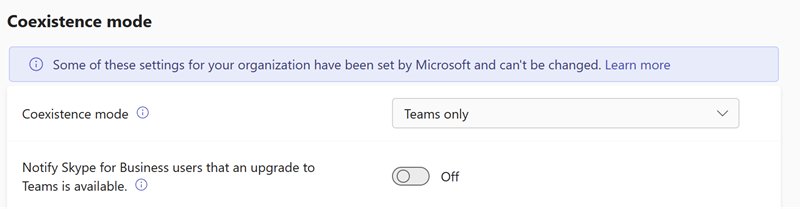
| Teams running alongside Skype for Business | The Teams add-in might not be available | An admin reviews the Teams upgrade and coexistence settings |
How to make every Outlook meeting a Teams meeting
Once the button is back, this setting saves you from turning it on for each meeting.
| Outlook version | Path | Then |
|---|---|---|
| New Outlook | Calendar > Calendar settings > Events and invitations | Select Add online meeting to all meetings, confirm Microsoft Teams under Choose a meeting provider, and select Save |
| Classic Outlook | File > Options > Calendar | Select Add online meeting to all meetings, set Teams as the default under Meeting Providers…, and select OK |
If Microsoft Teams is not offered in new Outlook, select the correct account in the These settings are applied at the account level dropdown menu.
How to remove Teams from an Outlook meeting
You can only remove Teams while you are creating the meeting, not after you send the invitation.
- Open the meeting you are still creating.
- In new Outlook, turn off the Teams meeting toggle in the event details.
- In classic Outlook, select More commands > Don't Host Online at the top of the form.
- Add any other location or details, then select Send.
Teams meeting button prevention tips
| Habit | Why it helps |
|---|---|
| Restart Outlook after a Teams install or upgrade | Outlook can need a restart to load the latest add-in |
| Keep Teams and Outlook updated | Microsoft lists current Outlook updates as a requirement for the add-in |
| Start Teams before Outlook and stay signed in | It matches the order Microsoft uses to restore the integration |
| Use one work or school account in both apps | New Outlook's toggle relies on the same account in each |
| Check Installed apps after moving to new Teams | Removing classic Teams can remove the add-in with it |
| Update the trusted add-ins hash with each Teams update | Teams updates the DLL automatically, so an old hash stops matching |
Getting help with the Teams meeting add-in
Policy, proxy and mailbox problems cannot be fixed from your PC, so a managed account usually goes to IT first.
- Note your Outlook version, your Teams version and which fixes you have tried.
- On a work or school account, send those details to your IT admin and ask about the Outlook add-in meeting policy.
- Otherwise, open the Get Help app and describe the problem in the search box.
- If Get Help does not solve it, select Contact Support and choose the affected product.
- Select Confirm, then pick chat or a callback where offered.
Contact options vary by hours of operation, product, scenario and subscription.
Teams meeting button in Outlook FAQ
Why did my Teams meeting button disappear from Outlook?
Common causes are a disabled add-in, a move from classic Teams to new Teams that removed it, or a switch to new Outlook, which uses a toggle instead of the add-in. Teams and Outlook signed in with different accounts also hide it.
How do I know if I'm using classic Outlook or New Outlook?
Look at the top right of the window. A Settings button means new Outlook, which has Home, View and Help tabs. No Settings button and a File tab on the ribbon means classic Outlook.
How do I re-enable the Teams add-in in Outlook?
In classic Outlook, select File, Options, Add-ins. Select Manage, COM Add-ins, then Go. Tick Microsoft Teams Meeting Add-in for Microsoft Office, select OK on every open dialog box, and restart Outlook.
Why doesn't the Teams toggle show up in New Outlook?
Microsoft says Outlook and Teams must be signed in with the same work or school account and you must use the new Teams client. Close Outlook, quit Teams, start Teams and sign in, then start Outlook.
Does this work with a personal Outlook.com or Gmail account?
No. Teams scheduling in Outlook is available only for Microsoft 365 business Exchange accounts. The Outlook add-in does not support personal accounts, and POP or IMAP accounts such as Gmail, Yahoo and iCloud are not supported.
What order should I open Teams and Outlook in?
Open Teams first and sign in, then open Outlook. Close both apps before you start, and use Quit Teams from the Teams icon so the app fully exits instead of staying in the background.
What do I do if re-enabling the add-in doesn't fix it?
Re-register Microsoft.Teams.AddinLoader.dll with regsvr32, then check that the LoadBehavior registry value is 3. If you moved to new Teams, reinstall the add-in with Microsoft's script. Admins should also check the Outlook add-in meeting policy.
Does new Outlook support the Teams COM add-in?
No. New Outlook for Windows does not support the Teams COM add-in and needs no separate install. It has a native Teams meeting toggle next to the Title field when you create a new event in the calendar.