You can connect AirPods to a Windows PC or laptop through Bluetooth without installing an Apple app. Open Windows Bluetooth settings, place your AirPods in pairing mode, and select them from the list of available devices. The process works with Windows 11 and Windows 10, but the way you activate pairing mode depends on whether you have AirPods 4, AirPods Pro 3, an older AirPods model, or AirPods Max.
Once paired, AirPods work as wireless headphones and a microphone for music, videos, games, and calls. However, Apple-only features such as automatic switching between Apple devices, Siri, Find My integration, and some Spatial Audio controls are not fully available on Windows.
Method 1: Pair AirPods with Windows PC (First-Time Setup)
Before you begin, charge your AirPods and keep them close to the computer. Your PC or laptop must also have Bluetooth. Most modern laptops include it, but some desktop PCs require a USB Bluetooth adapter.
Step 1: Turn on Bluetooth on your PC
On Windows 11
- Press Windows + I to open Settings.
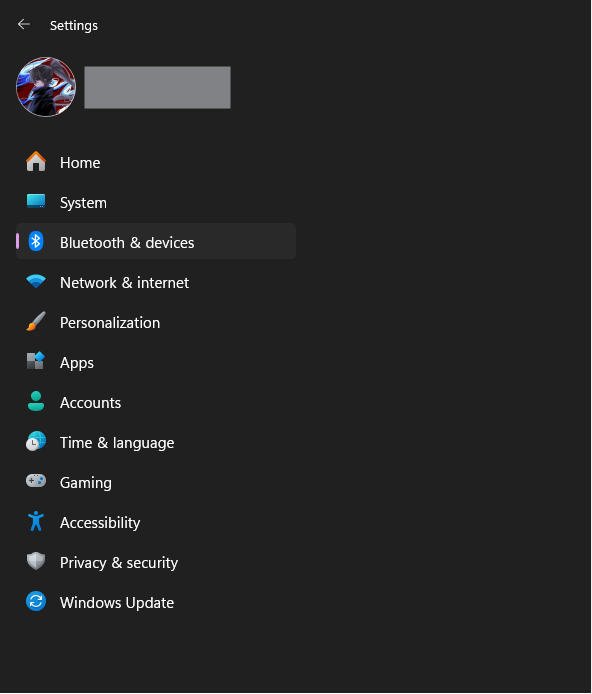
- Select Bluetooth & devices.
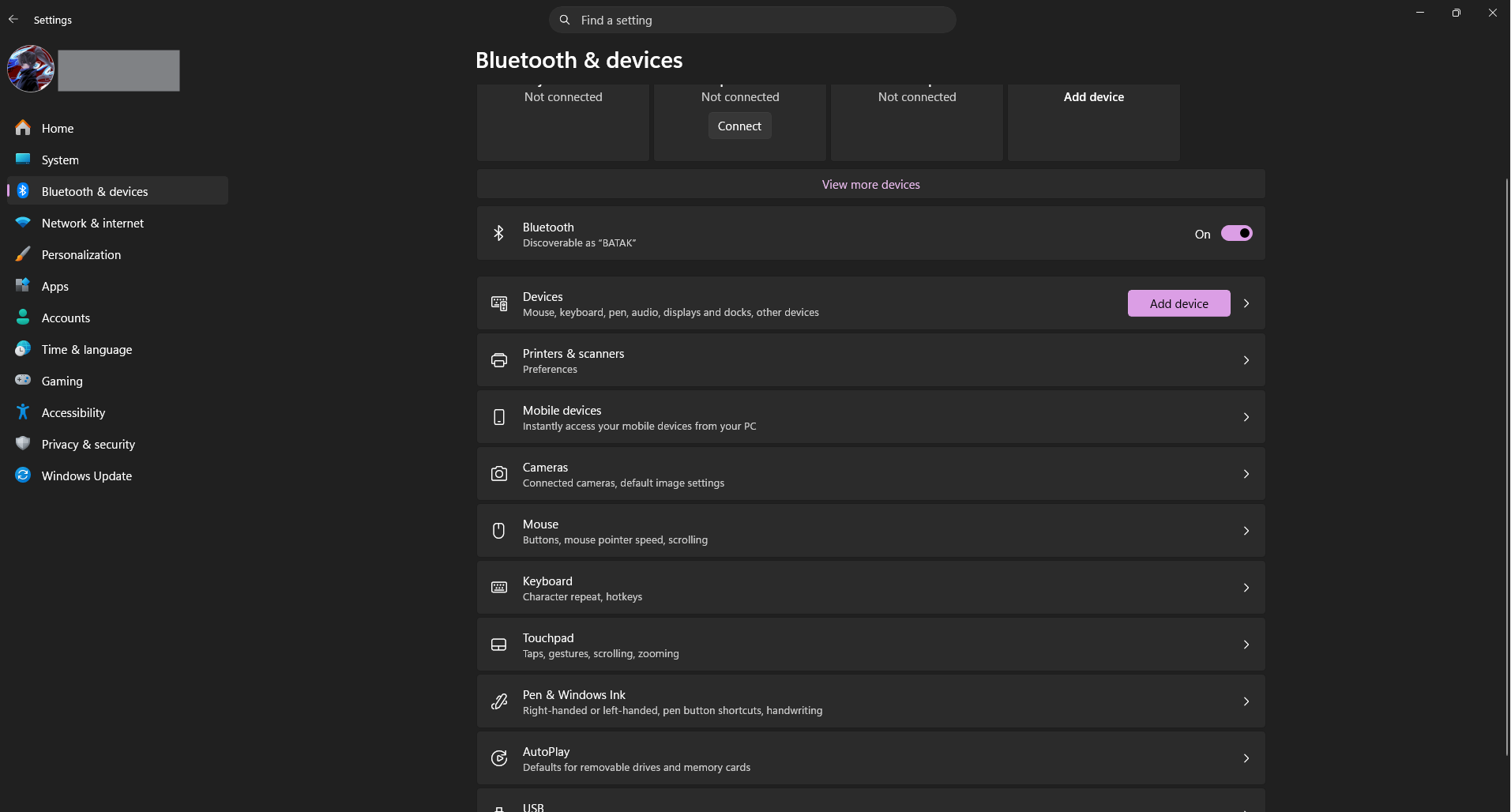
- Turn on the Bluetooth switch.
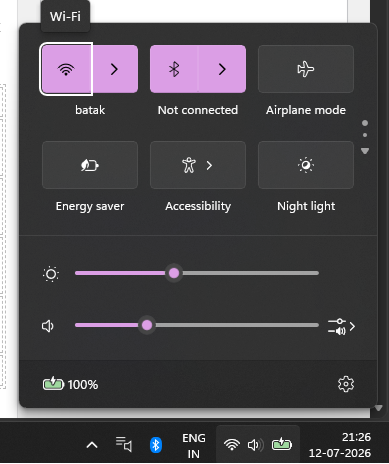
You can also press Windows + A to open Quick Settings and click the Bluetooth button. If the button is unavailable or Bluetooth is missing from Settings, your PC may not have a working Bluetooth adapter or its driver may not be installed.
On Windows 10
- Open the Start menu and select Settings.
- Go to Devices > Bluetooth & other devices.
- Turn on Bluetooth.
Step 2: Put your AirPods in pairing mode
The rival instructions found across many guides tell you to hold the button on the back of the charging case. That is correct for older AirPods, but AirPods 4 and AirPods Pro 3 use a different method.
| AirPods model | How to activate pairing mode |
|---|---|
| AirPods 4 and AirPods 4 with Active Noise Cancellation | Place both AirPods in the case, open the lid, and double-tap the front of the case until the status light flashes white. |
| AirPods Pro 3 | Place both AirPods in the case, open the lid, and double-tap the front of the case until the status light flashes white. |
| AirPods 1, AirPods 2, and AirPods 3 | Place both AirPods in the case, open the lid, and hold the setup button on the back for about five seconds until the light flashes white. |
| AirPods Pro 1 and AirPods Pro 2 | Place both AirPods in the case, open the lid, and hold the setup button on the back until the light flashes white. |
| AirPods Max | Press and hold the listening mode button for about five seconds until the status light flashes white. |
A flashing white light means your AirPods are discoverable. Keep the case open while completing the pairing process.
AirPods 4 and AirPods Pro 3 do not use the old rear setup-button method. Double-tap the front of the open case instead. This is the most common reason newer AirPods fail to appear on a Windows laptop.
Step 3: Add AirPods to Windows 11
- Open Settings > Bluetooth & devices.
- Click Add device.
- Select Bluetooth.
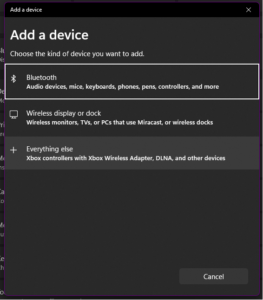
- Wait for Windows to scan nearby devices.
- Select your AirPods when their name appears.
- Wait for the confirmation message and click Done.
Your AirPods may appear as AirPods, AirPods Pro, AirPods Max, or a custom name previously assigned from an iPhone or another Apple device.
Step 4: Add AirPods to Windows 10
- Open Settings > Devices > Bluetooth & other devices.
- Click Add Bluetooth or other device.
- Select Bluetooth.
- Choose your AirPods from the list.
- Wait until Windows says the device is ready to use.
- Click Done.
Step 5: Select AirPods as the audio output
Windows will usually switch to the AirPods automatically, but it may continue playing sound through the laptop speakers or monitor.
On Windows 11:
- Press Windows + A.
- Click the audio-output selector beside the volume control.
- Select your AirPods.
You can also open Settings > System > Sound and select your AirPods under Output.
On Windows 10, click the speaker icon on the taskbar, select the current audio device above the volume control, and choose your AirPods.
Method 2: Reconnect AirPods to Windows PC
After the first pairing, Windows saves your AirPods. You should not need to repeat the entire setup each time, although the AirPods may connect to a nearby iPhone or iPad before Windows can use them.
Reconnect AirPods automatically
- Turn on Bluetooth on the PC.
- Open the AirPods case or remove the AirPods and place them in your ears.
- Wait a few seconds for Windows to connect.
Automatic reconnection is not guaranteed. AirPods often prefer a nearby Apple device they recently used, especially when Bluetooth is enabled on that device.
Reconnect AirPods manually in Windows 11
- Open Settings > Bluetooth & devices > Devices.
- Find your AirPods under Audio.
- Select Connect if the option appears.
You can also open Quick Settings with Windows + A, open the Bluetooth device list, and select the AirPods.
Reconnect AirPods manually in Windows 10
- Open Settings > Devices > Bluetooth & other devices.
- Select your AirPods.
- Click Connect.
Stop AirPods from reconnecting to an iPhone instead
If the AirPods connect to your iPhone before Windows finds them, temporarily turn off Bluetooth on the iPhone or disconnect the AirPods from its Control Centre.
You can also change automatic switching behaviour on the iPhone:
- Connect the AirPods to the iPhone.
- Open Settings > Bluetooth.
- Tap the information button beside the AirPods.
- Select Connect to This iPhone.
- Choose When Last Connected to This iPhone.
This does not create automatic switching between Windows and Apple devices, but it can reduce cases where the iPhone takes the connection unexpectedly.
Set AirPods as the default output and microphone
If Windows connects to the AirPods but an app continues using another speaker or microphone:
- Open Settings > System > Sound.
- Select your AirPods under Output.
- Select the AirPods microphone under Input if you want to use it for calls.
- Open the calling or meeting app and check its own audio settings.
Teams, Zoom, Discord, Google Meet, and games may use an audio device selected inside the app rather than the Windows default.
Method 3: Fix AirPods Not Connecting
If your AirPods do not appear, connect without sound, or repeatedly disconnect, use the section below that matches the problem.
AirPods do not appear in the Bluetooth list
First, confirm that the status light is flashing white. Simply opening the charging case does not always put AirPods into pairing mode for a non-Apple device.
- Place both AirPods in the case.
- Close the lid and wait about 15 seconds.
- Open the lid.
- Activate pairing mode using the correct method for your model.
- Keep the case close to the PC while Windows scans.
For AirPods 4 and AirPods Pro 3, double-tap the front of the case. For older AirPods and AirPods Pro models, hold the button on the back. For AirPods Max, hold the listening mode button.
AirPods are connected but there is no sound
A Bluetooth connection does not always make AirPods the active output device.
- Click the speaker icon on the taskbar.
- Open the audio-output list.
- Select your AirPods.
- Increase the Windows volume and the volume inside the app.
- Close and reopen the app if it still uses the previous speaker.
If this does not work, open Settings > System > Sound, select the AirPods, and confirm that the device is allowed for audio output.
Remove and pair the AirPods again
A saved Bluetooth profile can become corrupted after a Windows, Bluetooth driver, or firmware change.
Windows 11
- Open Settings > Bluetooth & devices > Devices.
- Find the AirPods.
- Click the three-dot button beside them.
- Select Remove device.
- Restart the PC.
- Put the AirPods in pairing mode and add them again.
Windows 10
- Open Settings > Devices > Bluetooth & other devices.
- Select the AirPods.
- Click Remove device.
- Pair them again from the beginning.
Disconnect the AirPods from nearby devices
An iPhone, iPad, Mac, Apple TV, or another PC may already be using the AirPods. Disconnect them from that device or temporarily turn off Bluetooth there, then try Windows again.
AirPods can remember several paired devices, but they normally play audio from only one active Bluetooth connection at a time.
Check the AirPods battery
Charge the AirPods and case before troubleshooting further. Low battery can prevent pairing, cause only one AirPod to work, or make the connection unstable.
Windows may display an approximate AirPods battery level under Settings > Bluetooth & devices, but battery reporting varies between AirPods models, Bluetooth adapters, and Windows versions.
Restart Bluetooth in Windows
- Turn Bluetooth off from Windows Settings.
- Wait about ten seconds.
- Turn Bluetooth back on.
- Try reconnecting the AirPods.
If Bluetooth itself is frozen, restart the PC rather than repeatedly removing and adding the AirPods.
Update the Bluetooth driver
If no Bluetooth headphones connect reliably, the PC’s Bluetooth adapter or driver may be the problem.
- Right-click the Start button.
- Select Device Manager.
- Expand Bluetooth.
- Right-click the Bluetooth adapter.
- Select Update driver.
You should also check Windows Update and the PC manufacturer’s support page. Laptop manufacturers sometimes provide newer Intel, Realtek, Qualcomm, or MediaTek Bluetooth drivers than the version included with Windows.
Bluetooth is missing from Windows Settings
If there is no Bluetooth switch:
- Check whether the PC actually includes Bluetooth.
- Restart Windows.
- Look for the Bluetooth adapter in Device Manager.
- Install the Bluetooth driver supplied by the PC or motherboard manufacturer.
- Enable Bluetooth or wireless connectivity in the manufacturer’s utility or BIOS if it was disabled.
- Use a compatible USB Bluetooth adapter if the desktop PC has no built-in Bluetooth.
The AirPods microphone is not working
- Open Settings > System > Sound.
- Under Input, select the AirPods microphone.
- Speak and check whether the input-volume meter responds.
- Open Settings > Privacy & security > Microphone.
- Allow microphone access and make sure desktop apps can use it.
- Select the AirPods inside the meeting or calling app.
On Windows 10, microphone permissions are under Settings > Privacy > Microphone.
Audio quality drops when the microphone is active
On many Windows PCs, Bluetooth headphones use a high-quality stereo mode for listening and a lower-bandwidth headset mode when the microphone is active. As a result, music or game audio may sound noticeably worse during a call.
This does not necessarily mean the AirPods are faulty. To keep the best playback quality, use the AirPods for output and the laptop’s built-in microphone or a separate USB microphone for input.
Newer Windows 11 PCs and compatible Bluetooth LE Audio accessories may handle simultaneous stereo audio and microphone use better, but support depends on the PC, Bluetooth adapter, driver, and headphones.
Only one AirPod works on Windows
- Place both AirPods in the charging case.
- Confirm that both are charging.
- Close the lid for at least 15 seconds.
- Open the case and reconnect.
- Remove and pair the AirPods again if only one side still works.
Also open Settings > Accessibility > Audio and confirm that the left and right audio balance is centred.
Reset the AirPods as a last resort
Resetting removes the AirPods from previously paired devices, so try normal removal and re-pairing first.
For older AirPods and AirPods Pro models, place them in the case, open the lid, and hold the rear setup button until the light flashes amber and then white.
AirPods 4 and AirPods Pro 3 use a different reset sequence involving repeated double-taps on the front of the case. Follow Apple’s instructions for your exact model rather than using the old rear-button method.wireless interference.
FAQs
Do AirPods work with Windows PCs and laptops?
Yes. Windows treats AirPods as standard Bluetooth headphones. You can use them for music, videos, calls, meetings, and games on any Windows PC with compatible Bluetooth hardware.
How do I connect AirPods to a laptop?
Open Settings > Bluetooth & devices, turn on Bluetooth, place the AirPods in pairing mode, select Add device > Bluetooth, and choose the AirPods from the list.
How do I connect AirPods 4 to a Windows laptop?
Place the AirPods 4 in their charging case and open the lid. Double-tap the front of the case until the status light flashes white. On the laptop, open Windows Bluetooth settings, select Add device, and choose the AirPods.
How do I connect AirPods Pro 3 to a PC?
Open the AirPods Pro 3 case with both earbuds inside, then double-tap the front of the case until the light flashes white. Go to Settings > Bluetooth & devices > Add device > Bluetooth and select AirPods Pro.
Why is there no pairing button on my AirPods case?
AirPods 4 and AirPods Pro 3 use a capacitive control on the front of the case instead of the traditional setup button on the back. Double-tap the front while the lid is open to activate pairing mode.
Can I connect AirPods to a PC without Bluetooth?
Not wirelessly. A desktop PC without Bluetooth needs a compatible USB Bluetooth adapter. Install the adapter and its driver before pairing the AirPods.
Can I use the AirPods microphone on Windows?
Yes. Select the AirPods under Settings > System > Sound > Input. Playback quality may decrease while the microphone is active because many Bluetooth connections switch to headset mode.
Why do AirPods sound bad during Discord, Teams, or Zoom calls?
Windows may switch from stereo playback to a lower-bandwidth hands-free mode when an app activates the AirPods microphone. Use the PC’s built-in microphone or another microphone while keeping AirPods selected only as the output device.
Do AirPods automatically reconnect to Windows?
They often reconnect after the first pairing, but a nearby iPhone, iPad, or Mac may connect first. When this happens, disconnect the AirPods from the Apple device and select them manually from Windows Bluetooth settings.
Can AirPods connect to an iPhone and Windows PC at the same time?
AirPods can remember both devices, but they generally use one active audio connection at a time. Apple’s automatic device-switching feature does not extend to Windows PCs.
Can I use AirPods Max with Windows?
Yes. Hold the listening mode button on AirPods Max for about five seconds until the light flashes white, then add them from Windows Bluetooth settings. Active Noise Cancellation and Transparency mode can still be controlled using the button on the headphones.
Does Active Noise Cancellation work on Windows?
Yes, on AirPods models that support it. You can switch listening modes using the controls on the AirPods. Some Apple-specific software controls and personalization options still require an iPhone, iPad, or Mac.
Does Spatial Audio work with AirPods on Windows?
Windows can apply its own spatial-audio technologies, such as Windows Sonic, to AirPods. Apple features such as Personalized Spatial Audio, dynamic head tracking, and automatic Apple-device integration are not fully available on Windows.
Can Windows show the AirPods battery percentage?
Windows may show the battery level in Bluetooth settings, but this is not consistent across every AirPods model and Bluetooth adapter. Third-party utilities can provide additional battery information, but they are not required for pairing.
Why will my AirPods not show up on my PC?
The AirPods may not be in pairing mode, may already be connected to another device, or may have a low battery. Confirm that the status light is flashing white and keep the case close to the PC while Windows scans.
Do I need iTunes or an Apple app to use AirPods on Windows?
No. AirPods connect through the standard Windows Bluetooth settings. iTunes, Apple Music, Apple Devices, and iCloud are not required.






How to Fix AirPods Connected But No Sound in Windows 11 - Techdows
[…] A stale pairing record is the most common reason AirPods show as connected yet stay silent. Remove it and pair from scratch; the full walkthrough is in How to Connect AirPods to a Windows PC or Laptop. […]