Open the Files app, tap Browse, then type the filename in the search field to find any document, image or PDF on your iPhone.
This guide covers the Files app, the Downloads folder, Spotlight, Siri, iCloud Drive, linked cloud services, and what to do when a file will not show up.
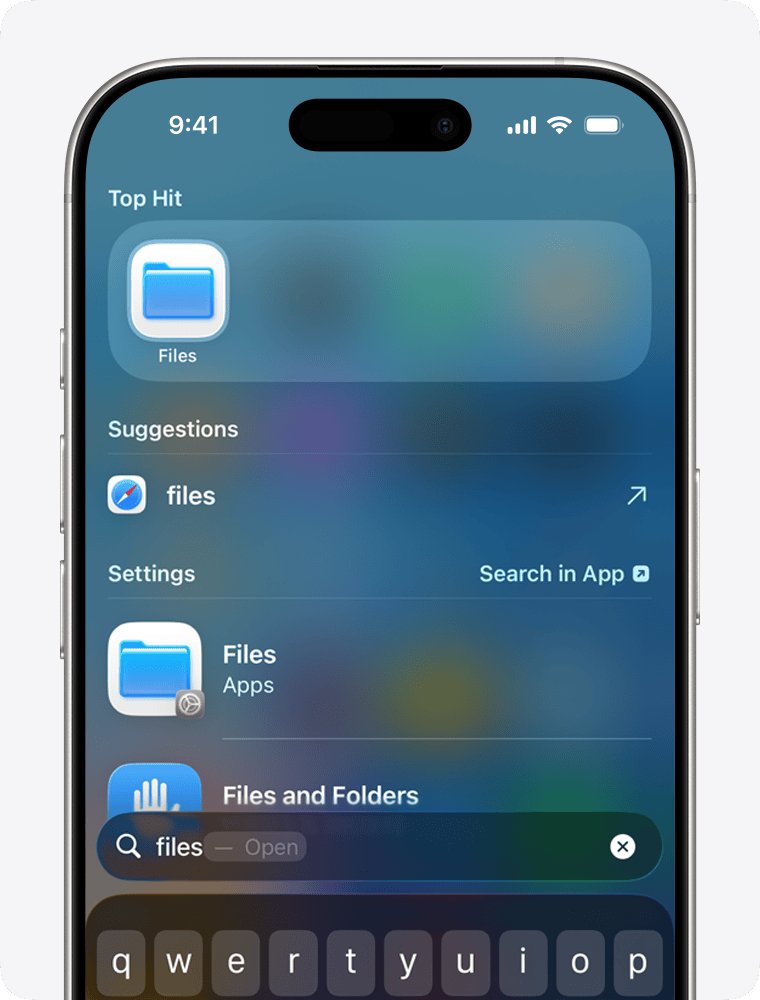
The fastest way to find a file on your iPhone
Search reaches every location the Files app can see, including iCloud Drive and any cloud service you have linked.
- Open the Files app. If the blue icon is not on the Home Screen, swipe down from the middle of the Home Screen and search for Files.
- Enter a filename, folder name or document type in the search field.
- Tap Recents, or the name of a location or tag below the search field, to narrow the scope.
- Tap Search to hide the keyboard and see more results.
- Tap the result to open it.
Tap the clear button in the search field to start a new search.
Which method should you use?
| Your situation | Use this | Why |
|---|---|---|
| You know part of the filename | Search in the Files app | It searches every location at once |
| You downloaded it from Safari or Mail | Browse > Downloads | Safari and Mail save there by default |
| You do not remember where you saved it | Spotlight from the Home Screen | It searches apps, documents and photo text together |
| You had it open minutes ago | Recents in the Files app | Recently opened files are listed first |
| The file was made in one app, such as Pages or Numbers | That app's own file browser | Some apps keep documents in their own storage |
| Your hands are busy | Ask Siri | No typing, no menus |
| You deleted it in the last 30 days | Browse > Recently Deleted | Deleted files stay recoverable for 30 days |
Understanding How Files Are Stored on iPhone
iPhone has no single folder tree like a PC. Files land in one of a few locations, and the Files app is the front door to most of them.
| Location | What is kept there | How to reach it |
|---|---|---|
| iCloud Drive | Documents synced to every device signed in to the same Apple Account | Files > Browse > iCloud Drive |
| On My iPhone | Files stored only on this device, plus app folders | Files > Browse > On My iPhone |
| Downloads | Files saved from Safari and Mail | Files > Browse > Downloads |
| Third-party cloud services | Box, Dropbox, OneDrive and similar, once their app is installed | Files > Browse, then the service name below Locations |
| App-specific storage | Documents an app keeps to itself, shown as a folder labelled with the app name | The app's own browser, or its folder under On My iPhone |
| Recently Deleted | Files deleted in the last 30 days | Files > Browse > Recently Deleted |
| External storage | A USB drive, SD card or connected file server | Files > Browse, then the device name below Locations |
Photos and videos from the camera live in the Photos app, not in Files.
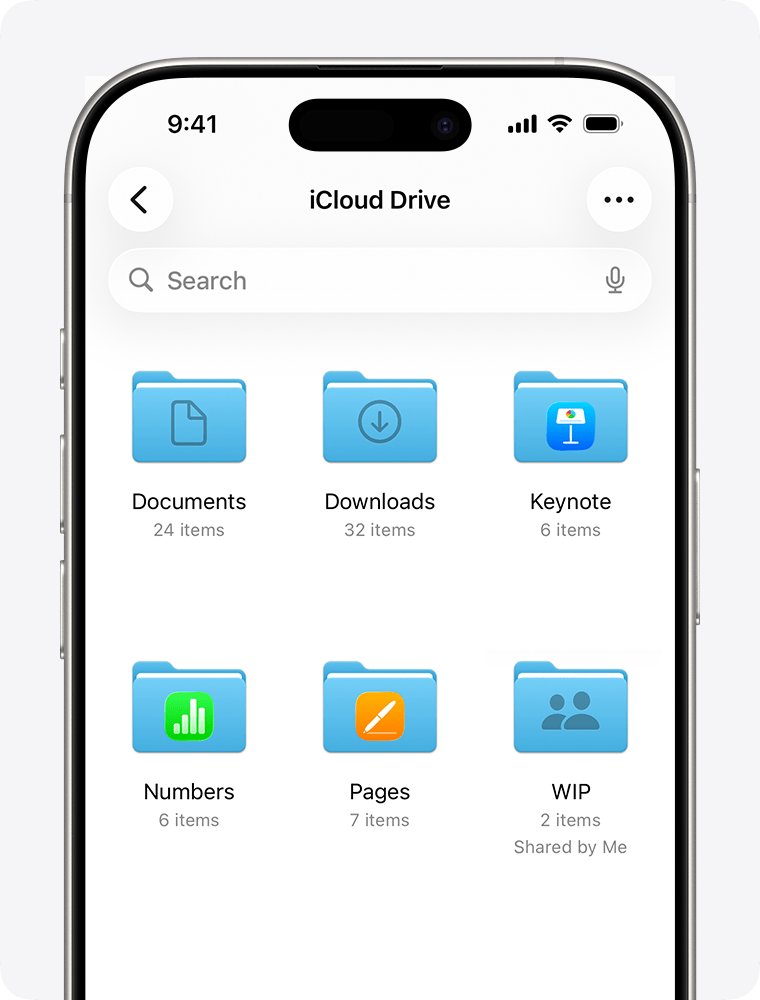
How to Find Files on Your iPhone: Main Methods
Browsing beats searching when you know roughly where the file sits but not what it is called.
- Open the Files app and tap Browse. Tap Browse again if the Browse screen does not appear.
- Tap a location below Locations, such as iCloud Drive or On My iPhone.
- Tap a folder to open it, or tap Recents to see recently opened files.
- Tap the More button, then tap Icons or List to change the view.
- In List view, tap the arrow next to a folder to expand it without leaving the screen.
- Tap the file to open it. A preview opens in Quick Look if the app that created it is not installed.
Find files you downloaded from Safari or Mail
Safari saves downloads to a Downloads folder, and Mail attachments go there when you choose Save to Files.
- Open the Files app and tap Browse.
- Tap iCloud Drive.
- Tap the Downloads folder to see downloaded files.
- If a download is still in progress, open Safari and tap the Downloads button next to the search field.
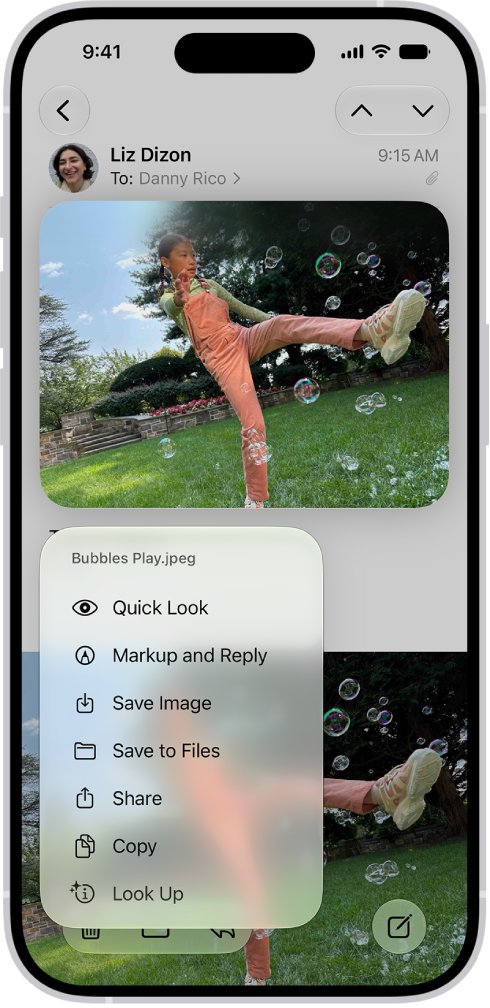
- For an email attachment, open Mail, touch and hold the attachment, then choose Save to Files or Save Image.
To change where Safari saves downloads, go to Settings > Apps > Safari > Downloads and pick iCloud Drive, On My iPhone or Other.
Find any file with Spotlight Search
Spotlight reaches beyond the Files app. It covers apps, contacts, Mail and Messages content, and text inside photos.
- Tap Search on the Home Screen, or swipe down on the Home Screen or Lock Screen.
- Type the filename, a word from the document, or the app that created it.
- Tap the search button to run the search.
- Tap a result to open it, or tap a suggestion to see more results below it.
- If an app's content is missing, go to Settings > Search, tap the app, then turn on Show App in Search.
Content from a third-party app only appears when that app supports Spotlight indexing.
Find files kept inside a specific app
Some apps store documents in their own space rather than in iCloud Drive. A folder labelled with the app name cannot be deleted or moved.
- Open the app that created the file, such as Pages, Numbers or a scanner app.
- Tap the app's search field, or swipe down from the top if no search field is visible.
- Type the name and tap Search.
- If the app has no browser, open Files, tap Browse, then tap On My iPhone.
- Tap the folder labelled with the app name to see what it stores on the device.
Ask Siri to open a file for you
Siri needs an internet connection and has to be turned on before it will respond.
- Go to Settings > Siri, tap Turn On Siri, then follow the onscreen instructions.
- Say “Siri” or “Hey Siri”, or press and hold the side button on an iPhone with Face ID.
- On an iPhone with a Home button, press and hold the Home button instead.
- Name the app and the document, for example “open the Files app”.
- With Siri AI, touch and hold a file on screen, then choose Ask Siri from the pop-up menu.
Managing and Accessing Files in iCloud and Cloud Services
iCloud Drive is built into the Files app on iOS 11 and later, and appears in the Finder on a Mac.
Dropbox, Box, OneDrive and similar services show up as their own location once their app is installed.
- Go to Settings > [your name] > iCloud, tap Drive, then turn on Sync this iPhone.
- Tap See All next to Saved to iCloud, then turn on each app whose files you want in iCloud Drive.
- Open Files, tap Browse, then tap iCloud Drive below Locations.
- Install the cloud service's own app, then tap its name below Locations on the same screen.
- Tap the More button, tap Edit, then turn a location off to hide it or drag it into a new order.
- To keep a file available offline, touch and hold it and tap Keep Downloaded.
- To free up space again, touch and hold the file and tap Remove Download. The file stays in iCloud Drive.
To reach a computer or NAS, tap Browse, tap the More button, tap Connect to Server, then enter the hostname or network address. Looking that up first helps: see how to find your computer name and location on Windows 11/10.
How to check you found the right file
- Touch and hold the file, then tap Get Info.
- Check the name, kind and size shown above the preview.
- Tap the file to open it, or touch and hold it, tap Open With, then choose Preview with Quick Look.
- Tap Recents in the Files app. The file you just opened is listed at the top.
- If the file is greyed out or will not open offline, touch and hold it and tap Keep Downloaded.
Tips for Efficiently Finding Files
Each of these cuts the time between opening Files and having the document on screen.
| Tip | What to do | What it gains |
|---|---|---|
| Narrow the search scope | Tap Recents or a location name below the search field | Results drop to one place instead of every location |
| Sort the folder | Tap the More button, then Name, Kind, Date, Size or Tags | The newest or largest file comes to the top |
| Tag what you reuse | Touch and hold a file, tap Tags, pick a colour, then tap Done | Tapping the tag on the Browse screen lists every item that carries it |
| Favourite the folders you live in | Touch and hold a folder, then tap Favorite | The folder sits on the Browse screen, one tap away |
| Colour a folder | Touch and hold it, tap Customize Folder & Tags, then pick a colour or emoji | Spot it by shape instead of reading names |
| Turn on Siri | Settings > Siri > Turn On Siri | Open an app or a file without typing |
| Keep iOS and apps updated | Settings > General > Software Update | Search features and app indexing arrive with iOS updates |
The Customize Folder & Tags command does not appear for the Desktop, Documents or Downloads folders.
Best Practices for File Management on iPhone
Files you can find next month are files you named and filed this month.
| Practice | How to do it | Why it matters |
|---|---|---|
| Use descriptive file names | Touch and hold the file, tap Rename, then type a name with the subject and date | Search matches filenames, so a name like “scan 4” finds nothing |
| Organise files into folders | Open a location, tap the More button, then tap New Folder | Browsing replaces guessing at names |
| Move files in batches | Tap the More button, tap Select, pick the files, then tap Move | Clearing Downloads takes one pass, not twenty |
| Compress what you keep but rarely open | Touch and hold the file or folder, then tap Compress | A zipped archive takes less storage on the iPhone |
| Review and clean up regularly | Sort by Date or Size, then delete what you no longer need | Old downloads are the main reason search returns ten near-identical results |
| Leave sync on for the apps that matter | Settings > [your name] > iCloud > See All | Files reach your other devices without a transfer step |
| Empty Recently Deleted deliberately | Browse > Recently Deleted, then delete only what you are sure about | Files removed from Recently Deleted are gone immediately |
How to recover a file you deleted by mistake
Deleted files sit in Recently Deleted for 30 days, then go for good. Recovered files return to their original location.
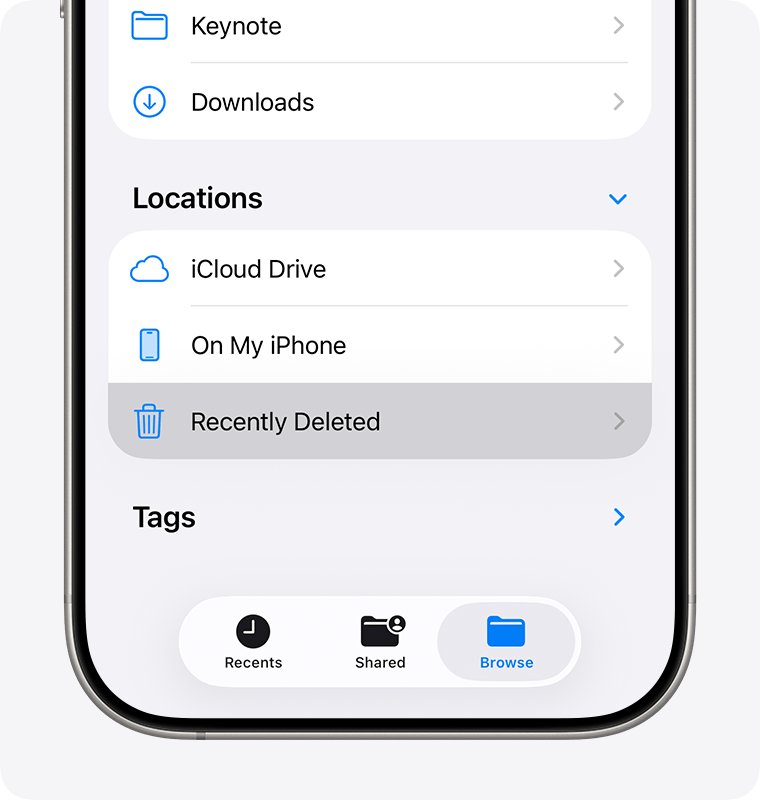
- Open the Files app and tap Browse.
- Tap Recently Deleted below Locations.
- Tap the More button, then tap Select.
- Select the files you want back, then tap Recover.
- To recover a single file, touch and hold it and tap Recover.
Troubleshooting Common File Finding Issues
Files not appearing in search
The search is scoped to one location, or the app that holds the file is excluded from Search.
- In Files, tap the clear button in the search field and search again without tapping a location below it.
- Search a shorter string, such as part of the filename rather than the whole name.
- Go to Settings > Search, tap the app that made the file, then turn on Show App in Search.
- Go to Settings > General > Software Update and install any update that is offered.
Files missing from cloud services
iCloud Drive sync is off, or the third-party service's own app is not installed.
- Go to Settings > [your name] > iCloud, tap Drive, then turn on Sync this iPhone.
- Tap See All next to Saved to iCloud and turn on the app whose files are missing.
- Install the cloud service's app from the App Store and sign in to it.
- Open Files, tap Browse, tap the More button, tap Edit, then turn the service's location on.
- Connect to Wi-Fi and wait for the location to finish loading before searching again.
App-specific files not visible
The app keeps its documents in its own storage and does not publish them to iCloud Drive.
- Open the app itself and use its search field.
- In Files, tap Browse, then tap On My iPhone.
- Open the folder labelled with the app name.
- If the app was deleted, reinstall it. Its folder returns with the documents it stored on the device.
A file downloaded in Safari is nowhere in the Files app
Safari is set to save downloads somewhere other than the Downloads folder, or the download never finished.
- Open Safari and tap the Downloads button next to the search field to check the status.
- Go to Settings > Apps > Safari > Downloads and note which location is selected.
- If Other is selected, open Files and browse to that folder.
- Switch the setting to On My iPhone or iCloud Drive, then download the file again.
Frequently Asked Questions
How do you see your files on an iPhone?
Open the Files app and tap Browse. Tap iCloud Drive for synced documents or On My iPhone for files stored on the device. Tap Recents to see the files you opened most recently.
How do you locate a file when you do not remember its name?
Type the document type instead, such as PDF or Pages, in the Files search field. Then tap the More button and sort by Date so the newest items come first.
Where do you find the files you downloaded?
Open Files, tap Browse, tap iCloud Drive, then tap the Downloads folder. Safari and Mail save there unless the Safari download location has been changed in Settings > Apps > Safari.
How do you check which files are stored on the iPhone itself?
Tap Browse in the Files app, then tap On My iPhone. Everything listed there is on the device and opens without an internet connection.
How do you view a file when you do not have the app that created it?
Tap the file in the Files app. A preview opens in Quick Look automatically. You can also touch and hold the file, tap Open With, then choose Preview with Quick Look.
How do you find the largest files on an iPhone?
Open a folder in the Files app, tap the More button, then tap Size. The folder sorts by file size so the biggest items rise to the top.
Why can't I find my Word document in Files?
The document is probably held in the app that created it rather than in iCloud Drive. Search inside that app, or open Files > Browse > On My iPhone and check the folder named after the app.
Why can't I find my PDF files?
A PDF saved from Safari or Mail goes to the Downloads folder, not to Photos. Open Files > Browse > Downloads, or type PDF in the Files search field to list every PDF at once.
Why can't I find my files in OneDrive?
A third-party service only appears in Files when its app is installed and signed in. Install it, then tap Browse, tap the More button, tap Edit, and turn the service's location on.
Why can't I find my files after deleting them?
Deleted files move to Recently Deleted and stay there for 30 days. Open Files > Browse > Recently Deleted, touch and hold the file, then tap Recover to return it to its original folder.
Additional Resources
- Find and view files and folders in Files on iPhone — Apple's own steps for searching, sorting and opening files.
- Find your downloaded files on iPhone — Where Safari and Mail downloads land.
- Set up iCloud Drive on iPhone — Turning on sync and choosing which apps use iCloud Drive.
- Delete files or recover deleted files in the Files app — The 30-day Recently Deleted window and how to recover.
- Search with Spotlight on iPhone — What Spotlight indexes and how to include an app in Search.
- How to find a MAC address on Windows, Mac, iPhone and Android — Useful when a file server or NAS filters devices by MAC address.



How to Find Recent Calls on an iPhone: A Step-by-Step Guide - Techdows
[…] Open the note and tap play. To keep a copy, tap Save Audio Files and pick a location such as the Files app. Call recording is not available in every region, including the European […]