Enable God Mode in Windows 11 by creating a new folder and renaming it to GodMode.{ED7BA470-8E54-465E-825C-99712043E01C}.
The result is a shell junction point rather than a hidden mode: one folder that opens a single searchable list of Control Panel tasks on Windows 11 and Windows 10.
Enable God Mode in Windows 11 (The Working Folder Trick)
Windows treats any folder whose name ends in a period followed by a class identifier as a junction point into that shell extension. Only the text before the period stays visible.
- Right-click an empty area of the desktop and select New > Folder.
- Right-click the new folder and select Rename.
- Type
GodMode.{ED7BA470-8E54-465E-825C-99712043E01C}as the whole name, replacing the highlighted text. - Press Enter. The visible name shortens to GodMode and the icon changes to the Control Panel icon.
- Double-click GodMode to open the list of Control Panel tasks.
The text before the period is yours to choose. AllSettings.{ED7BA470-8E54-465E-825C-99712043E01C} opens exactly the same view.
What God Mode Is (and Why It Still Matters in Windows 11)
God Mode is a nickname, not a Windows feature name. Nothing is switched on and no privilege is granted.
| Question | Answer |
|---|---|
| What is it technically? | A junction point: a file system folder named MyFolder.{Extension CLSID} that File Explorer displays as the root of that shell namespace extension. |
| Does it unlock hidden settings? | No. Every entry is a Control Panel task that already exists on the machine. The folder only gathers them into one place. |
| Does it need admin rights? | Not to create. Individual items that change system-wide settings still prompt for elevation, because Windows requires standard users and protected administrators to elevate explicitly. |
| Why it still matters in Windows 11 | Control Panel tasks are now split between the Settings app and the classic Control Panel. This folder lists them flat, so typing a word finds the task instead of hunting through two hierarchies. |
| Is the folder name fixed? | Only the part after the period. The CLSID must be exact; the label in front of it is arbitrary. |
Prerequisites Before You Start
| What you need | Why | How to sort it |
|---|---|---|
| Windows 11 or Windows 10 | Shell junction points are a Windows Shell feature, not a Windows 11 addition. | Press Win + R, type winver and press Enter. |
| A folder location you can write to | The junction point is a real file system folder and has to be created somewhere you have write permission. | Use the desktop or any folder inside your user profile. |
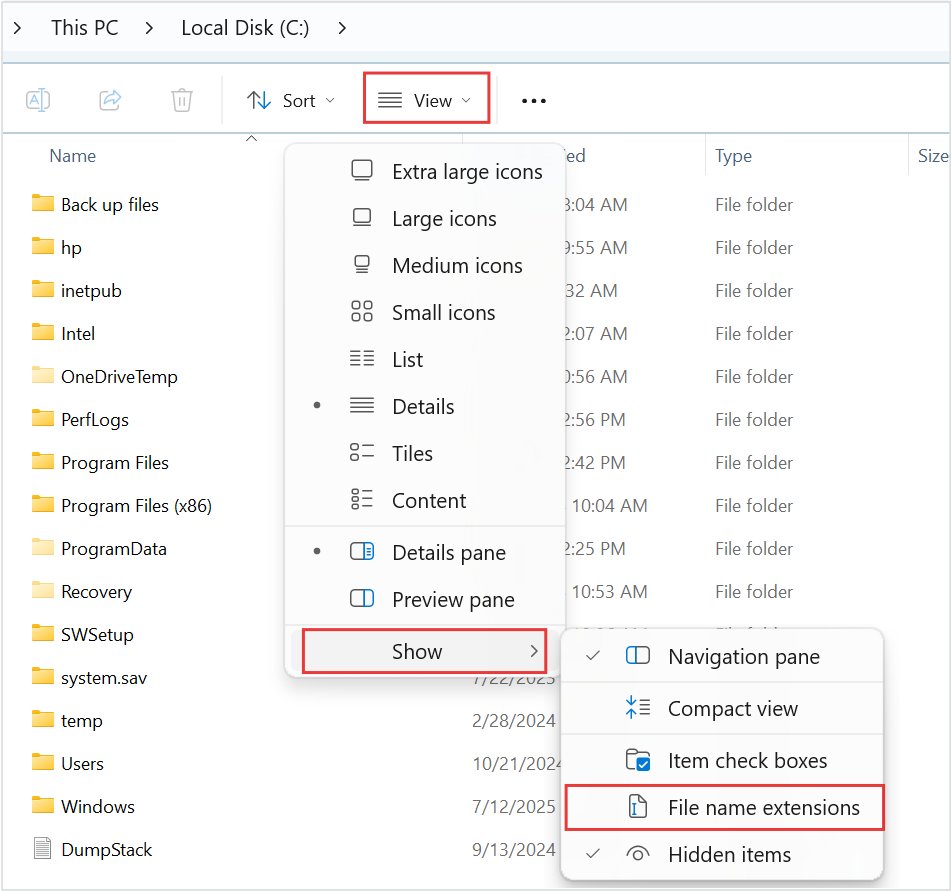
| File name extensions visible | A hidden .txt on the end turns the name into a file name and the trick silently fails. |
In File Explorer, select View > Show > File name extensions. |
| An administrator account for some entries | Items that change system-wide settings need elevation before they open. | Sign in with an account that can approve a User Account Control prompt. |
| No Control Panel restrictions on the account | Group policy can hide named Control Panel items, and hidden items stay hidden inside this folder. | On a work or school device, ask whoever manages it. |
Open God Mode from the Run box without creating a folder
File Explorer accepts a CLSID directly on its command line, so the same view opens with nothing left on the desktop.
- Press Win + R to open the Run box.
- Type
explorer.exe ::{ED7BA470-8E54-465E-825C-99712043E01C}exactly, including both colons before the brace. - Press Enter. The task list opens in a File Explorer window.
- Add
/e,before the colons, as inexplorer.exe /e,::{ED7BA470-8E54-465E-825C-99712043E01C}, to open the same view with the navigation tree showing.
Microsoft documents the double colon as mandatory. Drop it and the command fails.
Create the God Mode folder from PowerShell
Creating the folder with its final name in one step removes the rename, which is where most attempts go wrong.
New-Item -Path "$env:USERPROFILE\Desktop\GodMode.{ED7BA470-8E54-465E-825C-99712043E01C}" -ItemType DirectoryNew-Item creates the item, -Path places it on the desktop of the signed-in user, and -ItemType Directory makes it a folder rather than a file. No elevation is required for your own desktop.
You should see: PowerShell prints a new directory entry, and a Control Panel icon labelled GodMode appears on the desktop.
How to check it worked
- Look at the folder on the desktop. The name reads GodMode only, with no period and no braces.
- Check the icon. A plain folder icon means the rename did not register as a junction point.
- Double-click it. A window opens listing Control Panel tasks grouped under Control Panel item names.
- Type
firewallinto the search box at the top right. The list narrows to firewall tasks. - Double-click one entry. The matching Control Panel page opens, with a User Account Control prompt first if that item needs elevation.
How to Navigate God Mode Once It’s Enabled
The list is long by design. Searching beats scrolling, because each Control Panel item registers its own search terms, including common synonyms such as monitor and display.
- Open the GodMode folder.
- Click the search box at the top right and type a plain word such as
power,printerorrestore. - Press Enter to filter the list down to matching tasks.
- Clear the search box to return to the full list, which is grouped under its Control Panel item names.
- Select View on the File Explorer toolbar to switch between Details and icon layouts if the grouped list is hard to scan.
- Double-click a task to run it. Use the Back arrow in the window to return to the list.
Drag the folder onto Quick access in the File Explorer navigation pane to reach it without going back to the desktop. If Quick access is missing, see how to enable or disable Quick Access in File Explorer of Windows 11/10.
What You’ll Find Inside God Mode
Entries are the task links that each Control Panel item registers with Windows, grouped under that item's name. The table below lists items documented by Microsoft, with the canonical name each one answers to on the command line.
| Control Panel item | What its tasks cover | Canonical name |
|---|---|---|
| Device Manager | Hardware devices and their drivers | Microsoft.DeviceManager |
| Devices and Printers | Printers, scanners and attached devices | Microsoft.DevicesAndPrinters |
| Network and Sharing Center | Adapters, sharing and network adapter settings | Microsoft.NetworkAndSharingCenter |
| Power Options | Plan settings, sleep and system settings | Microsoft.PowerOptions |
| Programs and Features | Installed programs and Windows features | Microsoft.ProgramsAndFeatures |
| User Accounts | Account names, types and credentials | Microsoft.UserAccounts |
| Indexing Options | Which locations Windows Search indexes | Microsoft.IndexingOptions |
| Recovery | System restore and recovery entry points | Microsoft.Recovery |
| Troubleshooting | Built-in troubleshooters and their history | Microsoft.Troubleshooting |
| Ease of Access Center | Vision, hearing and input accessibility tasks | Microsoft.EaseOfAccessCenter |
| Windows Mobility Center | Laptop brightness, volume and presentation mode | Microsoft.MobilityCenter |
| Fonts | Installed fonts and font settings | Microsoft.Fonts |
Hardware decides part of the list. Items such as Windows Mobility Center or Pen and Touch only appear when the matching hardware is detected, and third-party software can add items of its own.
Where the God Mode folder works in Windows 11 and Windows 10
| Your situation | Where to create it | What you get |
|---|---|---|
| Windows 11, personal PC | Desktop, or any folder in your user profile | Full task list, with elevation prompts on items that change system-wide settings |
| Windows 10, personal PC | Desktop, or any folder in your user profile | Same mechanism and the same CLSID; the junction point is a Windows Shell feature, not a version feature |
| Work or school device with Control Panel policies | Desktop | Items hidden by Hide specified Control Panel items or left out of Show only specified Control Panel items do not appear |
| A standard (non-administrator) account | Desktop | The folder is created without a prompt; individual tasks still ask for administrator credentials |
| A network or shared drive | Avoid it | The junction point has to be a folder you can create and write to, so keep it local |
Troubleshooting: When God Mode Doesn’t Show Up or Looks Wrong
The folder still shows the full name with the braces
The rename was not committed, or a character inside the CLSID is wrong.
- Click the folder once and press F2.
- Delete the entire name rather than editing part of it.
- Type
GodMode.{ED7BA470-8E54-465E-825C-99712043E01C}again, checking that there is exactly one period and that both braces are present. - Press Enter and confirm the name shortens to GodMode.
The folder opens as an ordinary empty folder
A file name extension was appended, so Windows read the name as a file name rather than a junction point.
- In File Explorer, select View > Show > File name extensions.
- Look at the folder name again and remove anything after the closing brace.
- If the name is already correct, delete the folder and create it again with the PowerShell command above.
The icon or the name is blank after enabling God Mode
File Explorer has not reloaded the shell namespace since the folder was renamed.
- Press Ctrl + Shift + Esc to open Task Manager.
- Find Windows Explorer in the list.
- Right-click it and select Restart.
- Wait for the desktop to redraw, then check the folder again.
Double-clicking an entry does nothing visible
The task needs elevation and the User Account Control prompt is waiting behind the window, or the item was hidden by policy.
- Check the taskbar for a flashing User Account Control prompt and approve it.
- Sign in with an account that can approve that prompt.
- On a managed device, check with whoever administers it before assuming the entry is broken.
Common Mistakes That Break the GUID Folder
The CLSID does not match exactly
One wrong character makes the string a plain folder name, so Explorer shows it as typed.
- Copy
ED7BA470-8E54-465E-825C-99712043E01Crather than typing it. - Confirm the five blocks have 8, 4, 4, 4 and 12 characters.
- Confirm the name is a single period, an opening brace, the CLSID, then a closing brace, with no spaces.
An extra extension ends up on the name
Extensions are hidden by default, so a file created as a text file keeps a .txt the rename never touches.
- Turn on View > Show > File name extensions in File Explorer.
- Create the item with New > Folder, never New > Text Document.
- Delete anything after the closing brace before pressing Enter.
The folder was created somewhere you cannot write to
A junction point is a real folder and needs create permission in its parent directory.
- Create it on the desktop or inside your user profile.
- Avoid the root of the system drive and any Windows system folder.
- If a permission message appears, choose a different location rather than changing folder permissions.
Expecting it to reveal settings Windows does not have
The view is an index of existing Control Panel tasks, so anything Microsoft has removed is simply absent.
- Search the folder for the task name before concluding it is missing.
- Open Settings with Win + I and search there, since some configuration has moved out of Control Panel.
- Check whether the hardware the item depends on is present, because several items only appear when it is.
How to remove the God Mode folder
Deleting the folder removes nothing from Windows. The Control Panel tasks it listed stay exactly where they were.
- Close any Control Panel windows you opened from the list.
- Right-click the GodMode folder and select Delete, or select it and press Delete.
- Open Recycle Bin and empty it if you want the folder gone completely.
- If you created it from PowerShell in another location, delete it from that path as well.
Alternatives if You Want Quick Access Without God Mode
A single flat index suits browsing. If you already know which page you want, a direct route is faster.
| What you want | Do this instead | Why |
|---|---|---|
| Every Control Panel task in one searchable list | Create the GodMode folder | One place to type a word and filter, with no category hierarchy |
| One specific Control Panel item, every time | Press Win + R and run control /name Microsoft.PowerOptions |
Canonical names are documented by Microsoft and stay in English whatever the display language |
| A desktop or Start shortcut for a page you open weekly | Create a shortcut whose target is %windir%\system32\control.exe /name Microsoft.ProgramsAndFeatures |
Predictable target, no index to scroll, and it survives a rename of the underlying module |
| The classic Control Panel itself | Press Win + R, type control and press Enter |
Its own search box matches the search terms each item registers, including synonyms and plurals |
| Modern Windows 11 settings such as personalisation | Press Win + I to open Settings | Appearance options such as Windows 11 dark mode now live in Settings rather than Control Panel |
| A sub-page inside one item | Run control /name Microsoft.Personalization /page pageWallpaper |
The /page switch opens a named page directly instead of the item's front page |
FAQs About God Mode in Windows 11
What is Windows God Mode?
God Mode is a nickname for a folder whose name ends in a period and the CLSID {ED7BA470-8E54-465E-825C-99712043E01C}. Windows treats that folder as a junction point into a shell namespace extension and shows one flat list of Control Panel tasks inside it.
How do you enable God Mode in Windows 11?
Right-click the desktop, select New then Folder, and rename the folder to GodMode.{ED7BA470-8E54-465E-825C-99712043E01C}. Press Enter. The name shortens to GodMode and the icon changes, which means Windows has accepted it as a junction point.
How do you access God Mode on Windows 10?
The same way. Junction point folder naming is a Windows Shell feature rather than a Windows 11 addition, so the identical folder name and the identical Run command work on Windows 10. The list reflects whichever Control Panel items that release ships.
Does God Mode require admin privileges?
No, creating the folder on your own desktop needs no elevation. Individual entries are a different matter: any task that changes a system-wide setting prompts for administrator approval before it opens, exactly as it would from Control Panel.
Is God Mode safe to use?
Creating the folder changes no system files and grants no extra rights. The risk lies in what you open from it, because it puts settings such as recovery and firewall one click away, and those change real system behaviour.
Will God Mode work after Windows updates?
Updates do not delete the folder, because it is an ordinary folder rather than a modification to Windows. Entries can change, though: Microsoft removes and remaps Control Panel items between releases, and a removed item disappears from the list with it.
Can I remove God Mode later?
Yes. Delete the folder like any other folder and empty the Recycle Bin. Nothing is uninstalled and no Control Panel task is lost, because the folder only pointed at views that already existed on the machine.
Why do some entries open Settings while others open Control Panel-style pages?
Each Control Panel item registers its task links with a command line of its own. Microsoft has moved parts of system configuration into the Settings app, so some of those command lines now open a Settings page while the rest open the classic page.
Does the folder have to be called GodMode?
No. Only the period and the CLSID after it matter. AllSettings.{ED7BA470-8E54-465E-825C-99712043E01C} opens the identical view, and the visible label becomes AllSettings because Explorer hides everything from the period onwards.
How do you activate Windows God Mode without creating a folder?
Press Win + R and run explorer.exe ::{ED7BA470-8E54-465E-825C-99712043E01C}. Microsoft documents the double colon before the brace as required. The same view opens in File Explorer and nothing is left behind on the desktop.
Can God Mode be blocked on a work computer?
Yes. Group policy can hide named Control Panel items or allow only a named list, and items hidden that way stay hidden inside this folder too. The folder itself still opens; the restricted entries are simply not listed.
Is this the same as God Mode in Minecraft?
No. The Minecraft phrase refers to an in-game state and has nothing to do with Windows configuration. This folder is a Windows Shell junction point that lists Control Panel tasks, and it changes nothing in any game.
Bottom Line
Create the folder once on the desktop, then search it instead of browsing Settings and Control Panel separately. It costs one rename, grants no new privileges, and turns two split hierarchies into a single list you can filter by typing a word. Delete the folder and Windows is exactly as it was.