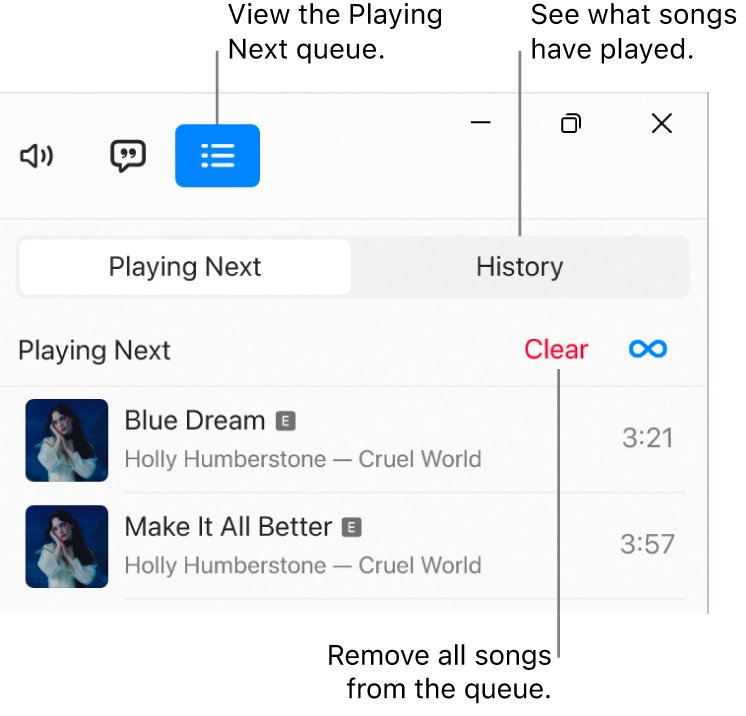
To stop iTunes from playing the next song in your library, open the Up Next list while your song plays and click Clear until the list is empty, so nothing is left to play after it.
This guide covers iTunes for Windows: clearing Up Next, playing a single song from its own playlist, using song checkboxes, turning off repeat and shuffle, and fixing iTunes when it stops or will not play.
How to stop iTunes from playing the next song
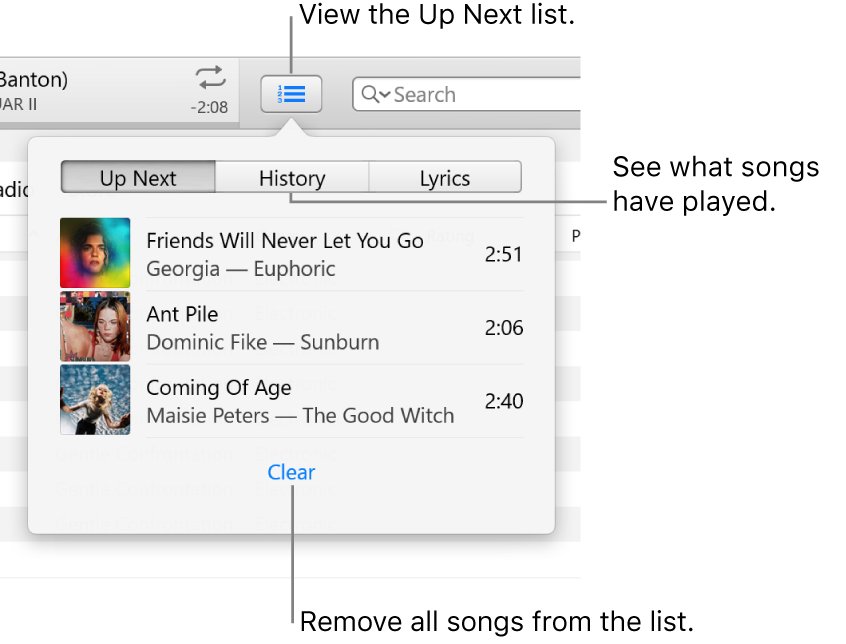
When you double-click a song in your library, iTunes keeps going through the rest of the list in its current sort order. The Up Next list holds those songs, and emptying it ends playback after the current track.
- Open iTunes on your PC, choose Music from the pop-up menu at the top left, then click Library.
- Double-click the song you want to hear, or select it and click the Play button.
- Click the Up Next button, then click Up Next in the list that opens.
- Click the Clear link at the bottom of the list, and click it again until no songs are left.
- Click the Up Next button again to close the list.
- Let the song finish. iTunes stops instead of moving to the next song.
A song has to be playing before Up Next opens. To drop only some songs, select a song in the list and press Delete instead of clearing everything.
Stop iTunes autoplay: Up Next, playlist or checkboxes
Each route stops the music after the song you picked, but they last for different lengths of time. Match the row to how often you want iTunes to stop.
| What you want | Use this | What changes |
|---|---|---|
| Stop after the current song, this time only | Click Clear in Up Next | Nothing permanent. The next time you play from the library, the rest of the list queues again |
| Play one song, then stop, whenever you like | A playlist that holds only that song | Your library stays as it is. Repeat must be off |
| Never play certain songs when the library runs | Deselect the song checkboxes | Unticked songs are skipped everywhere, including every playlist |
| Hear one song on a loop instead of the next song | Repeat one (the Repeat button shows 1) | The same song keeps playing until you turn repeat off |
| Stop iTunes jumping to random songs | Turn shuffle off | Songs play in list order instead of random order |
How to make iTunes play only one song
A playlist ends when its last song ends, as long as repeat is off. A playlist with a single song in it plays that song and stops, every time.
- In your iTunes library, click Songs in the sidebar.
- Right-click the song you want, then choose Add to Playlist > New Playlist.
- Type a name for the playlist in the sidebar, for example the song title.
- Select the new playlist in the sidebar and double-click the song to play it.
- Check that the Repeat button has no box behind it. If it does, click it until the box disappears.
Deleting the playlist later leaves the song in your library. Press Delete on the playlist in the sidebar, then click Delete to confirm.
How to stop iTunes from playing certain songs with checkboxes
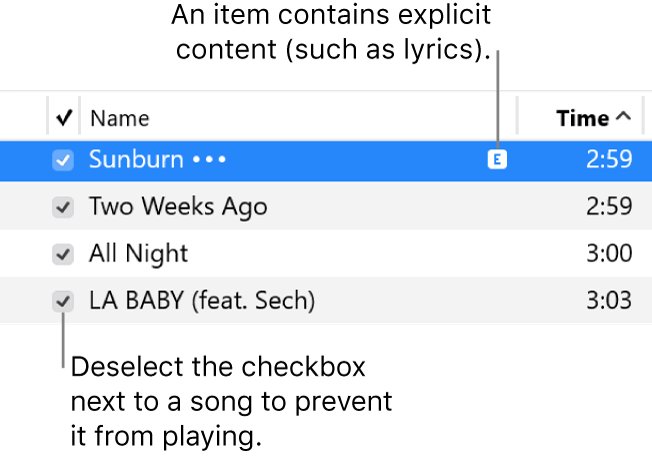
iTunes ignores songs whose checkbox is cleared and never plays them in a list. If only the song you start is ticked, iTunes has nothing to move on to.
- If there are no checkboxes next to your songs, choose Edit > Preferences, click General, select List view checkboxes, then click OK.
- Choose Music from the pop-up menu at the top left, click Library, then click Songs in the sidebar.
- Deselect the checkbox next to each song you do not want iTunes to play next.
- To clear or tick every song at once, right-click the checkbox next to any song.
- Tick the checkbox for the songs you still want to hear, then double-click one to play it.
Deselecting a checkbox removes the tick from that song in every playlist. If your iPhone or iPod uses Sync only checked songs, unticked songs are also left off the device at the next sync.
How to turn off repeat in iTunes
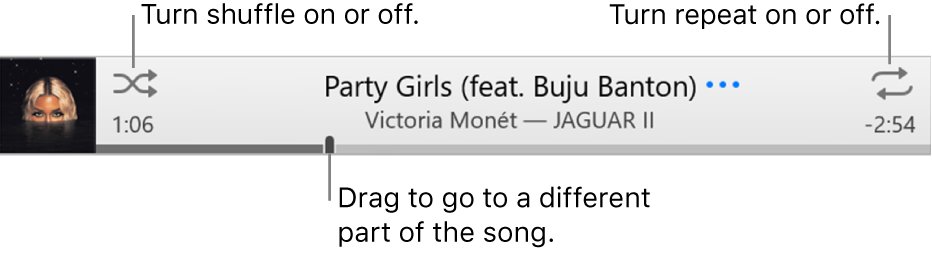
Repeat makes iTunes start the list or the song again after it ends, which can look like autoplay. Start a song first, because repeat and shuffle only work while something is playing.
| Button state | What iTunes does | How to change it |
|---|---|---|
| Repeat with a box behind it | Repeats every song in the current view, such as the playlist or the Songs list | Click Repeat until the box no longer appears |
| Repeat with the number 1 | Plays the current song again and again | Click Repeat until the box and number disappear |
| Shuffle with a box behind it | Plays songs in random order | Click Shuffle so the box disappears |
| Controls > Shuffle > Albums or Groupings | Plays an album or grouping, then picks another one at random | Turn shuffle off with the Shuffle button |
How to stop iTunes from playing songs in a random order
With shuffle off, iTunes plays your library in the order of the column you sort by. Use that order to control which song comes next before you clear Up Next.
- Click Songs in the library sidebar.
- Click a column heading such as Name, Artist or Album to sort the list.
- To show more columns to sort by, choose View > Show View Options.
- Make sure the Shuffle button has no box behind it.
- Double-click the song you want to play first. The songs below it follow in that order unless you clear Up Next.
How to stop Apple Music from playing the next song on Windows
If Music is missing from the iTunes pop-up menu, your music now plays in the Apple Music app for PC you installed. Apple Music for Windows has an AutoPlay button that adds similar songs after yours, so the steps are different.
- Open the Apple Music app and play a song.
- Select the queue button, then select Playing Next.
- Select the AutoPlay button at the top of the queue so it is no longer colored.
- Select Clear at the top of the queue to remove the songs already lined up.
- Turn off repeat in the playback controls if the button is highlighted.
The same queue controls exist on iPhone and Mac, and you can turn off Apple Music autoplay on every device at once from any of them.
How to stop iTunes from syncing automatically
By default, iTunes syncs your iPhone, iPad or iPod as soon as you connect it. You can make it wait for you to click Sync instead.
- Connect your device to your PC and open iTunes.
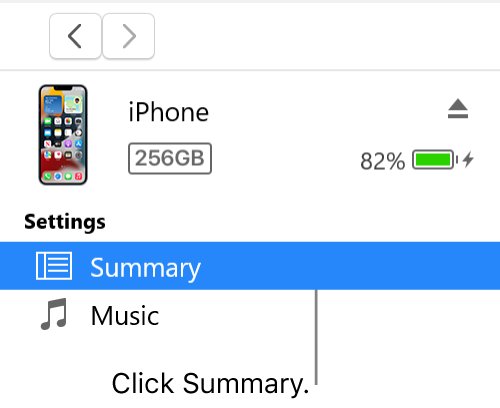
- Click the Device button near the top left of the iTunes window.
- Click Summary, then deselect Automatically sync when this [device] is connected.
- Click Apply.
- To stop automatic syncing for every device, choose Edit > Preferences, click Devices, select Prevent iPods, iPhones, and iPads from syncing automatically, then click OK.
How to tell if iTunes will stop after the current song
- While the song plays, click the Up Next button. The list should show no upcoming songs.
- Look at the Repeat button in the playback controls. It should have no box and no number 1.
- If you used checkboxes, check that the songs below the one playing are unticked.
- Let the song finish. The progress bar stops and iTunes stays on the finished song.
- Click History in the Up Next list to see the songs that played before, if something else started.
Why iTunes keeps playing the next song in your library
| Cause | What happens | Fix |
|---|---|---|
| You started a song from the Songs list | The rest of the library plays in the current sort order | Clear Up Next, or play the song from a one-song playlist |
| You started a song from an album or playlist | The songs after it in that album or playlist follow | Clear Up Next |
| Repeat is on | The view or the song starts again after it ends | Click Repeat until the box disappears |
| Up Next was saved | iTunes keeps the Up Next list when you quit and restores it next time | Clear Up Next after you reopen iTunes |
| Songs were added with Play Next | Right-click > Play Next puts songs at the top of Up Next | Select them in Up Next and press Delete |
iTunes not playing songs or stopping on its own
iTunes stops playing after a song in a playlist
The playlist contains a song preview, and a playlist stops after a preview. A preview shows a price button next to it.
- Find the song with the price button in the playlist.
- Double-click the next song in the playlist to carry on playing.
- Remove the preview from the playlist if you want it to play through.
iTunes skips some songs in the library
Songs with a cleared checkbox are ignored and never play in a list.
- Choose Edit > Preferences > General and select List view checkboxes if the boxes are hidden.
- Tick the checkbox next to the skipped songs.
The progress bar moves but you hear nothing
The volume is down in iTunes or Windows, or iTunes is sending sound to other speakers.
- Raise the volume slider at the top of the iTunes window.
- Check the Windows volume and that your speakers are plugged in and on.
- Click the speaker button at the top of iTunes and choose your computer's speakers.
- Run the Windows audio troubleshooter from Start if there is still no sound.
iTunes will not play a song bought from the iTunes Store
The PC is not authorized for that Apple Account, or five computers are already authorized.
- Authorize the PC with the Apple Account that bought the song when iTunes asks.
- If you have reached five computers, deauthorize one you no longer use, then authorize this one.
- For a song in a shared library, double-click it and enter the owner's Apple Account details.
iTunes autoplay FAQ
How do I stop iTunes from playing the next song?
Play your song, click the Up Next button and click Clear until the list is empty. iTunes then stops when the current song ends. For a permanent setup, put the song in a playlist of its own and play it from there.
How do I stop iTunes from auto playing?
iTunes for Windows has no single autoplay switch. Empty Up Next, turn off Repeat, and turn off Shuffle. If your music plays in the Apple Music app instead, turn off its AutoPlay button at the top of the queue.
Why does my iTunes stop playing?
The most common reason is a song preview in a playlist, because a playlist stops after a preview. Double-click the next song to continue. Unticked songs are also skipped, and an empty Up Next list ends playback.
Can iTunes play just one song and stop?
Yes. Create a playlist that holds only that song and play it with repeat off. iTunes plays the song and stops. Clearing Up Next also works, but only for the song that is playing now.
Does unticking a song in iTunes delete it?
No. A cleared checkbox only tells iTunes to skip the song. It stays in your library and playlists, but iTunes will not play it in a list, and Sync only checked songs leaves it off your device.
How do I stop iTunes from syncing?
Connect the device, click the Device button, click Summary and deselect Automatically sync when this [device] is connected, then click Apply. For all devices, use Edit > Preferences > Devices.
Why is my iTunes not playing music?
Check the iTunes and Windows volume, the speakers iTunes uses, and whether the PC is authorized for your purchases. If an error such as iTunes error -45061 appears, fix that error first.
How do I stop Apple Music from automatically playing?
Play a song, open the queue and turn off the AutoPlay button at the top so it is no longer colored, then select Clear. The change applies to every device signed in with the same Apple Account.