iCloud sync is usually slow on a PC because a large library is still on its first pass, the iPhone has paused uploads, or iCloud for Windows only fetches files when you open them.
This guide shows how to see what iCloud is doing, how to make iCloud Drive and iCloud Photos sync faster on Windows, and how to stop syncing when you need the bandwidth back.
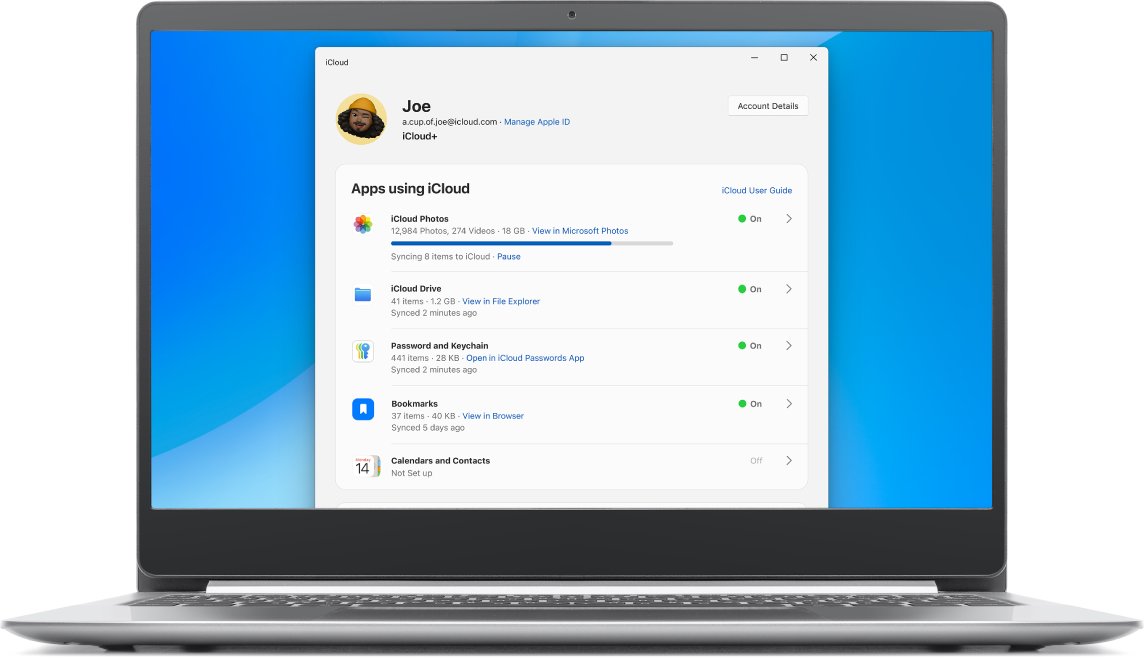
How to speed up iCloud sync on a PC
Apple says the time iCloud Photos takes depends on the size of your library and your internet speed. These steps remove the pauses that make it slower than it needs to be.
- Click the iCloud icon in the Windows notification area to see upload and download progress; click Show hidden icons if it is not visible.
- Connect your iPhone to power and Wi-Fi, and leave it to sync overnight without interruption.
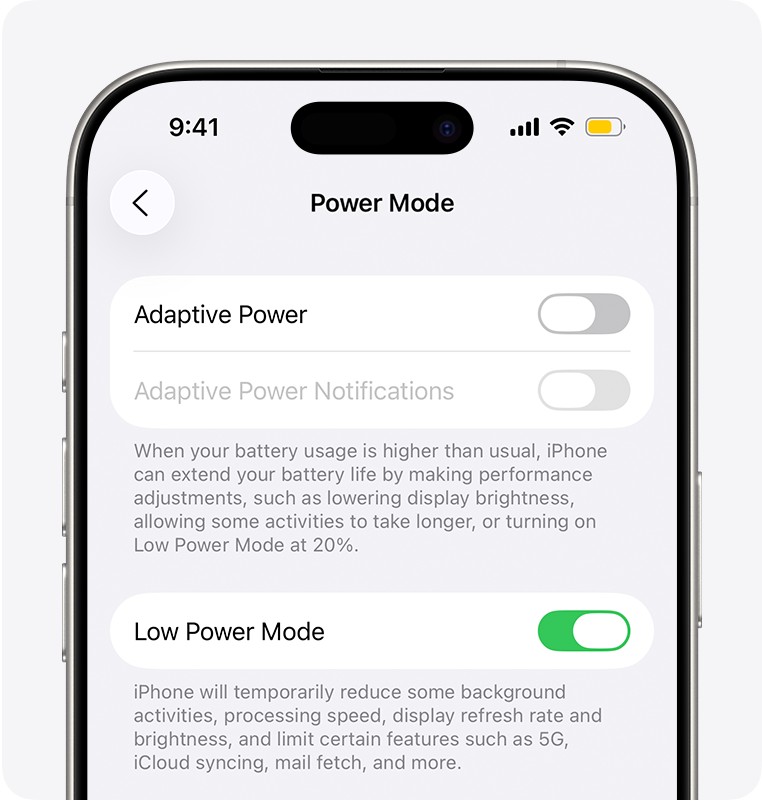
- On the iPhone, turn off Low Power Mode and Low Data Mode, because both pause iCloud Photos.
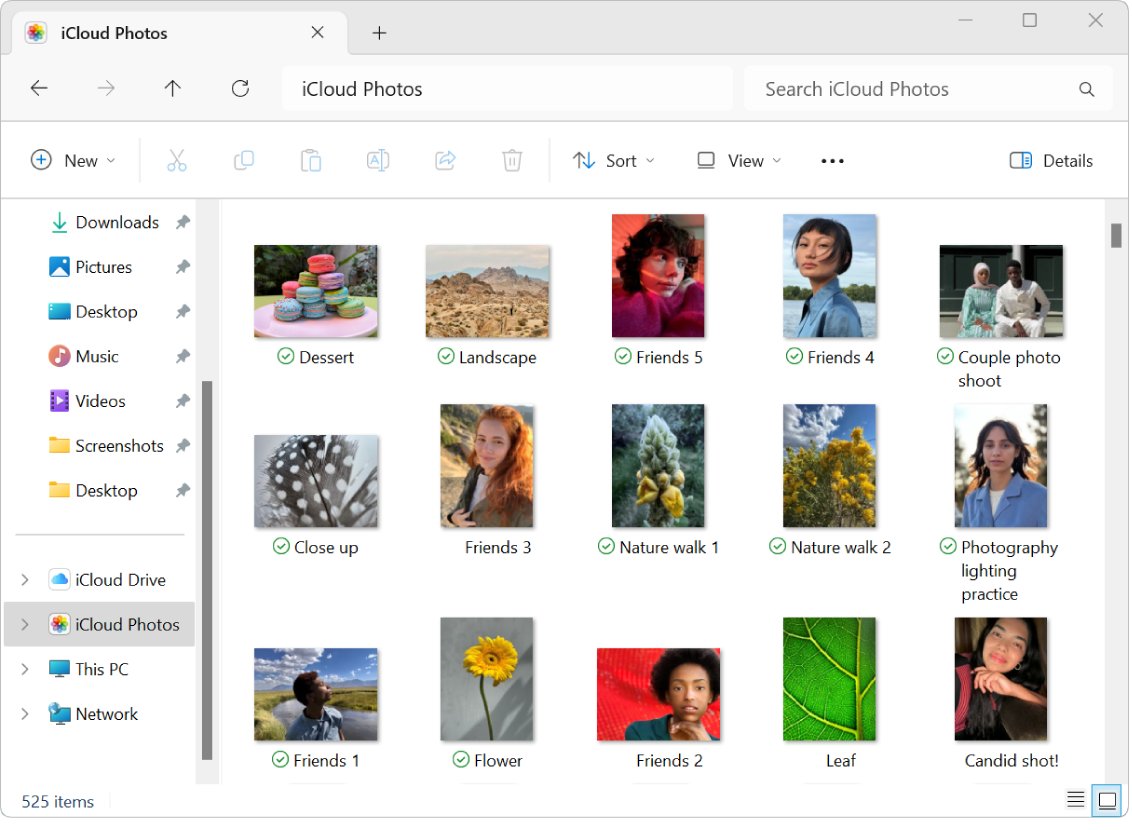
- In File Explorer, right-click iCloud Photos or an iCloud Drive folder and select Always keep on this device to download it now.
- Open Microsoft Store and install any iCloud for Windows update.
- Leave the PC online and awake until the iCloud icon stops showing activity.
Do not turn iCloud Photos off and on to hurry it along. Apple warns that this restarts the whole sync process.
Why is iCloud so slow on Windows?
| What you see | Why it happens | What speeds it up |
|---|---|---|
| Only thumbnails appear in iCloud Photos | iCloud for Windows downloads optimized versions; full versions download when you open them | Pin the folder with Always keep on this device |
| iCloud Drive files show a cloud icon | Files over 1 MB stay online-only until opened or pinned | Pin the folders you use |
| New iPhone photos take hours to reach the PC | The iPhone has paused uploads for Low Power Mode, Low Data Mode, low battery or heat | Charge the iPhone, connect it to Wi-Fi and tap Sync Now |
| The first sync runs for days | A large library uploads at the speed of your internet connection | Let it run overnight; do not restart the sync |
| Large videos lag behind photos | Apple notes larger files take longer to upload | Wait, or download them from iCloud.com |
| Nothing moves at all | iCloud storage is full or a service is down | Free storage and check Apple System Status |
Check iCloud upload and download progress on Windows
Slow is not the same as stuck. The iCloud icon in the notification area shows whether transfers are still moving.
- Look for the iCloud icon in the notification area at the right end of the taskbar.
- If you cannot see it, click Show hidden icons to open the overflow area.
- Click the iCloud icon to see the progress of uploads and downloads.
- Open File Explorer > iCloud Photos or iCloud Drive and read the status icon next to each file.
- Check again after a few minutes; a shrinking queue means iCloud is working, just slowly.
Blue circular arrows mean an item is waiting, a progress bar means it is downloading, and a green checkmark means it is on the PC. The same iCloud Photos sync status also shows on the iPhone and Mac.
iCloud Photos download to PC very slow
In iCloud for Windows 11.1 and later, optimized versions of photos and videos download automatically. The full version downloads only when you open a photo, so browsing a large library feels slow.
- Open File Explorer and click iCloud Photos in the navigation pane.
- If it is missing, click Pictures, then double-click iCloud Photos.
- Right-click the photo, video or whole folder you want on the PC.
- Choose Always keep on this device so the items download now and stay downloaded.
- Keep the PC online until each item shows the pinned icon.
Pinned items still disappear from the PC if you delete them on another device. Copy them to a different folder if you want a lasting backup.
How to make iCloud Photos sync faster from iPhone
Photos reach the PC only after the iPhone uploads them. Apple lists several states that pause iCloud syncing on the iPhone.
- Connect the iPhone to power; uploads pause when the battery is below 20 percent.
- Open Settings > Battery and turn off Low Power Mode.
- Open Settings > Wi-Fi, tap the Info button next to your network and turn off Low Data Mode.
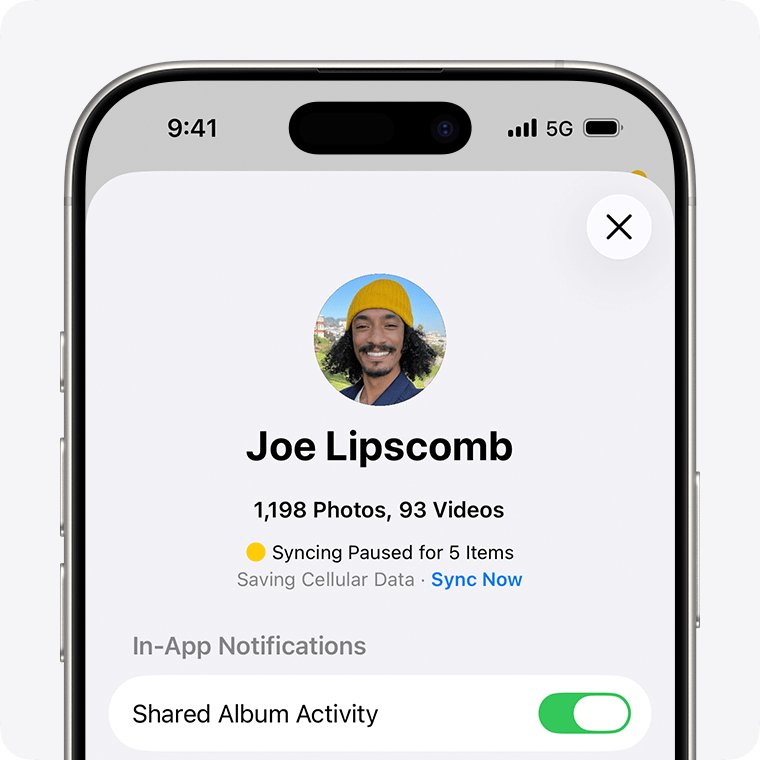
- Open Photos, tap Collections, then tap the profile button to read the library status.
- If the status says Optimizing or Poor Network Connection, tap Sync Now.
- In iOS 27 or later, go to Settings > [your name] > iCloud > Photos > Sync Immediately and choose For Today.
In iOS 17 or earlier, the status sits at the bottom of Library > All Photos. If Photos is allowed to use cellular data, Sync Immediately can raise data use.
Download iCloud Photos faster from iCloud.com
When you need a batch of photos on the PC now, download them from iCloud.com instead of waiting for iCloud for Windows to work through its queue.
- Go to
icloud.com/photosin your browser and sign in with your Apple Account. - Select Library in the sidebar.
- Select the photos or videos you want.
- Click the download button in the toolbar.
- To pick a file format first, open the download menu and click More Download Options.
iCloud.com downloads photos in the most compatible format for the device you are using, which is not always the original format.
Update iCloud for Windows when it is extremely slow
- Open iCloud for Windows from Start > All > iCloud.
- Click Account Details at the top right and note the version in the bottom-right corner.
- Open Microsoft Store, check for updates and install the latest iCloud for Windows.
- If sync stays slow, select Start > Settings > Apps > Installed apps.
- Select the More icon next to iCloud, then Advanced options > Repair.
- Restart the PC and check the iCloud icon for activity.
The latest iCloud for Windows requires Windows 11. On Windows 10, Apple says builds older than 18363 limit iCloud Photos, and the HEVC and HEIF extensions from Microsoft Store are needed for full support.
How to tell if iCloud is still syncing on your PC
- Click the iCloud icon in the notification area and note the item count or progress.
- Wait ten minutes and look again; any change means the sync is still moving.
- In File Explorer, watch whether the waiting icons turn into downloaded or pinned marks.
- Take a new photo on the iPhone and wait for it to appear in iCloud Photos on the PC.
- Open
icloud.com/photosto see whether the photo reached iCloud first.
If the photo is on iCloud.com but not on the PC, the delay is in iCloud for Windows. If it never reaches iCloud.com, the iPhone is still uploading or has paused.
iCloud sync settings on PC
iCloud for Windows has no speed or bandwidth setting. You control speed by choosing what syncs and what stays downloaded.
| Setting | Where to find it | Effect on sync |
|---|---|---|
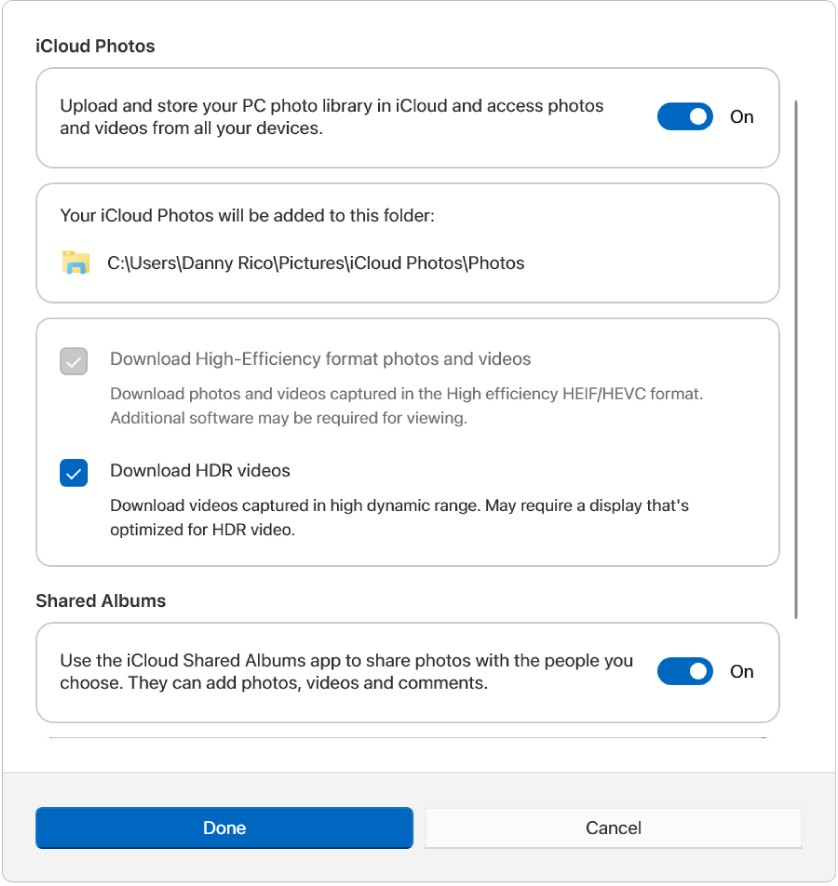
| iCloud Photos | iCloud for Windows > button to the right of iCloud Photos | Turns photo sync on or off for this PC |
| Download High-Efficiency format photos and videos | Same panel (iCloud for Windows 14.2 or later) | Chooses the format files arrive in |
| Download HDR videos | Same panel (iCloud for Windows 14.2 or later) | Chooses whether HDR versions download |
| Shared Albums | Same panel | Adds shared album content to the queue |
| iCloud Drive | iCloud for Windows > button to the right of iCloud Drive | Turns file sync on or off |
| Always keep on this device / Free up space | Right-click a file or folder in File Explorer | Downloads it now, or removes the local copy |
Keep the iCloud Drive queue short by leaving folders you rarely open online-only. You can also exclude files and folders from iCloud Drive so they never enter it.
Stop iCloud syncing on PC
Stopping sync frees your connection for other work. Copy any file that has not uploaded yet to a local folder first.
- Open iCloud for Windows.
- Click the button to the right of iCloud Photos and turn off iCloud Photos to stop photo sync on this PC.
- Click the button to the right of iCloud Drive and turn off iCloud Drive to stop file sync.
- Click Done.
- To stop syncing only one item, right-click it in File Explorer and choose Free up space.
Turning sync off on the PC does not delete photos or files from iCloud. On the iPhone, Pause in the Photos library status stops uploads for one day without turning anything off.
iCloud photos syncing slow or stuck on PC
Why is my iCloud sync paused?
The iPhone paused uploads for Low Data Mode, Low Power Mode, low battery, heat or a poor connection.
- Read the library status in Photos > Collections > profile button.
- Charge the iPhone, let it cool down, and connect it to Wi-Fi.
- Tap Sync Now if it appears, or wait a few minutes for syncing to resume.
iCloud on PC not syncing anything new
iCloud storage is full, so new photos and files cannot upload.
- Open iCloud for Windows and read the storage bar graph.
- Click Manage to see what uses the most space.
- Delete what you no longer need, or click Change Storage Plan.
iCloud Drive files on PC stay pending for hours
The files are queued but online-only, or iCloud for Windows needs a restart.
- Right-click the folder and select Always keep on this device.
- Restart the PC so iCloud for Windows rebuilds its queue.
- Work through the iCloud Drive sync pending fixes if the icons still do not change.
Some photos never sync from iPhone
The file type is unsupported or the item failed to upload.
- Open Photos on the iPhone and look for an album named Unable to Upload.
- Edit each photo or video in it, then check whether it uploads.
- Use supported formats such as HEIF, JPEG, RAW, PNG, HEVC and MP4.
iCloud slow on every device, not just the PC
Your internet connection or an Apple service is having problems.
- Check whether iCloud Mail, Contacts or Messages work.
- Open
apple.com/support/systemstatusand look for an iCloud issue. - Test your Wi-Fi speed and wait until the service shows available.
iCloud Photos missing on PC after sign-in
The PC is signed in with a different Apple Account than the iPhone.
- Click Account Details in iCloud for Windows and note the Apple Account.
- Compare it with Settings > [your name] on the iPhone.
- Sign out and sign in with the matching account if they differ.
iCloud sync speed FAQ
Why is iCloud syncing so slow?
Sync speed depends on how large the library is and how fast your internet connection is. It is slower still when the iPhone pauses uploads for Low Power Mode, Low Data Mode, low battery or heat, or when iCloud storage is full.
Why is iCloud so slow on Windows?
iCloud for Windows downloads optimized photos and keeps larger iCloud Drive files online-only until you open them. Each file then downloads on demand. Pin the folders you use with Always keep on this device to download them in advance.
How do I make iCloud sync faster?
Keep the iPhone on power and Wi-Fi, turn off Low Power Mode and Low Data Mode, and tap Sync Now in Photos. On the PC, pin the folders you need and keep iCloud for Windows up to date.
Why does iCloud sync take so long the first time?
The first sync uploads or downloads the whole library, and Apple says that can take overnight or longer for a large collection on slower Wi-Fi. Later syncs only move new and changed items, so they finish much faster.
Why is iCloud Photos syncing so slow?
Large videos take longer than photos, and uploads pause when the iPhone is low on battery, too warm or in Low Data Mode. Check the library status in the Photos app on the iPhone to see the exact reason.
Why isn't iCloud syncing to my PC?
The usual causes are full iCloud storage, a different Apple Account on the PC, iCloud Photos turned off in iCloud for Windows, or an outdated app. Check Account Details first, then the storage graph.
How do I stop iCloud sync on my PC?
Open iCloud for Windows, click the button next to iCloud Photos or iCloud Drive, turn it off and click Done. Your files stay in iCloud. To stop one file only, right-click it and choose Free up space.
Why is my iCloud sync paused?
The iPhone pauses iCloud Photos for Low Data Mode, Low Power Mode, a battery below 20 percent, overheating, a poor connection or full storage. The library status in the Photos app names the reason and often offers Sync Now.