To add an Amazon gift voucher to your account, sign in, go to amazon.com/gc/redeem, enter the claim code and select Apply to Your Balance.
This guide covers physical cards, email and text eGift cards, redeeming at checkout, checking and spending the balance, and fixes for codes that will not apply.
Methods to add an Amazon gift voucher to your account
Amazon calls these vouchers Amazon.com Gift Cards. Once redeemed, the money sits in your Amazon balance and applies automatically to your next eligible order.
Pick the row that matches the voucher in your hand.
| What you have | Where to add it | What to select |
|---|---|---|
| Physical gift card with a scratch-off or peel-off code | The Redeem a Gift Card page at amazon.com/gc/redeem | Enter the claim code, then Apply to Your Balance |
| eGift card delivered by email | The email itself | Apply to your Amazon Account, then sign in if prompted |
| eGift card sent by text message or shareable link | The link, which opens the redemption page | Apply to your Amazon Account |
| Physical card you want to use on an order right now | Checkout, under Use a gift card, voucher, or promo code | Enter the claim code, then Apply |
Understanding Amazon gift vouchers
Amazon uses several kinds of code, and each one goes into a different place. Entering the wrong type in the wrong box is a common reason a code seems to fail.
| Code type | What it is | Where it goes | Stays on the account? |
|---|---|---|---|
| Amazon.com Gift Card (gift voucher) | Prepaid value issued by ACI Gift Cards LLC; physical cards carry a 14- or 15-character claim code | Redeem a Gift Card page, or checkout | Yes, in your Amazon balance until spent |
| eGift card | The same gift card delivered by email, text or shareable link; it has no claim code | The Apply to your Amazon Account button in the message | Yes, in your Amazon balance |
| Promotional code | A discount tied to a deal or promotion | Gift Cards and Promotional Codes section at checkout only | Only if you leave checkout without ordering, until it is used or expires |
| Amazon Product Voucher | A voucher for a specific type of product | Redeem a product voucher page, or checkout | Yes, as a separate balance per voucher type |
| Specialty gift card (Apple, Starbucks and similar) | A card for another retailer, sold on Amazon | The retailer named on the card | No, it cannot be redeemed on Amazon.com |
Tips for successful redemption
| Check this first | Why it matters |
|---|---|
| You are signed in to the account that should receive the money | A redeemed balance cannot be moved to another Amazon account |
| The card says Amazon.com, not another retailer | Specialty cards only work with the retailer named on the card |
| The card was bought for the US Amazon.com store | An Amazon.com balance cannot be moved to an Amazon store in a different country |
| The card came from Amazon or an authorised seller | Amazon is not responsible for lost or stolen cards or gift card scams |
| You still have the card or the order email | The 16-digit or 30-digit serial number on the back is what support asks for if the code fails |
Step 1: Sign in to your Amazon account
The account you are signed in to is the account that gets the money, and there is no way to move it afterwards.
- Open amazon.com in a browser.
- Select Hello, sign in under Account & Lists at the top of the page.
- Sign in with the email or phone number of the account that should receive the gift voucher.
- Check the name shown in the Account & Lists greeting before you continue.
- On a shared computer, sign out of anyone else's account first.
Step 2: Navigate to the gift card redemption page
- Type amazon.com/gc/redeem into the address bar and press Enter.
- Sign in again if Amazon asks; the redemption page always requires an account.
- Confirm the page is titled Redeem a Gift Card and shows a box for the claim code.
- If you started from the Amazon help page Redeem an Amazon Gift Card, select its Redeem a Gift Card link to reach the same page.
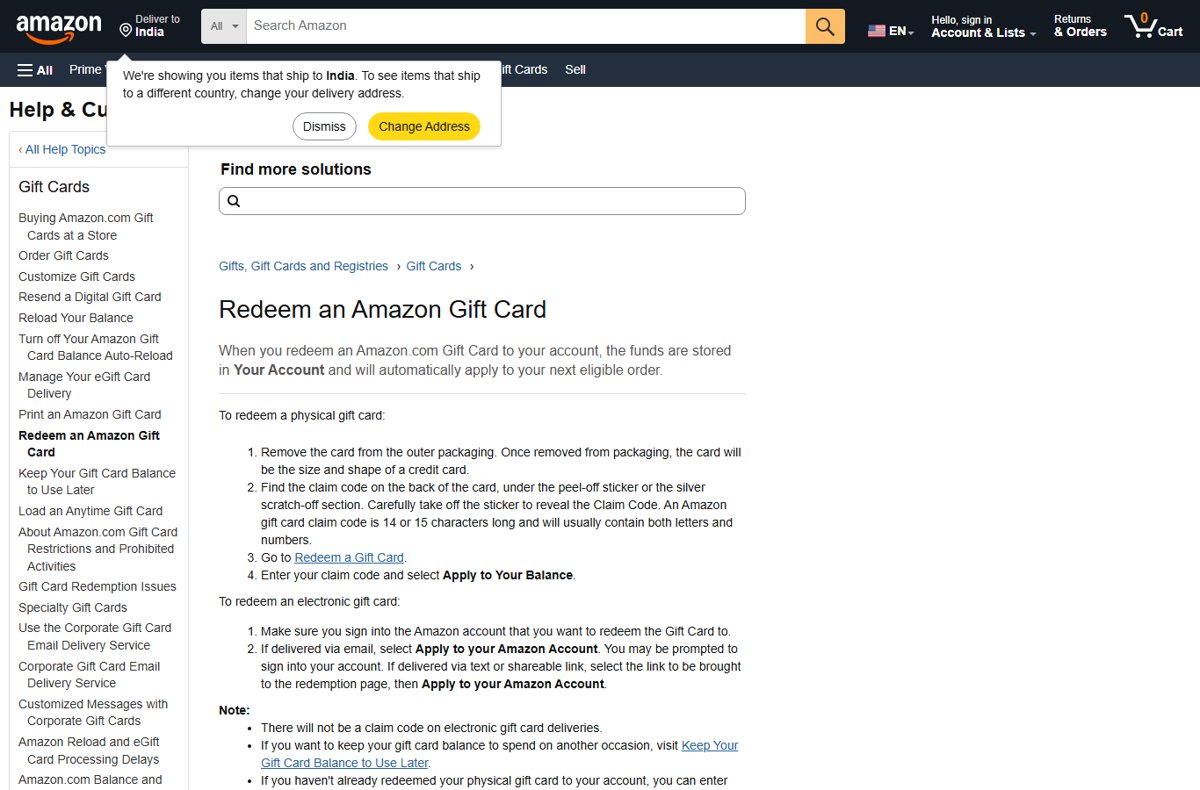
Step 3: Enter your gift voucher code
The claim code is the only part of a physical card the redemption page needs. Electronic gift cards have no claim code, so skip to the eGift section below if yours arrived by email or text.
- Remove the card from its outer packaging; the card itself is the size of a credit card.
- Find the claim code on the back, under the peel-off sticker or the silver scratch-off strip.
- Peel or scratch gently so the characters stay readable.
- Type the code into the claim code box. It is 14 or 15 characters long and usually mixes letters and numbers.
- Check the code once more before you submit it.
Step 4: Confirm your redemption
- Select Apply to Your Balance.
- Read the confirmation message that replaces the claim code box.
- Keep the physical card until the amount shows in your gift card balance.
- Shop as usual; the balance applies automatically to your next eligible order.
Add an email gift voucher using the Amazon website
An eGift card sent by email carries a button instead of a claim code. Open the email on any computer or phone with a browser.
- Sign in at amazon.com with the account that should receive the voucher.
- Open the Amazon gift card email.
- Select Apply to your Amazon Account in the email.
- Sign in again if Amazon prompts you.
- Wait for the confirmation that the amount was added to your balance.
Using the Amazon mobile app or phone to add a gift voucher
On a phone, the route depends on how the voucher arrived. Text-message and shareable-link eGift cards are designed to be opened on the phone they reach.
- For a text or shareable link, select the link to open the Amazon redemption page.
- Sign in with the account that should receive the money if you are not signed in already.
- Select Apply to your Amazon Account.
- For a physical card, open amazon.com/gc/redeem in the phone's browser and follow Steps 3 and 4 above.
- Check that the amount appears under Your Account > Gift cards before you start shopping in the Amazon Shopping app.
How to apply a gift voucher in Amazon at checkout
If you have not redeemed a physical card yet, you can add it while placing an order. The value still lands in your balance.
- Add an eligible item to your cart and select Proceed to checkout.
- Select Use a gift card, voucher, or promo code in the payment step.
- Type the claim code in the box that appears with your payment methods.
- Select Apply to add the amount to your account balance.
- Check the order total before you select Place your order.
Check your gift voucher balance
Amazon stores the available balance as soon as a gift card is redeemed or used on an order, so the balance page is the proof that the voucher went in.
- Go to Your Account.
- Select Gift cards to see your Amazon.com Gift Card balance.
- Open the transaction section of the balance page to see each change with its order ID or serial number.
- For a physical card with no printed value, open Your Orders to view your Amazon order history, find the gift card order and match the 16-digit serial number in the order details to the back of the card.
The balance shown does not include promotional certificates on your account, so a promo code will not appear in this figure.
How to use your gift voucher balance
There is nothing to switch on. To make a purchase using your gift voucher balance, place an eligible order and Amazon deducts the cost from the balance first.
- Add an eligible Amazon.com item to your cart.
- Select Proceed to checkout.
- Confirm that Use your Gift and promotional balance is ticked in the payment step.
- Choose one credit or debit card for any amount the balance does not cover.
- Select Place your order; the remaining balance stays on your account for later.
The balance can also pay for a Prime membership or a Prime Video add-on subscription; the gift card option appears during sign-up. A free trial needs a credit or debit card as backup, so it is not available when you pay only with gift cards.
Keep your Amazon gift card balance to use later
Because the balance applies automatically, an order can use up a voucher you meant to save. Untick it at checkout to pay another way. Amazon does not take a PayPal account at checkout, but you can use PayPal on Amazon through a PayPal-issued Mastercard.
- Proceed to checkout.
- Find the Gift and promotional balance line and select Change.
- Clear the box beside Use your $X.XX Gift and promotional balance.
- Select Use this payment method.
- If that screen does not appear, select Change under Payment Method on the final page before you place the order.
Use multiple gift vouchers
You can redeem as many Amazon.com Gift Cards as you have. Each one adds to the same balance, which is the total of every card applied but not yet spent.
| Situation | What happens |
|---|---|
| Several Amazon.com Gift Cards redeemed | All amounts merge into one Amazon.com balance |
| Order costs more than the balance | The rest is paid with another payment method |
| Balance plus cards on one order | You can split payment between one credit or debit card and the gift card balance, not across several cards |
| Different Amazon Product Voucher types | Each type keeps its own separate balance |
| Unused balance after an order | It stays on your account for future purchases |
Important tips: Amazon gift voucher restrictions
These limits come from the Amazon.com Gift Card terms and conditions, and Amazon can void a card used against them.
| Restriction | What it means for you |
|---|---|
| Cannot buy other gift cards | Your balance will not pay for Amazon gift cards, prepaid open loop cards or certain third-party gift cards |
| Cannot be transferred | No part of the balance can move to another Amazon.com account |
| Amazon.com only | The balance does not work on Amazon sites outside the United States |
| No cash | Cards cannot be redeemed for cash, resold or reloaded |
| No fees | Amazon charges no fees on gift cards |
| Scams | Anyone demanding payment in gift cards is a scam warning sign; Amazon is not liable for third-party fraud |
Tips for managing gift vouchers effectively
A few additional tips stop a voucher from going missing between the shop counter and your next order.
| Tip | Why |
|---|---|
| Redeem a card as soon as you receive it | Once it is on your account, nobody else who sees the code can claim it |
| Keep the card or email until the balance shows | You need the serial number or order details if something goes wrong |
| Review the balance page transactions now and then | Each deduction is listed with its order ID or serial number |
| Untick the balance on orders you want to pay by card | This saves the voucher for a later purchase |
| Treat the claim code like cash | A shared photo of the code can be redeemed on another account |
Troubleshooting common issues when adding an Amazon gift voucher
1. Voucher code not recognized
The code is mistyped, damaged, or belongs to a different kind of card.
- Retype the claim code and check every character against the card.
- Check the card's brand; a specialty card such as Apple or Starbucks only works with that retailer.
- If the code is a promotional code, enter it at checkout in Gift Cards and Promotional Codes with no spaces.
- If the code is scratched off or unreadable, contact Amazon customer service with the 16-digit or 30-digit serial number and the order number, if known.
2. Error during redemption: the gift card has already been redeemed
The card was already applied, either to your account or to someone else's.
- Go to Your Account > Gift cards and look for the amount in the transaction list.
- Check whether another account in your household redeemed it.
- If someone else had the code or link, it may have been redeemed on their account; Amazon cannot transfer a redeemed balance.
3. Voucher not reflecting in balance
The voucher went to a different account, or a new eGift card or reload is still processing.
- Confirm which account you were signed in to when you redeemed it.
- Sign in to that account and check Gift cards there.
- For an Amazon Reload or eGift order, open Your Orders; Amazon typically adds funds or delivers within 1 hour, and an Applied status means the money is in the balance.
- Allow longer if Amazon is running security checks, which can delay delivery.
4. Other common issues: lost card or wrong store
The card is missing, or it is being used outside Amazon.com.
- For a lost eGift card, ask the sender to resend it from the Resend a Digital Gift Card option.
- For a lost physical card, contact Amazon customer service.
- Use Amazon.com Gift Cards only on Amazon.com; they cannot be spent on another country's Amazon store.
Frequently asked questions (FAQs) about adding Amazon gift vouchers to your account
Where do I add a voucher in Amazon?
Add an Amazon.com gift voucher on the Redeem a Gift Card page at amazon.com/gc/redeem, or at checkout under Use a gift card, voucher, or promo code. Promotional codes are different and can only be entered at checkout.
How do Amazon gift vouchers work?
An Amazon gift voucher adds its value to your Amazon.com balance when you redeem it. The balance pays for eligible orders automatically, and any amount left over stays on the account for future purchases.
How do I use an Amazon gift voucher online?
Redeem the voucher to your account first, then shop on Amazon.com as usual. At checkout the gift and promotional balance is ticked by default, and you pay any remainder with one credit or debit card.
Can I add multiple gift vouchers to my account?
Yes. Every Amazon.com Gift Card you redeem adds to the same balance, so you can redeem several cards one after another. Amazon Product Vouchers are the exception: each voucher type keeps its own separate balance.
Will my Amazon gift card balance expire?
No. Amazon.com Gift Cards issued after October 1, 2005 do not expire, even if a date is printed on them. Some older cards issued before that date can expire under their stated terms, depending on the state.
Can I use my gift voucher balance to pay for Prime membership?
Yes. Amazon shows a gift card option during Prime and Prime Video add-on sign-up, and leftover balance pays later periods. A free trial needs a credit or debit card on file, so it is not available with gift cards alone.
How do I purchase or give an Amazon gift voucher?
Buy Amazon.com Gift Cards on the Amazon.com website as eGift cards, or as physical cards at participating grocery, drug and convenience stores in the US. eGift cards can be sent by email, text message or a shareable link.
How long does an Amazon eGift voucher take to arrive?
Amazon typically delivers eGift card orders within 1 hour. A security check can delay delivery in rare cases, and the order status in Your Orders shows Sent or Ready to share once the card is out.
Can I add an Amazon.com gift voucher to Amazon Pay in another country?
No. An Amazon.com Gift Card balance cannot be transferred to an Amazon store in a different country, and it cannot be spent on Amazon sites outside the United States. Vouchers for other Amazon stores are redeemed on that store.
Can I move a redeemed gift voucher to another Amazon account?
No. Once a gift card is redeemed, its balance cannot be transferred to another Amazon account. Sign in to the right account before you select Apply to Your Balance or Apply to your Amazon Account.
Can I redeem an Xbox or Microsoft gift card bought on Amazon to my Amazon balance?
No. A gift card for another company is a specialty card and only works with the retailer named on it. You redeem a Microsoft gift card on your Microsoft account instead.
Bottom line: where to add an Amazon gift voucher
Redeem every Amazon.com gift voucher at amazon.com/gc/redeem, or with the Apply to your Amazon Account button for eGift cards, as soon as you receive it. The balance then sits safely on your account, applies itself to the next order, and never expires, while an unredeemed code can be claimed by anyone who sees it.