To invert the color of an image on Windows 11, open it in the free GIMP editor, select Colors > Invert, and export the result as a new file.
This guide covers the GIMP route, the three GIMP invert commands, the Windows 11 Inverted color filter and Magnifier for on-screen inversion, Word, and fixes for a screen that inverts by itself.
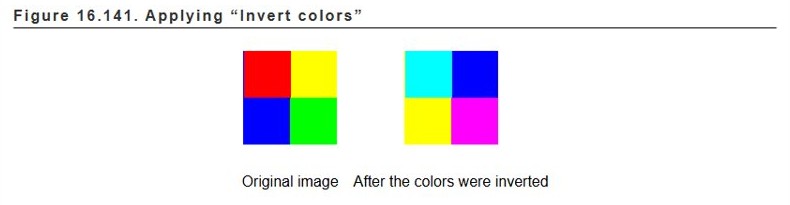
How to invert the color of an image in Windows 11/10
GIMP is a free, open-source image editor from gimp.org, and its Invert command turns any photo into a negative.
Dark areas become bright and every hue shifts to its complementary color, so the file itself changes.
- Install GIMP from gimp.org and open it.
- Select File > Open, pick your image and click Open.
- Select Colors > Invert on the main menu.
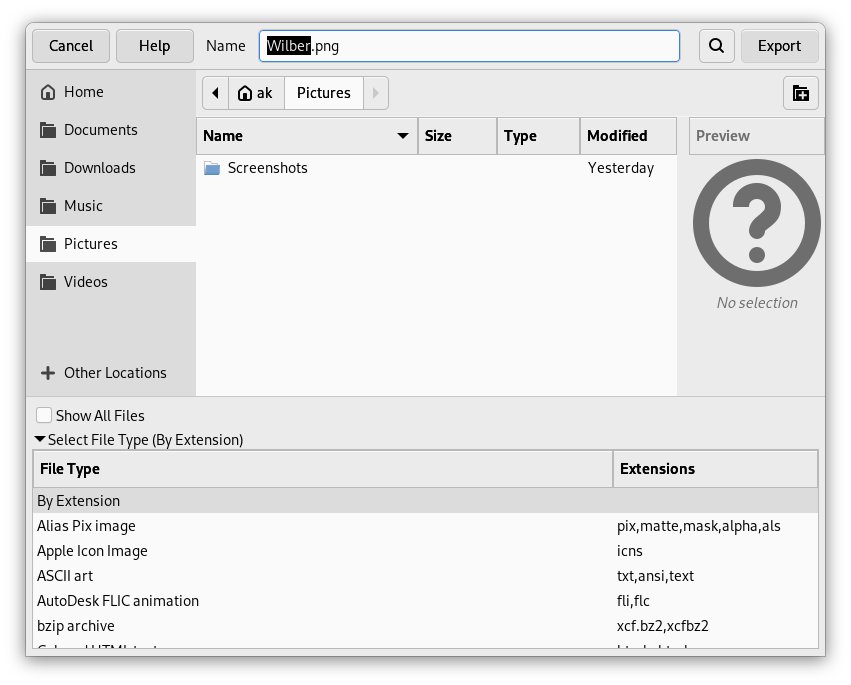
- Select File > Export As, or press Ctrl + Shift + E.
- Type a new file name, expand Select File Type and pick PNG or JPEG.
- Click Export, then confirm the format options to write the inverted copy.
Exporting under a new name keeps the original image untouched, which matters because some invert commands do not reverse perfectly.
Invert image colors vs invert colors on screen in Windows 11
Windows 11 can invert what you see without touching any file, and that is often all a reader needs for a screenshot or a dark document.
| Your goal | Use this | Does the file change? |
|---|---|---|
| Save a negative copy of a photo or scan | GIMP Colors > Invert, then Export As | Yes, a new file is written |
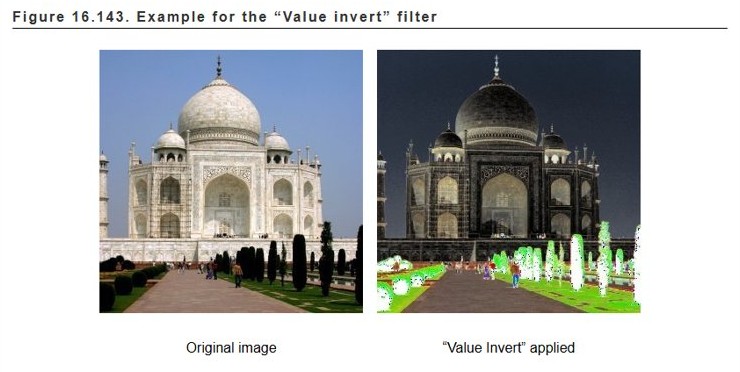
| Flip brightness but keep the original hues | GIMP Colors > Value Invert | Yes |
| Read a bright image or PDF more comfortably | Settings Color filters > Inverted | No, only the display changes |
| Invert only while zoomed in | Magnifier, then Ctrl + Alt + I | No |
| Toggle inversion on and off fast | Windows key + Ctrl + C after enabling the shortcut | No |
GIMP Invert vs Linear Invert vs Value Invert
The Colors menu in GIMP 3.2 has three separate invert commands, and each one produces a different negative.
| Command | Menu path | What it changes | Best for |
|---|---|---|---|
| Invert | Colors > Invert | All pixel colors and brightness in the current layer | A classic photo negative |
| Linear Invert | Colors > Linear Invert | All color components except alpha, calculated in linear light | Technical or scientific images |
| Value Invert | Colors > Value Invert | Luminosity of the active layer or selection; hue and saturation stay | Dark versions of logos and diagrams |
Applying Value Invert twice does not give back the exact original, because bright colors drift. Keep the source file and export a copy instead.
Do not confuse these commands with Invert Selection, which flips what is selected rather than the colors.
Invert colors Windows 11 with the Inverted color filter
The Inverted color filter reverses every pixel on the screen, so black becomes white, red becomes turquoise and green becomes purple.
It works on any image, PDF or web page you open, but it never edits the file.
- Press Windows key + U to open Accessibility settings, or select Start > Settings > Accessibility.
- Select Color filters.
- Turn on the Color filters switch.
- Select Inverted from the list.
- Choose Grayscale inverted instead if you want a black-and-white negative.
On Windows 10 the same page is at Settings > Ease of Access > Color filters, with a Turn on color filters toggle.
Color invert shortcut in Windows 11
Windows key + Ctrl + C turns color filters on and off, but only after you enable the shortcut on the Color filters page.
- Open Settings > Accessibility > Color filters.
- Select Inverted as the filter so the shortcut applies it.
- Turn on the keyboard shortcut option on the same page.
- Press Windows key + Ctrl + C to invert the screen.
- Press Windows key + Ctrl + C again to return to normal colors.
Color filters and Screen Tint cannot be on at the same time, so turn one off before you use the other.
Invert colors with Magnifier in Windows 11
Magnifier has its own invert toggle, which suits a single image you need to zoom in on and read.
- Press Windows key + Plus sign (+) to turn on Magnifier.
- Press Ctrl + Alt + I to invert the colors.
- Press Ctrl + Alt + I again to switch back.
- Press Windows key + Esc to turn Magnifier off.
You can also open Settings > Accessibility > Magnifier and select Invert colors under Appearance.
Can you invert the color of an image in Word?
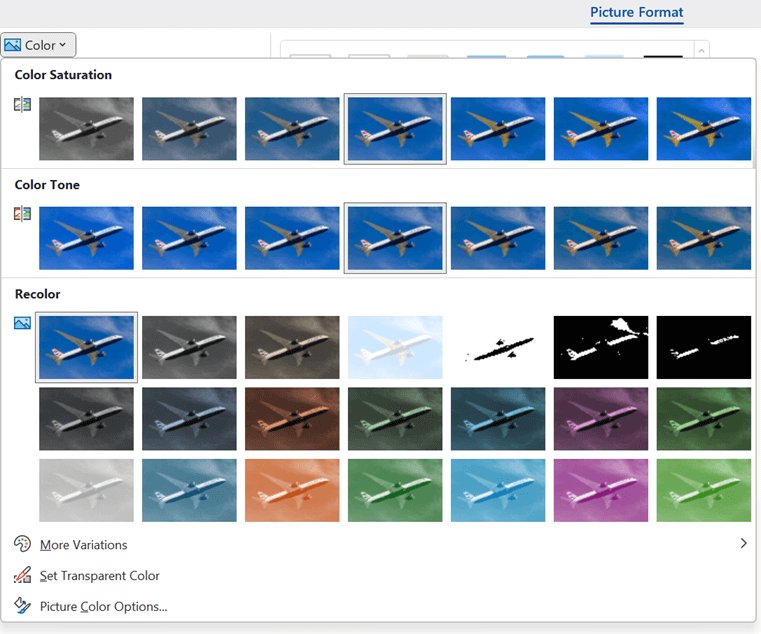
Word, PowerPoint, Excel and Outlook have no invert option for pictures. The Color menu only adjusts saturation, tone and preset recolors.
To place a negative in a document, invert the image in GIMP first, then insert the exported file.
| Office option | Where it is | What it does |
|---|---|---|
| Color Saturation | Picture Format > Color | Makes colors more vivid or more grey |
| Color Tone | Picture Format > Color | Warms or cools the color temperature |
| Recolor | Picture Format > Color | Applies presets such as grayscale or sepia |
| Picture Color Options | Bottom of the Color menu | Fine-tunes the chosen effect |
Is the image inverted or just the Windows 11 screen?
A screen filter and an inverted file look identical while the filter is on, so test the file with every filter off.
- Open Settings > Accessibility > Color filters and turn the Color filters switch off.
- Press Windows key + Esc if Magnifier is running.
- Open the exported file from File Explorer.
- Compare it with the original: a real negative stays inverted with the filters off.
How to turn off invert colors on Windows 11
- Press Windows key + Ctrl + C if you turned on the color filter shortcut.
- Otherwise open Settings > Accessibility > Color filters and turn off Color filters.
- Press Ctrl + Alt + I while Magnifier is on to undo a Magnifier inversion.
- For a GIMP file, reopen the original image you kept, or use File > Overwrite only when you want to replace it.
Why are my colors inverted on Windows 11?
The whole screen suddenly shows negative colors
The Inverted color filter was switched on, often by pressing Windows key + Ctrl + C by accident.
- Press Windows key + Ctrl + C once.
- If nothing changes, open Settings > Accessibility > Color filters and turn the switch off.
Colors invert only while the screen is zoomed
Magnifier has its invert option turned on.
- Press Ctrl + Alt + I to switch inversion off.
- Press Windows key + Esc to close Magnifier.
Backgrounds turned black and text looks inverted after a key press
A high contrast theme is on; Left Alt + Left Shift + Print Screen toggles high contrast.
- Press Left Alt + Left Shift + Print Screen again.
- Or open Settings > Accessibility > Contrast themes, pick None and select Apply.
Colors look washed out or tinted, not inverted
A different color filter or a display color profile is active.
- Check Settings > Accessibility > Color filters for Grayscale, Red-green or Blue-yellow.
- Review the monitor profile in Windows Color Management if no filter is on.
Invert image colors on Windows FAQ
How do you invert the color of an image?
Open the image in GIMP, select Colors > Invert, and export it with File > Export As. Dark areas become bright and each hue changes to its complementary color, giving you a negative of the original picture.
How do I turn on invert colors in Windows 11?
Open Settings > Accessibility > Color filters, turn on the Color filters switch and select Inverted. The whole screen shows reversed colors until you turn the switch off again. No file on your PC is changed.
What is the color invert shortcut in Windows?
Windows key + Ctrl + C toggles color filters on and off once you enable the shortcut on the Color filters page. With Magnifier running, Ctrl + Alt + I inverts and restores the colors instead.
How do I invert the color of a PDF?
To read a PDF with inverted colors, turn on the Inverted color filter in Settings > Accessibility > Color filters. It flips the whole display, including the PDF viewer, without changing the PDF itself.
How do I invert the color of an image in Word?
Word has no invert command; its Picture Format > Color menu only offers saturation, tone and recolor presets. Invert the picture in GIMP first, export it, then insert the new file into the document.
How do inverted colors work?
Inverting reverses the color of every pixel. Black becomes white, red becomes turquoise and green becomes purple. GIMP's Value Invert is gentler: it reverses only brightness and keeps the original hue and saturation.
Why does my computer invert colors by itself?
Usually a shortcut was pressed. Windows key + Ctrl + C toggles the Inverted color filter, Ctrl + Alt + I inverts Magnifier, and Left Alt + Left Shift + Print Screen turns on a contrast theme. Press the same keys again to undo it.
Is there a free app to invert image colors on Windows 11?
GIMP is a free, open-source editor that runs on Windows 11 and offers Invert, Linear Invert and Value Invert on its Colors menu. It exports the result to PNG, JPEG and other common formats.