To delete temporary files on Windows 11, open Settings > System > Storage > Cleanup recommendations, tick the files under Temporary files and select Clean up.
This guide also covers the File Explorer, Storage Sense, Disk Cleanup, Command Prompt and batch file routes, plus what to do when temp files refuse to delete.
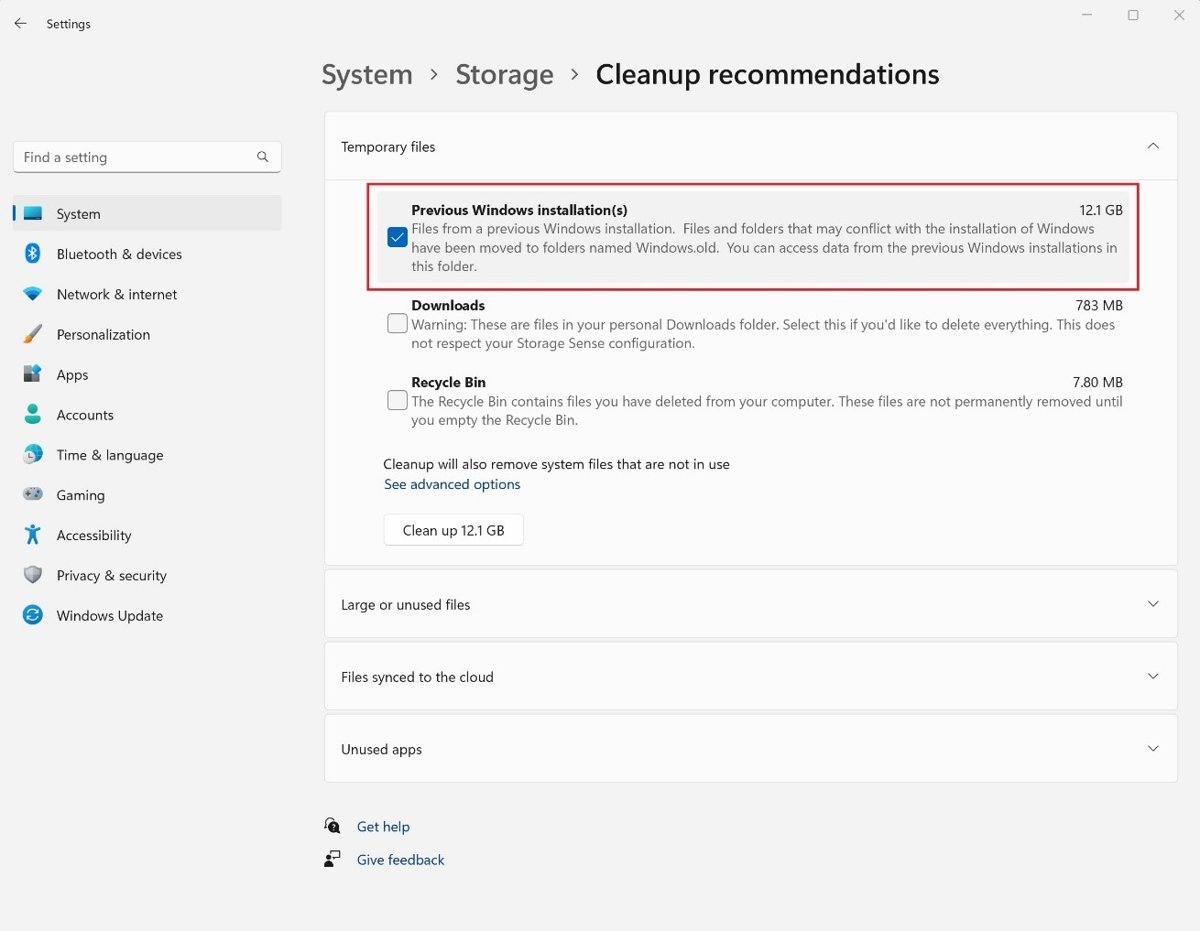
How to delete temporary files on Windows 11 from Settings
Settings is the quickest route because Windows lists only files it considers safe to remove and shows the space you will get back.
- Select Start, then open Settings.
- Select System, then select Storage.
- Select Cleanup recommendations.
- Open the Temporary files category and tick the items you want to remove.
- Select the Clean up button, which shows the size of the selected files.
- Repeat for Large or unused files, Files synced to the cloud and Unused apps if you need more space.
If you upgraded Windows in the last 10 days, Previous Windows installation(s) appears as a removable item. Deleting it removes the Windows.old folder, and you can no longer roll back to the earlier version.
Which way to delete temporary files on Windows 11 should you use?
| Your situation | Use this method | Why |
|---|---|---|
| You want a one-off cleanup with no risk | Settings > Cleanup recommendations | Windows picks the safe items and shows the size first |
| You want cleanup to happen on its own | Storage Sense | Runs daily, weekly, monthly or when space is low |
| You want to see and pick individual temp files | File Explorer and %temp% | You see every file before it goes |
| You prefer the classic tool or need old Chkdsk files gone | Disk Cleanup (cleanmgr) | Lists extra categories such as Temporary Setup Files |
| You want to clear temp files from a terminal | Command Prompt or PowerShell | One command, easy to repeat |
| You want a double-click shortcut | A BAT file | Saves the command so you can run it any time |
What are temporary files in Windows 11?
Temporary files are scratch data that apps and Windows write while they work. Programs usually delete their own temp data before they quit, but crashes and interrupted installs leave it behind.
| Type of temporary file | Where it comes from | Safe to delete? |
|---|---|---|
| User Temp folder files (%temp%) | Apps you run under your account | Yes, except files an open app is still using |
| Temporary Setup Files | Installers that are no longer running | Yes |
| Temporary Internet Files | Cached web pages kept for quick viewing | Yes; your personalised web settings stay intact |
| Old Chkdsk files | File fragments saved by Chkdsk in the drive's root folder | Yes |
| Previous Windows installation(s) | The Windows.old folder after an upgrade | Only if you will not roll back |
| Recycle Bin contents | Files you deleted earlier | Yes, if you do not need to restore any of them |
Using File Explorer to delete temp files manually
Typing %temp% opens the Temp folder for your account, the location set by the TEMP environment variable. Windows also has a Temp folder location for system processes that standard users cannot clear.
- Close any apps you are not using.
- Press Win + R to open the Run dialog box.
- Type
%temp%and select OK. - Press Ctrl + A to select everything in the folder.
- Press Delete, or press Shift + Delete to skip the Recycle Bin.
- Skip any file Windows reports as open in another program.
- Empty the Recycle Bin if you used Delete, so the space is actually freed.
Use Storage Sense to automatically delete temporary files
Storage Sense deletes unnecessary temporary files on the system drive, usually C:, without you opening anything. It only runs while you are signed in and online.
- Select Start, then go to Settings > System > Storage.
- Set Storage Sense to On.
- Select Storage Sense to open its settings.
- Under Run Storage Sense, choose how often it runs.
- Under Delete files in my recycle bin if they have been there for over, choose a time period.
- Under Delete files in my Downloads folder if they haven't been opened for more than, choose a period, or leave it so Downloads is never touched.
Files marked Always keep on this device in OneDrive are never made online-only. The older Storage Sense in Windows 10 worked the same way but from a different Settings layout.
Using Disk Cleanup to remove temporary files
Disk Cleanup (cleanmgr.exe) still ships with Windows 11, even after Microsoft moved cleanup into Storage settings, and overlaps with Storage Sense. It lists a few categories Settings does not, such as old Chkdsk files.
- Type disk cleanup in the taskbar search box and select it from the results.
- Select the drive that contains Windows, usually C:, then select OK.
- Tick Temporary files and any other categories you want to remove.
- Clear the ticks next to Downloaded Program Files, Temporary Internet Files and Thumbnails if you want to keep them, because they are selected by default.
- Select Clean up system files, pick the same drive and select OK to add system categories.
- Select OK, then select Delete files to confirm.
On a drive other than the Windows drive, Disk Cleanup only offers the Recycle Bin and catalog files for the content indexer.
Using Command Prompt to delete temporary files
The del command removes every file in your Temp folder and its subfolders without asking for confirmation. Files that an app has open are skipped with an access message.
del /q /f /s %temp%\*/q runs in quiet mode with no confirmation prompt, /f forces deletion of read-only files, and /s also deletes matching files in every subfolder. %temp% expands to your account's Temp folder.
You should see: Command Prompt lists each deleted file path. Lines for files in use mean those files were left in place.
Create a BAT file to delete temp files in one click
A Windows batch file stores the same del command so you can clear the Temp folder with a double-click. Run dir %temp% first if you want to see what the wildcard will catch.
- Open Notepad.
- Type
del /q /f /s %temp%\*on the first line. - Select File > Save as.
- Set Save as type to All files.
- Name the file
cleartemp.batand save it on your desktop. - Double-click
cleartemp.batwhenever you want to empty the Temp folder.
Clear the Disk Cleanup temporary files on a schedule with cleanmgr
Disk Cleanup can save a set of categories under a number and then run that set silently. This suits a scheduled task in Task Scheduler.
- Press Win + R, type
cleanmgr /sageset:1and select OK. - Tick Temporary files and the other categories you want cleared, then select OK to save them as set 1.
- Press Win + R again, type
cleanmgr /sagerun:1and select OK to run that set on every drive. - To automate it, create a scheduled task in Task Scheduler that runs
cleanmgr /sagerun:1at the interval you want.
cleanmgr /verylowdisk runs Disk Cleanup with default settings and no prompts, and cleanmgr /autoclean deletes files left behind after a Windows upgrade.
How to check temporary files were deleted on Windows 11
- Open File Explorer from the taskbar and select This PC.
- Compare the free space under Devices and drives with what you had before cleaning.
- Go to Settings > System > Storage and check that the Temporary files figure has dropped.
- Press Win + R, type
%temp%and select OK; only files in use by open apps should remain.
New temp files appear again as soon as you use your apps, so a Temp folder that refills over a day is normal.
Why can't I delete temporary files on Windows 11?
Some temporary files won't delete
A running app or background process still has those files open.
- Close every open app, including ones in the notification area.
- Restart the PC so Windows releases locked files.
- Delete the contents of
%temp%again straight after signing in, before you open other apps. - Skip any file that still reports it is in use; it is cleared when the app that owns it closes.
Low Disk Space error right after cleaning temp files
Microsoft Store .appx files can refill the Temp folder quickly.
- Go to Start > Settings > System > Troubleshoot > Other troubleshooters and select Run next to Windows Store Apps.
- Press Win + R, type
wsreset.exeand select OK to clear the Microsoft Store cache. - Back in Other troubleshooters, select Run next to Windows Update.
- Restart the PC and check free space again.
Storage Sense does not delete temporary files
Storage Sense is off, only runs when space is low, or the PC is managed by an organisation.
- Open Settings > System > Storage and confirm Storage Sense is On.
- Under Run Storage Sense, pick a fixed schedule instead of waiting for low disk space.
- Stay signed in and online for more than 10 minutes, which Storage Sense needs before it runs.
- On a work or school PC, ask IT, because policy can block temporary file cleanup.
Disk Cleanup does not show system file categories
Disk Cleanup was pointed at a non-Windows drive, or system files were not added.
- Run Disk Cleanup again and select the drive that contains Windows.
- Select Clean up system files and choose the same drive.
Windows 11 temporary files FAQ
Can I delete temporary files on Windows 11?
Yes. Temporary files are safe to delete because programs recreate what they need. Files a running app still has open cannot be removed, and Windows simply skips them. Use Settings > System > Storage > Cleanup recommendations if you want Windows to choose the safe items for you.
Should I delete temporary files?
Delete them when you are low on space or when a Windows update reports it needs more room. Low free space slows the PC and can block updates. There is no need to clear them daily, because Storage Sense can handle it on a schedule.
What does deleting temporary files do?
Deleting temporary files frees drive space taken by leftover app data, installer files and cached web pages. It does not remove your documents, photos or installed apps. Apps that need fresh temp data simply create it again the next time they run.
How do I delete temporary files on Windows 11 with CMD?
Open Command Prompt and run del /q /f /s %temp%\*. The /q switch skips confirmation, /f removes read-only files and /s includes subfolders. Files that an open program is using are skipped, so close your apps first for the best result.
How do I delete temporary files on Windows 11 Pro?
Windows 11 Pro uses exactly the same steps as Windows 11 Home. Open Settings > System > Storage > Cleanup recommendations, tick the temporary files and select Clean up. Storage Sense, Disk Cleanup and the del command also work identically on both editions.
How do I manually delete temporary files on Windows 11?
Press Win + R, type %temp% and select OK to open your Temp folder. Press Ctrl + A to select everything, then press Delete. Skip any file that is in use, and empty the Recycle Bin afterwards so the space is released.
How do I delete temporary files on Windows 10?
Windows 10 has the same Temp folder, Disk Cleanup and del command, but its Settings layout differs. To clear temp files in Windows 10 from Settings, use Change how we free up space automatically on the Storage Sense page instead of Cleanup recommendations.
How do I delete temporary internet files on Windows 11?
Disk Cleanup lists Temporary Internet Files as a category and removes cached web pages while leaving your personalised web settings intact. Browsers keep their own caches too, so clear browsing data inside Edge, Chrome or Firefox for the browser cache.
Why won't temporary files delete in Windows 10 or 11?
Temporary files refuse to delete when an app or background process still has them open. Close your apps, restart the PC and try again right after signing in. Anything still locked belongs to a running process and clears once that process ends.
Does deleting temporary files speed up Windows 11?
It helps when the drive is nearly full, because low storage slows performance and blocks updates. On a drive with plenty of free space, clearing temp files frees room but makes little visible difference to speed.
Bottom line: the best way to delete temporary files on Windows 11
Use Settings > System > Storage > Cleanup recommendations for a one-off cleanup, then turn on Storage Sense so temp files never pile up again. Both are built in, show what will be removed, and skip files Windows still needs. Keep File Explorer, Disk Cleanup and the del command for cases where you want manual control or a scripted cleanup.




![Rockstar Games Launcher not working on Windows PC [Fix]](https://techdows.com/wp-content/uploads/2026/10/Rockstar-Games-Launcher-not-working-on-Windows-PC-Fix-600x338.jpg)