Word has no built-in word cloud tool, so you create one with the free Pro Word Cloud add-in from Home > Add-ins, then insert the image it generates into your document.
This guide covers the add-in route, Copilot Chat, PowerPoint, Excel data and Teams word cloud polls, plus fixes for add-ins that are disabled or will not load.
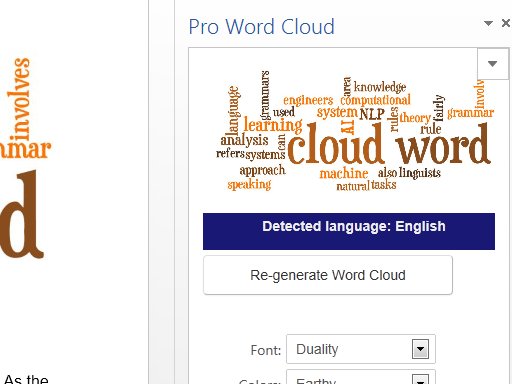
How to create a Word Cloud in Microsoft Word
Pro Word Cloud is published by Orpheus Technology Ltd. in Microsoft Marketplace. It is free, and it works in Word and PowerPoint.
The cloud gives more space to the words that appear most often in your text, so feed it the text you actually want to visualize.
- Open the document in Word for Windows and select the text you want in the cloud. Select nothing to use the whole document.
- Go to the Home tab and select Add-ins. In some versions the entry is File > Get Add-ins.
- Open the Store tab, search for Pro Word Cloud, and select Add.
- Accept the permission prompt. The add-in reads your document and sends data over the Internet to build the image.
- In the Pro Word Cloud task pane, pick a font, layout, color scheme and word case, then generate the cloud.
- Copy the finished image, click where you want it in the document, and press Ctrl + V. If you saved it as a file instead, use Insert > Pictures > This Device.
- Select the image, select Layout Options, and choose how text should flow around it.
The images Pro Word Cloud creates are yours to use as you like, according to its Marketplace listing.

How to create a word cloud free with Microsoft tools
Every route below is free except Copilot Chat, which depends on the Copilot access your account has. The add-in is free, but you still need Word itself, so check the Microsoft Word price options or get Microsoft Word as a student if you do not have it yet.
| Your situation | Use this | Why |
|---|---|---|
| You want the cloud inside a Word document | Pro Word Cloud add-in in Word | Free, runs in the task pane, outputs an image you paste in |
| You are building slides | Pro Word Cloud add-in in PowerPoint | Same add-in, same options, image lands on the slide |
| Your words are in an Excel column or Forms export | Paste the column into Word, then run the add-in | Pro Word Cloud is not listed for Excel |
| You have Microsoft 365 Copilot Chat at work | Prompt Copilot Chat with a file | No add-in to install; it reads a referenced file |
| You want live answers from a meeting audience | Word Cloud Poll in a Teams meeting | Attendees type answers and the cloud builds itself |
How to make a word cloud with Microsoft Copilot Chat
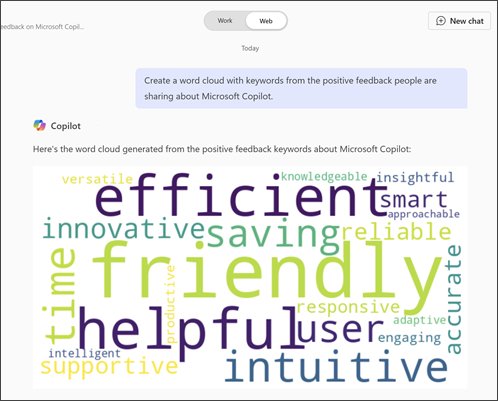
Copilot Chat builds a word cloud from a file or idea you name, so you can then paste the result into Word.
- Open Copilot Chat.
- In the Message Copilot box, type Create a word cloud of followed by the topic or document you want.
- If Work IQ is on, type / and start typing the name of the file, meeting, email or person to reference.
- If Work IQ is off, select Add and manage sources > Add work content and pick the file.
- Select the Send arrow and wait for Copilot to generate the word cloud.
- Copy the image and paste it into your Word document with Ctrl + V.
How to create a word cloud in PowerPoint
Pro Word Cloud is listed for PowerPoint as well as Word, so the steps match the Word route.
- Open the presentation and go to the slide that should hold the cloud.
- Select Home > Add-ins, or File > Get Add-ins.
- Search the Store tab for Pro Word Cloud and select Add.
- Paste or type the source text into a text box on the slide, then select it.
- Generate the cloud from the Pro Word Cloud task pane.
- Move the image into place and delete the source text box if you no longer need it.
How to create a word cloud from Excel data
Excel has no word cloud chart, and Pro Word Cloud is listed only for Word and PowerPoint. Move the text into Word first.
- In Excel, select the column that holds the words or survey answers.
- Press Ctrl + C to copy it.
- Open a new blank document in Word and press Ctrl + V.
- Select the pasted text, then run Pro Word Cloud from Home > Add-ins.
- Copy the generated image back into Excel, or keep it in the Word document.
Repeated words drive the size of each word, so leave duplicates in. Removing them flattens the cloud.
How to create a word cloud poll in Teams
Teams meetings offer a Word Cloud Poll alongside the other Microsoft Teams meeting poll types in the Polls app on desktop and web. Microsoft says it is still rolling out, and it is not available in GCC High or DoD environments.
- In Teams, select Calendar and open the meeting.
- Select Chat with participants.
- Select Add a tab, search for Polls, and select Add, then Save.
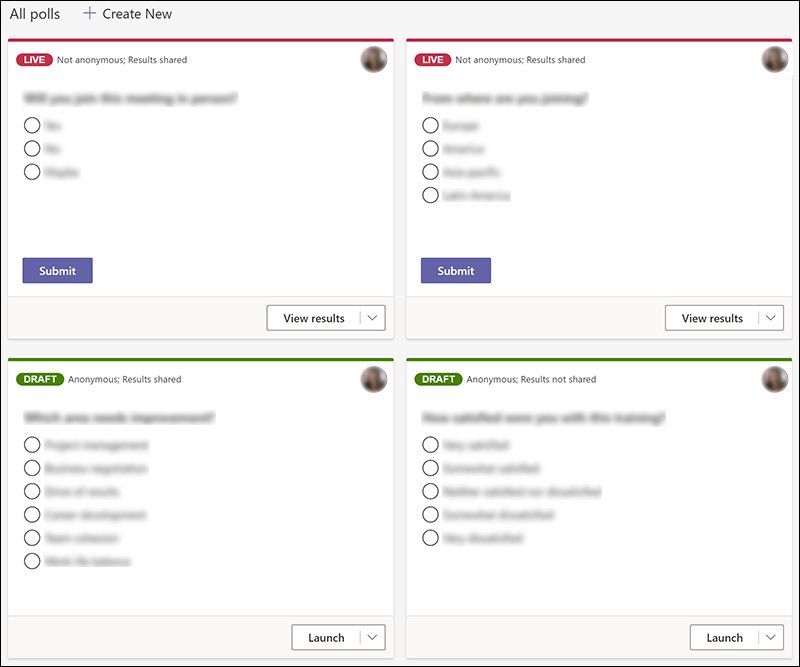
- In the Polls tab, select Create New Poll and choose Word Cloud Poll.
- Type your open-ended question.
- Select Save as draft to keep it for the meeting, or Launch now to collect answers straight away.
- During the meeting, open the Polls pane and select Launch on the poll.
Teams mobile has no Word Cloud Poll. It offers an Open Text Poll instead.
How to move and resize a word cloud image in Word
Word treats the cloud as an ordinary picture, so the same layout tools that make a picture fill the whole page control where it sits.
- Select the word cloud image.
- Select Layout Options next to the picture and pick a wrap style. In Line with Text keeps it inside a paragraph.
- Choose any other wrap style if you want to drag the image freely while text flows around it.
- To pin it to a corner, go to Picture Format > Position and pick an option under Format with Text Wrapping.
- Drag a corner handle to resize it without distorting the words.
- For finer control, open Wrap Text > More Layout Options.

How to use a word cloud
A word cloud shows which terms repeat most. It does not show meaning, order or sentiment, so pair it with the source text when the detail matters.
| Use | Text to feed it | What the cloud tells you |
|---|---|---|
| Survey or feedback summary | Open-text answers pasted from Excel or Forms | The themes people mention most |
| Meeting icebreaker | Live answers from a Teams Word Cloud Poll | What the room is thinking right now |
| Essay or report review | Your own draft in Word | Words you overuse |
| Presentation title slide | Key terms from the talk | A visual preview of the topics |

Cannot enable disabled add-ins in Excel, Word, PowerPoint
The same add-in settings apply across Word, Excel and PowerPoint on Windows, so these fixes work in all three.
The add-in is listed under Disabled Application Add-ins
Office disables an add-in automatically after it causes the app to crash.
- Select File > Options > Add-ins.
- In the Manage box, select Disabled Items, then select Go.
- Select the add-in and select Enable.
- Select Close and restart the app.
The add-in is listed under Inactive Application Add-ins
Its check box was cleared, or Office soft-disabled it after an error.
- Select File > Options > Add-ins.
- In the Manage box, select COM Add-ins, then select Go.
- Tick the check box next to the add-in and select OK.
- If it switches off again, the error that caused it is still there. Update Office or reinstall the add-in.
No add-ins load at all
The Trust Center is set to block every application add-in.
- Select File > Options > Trust Center > Trust Center Settings > Add-ins.
- Clear Disable all Application Add-ins (may impair functionality).
- Select OK, then exit and restart the app. The setting takes effect only after a restart.
- If the option is greyed out, your organization controls it. Ask your IT administrator.
Pro Word Cloud vanished from the ribbon
The add-in list has not refreshed.
- Select Home > Add-ins > More add-ins.
- Open the My Add-ins tab.
- Select Refresh and open the add-in again.
"Microsoft 365 has been configured to prevent individual acquisition and execution of Office Store Add-ins"
Your Microsoft 365 tenant blocks users from installing Store add-ins.
- Close the message.
- Ask your Microsoft 365 administrator to deploy Pro Word Cloud or allow Store add-ins.
- Use Copilot Chat or a Teams Word Cloud Poll in the meantime, if your account has them.
"App error: Catalog could not be reached" or "This app could not be started"
The Marketplace is blocked by a firewall, or Office is out of date.
- Check that your firewall or network allows Microsoft Marketplace.
- Install the latest Office updates, then restart the app.
- Check that the date and time on the PC are correct, then install the add-in again.
How to remove the Pro Word Cloud add-in from Word
- Select Home > Add-ins > More add-ins, or File > Get Add-ins > More Add-ins.
- Open the My Add-ins tab.
- Right-click Pro Word Cloud and select Remove.
- Word clouds already pasted into documents stay, because they are ordinary pictures.
Word cloud in Microsoft Word FAQ
Does Microsoft Word have a built-in word cloud generator?
No. Word has no native word cloud tool. Install the free Pro Word Cloud add-in from Home > Add-ins, or ask Microsoft 365 Copilot Chat to make one and paste the image into your document.
How do I make a word cloud for free?
Use the Pro Word Cloud add-in in Word or PowerPoint. Its Microsoft Marketplace listing prices it as free, and the images it produces are yours to use. A Teams Word Cloud Poll is also free for meeting organizers who have the Polls app.
Where can I create a word cloud?
In Microsoft apps, you can create one in Word and PowerPoint with Pro Word Cloud, in Copilot Chat with a prompt, and in a Teams meeting with a Word Cloud Poll. Excel has no word cloud chart, so paste Excel text into Word first.
Can I create a word cloud in PowerPoint?
Yes. Pro Word Cloud is listed for PowerPoint as well as Word. Add it from Home > Add-ins, select the text on a slide, and generate the cloud from the task pane.
How do I create a word cloud in Excel?
Excel has no word cloud chart type, and Pro Word Cloud is listed only for Word and PowerPoint. Copy the column of words, paste it into a Word document, run the add-in, then paste the image back into Excel.
How do I create a word cloud in Teams?
Add the Polls tab to a meeting chat, select Create New Poll, and choose Word Cloud Poll. It is available on Teams desktop and web; mobile offers an Open Text Poll instead.
How do I create a word cloud in Microsoft Forms?
Open the form's responses in Excel, copy the text answers into Word, and run Pro Word Cloud. For live answers during a meeting, a Teams Word Cloud Poll collects responses and draws the cloud for you.
How do I make a word cloud with Microsoft Copilot?
In Copilot Chat, type "Create a word cloud of" followed by your topic in the Message Copilot box. Reference a file with / or Add work content, then select Send.