Select Design > Watermark > Remove Watermark first, and if the watermark stays, double-click near the top of the page and delete it from the header.
Seven ways are covered below, along with how to clear a watermark from one page, how to do it in Word for Mac, and what to check when it keeps showing.
How to remove a watermark in Word document?
Method 1: Try the built-in Remove Watermark option. This command is the fastest fix and clears a watermark added with the Watermark button.
- Open the document in Word and select the Design tab.
- Select Watermark on that tab.
- Select Remove Watermark in the menu that opens.
- Scroll through the document and look for any watermark that is left.
If the watermark is still on the page, match what you see to the table further down and go straight to that method.

Why you cannot remove the watermark in Word
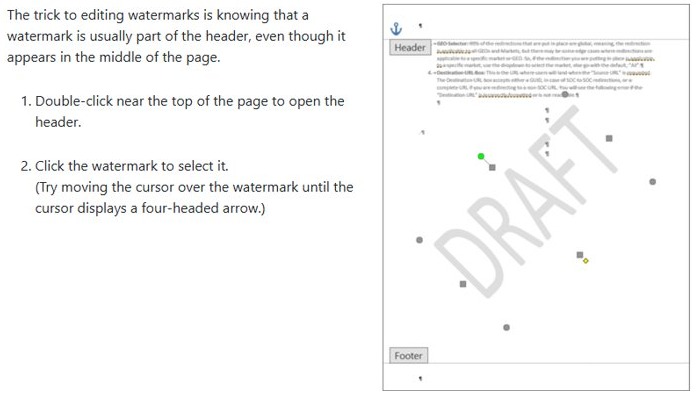
A watermark looks like part of the page, but it is usually part of the header. Word treats the body text and the header as separate layers, so clicking in the middle of the page often selects nothing.
| Cause | What is going on |
|---|---|
| The watermark sits in the header | The header area is closed while you edit body text, so the watermark cannot be selected from the page. |
| The document has several sections | A section with an unlinked header keeps its own copy of the watermark, even after another section is cleared. |
| It is a picture, shape or WordArt | An object placed by hand may not respond to Remove Watermark, because it was not added with the Watermark command. |
| It is really a page background | A page color is set under Page Color and has nothing to do with the Watermark menu. |
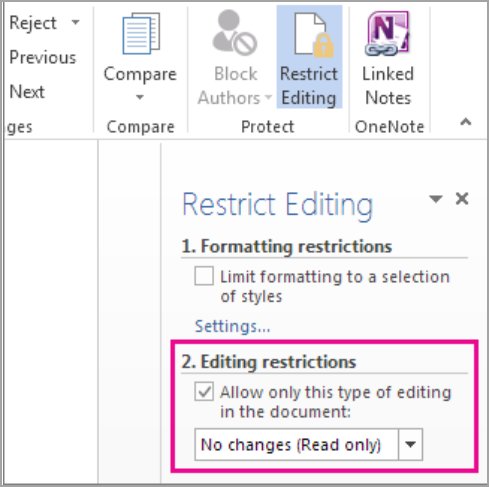
| The document is protected | Read-only and editing restrictions block changes until you stop the protection or get edit access. |
Can’t remove watermark in a Word document?
Start with the row that matches what you see. Each method is explained step by step in the sections that follow.
| What you see | Use this | Why it works |
|---|---|---|
| A standard DRAFT or CONFIDENTIAL mark | Method 1: Remove Watermark | It reverses the Watermark command directly |
| The menu command changes nothing | Method 2: delete it from the header | This is where Microsoft says a watermark usually lives |
| Some pages clear and others do not | Method 3: check multiple sections | Each unlinked section holds its own header |
| A logo, stamp or text box behind the text | Method 4: picture or shape | Select Objects and the Selection Pane reach objects behind text |
| The whole page has a tint or fill | Method 5: background settings | No Color clears the page fill |
| Commands are grayed out or the file is read-only | Method 6: document protection | Editing has to be allowed before anything can be removed |
| Nothing else has worked and you only need the text | Method 7: copy to a new document | A blank document starts without the old header |
Method 2: Remove the watermark from the header section
Microsoft's own fallback for a watermark that survives Remove Watermark is to delete it by hand from the header.
- Double-click near the top of the page to open the header area.
- Move the pointer over the watermark until it changes to a four-way arrow.
- Click the watermark to select it. Word shows WordArt tools for a text watermark and picture tools for an image.
- Press the Delete key.
- Repeat for any other watermark that shows on the page.
- Select Close Header and Footer, or press Esc.
This removes only the watermark, so any header text or page numbers stay where they are.

Method 3: Check for watermarks in multiple sections
Sections are linked by default, so a header carries over when a section break is added. Once Link to Previous is turned off, that section has its own header and needs its own cleanup.
- On the Home tab, select Show/Hide (¶) to display section breaks.
- Go to the first page after a section break and double-click near the top of the page.
- Check whether Link to Previous is selected for that header.
- If it is off, click the watermark in that section and press Delete.
- Repeat the check at the start of every other section.
- Select Close Header and Footer, or press Esc.
Other route for long documents: run the Document Inspector on a copy. Make a copy of the Word document, then in the copy select File > Info > Check for Issues > Inspect Document > Inspect, and choose Remove All next to the headers, footers and watermarks result.
The inspector also removes the header and footer content itself, and Microsoft warns that Undo might not bring it back. That is why it belongs on a copy, never on your original.
Method 4: Remove a watermark added as a picture or shape
Logos, stamps and text boxes placed behind the text are objects, so they can be hard to click. Word has two tools for selecting them.
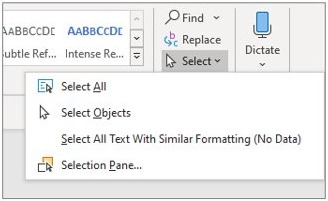
- Click the object. If it does not select, go to Home > Select > Select Objects and click it again.
- If that fails, press Alt + F10, or select Home > Select > Selection Pane.
- Select the object's name in the list. Press Ctrl and click to pick several items.
- Press Delete.
- If the object does not respond in the body, double-click near the top of the page to open the header, then repeat these steps there.
Avoid using the Hide button in the pane as a fix, because a hidden object stays in the file. Delete it instead.
Method 5: Remove watermark from background settings
If the whole page is tinted rather than stamped, the cause is a page color and not a watermark.
- Select Design > Page Color. Some versions of Word put this command under Layout.
- Select No Color.
- Check that the background is gone on every page.
Method 6: Disable document protection
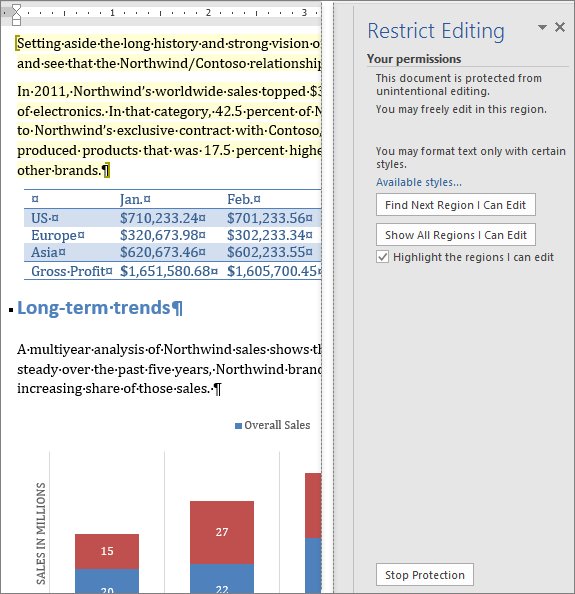
Protection can leave the Watermark menu and the header out of reach. You can also make the Word document editable first if the file has other restrictions, then go back to Method 1.
- Select the Review tab, then Restrict Editing in the Protect group.
- Select Stop Protection in the Restrict Editing pane.
- Type the password if Word asks for one.
- Go to File > Info > Protect Document and clear Always Open Read-Only if it is selected.
- Select Mark as Final in the same menu if the file is marked as final, which turns that status off.
- If the mode menu at the top right shows Viewing or Reviewing, switch it to Editing.
- Run Design > Watermark > Remove Watermark again.
If you do not have the password, ask the document owner to remove the restriction. If you cannot leave Protected View, the author or your administrator may have rules that prevent editing.
Method 7: Copy content to a new document
This is the last resort, for when you only need the words. Keep Text Only discards all formatting and nontext elements, so a watermark cannot come along with the paste.
- Open the document with the watermark and press Ctrl + A to select the body text.
- Press Ctrl + C to copy it.
- Select File > New > Blank document.
- Press Ctrl + V to paste.
- Select the Paste Options button, or press Ctrl, and choose Keep Text Only.
- Reapply your formatting and save the file under a new name.
Expect to rebuild the layout. Pictures are dropped, and tables turn into a series of paragraphs.
How to remove a watermark on individual pages
A watermark belongs to a header, so clearing one page means giving that page its own header. Section breaks do that. If a page break already sits there, remove the page break first and use a section break instead.
- Click at the start of the page that should have no watermark, then select Layout > Breaks > Next Page.
- Click at the start of the following page and select Layout > Breaks > Next Page again.
- Double-click the header on the page after your target page and turn off Link to Previous.
- Double-click the header on your target page and turn off Link to Previous.
- Select the watermark on the target page and press Delete.
- Select Close Header and Footer, or press Esc.
For the first page only, there is a shorter route. Double-click the header, select Different First Page, leave that first-page header empty, and press Esc.
How to remove a watermark in Word for Mac
The Mac menu has a different label for the same job, and the header fallback works the same way.
- Select the Design tab, then Watermark.
- In the Insert Watermark box, select No watermark.
- If the watermark stays, double-click near the top of the page to open the header area.
- Click the watermark to select it and press Delete.
On a Mac, the Selection Pane is under Home > Arrange.
How to tell if a watermark is gone from a Word document
Print preview shows every page as it will come out, including header content you cannot edit from the body.
- Select Close Header and Footer, or press Esc, to return to the body text.
- Select File > Print.
- Use the forward and backward arrows at the bottom of the preview to move through each page.
- Drag the zoom slider if a pale mark is hard to see.
- Go back to the document and save it.
Word watermark still showing after you delete it
The watermark is behind the text and not selectable
The header area is closed, or the object sits behind the text in the body.
- Double-click near the top of the page to open the header.
- Move the pointer slowly over the watermark until the four-way arrow appears, then click.
- If no arrow appears, select Home > Select > Select Objects and click again.
- If it still will not select, press Alt + F10 and pick it from the Selection Pane.
The watermark stays on the first page or on odd or even pages
Different First Page and Different Odd & Even Pages create separate headers, and each type has its own content.
- Double-click the header on the first page and delete the watermark there.
- Go to an odd page, open the header and delete the watermark.
- Go to an even page, open the header and delete the watermark.
- Select Close Header and Footer, or press Esc.
Two watermarks show on one page
A new watermark was added to all pages while an older one was still in place.
- Select Design > Watermark > Remove Watermark.
- Open the header and delete any watermark that is left.
- Close the header, then insert a new watermark if you still need one.
Word watermark removal FAQs
Why does my Word document watermark not disappear?
The watermark is usually stored in the header, so it cannot be selected from the body text. Other causes are an unlinked section with its own header, a picture or shape placed by hand, or document protection that blocks editing.
How do I remove a watermark from only one page?
Add a Next Page section break before and after that page, turn off Link to Previous in both new sections, and delete the watermark from the target page's header. For the first page alone, use Different First Page instead.
Why is the watermark behind the text and not selectable?
A watermark lives in the header layer, which stays locked while you edit body text. Double-click near the top of the page to open the header, then move the pointer over the watermark until a four-way arrow appears.
Can document protection prevent watermark removal?
Yes. A read-only or restricted document blocks changes until you select Review > Restrict Editing > Stop Protection. If a password was set, you need that password or the owner's help before the watermark can be removed.
Does copying the document remove the watermark?
Not if you copy the file itself, because the copy keeps its headers. Pasting the body text into a blank document with Keep Text Only does leave the watermark behind, but it also drops formatting and pictures and turns tables into paragraphs.
Where is the Remove Watermark button in Word?
On Windows, select the Design tab, then Watermark, and Remove Watermark is in the menu that opens. In Word for Mac, select Design > Watermark and choose No watermark in the Insert Watermark box.
Will removing a watermark delete my header text?
No, not with Remove Watermark or by deleting the watermark object from the header, because only that object is removed. The Document Inspector is different, since its Remove All result clears headers and footers along with watermarks.
How do I find out what kind of watermark I have?
Open the header and click the watermark. Word shows WordArt tools for a text watermark and picture tools for an image. If nothing can be selected and the whole page is tinted, check Page Color instead.