To create a desktop shortcut in Windows 11 or Windows 10, right-click an empty area of the desktop, select New > Shortcut, browse to the item and finish the wizard.
This guide also covers shortcuts for apps, files, folders, websites and printers, a PowerShell method, showing This PC on the desktop, and fixes when a shortcut will not appear.
How to create desktop shortcut in Windows 11/10
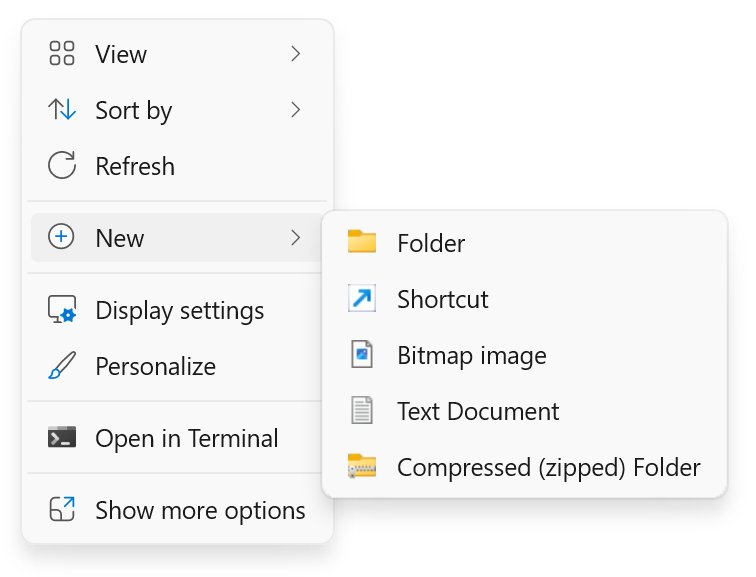
The New > Shortcut wizard works for any file, folder, program or web address. It is the same on Windows 11 and Windows 10.
- Press Windows logo key + D to show the desktop.
- Right-click an empty area of the desktop and select New > Shortcut.
- Select Browse and pick the program, file or folder, or type its full path or a web address into the location box.
- Select Next.
- Type a name for the shortcut, then select Finish.
The new icon appears on the desktop with a small arrow in its corner. Double-click it to open the item.
Which desktop shortcut method fits what you want to open?
| You want a shortcut to | Use this | Why |
|---|---|---|
| Any item, or a path you can type | Right-click desktop > New > Shortcut | One wizard handles files, folders, programs and URLs |
| An installed app such as Teams or Outlook | Drag it from Start > All to the desktop | No path needed, works for Microsoft Store apps |
| A file or folder you can see in File Explorer | Send to > Desktop (create shortcut) | Two clicks from the right-click menu |
| A file, with the mouse only | Hold Alt and drag the file to the desktop | Leaves the original where it is |
| A website | Drag the padlock icon, or install the site from Edge | The Edge route opens the site in its own window |
| Several PCs, or a scripted setup | PowerShell with WScript.Shell |
Repeatable, no clicking |
Create a desktop shortcut for an app from the Start menu
This is the route for apps without an obvious file path, including Microsoft Teams, Outlook and other Microsoft Store apps.
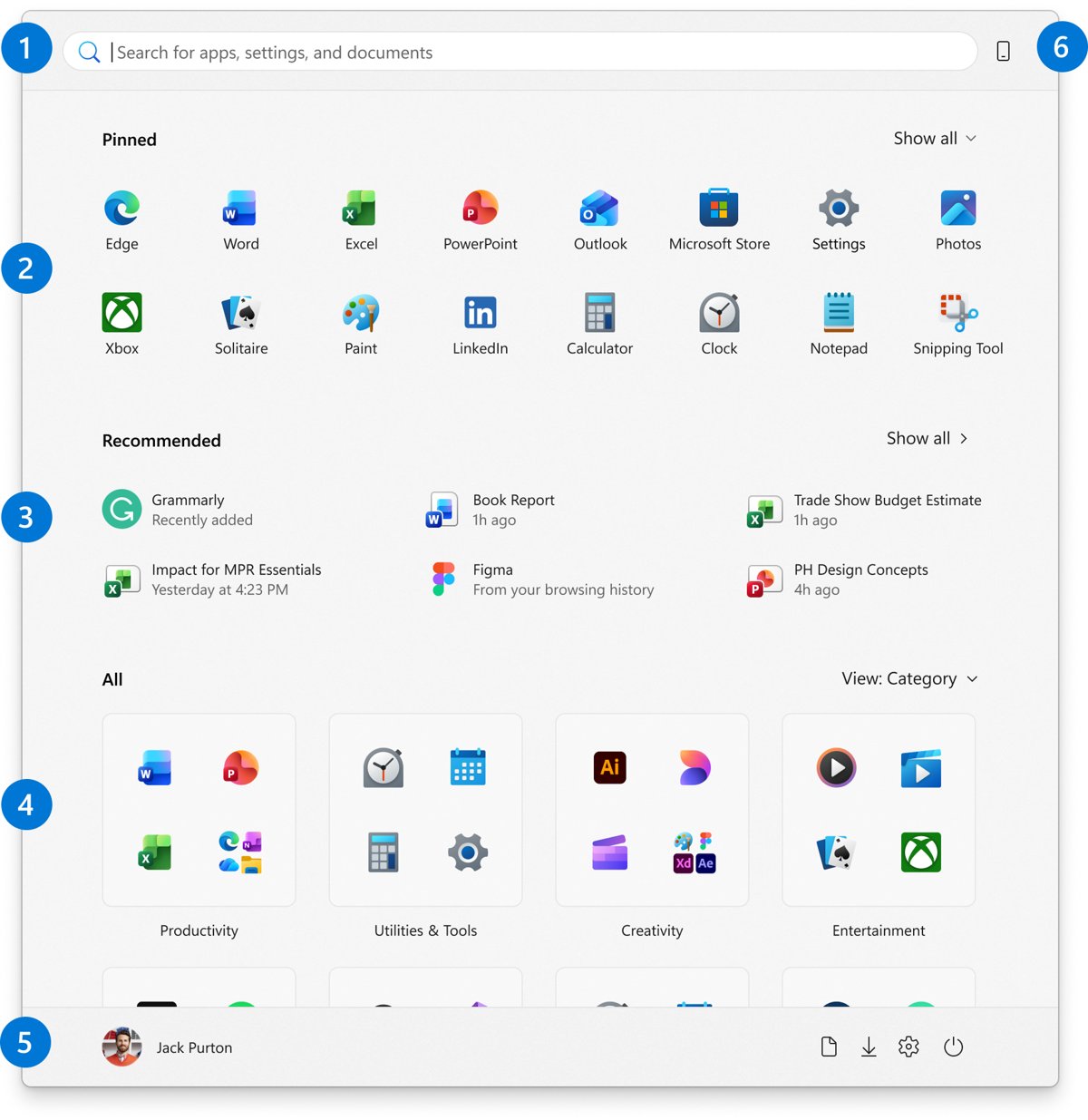
- Select Start on the taskbar.
- On Windows 11, select All to open the full app list. On Windows 10 the list is already showing.
- Find the app, for example Microsoft Teams or Outlook.
- Drag the app name out of the Start menu and drop it on the desktop.
A shortcut appears where you released the mouse button. The app itself stays installed where it was.
Create a desktop shortcut to a file or folder using right-click
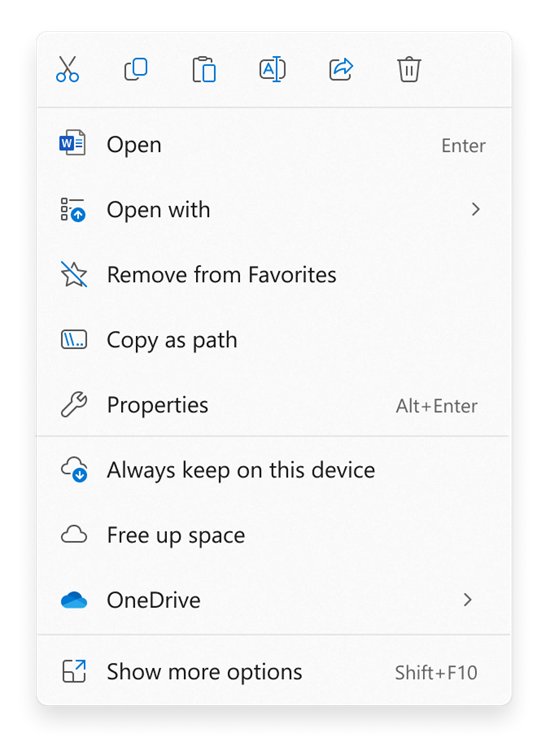
Windows 11 hides Send to and Create shortcut behind Show more options on some installs. Windows 10 shows them in the main right-click menu.
- Press Windows logo key + E to open File Explorer and go to the file or folder.
- Right-click the item.
- On Windows 11, select Show more options if Send to is not listed.
- Select Send to > Desktop (create shortcut).
Create shortcut in the same menu makes the shortcut next to the original instead. Drag that copy to the desktop if you prefer this route.
Create desktop shortcut for a program or file using the Alt key and left mouse button
Holding Alt while you drag tells Windows to drop a shortcut instead of moving or copying the file. Ctrl + drag copies the file and Shift + drag moves it, so watch which key you hold.
- Open File Explorer and size the window so part of the desktop is visible.
- Select the program's
.exefile or the document with the left mouse button. - Press and hold Alt.
- Drag the item onto the desktop and release the mouse button, then release Alt.
Create a desktop shortcut to a website in Edge and other browsers
Every major browser lets you drag the site icon next to the address onto the desktop. Microsoft Edge can also install the site as an app and give it a desktop shortcut that opens in its own window.
- Open the web page in your browser and make the window smaller than the screen.
- Drag the View site information icon (the padlock or sliders to the left of the address) onto the desktop to get a plain link shortcut.
- For an app-style shortcut in Edge, select Settings and more (the three dots) > More tools > Apps > Install this site as an app.
- Go to
edge://apps, select Details on the site's card, then select Create Desktop shortcut.
The Edge details panel also pins the site to Start or the taskbar. Chrome has its own option to put an Incognito mode shortcut on the desktop if you browse privately.
How to create a printer shortcut in Windows 11 computer
Windows opens the Printers & scanners page from the ms-settings:printers address. A shortcut pointed at that address takes you straight to your printers and their queues.
- Right-click an empty area of the desktop and select New > Shortcut.
- Type
ms-settings:printersin the location box and select Next. - Name the shortcut
Printersand select Finish. - Double-click the shortcut, select your printer, then select Open print queue (Windows 11) or Open queue (Windows 10).
The same trick works for other Settings pages. A shortcut to ms-settings:themes opens Themes, where the desktop icon settings live. A shortcut that opens a system tool, such as a Device Manager desktop shortcut, uses the console file name instead.
PowerShell: create a desktop shortcut with a script
PowerShell has no built-in shortcut cmdlet, so it uses the WScript.Shell COM object. Replace the target path and the .lnk name with your own.
$WshShell = New-Object -ComObject WScript.Shell
$lnk = $WshShell.CreateShortcut("$HOME\Desktop\Notepad.lnk")
$lnk.TargetPath = "C:\Windows\System32\notepad.exe"
$lnk.Save()
The first line creates the Windows Script Host shell object. CreateShortcut sets the shortcut file's location and name, TargetPath is what the shortcut opens, and Save() writes the .lnk file. Use double quotes so PowerShell expands $HOME.
You should see: A shortcut named Notepad appears on the desktop. If the icon does not appear and OneDrive backs up your Desktop folder, point the path at the Desktop folder inside OneDrive and run the lines again.
How to show This PC on desktop (not shortcut)
This PC, Recycle Bin, Network and your user folder are system icons, not shortcuts. Windows turns them on from Desktop icon settings, the same place you show the Network icon on the desktop, and they have no shortcut arrow.
- Open Settings and select Personalization > Themes.
- Under Related settings, select Desktop icon settings.
- Check This PC, plus any other icon you want, such as Recycle Bin or Network.
- Select Apply, then OK.
Leave Allow themes to change desktop icons checked unless a theme keeps swapping your icons.
How to pin This PC to Start
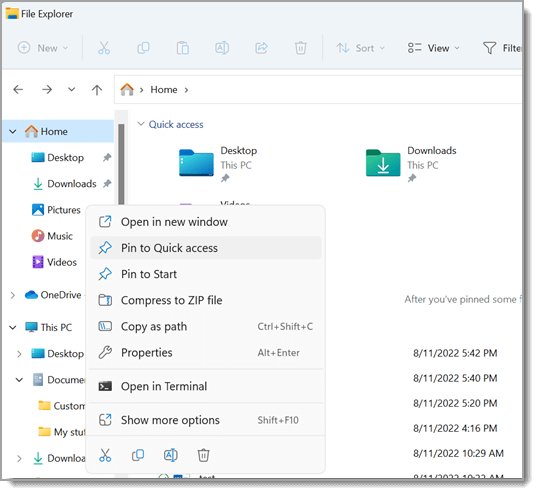
Pinning puts This PC on the Start menu instead of the desktop. File Explorer's right-click menu has Pin to Start for folders and locations.
- Press Windows logo key + E to open File Explorer.
- In the navigation pane, right-click This PC.
- Select Pin to Start.
- Open Start and confirm This PC is in the pinned section.
- To pin an app to the taskbar instead, search for it, right-click the result and select Pin to taskbar.
Windows 11 can also show folders next to the power button. Right-click the bottom of the Start menu, select Start settings > Folders and turn on the ones you want.
Tip: keyboard shortcut keys to open This PC directly
Windows logo key + E opens File Explorer, which lands on Home in Windows 11 and Quick access in Windows 10. Change the start page once in File Explorer's Folder Options and the same keys open This PC.
- Press Windows logo key + E.
- On Windows 11, select See more (the three dots) > Options. On Windows 10, select the View tab > Options.
- Set Open File Explorer to to This PC.
- Select Apply, then OK.
- Press Windows logo key + E again to confirm This PC opens.
Check that the desktop shortcut works
- Press Windows logo key + D and confirm the new icon has a small arrow in its lower-left corner.
- Double-click the shortcut and confirm the right program, file, folder or website opens.
- Select the shortcut and press Alt + Enter to open its properties and check the Target path.
- Press F2 to rename it if the label is too long.
Deleting a shortcut does not delete the item it points to. Deleting the original, however, breaks the shortcut.
Why can't I create a shortcut on my desktop?
The shortcut was created but nothing shows on the desktop
Desktop icons are hidden.
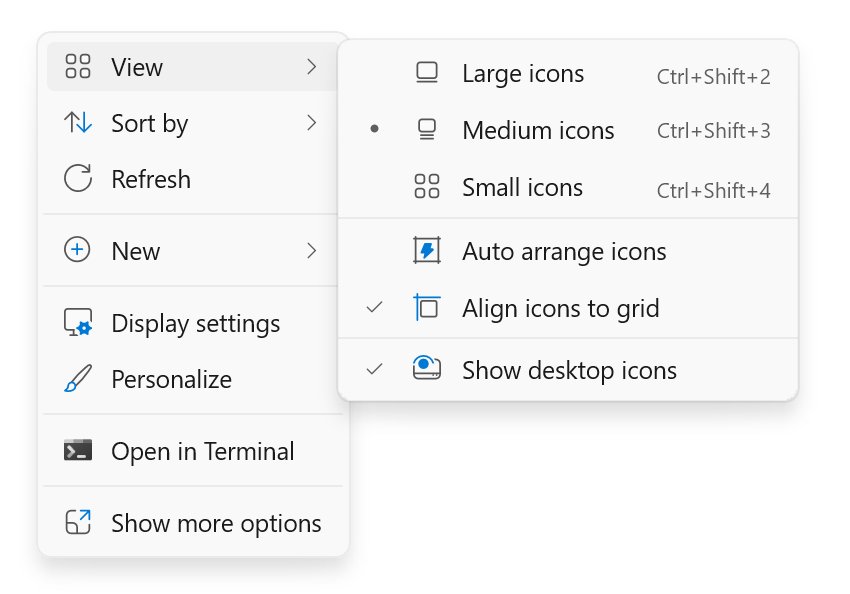
- Right-click an empty area of the desktop.
- Select View.
- Make sure Show desktop icons is checked.
Create shortcut or Send to is missing from the right-click menu
Windows 11 shows a shorter menu first.
- Right-click the file or folder.
- Select Show more options.
- Select Send to > Desktop (create shortcut), or use the New > Shortcut wizard on the desktop instead.
Shortcuts disappear or the desktop looks empty after setting up OneDrive
The Desktop folder points to a different location, usually one inside OneDrive.
- Open File Explorer and expand your OneDrive folders.
- Right-click the Desktop folder and select Properties.
- On the Location tab, select Move, choose the folder that holds your icons and select Select Folder.
- Select Apply, and select Yes if Windows asks to move the files.
Desktop shortcuts show blank or white icons
The Windows icon cache is damaged. The shortcut still opens when you double-click it.
- Press Ctrl + Shift + Esc to open Task Manager, right-click Windows Explorer and select End task.
- Select File > Run new task, type
cmd.exe, check the box to create it with administrative privileges and select OK. - Run
CD /d %userprofile%\AppData\Localand thenDEL IconCache.db /a. - Select File > Run new task again, type
explorer.exeand press Enter.
Desktop shortcut in Windows 11/10 FAQ
How do I create a desktop shortcut?
Right-click an empty area of the desktop, select New > Shortcut, browse to the item or type its path, select Next, name the shortcut and select Finish. This works on Windows 11 and Windows 10.
How do I create a desktop shortcut for an app?
Open Start, select All on Windows 11, find the app and drag its name onto the desktop. This works for Microsoft Store apps and desktop programs alike.
How do I create a desktop shortcut in Windows 11?
Use the New > Shortcut wizard from the desktop right-click menu, drag an app from Start > All, or right-click a file, select Show more options and choose Send to > Desktop (create shortcut).
Can I create a desktop shortcut to a website?
Yes. Drag the padlock or site information icon beside the address bar onto the desktop. In Edge you can also install the site as an app and select Create Desktop shortcut from its details on edge://apps.
How do I create a desktop shortcut in Edge?
Select Settings and more > More tools > Apps > Install this site as an app. Then open edge://apps, select Details on the site's card and select Create Desktop shortcut.
How do I create a desktop shortcut for Teams or Outlook?
Open Start, select All, find Microsoft Teams or Outlook and drag it onto the desktop. For Outlook on the web, install the site as an app in Edge and create its desktop shortcut from edge://apps.
How do I create a desktop shortcut for a URL?
Right-click the desktop, select New > Shortcut, paste the full web address into the location box, select Next, name it and select Finish. The shortcut opens the page in your default browser.
Why can't I create a desktop shortcut?
The most common causes are hidden desktop icons, the shorter Windows 11 right-click menu, or a Desktop folder moved into OneDrive. Check View > Show desktop icons, use Show more options, and check the Desktop folder's Location tab.
How do I make something a desktop shortcut without moving it?
Hold Alt while you drag the file onto the desktop, or right-click it and select Send to > Desktop (create shortcut). Both leave the original in place and add only a link to it.
How do I create a desktop shortcut with PowerShell?
Create a WScript.Shell COM object, call CreateShortcut with the path of the new .lnk file on the desktop, set TargetPath to the item to open, and call Save().
Bottom line: the quickest desktop shortcut method in Windows 11/10
Use right-click > New > Shortcut for anything with a path or URL, and drag apps from Start > All for Microsoft Store apps such as Teams. The wizard handles files, folders, programs, web addresses and Settings pages in one place, while dragging from Start is the only route that needs no path for packaged apps.