To change the default sound input device in Windows 11, open Settings > System > Sound and pick the microphone you want under Input, in the list labelled Choose a device for speaking or recording.
This guide covers that route, the Recording tab in the classic Sound control panel, how to set a separate microphone for calls, and what to do when your mic is missing from the list.
Change default sound input device in Windows 11/10
Selecting a microphone in the Input section also makes it the default recording device for Windows and for apps that follow the system setting.
- Connect the microphone, headset or webcam you want to use.
- Select Start > Settings > System > Sound.
- Scroll to the Input section.
- Under Choose a device for speaking or recording, select the microphone you want as the default.
- Close Settings; the change applies immediately without a restart.
Settings or Sound control panel: which way to set the default microphone
| Your situation | Use this | Why |
|---|---|---|
| You want one microphone for everything | Settings > System > Sound > Input | One click sets the default device for every role |
| You want a headset mic for calls and a desk mic for recording | Recording tab > Set Default Communication Device | Windows keeps a separate default for voice calls |
| The microphone you want is greyed out or missing | Recording tab with Show Disabled Devices | Only this window lists disabled inputs so you can enable them |
| You need to adjust mic level or boost after switching | Recording tab > Properties > Levels | Microphone and Microphone Boost sliders live here |
| One app keeps using the wrong mic | That app's own audio or voice settings | Some apps store their own input choice and ignore the Windows default |
Method 2: Set the default recording device in Control Panel
The classic Sound window in the Windows Control Panel still has a Recording tab that lists every input, including disabled ones once you ask it to show them.
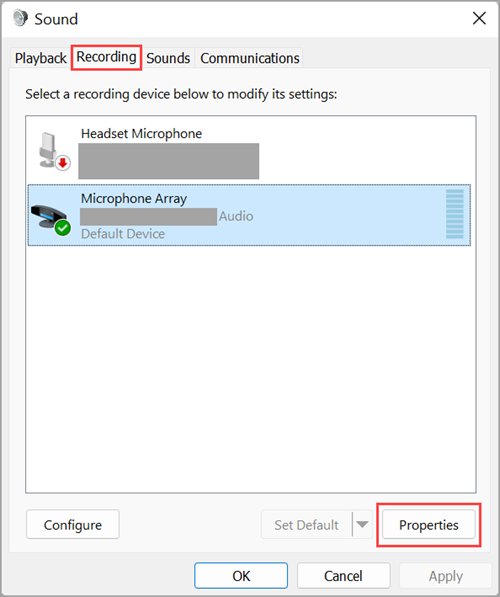
- Press Win + R, type
control mmsys.cpl,,1and press Enter to open the Recording tab directly. - Right-click an empty area of the list and select Show Disabled Devices if the microphone you want is not listed.
- Right-click the microphone and select Set as default.
- Select OK to save the change and close the window.
You can reach the same window from Settings > System > Sound > More sound settings, and there are other ways to open old Sound settings when Settings will not load.
Method 3: Set a default communication microphone for calls
Windows keeps two defaults for each direction: the default device and the default communication device. Calling and chat apps that follow the communications role use the second one.
This lets you record with a USB studio mic while calls always go through your headset.
- Select Start > Settings > System > Sound.
- Scroll down and select More sound settings.
- Select the Recording tab.
- Select the microphone you want for calls.
- Select Set Default Communication Device.
- Select OK.
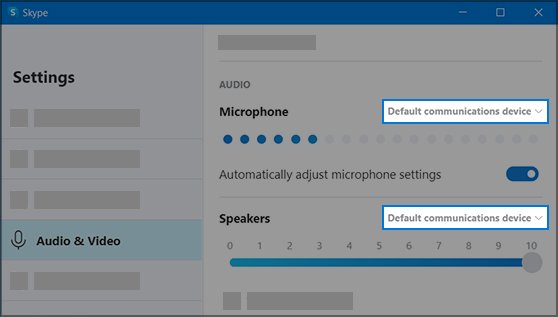
If a calling app still uses the wrong mic, check the device chosen inside that app's audio settings, because an app-level choice overrides the Windows default.
Default device vs default communication device in Windows 11
| Default type | What uses it | Capture examples | Where to set it |
|---|---|---|---|
| Default device | Windows features and most apps that follow the system microphone | Voice commands, voice typing, recording apps, narration | Settings > System > Sound > Input, or Set as default on the Recording tab |
| Default communication device | Apps that place or receive calls | Chat and VoIP calls | Set Default Communication Device on the Recording tab |
If you only have one microphone, it acts as both defaults automatically. The split matters once you add a headset or a USB mic.
Test the new default microphone and adjust input volume
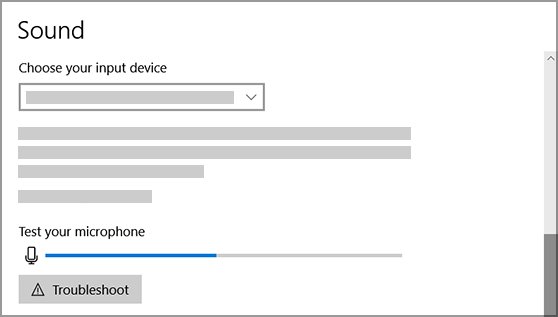
- Select Start > Settings > System > Sound.
- Under Input, select the arrow (>) to the right of the microphone to open its properties page.
- Under Input settings, select Start test and speak normally.
- Select Stop test, then select Play to hear the recorded sample.
- Drag the Input volume slider up if the sample is too quiet, and test again.
For finer control, open More sound settings > Recording, select the mic, select Properties and use the Levels tab, where Microphone Boost strengthens a weak signal on hardware that supports it.
How to check which microphone is the default in Windows 11
- Open Settings > System > Sound and confirm your microphone is selected under Input.
- Press Win + R, run
control mmsys.cpl,,1, and confirm the microphone is marked as the default device. - Check that the same tab shows the communications device you chose, if you set one separately.
- Speak into the mic and watch the level meter next to it move.
- Make a short test recording or call in the app you use to confirm it picks up the new device.
Microphone missing from Windows 11 input devices: fixes
Most problems after switching inputs come from a disabled endpoint, a blocked microphone privacy setting, a stopped audio service or a missing driver.
The microphone you want does not appear under Input
The device was disabled, so Settings hides it.
- Press Win + R, type
control mmsys.cpl,,1and press Enter. - Right-click an empty area and select Show Disabled Devices.
- Select the microphone, select Properties, and set Device usage to Use this device (enable).
- Right-click the microphone and select Set as default.
Windows detects no microphone, headset or webcam at all
The audio driver is missing or failed to load.
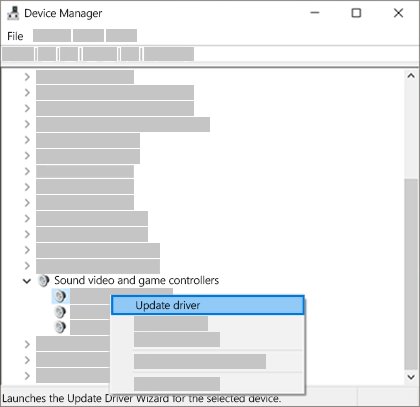
- Right-click Start and select Device Manager.
- Expand Sound, video and game controllers.
- If the device is listed, right-click it and select Enable device if that option is offered, or Update driver.
- If nothing is listed, select View > Show hidden devices, then Action > Scan for hardware changes.
- If it is still missing, right-click the audio device, select Uninstall device, tick Attempt to remove the driver for this device, select Uninstall and restart so Windows reinstalls it.
The new default mic works in Settings but apps cannot hear you
Microphone privacy access is turned off for apps.
- Select Start > Settings > Privacy & security > Microphone.
- Turn on Microphone access.
- Turn on Let apps access your microphone and choose which apps have access.
- Turn on Let desktop apps access your microphone for apps installed outside the Microsoft Store.
No speakers or headphones are plugged in, and the mic is gone too
Windows audio services stopped or a headset was disconnected, so both input and output endpoints disappear.
- Reconnect the headset or reseat the cable; on a PC tower, mic input usually uses the pink jack.
- Select Start, type
services.mscand press Enter. - Right-click Windows Audio and select Restart.
- Right-click Windows Audio Endpoint Builder and select Restart.
- Run the audio troubleshooter from Settings > System > Troubleshoot > Other troubleshooters > Audio.
Others can't hear you after you change the default input
The headset is muted, the call app uses its own device setting, or the communications default points elsewhere.
- Check the mute button on the headset or inline cable.
- Open the calling app's audio settings and select the same microphone.
- On the Recording tab, select the mic and select Set Default Communication Device.
- Run a Start test from the microphone's properties page in Settings to confirm Windows hears you.
Default sound input device FAQ
How do I change the default sound input device?
Open Settings > System > Sound and choose your microphone under Input in the Choose a device for speaking or recording list. Selecting it sets it as the default input. You can also right-click it on the Recording tab of control mmsys.cpl,,1 and select Set as default.
How do I set the default audio input?
Pick the microphone under Input in Settings > System > Sound. For calls, also open More sound settings, go to the Recording tab, select the mic and choose Set Default Communication Device so calling apps use it too.
How do I change sound input on Windows 11?
Select the microphone you want in the Input section of Settings > System > Sound. The switch takes effect at once. Apps that keep their own microphone setting, such as many meeting apps, may also need the device changed in their own settings.
How do I change the default audio output?
Open Settings > System > Sound and select the speaker or headphones under Output. Selecting a device there also sets it as the default. On the Playback tab of More sound settings, right-click a device and select Set as default for the same result.
How do I set the default sound output device?
Select the device under Output in Settings > System > Sound, or select More sound settings > Playback, right-click the device, and select Set as default. Avoid choosing a monitor without built-in speakers, because Windows will send all sound to it and you will hear nothing.
How do I change sound output settings in Windows 11?
Open Settings > System > Sound and select the output device to open its properties page, where you can change volume, format and audio enhancements. Per-app output devices and volumes are under Settings > System > Sound > Volume mixer.
Where do I change the sound settings in Windows 11?
Sound settings live in Settings > System > Sound, which also opens directly with the ms-settings:sound address in the Run box. The classic Playback and Recording tabs open from More sound settings at the bottom of that page.
Why does Windows keep changing my default microphone?
Calling apps often use the default communication device rather than the default device, so the mic in use can differ from the one in Settings. Set both defaults on the Recording tab and check the microphone chosen inside each calling app.
Can I use a different microphone for calls and recording?
Yes. Set your recording mic as the default device in Settings, then open More sound settings > Recording, select your headset mic and choose Set Default Communication Device. Calling apps that follow the communications role then use the headset.
Bottom line: the quickest way to switch your default microphone
Use Settings > System > Sound > Input to switch your default microphone, and use the Recording tab only when you need a separate calls mic or a disabled device back. Selecting a device in Settings sets it as the default immediately, while the Recording tab adds the communications default, disabled devices and level controls. For volume, spatial sound and other audio options, you can manage sound settings on Windows 11 from the same page.