Open Microsoft Access in Office 365 by selecting Start on a Windows PC, typing Access, and opening it from the results, as long as your plan includes the desktop apps.
This guide covers which Microsoft 365 plans include Access, how to install it, why it is missing on a Mac or in a browser, and how to fix a missing or broken install.
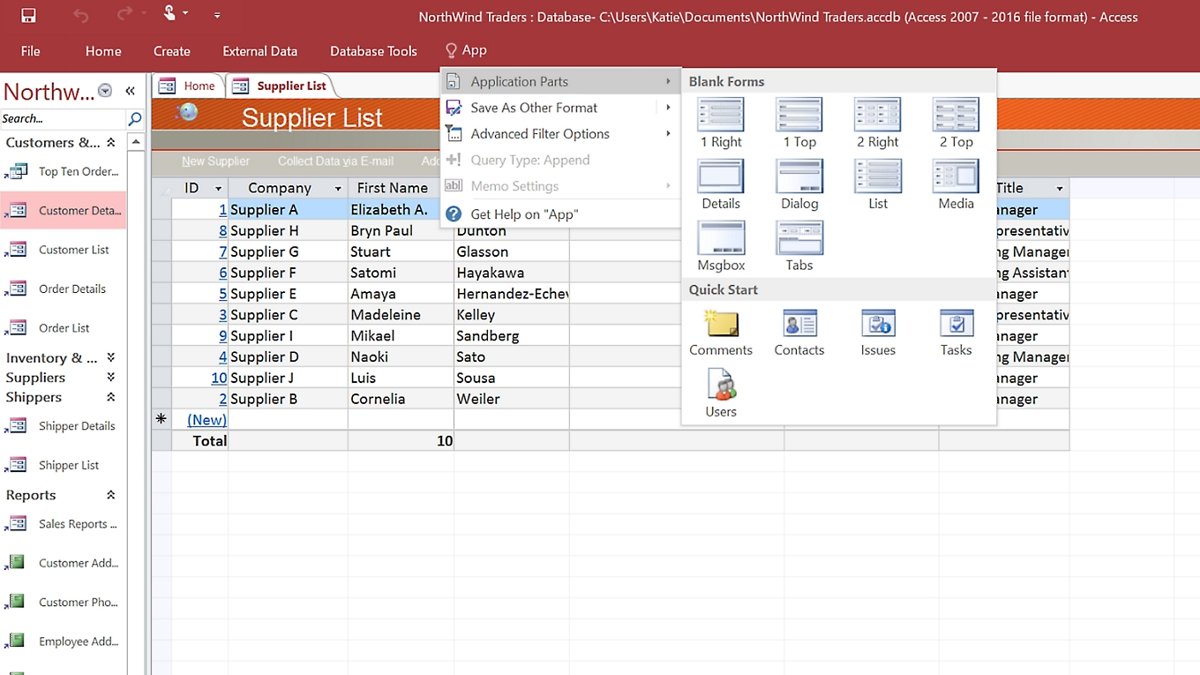
The fastest way to open Access in Microsoft 365
Access ships inside the Microsoft 365 desktop apps, so there is no separate Access sign-in. If the apps are already installed on your Windows PC, this takes a few seconds.
- Select the Start button on the taskbar.
- Type Access.
- Select Access in the search results.
- Select Blank database to start a new file, or Open to load an existing .accdb file.
- If nothing called Access appears, install the Microsoft 365 apps first, as shown in the install section below.
First: Microsoft Access Is a Windows Desktop App
Microsoft states it plainly on the Access product page: "Microsoft Access is available for PC only." A Microsoft 365 subscription does not change that on other devices.
| Device or surface | Can you run Access? | What Microsoft says |
|---|---|---|
| Windows PC with a qualifying plan | Yes | Access installs with the Microsoft 365 desktop apps |
| Mac | No | Access is not among the Microsoft 365 apps for Mac; Word, Excel, PowerPoint, OneNote, Outlook and Teams are |
| Microsoft 365 on the web (browser) | No | There is no Access for the web; Access web apps were shut down in Microsoft 365 by April 2018 |
| iPhone, iPad or Android | No | The Office mobile apps do not include Access |
Which Microsoft 365 Plans Include Access?
Access comes with every plan that includes the Microsoft 365 desktop apps. Plans limited to the web and mobile apps do not include it.
| Plan family | Includes Access | Does not include Access |
|---|---|---|
| Home | Microsoft 365 Personal, Microsoft 365 Family | Not stated by Microsoft for other home plans |
| Business (up to 300 users) | Microsoft 365 Business Standard, Business Premium, Microsoft 365 Apps for business | Microsoft 365 Business Basic (web and mobile apps only) |
| Enterprise | Microsoft 365 Apps for enterprise, Office 365 E3 and E5, Microsoft 365 E3 and E5 | Office 365 E1, Microsoft 365 F1 and F3, Office 365 F3 |
| Education | Office 365 A3 and A5, Microsoft 365 A3 and A5 (they include Microsoft 365 Apps for enterprise) | Office 365 A1 (web apps only) |
| One-time purchase | Access 2024 bought on its own | Not a Microsoft 365 subscription, so it does not update to new versions |
Business Basic and E1 users can sign in to Microsoft 365 but have no desktop apps to install, so Access never appears for them.
How To Check Whether Your Microsoft 365 Account Includes Access
Where you check depends on whether you use a personal Microsoft account or a work or school account.
| Your account | Where to check | What tells you Access is included |
|---|---|---|
| Personal or family (Microsoft account) | Sign in to Services & subscriptions on your Microsoft account | The subscription listed is Microsoft 365 Personal or Family |
| Work or school account | Sign in at m365.cloud.microsoft/apps and look for Install apps | An Install apps button exists; no button means your license has no desktop apps |
| Microsoft 365 already installed | Open Word or Excel, then select File > Account and read Product Information | The product name is a plan from the table above |
| Still unsure at work or school | Ask your Microsoft 365 admin or IT staff | The admin can see and change the license assigned to you |
How To Install Microsoft Access From Microsoft 365
Access does not install on its own from the Microsoft 365 portal. It comes with the full set of desktop apps, so installing Microsoft 365 installs Access. The walkthrough for downloading Microsoft 365 for PC covers the same installer.
- Go to m365.cloud.microsoft/apps and select Sign in with the account tied to your plan.
- Select Install apps. On a work or school account, then select Microsoft 365 apps.
- On a personal account, select Install. The 64-bit version installs by default unless a 32-bit Office is already present.
- Open the downloaded installer: select Run in Edge, Setup in Chrome or Save File in Firefox.
- Select Yes at the User Account Control prompt.
- Wait for You're all set! Office is installed now, then select Close.
- Open Access from the Start menu and accept the license agreement to activate it.
If you are the admin of a business subscription, you can also start the install from the Microsoft 365 admin center under Office software.
How To Open Microsoft Access After Installation
Access opens to its start screen. From there, create a new database or open one you already have.
- Select Start, type Access and open it.
- To create a new database, select File > New > Blank database.
- Type a name in the File Name box, choose a folder with the browse button if needed, and select Create. Access saves it as an .accdb file and opens Table1 in Datasheet view.
- To open an existing database, select File > Open, then Browse to the file.
- Choose Open, Open Read-Only, Open Exclusive or Open Exclusive Read-Only; exclusive mode blocks other users while you work.
- Select File > Recent later to reopen a database without browsing.
How to check Access installed correctly
- Open Access and select File > Account.
- Under Product Information, confirm the product name matches your Microsoft 365 plan.
- Select About Access. The dialog shows the full version number and whether the install is 32-bit or 64-bit.
- Create a blank database and close it. If it saves and reopens from File > Recent, Access is licensed and working.
What To Do If Access Is Missing
Access goes missing for one of five reasons. Match your case to the symptom below.
You are looking for Access on a Mac, Chromebook, phone or in a browser
Access exists only as a Windows desktop app.
- Confirm you are on a Windows PC; Access has no Mac, web or mobile version.
- Open the database on a Windows PC that has Access or the free Access Runtime installed.
There is no Install apps button in Microsoft 365
Your license has no desktop apps, for example Business Basic, Office 365 E1, F3 or A1.
- Check your plan against the plan table above.
- Ask your Microsoft 365 admin to assign a license that includes the desktop apps.
- If you are the admin, buy or assign such a license, or switch the user to a plan like Business Standard.
Word and Excel are installed at work, but Access is not
Admins can leave Access out of a deployment with the Office Deployment Tool's ExcludeApp ID="Access" setting.
- Ask your IT team whether Access was excluded from your install.
- Ask them to redeploy Microsoft 365 Apps without the Access exclusion; you cannot add it yourself on a managed PC.
Access is not in the Start menu on your home PC
You are signed in with a different account from the one that holds the subscription.
- Open Word, select File > Account and check which account is signed in.
- Sign out and sign in with the account that owns Microsoft 365 Personal or Family.
- If Access still does not appear, reinstall the apps from m365.cloud.microsoft/apps.
Access was installed but its shortcut or app is gone
The Office installation is damaged.
- Run an Online Repair of Microsoft 365, described in the installation problems section below.
- Search Start for Access again after the repair finishes.
Can You Use Microsoft Access Online?
No. Microsoft 365 has no browser version of Access. Microsoft stopped creation of new Access web apps and web databases in Microsoft 365 and SharePoint Online in June 2017 and shut down the rest by April 2018.
| Need | What Microsoft offers now |
|---|---|
| Work in an .accdb database | Access desktop on Windows; desktop databases are unaffected by the web app retirement |
| Browser or mobile front end for your data | Power Apps, which Microsoft names as the replacement for Access web apps |
| Cloud storage for tables | Dataverse, SharePoint lists, SQL Server or Azure SQL linked to an Access front end |
| Old Access web app on SharePoint Server | Still supported on SharePoint Server under that product's lifecycle policy |
How To Use Access Databases With OneDrive, SharePoint, and Teams
You can save an .accdb file to OneDrive or a SharePoint library, but Microsoft recommends that you avoid opening an Access database from those locations. When several users open it there, SharePoint can create duplicate copies and cause unexpected behavior.
Files shared in a Teams channel are stored in SharePoint, so the same warning applies to Teams.
| Your goal | Do this | Why |
|---|---|---|
| Keep a backup copy of a database in the cloud | Save a closed copy to OneDrive | Storage is fine; live multi-user editing there is the problem |
| Several people edit the same data | Split the database and put the back end on a network share | Each user runs a local front end against shared tables |
| Share data with a SharePoint or Teams team | Move tables to SharePoint lists with the Export Tables to SharePoint Wizard, and link to them | Data lives in lists; Access stays the front end |
| Many users or large data sets | Link Access to SQL Server or Azure SQL | Better performance, availability and automatic recovery |
| Open a database attached in Teams | Download a copy to your PC and open it in Access | Avoids opening the file directly from SharePoint storage |
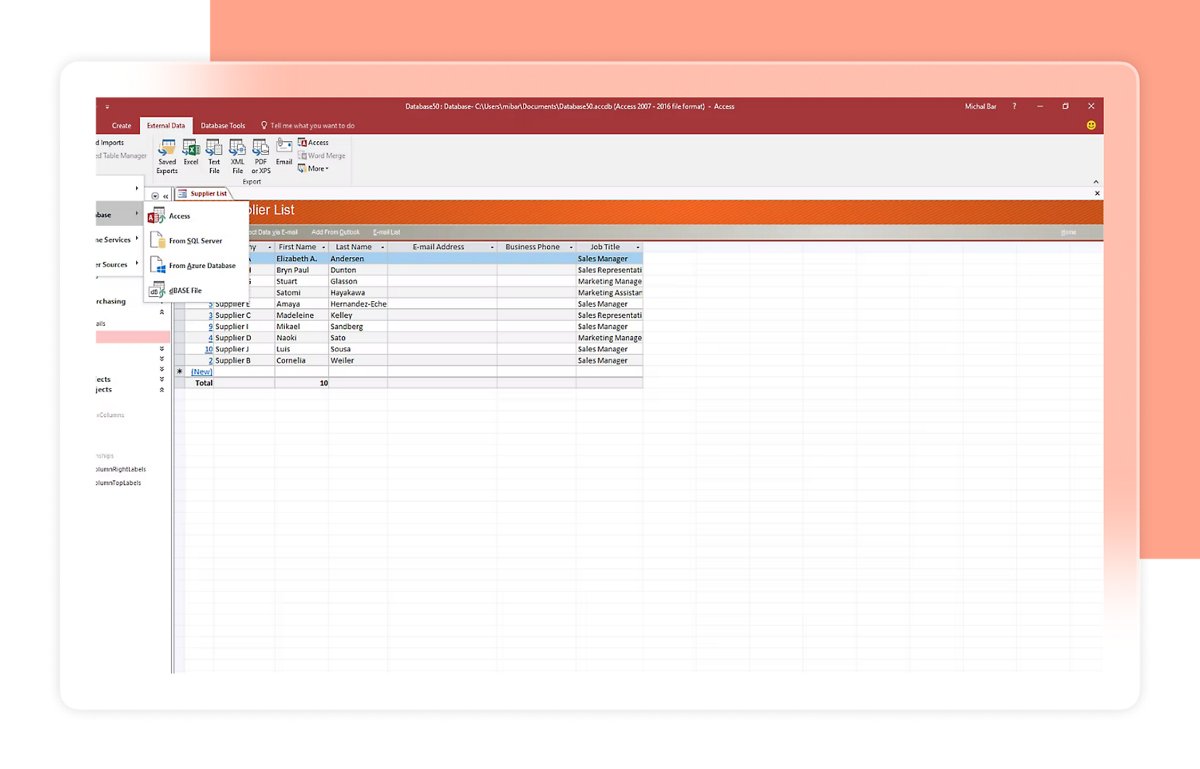
How To Open an Access Database If You Do Not Have Access
Microsoft 365 Access Runtime is free and runs finished Access applications on a Windows PC without a full Access install. It cannot be used to design tables, forms or reports.
- Check whether your Windows is 32-bit or 64-bit, and match any Office already installed.
- Open the Download and install Microsoft 365 Access Runtime page on support.microsoft.com.
- Choose your language from the list and select the 32-bit (x86) or 64-bit (x64) download.
- Select Run, Setup or Save File depending on your browser.
- Select Yes at the User Account Control prompt and let setup finish.
Runtime does not work alongside Windows Installer (MSI) versions of Office. On a PC with Click-to-Run Office, the Runtime version matches the installed Office version.
32-Bit vs. 64-Bit Access: Which Should You Use?
Microsoft 365 installs 64-bit by default. Access uses the same bitness as the rest of Office, so the choice applies to Word, Excel and Outlook too.
| Your situation | Choose | Why |
|---|---|---|
| New install, no legacy files or add-ins | 64-bit | The default, and better for large data sets |
| You rely on 32-bit .mde, .ade or .accde files you cannot recompile | 32-bit | Microsoft says these compiled files need 32-bit Access |
| You use 32-bit COM add-ins or ActiveX controls with no 64-bit version | 32-bit | Microsoft says these keep running only in 32-bit Office |
| A 32-bit Office is already installed | 32-bit, or remove it first | Mixed 32-bit and 64-bit installs are not supported |
| Arm-based Windows 11 device | 64-bit | 32-bit Microsoft 365 Apps is not supported on Arm |
To switch, uninstall the current version before installing the other one. Check your current bitness under File > Account > About Access.
How To Keep Access Updated in Microsoft 365
Access updates with the rest of Microsoft 365, so updating from any Office app updates Access too.
- Open Access and select File > Account.
- Under Product Information, select Update Options > Update Now.
- If you see Enable Updates first, select it, then return to Update Now.
- Close the confirmation window when the updates finish.
- If Update Options is missing and only About Access appears, updates are managed by your organization; contact your IT help desk.
Common Access Installation Problems and Fixes
Access crashes, will not open, or its shortcut disappeared
Damaged Office files; repair covers the whole suite, including Access.
- Right-click Start and select Installed apps on Windows 11, or Apps and Features on Windows 10.
- Find your Microsoft 365 product, select the … menu (Windows 11) and select Modify.
- Select Quick Repair and follow the prompts.
- If Access still fails, run Modify again and select Online Repair.
Setup fails when you try to install 64-bit over a 32-bit Office
Mixed architectures are not supported.
- Uninstall the existing Office version from Installed apps.
- Reinstall from m365.cloud.microsoft/apps and pick the bitness you need.
An older standalone Access changed or disappeared after installing Microsoft 365
A retail Access 2013 is removed when the subscription installs; a retail Access 2016 stays alongside it.
- Open Access from Start and check File > Account to see which version now runs.
- Uninstall the leftover older version only after your databases open correctly in the Microsoft 365 version.
Update Now is not available
A volume-licensed install or Group Policy controls updates.
- Ask your IT help desk to push the update.
- Use Microsoft Update as the alternative route Microsoft suggests for these installs.
Best Practices for Using Access With Microsoft 365
| Practice | How to do it | What it prevents |
|---|---|---|
| Back up before big changes | Copy the .accdb file before splitting or repairing it | Losing data if a split or repair goes wrong |
| Split shared databases | Database Tools > Move Data > Access Database > Split Database | Slow, fragile multi-user access to one file |
| Use a UNC path for the back end | Point to \\server\share, not a mapped drive letter | Broken links on PCs with different drive mappings |
| Compact and repair regularly | File > Info > Compact & Repair Database, or turn on Compact on Close under File > Options > Current Database | File bloat and some corruption |
| Do not open live databases from OneDrive or SharePoint | Keep shared back ends on a network share, SharePoint lists or SQL Server | Duplicate copies and unexpected behavior |
| Lock down the front end | Distribute it as a compiled .accde file | Users changing the design of forms and reports |
Frequently Asked Questions
How do I get Microsoft Access?
Get Microsoft Access through a Microsoft 365 plan with desktop apps, such as Personal, Family, Business Standard, Business Premium or Apps for business, or buy Access 2024 once. Then install the Microsoft 365 apps on a Windows PC, and Access installs with them.
Where do I find Microsoft Access on my computer?
Select Start, type Access and select it in the results. If it does not appear, the Microsoft 365 desktop apps are not installed, Access was excluded by your IT team, or your plan lacks desktop apps.
How do I get Microsoft Access on a laptop?
On a Windows laptop, sign in at m365.cloud.microsoft/apps, select Install apps and run the installer. Access installs with Word and Excel. A MacBook cannot run Access, because Microsoft makes Access for Windows PCs only.
Is Microsoft Access included in Office 365?
Yes, in plans that include the desktop apps: Personal, Family, Business Standard, Business Premium, Apps for business, Apps for enterprise, E3 and E5. Business Basic, E1, F3 and A1 cover only web and mobile apps, so they do not include Access.
Can I access a Microsoft Access database online?
Not through Access itself. Microsoft shut down Access web apps in Microsoft 365 by April 2018. To reach the data from a browser, move the tables to SharePoint lists, Dataverse or SQL Server and build a front end in Power Apps.
What is the difference between Microsoft Access Runtime and Microsoft Access?
Access Runtime is a free download that only runs finished Access applications. Full Access, included with Microsoft 365, also lets you design tables, queries, forms and reports. Use Runtime for users who only need to enter and view data.
What is Microsoft Access used for?
Microsoft Access stores and tracks structured information such as inventory, contacts or business processes. It combines data storage with the tools to build a small business application on top of it, without needing a separate database server.
How does Microsoft Access work?
An Access desktop database stores data in tables, finds it with queries, lets people enter it through forms and presents it in reports. Everything lives in one .accdb file, or in a split front end and back end when several people share it.
How do I start using Microsoft Access?
Open Access, select File > New and pick Blank database or a template. Templates come with ready-made tables, queries, forms and reports, which is the quickest way to learn how the parts fit together.





![How to turn on/off ad blocker in Microsoft Edge? [step-by-step]](https://techdows.com/wp-content/uploads/2026/10/How-to-turn-onoff-ad-blocker-in-Microsoft-Edge-step-by-step-1-600x338.jpg)

What is Microsoft Office suite - Techdows
[…] services such as Teams, Exchange Online and SharePoint. If you work with databases, the guide on opening Access in Office 365 shows where it sits in a […]
How to get Microsoft Word as a student - Techdows
[…] A1 plan also lists PC-only versions of Publisher and Microsoft Access. Desktop Word, Excel and PowerPoint come with the paid A3 plan, which your school buys, not […]