To use Google Lens on a desktop PC, open a page in Chrome, select More (three dots) > Search this tab with Google Lens, then click, highlight or drag over anything on the page to search it.
This guide also covers right-clicking images, using Lens in Edge, Firefox or Safari through google.com, searching your whole Windows screen with the Google app for desktop, and Chromebooks.
How to use Google Lens on a desktop PC in Chrome
Lens is built into Chrome on Windows, Mac and Linux. Google needs to be your default search engine for the Lens options to appear.
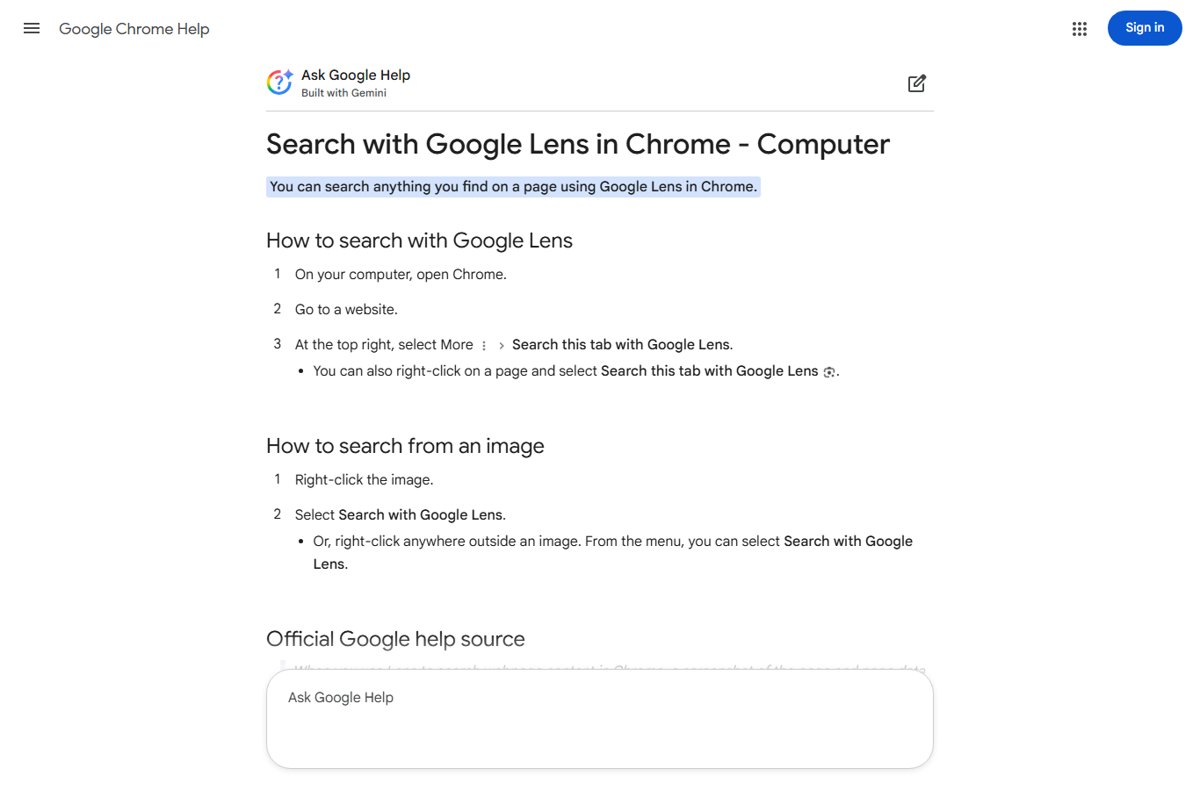
- Open Chrome and go to the page you want to search.
- At the top right, select More > Search this tab with Google Lens; you can also right-click the page and choose the same option.
- Click an object, highlight text, or drag a box around anything on the page.
- Read the matches, shopping results or text results in the side panel.
- To ask about the page, type a question in the search box at the top right of the screen or in the side panel.
- Type a follow-up in the Ask a follow up bar at the bottom of the side panel; this opens AI Mode.
- Press Esc, click the live page, or select Close in the side panel to finish.
Select any result to open it in a new tab. Chrome also lets you pin Search this tab with Google Lens to the toolbar for one-click access.
Which Google Lens method fits your PC
| Your situation | Use this | Why |
|---|---|---|
| You browse in Chrome | More > Search this tab with Google Lens | Searches anything on the page without leaving it |
| You want to search one picture on a site | Right-click the image > Search with Google Lens | Fastest for a single image |
| You use Edge, Firefox or Safari | google.com > Search by image | Lens works through Google Search in most browsers |
| The image is a file on your PC | Upload or drag it to google.com | No need to open it in a browser first |
| You want to search an app, PDF or video outside the browser on Windows | Google app for desktop > Google Lens | Selects any part of the Windows screen |
| You use a Chromebook | Launcher > Lens, or Screen Capture | Built into ChromeOS |
| You use a Mac | Chrome's Lens options or google.com | The same browser steps work on macOS |
Search an image on a website with a right-click
This is the quickest way to identify a product, plant, landmark or artwork you see on a page.
- Open the website in Chrome.
- Right-click the image you want to search.
- Select Search with Google Lens.
- Review the matches in the side panel, and select a smaller area of the image to narrow the search to one object.
- Right-click anywhere outside an image and choose Search with Google Lens to search the rest of the page instead.
Use Google Lens in Microsoft Edge, Firefox or Safari
Google lists Chrome, Firefox, Safari and Edge as browsers that support a Lens visual search on google.com. Use it when the image is a file on your PC or you do not use Chrome.
- Go to google.com in your browser.
- Click Search by image in the search box.
- Click Upload a file, select the image, then click Open or Choose.
- Or drag the image file from File Explorer or Finder onto the search box.
- For an online image, right-click it, choose Copy Image Address, then paste it under Paste image link and click Search.
- Type extra words in the Add to your search box to refine the results, such as a color or brand.
This route needs no extension and works the same on Windows and macOS.
Search anything on your Windows screen with the Google app for desktop
The Google app for desktop runs on Windows 10 and later and became available worldwide in English in April 2026. Its Lens button searches any window, not just web pages. You must be 13 or older to use it.
- Install the Google app for desktop from Google, then sign in with your Google account.
- Press Alt + Space, or click the Google icon in the notification area.
- Click Google Lens in the search box.
- Select any part of your screen, such as a photo, a chart in a PDF or text in an app.
- Ask a question about the selection, translate it, or copy its text or image from the results.
- Press Esc to return to the Google app, and press Alt + Space or Esc again to hide it.
To change the shortcut, select your profile picture, open Configurations, click the current shortcut under Keyboard shortcut, and press the new keys.
Use Google Lens on a Chromebook
ChromeOS has “Search my screen with Google Lens” built in. Google must be the default search engine.
- Select Launcher at the bottom left, or press the Launcher key.
- Select Lens.
- Select a region of your screen.
- Read the results in the Google Search window, or use Copy text when text is detected.
- Alternatively, open Screen Capture, choose Take partial screenshot, drag over a region, and select Search with Google.
What Google Lens can do on a desktop
| Task | How Lens handles it | Where to start |
|---|---|---|
| Identify an object, plant or landmark | Shows matching results and similar images | Right-click the image > Search with Google Lens |
| Find where to buy a product | Lists shopping results for the item you select | Select the item in Chrome's Lens panel |
| Copy text from an image | Detects the text so you can highlight and copy it | Lens in Chrome, the Google app or a Chromebook |
| Translate text in an image | Translates the selected text | Google app for desktop > Google Lens |
| Ask about a page | Answers questions based on the page you are on | Chrome's Lens search box or Ask Google about this page in the address bar |
| Find the source of an image | Lists websites with the same or similar image | google.com > Search by image |
For a full tour of image search features, see the Google Lens image search guide.
What Google receives when you use Lens on a PC
| Where you use Lens | What is sent to Google | What Google says it does with it |
|---|---|---|
| Chrome, whole tab | A screenshot of the page and page data | Kept only in temporary storage to process the query; not used for training |
| Chrome, a selection | The selected part of the page | Sent to Google Search and saved to your Search activity |
| Google app for desktop | Only the part of the screen you select | Processed for the response; manage it in My Google Activity |
| google.com upload or link | The image or its URL | Google may store searched URLs to improve its products |
Avoid selecting passwords, bank details or private documents. You can delete Lens searches from My Google Activity.
How to check Lens is working
- Right-click any image in Chrome and confirm Search with Google Lens is in the menu.
- Select it and check that a side panel opens with results.
- Highlight a line of text in the Lens overlay and confirm you can copy it.
- On Windows with the Google app, press Alt + Space and confirm the Google Lens button appears in the search box.
Fix Google Lens when it does not work on your PC
Search with Google Lens is missing from Chrome
Another search engine is the default, and Lens works only with Google.
- In Chrome, select More > Settings.
- Select Search engine.
- Under Search engine, select Change and pick Google.
- Reload the page and right-click an image again.
The search engine setting is locked on a work or school PC
Your organization manages Chrome's search engine.
- Use google.com > Search by image instead, which works in any browser.
- Ask your admin whether Lens features are allowed.
Why can't I use my camera in Google Lens on PC?
Desktop Lens searches images, files and your screen, not a live webcam view.
- Take a photo with your phone or webcam app and save it.
- Upload the file at google.com with Search by image > Upload a file.
- For live camera searches, use the Google app on Android or iPhone.
Alt + Space does not open the Google app
The app is closed, or another app uses the same shortcut.
- Launch the Google app from the Windows search box.
- Open your profile picture > Configurations and set a different keyboard shortcut.
Frequently asked questions
Can I use Google Lens on my laptop or PC?
Yes. In Chrome, select More > Search this tab with Google Lens, or right-click an image and choose Search with Google Lens. In any other browser, go to google.com and click Search by image to upload a picture or paste an image link.
How do I use Google Lens on Windows 11?
Use Chrome's built-in Lens option, or install the Google app for desktop, which runs on Windows 10 and later. Press Alt + Space, click Google Lens, and select any part of the screen, including apps and PDFs outside the browser.
How do I use Google Lens on Microsoft Edge?
Go to google.com in Edge, click Search by image, then upload a file, drag an image onto the search box, or paste an image link. The results include similar images and websites that use the image.
How do I use Google Lens on a Mac?
Open Chrome on the Mac and select More > Search this tab with Google Lens, or right-click an image and choose Search with Google Lens. In Safari, go to google.com and use Search by image to upload or link an image.
How do I use Google Lens on a Chromebook?
Select Launcher, then Lens, and drag over a region of the screen. You can also take a partial screenshot with Screen Capture and select Search with Google. Results open in a Google Search window, with an option to copy detected text.
How do I use Google Lens on an HP laptop?
An HP laptop uses the same steps as any Windows PC. Use Chrome's Search this tab with Google Lens option, right-click an image in Chrome, or install the Google app for desktop and press Alt + Space, then click Google Lens.
How does Google Lens work?
Lens takes the image or screen area you select and sends it to Google, which compares it with images and text on the web. It returns matching objects, similar images, websites with the image, shopping results, and detected text you can copy or translate.
Does Google Lens use AI?
Yes. Lens uses Google's visual recognition to identify what is in an image, and on desktop it can hand follow-up questions to AI Mode and show AI Overviews in its results. AI Mode is not available for every account, country and language.
Why should you use Google Lens?
Lens saves typing when words fail you. Use it to identify a product or plant, find where an image came from, copy text out of a picture, translate a screenshot, or ask a question about the page you are reading.
What does the Google Lens app do?
On phones, the Lens app searches what your camera sees. On a PC, the same features live in Chrome, on google.com and in the Google app for desktop, where Lens searches web images, uploaded files or any part of your screen.





Chrome can now Translate Text in Images on the Fly - Techdows
[…] Chrome by using Google Lens can translate images containing text much quicker after translation when you select a new displayed […]
How to reverse image search on Google – full guide - Techdows
[…] has Google Lens built into the desktop browser, so you can search an image without leaving the page. Google must be your default search engine for […]