Press the keys printed with speaker icons to control volume, and on most laptops hold Fn while you press them, or turn on Fn Lock with Fn + Esc so they work alone.
This guide covers the dedicated volume keys, Fn Lock, Windows shortcuts, driver and service fixes, and how to add volume keys to a keyboard that has none.
Method 1: Use the dedicated volume keys on your keyboard
Volume keys show a speaker with no waves (mute), a speaker with one wave (down) and a speaker with several waves (up). External keyboards often place them above the number pad or on a roller.
- Find the three keys with speaker icons, usually on the top row of the keyboard.
- Press the speaker key with one wave to lower the volume.
- Press the speaker key with several waves to raise it.
- Press the crossed-out speaker key to mute, and press it again to unmute.
- If nothing changes on a laptop, hold Fn and press the same key.
Standard commands are printed on the front of each key and alternate commands on top. Holding Fn switches a key to its alternate command.
Why volume control from the keyboard is not working
Match what you see to a cause, then jump to the method that fixes it.
| What happens when you press the volume key | Likely cause | Fix |
|---|---|---|
| It acts as F1, F2 or F3 | The top row is set to function-key mode | Method 2: turn Fn Lock on or off |
| Nothing happens on any app | Hot-button service stopped or keyboard driver damaged | Methods 4 and 5 |
| Laptop keys do nothing after a clean Windows install | The maker's hotkey utility is missing | Method 6 |
| The level changes but there is no sound | Audio service or output device problem | Method 7 |
| Keys work in Safe Mode but not normally | A startup app is intercepting the keys | Method 9 |
| The keyboard has no volume keys at all | Hardware limit | Methods 3, 8 and 10 |
Method 2: Turn on Fn Lock to activate volume keys
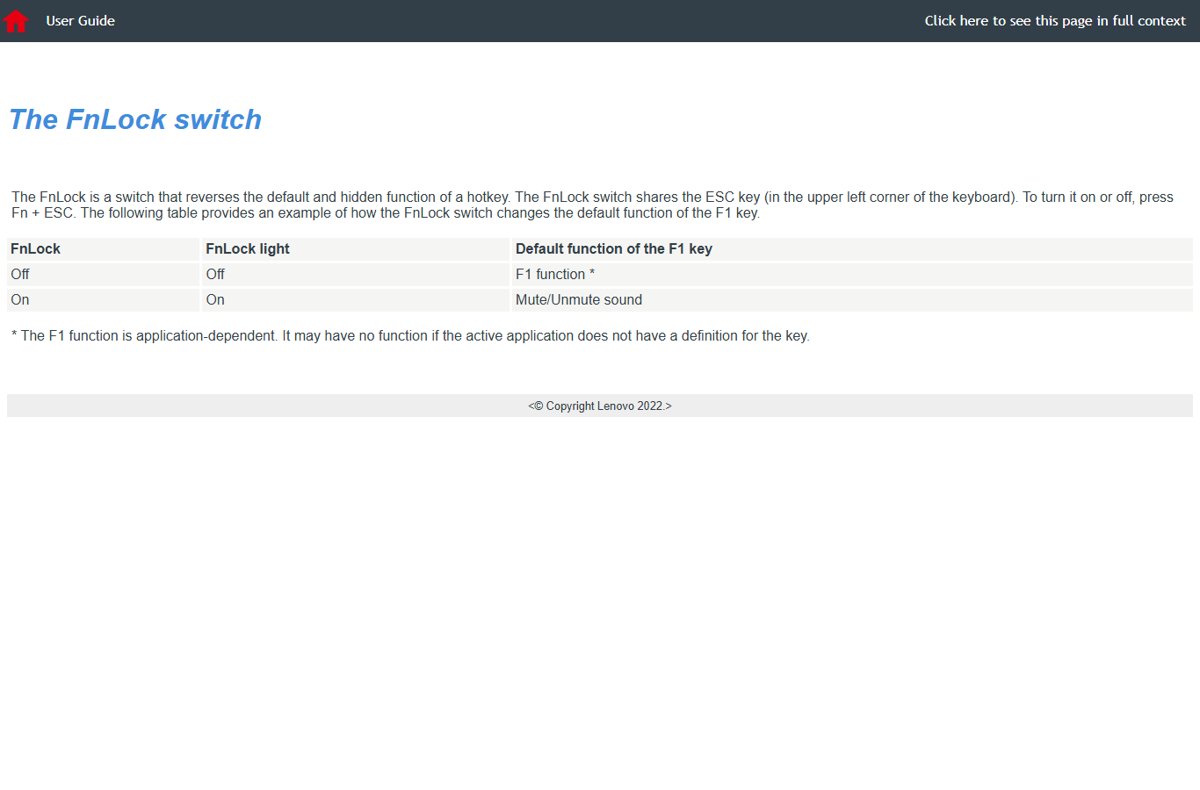
Fn Lock reverses the default and alternate function of the top row. With it set to media mode, the volume keys work without holding Fn.
- Find the key with a padlock and Fn on it, usually Esc.
- Press Fn + Esc once.
- Check the small light on the key, which shows the current state on many models.
- Press a volume key on its own to test it.
- If it now types an F-key instead, press Fn + Esc again to switch back.
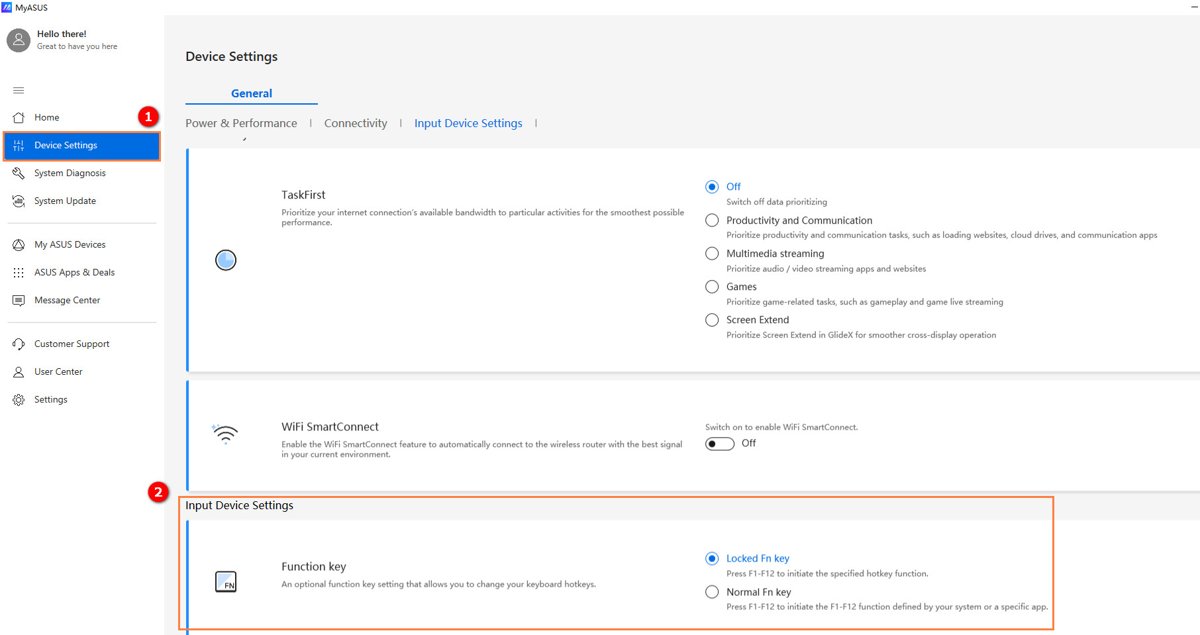
Lenovo, ASUS and Dell multimedia keyboards document Fn + Esc for this switch. ASUS also offers it in MyASUS under Device Settings > Input Device Settings > Fn Function key. Some keyboards use a separate F Lock key with its own indicator light.
Change the default top-row mode in BIOS
Some laptops keep the top-row default in firmware, so Fn + Esc has no effect. Lenovo calls this setting Hotkey Mode.
- Hold Shift and select Restart from the Start menu power button.
- Select Troubleshoot > Advanced options > UEFI Firmware Settings, then Restart.
- On a Lenovo laptop, open Configuration > Hotkey Mode.
- Set it to Enabled so the top row sends volume and media commands by default.
- Select Exit > Exit Saving Changes.
Other makers use different menu names. Change only the keyboard setting, because firmware menus are designed for advanced users.
Method 3: Use Windows keyboard shortcuts for volume
Windows has no built-in key combination that raises or lowers volume by itself. Two shortcuts open the volume controls instantly.
| Shortcut | Windows version | What it opens |
|---|---|---|
| Windows + Ctrl + V | Windows 11 | Sound output page of Quick Settings, with output device, spatial sound and per-app volume |
| Windows + A | Windows 11 | Quick Settings, including the volume slider |
| Windows + A | Windows 10 | Action center |
| Windows + Alt + K | Windows 11 | Mutes or unmutes the microphone in supported apps |
Once a slider is open, drag it to set the level. The per-app sliders let you adjust volume for individual programs without touching the master level.
Method 4: Enable keyboard multimedia keys with the Human Interface Device Service
Windows has no Settings toggle for multimedia keys. The Human Interface Device Service is what activates and maintains hot buttons on keyboards, remote controls and other multimedia devices.
- Select the search box on the taskbar, type services, and open Services.
- Scroll to Human Interface Device Service.
- Right-click it and select Start, or Restart if it is already running.
- Double-click the service and make sure Startup type is not set to Disabled.
- Select OK and press a volume key to test.
Method 5: Update or reinstall your keyboard driver
- Right-click Start and select Device Manager.
- Expand Keyboards, right-click your keyboard and select Update driver.
- Select Search automatically for updated driver software, then Close.
- If the keys still fail, right-click the keyboard again and select Uninstall device, then Uninstall.
- Right-click Start, select Shut down or sign out > Restart, and let Windows reinstall the driver.
Media keys on some USB keyboards also appear under Human Interface Devices. Reinstall those entries the same way if the keyboard entry alone does not help.
Method 6: Install or update laptop hotkey software
On many laptops the Fn shortcuts depend on the maker's own utility. A clean Windows install leaves it out, and the volume keys stop responding.
- Note your laptop's exact model from the label underneath or the box.
- Open the support page on the maker's own website and enter the model.
- Download the keyboard or hotkey utility listed for your Windows version, such as ASUS Keyboard Hotkeys or MyASUS on ASUS laptops.
- Install it and restart the laptop.
- Press Fn plus the volume key to test.
Get the utility only from the laptop maker's site. Driver-updater tools are not needed for this.
Method 7: Restart Windows Audio services
Use this when the volume level moves but no sound plays, or the keys respond only after a reboot.
- Search the taskbar for services and open Services.
- Right-click Windows Audio and select Restart.
- Right-click Windows Audio Endpoint Builder and select Restart.
- Right-click Remote Procedure Call (RPC) and select Restart if it is available, confirming with Yes.
- Play a sound and press a volume key.
How to check keyboard volume control works
- Play a video or song so you can hear the change.
- Select the speaker icon on the taskbar to show the volume slider.
- Press the volume up key and watch the slider move right.
- Press mute and check that the speaker icon shows a muted state.
- Select the arrow beside the slider and confirm the right output device is chosen.
If the slider moves but the sound is still too quiet at 100%, the fix is to boost volume beyond 100%, not the keyboard.
Method 8: Use the on-screen volume control as a backup
The taskbar slider and Volume mixer work with any keyboard, including one with no media keys.
| Task | Windows 11 | Windows 10 |
|---|---|---|
| Change master volume | Select the speaker icon on the taskbar and drag the slider | Select the speaker icon and drag the slider |
| Change one app's volume | Select the settings icon beside the slider to open Volume mixer | Right-click the speaker icon and select Open Volume mixer |
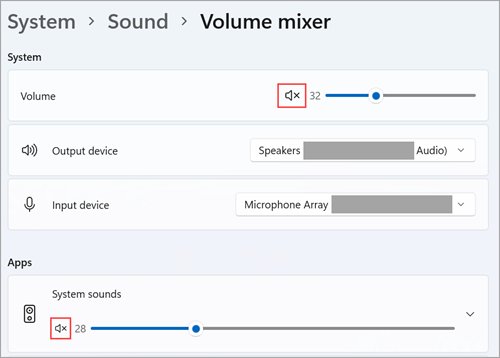
| Spot a muted control | An x appears beside it | A red circle with a line through it appears |
Method 9: Test volume keys in Safe Mode or clean boot
These tests show whether another app or driver is blocking the keys. If the keys work in either mode, something in your normal startup is the cause.
Volume keys fail only in normal startup
A startup app or third-party service is intercepting the key presses.
- Sign in as an administrator, search for msconfig and open System Configuration.
- On the Services tab, check Hide all Microsoft services, select Disable all, then Apply.
- On the Startup tab, select Open Task Manager and disable each enabled startup item.
- Close Task Manager, select OK and restart.
- Test the volume keys, then re-enable items a few at a time to find the one that breaks them.
You want to rule out drivers as well as apps
Safe Mode loads only basic drivers, so it isolates driver conflicts.
- Hold Shift and select Restart.
- Select Troubleshoot > Advanced options > Startup Settings > Restart.
- Press 4 or F4 to choose Enable Safe Mode.
- Test the volume keys, then restart to return to normal mode.
The PC keeps starting in clean boot or Safe Mode
The test settings are still saved in System Configuration.
- Open System Configuration and select Normal Startup on the General tab.
- On the Services tab, uncheck Hide all Microsoft services, select Enable all, then Apply.
- On the Boot tab, clear Safe boot.
- Re-enable your startup items in Task Manager and restart.
Method 10: Use keyboard remapping to add volume keys
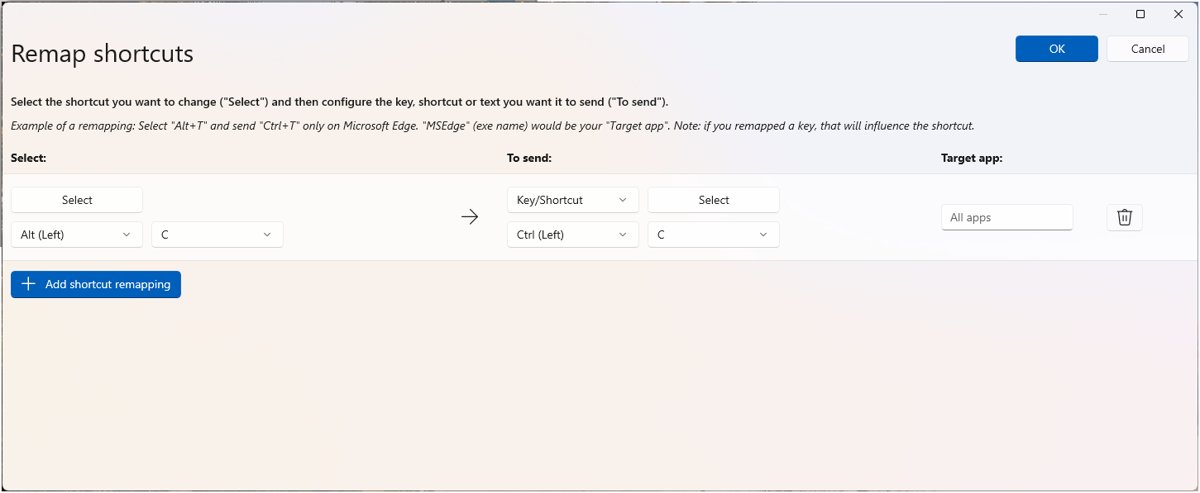
Microsoft PowerToys Keyboard Manager can send Volume Up and Volume Down from keys or shortcuts you choose. It works only while PowerToys is running, and the Fn key itself cannot be remapped in most cases.
- Install Microsoft PowerToys and open PowerToys Settings.
- Select Keyboard Manager, then Remap a shortcut.
- Select Add shortcut remapping.
- In the Select column, enter a shortcut that starts with Ctrl, Alt, Shift or Windows, such as Ctrl + Alt + Up.
- In the To send column, choose Volume Up.
- Add a second row that sends Volume Down, then select OK.
To turn the remaps off, disable Keyboard Manager or close PowerToys. Microsoft advises against using Keyboard Manager while gaming, and it does not work on the sign-in screen.
Common questions people ask about keyboard volume control
Why do my volume keys type F1, F2 or F3 instead?
The top row is set to function-key mode. Press Fn + Esc to toggle Fn Lock, or hold Fn while pressing the volume key. Some laptops store this default in the firmware as Hotkey Mode.
Do I have to press Fn to change the volume on a laptop?
Only when the top row is in function-key mode. Turn on Fn Lock with Fn + Esc and the speaker keys change the volume on their own. The light on the Esc key shows the current mode on many models.
Is there a Windows shortcut to turn the volume up or down?
No built-in Windows shortcut changes the volume directly. Windows + Ctrl + V opens the sound output page on Windows 11, and Windows + A opens Quick Settings or Action center with a volume slider.
How do I add volume keys to a keyboard that has none?
Use Microsoft PowerToys Keyboard Manager. Remap a shortcut such as Ctrl + Alt + Up to Volume Up, and set a matching shortcut for Volume Down. PowerToys must stay running for the remaps to work.
Which Windows service controls keyboard media keys?
The Human Interface Device Service activates and maintains hot buttons on keyboards, remote controls and other multimedia devices. If it is stopped or disabled, volume keys can stop responding. Start it from the Services app.
Why do the volume keys work but there is no sound?
The keys work, but audio is going to the wrong device or the audio service has stalled. Check the output device beside the taskbar volume slider, then restart Windows Audio and Windows Audio Endpoint Builder in Services.
Why did my laptop volume keys stop working after reinstalling Windows?
A clean install often leaves out the laptop maker's hotkey utility that handles Fn shortcuts. Download the keyboard or hotkey app for your exact model from the maker's support site, install it and restart.
Final thoughts on keyboard volume control in Windows
Try Fn plus the speaker key first, then Fn + Esc, before touching drivers or services. Most dead volume keys are simply in function-key mode. If the mode is right and keys still fail, restart the Human Interface Device Service, reinstall the keyboard driver, then use PowerToys to map volume to shortcuts.