The function keys F1 to F12 run shortcuts in Windows and in the active app: F2 renames a file, F5 refreshes a window, F10 opens the menu bar, and Alt + F4 closes the active window.
This guide lists what every key does in Windows, File Explorer, Word, Excel, Outlook, Edge and Chrome, the modifier combinations worth learning, the keys used at startup, and what to do when the top row changes volume instead.
How to use function keys on Windows
The function keys are the row of keys labelled F1 to F12 along the top of the keyboard. What each one does depends on the window that has focus, so the same key can do different jobs in File Explorer and in Word.
- Click inside the window you want the key to act on, such as File Explorer or a browser tab.
- Press the function key on its own, for example F5 to refresh the window.
- If the key changes volume or brightness instead, hold Fn and press the same key again.
- To make the top row send F1 to F12 without holding Fn, press Fn + Esc on most Dell, Lenovo and ASUS laptops, or press F Lock on Microsoft keyboards that have one.
- For a combination such as Alt + F4, hold the modifier first, press the function key, then release both.
Fn Lock is a keyboard and firmware feature, not a Windows setting. The exact key varies by laptop, so check the small icon printed on your Esc key if Fn + Esc does nothing.
Press the F key alone or with Fn?
| What happens when you press F5 | What to press | Why |
|---|---|---|
| The window refreshes | The F key on its own | The top row already sends standard F1 to F12 keys |
| Volume, brightness or media changes | Fn + the F key | The top row is set to its special (hotkey) functions |
| You use F keys all day in Excel or an IDE | Fn + Esc once, or F Lock | Swaps the default so F1 to F12 work without Fn |
| You mostly use volume and brightness keys | Leave Fn Lock off | Media keys stay one press away |
| Nothing happens at all | See the troubleshooting section below | The app may not assign that key, or the lock state is unclear |
Overview of Function Keys
Most keyboards print two labels on each top-row key. Microsoft describes the pair as standard commands (such as F3) and alternate commands (such as Redo). Laptops usually show the alternate command as an icon, such as a speaker for volume.
| Part | What it is | Where you find it |
|---|---|---|
| F1 to F12 | Twelve keys that send standard function-key commands to Windows and apps | The top row of the keyboard |
| Special or alternate functions | Volume, mute, brightness, display switching, microphone and similar hotkeys printed as icons on the same keys | Icons on the top-row keys of most laptops and many external keyboards |
| Fn key | A modifier that switches a top-row key between its standard and special function while held | Labelled Fn; the position varies by keyboard maker |
| Fn Lock or FnLock | A toggle that swaps which function the top row sends without holding Fn | Often shared with Esc (Fn + Esc) on Lenovo, Dell and many ASUS laptops |
| F Lock | A dedicated toggle on some Microsoft keyboards; light on means standard F1 to F12, light off means alternate commands | A separate key near the top row |
| Indicator light | Shows the current Fn Lock state | On the Esc key, the Fn key or the F Lock key, depending on the model |
On a ThinkPad X1 Carbon, for example, the Esc light off means special functions are active and the light on means standard F1 to F12 are active. Other brands may reverse this, so test with F5 in a browser.
Standard Uses of Function Keys in Windows
These are the function-key shortcuts Microsoft lists for Windows 11 and Windows 10 itself. They work on the desktop, in File Explorer and in dialog boxes, whatever apps you have installed.
| Key | What it does in Windows | Where it works |
|---|---|---|
| F2 | Rename the selected item | File Explorer and the desktop |
| F3 | Search for a file or folder | File Explorer |
| F4 | Select the address bar to change the current path; in a dialog box, display the items in the active list | File Explorer, dialog boxes |
| F5 | Refresh the active window | File Explorer, the desktop and most apps |
| F6 | Cycle through elements in a window or on the desktop | Anywhere |
| F10 | Activate the menu bar in the active window | Apps that have a menu bar |
| F11 | Maximize or minimize the active window | File Explorer |
Microsoft's Windows shortcut list has no standalone entry for F1, F7, F8, F9 or F12. Those keys do their work inside apps, which the next table covers.
Detailed Functions of F1 to F12 in Windows
This table shows each key in Windows, in Microsoft Office on Windows, and in the two most common browsers. A dash means the vendor lists no action for that key on its own.
| Key | Windows and File Explorer | Word | Excel | Microsoft Edge and Chrome |
|---|---|---|---|---|
| F1 | No Windows-wide action listed | Show the Word help task pane | Show the Excel Help task pane | Open Help (Edge) or the Chrome Help Center in a new tab |
| F2 | Rename the selected item | Move selected text or graphic | Edit the active cell with the cursor at the end | – |
| F3 | Search for a file or folder | – | Show the Paste Name dialog | Find in the current page |
| F4 | Select the address bar; show list items in a dialog | Repeat the last command or action | Repeat the last command or action | Select the URL in the address bar (Edge) |
| F5 | Refresh the active window | Show the Go To dialog | Show the Go To dialog | Reload the current page |
| F6 | Cycle through elements in a window | Switch between document, task pane, status bar and ribbon | Switch between worksheet, ribbon, task pane and Zoom controls | Move focus to the next pane or toolbar |
| F7 | – | Open the Editor pane to check spelling and grammar | Open the Spelling dialog for the active worksheet | Turn caret browsing on or off |
| F8 | – | Extend the selection | Turn extend mode on or off | – |
| F9 | – | Update the selected fields | Calculate all worksheets in all open workbooks | Enter or exit Immersive Reader (Edge) |
| F10 | Activate the menu bar | Turn KeyTips on or off | Turn key tips on or off | Focus the Settings and more button (Edge) or the rightmost toolbar item (Chrome) |
| F11 | Maximize or minimize the active window | Move to the next field | Create a chart of the current range on a new Chart sheet | Enter or leave full-screen mode |
| F12 | – | Show the Save As dialog | Show the Save As dialog | Open Developer Tools |
In classic Outlook for Windows, F9 checks for new messages, F3 jumps to the Search box, F4 finds text inside an open item and F12 opens Save As.
Modifier Keys and Function Key Combinations
Holding Alt, Ctrl or Shift gives each function key a second job. These combinations come from Microsoft's and Google's own shortcut lists.
| Combination | What it does | Where |
|---|---|---|
| Alt + F4 | Close the active window; with no windows open, prompt to shut down | Windows |
| Ctrl + F4 | Close the active document or tab but not the whole app | Windows apps with several documents, Edge, Chrome, Word; closes the workbook window in Excel |
| Shift + F10 | Show the context menu for the selected item, like a right-click | Windows, File Explorer, Edge, Word |
| Ctrl + F5 | Refresh the current window | Windows |
| Shift + F5 | Reload the page, ignoring cached content | Edge and Chrome |
| Alt + F8 | Show your password on the sign-in screen | Windows sign-in screen |
| Ctrl + F1 | Show or hide the ribbon | Word and Excel |
| Shift + F3 | Switch selected text between upper case, lower case and title case | Word |
| Shift + F3 | Open the Insert Function dialog | Excel |
| Shift + F7 | Open the Thesaurus pane | Word |
| Alt + F1 | Create an embedded chart of the current range | Excel |
| Shift + F11 | Insert a new worksheet | Excel |
| Alt + F11 | Open the Visual Basic for Applications editor | Excel |
| Shift + F9 | Calculate the active worksheet | Excel |
| Shift + F12 | Save the document | Word |
| Ctrl + F12 | Show the Open dialog | Word |
| Shift + F9 | Send/receive for the current folder | Classic Outlook |
Use function keys at startup: F2, F12, F8 and Startup Settings
Before Windows loads, the PC's firmware reads function keys itself. Microsoft names Esc, Delete, F1, F2, F10, F11 and F12 as the common keys for opening firmware menus; on Dell PCs, F2 opens BIOS setup and F12 opens the one-time boot menu.
F8 no longer opens Advanced Boot Options by default. Windows 10 uses the Standard boot menu policy, which ignores F8 because the PC starts too fast to catch it. The reliable route to safe mode is Startup Settings, where F keys pick the option.
- Open Settings > System > Recovery on Windows 11, or Settings > Update & Security > Recovery on Windows 10.
- Next to Advanced startup, select Restart now.
- On the blue screen, select Troubleshoot > Advanced options > Startup Settings > Restart.
- When the numbered Startup Settings list appears, press the number key or the matching function key from F1 to F9.
- Press 4 or F4 for Enable Safe Mode, 5 or F5 for Safe Mode with Networking, or 6 or F6 for Safe Mode with Command Prompt.
Holding Shift while you select Restart from the power menu reaches the same blue recovery screen.
How to check your function keys work
- Open File Explorer, select any file and press F2. The file name should become editable; press Esc to cancel.
- Open a web page in Edge or Chrome and press F5. The page should reload. If the volume or brightness changed instead, the top row is in special-function mode.
- Press F11 in the browser. The window should go full screen; press F11 again to leave.
- Press Fn + Esc (or F Lock) once, then repeat the F5 test. The result should flip, which confirms the lock works on your keyboard.
How to change what a function key does
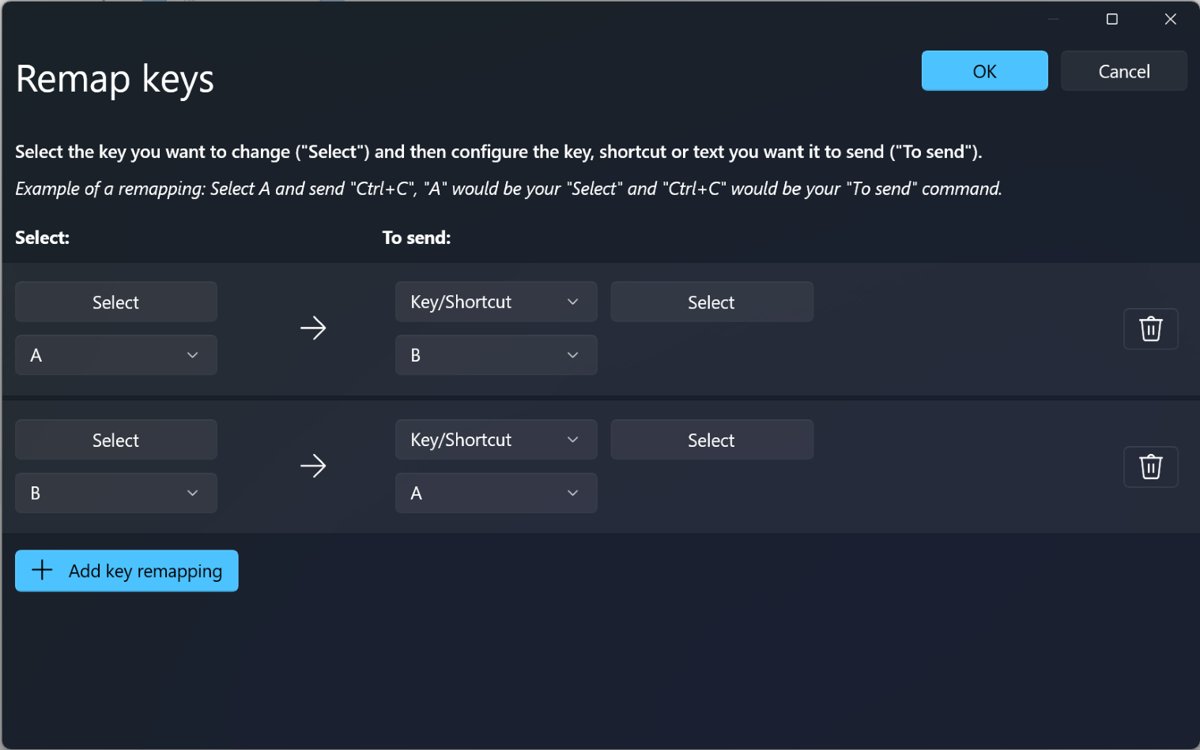
Windows has no built-in setting to reassign F1 to F12. Microsoft's free PowerToys app includes Keyboard Manager, which can remap F1 to F24 to another key or shortcut. It cannot remap the Fn key itself in most cases, because Fn is handled by the keyboard hardware.
- Install Microsoft PowerToys and open it.
- Select Keyboard Manager in the PowerToys menu and turn it on.
- Select Remap a key, then Add key remapping.
- Under Select, choose the function key you want to change, such as F1.
- Under To send, choose the key or shortcut it should send instead, then select OK.
- Keep PowerToys running in the background; the remap stops working when it closes.
To swap which function the whole top row sends by default, use Fn Lock or the laptop's BIOS or UEFI setting (Lenovo calls it Hotkey Mode under Configuration) rather than remapping twelve keys.
Fix function keys that do the wrong thing
The F keys change volume or brightness instead of F1 to F12
Fn Lock or the firmware hotkey mode is set to special functions.
- Hold Fn and press the F key to send the standard function once.
- Press Fn + Esc to swap the default on Dell, Lenovo and many ASUS laptops.
- On a Microsoft keyboard with F Lock, press it until the F Lock light is on.
- On a Surface keyboard or Type Cover, press Fn so its light turns on for function keys, and again to turn it off.
- If nothing toggles, restart, open the BIOS or UEFI setup and change the hotkey or function-key setting there.
A function key does nothing in one app
The app does not assign that key, or another program has claimed it.
- Check the tables above; F7, F8, F9 and F12 have no Windows-wide action.
- Try the same key in File Explorer or a browser to rule out the keyboard.
- If you use PowerToys Keyboard Manager, open it and remove any remap on that key.
- Look up the app's own keyboard shortcut list for its F-key actions.
F8 does not open safe mode at startup
The default Standard boot menu policy, documented for Windows 10 and Windows 8, ignores F8 during boot.
- Sign in and open Settings > System > Recovery (Windows 10: Update & Security > Recovery).
- Select Restart now next to Advanced startup.
- Choose Troubleshoot > Advanced options > Startup Settings > Restart.
- Press F4 for Enable Safe Mode.
Fn + Esc does not switch the top row
Not every model supports it; ASUS, for example, marks supported models with an LED on the Fn key.
- Look for a padlock or FnLock icon on Esc; if there is none, your model uses another key or no key.
- On ASUS laptops, open MyASUS > Device Settings > Input Device Settings and set Fn function key.
- On Lenovo consumer laptops, change Hotkey Mode under Configuration in the UEFI/BIOS, then select Exit Saving Changes.
- Check your laptop maker's support site for its model-specific setting.
Practical Tips for Using Function Keys Effectively
Most time is saved by learning a handful of keys you press daily, not every combination in the tables.
| Tip | Key to learn | Why it helps |
|---|---|---|
| Rename files without right-clicking | F2 | Works in File Explorer and on the desktop |
| Close windows and tabs from the keyboard | Alt + F4, Ctrl + F4 | Alt + F4 on the desktop also opens the shutdown prompt |
| Open the right-click menu without a mouse | Shift + F10 | Works in Windows, File Explorer and most apps |
| Force a clean page reload | Shift + F5 in Edge or Chrome | Skips the cached copy of the page |
| Save under a new name in Office | F12 | Opens Save As in Word and Excel |
| Check spelling before sending | F7 | Opens the spelling check in Word and Excel |
| Set Fn Lock to match your work | Fn + Esc or F Lock | Spreadsheet and coding work favours standard F keys; media use favours hotkeys |
| Confirm a mistyped password | Alt + F8 on the sign-in screen | Shows the password so you can spot the error |
Frequently Asked Questions
What do Windows function keys do?
Windows function keys run shortcuts in the active window. In Windows itself, F2 renames, F3 searches File Explorer, F4 selects the address bar, F5 refreshes, F6 cycles through elements, F10 opens the menu bar and F11 maximizes the window. Other keys do their work inside apps.
How do I use function keys on Windows?
Press the function key on its own while the target window is active. If the key changes volume or brightness instead, hold Fn and press it again, or press Fn + Esc on many laptops to make F1 to F12 the default.
Where is the function key on the keyboard?
The function keys F1 to F12 run along the top row of the keyboard. The separate Fn key is a modifier labelled Fn; its position varies by keyboard maker, so check your laptop's manual if you cannot find it.
What is the shortcut to enable function keys in Windows?
On most Dell, Lenovo and many ASUS laptops, press Fn + Esc to make the top row send F1 to F12 without holding Fn. Microsoft keyboards use a dedicated F Lock key, and Surface keyboards toggle with the Fn key.
What is the function key lock shortcut?
Fn + Esc is the most common Fn Lock shortcut, and a light on the Esc or Fn key shows its state. It is set by the keyboard maker, not by Windows, so some models use a different key or a BIOS setting instead.
How do I change what my function keys do?
Use Fn Lock to swap between standard F keys and media hotkeys. To reassign a single key, install Microsoft PowerToys and use Keyboard Manager, which can remap F1 to F24 to another key or shortcut while PowerToys runs.
What are the function keys in Excel?
In Excel for Windows, F2 edits the active cell, F4 repeats the last action, F5 opens Go To, F7 checks spelling, F9 calculates all open workbooks, F11 creates a chart on a new sheet and F12 opens Save As.
Does F8 still open safe mode in Windows 11?
Not by default. The Standard boot menu policy that Windows uses by default ignores F8 during startup. Open Settings > System > Recovery, select Restart now next to Advanced startup, then choose Startup Settings and press F4 for Safe Mode.







How to enter the boot menu on new Lenovo laptops - Techdows
[…] laptops share the F1 to F12 function keys with hotkeys such as volume and brightness. A UEFI setting called hotkey mode decides which […]
All keyboard shortcuts in Windows (category wise) - Techdows
[…] F keys on their own do more than refresh and rename, and each of the function keys F1 to F12 has its own […]