An Apple AirTag works by sending out a secure Bluetooth signal that nearby iPhone, iPad and Mac devices in the Find My network detect, and those devices report its location to iCloud so you can see it on a map in the Find My app.
This guide explains what is inside an AirTag, how distant and nearby finding work, and how to set one up, mark it lost, share it, replace its battery and reset a used one.
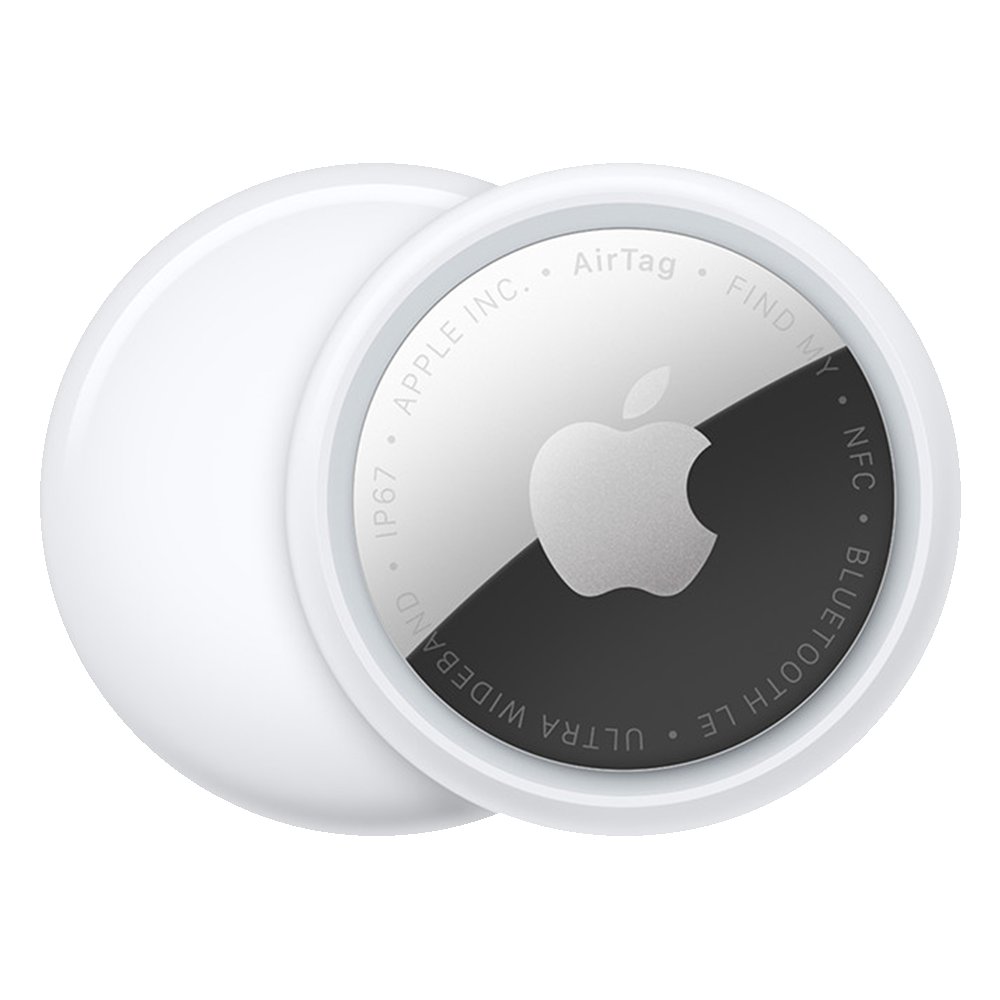
The short version: how an AirTag finds things
An AirTag has no GPS and no cellular radio. It relies on other people's Apple devices to report where it is, and on your own iPhone to guide you the last few metres.
Attach an AirTag to an item, pair it with your iPhone, and open Find My > Items to see where it is: far away, the Find My network reports its position; nearby, your iPhone plays a sound or points you to it with Precision Finding. Apple says the Find My network can use more than a billion iPhone, iPad and Mac devices. Each one that passes your AirTag sends its location to iCloud anonymously and encrypted, so not even Apple knows where the AirTag is or which device found it.
What is inside an AirTag?
Both AirTag generations share the same size, battery and water rating. The second generation, introduced in 2026, swaps the U1 chip for Apple's second-generation Ultra Wideband chip and gets a louder speaker.
| Component | AirTag (2021) | AirTag (2nd generation, 2026) | What it does |
|---|---|---|---|
| Bluetooth | Yes | Yes | Broadcasts the signal that nearby Apple devices detect, and handles proximity finding |
| Ultra Wideband chip | Apple U1 chip | Second-generation Ultra Wideband chip | Measures exact distance and direction for Precision Finding |
| NFC | Yes | Yes | Lets any NFC-capable phone read the AirTag's information or Lost Mode message |
| Speaker | Built-in | Built-in, 50% louder | Plays sounds when you search for it, and alerts others when it travels without its owner |
| Accelerometer | Yes | Yes | Detects movement, used by the unwanted-tracking sound |
| Battery | CR2032 coin cell | CR2032 coin cell | User-replaceable; Apple quotes more than a year of use |
| Water and dust | IP67 | IP67 | Up to 1 metre for up to 30 minutes under IEC 60529 |
| Weight | 11 grams | 11.8 grams | Both are 31.9 mm across and 8.0 mm thick |
| Minimum software | iOS 14.5 or iPadOS 14.5 | iOS 26 or iPadOS 26 (Apple's Find My page lists iOS 26.2.1 or later) | An Apple Account is required for both |
The AirTag itself stores no location data or history. Your location only appears in Find My on your own devices. The location stays out of a web browser too, since AirTags don’t appear on iCloud.com and show only in the Find My app.
How the Find My network locates a distant AirTag
When your AirTag is out of range of your own devices, strangers' Apple devices do the work without knowing it. The chain runs in four stages.
| Stage | What happens | Privacy protection |
|---|---|---|
| 1. Broadcast | The AirTag sends out a secure Bluetooth signal | Its Bluetooth identifier changes frequently, so it cannot be followed by one fixed ID |
| 2. Detection | Any nearby iPhone, iPad or Mac in the Find My network picks up the signal | The relaying device stays anonymous and its owner is not told |
| 3. Upload | That device sends the AirTag's location to iCloud | The location is end-to-end encrypted, so Apple cannot read it |
| 4. Display | You open Find My and see the AirTag on a map with a timestamp | Only you, and anyone you share the AirTag with, can see it |
The map updates only when the AirTag connects to the Find My network again. In a remote area with no Apple devices nearby, you see the last known location and time instead of a live one.
Apple says the process is efficient enough that relaying devices do not need to worry about battery life or data usage.
How nearby finding works
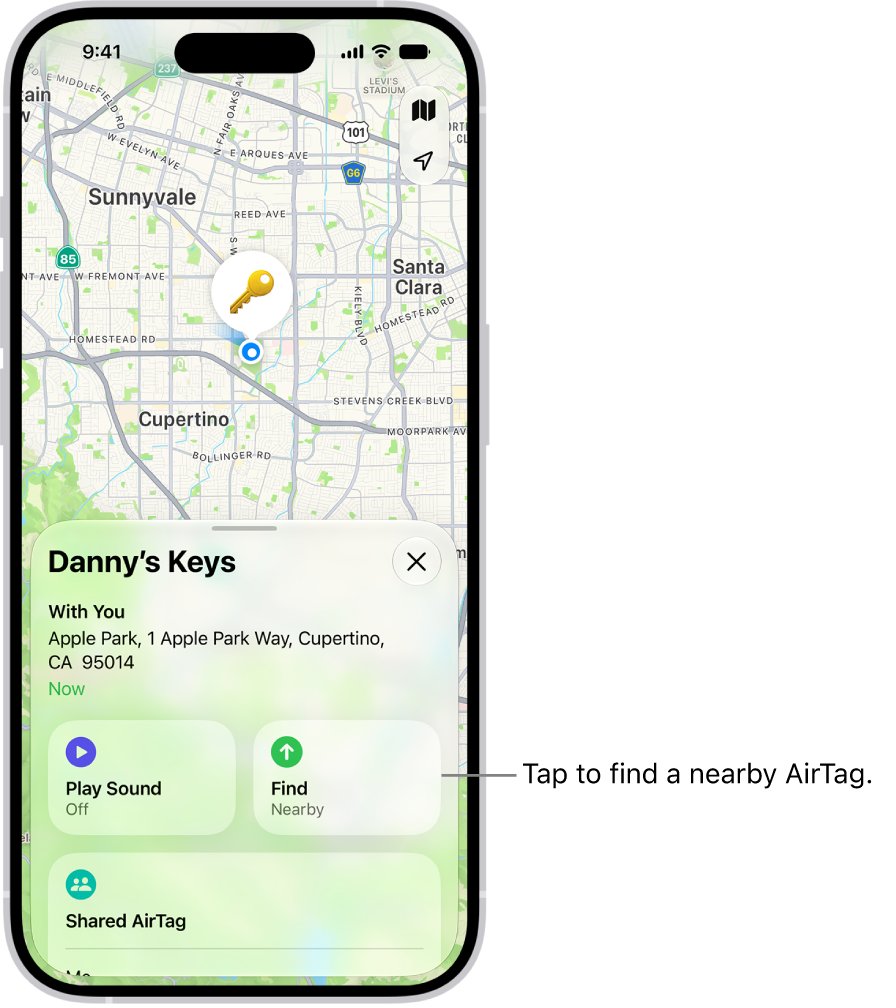
Once you are within Bluetooth range, two tools take over: a sound from the AirTag's speaker, and Precision Finding, which uses Ultra Wideband to show distance and direction.
Precision Finding needs an iPhone that supports Ultra Wideband. Apple's current guide lists iPhone 15 and later for Find (Find Nearby), and wall materials or objects in the way can affect it.
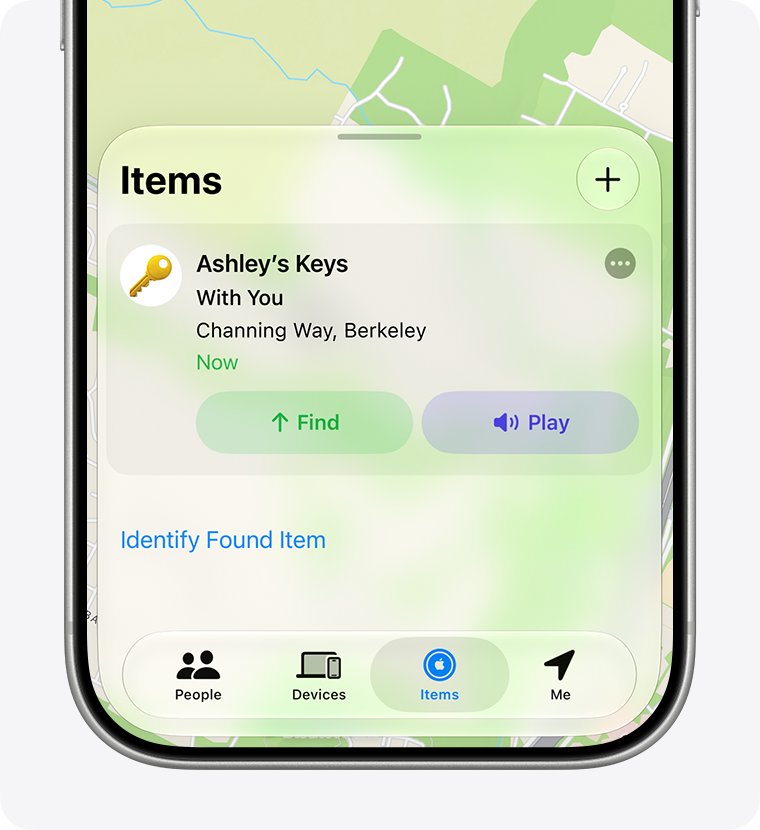
- Open the Find My app, then tap Items.
- Tap the item that is connected to your AirTag.
- Tap Play to hear a series of chimes from the AirTag's speaker, or tap Stop Sound to end it early.
- Tap Find (Find Nearby) to start Precision Finding.
- Move around the space until your iPhone connects to the AirTag.
- Follow the distance and direction shown on screen; your iPhone vibrates as you get closer.
- If your iPhone asks for more light, uncover the camera or tap Turn Flashlight On.
The vibration is haptic feedback that grows stronger as the gap closes.
The second-generation AirTag offers up to 1.5x the Precision Finding range with iPhone Air or iPhone 15 and later, excluding iPhone 16e and iPhone 17e. Apple Watch Series 9 or later and Apple Watch Ultra 2 or later can also run Precision Finding with watchOS 26.2.1.
Setting up an AirTag
Setup takes one tap. An AirTag can be registered to only one Apple Account at a time. Supported AirPods use the same network, so you can also connect AirPods to Find My from the AirPods settings on your iPhone.
- Remove the product wrapping and the battery tab from the AirTag.
- Go to the Home Screen on your iPhone and hold the AirTag near it.
- Tap Connect when the setup card appears. If nothing appears, turn the screen off and back on to retry.
- Choose a name from the list, or choose Custom Name to type a name and pick an emoji, then tap Continue.
- Tap Continue to register the AirTag to your Apple Account, then tap Finish.
You can also start setup from the Find My app by tapping the add button and choosing Add AirTag. To rename it later, open Items, tap the AirTag and choose Change Name and Emoji.
Lost Mode and NFC
Marking an AirTag as lost does two things. You get a notification when a Find My device detects it, and anyone who finds it can tap it with an NFC-capable smartphone, iPhone or Android, to see your message and contact details.
- Open the Find My app on your iPhone.
- Tap Items, then tap the name of the lost AirTag.
- Below Lost AirTag, tap Show Contact Info.
- Enter a phone number where you can be reached, or tap Use an email address to enter an email address instead.
- Finish the onscreen steps and confirm.
- Check that notifications are allowed for the Find My app, so the found alert reaches you.
If the AirTag cannot be located at all, turn on Notify When Found below Notifications on the item's screen. You can also share a lost item's location temporarily with more than 50 airlines; sharing stops when you get the item back or after seven days.
Separation alerts
Separation alerts warn you when the device sharing your location moves away from your AirTag. Trusted Locations, such as home, stop the alert where leaving the item is normal.
- Open the Find My app on your iPhone.
- Tap Items, tap the item you want an alert for, then open its details.
- Tap When Left Behind, then turn on Notify When Left Behind.
- Choose a suggested Trusted Location, or tap New Location and pick a place on the map.
- Tap the confirm button at the top of the card to save.
- Allow notifications for Find My, or the alert never appears.
Sharing an AirTag with another person
Sharing lets up to five other people see the item on a map, play its sound and use Precision Finding, for six users per item in total. Borrowers do not receive tracking notifications for a shared AirTag.
Both sides need two-factor authentication on the owner's Apple Account, iCloud Keychain turned on, and iOS 17, iPadOS 17, macOS 14 or later. You cannot share with a child account.
- Open the Find My app on your iPhone.
- Tap Items, tap the AirTag you want to share, then open its details.
- Tap Add Person below Share AirTag.
- Enter the Apple Account details of the person you want to add.
- Tap the person's name, then tap their Apple Account; repeat for each borrower.
- Confirm when you finish, then watch the invitation status on the item's screen.
When the borrower accepts, the AirTag appears under Items on their device. A Family Sharing member who gets a tracking alert for your AirTag can tap Ask Owner to Share AirTag to request access.
Anti-stalking protections
AirTags are built to track belongings, not people. Using one to track a person without consent is a crime in many countries, and law enforcement can request information from Apple about an AirTag.
| Protection | How it works | What you need |
|---|---|---|
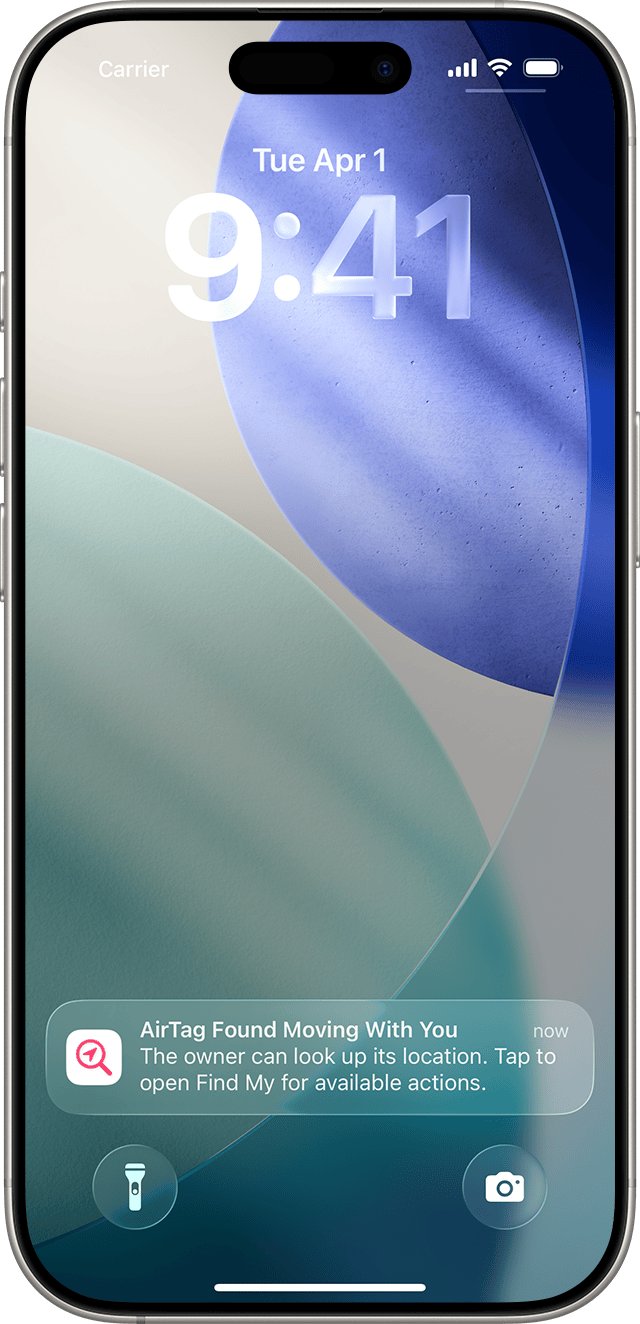
| Tracking notification | "AirTag Found Moving With You" appears when an AirTag separated from its owner is seen moving with you over time | iOS 14.5 or later; iOS 17.5 or later covers other compatible trackers |
| Map of sightings | Red dots show where the unknown AirTag was detected near you, linked by dashed lines in order | Tap the alert |
| Sound on the AirTag | An AirTag away from its owner for a period of time plays a sound when it is moved | Nothing; it is built in |
| Precision Finding on an unknown AirTag | Shows distance and direction to the unknown AirTag | iPhone with Ultra Wideband, iOS 16.2 or later |
| NFC information | Tapping the AirTag shows its serial number and the last four digits of the owner's phone number | Any NFC-capable smartphone |
| Android alerts | Android 6.0 or later can notify you automatically or run a manual scan | Android 6.0 or later |
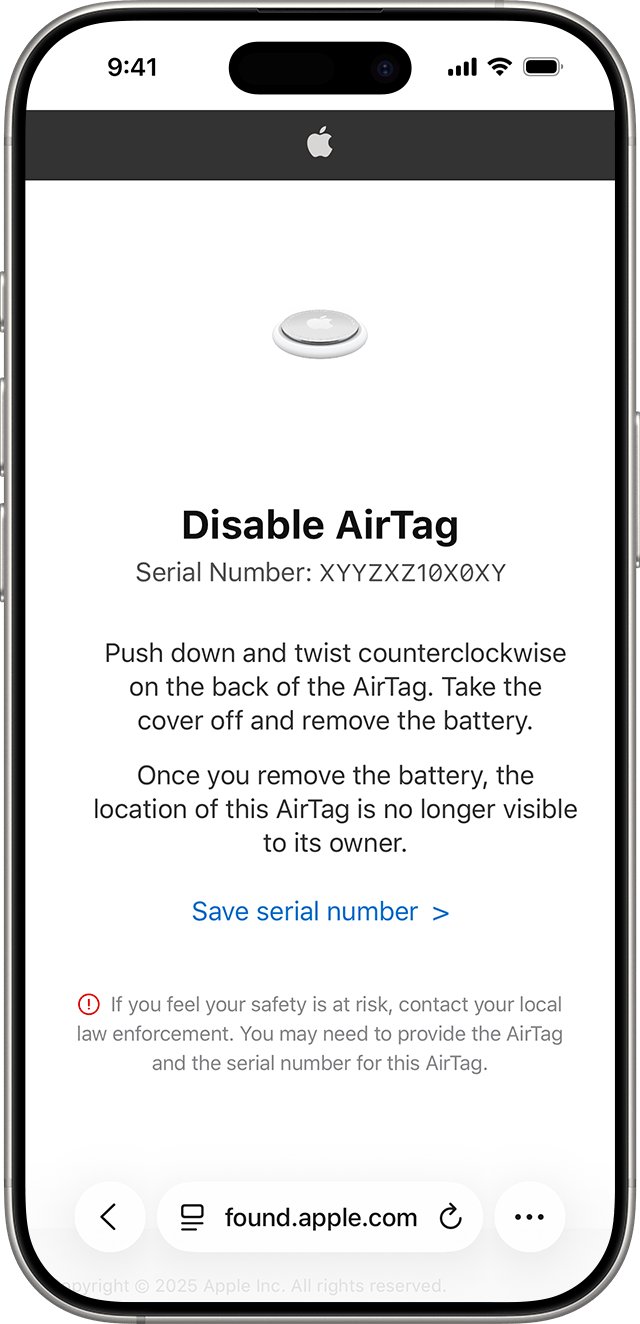
| Disable instructions | Instructions to Disable stops the AirTag sharing its location with its owner | The AirTag in your hand |
To get alerts on iPhone, turn on Location Services, Significant Locations under System Services, Bluetooth, and Allow Notifications under Settings > Notifications > Tracking Notifications, and keep Airplane Mode off.
Turning off Bluetooth, Location Services or the Find My network on your own phone does not stop the owner seeing the AirTag's location. Only disabling the AirTag does that.
Replacing the battery
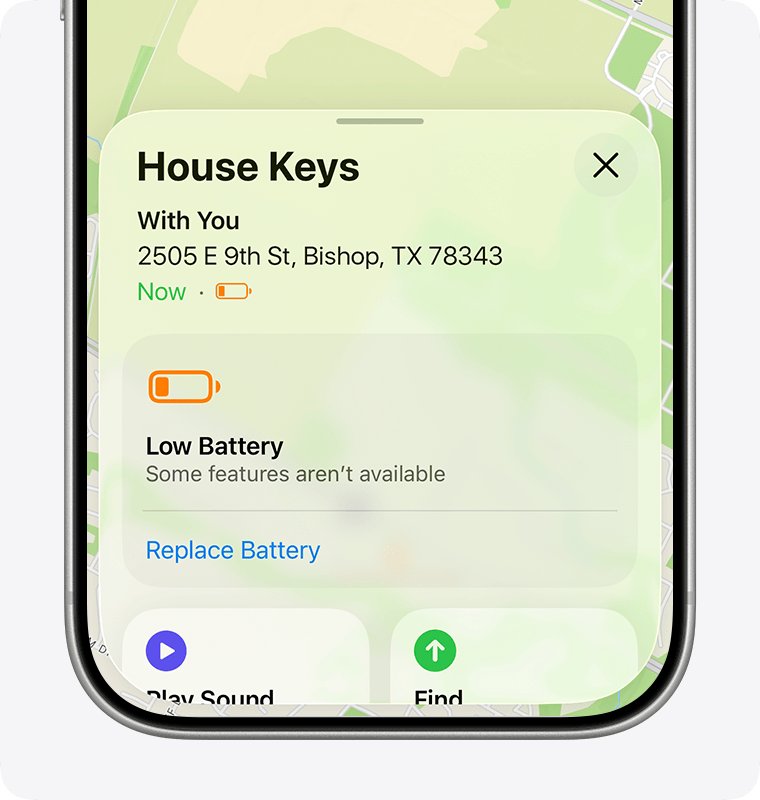
Your iPhone shows a notification when the battery is low, and Low Battery appears under the AirTag's name in Find My > Items. The replacement is a standard CR2032 lithium 3V coin cell.
- Press down on the polished stainless steel battery cover and rotate it counterclockwise until it stops.
- Remove the cover and the old battery.
- Insert a new CR2032 battery with the positive side facing up; a sound confirms it is connected.
- Line up the three tabs on the cover with the three slots on the AirTag.
- Press down and rotate the cover clockwise until it stops.
Apple notes that some CR2032 batteries with a bitter coating might not work in an AirTag. Look for packaging that states "Compatible with Apple AirTag", and keep coin batteries away from children, because a swallowed one can cause internal chemical burns in as little as 2 hours.
Used AirTags, resetting, and Find My Lock
Find My Lock ties an AirTag to one Apple Account. A used AirTag will not pair with your account until the previous owner removes it, and Apple cannot remove Find My Lock for you.
The previous owner removes it on iPhone or iPad in Find My > Items > the AirTag > Remove Item > Remove. Items cannot be removed on a Mac. If they removed it while out of Bluetooth range, reset it with these steps for the original AirTag.
- Press down on the battery cover and rotate it counterclockwise until it stops, then remove the cover and battery.
- Put the battery back in and press down on it for about 2 seconds until you hear a sound.
- When the sound finishes, remove and replace the battery again, pressing until you hear a sound.
- Repeat until you have heard five sounds in total; the fifth sound is different and means the AirTag is ready to pair.
- Align the three tabs on the cover with the three slots, press down and rotate clockwise until it stops.
On an AirTag (2nd generation), keep pressing for 2 more seconds after each sound, then remove the battery and wait 12 seconds before the next round. The fifth, different sound can take up to 12 seconds of pressing.
A reset AirTag that is still under someone else's Find My Lock stops sharing your location with them, but you still cannot pair it to your account.
Firmware updates
AirTag firmware installs itself. Updates arrive periodically while the AirTag is in Bluetooth range of your iPhone, and there is no button to force one.
- Make sure your iPhone runs iOS 14.5 or later, and keep it updated to the latest iOS.
- Open the Find My app and tap the Items tab.
- Select your AirTag in the list.
- Tap the AirTag's name to show its serial number and firmware version.
- Keep the AirTag near your iPhone if the version is behind the latest one Apple lists.
Past updates added Precision Finding for unknown AirTags (2.0.24), fixed the accelerometer not activating in some cases (2.0.36) and changed the unwanted tracking sound to make an unknown AirTag easier to find (3.0.45). The newest version Apple lists is 3.0.49.
How to check your AirTag is reporting its location
- Open Find My and tap Items; your AirTag should appear with its name and emoji.
- Tap it and check that a location and a recent timestamp appear below the name.
- Tap Play while it is nearby and listen for the chime.
- Check that Low Battery does not appear under the name.
- Go to Settings > Privacy & Security > Location Services > Find My and turn on Precise Location for the most accurate results.
What AirTags cannot do
Most disappointment with AirTags comes from expecting a GPS tracker. It is not live GPS tracking.
| Expectation | Reality |
|---|---|
| Live GPS tracking | There is no GPS; the location updates only when a Find My device passes and reports it |
| Tracking in empty places | With no Apple devices nearby, you only see the last known location |
| Use with Android as the owner | Setup and Find My need an iPhone or iPad; Android phones can only detect unknown AirTags and read them by NFC |
| Show up at icloud.com/find | AirTag is not shown at icloud.com/find |
| Share with a child account | Not supported; borrowers need their own adult Apple Account |
| Track a person secretly | Tracking alerts, sounds and Android detection are designed to expose it, and it is illegal in many countries |
| Pair to two owners | One Apple Account at a time; use sharing for others |
Fix AirTag problems: Find button, pairing and unknown AirTags
The Find (Find Nearby) button does not appear
The iPhone lacks Ultra Wideband, Find My has no location access, or the AirTag is out of range.
- Confirm your iPhone supports Ultra Wideband and runs the latest iOS.
- Go to Settings > Privacy & Security > Location Services and turn it on.
- Tap Find My and allow location access, with Precise Location on.
- If it is still missing, use the map or Play to get closer, then try Find again.
Find My says the AirTag is paired to another Apple Account
Find My Lock is still active from the previous owner.
- Ask the previous owner to remove it in Find My > Items > the AirTag > Remove Item.
- Keep the AirTag within Bluetooth range of their iPhone if possible, which makes removal faster.
- If they removed it while out of range, reset the AirTag, then set it up again.
An unknown AirTag is moving with you
An AirTag separated from its owner has been detected travelling with you.
- Tap the alert, tap Continue, then tap Play Sound.
- If your iPhone supports Ultra Wideband, tap Find (Find Nearby) and follow the distance and direction.
- Hold the top of your iPhone near the white side of the AirTag to see its serial number.
- Tap Instructions to Disable and follow the steps to stop it sharing its location.
- If you feel unsafe, go to a safe public place and contact law enforcement.
Apple AirTag FAQ
How do AirTags work with Apple devices?
An AirTag sends a secure Bluetooth signal that nearby iPhone, iPad and Mac devices in the Find My network detect. Those devices send its location to iCloud, encrypted and anonymously, and you see it on a map in the Find My app on your own iPhone or iPad.
What does an Apple AirTag do?
An AirTag helps you find a personal item such as keys, a bag or a wallet. It shows the item's location in Find My, plays a sound when it is nearby, guides you to it with Precision Finding, and can show your contact details in Lost Mode.
What is an Apple AirTag used for?
Apple designs AirTag to keep track of belongings: keys, backpacks, luggage, bikes or shared family items. It should not be used to track people or property that is not yours, and built-in alerts warn people when an unknown AirTag travels with them.
How do you use an Apple AirTag?
Pull the battery tab, hold the AirTag near your iPhone and tap Connect. Name it, register it to your Apple Account and attach it to the item. Then open Find My, tap Items and select the AirTag to see it, play a sound or find it.
Does an AirTag have GPS?
No. An AirTag has Bluetooth, Ultra Wideband, NFC, a speaker and an accelerometer, but no GPS. Its location comes from nearby Apple devices in the Find My network, which report where they detected it.
Can an AirTag track a car or person live?
No. An AirTag is not live GPS tracking; its position updates only when a Find My device passes it. Apple builds in tracking alerts and sounds against tracking people, and doing so without consent is a crime in many countries.
How far can an AirTag be located?
There is no fixed distance limit for the map, because any Apple device in the Find My network can report it anywhere. Nearby finding with sound and Precision Finding only works within Bluetooth range of your own iPhone.
What should I do if an unknown AirTag is moving with me?
Tap the alert to play a sound or use Precision Finding, then search your belongings. Read the AirTag's serial number with NFC, tap Instructions to Disable to stop it reporting, and contact law enforcement if you feel unsafe.
How long does an AirTag battery last?
Apple says an AirTag works for more than a year on a standard CR2032 coin cell. Battery life varies with how often you play sounds and use Precision Finding. Your iPhone notifies you when the battery is low.
The bottom line: are Apple AirTags worth using?
An AirTag is worth using if you have an iPhone or iPad and want to find keys, bags or luggage; it is not a substitute for a live GPS tracker. Its strength is the Find My network of more than a billion Apple devices, plus Precision Finding for the last few metres. Its limits are no GPS, iPhone-only setup and anti-stalking alerts that make it unsuitable for tracking anything you do not own.