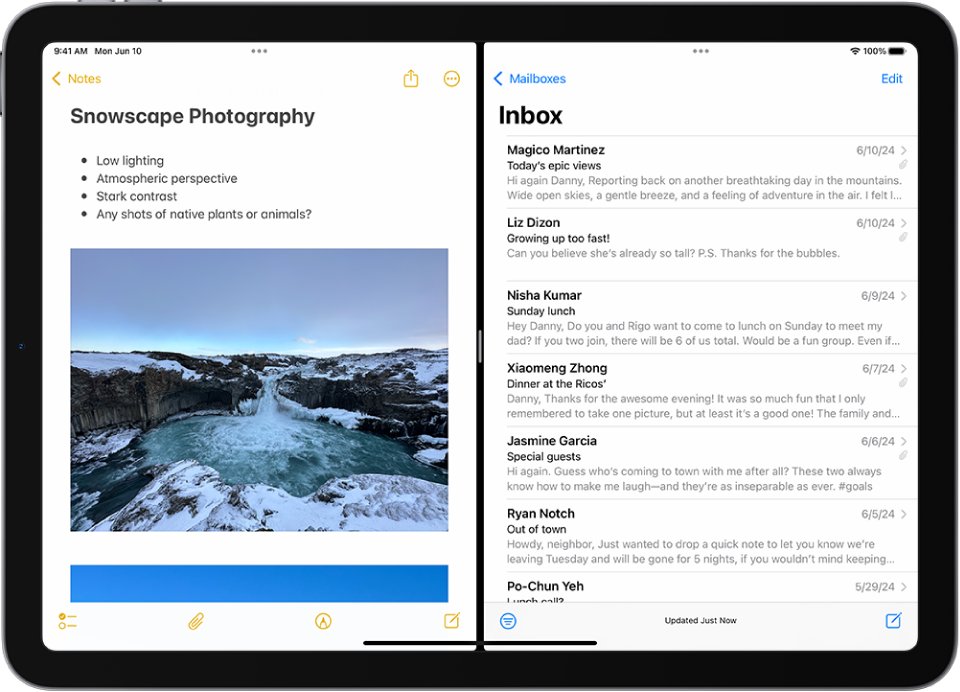
To get rid of split screen on iPad, drag the divider between the two apps all the way to the left or right edge of the screen, and the app you keep fills the screen.
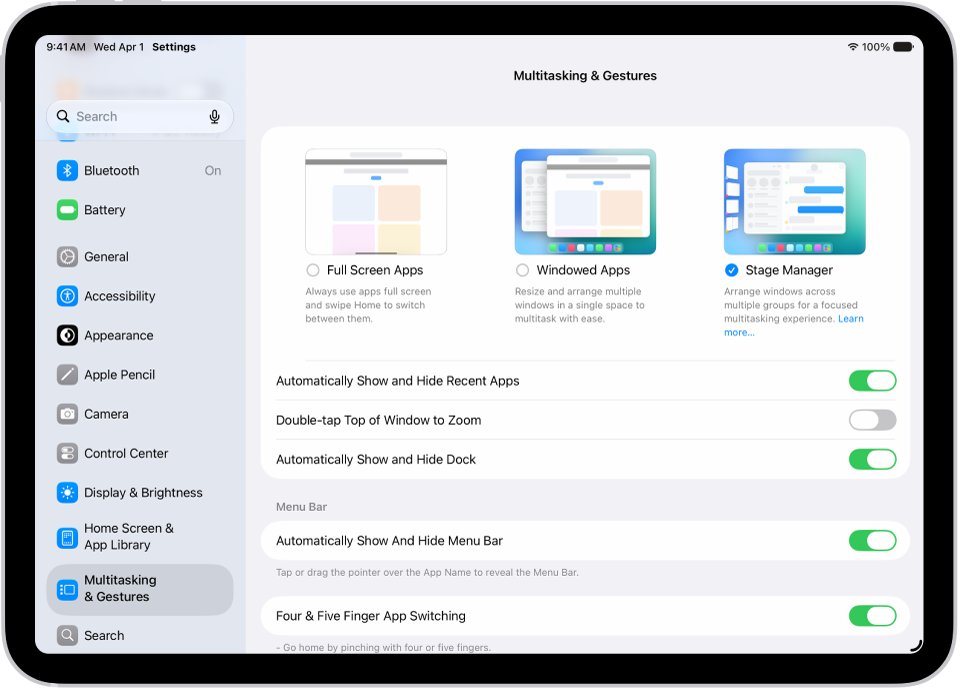
To stop split screen from coming back, open Settings > Multitasking & Gestures and choose Full Screen Apps on iPadOS 26 or later, or turn off Split View & Slide Over on iPadOS 18.
How to get rid of split screen on iPad
This works on every iPad, whichever iPadOS version it runs. As a quick summary, the divider is the fastest exit and the Settings change is the permanent one.
- Find the thin divider between the two apps in the middle of the screen.
- Touch and hold the divider.
- Drag it all the way to the edge of the app you want to close: to the right edge to keep the left app, or to the left edge to keep the right app.
- Lift your finger when the other app slides off; the remaining app now fills the screen.
How to close split screen on iPad: Using split screen divider
The divider also resizes the two apps, so a short drag only changes their widths. Keep dragging until one app disappears completely.
- Place your finger on the divider between the two apps.
- Drag it past the middle toward the app you no longer need.
- Keep going until the divider reaches the edge of the screen.
- Release; the app you dragged over closes out of the split, and the other app returns to full screen.
On iPadOS 26 and later, you can also tap the window controls at the top left of the app you want to keep and tap the full-screen control. On iPadOS 18, tap the three dots at the top of the app you want to keep and tap the full-screen button.
How to close split screen on iPad: Using Home button
Pressing the Home button once only takes you to the Home Screen. On iPadOS 18 and earlier, the two apps stay paired as a Split View workspace and open together again, so close the workspace from the App Switcher.
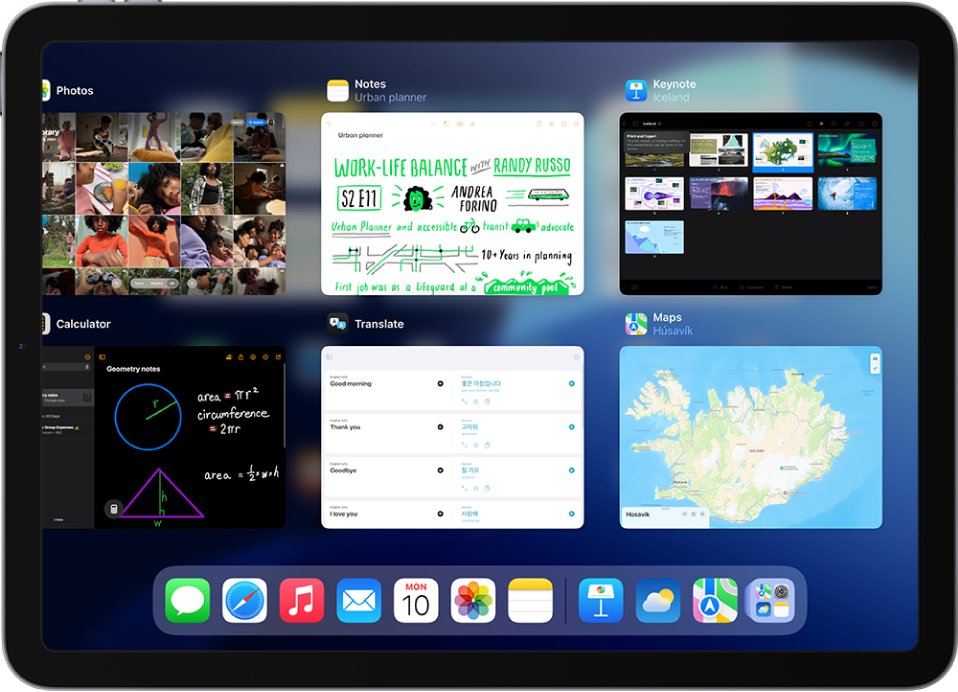
- Double-click the Home button to open the App Switcher. On an iPad without a Home button, swipe up from the bottom of the screen and pause in the center.
- Swipe right or left to find the split screen pair, shown as two apps side by side.
- Swipe up on the pair to quit it.
- Open the app you want from the Home Screen or the Dock; it opens in full screen.
How to close split screen on iPad: By disabling the feature
Turning the feature off stops apps from opening side by side when you drag an icon or tap a multitasking button by accident. The setting name depends on your iPadOS version.
| iPadOS version | Steps | Result |
|---|---|---|
| iPadOS 26 and later | Open Settings, tap Multitasking & Gestures, then select Full Screen Apps | Each app fills the screen; switch apps from the Home Screen or the App Switcher |
| iPadOS 18 and earlier | Open Settings, tap Multitasking & Gestures, then turn off Split View & Slide Over below Multitasking | Apps no longer open in Split View or Slide Over |
| Stage Manager is on | Open Settings > Multitasking & Gestures and select Full Screen Apps instead of Stage Manager | Overlapping windows and the recent apps list go away |
Which iPad models support split screen?
On iPadOS 26 and later, split screen is part of Windowed Apps and Stage Manager in Settings. Apple lists these iPads for iPadOS 26.
| iPad line | Models that run iPadOS 26 |
|---|---|
| iPad Pro | iPad Pro (M4), iPad Pro 12.9-inch (3rd generation and later), iPad Pro 11-inch (1st generation and later) |
| iPad Air | iPad Air (M2 and later), iPad Air (3rd generation and later) |
| iPad | iPad (A16), iPad (8th generation and later) |
| iPad mini | iPad mini (A17 Pro), iPad mini (5th generation and later) |
Older iPads that stop at iPadOS 18 or earlier use the older Split View & Slide Over feature, closed with the same divider drag.
Tutorial – how to use split screen on iPad
Use these steps when you want two apps side by side again after turning split screen off.
- On iPadOS 26 or later, open Settings > Multitasking & Gestures and select Windowed Apps. On iPadOS 18, turn on Split View & Slide Over.
- Open the first app in full screen.
- Swipe up slightly from the bottom edge to show the Dock.
- Drag the second app's icon to the left or right side of the screen, on top of the open app.
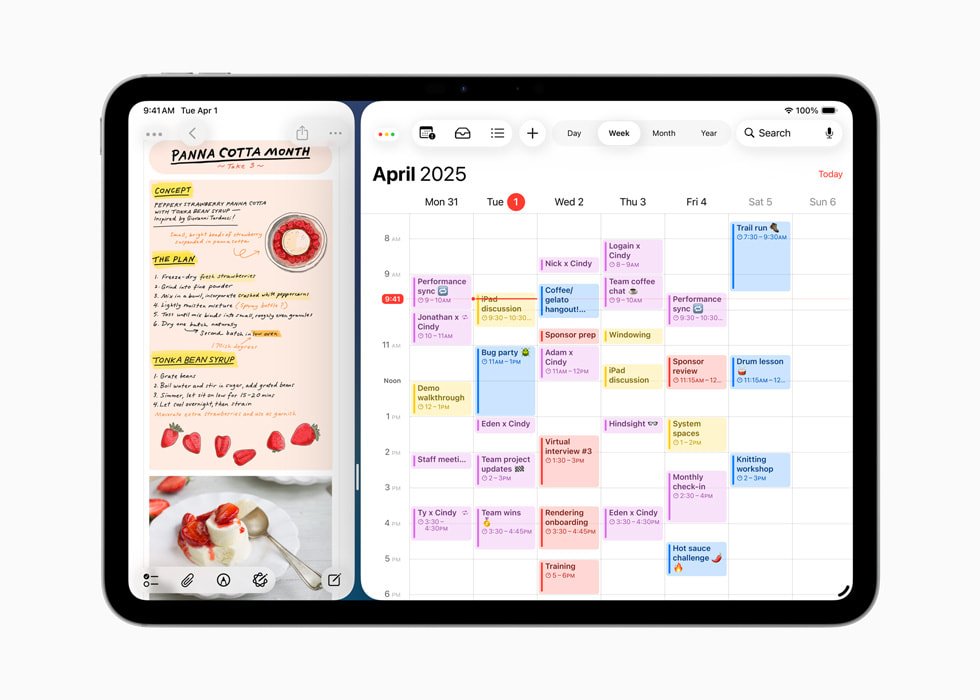
- Release; the two apps tile side by side.
- Drag the divider between them to change how much space each app gets.
On iPadOS 18, you can also tap the three dots at the top of the app, tap the Split View button, and choose the second app from the Home Screen or Dock.
Alternative methods and edge cases for iPad split screen
| What you see | How to get rid of it |
|---|---|
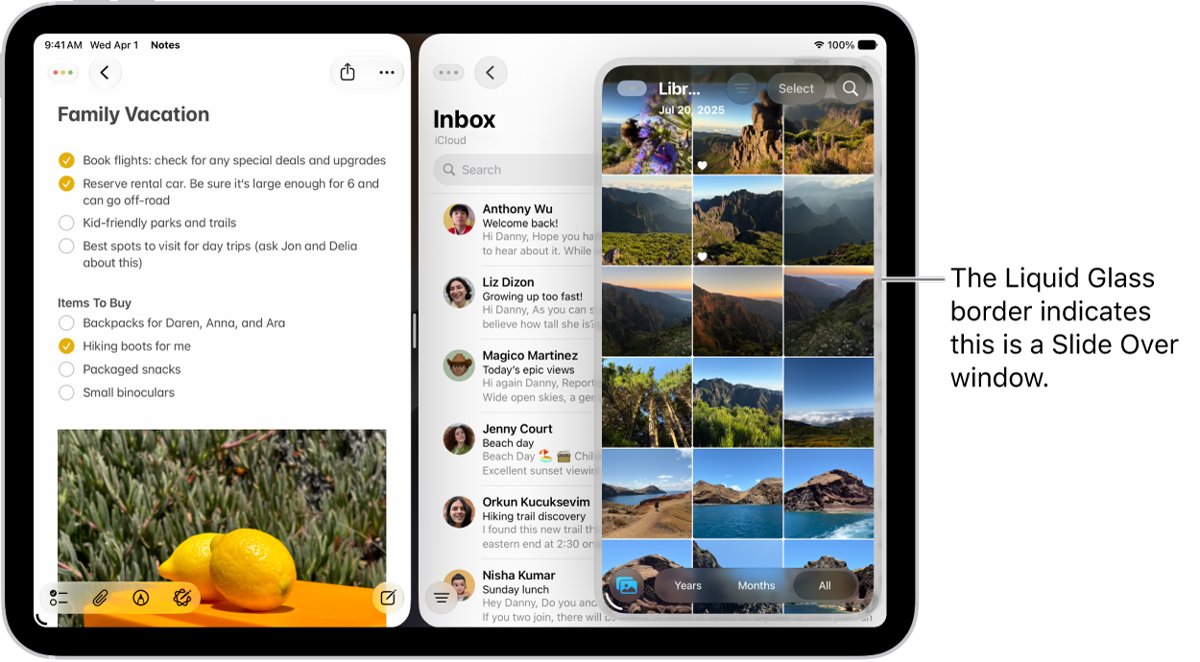
| A small window floating on one side (Slide Over) | Touch and hold the window controls and tap Exit Slide Over, or drag the window to the middle of the screen and pause |
| A Slide Over window you only want out of the way | Drag the top of the window past the left or right edge; an arrow marks where it went |
| Several resized windows on iPadOS 26 or later | Open the menu bar, tap Window, then tap Enter Full Screen |
| A note, email or message open in the center of the screen | Tap the window controls on the center window and choose full screen, or close it |
| Two windows of the same app, such as Safari | Close one window with the window controls; the other returns to full screen |
| The keyboard is split in two halves | Touch and hold the keyboard key and slide to Merge, or turn off Split Keyboard in Settings > General > Keyboard |
Tips for getting rid of split screen on iPad
| Tip | Why it helps |
|---|---|
| Close one window instead of dragging | When one of two side-by-side windows closes, the other returns to full screen on its own |
| Turn on Double-tap Top of Window to Zoom | A double-tap on the top of any window makes it full screen; the option is off by default |
| Turn on Close All Windows After Swiping Home | Windowed apps close when you go to the Home Screen, so splits do not pile up |
| Pick Full Screen Apps if you never use two apps at once | Stops accidental splits from icon drags |
| Restart the iPad if the divider will not move | A restart clears a frozen screen or app |
iPad split screen troubleshooting
Why does my iPad keep going into split screen mode?
Dragging an app icon onto the left or right side of an open app tiles the two apps.
- Open Settings > Multitasking & Gestures.
- Select Full Screen Apps on iPadOS 26 or later.
- Turn off Split View & Slide Over on iPadOS 18 or earlier.
The iPad does not respond to the divider or the gestures
One of the apps is frozen, or a gesture setting is off.
- Open the App Switcher and swipe up on the split screen pair to quit it.
- Open Settings > Multitasking & Gestures and check that Four & Five Finger App Switching is on if you use those gestures.
- Restart the iPad if the apps still do not respond.
Split screen comes back every time an app opens
The pair stays open in the background after you leave it with the Home button or a swipe.
- Quit the pair from the App Switcher instead of pressing the Home button.
- Turn on Close All Windows After Swiping Home in Multitasking & Gestures on iPadOS 26 or later.
- Choose Full Screen Apps if you do not need windows at all.
iPad split screen FAQ
How do I get rid of split screen on iPad?
Drag the divider between the two apps all the way to one edge of the screen. The app on the other side fills the screen. To stop it happening again, choose Full Screen Apps in Settings > Multitasking & Gestures.
Can I disable split screen on my iPad permanently?
Yes. On iPadOS 26 or later, select Full Screen Apps in Settings > Multitasking & Gestures. On iPadOS 18, turn off Split View & Slide Over in the same screen. You can turn it back on at any time.
Why does my iPad keep going into split screen mode?
Dragging an app icon from the Dock onto the side of an open app splits the screen. Choosing Full Screen Apps in Multitasking & Gestures settings stops it.
How do I resize the apps in split screen mode?
Drag the divider between the two apps left or right. Stop partway to change their widths, or keep dragging to the edge to close one app and return to full screen.
How do I get rid of split keyboard on iPad?
Touch and hold the keyboard key, slide your finger to Merge, then release. To switch the feature off, go to Settings > General > Keyboard and turn off Split Keyboard.
How do I get rid of split screen with the Home button?
Double-click the Home button to open the App Switcher, find the split pair and swipe up on it. Pressing Home once only hides the pair, which reopens together later.
How do I get rid of split screen on Windows 11?
Select the Maximize button on the window you want to keep, and it fills the screen again. Windows 11 also offers other ways to snap and unsnap windows.
The final words on this: drag the divider for a one-off fix, and change the Multitasking & Gestures setting if split screen keeps coming back.