Windows 11 has no USB-C charging switch: a laptop charges over USB-C on its own when the port supports charging and the charger and cable deliver enough power.
This guide covers how to tell whether your laptop supports it, the right charger and cable, Lenovo and HP steps, the Windows charging messages, and fixes when USB-C charging is not working.
Enable USB-C charging on laptop in Windows 11
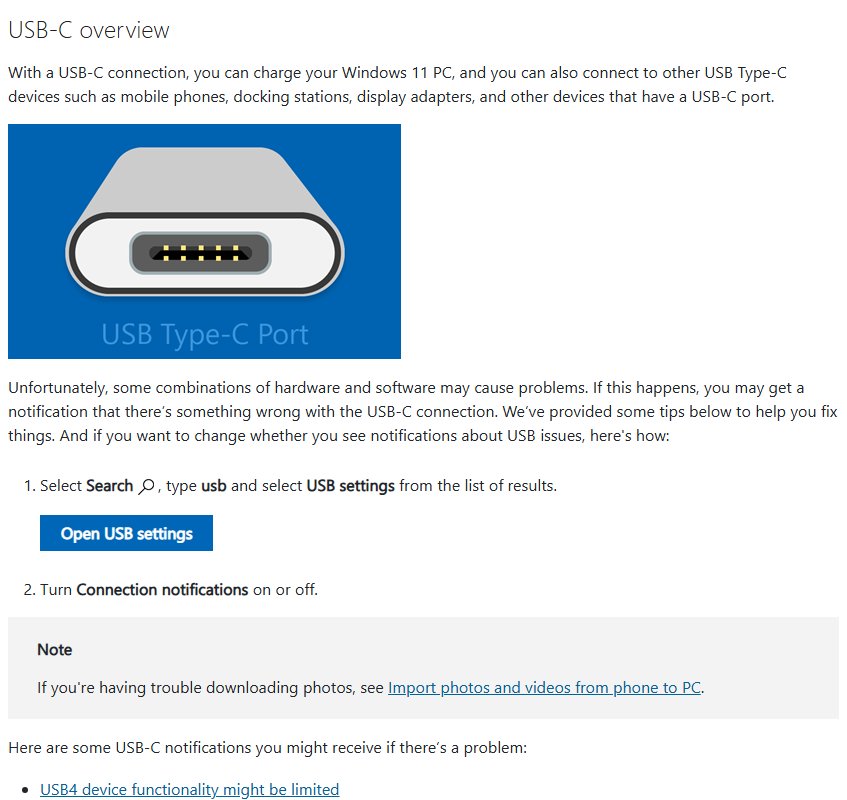
USB-C charging is handled by the laptop's firmware and embedded controller, not by a Windows setting. Windows reports the charging state and warns you when the charger is too weak.
- Find the USB-C port that supports charging in your laptop's user guide or specifications page.
- Use the charger and cable that came with the laptop, or a USB Power Delivery (PD) charger rated at the same wattage or higher.
- Plug the charger straight into the charging port, not into a hub, dock or adapter.
- Hover over the Battery icon on the right side of the taskbar and read the charging status.
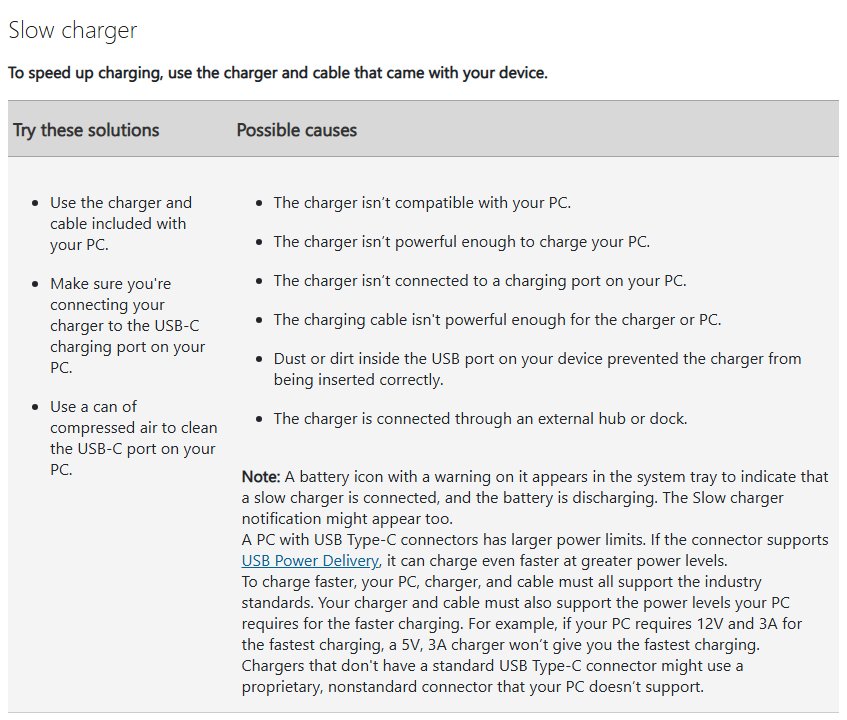
- If Windows shows Slow charger or PC isn't charging, switch to a higher-watt charger or a cable rated for that power.
When the port, charger and cable all support the power level the laptop needs, charging starts at once. Nothing has to be turned on in Settings first.
Does this computer support USB-C charging?
Not every USB-C port charges a laptop. Some models take power from one specific port, and Windows lists a non-charging port as a common reason a USB-C charger does nothing.
Thunderbolt and USB4 ports use the same connector, so the port shape alone tells you nothing. You can enable Thunderbolt on Windows 11 for docks and displays, but charging still depends on the port's power rating.
| What you find | What it means | What to do |
|---|---|---|
| The user guide lists a USB-C port for charging or power input | That port accepts a USB-C charger | Charge from that port with a charger of the listed wattage |
| The laptop shipped with a USB-C charger | The laptop is designed to charge over USB-C | Use the original charger and cable first |
| The laptop shipped with a round barrel charger | USB-C charging is not a given on this model | Read the specifications for a USB-C port with Power Delivery input |
| Every USB-C port shows PC isn't charging with a known-good PD charger | The ports do not take power at that level, or the charger is too weak | Compare the charger's wattage with the laptop's own adapter |
| The specifications list the port for data or display only | That port does not charge the laptop | Use the laptop's own power connector |
How does USB-C charging work?
USB-C charging is a negotiation between three parts: the laptop's port, the charger and the cable. The slowest of the three sets the charging speed.
| Part | What it does for laptop charging |
|---|---|
| USB Type-C port without Power Delivery | Supplies up to 5V at 3A (15W). A non-PD port charges at these Type-C current levels. |
| USB Power Delivery (PD) | An optional standard that negotiates higher power. A PD port can supply or take power, up to 100W. |
| Charger | Must offer the voltage and current the laptop asks for. A laptop that needs 12V at 3A does not get full-speed charging from a 5V, 3A charger. |
| Cable | Must carry the power the charger and laptop agree on. An underrated cable slows or stops charging. |
| Charging port | Only a port the laptop maker built for power input takes a charge. |
| Hub or dock | A charger connected through a hub or dock is a listed cause of slow or no charging. |
| Proprietary charger | A charger without a standard USB Type-C connector uses a nonstandard plug that the PC does not support. |
| Embedded controller | On laptops with one, the controller runs charging and Windows only shows the status and notifications. |
Charging before Windows starts, at the boot screen or with the laptop off, is set by the laptop maker. Some models charge at basic Type-C levels until Windows loads.
Turn on USB-C charging notifications in Windows 11
Windows 11 names a weak charger through USB connection notifications. Turn them on so a bad charger or cable is reported instead of failing silently.
- Select Search on the taskbar and type
usb. - Select USB settings in the results. The same page is at Settings > Bluetooth & devices > USB.
- Turn on Connection notifications.
- Unplug the USB-C charger and plug it back in.
- Watch for a Slow charger or PC isn't charging notification. No notification and a charging battery icon means the charger is accepted.
Slow charger and PC isn't charging messages in Windows 11
| What Windows shows | What it means | Fix |
|---|---|---|
| Slow charger notification | The charger agreed on less power than the laptop needs for normal charging | Use a higher-watt charger and the original cable |
| PC isn't charging notification | The USB-C charger is too weak to charge the laptop at all | Use the recommended charger and cable, plugged in directly |
| Battery icon with a warning sign | A slow charger is connected and the battery is discharging | Swap to the laptop's own charger |
| Charging slowly or discharging status on the battery icon | The charger does not meet the laptop's requirements | Use the charger designed for the PC, or charge it asleep or off |
| Heart on the battery icon and Fully Smart charged | Smart charging holds the battery below 100% on purpose | Leave it on at a desk, or turn it off in the maker's app before travel |
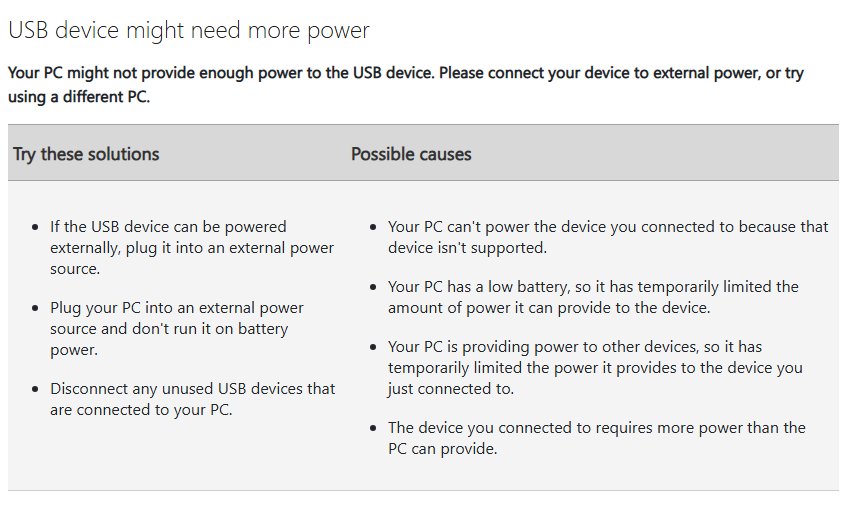
| USB device might need more power | A device plugged into the laptop wants more power than the port gives | Plug the laptop into its charger and disconnect unused USB devices |
Enable USB-C charging on Lenovo laptops
Lenovo laptops charge over USB-C only from a connector that supports the charging function. Lenovo Vantage can also hold the battery below full on purpose.
- Open the user guide for your model and confirm the USB-C connector you use supports charging.
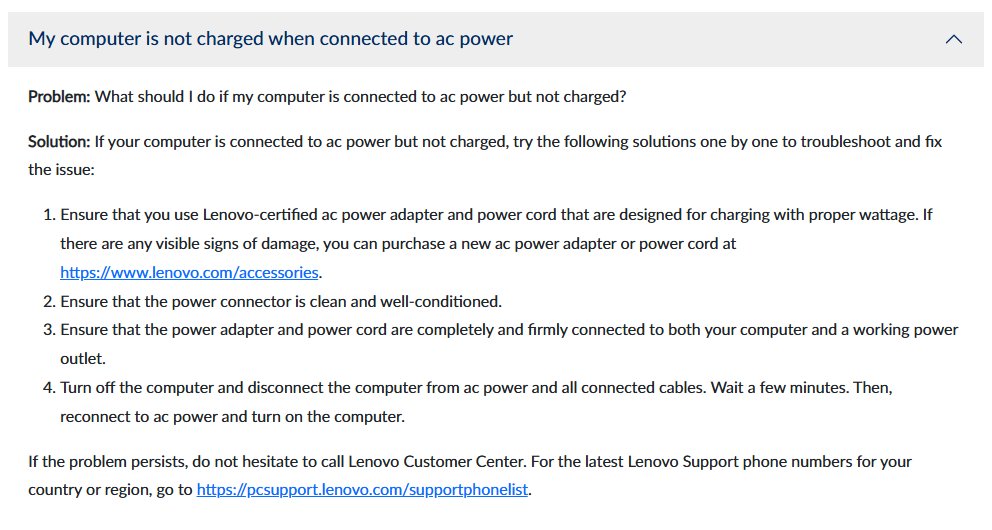
- Connect a Lenovo-certified power adapter and cord with the proper wattage. Low-wattage adapters cause charging problems.
- If the battery stops short of full, open Lenovo Vantage, select Power and go to BATTERY SETTINGS.
- Turn off Smart Charge when you need a full battery.
- If the percentage reads wrong, select RESET in BATTERY SETTINGS to reset the battery gauge.
- Update the UEFI BIOS for your model from Lenovo Vantage or Lenovo's support site.
- Shut the laptop down, disconnect the adapter, wait a few minutes, then reconnect it and restart.
If the percentage still does not move with the adapter in, work through the fixes for a Lenovo laptop plugged in but not charging.
How to enable USB-C charging on HP laptop
HP laptops have no Windows switch for USB-C charging either. Charging works on the port the model supports for power, with a charger that meets its wattage.
- Open HP's support site, enter your laptop model and read the specifications for its USB-C ports.
- Plug the HP USB-C adapter that came with the laptop into the port listed for charging.
- If you use another charger, pick a USB PD charger with at least the wattage printed on the HP adapter.
- Remove any dock or hub between the charger and the laptop.
- Install firmware and driver updates from Settings > Windows Update > Advanced options > Optional updates, or from HP's support page for the model.
- Restart and hover over the Battery icon to see whether the laptop now reports charging.
Update USB-C driver and BIOS in Windows 11
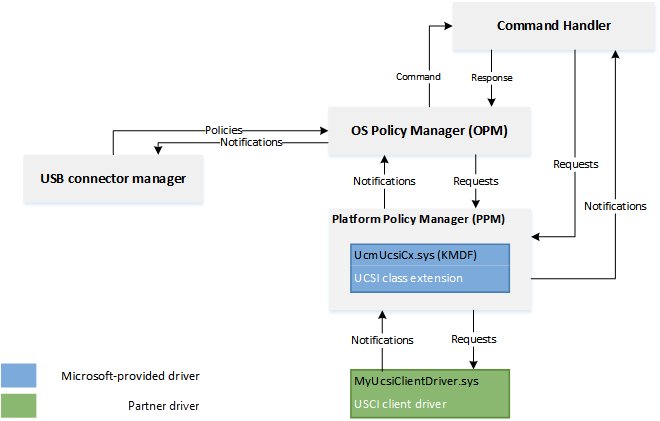
Windows ships the UCSI driver that manages USB-C ports, and the laptop maker supplies the charging firmware. Lenovo lists a UEFI BIOS update and a battery driver reinstall among its fixes for charging problems.
- Open Settings > Windows Update > Advanced options > Optional updates.
- Expand Driver updates, select any firmware, USB or chipset update for your laptop, and select Download and install.
- Restart the laptop when the update finishes.
- Right-click Start and select Device Manager.
- Expand Universal Serial Bus controllers and find UCSI USB Connector Manager (listed as UCM-UCSI ACPI Device on some laptops).
- Right-click it, select Uninstall device, then restart so Windows reloads its built-in driver.
- If the battery level still reads wrong, expand Batteries, uninstall Microsoft ACPI-Compliant Control Method Battery the same way and restart.
How to tell if laptop is charging through USB-C
- Plug the USB-C charger into the charging port.
- Hover over the Battery icon on the taskbar and read the status: charging, charging slowly or discharging.
- Open Settings > System > Power & battery and watch the battery percentage rise over a few minutes.
- If a heart shows on the battery icon with Fully Smart charged, Smart charging is holding the level on purpose.
- For a written record, open Terminal, run
powercfg /batteryreportand open the HTML report it saves.
How to enable USB charging on laptop
This is the reverse job: powering a phone or accessory from the laptop's USB ports. On a low battery, Windows limits the power a laptop gives to USB devices.
- Plug the laptop into its charger before charging another device from it.
- Disconnect USB devices you are not using.
- Search for Edit power plan, open it and select Change advanced power settings.
- Expand USB settings > USB selective suspend setting, set Plugged in to Disabled, then select Apply and OK.
- In Device Manager, open each USB Root Hub under Universal Serial Bus controllers, select the Power Management tab and clear Allow the computer to turn off this device to save power.
- If Windows shows USB device might need more power, give the device its own power supply.
You can also change USB power settings per power plan with powercfg.
USB-C charging not working
A battery that drains fast or will not charge on every charger points to the battery, not the USB-C port.
Laptop not charging battery via USB-C
The charger is too weak, the port does not accept charging, or a hub or dock sits in between.
- Unplug any hub, dock or adapter and connect the charger straight to the laptop.
- Move the charger to the USB-C port the user guide lists for charging.
- Swap in the charger and cable that came with the laptop.
- Clean the USB-C port with a can of compressed air so the plug seats fully.
- Shut down, unplug the charger for a few minutes, reconnect it and restart.
USB-C charging slow or battery draining while plugged in
The charger delivers less power than the laptop draws, so the battery fills slowly or drops.
- Use a charger with at least the wattage of the original adapter.
- Replace the cable with one rated for that charger's power.
- Close heavy programs and keep the laptop in a cool, ventilated place.
- Charge with the laptop asleep or turned off to speed it up.
Plugged in but not charging to 100%
Smart charging or the maker's battery-care mode holds the level lower to protect the battery.
- Hover over the Battery icon. Fully Smart charged with a heart means the stop is intentional.
- Turn Smart charging off in the laptop maker's app when you need a full battery, such as before travel.
- On a Lenovo laptop, turn off Smart Charge in Lenovo Vantage under Power > BATTERY SETTINGS.
USB-C not charging through a dock or monitor
A charger connected through a hub or dock is one of the causes Windows lists for slow or no charging.
- Connect the laptop's own charger directly to test the port.
- If direct charging works, keep the charger on the laptop and use the dock for data and displays.
- Update the laptop's firmware and drivers from Optional updates, then reconnect the dock.
USB-C laptop charging FAQ
Is there a Windows 11 setting to turn on USB-C charging?
No. Windows 11 has no switch for USB-C charging. The laptop's firmware charges the battery when the port supports power input and the charger and cable supply enough power. Windows only shows the charging status and warns about slow chargers through Connection notifications in USB settings.
How do I know if my laptop supports Type-C charging?
Check the user guide or specifications page for a USB-C port listed for charging, power input or USB Power Delivery. A laptop that shipped with a USB-C charger supports it. If every port shows PC isn't charging with a strong PD charger, the ports do not take power at that level.
What is USB-C charging?
USB-C charging powers a laptop or phone through the USB Type-C connector. A basic Type-C port supplies up to 15W (5V at 3A). With USB Power Delivery, the port and charger negotiate higher power, up to 100W, which is enough to charge many laptops.
How to charge computer with USB-C?
Plug a USB Power Delivery charger rated for your computer's wattage into the USB-C port that supports charging, using a cable rated for that power. Connect it directly, not through a hub or dock. The battery icon on the taskbar shows the charge rising within a few minutes.
Can I charge this with USB-C?
Yes, if the device's USB-C port accepts power and the charger offers the voltage and current it needs. A small 5V, 3A phone charger is too weak for full-speed laptop charging, and Windows reports it with a Slow charger or PC isn't charging notification.
Can a Dell laptop charge with USB-C?
Yes, Dell laptops with a USB-C port built for power input charge over USB-C. Dell recommends the original charger that came with the laptop, because non-genuine chargers do not always provide the correct voltage. Check the model's specifications for which port takes power.
How to enable USB charging on PC?
A PC's USB ports supply power to phones and accessories without any setting. To keep that power on, plug a laptop into its charger, disconnect unused devices and set USB selective suspend setting to Disabled for Plugged in in the power plan's advanced settings.
Why does my laptop charge slowly over USB-C?
The charger, cable or port supports less power than the laptop needs, or a hub or dock sits in between. Use the original charger and cable, plug straight into the charging port, and charge with the laptop asleep or off to speed it up.