Windows 11 has no built-in slider that caps charging at 60% or 80%, so you set the limit in your laptop maker's app or firmware: Limit to 80% in the Surface app, Battery Care Mode in MyASUS, or a charge mode such as Primarily AC Use in a Dell BIOS.
This guide covers Windows Smart charging, the Surface, ASUS, Dell, Lenovo, HP and Samsung settings, the BIOS and UEFI route, how to prove the cap holds, and what to do when a laptop has no limit at all.
How to limit battery charge to 80% in Windows 11
Find your laptop brand in the table and open the setting it names. Each route is the maker's own tool, because the laptop's hardware and firmware decide where charging stops, not Windows.
| Laptop brand | Where the limit lives | Pick this for about 80% | Lower cap |
|---|---|---|---|
| Microsoft Surface | Surface app > Battery & charging > Charging mode | Limit to 80% | Battery Limit in Surface UEFI stops at 50% |
| ASUS | MyASUS > Device Settings > General > Power & Performance | Battery Care Mode in Balanced mode (stops above 80%) | Maximum lifespan mode (stops above 60%) |
| Dell | BIOS setup (press F2 at startup) > Power or Battery section | Primarily AC Use (holds 50–80%) | Custom start and stop values |
| Lenovo | The battery charging mode setting | Conservation mode (75%–80% on the Legion Slim 5) | Not documented |
| Samsung Galaxy Book | Samsung Settings app | Battery Life Extender (caps at 85%) | Not documented |
| HP business notebooks | BIOS > HP Battery Health Manager | Maximize My Battery Health | Not documented |
If your brand is not listed, or the setting is missing from your model, start with the Smart charging check and the tool search in the next two sections.
Can Windows 11 limit battery charging to 80%?
Not on its own. Windows 11 shows Smart charging when the laptop maker turns it on, but nothing in Settings or powercfg sets a charge ceiling.
Microsoft's hardware guidance says the system hardware stops charging when the battery is completely charged, and that the OEM defines that level. For battery maintenance, that level may be lower than 100% of the cell's capacity.
| Windows 11 feature | Can it cap the charge? | What it actually does |
|---|---|---|
| Smart charging | Only when the manufacturer turns it on | Holds the battery at a lower level while plugged in and shows a heart on the battery icon |
| Settings > System > Power & battery | No | Controls power mode, Energy saver, and screen and sleep timeouts |
| powercfg command | No | Manages power schemes, sleep states, wake timers and reports, including /batteryreport |
| Laptop firmware (BIOS or UEFI) | Yes | Stops charging at the level the maker sets, which is where Dell, Surface and HP charge limits live |
Windows 11 charge limit: First, check whether Windows Smart charging is active
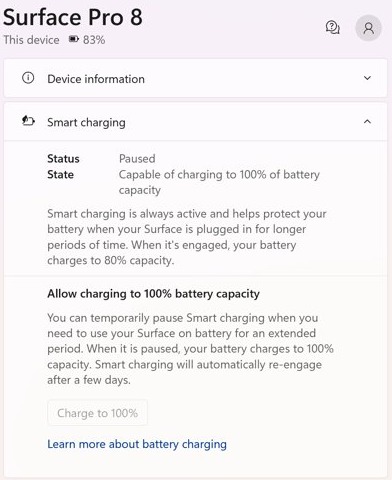
Some device manufacturers turn on Smart charging in Windows 11. When it is on, the battery is held at a lower level that is better for its long-term health, so you may not need a separate limit.
The same Power & battery page also holds Energy saver and power mode, which change power use but not the charge ceiling. You can customize Windows 11 battery settings there separately.
- Plug in the laptop and look at the battery icon on the right side of the taskbar.
- Check for a small heart on the battery icon. The heart means Smart charging is on.
- Hover over the battery icon. Fully Smart charged means the battery is not charging on purpose, even though the charger is connected.
- Open Settings > System > Power & battery and look for the same heart on the battery icon.
- To pause Smart charging before a trip, use your maker's tool. On a Surface, open the Surface app, select Battery & charging and choose Charge to 100%.
Every manufacturer implements Smart charging slightly differently, and Microsoft points to the maker's website for the way to turn it off on each device.

Check whether your laptop already has a battery charge limit tool
Most charge limits ship with the laptop, either in the maker's control app or in the firmware. Spend two minutes finding which one your model uses before changing anything.
- Note the brand and model printed on the laptop's label or box.
- Select Start and type the maker's app name, such as Surface, MyASUS, Dell Power Manager or Samsung Settings.
- Open the app and look for a battery, power or charging page.
- If the app is missing, open Microsoft Store and install it. The Surface app and Samsung Settings are both distributed there.
- If the app has no charge option, restart into BIOS or UEFI setup and look in the Power or Battery section.
- If neither place offers a limit, the laptop does not support one. Use the charging habits listed further down instead.
Which battery charge limit should you choose?
Pick the cap from how the laptop is used, not from a single magic number. A lower cap protects the battery more, and a higher cap leaves more runtime when you unplug.
| Your situation | Limit | Why |
|---|---|---|
| The laptop almost never leaves the desk | 60%, or 50% with Surface Battery Limit | ASUS recommends its 60% mode for laptops that stay plugged in, and Microsoft recommends Battery Limit for always-connected devices |
| Plugged in most of the day, unplugged for meetings | 80% | Microsoft advises keeping the battery roughly between 20% and 80%, and ASUS suggests its 80% mode for meetings |
| Travel day or long stretches away from an outlet | 100% for that day | Microsoft suggests turning Smart charging off when traveling or when you need the full capacity |
| Storing the laptop for weeks | About 40%–60%, then shut down | Microsoft says batteries stored at higher charge levels lose capacity faster |
| Samsung Galaxy Book on default settings | 85% | Samsung caps the charge at 85% on purpose and recommends leaving it on |
Microsoft Surface: set a fixed 80% limit
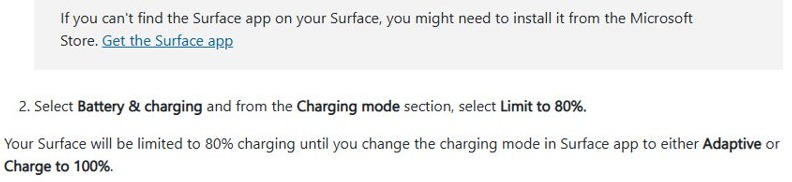
Surface devices that support a manual cap set it in the Surface app. The setting stays in place until you change it, unlike Smart charging, which switches itself on and off.
- Select Start and open the Surface app. If it is not installed, get it from Microsoft Store.
- Select Battery & charging.
- In the Charging mode section, select Limit to 80%.
- Leave the Surface plugged in. It stays at 80% until you change Charging mode to Adaptive or Charge to 100%.
Not every Surface model lists Limit to 80%. Models without it still use Smart charging, which turns on by itself and caps the charge at 80% when the Surface stays plugged in for long periods or runs at high temperatures.
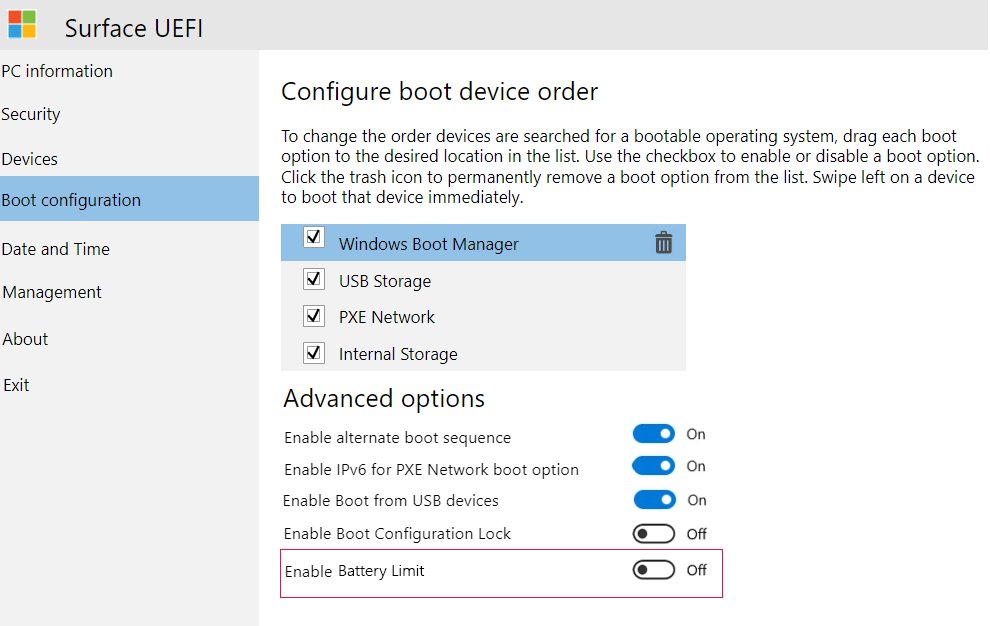
Do not confuse this with Battery Limit in Surface UEFI. That firmware setting stops charging at 50%, and Microsoft recommends it for devices that are always connected to power, such as kiosks and point-of-sale units.
ASUS: use MyASUS Battery Care Mode
ASUS builds the feature, ASUS Battery Health Charging, into MyASUS on most laptops. If MyASUS does not include it, ASUS offers it as a separate download.
- Select Start and open MyASUS.
- Select Device Settings.
- Under General, open Power & Performance.
- Turn on Battery Care Mode.
- Choose Balanced mode to stop charging at 80%, or Maximum lifespan mode to stop at 60%.
Balanced mode stops charging above 80% and starts again at 78%. Maximum lifespan mode stops above 60% and starts again at 58%. Full capacity mode charges to 100% and suits days of work while traveling.
For one full charge before a trip, turn on Instant Full-Charge Mode. It charges the battery to 100% and switches Battery Care Mode back on after 24 hours. On 2026 ASUS laptops, Battery Care Mode also learns charging habits and adjusts automatically.
How to set a custom charge limit in Dell Power Manager
Dell's Custom battery setting lets you choose both the level where charging starts and the level where it stops. Dell recommends it for advanced users who understand battery charging cycles.
- Select Start and open Dell Power Manager.
- Go to the Battery Setting page and select Custom.
- Under Start Charging, move the slider or type the level where charging should begin, such as 70.
- Under Stop Charging, set the level where charging should stop, such as 80.
- Select OK to apply the setting.
The start and stop values must differ by at least the minimum gap set in the laptop's BIOS. If the app will not accept your numbers, widen the gap between them.
How to set an 80% limit in BIOS or UEFI
A firmware limit works before Windows loads, so it holds even when the maker's app is missing. Menu names vary by model, so match the closest label on your screen.
Surface firmware caps at 50%, not 80%. For an 80% cap on a Surface, use the Surface app instead.
| Laptop | Open firmware setup | Go to | Choose |
|---|---|---|---|
| Dell | Press F2 about once a second as the laptop starts | The Power or Battery section | Battery Configuration or Battery Charge Settings, then Primarily AC Use (50–80%) or Custom |
| Microsoft Surface | Press Power + Volume up as you turn it on | Boot configuration > Advanced Options | Set Enable Battery Limit to On (stops at 50%) |
| Surface Go | Press Power + Volume up as you turn it on | Boot configuration > Kiosk Mode | Move the slider to set Battery Limit to Enabled (stops at 50%) |
| HP business notebooks | Open BIOS setup at startup | HP Battery Health Manager | Maximize My Battery Health |
Save the change and exit setup, then let Windows start normally. On a Surface with Battery Limit turned on above 50%, the battery does not charge again until it drops below 50%.
What about Dell, Lenovo, HP, Acer, and other laptops?
Every maker names its charge limit differently, and the options depend on the model rather than on Windows. Dell's BIOS also offers modes beyond the two covered above.
| Brand | Charge-limit feature | What it does | Back to a full charge |
|---|---|---|---|
| Dell | Adaptive, Advanced Battery Charge, ExpressCharge | Adaptive learns usage patterns and adjusts the cap on its own. Advanced Battery Charge protects the battery while allowing heavy use during the workday. ExpressCharge charges to 80% in about an hour. | Select Standard, which charges to 100%. Setting Work Period to 0 turns Advanced Battery Charge off for that day. |
| Lenovo | Conservation mode | Keeps the battery from charging fully. On the Legion Slim 5 it holds the charge within 75%–80%. | Switch battery charging to normal or rapid charge mode |
| HP | HP Battery Health Manager (BIOS, most business notebooks) and Adaptive Battery Optimizer | Battery Health Manager limits time spent at a high state of charge. Adaptive Battery Optimizer watches battery temperature, charging status and use patterns. | Change the Battery Health Manager setting in BIOS |
| Samsung | Battery Life Extender in Samsung Settings | Caps the maximum charge at 85%. Some models use Samsung Settings 1.1 or Book Settings instead. | Turn the switch off, and the battery charges to 100% |
| Acer, MSI, Razer, LG, Framework and others | Varies by model | Look for a battery charge limit or battery health option in the maker's control app and BIOS | Use the model's user guide for the exact label |
Best battery charge limit settings for different use cases
Match the row to how you use the laptop this week, then set the named option. Change it again when your routine changes, such as before a trip.
| Use case | Surface | ASUS | Dell | Samsung |
|---|---|---|---|---|
| Desk laptop, plugged in all day | Limit to 80%, or Battery Limit in UEFI for 50% | Maximum lifespan mode (60%) | Primarily AC Use | Battery Life Extender on |
| Mixed desk work and meetings | Adaptive charging mode | Balanced mode (80%) | Adaptive | Battery Life Extender on |
| Travel day or long flight | Charge to 100% a few hours before you leave | Instant Full-Charge Mode or Full capacity mode | Standard | Battery Life Extender off |
| Kiosk or point-of-sale unit that never unplugs | Battery Limit in UEFI (50%) | Maximum lifespan mode (60%) | Custom with a low Stop Charging value | Battery Life Extender on |
What if your laptop does not support an 80% charge limit?
Without a firmware or app limit, charging habits do the same job by hand. These are the practices Microsoft lists for lithium-ion batteries in Windows laptops and Surface devices.
| Habit | What to do | Why it helps |
|---|---|---|
| Stay in the middle range | Keep the charge roughly between 20% and 80% when you can | Frequent deep discharges and long periods at a high charge speed up wear |
| Drain it regularly | Let the battery fall below 50% several times a week before recharging | Microsoft recommends this over many short, shallow top-ups on devices without smart charging |
| Unplug when you can | Avoid leaving the laptop on AC power for days at a time | Batteries kept at a high charge lose capacity faster |
| Avoid heat | Keep the laptop out of the sun and out of hot cars, and do not charge it while hot | Heat permanently reduces lithium-ion capacity |
| Store it half charged | Charge to about 40%–60% before storing it and check the level now and then | Storage at a high or empty charge harms the cells |
| Install firmware updates | Update the laptop firmware through Windows Update and the maker's update tool | Some Surface models gained Battery Limit only through a firmware update |
How to confirm the 80% limit is working
A working limit shows up as a battery percentage that stops rising while the charger stays connected. If the taskbar shows only an icon, show the battery percentage on the taskbar so you can watch the number.
- Let the battery drop below your limit, then plug in the charger.
- Leave the laptop plugged in for a few hours and check the percentage on the taskbar.
- Hover over the battery icon. With Smart charging, the tooltip reads Fully Smart charged and the icon shows a heart.
- On ASUS Balanced mode, expect the level to sit between 78% and 80%, because charging restarts at 78%.
- On a Dell Custom setting, expect charging to start only after the level falls to your Start Charging value.
- On a Surface with Limit to 80%, open the Surface app > Battery & charging and confirm Charging mode still shows Limit to 80%.
How to check battery health with powercfg /batteryreport
powercfg cannot stop charging at 80%, because none of its documented options controls where charging ends. Its battery report does show whether the battery is holding its capacity over time.
Select Start, type Command prompt, right-click Command Prompt, choose Run as administrator and select Yes. Then run the command below.
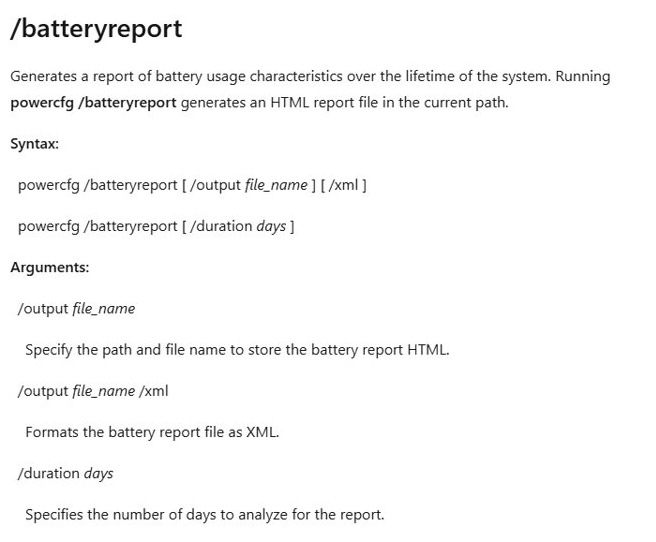
powercfg /batteryreportGenerates an HTML report of battery use over the life of the system and saves it in the current folder. Add /output with a file name to choose where it goes, or /duration with a number of days to change the history it covers.
You should see: Command Prompt prints the path of the saved HTML file. Open it in a browser and compare Design Capacity with Full Charge Capacity under Installed batteries.
Battery health is Full Charge Capacity divided by Design Capacity, times 100. A falling Full Charge Capacity over months is normal aging; a limit slows the decline but does not stop it.
Troubleshooting: The battery still charges past 80%
The most common mistakes are picking a mode that charges fast instead of one that caps, leaving a one-time full-charge option on, and expecting Windows to hold a limit the firmware does not support.
A Surface charges to 100% even though Smart charging was on
Smart charging pauses by itself when the battery drops below 20% or when you use the battery often, and then allows a full charge.
- Open the Surface app and select Battery & charging.
- In Charging mode, select Limit to 80% if your model lists it.
- If only Adaptive is listed, leave it on. Smart charging turns on again based on how you use the battery.
An ASUS battery goes above 80%
Full capacity mode is selected, or Instant Full-Charge Mode was turned on, which charges to 100% for 24 hours.
- Open MyASUS and select Device Settings.
- Under General, open Power & Performance.
- Confirm Battery Care Mode is on and Balanced mode is selected.
- If you used Instant Full-Charge Mode, allow 24 hours for Battery Care Mode to switch back on.
A Dell laptop charges to 100% after a BIOS change
Standard charges to 100%, and Adaptive can move the cap on its own based on learned usage.
- Restart the laptop and press F2 about once a second to open BIOS setup.
- Open the Power or Battery section.
- Under Battery Configuration, select Primarily AC Use or Custom.
- Save the change and restart.
A Samsung Galaxy Book charges to 100%
The Battery Life Extender switch is off, so the 85% cap no longer applies.
- Select Start and open Samsung Settings.
- Find the battery setting and turn Battery Life Extender on.
- Unplug and let the level fall below 85%, then plug in again and confirm it stops at 85%.
The Smart charging heart never appears on a Surface
Older models, including Surface Pro 7, Surface Laptop 4 and Surface Book 3, support Smart charging but do not show the heart icon.
- Open the Surface app.
- Select Battery & charging and read the Smart charging status there.
If the battery will not charge at all, or stops far below the cap you set, the limit is not the cause. In that case, troubleshoot a laptop battery that is not charging before you change any charge setting.
What to do if you cannot find an 80% charge limit
A missing option usually means the app is not installed, the firmware is out of date, or the setting lives in BIOS instead of Windows.
The maker's battery app is not installed
The app was removed, or it never shipped on a clean Windows install.
- Open Microsoft Store.
- Search for the maker's app, such as Surface or Samsung Settings, and install it.
- On ASUS laptops, install MyASUS. If it lacks the battery option, ASUS offers Battery Health Charging as a separate download.
- Open the app and go to its battery or power page.
The Surface app has no Limit to 80% option
Not every Surface model supports a manual 80% limit.
- Leave Smart charging on. It caps the charge at 80% automatically when the Surface stays plugged in for long periods.
- For a Surface that never unplugs, turn on Battery Limit in Surface UEFI for a fixed 50% cap.
The battery features are missing on an older Surface
Battery features depend on current drivers and firmware, and some models gained Battery Limit only through a firmware update.
- Open the Surface app and expand Help & support.
- Select Check for updates to open Windows Update.
- Install the available updates and restart.
The Dell app shows no charge setting
Dell keeps the battery charge modes in BIOS setup, and the menu options vary by model.
- Restart and press F2 about once a second to open BIOS setup.
- Open the Power or Battery section.
- Look for Battery Configuration or Battery Charge Settings and pick a mode.
Windows 11 battery charge limit FAQ
Can Windows 11 limit every laptop battery to 80%?
No. Windows 11 has no universal charge-limit setting. The cap comes from the laptop maker's app or firmware, such as the Surface app, MyASUS or a Dell BIOS charge mode. Smart charging appears in Windows only when the manufacturer turns it on.
Can I use powercfg to stop charging at 80%?
No. The documented powercfg options manage power schemes, sleep states, wake timers and diagnostic reports, and none of them sets where charging stops. Use powercfg /batteryreport to check battery capacity, and set the limit in the maker's app or BIOS.
Is there a battery charge limit in Windows 10?
Windows 10 has no built-in charge cap either. The maker's tools work the same way on both versions: Surface Smart charging and Battery Limit apply to Windows 10 and Windows 11, and Samsung Settings runs on Windows 10 and 11 notebooks.
How do I set a Surface to charge only to 80%?
Open the Surface app, select Battery & charging, and choose Limit to 80% under Charging mode. The Surface stays at 80% until you switch the mode to Adaptive or Charge to 100%. Not every Surface model lists this option.
Does Surface Battery Limit mean 80%?
No. Battery Limit is a Surface UEFI setting that stops charging at 50% of maximum capacity, and Microsoft recommends it for devices that are always plugged in. The 80% cap comes from Smart charging or the Limit to 80% charging mode in the Surface app.
How do I set an ASUS laptop to 60% or 80%?
Open MyASUS, go to Device Settings, then General and Power & Performance, and turn on Battery Care Mode. Choose Balanced mode for an 80% cap or Maximum lifespan mode for a 60% cap. Full capacity mode charges the battery to 100%.
Why did my ASUS battery go above 80%?
Check whether Full capacity mode or Instant Full-Charge Mode is selected in MyASUS. Instant Full-Charge Mode charges to 100% and only turns Battery Care Mode back on after 24 hours. In Balanced mode, charging restarts at 78%, so the level moving between 78% and 80% is normal.
What should I do if my laptop has no charge-limit option?
Check the maker's app, Microsoft Store and the BIOS first, and install firmware updates through Windows Update. If no limit exists, keep the charge roughly between 20% and 80%, unplug when you can, and keep the laptop away from heat.
How do I change the battery charge limit back to 100%?
Use the same tool that set it: Charge to 100% in the Surface app, Full capacity mode in MyASUS, Standard in a Dell BIOS, or turn off Battery Life Extender in Samsung Settings. Firmware limits such as Surface Battery Limit are turned off in UEFI setup.
Is it worth limiting laptop battery charge to 80%?
The bottom line depends on how often the laptop leaves its charger.
Yes, if the laptop spends most of its day plugged in: set an 80% cap, or 60% if it almost never leaves the desk. Microsoft says batteries kept at a high state of charge lose capacity faster and recommends staying roughly between 20% and 80%. The cost is shorter runtime when you unplug, so switch to a full charge a few hours before a travel day.