Deleted email still uses iCloud storage until it leaves the Trash, so empty the Trash in iCloud Mail and the space comes back.
This guide covers clearing iCloud email storage on iPhone, Mac and iCloud.com, the other folders that hold mail, what else fills iCloud, and how to recover a message you deleted by mistake.
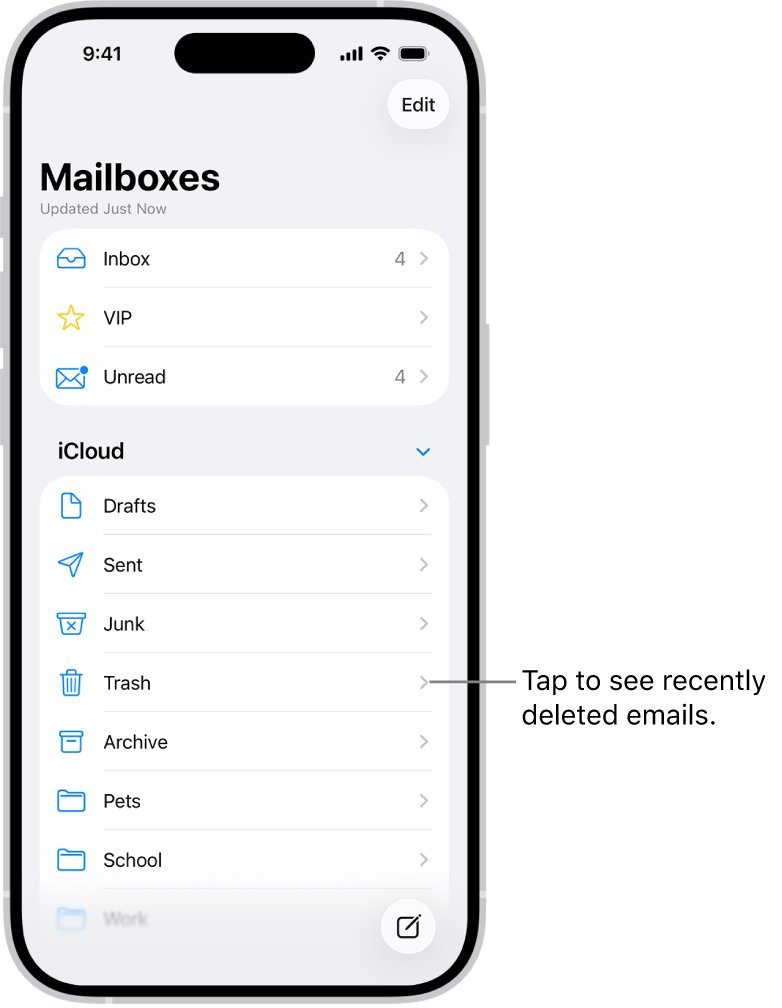
How to clear iCloud email storage
A deleted message moves to the Trash and stays there for 30 days. It counts toward iCloud storage until it is erased, so emptying the Trash is the step most people miss.
- Go to icloud.com/mail in a browser and sign in to your Apple Account.
- Select the messages you no longer need, then select the Trash button.
- Select the more icon at the top of the Mailboxes list.
- Choose Empty Trash, then select Empty Trash again.
- Open the same menu and choose Empty Junk if the Junk folder holds mail.
- Go to icloud.com/storage and check the Mail figure below the storage bar.
Emptying the Trash is permanent. Move anything you want to keep back to the inbox before you select Empty Trash.
Do deleted messages stay in iCloud?
Yes, for a while. Every iCloud Mail folder lives on Apple's servers, and the Mail category in iCloud storage includes mail from your iCloud address and any custom email domain.
| iCloud Mail folder | How long mail stays | How to free the space |
|---|---|---|
| Trash | 30 days, then erased automatically; another mail app can erase it sooner | Empty Trash on iCloud.com, or Erase Deleted Items in Mail on Mac |
| Junk | 30 days, then deleted automatically | Empty Junk on iCloud.com |
| Archive | Until you delete it | Open Archive, select the old messages and move them to the Trash |
| Inbox, Sent and your own folders | Until you delete it | Delete large messages first; mail with attachments uses more space than plain text |
How to delete email from iCloud storage on iPhone
Deleting a message on iPhone only moves it to the Trash. Clear the Trash too, or iCloud storage does not change.
- Open the Mail app and go to your iCloud inbox.
- Swipe left across a message to delete it, or tap Select, choose several messages and tap the delete icon.
- Tap back until you see Mailboxes.
- Tap Trash under your iCloud account.
- Tap Select, choose the messages, then tap Delete to erase them.
- Repeat for the Archive mailbox if your iPhone archives mail instead of deleting it.
To check what your iPhone does with discarded mail, open Settings > Apps > Mail > Mail Accounts > iCloud > Mailbox Behaviors. When Archive Mailbox is selected, deleted mail piles up in Archive, and you touch and hold the archive icon and tap Trash Message to delete instead. For a full inbox, you can also mass delete emails in iCloud Mail in one pass.
How to erase deleted items in Mail on Mac
Mail on Mac keeps deleted iCloud messages in the Trash until you erase them, even after you delete them on iPhone or iCloud.com.
- Open the Mail app on your Mac.
- Select the messages you want to remove, then click the Delete button.
- Choose Mailbox > Erase Deleted Items in the menu bar.
- Select your iCloud email account from the menu.
- Click Erase to confirm.
To keep old mail without paying for it in iCloud, move the messages from iCloud to your Mac. Mail stored only on the Mac no longer counts against iCloud storage, though it does use disk space, so free up storage on your Mac if the drive is close to full.
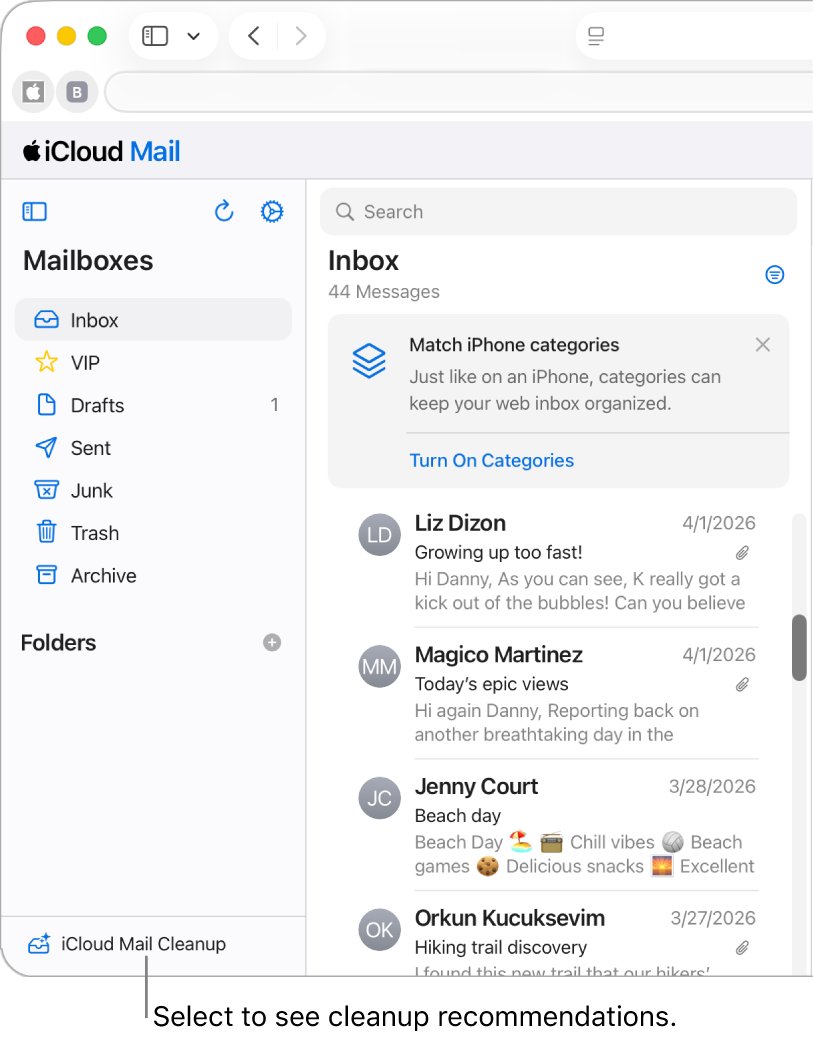
How to empty Trash in iCloud Mail on iCloud.com
iCloud.com works on any phone, tablet or computer, including a Windows PC, once you sign in to your iCloud email. Changes there apply to every device with Mail turned on in iCloud settings.
- Go to icloud.com/mail and sign in to your Apple Account.
- Select the more icon at the top of the Mailboxes list.
- Choose Empty Trash, then select Empty Trash again.
- To skip the Trash in future, open the same menu, choose Settings and select Mailbox Behavior.
- Deselect the Move deleted messages to checkbox so deleted mail is erased at once.
Leave Move deleted messages to selected if you want the 30-day safety net. With it off, a deleted message cannot be recovered.
How to use iCloud Mail Cleanup to free up storage
iCloud Mail Cleanup deletes old promotions and archives old transactions on a schedule. Its rules work on every device with iCloud Mail turned on, and it may not be available in all languages.
- Go to icloud.com/mail, then select Cleanup Recommendations at the bottom of the Mailboxes list.
- Select Get Recommendations, then select Done.
- Select iCloud Mail Cleanup and pick a recommendation, such as Clean Up Old Promotions.
- Set the Action, Status and Age rules for that recommendation.
- Select Turn On.
- On iPhone or iPad, open Mail, tap the more button in the iCloud inbox, tap Cleanup Recommendations, then tap iCloud Mail Cleanup.
Cleanup keeps running for that type of mail until you turn it off. Messages it deletes still pass through the Trash, so empty it afterwards for an immediate gain.
How to check iCloud storage after deleting email
- On iPhone or iPad, open Settings > [your name] > iCloud and read the bar graph.
- Tap Storage or Manage Account Storage and find Mail in the list.
- On Mac, choose Apple menu > System Settings, click your name, click iCloud, then click Manage.
- On Windows, open iCloud for Windows, scroll to the bar graph and click Manage.
- In a browser, go to icloud.com/storage and read the list below the storage bar.
The largest users sit at the top of the list. If Mail is small but the bar is still full, the space belongs to another category.
What uses iCloud storage besides Mail
Every iCloud account starts with 5 GB shared by backups, photos, files and messages. Mail is often a small slice, so deleting email alone may not clear the warning.
| Storage category | What it holds | How to reduce it |
|---|---|---|
| Backups | iCloud backups of iPhone and iPad | Settings > [your name] > iCloud > Storage > Backups, tap an old device, then Turn Off and Delete from iCloud |
| Photos and Videos | iCloud Photos library | Delete unwanted items in Photos; Recently Deleted items do not count toward storage |
| Documents | iCloud Drive, Notes, Reminders, Health and third-party app data | Files > Browse > iCloud Drive, select files and tap Delete |
| Messages | iMessage texts and attachments synced with Messages in iCloud | Open a conversation, tap the contact name, tap Photos, then delete attachments |
| Family | Storage used by family members sharing your iCloud+ plan | Ask each member to clear their own data |
| Others | Smaller categories grouped together on a small screen | Check the full list on icloud.com/storage |
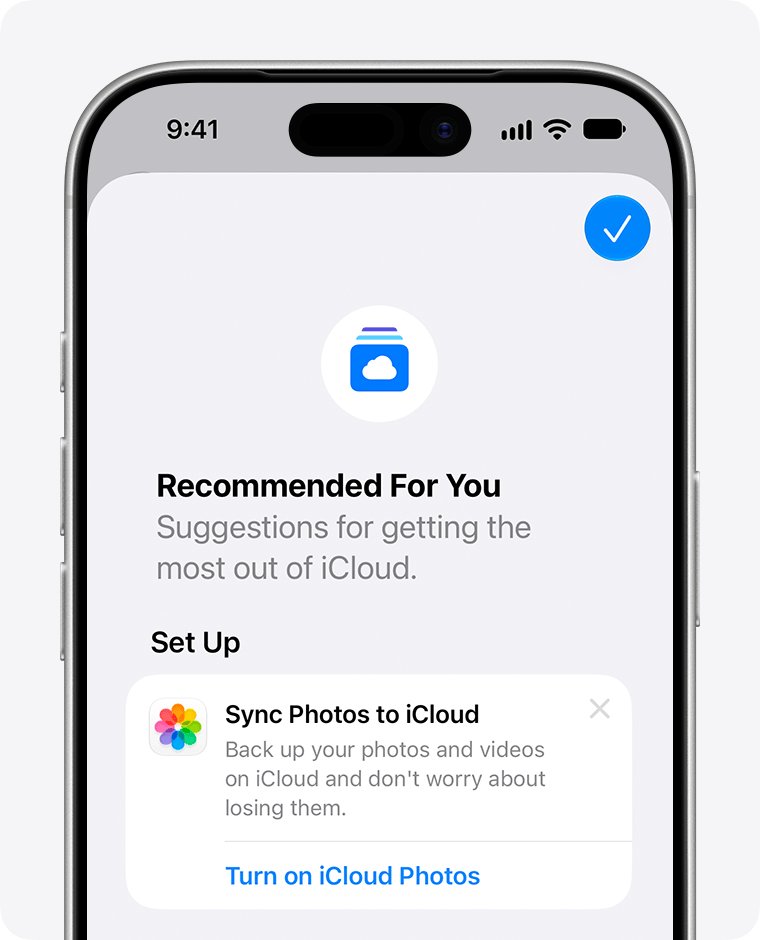
On iPhone or iPad with iOS 17 or later, Settings > [your name] > iCloud > Recommended for You lists large files, photos and old backups you can delete in a few taps.
How to upgrade iCloud storage when Mail is still full
When the space you need is mail you want to keep, a larger plan is the simple fix. iCloud+ comes in 50 GB, 200 GB, 2 TB, 6 TB and 12 TB plans.
- Go to icloud.com/storage and sign in to your Apple Account.
- Select Get More Storage, Change iCloud Plan or Upgrade iCloud+ Plan.
- Open the notification on your Apple device, because the purchase is completed on a supported device.
- Choose a plan and follow the onscreen instructions.
- Return to icloud.com/storage and check the new total.
How to recover deleted email from iCloud
A deleted iCloud message can be recovered from the Trash for 30 days. Once the Trash is emptied, or the message is erased with Erase Deleted Items, it is gone for good.
- Open the Mail app on iPhone and tap back until you see Mailboxes.
- Tap Trash, then tap the message you want to recover.
- Tap the move icon and choose Inbox or another mailbox.
- On iCloud.com, open Trash, select the message, select Move and choose Inbox.
- To see deleted mail from every account at once on iPhone, tap Edit in Mailboxes and select All Trash.
Deleted mail and still says iCloud full
Deleted email but iCloud storage is still full
The messages are sitting in the Trash, which still counts toward iCloud storage.
- Go to icloud.com/mail and choose Empty Trash from the menu at the top of Mailboxes.
- On Mac, choose Mailbox > Erase Deleted Items and select the iCloud account.
- Check icloud.com/storage again.
Mail figure dropped but storage is still full
Backups, photos or iCloud Drive files hold most of the space.
- Open icloud.com/storage and note the category at the top of the list.
- Delete old device backups under Storage > Backups in iCloud settings.
- Use Recommended for You on iPhone or iPad to remove large files and photos.
Deleted mail keeps landing in Archive
iPhone Mail is set to move discarded messages into the Archive mailbox, where they stay until deleted.
- Open Settings > Apps > Mail > Mail Accounts > iCloud > Mailbox Behaviors.
- Below Move Discarded Messages Into, select the option other than Archive Mailbox so deleted mail goes to the Trash.
- Open the Archive mailbox and delete the old messages, then empty the Trash.
iCloud storage is full and email is not coming through
With no iCloud storage left, you cannot send or receive email with your iCloud address.
- Empty the Trash and Junk folders on iCloud.com.
- Delete large messages with attachments, or move them to your Mac.
- Upgrade to an iCloud+ plan if you need the space straight away.
- Send a test message to your iCloud address once storage drops below the limit.
I keep getting emails about iCloud storage
The account is near or over its limit, or the message is a scam made to look like Apple.
- Ignore links in the email and open Settings > [your name] > iCloud to read your real storage.
- Check that the sender address matches Apple and the email address you gave Apple.
- Forward a suspicious message to [email protected], then delete it.
- Mark spam in your iCloud inbox as Junk so iCloud filters similar mail.
iCloud email storage FAQ
How do I delete mail from iCloud storage?
Delete the messages, then empty the Trash. On iCloud.com, open the menu at the top of Mailboxes and choose Empty Trash. On Mac, choose Mailbox > Erase Deleted Items. Until the Trash is emptied, deleted mail still uses iCloud storage.
How do I recover deleted email from iCloud?
Open the Trash mailbox, select the message and move it back to the Inbox. iCloud keeps deleted mail in the Trash for 30 days. A message erased by Empty Trash or Erase Deleted Items cannot be recovered.
How do I see deleted emails on iCloud?
Open the Trash folder in the Mailboxes list on iCloud.com or in the Mail app. On iPhone, tap Edit in Mailboxes and select All Trash to see deleted messages from every account in one mailbox.
Do deleted messages stay in iCloud?
Yes, for up to 30 days. Deleted iCloud mail moves to the Trash, which is erased automatically after 30 days. Another mail app, such as Mail on iPhone or Mac, can erase it sooner depending on its settings.
Can I retrieve deleted emails from iCloud after emptying the Trash?
No. Emptying the Trash permanently deletes the messages, and Apple states they cannot be recovered. The same applies when Move deleted messages to is turned off in iCloud Mail settings, because deleted mail is then erased at once.
Are emails stored in iCloud?
Yes. Mail sent to your iCloud address and any custom email domain is stored in iCloud and counts toward your iCloud storage. Messages with attachments use more space than plain-text mail.
Does iCloud send emails about storage?
Treat any storage email with care and check the real figure yourself in Settings > [your name] > iCloud or on icloud.com/storage. If a message that looks like Apple asks you to sign in through a link, forward it to [email protected].
How do I clear iCloud email storage without losing mail?
Move the messages you want to keep from your iCloud account to your Mac. Mail stored only on the Mac no longer counts against iCloud storage. Then delete the iCloud copies and empty the Trash.
Can I delete my iCloud email?
You can delete messages at any time to free storage. Removing the address itself is a different job: you can delete an iCloud email address on iPhone, Mac or iCloud.com, separate from clearing mail.