To fix USB devices not recognized in Windows 10 and Windows 11, try another port and cable, turn off USB selective suspend, stop Windows powering off the USB root hubs, then uninstall the USB controllers in Device Manager and let Windows reinstall them.
This guide covers all eight fixes in order, a full power cycle, Fast Startup, chipset drivers, Disk Management for USB drives, and how to confirm the device works.
Step-by-step: fix USB devices not recognized (Windows 10/11)
Test the device after each step. Stop as soon as it appears in File Explorer or Device Manager.
- Unplug the device, plug it straight into a different USB port on the PC (not a hub), and try a different cable.
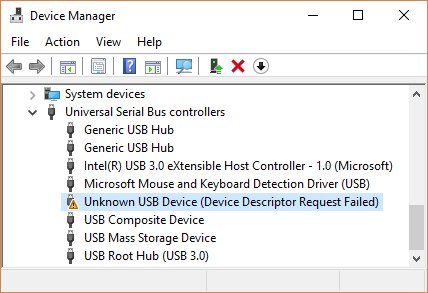
- Open Device Manager, find the device with a yellow exclamation mark, and read the error code on the Device status line of its Properties.
- Set USB selective suspend setting to Disabled in your power plan's advanced settings.
- Clear Allow the computer to turn off this device to save power on each USB Root Hub.
- Shut down fully with
shutdown /s /t 0, wait, and start the PC again. - In Device Manager, uninstall the device and the USB controllers, then select Action > Scan for hardware changes.
- Install optional driver updates from Windows Update, or chipset drivers from the PC or motherboard maker.
Introduction (what this fixes and why it helps)
"USB device not recognized" means Windows saw something connect but could not identify or start it. The cause is usually power management, a stuck driver, or the device itself.
| Symptom | Likely cause | Fix in this guide |
|---|---|---|
| Device works, then drops out after idle or sleep | USB selective suspend or hub power-saving | Fixes 2 and 3 |
| Device fails only after a shutdown, not after Restart | Fast Startup kept a stale USB driver state | Fixes 4 and 5 |
| Yellow exclamation in Device Manager, Code 43 or Code 10 | Driver failed to start the device | Fix 6, then Fix 7 |
| Nothing works on any port after a Windows update | Chipset or USB controller driver | Fix 7 |
| USB drive connects but no drive letter appears | Volume offline, no letter, or RAW | Fix 8 |
| "USB device might need more power" | Port cannot supply enough current | Fix 1 (powered hub or external power) |
Prerequisites
| You need | Why |
|---|---|
| An administrator account | Device Manager uninstalls and power-plan changes need admin rights |
| A second USB port, cable, or PC to test with | Separates a dead device or cable from a Windows fault |
| A working keyboard and mouse (PS/2, built-in, or Bluetooth if possible) | Uninstalling USB controllers can drop USB input until the rescan |
| Saved work | Several fixes need a restart or full shutdown |
1) Do quick physical checks (2 minutes)
- Unplug the device and plug it into a different port directly on the PC, not a hub or monitor port.
- Swap the cable for one you know works with data, not only charging.
- Blow dust out of the port with compressed air.
- Disconnect other USB devices you are not using.
- If Windows shows USB device might need more power, plug the device into its own external power or a powered hub, and run a laptop on mains power instead of battery.
- Plug the device into another PC; if it fails there too, the device or cable is at fault.
2) Turn off USB selective suspend (power-saving) (3–5 minutes)
Selective suspend is one of the Windows power management settings that put an idle USB port to sleep. With some devices, the port does not wake up cleanly.
- Select Start, type edit power plan, and open Edit power plan.
- Select Change advanced power settings.
- Expand USB settings, then USB selective suspend setting.
- Set Plugged in to Disabled; on a laptop, set On battery to Disabled too if the problem happens on battery.
- Select Apply, then OK, and reconnect the device.
Microsoft enables selective suspend by default because it saves power. Turn it back on if this step makes no difference.
3) Stop Windows from powering off USB hubs/controllers (3–5 minutes)
- Right-click Start and select Device Manager.
- Expand Universal Serial Bus controllers.
- Right-click USB Root Hub and select Properties.
- Open the Power Management tab and clear Allow the computer to turn off this device to save power.
- Select OK, then repeat for every USB Root Hub entry.
4) Fast USB stack reset: fully power-cycle the PC (2–4 minutes)
A normal shutdown with Fast Startup on hibernates the kernel session, so USB drivers are not fully reloaded. A full shutdown clears that state.
- Unplug the USB device.
- Right-click Start, select Terminal (Admin) or Windows PowerShell (Admin), and run
shutdown /s /t 0. - After the PC turns off, unplug the power cable; on a laptop, also unplug the charger.
- Wait about 30 seconds, then reconnect power and start the PC.
- Plug the USB device back in after you sign in.
Choosing Restart from the Start menu also skips Fast Startup, so a restart is a quick alternative when you cannot pull power.
5) Disable Fast Startup (Windows 10/11) (2 minutes)
Do this only if the device keeps failing after a shutdown but works after a restart. Microsoft does not recommend leaving Fast Startup off without a reason.
- Select Start, type control panel, and open Control Panel.
- Open Power Options.
- Select Choose what the power button does.
- Select Change settings that are currently unavailable.
- Under Shutdown settings, clear Turn on fast startup and select Save changes.
6) Reset USB controllers and hubs (driver re-enumeration) (5–7 minutes)
- Right-click Start and select Device Manager.
- Right-click the failing device (often Unknown USB Device with a yellow mark) and select Uninstall device, then Uninstall.
- Expand Universal Serial Bus controllers, right-click each USB Root Hub and host controller entry, and select Uninstall device.
- Select Action > Scan for hardware changes, or restart from Start > Power > Restart.
- Wait while Windows reinstalls the controllers, then plug the device back in.
Your USB mouse and keyboard may stop until the rescan finishes. If they do, restart with the power button. For Code 43 on a single device, fix the USB device descriptor failure next.
7) Update chipset/USB controller drivers (3–6 minutes)
- Open Settings > Windows Update > Advanced options and turn on Receive updates for other Microsoft products.
- Under Additional options, select Optional updates.
- Select any chipset, USB or device driver listed and choose Download and install.
- Restart from Start > Power > Restart, even if Windows does not ask.
- If nothing is offered, get the chipset driver from your PC or motherboard maker's support site, never a third-party driver site.
- If the problem began after a driver update, open the controller's Properties > Driver and select Roll Back Driver.
On Windows 10, the same optional drivers appear under Settings > Update & Security > Windows Update > View optional updates.
8) Check Disk Management (if it's a USB drive) (2–3 minutes)
A USB drive can be detected by Windows but not shown in File Explorer when it has no drive letter, is offline, or has an unreadable file system. You can open Disk Management to check all three.
- Right-click Start and select Disk Management.
- Select Action > Rescan Disks.
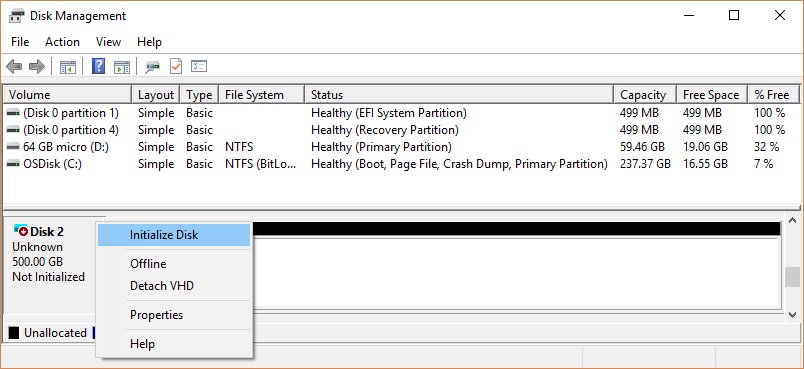
- If the disk shows Offline, right-click it and select Online.
- If the volume has no letter, right-click it, select Change Drive Letter and Paths, then Add and pick a letter.
- If it shows Unallocated, right-click and select New Simple Volume; if it shows RAW, formatting is the fix, but it erases the data.
- Do not select Initialize Disk on a drive with files you need, because it erases them.
If the drive still does not appear, you can fix USB drives not detected in Windows 11 with the drive-only checks.
Confirm the USB device is recognized in Windows 10/11
- Plug the device in and wait for Windows to finish installing it.
- Open Device Manager and confirm the device is listed with no yellow mark.
- Open its Properties and check that Device status reads This device is working properly.
- For a drive, open File Explorer and confirm it has a letter under This PC.
- Put the PC to sleep, wake it, and confirm the device still responds.
Tips and troubleshooting notes
"USB device not recognized" with Code 43
A driver told Windows the device failed.
- Uninstall the device in Device Manager.
- Select Action > Scan for hardware changes.
- Try another cable and port; if Code 43 returns on another PC, the device is faulty.
USB device disconnects after sleep
Hub power-saving or selective suspend did not wake the port.
- Apply fixes 2 and 3.
- Install the latest chipset driver from the PC maker.
- Plug the device into a port on the back of a desktop.
No USB port works after a Windows update
A controller driver changed.
- Roll back the controller driver from Properties > Driver > Roll Back Driver.
- Check Optional updates for a newer driver.
- Use a Bluetooth or built-in keyboard and mouse while you work.
Work PC refuses USB drives
An administrator can block removable devices with Group Policy.
- Ask your IT team whether USB storage is blocked by policy.
- Do not try to remove the policy yourself on a managed PC.
USB devices not recognized in Windows 10/11 FAQ
Why does Windows say USB device not recognized?
Windows detected a connection but could not identify or start the device. Common causes are a bad cable or port, power-saving on the USB hub, a failed driver, or a faulty device. Check the error code in Device Manager first.
Is it safe to turn off USB selective suspend?
Yes. It only stops Windows suspending idle USB ports, so a laptop may use slightly more battery. Microsoft enables it by default, so turn it back on if disabling it does not fix the problem.
Is it safe to uninstall USB controllers in Device Manager?
Yes. Windows reinstalls them when you scan for hardware changes or restart. USB keyboards and mice can stop until then, so a restart with the power button may be needed.
Should I disable Fast Startup to fix USB problems?
Only if the device fails after a shutdown but works after a restart. Fast Startup hibernates the kernel session, so drivers are not fully reloaded. Microsoft does not recommend turning it off without a reason.
How do I reset USB ports in Windows 11?
Uninstall the USB Root Hub and host controller entries under Universal Serial Bus controllers in Device Manager, then select Action > Scan for hardware changes or restart. Windows reinstalls the controllers and re-detects every port.
Why does my USB drive show in Device Manager but not in File Explorer?
The drive usually has no letter, is offline, or has a RAW file system. Open Disk Management, bring the disk online, and add a drive letter. Formatting a RAW drive fixes it but erases the data.
Do I need a driver updater to fix USB devices?
No. Use Optional updates in Windows Update or the chipset driver from your PC or motherboard maker. Microsoft advises against downloading drivers from other sites.
Which USB fix works most often in Windows 10/11?
Start with a different port and cable, then turn off selective suspend and hub power-saving. If the device still fails, reset the USB controllers and install the chipset driver. Most "not recognized" errors come from power management or a stuck driver, both of which these steps clear without risk to your data; a device that fails on a second PC is faulty.