Remove the failing entry in Device Manager and run Scan for hardware changes to clear a USB Device Descriptor Failure on Windows 10 and Windows 11.
This guide covers the hardware checks, the driver repairs, the USB power settings, the firmware and system-file fixes, and how to confirm the port works again.
The fastest fix for a USB device descriptor failure
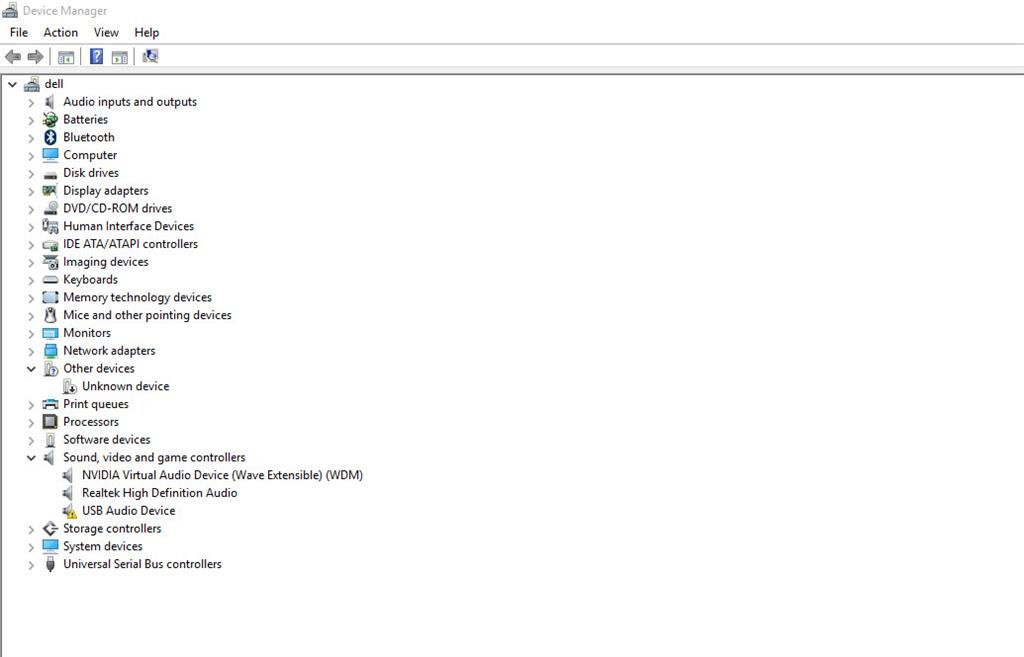
Windows marks the failed entry under Universal Serial Bus controllers with a yellow exclamation point.
Removing that entry forces Windows to enumerate the device from scratch on the next scan.
- Unplug the device, then plug it straight into a different port on the PC rather than a hub.
- Right-click the Start menu and select Device Manager.
- Select the arrow next to Universal Serial Bus controllers to expand the category.
- Right-click the entry marked with a yellow exclamation point and select Uninstall device.
- Select Uninstall in the confirmation window.
- Select Action on the menu bar, then select Scan for hardware changes.
Microsoft lists this uninstall-and-rescan sequence as the recommended resolution for Code 43, the code this failure reports.
Which fix matches your situation?
Read the error code on the Device status line of the device's Properties dialog before choosing a row.
| Your situation | Use this | Why |
|---|---|---|
| The device works on another PC | Quick hardware checks, then the driver repair | The device is fine, so the port, cable or driver stack on this PC is at fault |
| The device fails on every PC and every port | Contact the device maker | The device itself is reporting the fault, and no Windows setting changes that |
| The error started after a driver update | Roll Back Driver on the Driver tab | Windows keeps the previous driver package and can restore it in one step |
| The device drops out after the PC has been idle | Turn off USB selective suspend and hub power saving | Windows is allowed to power the hub down and the device fails to resume |
| The error appears only on a front-panel or hub port | Move the device to a rear or PC-mounted port | Hubs and extension cables cut the power available to the device |
| An external drive or scanner is involved | Give the device its own power supply | Windows reports limited power when the PC cannot supply what the device draws |
| Several unrelated USB devices fail at once | Chipset drivers, firmware, then DISM and SFC | A shared controller or a damaged Windows component affects every port at once |
What the USB Device Descriptor Failure Error Means
Every USB device must hand Windows a single device descriptor when it is plugged in.
Windows requests it with a GET DESCRIPTOR control transfer and builds the hardware ID from the returned fields. No descriptor means no hardware ID, and no hardware ID means no driver can be matched.
| Term you see | What it actually is | What it tells you |
|---|---|---|
| Device descriptor | A structure every USB device must provide, describing the device as a whole | Windows reads it once per connection and the device may not change it afterwards |
| idVendor and idProduct | Vendor and product identifier fields inside that descriptor | Windows turns these into the hardware ID shown on the Details tab |
| bcdUSB | The USB specification version the device conforms to | 0x0200 means the device was built to the USB 2.0 specification |
| Code 43 | "Windows has stopped this device because it has reported problems" | A driver told Windows the device failed in some way |
| Code 10 | "This device cannot start" | The device did not start, and Microsoft's first resolution is a driver update |
| Code 1 | "This device is not configured correctly" | No driver is installed, or the installed driver is configured wrongly |
| Yellow exclamation point | Device Manager's marker for a device with a problem code | Open Properties and read Device status to get the number |
To read the identifiers yourself, open the device's Properties, select the Details tab, drop down the Property list and select Hardware Ids.
Quick Hardware Checks Before Changing Windows Settings
A failed descriptor request is a physical conversation that did not complete, so the cable and the port come first.
- Right-click the Safely Remove Hardware and Eject Media icon in the system tray and select Eject for the device, then wait for the Safe To Remove Hardware notification before unplugging it.
- Plug the device into a different port on the PC itself, not into a hub, a monitor or an extension cable.
- Swap in the cable that came with the device, or another cable you know works.
- Clean dust or dirt out of the port with a can of compressed air, which Microsoft recommends when a connector will not seat correctly.
- Look into the connector on both ends for bent pins, lint or corrosion, and stop using a connector that is visibly damaged.
- Plug an external drive or scanner into its own power supply, and run a laptop from mains power rather than battery.
- Disconnect USB devices you are not using, because the PC limits the power it offers when it is already supplying other devices.
Test the same device on a second computer. A device that fails everywhere is faulty hardware, not a Windows problem.
Run the Windows Hardware and Devices Troubleshooter
The Hardware and Devices troubleshooter is one of the retired MSDT troubleshooters that Microsoft is removing from Windows.
The device troubleshooters that remain now run inside the Get Help app, and Settings redirects the surviving ones there automatically.
- Select Start, then select Settings > System > Troubleshoot to see the troubleshooters your build still offers.
- Open the Get Help app from the Start menu.
- Enter the troubleshooter that matches the failing device in the Search bar, such as
Bluetooth troubleshooter,camera troubleshooterorprinter troubleshooter. - Select Yes if you are asked to consent to diagnostics, and allow the scan to finish.
- Follow the steps the troubleshooter offers until the device is detected.
No Get Help troubleshooter targets generic USB enumeration, so treat this as a quick pass and move on to the driver work below if the device is still missing.
Update, Roll Back, or Reinstall USB Drivers
Pick one of the three routes below based on when the failure started, rather than running all three.
- Right-click the Start menu, select Device Manager, and expand Universal Serial Bus controllers.
- To update, right-click the failing device, select Update driver, then select Search automatically for updated driver software.
- If nothing is found, select Search for updated drivers on Windows Update in the same window.
- To roll back after a recent update, right-click the device, select Properties, open the Driver tab and select Roll Back Driver, then choose a reason and select Yes.
- To reinstall, right-click the device, select Uninstall device, select Uninstall, then restart from Start > Shut down or sign out > Restart.
- To install a driver you downloaded from the device maker, select Update driver > Browse my computer for drivers, select Browse, point Windows at the folder and select Next.
Download drivers only from the device manufacturer's own site. Microsoft's guidance is to avoid any other source, and a general-purpose driver updater is never the answer here.
Disable USB Power Saving and Fast Startup
Windows may suspend a USB hub to save power, and some devices never come back from that state.
Two settings control it: the USB selective suspend setting in the power plan, and the per-hub power management checkbox in Device Manager.
- Select Start, type
edit power plan, and select Edit power plan from the results. - On the Change settings for the plan page, select Change advanced power settings.
- Expand USB settings, then expand USB selective suspend setting.
- Set Plugged in to Disabled, select Apply, then select OK.
- Open Device Manager, expand Universal Serial Bus controllers, right-click USB Root Hub and select Properties.
- Open the Power Management tab and clear Allow the computer to turn off this device to save power, then select OK.
- Repeat the previous two steps for every USB Root Hub entry listed.
- Shut the PC down with
shutdown /s /t 0from Command Prompt instead of a normal shutdown, because the/hybridswitch that prepares a fast startup boot is left out of that command.
Turning selective suspend off increases battery drain on a laptop, so set only the Plugged in value to Disabled unless the device also fails on battery.
Reset USB Controllers and Check for Windows Updates
Removing every controller entry rebuilds the whole USB stack on the next boot, which clears a controller that is stuck rather than a device that is faulty.
- Save all work and close all apps, and keep a PS/2 keyboard handy if your keyboard and mouse are both USB.
- Open Device Manager and expand Universal Serial Bus controllers.
- Right-click each host controller entry, select Uninstall device, then select Uninstall.
- Restart from Start > Shut down or sign out > Restart so Windows reinstalls the controllers automatically.
- Select Start > Settings > Windows Update and install everything offered, then restart again.
- Open Settings > Windows Update > Advanced options and turn Receive updates for other Microsoft products on.
- Under Additional options, select Optional updates, select any driver updates listed, then select Download and install.
- Restart the PC once more even if no update asked for a restart.
Optional drivers are never installed automatically, so this page is the only place Windows Update offers them. If a Windows feature update is what broke the port, fixing Windows setup errors is the related read.
Advanced Fixes: BIOS, Chipset Drivers, and System File Repair
Use this section only when several USB ports fail at once, because it touches firmware and shared controller drivers.
- Identify the PC or motherboard model from its label or from Settings > System > About.
- Open the support site of the PC or motherboard maker and find the download page for that exact model.
- Install the current chipset and USB host controller drivers offered there, then restart.
- Install the current BIOS or UEFI firmware from the same page, following the maker's own instructions for the update.
- Keep the PC on mains power for the whole firmware update and do not shut it down while it runs.
- Run the DISM and SFC repair in the next section if the ports still fail after the firmware update.
Firmware for a laptop or motherboard is only ever published by the company that built it. A bug-check error such as Clock Watchdog Timeout alongside the USB failure points at the same chipset and firmware layer.
Repair Windows system files with DISM and SFC
Run these two commands in order. DISM repairs the component store that SFC then uses as its source.
DISM.exe /Online /Cleanup-image /RestorehealthInstall the latest Windows updates and restart first. Type command prompt in the taskbar search box, right-click Command Prompt, select Run as administrator and select Yes. Run the command above, note the space before each slash, and wait. When it reports success, run sfc /scannow in the same window.
You should see: DISM prints "The operation completed successfully" and SFC prints "Verification 100% complete". Type exit and press Enter, then restart the PC.
The same pair of commands is the standard repair for a damaged Windows component, including a missing vcruntime140.dll.
How to check the USB device works again
Proof is the device appearing with its real name and a clean status line, not the absence of a notification.
- Unplug the device, wait a few seconds, then plug it back into the same port.
- Open Device Manager and expand Universal Serial Bus controllers.
- Confirm the device is listed by its own product name and carries no yellow exclamation point.
- Right-click it, select Properties, and confirm Device status reads "This device is working properly".
- Open the Details tab, drop down the Property list, select Hardware Ids and confirm a
USB\VID_...&PID_...value is present. - Open a storage device in File Explorer, or use the device normally, and repeat the test on a second port.
A populated hardware ID is the real proof: Windows only builds it from a device descriptor it managed to read.
Fix the USB descriptor failure when it keeps coming back
Unknown USB Device with a descriptor failure returns after every restart
Windows reinstalls the same driver, or the hub is still allowed to power down between sessions.
- Turn off USB selective suspend setting for Plugged in in Change advanced power settings.
- Clear Allow the computer to turn off this device to save power on every USB Root Hub entry.
- Shut down with
shutdown /s /t 0and start the PC again from cold. - Check Settings > Windows Update > Advanced options > Optional updates for a newer chipset driver.
The USB drive is not listed in File Explorer at all
Enumeration failed, so Windows never assigned the drive a letter.
- Open Device Manager and look under Universal Serial Bus controllers for an entry with a yellow exclamation point.
- Right-click it, select Properties and read the code on the Device status line.
- Right-click the entry, select Uninstall device, then select Action > Scan for hardware changes.
- Plug the drive into a rear port on a desktop PC and test it again.
Only one port shows the error
That port, or the hub behind it, cannot supply or carry what the device needs.
- Move the device to a port on the opposite side or the rear of the PC.
- Remove any hub, dock or extension cable between the device and the PC.
- Connect a device that supports external power to its own power supply.
- Unplug other USB devices so the PC has spare power to offer.
The error started right after a Windows 11 update
A driver delivered with the update replaced the one the device was working with.
- Open the device's Properties and the Driver tab in Device Manager.
- Select Roll Back Driver, choose a reason, then select Yes.
- Restart the PC and test the device again.
- If Roll Back Driver is greyed out, install the driver from the device maker's own site with Browse my computer for drivers.
Windows shows a notification every time you plug the device in
USB connection notifications are on, which is separate from the fault itself.
- Select Search, type
usband select USB settings from the results. - Turn Connection notifications off to stop the pop-ups.
- Leave them on while you are testing, because the notification text names the problem.
- Turn them back on once the device is working.
Frequently Asked Questions
How do I fix USB descriptor failed?
Open Device Manager, expand Universal Serial Bus controllers, right-click the entry with the yellow exclamation point, and select Uninstall device. Then select Action and Scan for hardware changes. Move the device to a different port on the PC before you retest it.
How do I fix an unknown USB device descriptor error?
Remove the unknown device entry in Device Manager and rescan for hardware changes. If it returns, turn off the USB selective suspend setting, clear the power-saving checkbox on each USB Root Hub, and install the chipset driver from the PC maker's support site.
What does USB Device Descriptor Failure mean in Windows 10 or 11?
Windows asked the device for its device descriptor and did not get a usable answer. Without that descriptor Windows cannot build a hardware ID from the vendor and product fields, so no driver can be matched and the device stays unidentified.
How do I know if the USB device is broken or Windows is the problem?
Plug the device into a second computer. If it works there, the fault is on the first PC, in the port, the cable or the driver. If it fails on every computer and every port, the device is reporting the fault itself.
Is there a USB device descriptor failure driver to download?
No. There is no descriptor driver, because Windows cannot even identify the device to match one. Install the chipset and USB controller drivers for your exact PC model from the manufacturer's site, and avoid general driver-updater tools.
Why does a USB drive show device descriptor request failed?
The drive did not complete the descriptor exchange, usually because of a marginal cable, a hub that limits power, or a stuck controller. Connect the drive directly to a rear port, supply external power if it has a socket, and rescan for hardware changes.
Does this error work the same way on Windows 10 and Windows 11?
Yes. The descriptor exchange, the Device Manager error codes and the USB power settings are identical on both. Only the route through Settings differs, and Windows 11 moves optional driver updates to Settings, Windows Update, Advanced options, Optional updates.
Does turning off USB selective suspend hurt battery life?
It increases drain, because Windows can no longer power an idle USB hub down. Set only the Plugged in value to Disabled and leave the On battery value alone, unless the device also fails while the laptop runs on battery.
Which Device Manager error code goes with this failure?
Usually Code 43, which reads "Windows has stopped this device because it has reported problems". Microsoft's resolution is to uninstall the device in Device Manager and rescan for hardware changes. Code 10 and Code 1 point at the driver instead.
Bottom Line
Test the device on a second PC first, then uninstall the failing entry in Device Manager and rescan for hardware changes. Those two steps separate a faulty device from a Windows-side fault in under a minute, and the driver, power and firmware work below only makes sense once you know which side is broken.