Washed-out colors on Windows 11 almost always come from one of three things: HDR turned on for SDR content, the wrong ICC color profile, or a limited RGB range on an HDMI connection.
This guide tests each cause in order, from the quickest toggle to calibration and driver rollback, so you change only the setting that is actually wrong.
Fix washed-out colors on Windows 11
Work through these checks in order and stop when the picture looks right. Each step isolates one cause.
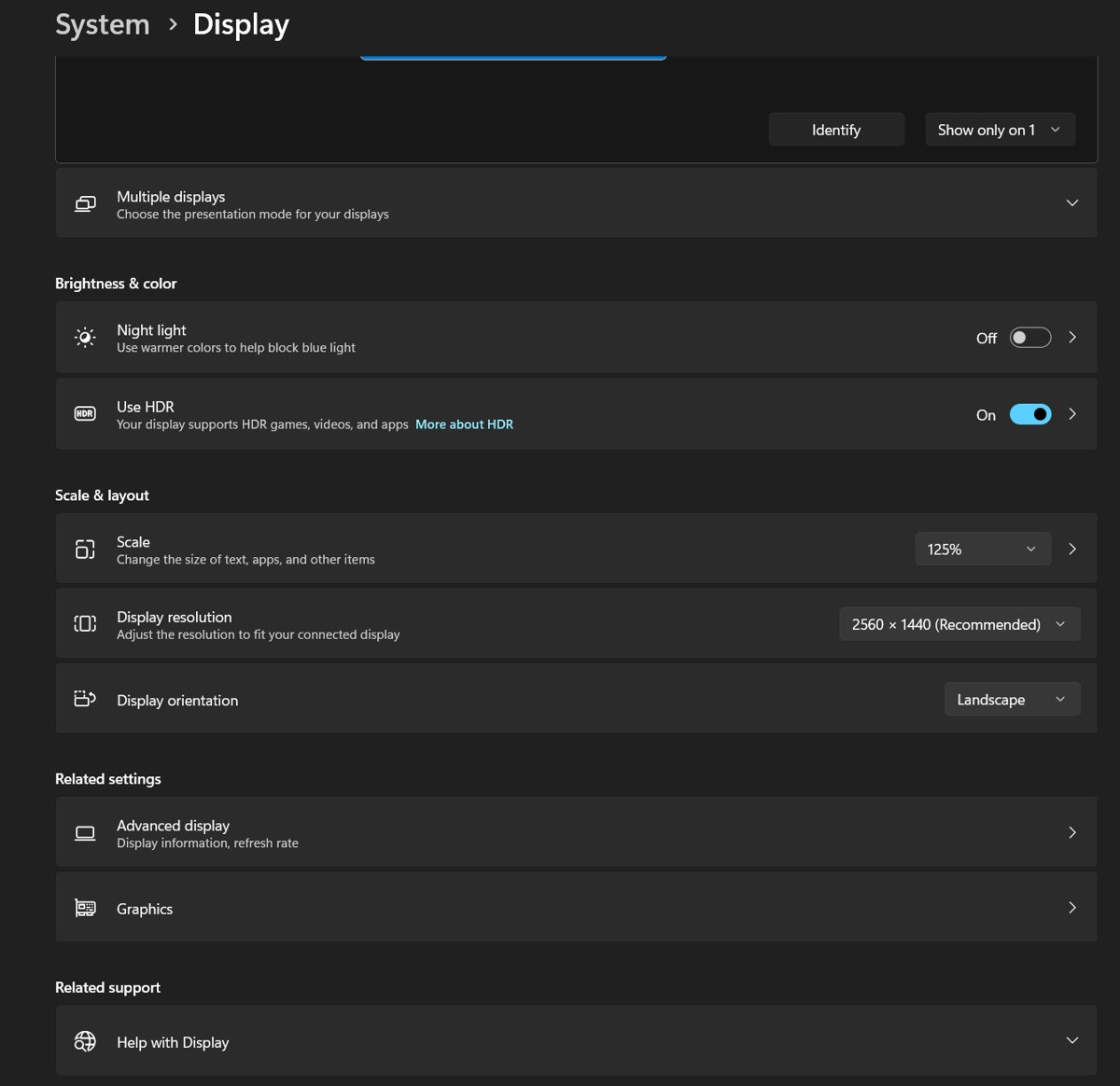
- Open Start > Settings > System > Display and select the affected monitor at the top.
- If HDR is on, turn it off. If colors return to normal, the problem is HDR balance, not the monitor.
- Select Color profile and check which profile is set for the display.
- If a profile from an old monitor or a past calibration is set, select the correct one or remove the wrong one in Color management.
- On an HDMI monitor or TV, open your graphics driver's control panel and set the output range to Full (0-255).
- Set the display's own HDMI range or black level setting to match, so both ends agree.
If the problem started right after a graphics driver update and none of the above helps, the driver rollback section further down is the next step.
Why do colors look washed out on Windows 11?
Each cause leaves a slightly different symptom. Match what you see to a row before you change anything.
| What you see | Likely cause | Section to use |
|---|---|---|
| Desktop and SDR apps look grey and flat only when HDR is on | SDR content shown inside an HDR signal at the wrong brightness | Test HDR before recalibrating anything |
| Colors changed after a new monitor, a calibration or an app install | A wrong or stale ICC color profile is assigned | Check that Windows has the right ICC profile |
| Blacks look dark grey and whites look dull on an HDMI screen | PC sends limited range (16-235) or the display expects the other range | Fix full-versus-limited RGB on HDMI displays |
| Tones are slightly off, too blue or too warm | Display needs calibration for gamma and white balance | Use calibration for tone and white balance, not guesswork |
| Problem started the day a graphics driver updated | Driver changed output format or color handling | Roll back a driver only when the timeline fits |
Test HDR before recalibrating anything
HDR displays show SDR content, such as the desktop and most apps, inside an HDR signal. If the balance is off, SDR looks bright but desaturated, which reads as washed out.
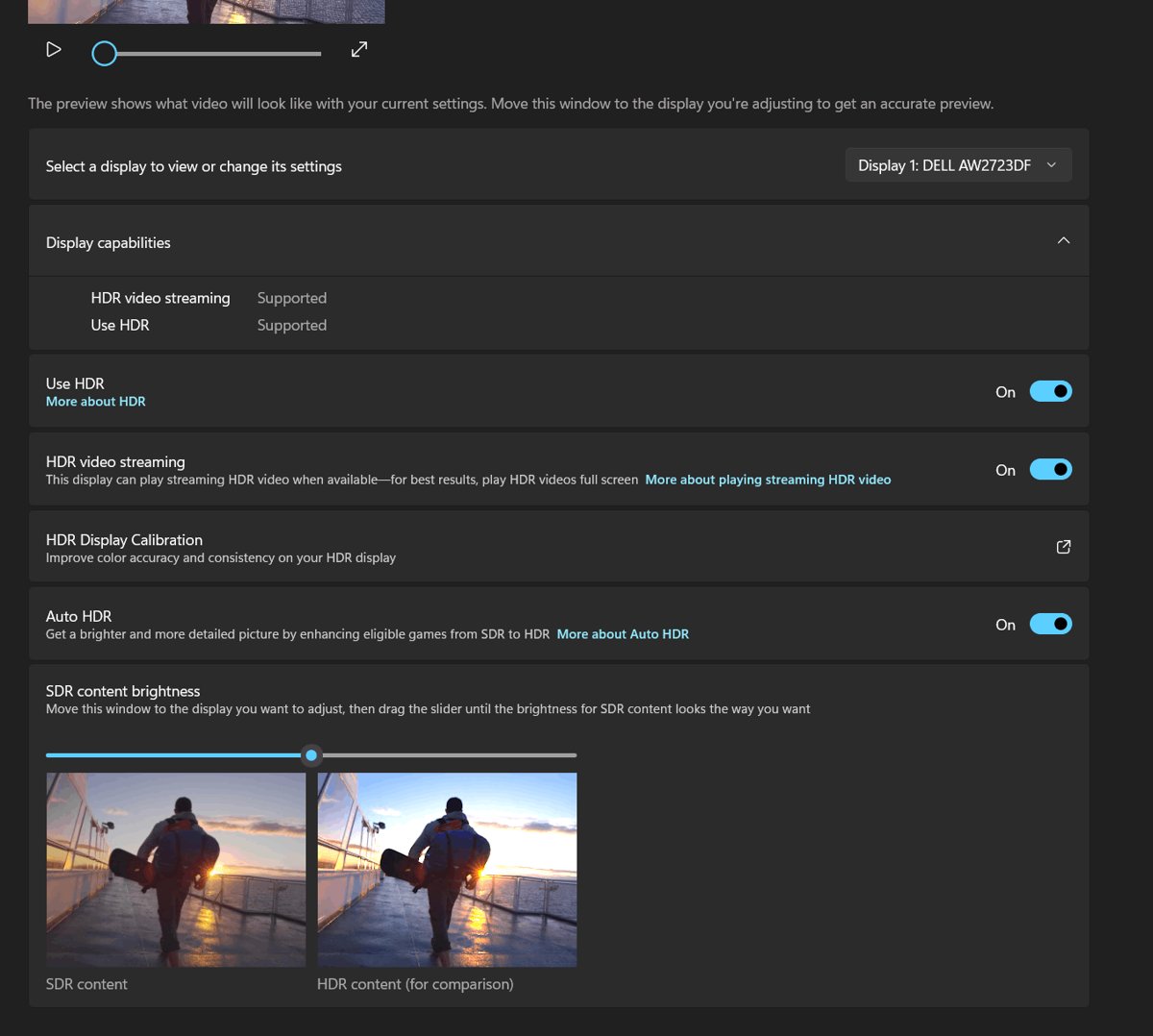
- Open Start > Settings > System > Display and pick the HDR display at the top.
- Turn the HDR toggle off, then look at the desktop and a familiar photo.
- If colors are correct with HDR off, turn HDR back on and select HDR to expand its settings.
- Drag the SDR content brightness slider until desktop apps look natural next to HDR content.
- On a laptop's built-in screen the slider reads HDR content brightness, because SDR brightness follows the main brightness control.
- Restart any app that still looks too bright and desaturated after the change.
On Windows 10 the same controls sit under Settings > System > Display > Windows HD Color settings, with Use HDR and an HDR/SDR brightness balance slider.
If you only use HDR for games and films, leaving HDR off on the desktop is a valid fix. Laptops can also turn HDR off on battery through Turn off HDR when my PC is running on battery.
Check that Windows has the right ICC profile
An ICC color profile tells Windows how to translate colors for one display. A profile meant for a different monitor, or a bad calibration file, shifts every color on screen.
- Open Settings > System > Display > Color profile.
- Select the affected display near the top of the page.
- Check the profile in use. Pick the one named for your monitor model if it is listed.
- Turn on Automatically manage color for apps if your display offers it.
- To remove a stale profile, search for color management in Start and open it.
- On the All Profiles tab, select the wrong profile and select Remove.
- In color management, choose the display, then use Add profile and Set profile to assign the correct one.
The Windows HDR Calibration app also creates a color profile. If HDR colors looked wrong after you ran it, remove that profile under All Profiles and calibrate again with gentler settings.
Use calibration for tone and white balance, not guesswork
Calibration replaces eyeballing sliders with test patterns. Windows 11 uses one tool for SDR and a separate app for HDR.
| Your display | Tool to use | What it sets |
|---|---|---|
| SDR monitor or HDR turned off | Settings > System > Display > Color profile > Calibrate display | Gamma, brightness, contrast and color balance; saves a new profile for that display |
| External HDR monitor with HDR on | Windows HDR Calibration app from the Microsoft Store | Darkest visible detail, brightest visible detail, maximum brightness and color saturation |
| Windows 10 | Search Settings for calibrate display color | Same SDR calibration wizard, step by step |
The HDR Calibration app needs Windows 11, HDR turned on, a WDDM 2.7 or later display driver and full-screen mode. For each of its three test patterns, drag the slider until the pattern just disappears.
On the Color Saturation screen, move the slider right only a little. Microsoft notes that a high setting makes HDR content look unnatural.
Fix full-versus-limited RGB on HDMI displays
PCs use full RGB range, 0-255 per channel in 8-bit color. TVs and video use limited range, 16-235. When the two ends disagree, black turns dark grey and white turns dull.
HDMI connections are where this happens most, because the graphics driver may treat a monitor as a TV and send limited range.
- Open your graphics driver's control panel from Start: NVIDIA Control Panel, AMD Software or Intel Graphics Command Center.
- Go to the display or resolution page for the HDMI screen.
- Find the output range setting (named dynamic range, pixel format or quantization range depending on the vendor).
- Set it to Full (0-255) and apply the change.
- Open the monitor or TV's own menu and set its HDMI range or black level to match, or to Auto.
- Compare a dark photo before and after: black should look black, not grey.
If both ends are set to limited, the picture is also correct. The goal is that PC and display agree. Switching to DisplayPort avoids the TV detection on monitors that have it.
Roll back a driver only when the timeline fits
A driver rollback is the right fix only when washed-out colors started on the day a graphics driver changed. If the problem predates the update, rolling back just costs you the newer driver.
- Confirm the timeline: colors were fine before a recent graphics driver update and wrong straight after it.
- Search for Device Manager in Start and open it.
- Expand Display adapters.
- Right-click your graphics card and select Properties.
- Open the Driver tab and use the roll back option if Windows kept the previous driver.
- Restart the PC and check colors again with HDR off and then on.
If no rollback is offered, install the previous version from your graphics card maker's own website, then recheck the RGB range setting, because a reinstall can reset it.
Test washed-out colors are fixed on Windows 11
- Open a photo with deep shadows and a white background in the Photos app.
- Check that black areas look black, not dark grey.
- Check that whites are bright without a blue or yellow cast.
- Turn HDR on and off once more; desktop colors should look similar in both modes.
- Play a known HDR video or game if you use HDR, and confirm highlights are bright without crushing detail.
Windows 11 HDR washed out: fixes by symptom
Desktop looks washed out only with HDR on
SDR content brightness is set too high or too low for the display.
- Open Settings > System > Display > HDR.
- Adjust SDR content brightness until white windows look natural.
- Move apps that still look wrong to an SDR display if you have one.
Some desktop apps look too dark with HDR on
Those apps do not handle HDR output well.
- Lower the SDR content brightness slider on an external HDR display.
- Restart the affected app.
- Turn HDR off when you work in those apps for long periods.
Colors look wrong after running the HDR Calibration app
The saturation or brightness values saved in the new profile are too aggressive.
- Search for color management and open it.
- On All Profiles, select the calibration profile and select Remove.
- Run the Windows HDR Calibration app again and keep Color Saturation close to the default.
Grey blacks on an HDMI TV or monitor
RGB range mismatch between PC and display.
- Set the driver's output range to Full.
- Set the display's HDMI range or black level to match.
- Try a DisplayPort cable if the monitor has that port.
Washed-out Windows 11 colors FAQ
Why does HDR make Windows 11 look washed out?
With HDR on, Windows shows SDR content such as the desktop inside an HDR signal. If the SDR content brightness slider does not suit your display, SDR looks bright but desaturated. Adjust the slider under Settings > System > Display > HDR.
Should I leave HDR on all the time in Windows 11?
Only if desktop apps look right with it on. Many people turn HDR on just for HDR games and video. Turning it off on the desktop is a valid fix for washed-out colors and changes nothing else.
Where is the color profile setting in Windows 11?
Open Settings > System > Display > Color profile and select your display. To add, set or remove profiles directly, search for color management and use its All Profiles tab.
What is the difference between full and limited RGB?
Full RGB uses values 0-255 per channel and is the PC standard. Limited RGB uses 16-235 and is the video and TV standard. If the PC and display use different ranges, blacks turn grey and colors look washed out.
Does the Windows HDR Calibration app work on Windows 10?
No. Microsoft lists the Windows HDR Calibration app for Windows 11, with HDR turned on and a WDDM 2.7 or later display driver. Windows 10 users can use the calibrate display color wizard for SDR.
Can a graphics driver update cause washed-out colors?
Yes. A new driver can reset color or output range settings. If colors changed on the day of an update, recheck the RGB range first, then roll back the driver in Device Manager if the problem stays.