To open Color Management in Windows 11 or Windows 10, select Start, type color management and select Color Management in the results.
This guide covers every way to open it, the newer Color profile page in Windows 11 Settings, adding and removing ICC profiles, display calibration, HDR, and fixes for washed-out or resetting colors.
How to open Color Management in Windows 11/10
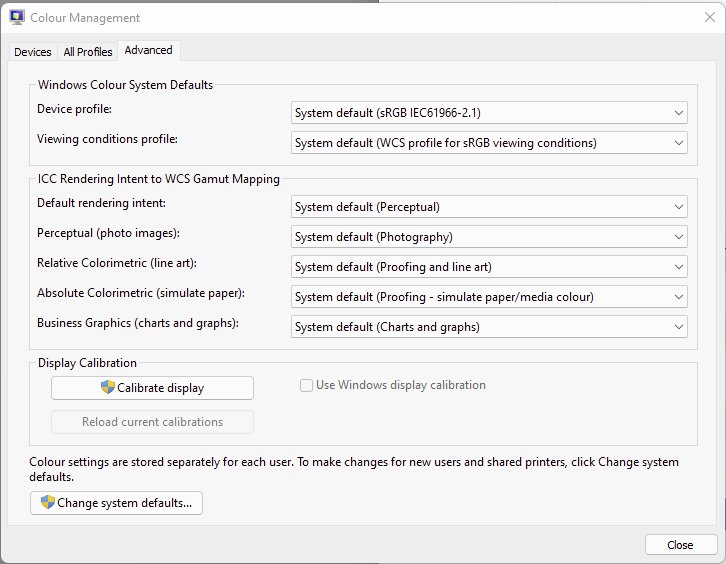
Start search is the quickest route on both versions, and it opens the classic Color Management window with its Devices, All Profiles and Advanced tabs.
- Select Start on the taskbar, or press the Windows key.
- Type color management.
- Select Color Management in the list of results.
- Pick the tab you need: Devices, All Profiles or Advanced.
Which Windows color management tool to use for each job
Windows 11 now has two places for color work: the classic Color Management window and the Color profile page in Settings. They manage the same display profiles, so pick the one that suits the job.
| What you want to do | Use this | Why |
|---|---|---|
| Add, remove or set a default display profile on Windows 11 | Settings > System > Display > Color profile | Per-display page with Add profile, Remove and Set profile in one place |
| Turn on auto color management | Settings > System > Display > Color profile | The Automatically manage color for apps switch only lives in Settings |
| Calibrate an SDR display | Calibrate display on the Color profile page | Creates a new color profile for that display |
| Calibrate an HDR display | Windows HDR Calibration app | Calibrate display sends HDR external displays there anyway |
| Delete any installed profile, including HDR calibration profiles | Color Management > All Profiles tab | Lists every installed profile, not only the ones linked to a display |
| Manage printer or scanner profiles, or Windows 10 display profiles | Classic Color Management window | Handles every device class, not only monitors |
Open color profile settings in Windows 11
Windows 11 puts display profile management in the Display settings page. If your build has no Color profile entry under Display, use the classic Color Management window instead.
- Select Start, then select Settings.
- Go to System > Display.
- Select Color profile.
- Select the display you want to manage near the top of the page.
- Use Add profile, Set profile, Calibrate display or Automatically manage color for apps as needed.
Open Color Management with the Run command or Control Panel
The Color Management window is the program colorcpl.exe in the System32 folder, so the Run box and Control Panel both reach it. Use these routes when Start search is slow or disabled.
- Press Windows + R to open the Run dialog box.
- Type
colorcpland select OK; Color Management opens. - Or open Control Panel, set View by to Large icons or Small icons, and select Color Management.
- To change system-wide defaults, type colorcpl in Start search, right-click the result and select Run as administrator.
What is color management in Windows?
Color management makes the same color look the same on different screens, printers and scanners. Windows does it by pairing each device with a color profile that describes what that device can show.
| Part | What it does |
|---|---|
| Windows Color System (WCS) | The color engine Windows has used since Vista; it builds on the older Image Color Management (ICM) APIs from Windows 2000 |
| Device profile | Describes the color space of one device: a monitor, printer or scanner |
| Profile association | Links installed profiles to a device; one profile is that device's default |
| Color Management window | The classic control panel for installing, linking and removing profiles for every device class |
| Color profile page (Windows 11) | The Settings page for display profiles, calibration and auto color management |
| Auto color management | System-level color management that keeps colors accurate in every app on supported displays, color-managed or not |
Without auto color management or HDR, Windows assumes app content is sRGB and leaves accurate color to apps that do their own color management.
What is an ICC color profile?
An ICC color profile is a small file, written to the International Color Consortium specification, that tells Windows and apps how a device reproduces color.
| Question | Answer |
|---|---|
| What is inside | The device's color primaries, white point, tone response and, for displays, optional calibration data |
| ICC vs ICM files | Both are ICC profiles; .icm is the extension Windows has long used (for example sRGB Color Space Profile.icm) and .icc is the common extension elsewhere |
| Profile classes | Input profiles for scanners, display profiles for monitors and output profiles for printers |
| Other profile types | Device link, abstract, named color and device-independent color space profiles |
| Who makes them | Hardware makers ship profiles with their drivers; calibration tools create new ones for your exact panel |
| Where Windows keeps them | Installed profiles are copied into the system-wide Windows COLOR directory |
How to add an ICC color profile in Windows 11
- Go to Settings > System > Display > Color profile.
- Select the display you want to manage color profiles for.
- Select Add profile.
- Browse to the .icc or .icm file and open it.
- To use it right away, select Set profile on the new profile to make it the default.
Add an ICC profile using classic Color Management
Use this route on Windows 10, or on any version when you also need a printer or scanner profile.
- Press Windows + R, type
colorcpland select OK. - On the Devices tab, pick your monitor, printer or scanner in the device list.
- Tick the option to use your own settings for this device, so the change applies to your account only.
- Use the add button under the profile list, then browse to the .icc or .icm file and confirm.
- Select the new profile in the list and make it the default profile for the device.
- Close the window and reopen any color-managed app so it reads the new default.
Your own settings start as a copy of the system-wide list for that device. After that, changes made system-wide do not reach your copy.
How to install an ICC profile from a file
Monitor makers usually ship the profile as a single .icc or .icm file, sometimes inside their driver package. Installing it and linking it to a display are two steps.
- Save the profile from the display maker's support site to a folder you can find, such as Downloads.
- Open Settings > System > Display > Color profile and select the display it belongs to.
- Select Add profile and pick the saved file; Windows installs it to the COLOR directory and links it to that display.
- Select Set profile on it to make it the default.
- On Windows 10, add the same file from the Devices tab in Color Management instead.
Understanding the Color Management tabs
The classic window has three tabs. Each one controls a different layer: per-device links, the installed library and system-wide defaults.
| Tab | What it controls | When to use it |
|---|---|---|
| Devices tab | Pick a monitor, printer or scanner and see the profiles linked to it, add one, remove one or set the default | Assigning a profile to one display or printer |
| All Profiles tab | Every color profile installed on the PC, whichever device uses it | Deleting a profile completely, including ones made by the Windows HDR Calibration app |
| Advanced tab | System-wide Windows Color System defaults that color-managed apps fall back on | Changing defaults for every user; this needs administrator rights |
Color-managed apps convert colors with one of four rendering intents: Perceptual (Picture) for photos, Saturation (Graphic) for charts, Relative Colorimetric (Proof) and Absolute Colorimetric (Match).
How to calibrate your monitor in Windows
Calibration measures how your panel actually behaves and saves the result as a new profile for that display.
- Move the Settings window onto the display you want to calibrate.
- Go to Settings > System > Display > Color profile.
- Select Calibrate display.
- Follow the on-screen steps; Windows creates a new color profile for that display when you finish.
- For an HDR external display, Windows sends you to the Windows HDR Calibration app from the Microsoft Store instead.
- For a built-in display that streams HDR video but does not support HDR games and apps, use Display calibration for HDR video under Settings > System > Display > HDR.
Calibrate in the lighting you normally work in, and repeat it after you add or replace a display.
Automatically manage color for apps in Windows 11
Auto color management maps every app's colors accurately onto supported displays and lets updated apps use 10 to 16 bits of color precision. On 8-bit panels it still improves gradients through dithering.
- Select Start, then Settings > System > Display > Color profile.
- Select your display near the top of the page.
- Find Automatically manage color for apps.
- Turn it on.
The switch only appears on supported hardware. Microsoft lists Windows 11 version 22H2 or later, a WDDM 3.0 driver and an AMD RX 400 series, Intel 12th Gen integrated, Intel DG1 or NVIDIA GTX 10-series GPU or newer. If it is missing, update the graphics driver first.
Windows 11 color management vs Windows 10
| Feature | Windows 11 | Windows 10 |
|---|---|---|
| Classic Color Management window (colorcpl) | Yes | Yes |
| Color profile page in Settings | Yes, under System > Display | No; use Color Management |
| Automatically manage color for apps | Yes, version 22H2 and later on supported hardware | No |
| Windows HDR Calibration app | Yes | No |
| Hardware display calibration pipeline (MHC profiles) | Yes | Version 2004 and later |
| Legacy display ICC color management compatibility option | Yes, per app | No |
| HDR display color management | Yes | Yes, from version 1709 |
How to remove an incorrect color profile
- Go to Settings > System > Display > Color profile.
- Select the display that uses the wrong profile.
- Expand the profile you want to remove.
- Select Remove at the bottom of it.
- To delete the file from the PC entirely, type color management in Start search, open it, select the All Profiles tab, select the profile and select Remove.
How to reset color management
Windows has no single reset switch on the Color profile page. Resetting means removing your custom profiles and going back to the profile the display shipped with.
- Open Settings > System > Display > Color profile and select the display.
- Keep a copy of each custom .icc or .icm file (the download or the file your calibration tool saved), so you can restore it later with Add profile.
- Select Remove on every profile you or a calibration tool added.
- Select Set profile on the profile from the display maker, or on sRGB if no maker profile is listed.
- Turn Automatically manage color for apps off and back on if your display supports it.
- In Color Management, open the Devices tab, select the display and clear the option to use your own settings, so the system-wide list applies again.
- Restart the PC and compare a known photo against how it looked before.
Fix washed-out colors in Windows 11/10
Washed-out color on Windows almost always comes from HDR settings, a laptop power default or Night light rather than from the profile itself.
Everything looks grey and washed out after turning on HDR
Standard (SDR) content is shown too bright relative to HDR content on that display.
- Open Settings > System > Display and select the HDR display.
- Move the Settings window onto that display, then select HDR.
- Drag SDR content brightness (external display) or HDR content brightness (built-in display) until SDR apps look normal.
- Restart any app whose colors still look too bright and desaturated.
Laptop colors look under-saturated after a restart
Many HDR laptops turn HDR off on battery, and restarting unplugged leaves colors under-saturated.
- Plug in the laptop before restarting it.
- Or open Settings > System > Display > HDR.
- Expand the HDR section and clear Turn off HDR when my PC is running on battery.
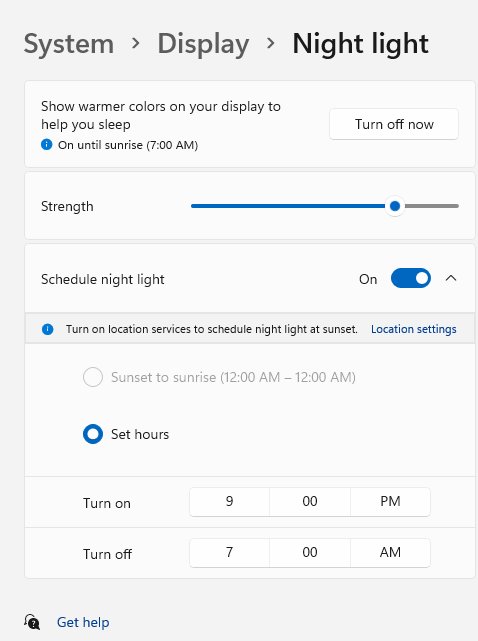
Colors look over-saturated or red with Night light on
Night light shifts the display to warmer colors, and on HDR displays this can tint content red.
- Go to Settings > System > Display > Night light.
- Drag Strength to the left, or turn Night light off while you do color work.
Color fringes around text on an HDR display
An old graphics driver or an HDMI link short of bandwidth.
- Install the latest WDDM graphics driver from Windows Update or the PC maker.
- Connect with DisplayPort instead of HDMI if the display supports HDR over DisplayPort.
HDR and color management in Windows 11
When HDR or auto color management is on, Windows performs color management for every app, and display profiles change roles.
| What changes with HDR on | What it means for you |
|---|---|
| Profiles are split into SDR (standard) and HDR (extended) associations | A profile set while HDR is off is not used while HDR is on, and the reverse |
| Windows converts all app colors to the display's color space | Apps that are not color-aware are treated as sRGB and still look correct |
| ICC-based apps are limited to the sRGB range by default | Photo editors see sRGB instead of the full wide gamut |
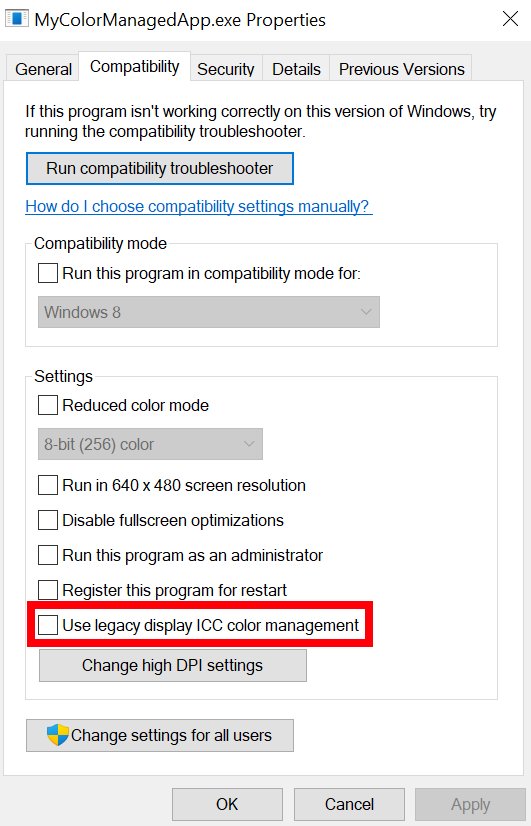
| Legacy display ICC color management option | On the app's Compatibility tab, Use legacy display ICC color management gives that app the display's full gamut |
| Calibrate display sends HDR external displays to the HDR Calibration app | Use the Windows HDR Calibration app to set darkest, brightest and maximum brightness |
How to match colors on two monitors
Each display needs its own profile, because two panels, even of the same model, never reproduce color identically. Use extended mode first, since HDR is not supported while the desktop is duplicated.
- Set both screens to their recommended resolution and arrange the multiple monitors in Settings > System > Display.
- Open Color profile and select the first display at the top of the page.
- Add that monitor's own profile with Add profile and select Set profile.
- Repeat for the second display with its own profile.
- Move Settings onto each display in turn and run Calibrate display there.
- Match brightness with each monitor's on-screen buttons, since Windows has no brightness slider for most external monitors.
Where can you download an ICC profile?
| Source | What you get | Use it when |
|---|---|---|
| Display or laptop maker's support page | A profile built for your model, often bundled with the monitor driver | First choice for any monitor |
| Windows Update monitor driver | The maker's profile installed with the driver | The maker's site has no separate file |
| Built-in sRGB Color Space Profile.icm | A standard sRGB profile already on every PC | No maker profile exists |
| Your own calibration | A profile measured from your exact panel | Color-critical work |
| Printer or paper maker | Output profiles for a printer, ink and paper combination | Matching prints to the screen |
Avoid profiles from forums or another person's calibration: they describe someone else's panel, not yours.
Should you use sRGB as the default profile?
Use sRGB as the default when the display maker offers no profile or when you produce content for the web; keep the maker's or a calibrated profile when you have one. Most apps and web content assume sRGB, and Windows treats apps that are not color-aware as sRGB. A maker or calibrated profile describes your actual panel, which matters most on wide-gamut displays.
Color Management not opening? Try these fixes
Color Management does not appear in Start search
Search indexing is still running or search is limited.
- Press Windows + R, type
colorcpland select OK. - Or open Control Panel, switch View by to Large icons and select Color Management.
Changes to system defaults are refused or greyed out
System-wide defaults need administrator rights; per-user changes do not.
- Type colorcpl in Start search.
- Right-click the result and select Run as administrator.
- Approve the User Account Control prompt and make the change again.
Calibrate display or the color profile options are missing in Settings
An older Windows 10 build without the Color profile page, or a missing display driver.
- Use the classic Color Management window for profile work on that PC.
- Install the latest graphics driver from Windows Update or the GPU maker, then reopen Settings.
Color profile keeps resetting
The profile changes when HDR turns on or off
Windows keeps separate SDR and HDR profile lists, and laptops switch HDR off on battery by default.
- Set the profile once with HDR on and once with HDR off.
- Clear Turn off HDR when my PC is running on battery under Settings > System > Display > HDR if the switch happens when you unplug.
Your profile disappears for one user account or after a system change
Per-user and system-wide profile lists are separate; your copy stops following system-wide changes once you use your own settings.
- Open Color Management, select the Devices tab and pick the display.
- Decide whether to keep your own settings or clear that option and use the system-wide list.
- Set the profile as default in the list you chose, running Color Management as administrator for system-wide changes.
The profile resets after a driver or monitor software update
A display driver or a maker's display app installed its own profile as the default.
- Open Settings > System > Display > Color profile.
- Select Set profile on the profile you want.
- Remove the unwanted profile from the All Profiles tab in Color Management.
ICC profile vs monitor calibration
| Downloaded ICC profile | Monitor calibration | |
|---|---|---|
| Describes | The average panel of that model | Your individual panel as measured |
| Accuracy | Good, but panels vary in manufacturing | Best, until the panel ages or settings change |
| Effort | Add one file | Run Calibrate display or a hardware calibrator |
| Result | A profile you install and set as default | A new profile Windows creates and links to that display |
| Redo it when | You change monitor model | You change monitor, lighting or on-screen settings |
How to check which color profile Windows is using
Verify that the profile you set is the active one before you judge colors on screen.
- Open Settings > System > Display > Color profile and select the display.
- Check which profile is shown as the default; that is the one Windows applies.
- For HDR, press Windows + R, type
dxdiagand select OK, then select Yes at the prompt. - Select Save All Information, open the saved text file and find Advanced Color: AdvancedColorEnabled means HDR is on for that display.
- Open a photo you know well and compare it on each display.
Color Management in Windows FAQ
How do I open Color Management in Windows 11?
Select Start, type color management and select Color Management. You can also press Windows + R and run colorcpl. For display profiles only, Windows 11 also has Settings > System > Display > Color profile.
How do I open Color Management in Windows 10?
Select Start, type color management and open the result, or press Windows + R, type colorcpl and select OK. Control Panel also lists Color Management when View by is set to Large icons or Small icons.
Where is Color Management in Windows 11?
The classic Color Management window is the colorcpl.exe program in System32, reachable from Start search, Run and Control Panel. The newer display controls are in Settings > System > Display > Color profile.
What is Color Management in Windows 11?
It is the set of tools that link color profiles to monitors, printers and scanners so colors look consistent. Windows 11 adds auto color management, which keeps colors accurate in every app on supported displays.
How do I use Color Management in Windows 11?
Open Settings > System > Display > Color profile, select a display, then add a profile, set it as default, run Calibrate display or turn on Automatically manage color for apps. Use the classic window for printers and full profile removal.
How do I use Color Management in Windows 10?
Open Color Management with colorcpl, pick the device on the Devices tab, choose to use your own settings, add the ICC profile and set it as default. Use the All Profiles tab to remove profiles you no longer need.
How do I reset Color Management in Windows 11?
Remove every custom profile on Settings > System > Display > Color profile, then set the display maker's profile or sRGB as default. In Color Management, clear the use-your-own-settings option on the Devices tab and restart the PC.
How do I reset Color Management in Windows 10?
Open Color Management, select the display on the Devices tab, remove the profiles you added and clear the option to use your own settings. The system-wide profile list then applies again; restart and check a familiar photo.
What is the Color Management command in Windows?
The command is colorcpl. Press Windows + R, type colorcpl and select OK, or run it from Command Prompt. Run it as administrator when you need to change system-wide defaults.
Can Color Management fix a yellow screen?
Usually a yellow tint is Night light, not a profile. Turn off Night light in Settings > System > Display or lower its Strength. If the tint remains, remove custom profiles and run Calibrate display.
Can I use someone else's ICC profile?
You can, but it describes their panel, not yours. Panels vary even within one model, so a profile measured on another screen can make colors worse. Use the maker's profile or calibrate your own display.
Bottom line: which Windows color management tool should you use?
On Windows 11, use Settings > System > Display > Color profile for display profiles, calibration and auto color management; use the classic Color Management window for printers, Windows 10 and deleting profiles outright. The Settings page handles each display separately and exposes features the old window lacks, while colorcpl still covers every device class and the full installed profile library.