Press Win + R, type shell:startup and press Enter to open the Windows startup folder for your own account, or type shell:common startup for the folder that applies to every user.
This guide covers both folder locations in Windows 11 and Windows 10, how to add and remove apps, where msconfig fits in today, and what to do when a startup entry fails.
How to access the Windows 11 startup folder
The Run dialog is the quickest route, and the same commands work on Windows 10.
- Right-click Start and select Run, or press Win + R.
- Type
shell:startupto open the folder for your account only. - Type
shell:common startupinstead to open the folder shared by all accounts on the PC. - Press Enter. File Explorer opens the startup folder you chose.
Every shortcut you see in that window launches when you sign in to Windows.
About Windows 10 startup folder
The startup folder is a normal folder inside the Start menu's Programs tree. Windows opens every shortcut in it after you sign in.
There are two of them, and the one you use decides who gets the app at sign-in.
| Folder | Run command | Applies to | Who can change it |
|---|---|---|---|
| Current user startup folder | shell:startup |
Only the account that owns it | That user |
| All users startup folder | shell:common startup |
Every account that signs in on the PC | An administrator |
| Startup apps in Settings and Task Manager | ms-settings:startupapps |
Apps registered to start, including folder shortcuts | The signed-in user |
Settings and Task Manager shortcuts also list apps that start from the registry Run keys, so the folder is only one of several sources.
Startup folder for current user only
Each account has its own startup folder inside its roaming profile.
| Item | Value |
|---|---|
| Run command | shell:startup |
| Full path | %userprofile%\AppData\Roaming\Microsoft\Windows\Start Menu\Programs\Startup |
| Equivalent registry source | HKCU\Software\Microsoft\Windows\CurrentVersion\Run |
| Effect | Shortcuts here start only when this account signs in |
AppData is a hidden folder, so the Run command is easier than browsing to it in File Explorer.
Location of startup folder for all users
The shared folder sits under ProgramData, so a shortcut placed there starts for every account on the device.
| Item | Value |
|---|---|
| Run command | shell:common startup |
| Full path | %ProgramData%\Microsoft\Windows\Start Menu\Programs\Startup |
| Equivalent registry sources | HKLM\Software\Microsoft\Windows\CurrentVersion\Run and HKLM\Software\Wow6432Node\Microsoft\Windows\CurrentVersion\Run |
| Effect | Shortcuts here start when any user signs in |
Changing this folder needs administrator rights because it affects every account.
Add a program to the startup folder in Windows 11
Use this for an app that does not appear in the Startup apps list in Settings or Task Manager.
- Right-click Start, select Run, type
shell:appsfolderand press Enter. Keep this window open; it lists every installed app. - Right-click Start, select Run again, type
shell:startuporshell:common startupand press Enter. - Drag the app you want from the first window into the startup folder window.
- Restart or sign out and back in. The app opens automatically after you sign in.
Remove an app from the Windows startup folder
- Press Win + R, type
shell:startuporshell:common startupand press Enter. - Select the shortcut of the app you no longer want at sign-in.
- Press Delete. Only the shortcut is removed; the app stays installed.
- Sign out and back in to confirm the app no longer starts.
Turn startup apps on or off in Windows 11 Settings
Settings and Task Manager control the same list, including apps that start from the registry rather than the folder.
| Tool | Path | What you do there |
|---|---|---|
| Settings | Start > Settings > Apps > Startup, or run ms-settings:startupapps |
Switch each app's toggle On or Off |
| Task Manager | Right-click Start > Task Manager > Startup apps | Select an app and choose Enable or Disable; read the Startup impact column |
| Startup folder | shell:startup or shell:common startup |
Add or delete shortcuts for apps missing from the list |
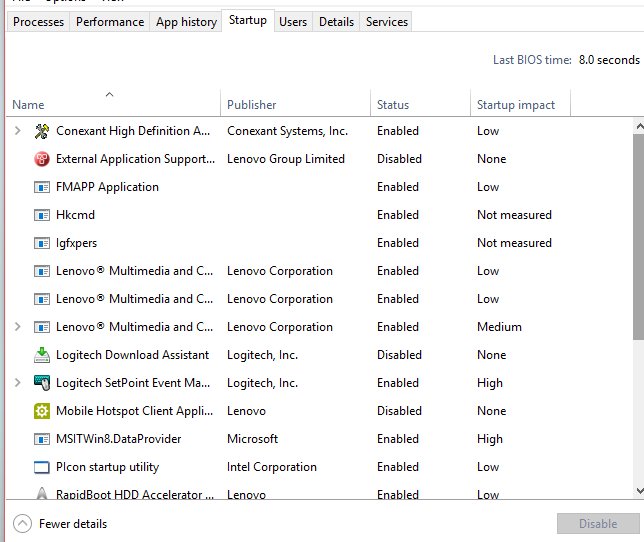
The Startup impact column rates each app as None, Not measured, Low, Medium or High, which helps you pick what to disable first. You can also view all startup programs in one list before you change anything.
Configure Windows 11/10 startup apps from Msconfig
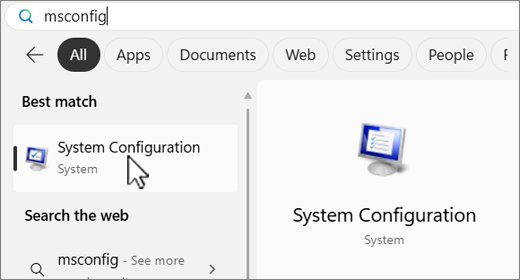
System Configuration (msconfig) no longer lists startup items itself. Its Startup tab hands you over to Task Manager.
- Select Search, type
msconfigand select System Configuration. - Open the Startup tab.
- Select Open Task Manager.
- On the Startup apps tab, select an item and choose Disable or Enable.
- Close Task Manager, select OK in System Configuration and restart when prompted.
For a clean boot, also tick Hide all Microsoft services on the Services tab and select Disable all. Return to Normal startup on the General tab when you finish testing.
Fix startup apps not working in Windows 11
Settings shows "We couldn't find this app"
The app sits on a removable or network drive, its path no longer exists, or it was uninstalled.
- Open Settings > Apps > Startup.
- Select the open-in-new-window icon next to the app's toggle to see the path it points to.
- Reconnect the drive or reinstall the app if the path is missing.
- If the app is gone for good, delete its shortcut from
shell:startupor remove its entry from the matchingRunregistry key after backing up the registry.
An app in the startup folder does not open at sign-in
The app is switched off in the Startup apps list, or the shortcut sits in the other user's folder.
- Open Task Manager and select Startup apps.
- Find the app and select Enable if its status is Disabled.
- Check whether the shortcut is in
shell:startupfor your account orshell:common startupfor all users. - Sign out and back in to test.
More ways to make your computer start faster
Trimming the startup folder helps most, but a few other settings cut the time before your desktop is usable.
| Change | Where | Why it helps |
|---|---|---|
| Disable high-impact startup apps | Task Manager > Startup apps | Fewer programs load at sign-in |
| Install updates and optional driver updates | Settings > Windows Update > Advanced options > Optional updates | Fixes and drivers can remove slowdowns |
| Free up disk space | Settings > System > Storage, or Disk Cleanup | A full drive slows Windows down |
| Turn off background app permissions | App's Advanced options > Background app permissions > Never | Less activity after sign-in |
| Run a malware scan | Windows Security > Virus & threat protection > Quick scan | Malware often adds itself to startup |
| Optimize drives | Defragment and Optimize Drives > Optimize | Keeps the system drive in good shape |
Frequently asked questions about the Windows startup folder
Where is the startup folder in Windows 11?
Your own startup folder is at %userprofile%\AppData\Roaming\Microsoft\Windows\Start Menu\Programs\Startup. The all-users folder is at %ProgramData%\Microsoft\Windows\Start Menu\Programs\Startup. Open them with shell:startup and shell:common startup in the Run dialog.
Where is the startup folder for all users in Windows 10?
It is at %ProgramData%\Microsoft\Windows\Start Menu\Programs\Startup, the same location as Windows 11. Press Win + R, type shell:common startup and press Enter to open it. Shortcuts there start for every account.
What is the difference between shell:startup and shell:common startup?
shell:startup opens the folder for the signed-in account only. shell:common startup opens the shared folder under ProgramData, which runs its shortcuts for every user on the PC and needs administrator rights to change.
How do I add a program to startup in Windows 11?
Open shell:appsfolder and shell:startup in two Run windows, then drag the app from the apps folder into the startup folder. If the app already appears in Settings > Apps > Startup, switch its toggle on instead.
Does deleting a shortcut from the startup folder uninstall the app?
No. Deleting the shortcut only stops the app from launching at sign-in. The program stays installed and you can still open it from the Start menu.
Can I still manage startup items in msconfig?
Not directly. The Startup tab in System Configuration now shows an Open Task Manager link, and the actual enable and disable switches are on Task Manager's Startup apps tab.
Why does an app start even though it is not in the startup folder?
Many apps start from the Run keys in the registry instead of the folder. Settings > Apps > Startup and Task Manager's Startup apps tab show both kinds, so turn the app off there.