Windows shell commands are shell: names you type into Run, the File Explorer address bar or the Start search box to jump straight to a special folder, such as shell:startup for your Startup folder.
This list covers the shell: commands Microsoft documents, the known folders they point to, the shell:::{CLSID} form, Control Panel canonical names, and the two command-line shells Windows ships with.
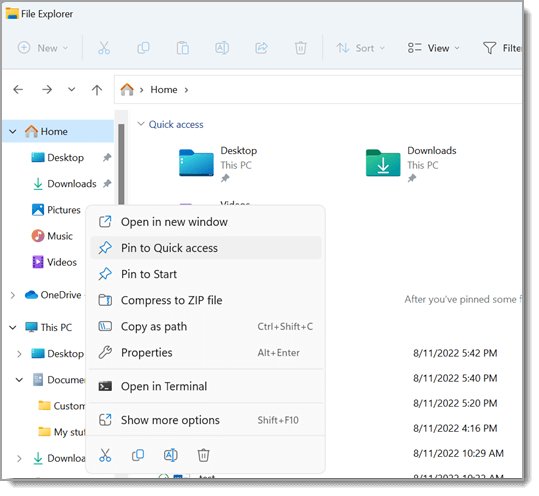
How to use Windows shell commands
The Run dialog is the quickest place to type a shell command, and it works the same on Windows 11 and Windows 10.
- Right-click Start and select Run, or press Windows key + R.
- Type a shell command, for example
shell:startup. - Select OK or press Enter.
- A File Explorer window opens at that folder.
- To use the address bar instead, open File Explorer, click the address bar, type the same command and press Enter.
The same commands also work from PowerToys Run: type > followed by the command, for example > shell:startup.
Windows shell commands list
These are the shell: commands that Microsoft names in its own Windows documentation. Each one opens a folder in File Explorer.
| Shell command | What it opens | Real path |
|---|---|---|
shell:startup |
Startup folder for the current user | %APPDATA%\Microsoft\Windows\Start Menu\Programs\Startup |
shell:common startup |
Startup folder for all users of the PC | %ProgramData%\Microsoft\Windows\Start Menu\Programs\Startup |
shell:appsfolder |
The Applications folder, listing every installed app including Microsoft Store apps | Virtual folder, no disk path |
shell:::{4234d49b-0245-4df3-b780-3893943456e1} |
The same Applications list, opened by its CLSID | Virtual folder, no disk path |
Anything you place in shell:startup runs when you sign in. Anything in shell:common startup runs for every account, so adding to it needs administrator rights.
Windows known folders and their paths
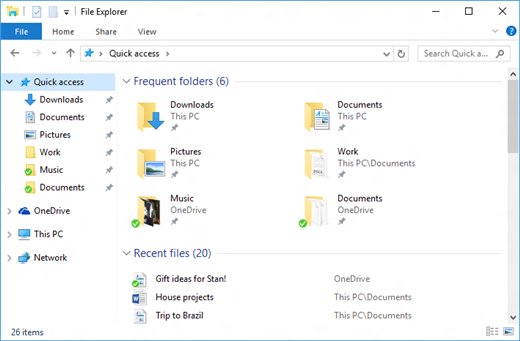
Shell commands are front doors to Windows known folders. Microsoft lists each known folder with its default location, and every path below can be pasted into Run or the File Explorer address bar as it is.
Environment variables such as %APPDATA% expand to your own profile, so the same line works on any account.
| Known folder | Scope | Default path to type |
|---|---|---|
| Desktop | Per user | %USERPROFILE%\Desktop |
| Documents | Per user | %USERPROFILE%\Documents |
| Downloads | Per user | %USERPROFILE%\Downloads |
| Pictures | Per user | %USERPROFILE%\Pictures |
| Screenshots | Per user | %USERPROFILE%\Pictures\Screenshots |
| Camera Roll | Per user | %USERPROFILE%\Pictures\Camera Roll |
| Music | Per user | %USERPROFILE%\Music |
| Videos | Per user | %USERPROFILE%\Videos |
| Saved Games | Per user | %USERPROFILE%\Saved Games |
| OneDrive | Per user | %USERPROFILE%\OneDrive |
| Roaming app data | Per user | %APPDATA% |
| Local app data | Per user | %LOCALAPPDATA% |
| LocalLow | Per user | %USERPROFILE%\AppData\LocalLow |
| SendTo | Per user | %APPDATA%\Microsoft\Windows\SendTo |
| Recent Items | Per user | %APPDATA%\Microsoft\Windows\Recent |
| Start Menu | Per user | %APPDATA%\Microsoft\Windows\Start Menu |
| Programs (Start menu) | Per user | %APPDATA%\Microsoft\Windows\Start Menu\Programs |
| Templates | Per user | %APPDATA%\Microsoft\Windows\Templates |
| Network Shortcuts | Per user | %APPDATA%\Microsoft\Windows\Network Shortcuts |
| Libraries | Per user | %APPDATA%\Microsoft\Windows\Libraries |
| Per-user installed programs | Per user | %LOCALAPPDATA%\Programs |
| Start Menu (all users) | All users | %ALLUSERSPROFILE%\Microsoft\Windows\Start Menu |
| Programs (all users) | All users | %ALLUSERSPROFILE%\Microsoft\Windows\Start Menu\Programs |
| Public | All users | %PUBLIC% |
| Public Desktop | All users | %PUBLIC%\Desktop |
| Public Documents | All users | %PUBLIC%\Documents |
| ProgramData | Fixed | %ProgramData% |
| Program Files | Fixed | %ProgramFiles% |
| Common Files | Fixed | %ProgramFiles%\Common Files |
| Fonts | Fixed | %windir%\Fonts |
| System32 | Fixed | %windir%\system32 |
| Windows | Fixed | %windir% |
| Users | Fixed | %SystemDrive%\Users |
Virtual known folders such as Recycle Bin, Control Panel, Network Connections and Printers have no disk path, so they open only through the shell namespace.
What is the shell:::{CLSID} command format?
Windows also accepts a namespace form that starts with shell::: followed by a class ID in braces. It opens virtual folders that have no folder on disk.
| Form | Example | Where Microsoft uses it |
|---|---|---|
shell:<name> |
shell:startup |
Startup apps guide in Windows support |
shell:::{CLSID} |
shell:::{4234d49b-0245-4df3-b780-3893943456e1} |
PowerShell sample that lists app AUMIDs |
::{CLSID} page inside Control Panel |
::{D450A8A1-9568-45C7-9C0E-B4F9FB4537BD} (Installed Updates) |
Control Panel canonical names reference |
A virtual folder's parsing name chains these IDs together; Microsoft gives Control Panel's as ::%CLSID_MyComputer%::%CLSID_ControlPanel%.
Control Panel shell commands with control /name
Control Panel items have their own non-localized canonical names, always in English, which you run through control.exe. Microsoft's reference table lists support up to Windows 8.1, and some items have since moved to Settings or been removed.
control /name Microsoft.WindowsUpdateReplace Microsoft.WindowsUpdate with any canonical name: Microsoft.DeviceManager, Microsoft.PowerOptions, Microsoft.ProgramsAndFeatures, Microsoft.NetworkAndSharingCenter, Microsoft.System, Microsoft.UserAccounts, Microsoft.CredentialManager, Microsoft.DateAndTime, Microsoft.Sound, Microsoft.Mouse, Microsoft.FolderOptions, Microsoft.Fonts, Microsoft.IndexingOptions, Microsoft.InternetOptions, Microsoft.Recovery, Microsoft.RegionAndLanguage, Microsoft.WindowsFirewall or Microsoft.BitLockerDriveEncryption. Older module names still work too, for example control.exe sysdm.cpl,,3 opens a tab of System Properties.
You should see: The matching Control Panel item, or the Settings page that replaced it, opens.
Which shell is used in Windows?
Windows has two command-line shells, the Command shell (cmd.exe) and PowerShell, plus the graphical shell that shell: commands open in.
| Your goal | Use this shell | Why |
|---|---|---|
| Jump to a special folder | File Explorer with a shell: command |
Opens the folder without browsing hidden paths |
| Run batch files and classic Windows commands | Command Prompt | Runs Windows Commands but not PowerShell cmdlets |
| Automate tasks with scripts | PowerShell | Runs both Windows Commands and cmdlets; Microsoft recommends it for automation |
| Search and launch from one box | PowerToys Run with > |
> shell:startup passes the command to its Shell plugin |
Windows PowerShell list all commands
A shell commands list for PowerShell comes from PowerShell itself rather than a web page.
- Right-click Start and select Terminal or Windows PowerShell.
- Type
Get-Commandand press Enter to list all cmdlets, functions and aliases installed on the PC. - Type
Get-Command *to include every program in your PATH as well. - Type
Get-StartAppsto list every Start menu app with its AppUserModelID.
Get-Command lists PowerShell only, so classic Command Prompt commands and Windows 11 Run commands do not appear in its output.
Confirm a shell command opened the right folder
- Run the shell command from Run.
- Click the File Explorer address bar once to show the real path.
- Compare it with the path column in the known folders table above.
- For
shell:appsfolder, check that the window lists apps rather than files.
Shell command not working in Windows 11
Windows says it cannot find the shell: location
The name is misspelled, or it is a name Windows does not register.
- Check the spelling against the list above, including the space in
shell:common startup. - Type the environment-variable path from the known folders table instead.
shell:common startup will not let you add a shortcut
The all-users Startup folder needs administrator rights.
- Use
shell:startupto add the app for your account only. - Or sign in with an administrator account and approve the Continue prompt.
An app in Startup does not launch at sign-in
The app is turned off in Startup apps settings.
- Open Settings > Apps > Startup.
- Turn the app's toggle On.
Windows shell commands FAQ
What is Windows shell?
The Windows shell is the user interface layer you work in: File Explorer, the desktop, the Start menu and the taskbar. Shell commands such as shell:startup are shortcuts into that interface's special folders, so they open in File Explorer rather than a text console.
Which shell is used in Windows?
Windows ships with two command-line shells, the Command shell (cmd.exe) and PowerShell. PowerShell runs both classic Windows Commands and cmdlets, while Command Prompt runs only Windows Commands. Microsoft recommends PowerShell for automation.
What is a shell on a computer?
A shell is a program that sits between you and the operating system and passes on your commands. A command-line shell takes typed text, while a graphical shell such as File Explorer takes clicks. Both let you start programs and manage files.
What are the types of shell?
On Windows there are graphical shells and command-line shells. File Explorer is the graphical one. Command Prompt and PowerShell are the command-line ones, and Windows Terminal is an app that hosts them in tabs rather than a separate shell.
Where is shell listed?
Shell folders are registered in Windows as known folders, each with an ID, a display name and a default path. Microsoft's KNOWNFOLDERID reference lists them all. The user-facing commands Microsoft names include shell:startup, shell:common startup and shell:appsfolder.
Do shell commands work in Windows 11?
Yes. The documented shell: commands work in Windows 11 and Windows 10 from Run, the File Explorer address bar and Start search. Microsoft's own Windows 11 startup guide uses shell:startup and shell:appsfolder.
How do I list all commands in Windows PowerShell?
Run Get-Command in PowerShell to list every installed cmdlet, function and alias. Add an asterisk, Get-Command *, to include programs in your PATH. This gives a complete list for the exact PC you are using.