To use Windows Security in Windows 11 for best protection, keep real-time and cloud-delivered protection on, run a quick scan when you suspect a problem, and turn on ransomware, phishing and memory integrity protection.
This guide walks through each page of the app, explains every scan type, and fixes problems with scans, protection history and an app that will not open.
How to use Windows Security in Windows 11 for maximum protection
Work through these steps once and the main protections are in place. Windows keeps scanning and updating in the background after that.
- Search the Start menu for Windows Security and open the app.
- Read the status icons on the home page and act on any yellow or red item.
- Select Virus & threat protection > Manage settings, then keep Real-time protection, Cloud-delivered protection, Automatic sample submission and Tamper protection on.
- Select Virus & threat protection > Protection updates > Check for updates.
- Select Virus & threat protection > Manage ransomware protection and turn on Controlled folder access.
- Select App & browser control > Reputation-based protection settings and keep the protections on.
- Select Device security > Core isolation details and turn on Memory integrity.
- Select Virus & threat protection > Quick scan to run a first scan.
How to open Windows Security in Windows 11
- Select Start or press the Windows key.
- Type Windows Security.
- Select Windows Security in the results.
The Start menu route is the one Microsoft gives, and you can use other ways to open Windows Security if search is not working.
What does Windows Security protect?
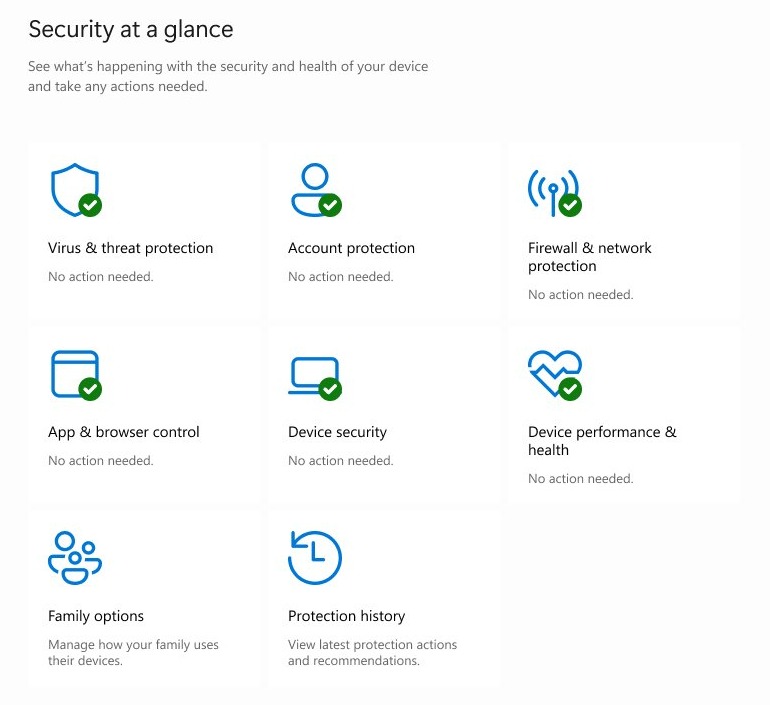
The home page is a dashboard for eight areas. A green icon means no action is recommended, yellow means a safety recommendation, and red means something needs immediate attention.
| Page | What it protects or shows | What to do there |
|---|---|---|
| Virus & threat protection | Viruses, malware and ransomware | Run scans, get updates and manage antivirus settings |
| Account protection | Your sign-in and account security | Open Windows Hello and dynamic lock settings |
| Firewall & network protection | Network traffic on each network type | Check that the firewall is on for your network |
| App & browser control | Unsafe apps, files, sites and downloads | Manage SmartScreen, phishing and exploit protection |
| Device security | Windows core processes and hardware security | Manage core isolation, TPM and Secure Boot |
| Device performance & health | Storage capacity, battery life and apps | Read the health report and its recommendations |
| Family options | Your family's digital life | Open family tools |
| Protection history | Actions taken by Defender Antivirus | Review threats, removed apps and services that are off |
Some pages might be unavailable when an organization manages the PC. Ask your IT administrator if a page is missing on a work device.
Windows Defender offline scan vs full scan vs quick scan explained
Microsoft recommends the quick scan for most on-demand and scheduled scans, because real-time protection already checks files as you open them. Microsoft also says most users never need to run a full scan by hand.
| Scan type | What it checks | Use it when | What to expect |
|---|---|---|---|
| Quick scan | Locations where malware registers to start with the system, such as registry keys and startup folders | You want a routine check or suspect a problem | Shorter than a full scan, and Windows tells you if another type is recommended |
| Full scan | Every file and program on the device, starting with a quick scan | A quick scan finds nothing but you are still concerned | Can last from several hours to several days |
| Custom scan | Only the files and folders you select | One file or folder worries you | Length depends on what you select |
| Microsoft Defender Antivirus (offline scan) | The device from outside Windows, using the latest definitions | You suspect persistent malware or a rootkit | About 15 minutes, with restarts into and out of the scan |
How to run a scan in Windows Security
Save your work before an offline scan, because the PC restarts and signs you out. If BitLocker protects the system drive, suspend it first or Windows may ask for the BitLocker recovery key.
- Open Windows Security and select Virus & threat protection.
- Select Quick scan to start the default scan straight away.
- Select Scan options to see Full scan, Custom scan and Microsoft Defender Antivirus (offline scan).
- Select the scan type you want, then select Scan now.
- Select Protection history after the scan to review what was found.
For one file or folder, right-click it in File Explorer and select Scan with Microsoft Defender. On Windows 11 you may need to select Show more options first.
From PowerShell, Start-MpScan -ScanType QuickScan runs a quick scan and Start-MpWDOScan starts an offline scan. An offline scan does not run on Arm versions of Windows 11.
Windows Defender quick scan not working in Windows 11
Find the behavior you see, then work through its fixes in order.
The Quick scan option is missing or the page says another app is in charge
A compatible third-party antivirus is installed, so Microsoft Defender Antivirus has turned itself off.
- Open Windows Security, select Settings, then select Manage providers.
- Select Antivirus to see which app is protecting the PC.
- Run the scan from that app, or uninstall it if you want Defender back. Defender turns on again automatically after the other app is removed.
Quick scan keeps failing with errors
Windows or the security intelligence files are out of date.
- Select Virus & threat protection > Protection updates > Check for updates.
- Open Settings > Windows Update and install what is offered.
- Restart the PC, then run the scan before opening any other apps.
The scan is very slow or seems stuck
Other programs are competing for system resources, or the system drive is short of space.
- Close all other programs while the scan runs.
- Free up space on the system drive, usually drive C.
- Check for updates, then run the scan again.
Scan settings are grayed out
Group Policy or your organization controls these settings.
- Check whether the PC is managed by a work or school.
- Ask your IT administrator to review the policy, because the settings cannot be changed on the PC itself until the policy changes.
How to turn on Windows Security real-time protection
Real-time protection scans files and programs as they are opened or run. These four settings live on one page, and Microsoft turns cloud protection and sample submission on by default.
- Open Windows Security and select Virus & threat protection.
- Under Virus & threat protection settings, select Manage settings.
- Set Real-time protection to On.
- Set Cloud-delivered protection and Automatic sample submission to On.
- Set Tamper protection to On so other apps cannot change these settings.
If an app needs a file left alone, add an exclusion for that file instead of changing the protection itself. Microsoft calls an exclusion the safer choice, though excluded items lose real-time scanning, so add only what you trust. If the antivirus page shows as off, you can turn on Windows Security again.
How to turn on ransomware protection in Windows Security
Controlled folder access blocks unknown apps from changing files in protected folders. It covers common folders such as Documents, Pictures, Videos, Music and Desktop by default.
- Open Windows Security and select Virus & threat protection.
- Select Manage ransomware protection.
- Turn on Controlled folder access.
- Select Protected folders to add any other folder you want covered.
- Select Allow an app through Controlled folder access only for apps you trust that get blocked.
The same page links to Ransomware data recovery, which works with OneDrive so you can restore files from a backup after an attack.
How to turn on SmartScreen and phishing protection in Windows Security
Reputation-based protection checks apps, files and websites against what Microsoft knows about them. Phishing protection applies only to the password you type to sign into Windows 11.
- Open Windows Security and select App & browser control.
- Select Reputation-based protection settings.
- Turn on Check apps and files and SmartScreen for Microsoft Edge.
- Under Phishing protection, select the warnings you want.
- Turn on Potentially unwanted app blocking and SmartScreen for Microsoft Store apps.
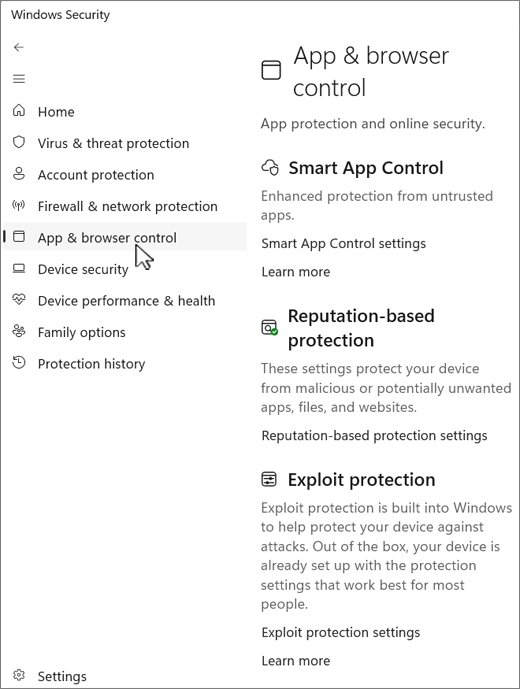
Smart App Control sits on the same page but only works on new Windows 11 installs. A PC that received it through an update needs a reset or reinstall before you can turn it on. Exploit protection is already running with settings Microsoft considers best for most people, so it needs no action.
How to turn on Windows Firewall in Windows Security
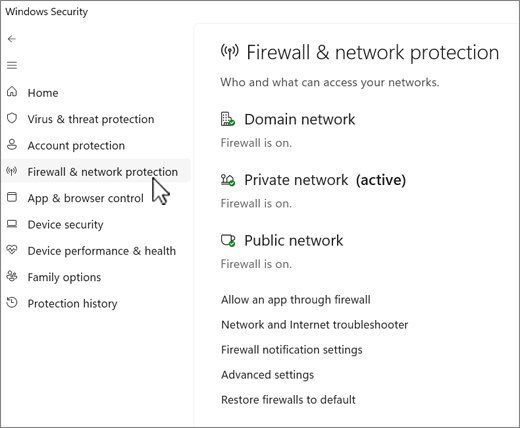
The firewall has separate settings for domain, private and public networks. Public networks such as coffee shop Wi-Fi deserve the strictest settings.
- Open Windows Security and select Firewall & network protection.
- Select the network profile that shows as active: Domain network, Private network or Public network.
- Switch Microsoft Defender Firewall to On.
- Check Blocks all incoming connections, including those in the list of allowed apps only on a network you distrust, because some apps can stop working.
- Select Restore firewalls to default if changed settings are causing problems.
If the firewall blocks an app you need, use Allow an app through firewall rather than turning the firewall off.
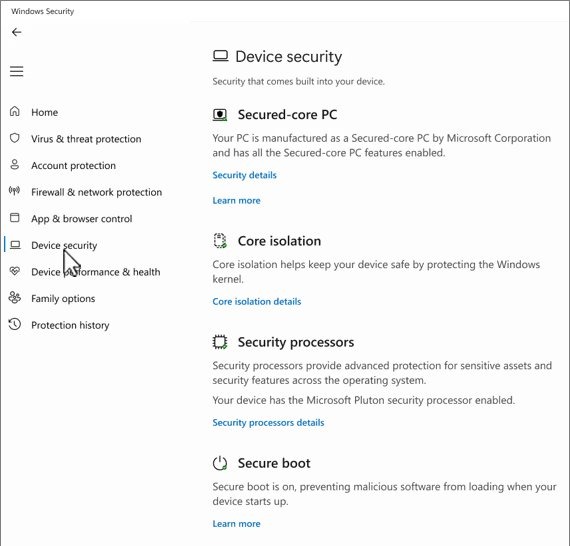
How to turn on memory integrity in Windows 11
Memory integrity makes it harder for malicious programs to use low-level drivers to hijack the PC. It needs hardware virtualization enabled in UEFI or BIOS.
- Open Windows Security and select Device security.
- Select Core isolation details.
- Set Memory integrity to On.
- If Windows reports an incompatible driver, ask the device manufacturer for an updated driver.
- Remove the device or app that uses the driver if no compatible version exists.
The features on this page vary with your Windows version and hardware. Secure boot and the Security processor (TPM) entries show their status on the Device security page.
How to use protection history in Windows Security
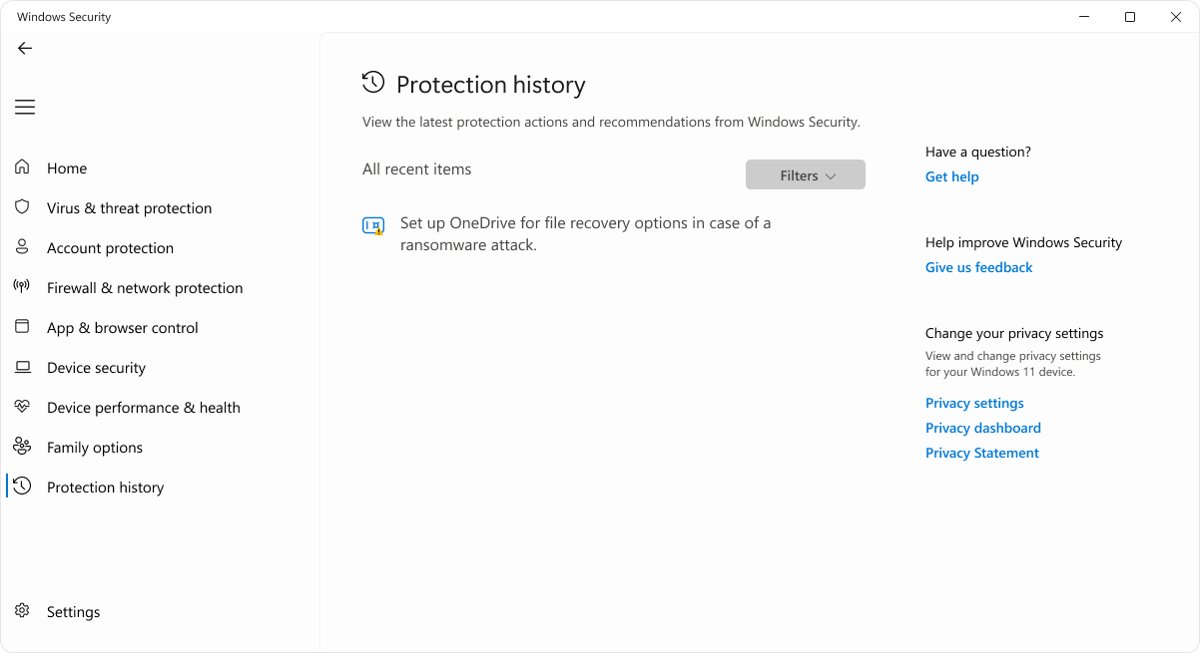
Select Protection history to see events as a series of cards, and select a card to expand it. You need admin rights on the PC to review threat details. Red cards need attention right away, and yellow ones can wait until you have time.
| Card you see | What it means | What to do |
|---|---|---|
| Threat found – action needed | Defender needs a decision from you | Select Actions, then Quarantine if you are unsure about the file |
| Threat quarantined | The threat is blocked but not yet removed | Select Remove, or Restore only if you are certain the file is safe |
| Threat blocked | Defender blocked and removed the threat | No action needed, though it helps to work out how the threat arrived |
| Remediation incomplete | Defender could not finish cleaning | Expand the card and follow the extra steps it lists |
| This app has been blocked | SmartScreen stopped a potentially unwanted app | Leave it blocked unless you trust the file |
| An important service is off | A feature such as SmartScreen for Microsoft Edge is off | Select Actions and turn it on |
To reverse an allowed threat, select Virus & threat protection > Allowed threats, select the item, then select Don't allow.
How to clear Windows Defender protection history in Windows 11
Microsoft documents no clear button on the page, and protection history keeps events for two weeks before they disappear on their own. To shorten that, set how long Defender keeps items in the scan history folder.
Open PowerShell with Run as administrator, then run the command below. The number is the days to keep items, so change it to suit you.
Set-MpPreference -ScanPurgeItemsAfterDelay 1Tells Microsoft Defender Antivirus to remove items from the scan history folder after one day.
You should see: The command returns no error, and Get-MpPreference then lists ScanPurgeItemsAfterDelay with the value you set.
Do not use 0, because that value stops Defender from removing items at all. The Local Group Policy Editor has the same control in Computer configuration > Administrative templates > Windows components > Microsoft Defender Antivirus > Scan, named Turn on removal of items from scan history folder.
How to tell if Windows Security is protecting your PC
- Open Windows Security and confirm each home page icon is green.
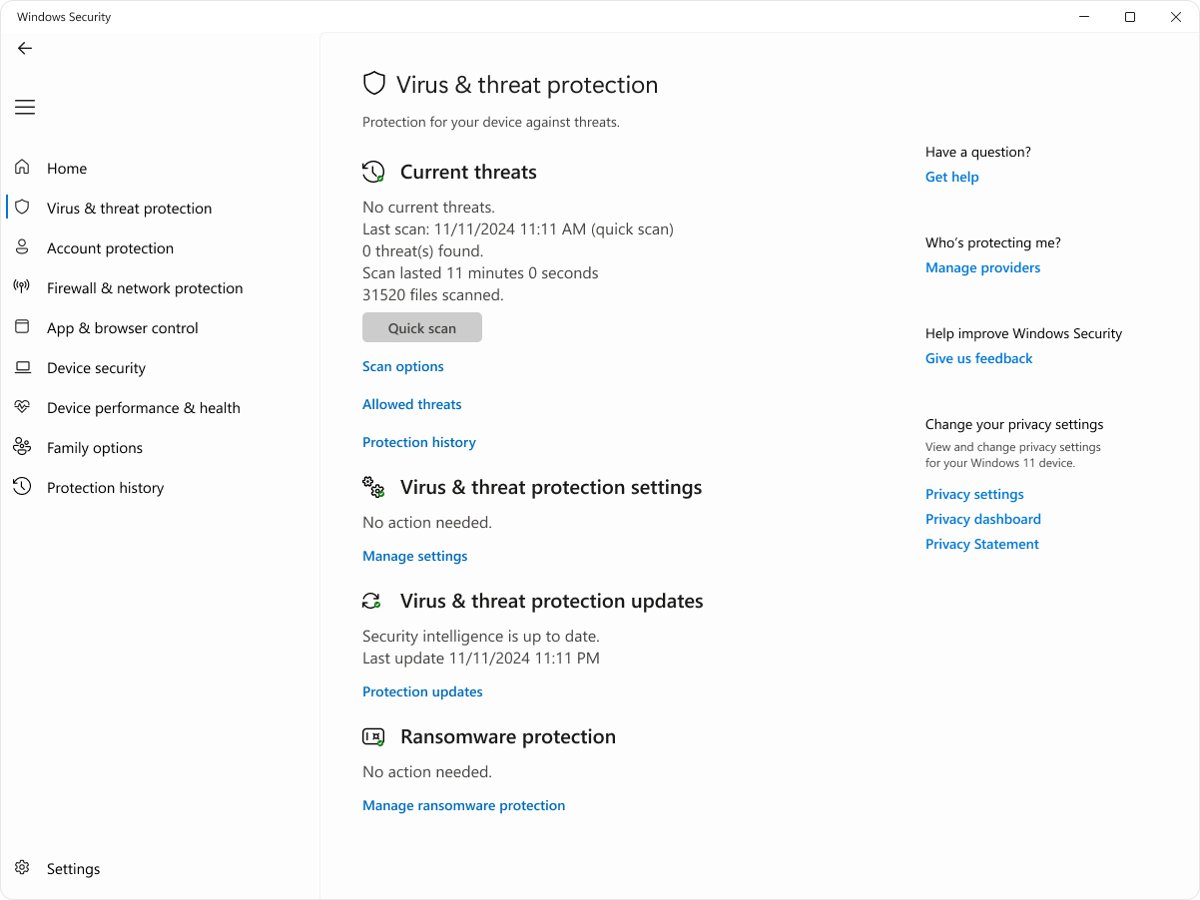
- Select Virus & threat protection and read Current threats for the last scan time and files scanned.
- Select Protection updates and check the date of the installed security intelligence.
- Select Settings > Manage providers to see which app handles antivirus, firewall and web protection.
Windows downloads security intelligence automatically through Windows Update, so a recent date shows updates are arriving.
How to change Windows Security notifications
These choices cover informational messages only. Windows still notifies you when a problem needs immediate action.
- Open Windows Security and select Settings.
- Select Manage notifications.
- Under Virus & threat protection, choose whether to hear about blocked threats and finished scans.
- Under Account protection, choose whether to hear about Windows Hello and dynamic lock problems.
- Under Firewall and network protection, choose when to be told about blocked apps on each network type.
Is Windows Security good enough for Windows 11?
Windows Security includes antivirus, a firewall, SmartScreen and core isolation in one app at no extra cost. It runs from the moment the PC starts and updates through Windows Update.
Good habits still matter, and you can pair the app with other ways to protect your computer from viruses. Microsoft warns that removed malware can come back if you revisit the site that hosted it or receive it by email again.
Keep Windows Security turned on unless a compatible third-party antivirus has taken over from Defender. Defender protects the PC with no setup, and Microsoft 365 Family or Personal subscribers can add the separate Microsoft Defender app for protection across Windows, Mac, iOS and Android.
Windows Security not opening on Windows 11
The Windows Security app will not start
The app needs repair, or Windows is missing current fixes.
- Select Start > Settings > Apps > Installed apps.
- Select the More icon next to Windows Security, then Advanced options.
- Select Repair if it is available. If it is not, or it does not help, select Reset.
- Open Settings > Windows Update and install any available updates.
A page is missing or says it is managed
An organization controls that part of the app through policy.
- Check for a notice on the page saying that your administrator sets the option.
- Contact your IT administrator, since policy settings can prevent changes on the device.
Microsoft Defender Antivirus shows as off
Another antivirus app is installed and turned on.
- Select Settings > Manage providers in Windows Security to see the active antivirus.
- Uninstall that app if you no longer want it.
- Open Virus & threat protection again and confirm Real-time protection is on.
Windows Security in Windows 11 FAQ
What is Windows Security?
Windows Security is the app built into Windows 11 that brings together Microsoft Defender Antivirus, Windows Firewall, Smart App Control and other protections. It protects the device from startup and shows your security status on one home page.
What does Windows Security protect?
It protects against viruses, malware and ransomware, and it covers your accounts, network connections, apps, browser downloads and device hardware security. Its home page shows each area with a green, yellow or red status icon.
Does Windows come with security?
Yes. Windows 11 includes the Windows Security app, which contains Microsoft Defender Antivirus and Windows Firewall. It is built in, so you do not need to install anything to get real-time protection.
Does Windows Security work on its own?
Yes. It scans automatically in the background, and Windows downloads security intelligence through Windows Update. You can still run an extra scan at any time from Virus & threat protection.
Where is Windows Security?
Search the Start menu for Windows Security and select the app. Its pages cover virus and threat protection, account protection, firewall, app and browser control, device security, device health, family options and protection history.
How do I turn on Windows Security?
Open the app, select Virus & threat protection, then Manage settings, and set Real-time protection to On. If another antivirus is active, Defender stays off until that app is uninstalled, and then it turns on automatically.
Should I turn on Windows Security?
Yes, unless a compatible third-party antivirus already protects the PC. Microsoft warns that real-time protection off leaves files you open or download unscanned, and it turns the feature back on automatically after a short while.
Is Windows Security good?
It gives you antivirus, firewall, reputation-based protection and core isolation at no added cost. Microsoft recommends quick scans with always-on real-time and cloud protection as the default setup, which needs little attention after you check the settings once.
How do I use Microsoft Security on a Windows PC?
Open the Windows Security app from the Start menu for the built-in protection. Microsoft 365 Family and Personal subscribers also get the separate Microsoft Defender app, which covers Windows, Mac, iOS and Android.