Exploit Protection is already enabled in Windows 11, so you use it by opening Windows Security > App & browser control > Exploit protection settings and adjusting system-wide or per-app mitigations.
This guide covers the default mitigations, per-app rules, audit mode, PowerShell, XML export and import, Group Policy deployment, and fixes for apps that stop working.
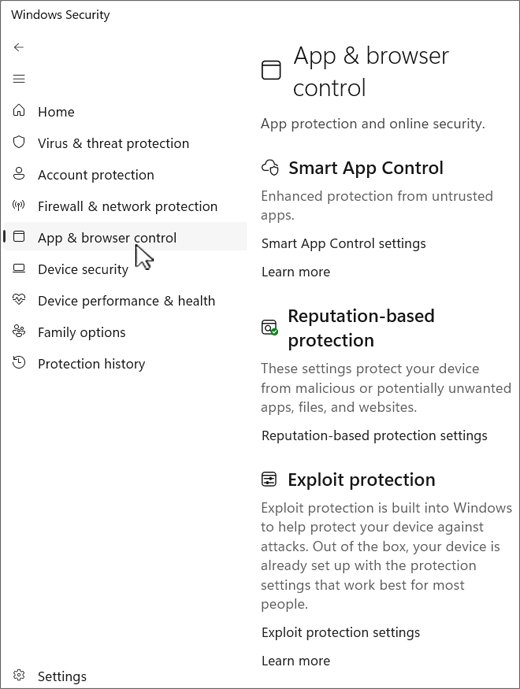
How to open Exploit Protection in Windows 11 or Windows 10
Exploit Protection is part of the Windows Security app on Windows 11 and on Windows 10 from version 1709, so there is nothing to install or switch on first as long as Windows Security is active on the PC.
- Type Windows Security in the taskbar search box and select it from the results.
- Select App & browser control in the left pane.
- Under Exploit protection, select Exploit protection settings.
- Use the System settings tab for rules that apply to every app, or the Program settings tab for rules that apply to one app.
- Select Apply after any change and approve the User Account Control prompt if it appears.
To jump straight to the page, press Win + R, type windowsdefender://exploitprotection/ and press Enter.
Accessing Exploit Protection settings: Windows Security UI, Group Policy, and PowerShell methods
| Your situation | Use this | Why |
|---|---|---|
| One home or work PC, a few changes | Windows Security app | Every mitigation has a visible switch and its default is shown next to it |
| Script a change or check the live state of a process | PowerShell (Get-ProcessMitigation, Set-ProcessMitigation) | Works from an elevated session and can target running processes |
| Copy one tested setup to other PCs | Export settings to XML, import with PowerShell | Import is PowerShell-only and applies instantly |
| Domain-joined PCs or a single Pro PC with gpedit.msc | Group Policy: Use a common set of exploit protection settings | Points every device at one XML file and overrides local changes |
| Intune-managed fleet | Intune Attack surface reduction policy with the Exploit Protection profile | Microsoft's recommended route for Defender for Endpoint features |
| Another MDM or Configuration Manager | ExploitProtectionSettings CSP or an Exploit Guard policy | Both take the same XML file |
Prerequisites and system requirements: Windows versions, Defender dependencies, and compatibility considerations
| Requirement | Detail |
|---|---|
| Windows version | Windows 11, Windows 10 version 1709 or later, Windows Server version 1803 or later |
| Account | An administrator account; changes trigger a User Account Control prompt |
| PowerShell | Get-ProcessMitigation and Set-ProcessMitigation need a window opened with Run as administrator |
| Microsoft Defender for Endpoint | Not needed to use the feature; it adds alert reporting and advanced hunting of exploit protection events |
| Group Policy path on older builds | Before Windows 10 version 2004 the folder is named Windows Defender Exploit Guard instead of Microsoft Defender Exploit Guard |
| Restart | System-level changes need a device restart; app-level changes need the app restarted |
| Compatibility | .NET Framework 2.0 and 3.5 apps break with Export address filtering (EAF) and Import address filtering (IAF), which are deprecated |
| EMET | The Enhanced Mitigation Experience Toolkit reached end of support on July 31, 2018; its mitigations are built into exploit protection |
How Exploit Protection works under the hood: mitigation technologies and attack surface reduction
Exploit protection applies memory and loading rules to Windows processes and apps, so a bug in an app is harder to turn into running malicious code.
Each rule is a mitigation. Some run system-wide, the rest only for apps you list, and several can log instead of block.
| Layer | What it does | Where you set it |
|---|---|---|
| System settings | Six mitigations (CFG, DEP, Mandatory ASLR, Bottom-up ASLR, SEHOP, heap integrity) for every app without an override | System settings tab or Set-ProcessMitigation -System |
| Program settings | Any of the mitigations for one executable name or exact path | Program settings tab or Set-ProcessMitigation -Name |
| Override system settings | Makes the app rule win over the system rule for that mitigation only | Check box under each mitigation in Program settings |
| Audit mode | Logs what would have been blocked without blocking it | Audit only check box or the Audit cmdlets |
| Attack surface reduction (ASR) rules | A separate Defender feature Microsoft recommends for Office apps and Adobe Reader instead of per-app exploit protection | Defender ASR policy, not the Exploit protection page |
When a mitigation blocks something, Windows shows a notification and records an event in the Security-Mitigations log.
Check the default system mitigations
Windows ships with most system mitigations on. The value in brackets after Use default is the Windows default for that row.
| System setting | Windows default | What it protects |
|---|---|---|
| Control flow guard (CFG) | Use default (On) | Checks indirect calls go to valid targets |
| Data Execution Prevention (DEP) | Use default (On) | Stops code running from data-only memory such as the heap and stack |
| Force randomization for images (Mandatory ASLR) | Use default (Off) | Relocates images not built with /DYNAMICBASE |
| Randomize memory allocations (Bottom-up ASLR) | Use default (On) | Randomizes heap, stack, TEB and PEB locations |
| High-entropy ASLR | Use default (On) | Wider randomization for 64-bit processes |
| Validate exception chains (SEHOP) | Use default (On) | Protects the exception chain during exception dispatch |
| Validate heap integrity | On | Terminates a process when heap corruption is detected |
In PowerShell, Get-ProcessMitigation -System shows NOTSET for any row still on its Windows default.
Configuring system-wide Exploit Protection settings: best-practice baseline and security trade-offs
Microsoft describes the Use default values as its recommended baseline for home users. Change a system setting only when you have a specific reason, because it affects every app.
- Open Windows Security > App & browser control > Exploit protection settings.
- Stay on the System settings tab and find the mitigation, for example Control flow guard (CFG).
- Open its drop-down and choose On by default, Off by default or Use default (On).
- Select Yes at the User Account Control prompt.
- Repeat for any other system mitigation you want to change.
- Restart Windows so the system-level change takes effect.
Turning Force randomization for images (Mandatory ASLR) on everywhere is the main trade-off: Microsoft lists some AMD (ATI) video drivers as incompatible with system ASLR always on, so test it first.
If a Windows Subsystem for Android build asks for it, set Control flow guard (CFG) back to Use default (On) and restart.
Understanding and tuning individual mitigations: DEP, ASLR, CFG, SEHOP, heap protections, and more
Every mitigation can be set per app; only six can also be set system-wide. Audit support decides whether you can test a mitigation before enforcing it.
| Mitigation | Scope | Audit mode | PowerShell name |
|---|---|---|---|
| Control flow guard (CFG) | System and app | No | CFG, StrictCFG, SuppressExports |
| Data Execution Prevention (DEP) | System and app (configurable for 32-bit apps only) | No | DEP, EmulateAtlThunks |
| Force randomization for images (Mandatory ASLR) | System and app | No | ForceRelocateImages |
| Randomize memory allocations (Bottom-up ASLR) | System and app | No | BottomUp, HighEntropy |
| Validate exception chains (SEHOP) | System and app (32-bit only) | No | SEHOP, SEHOPTelemetry |
| Validate heap integrity | System and app | No | TerminateOnError |
| Arbitrary code guard (ACG) | App only | Yes | DynamicCode / AuditDynamicCode |
| Block low integrity images | App only | Yes | BlockLowLabel / AuditImageLoad |
| Block remote images | App only | No | BlockRemoteImages |
| Block untrusted fonts | App only | Yes | DisableNonSystemFonts / AuditFont |
| Code integrity guard | App only | Yes | MicrosoftSignedOnly / AuditMicrosoftSigned |
| Disable extension points | App only | No | ExtensionPoint |
| Disable Win32k system calls | App only | Yes | DisableWin32kSystemCalls / AuditSystemCall |
| Don't allow child processes | App only | Yes | DisallowChildProcessCreation / AuditChildProcess |
| Validate handle usage | App only | No | StrictHandle |
| Validate image dependency integrity | App only | No | EnforceModuleDepencySigning |
EAF, IAF, SimExec, CallerCheck and StackPivot still appear in the list but are deprecated. Microsoft replaced the last three with Arbitrary code guard and dropped EAF and IAF over compatibility problems.
Configure Exploit Protection for one application
A Program settings rule applies only to the app you name and wins over the system setting for each mitigation you override.
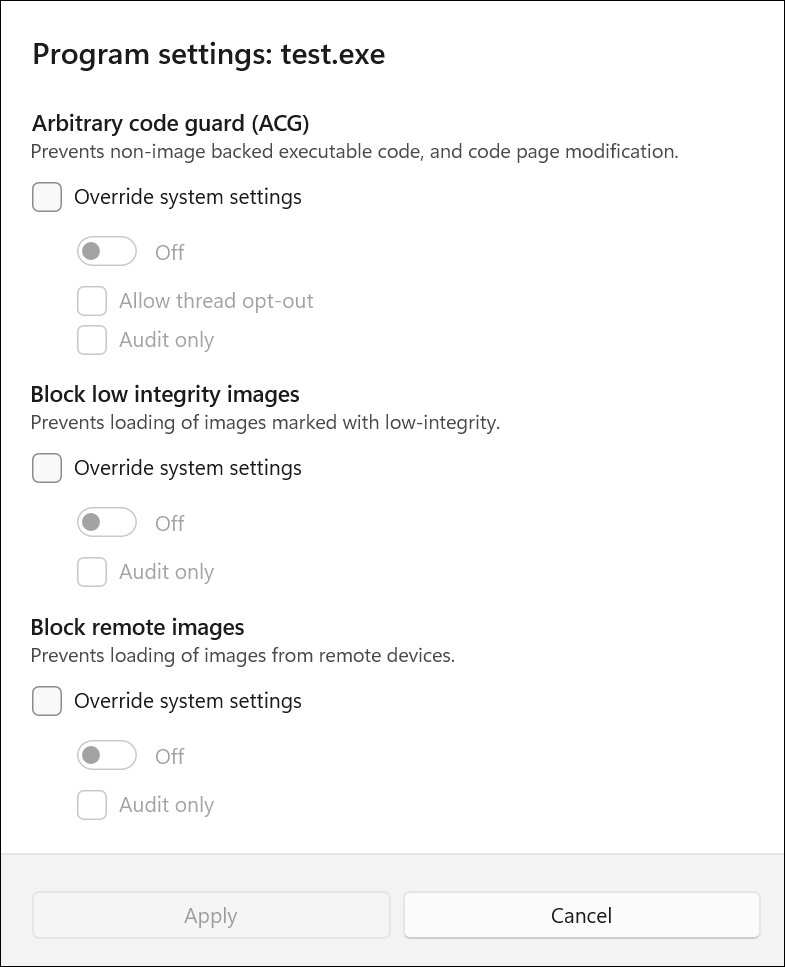
- Open Exploit protection settings and select the Program settings tab.
- If the app is listed, select it and choose Edit; otherwise select Add program to customize.
- Choose Add by program name and type a name such as
app.exeto cover every copy, or choose Choose exact file path to pick one file. - In the Program settings window, find the mitigation and tick Override system settings.
- Set the switch to On, and tick Audit only instead if you only want to log the effect.
- Select Apply, approve the prompt, and restart the app when Windows tells you to.
Typing a full path in Add by program name, such as C:\Tools\app.exe, limits the rule to that location.
Configuring per-application Exploit Protection: custom rules for legacy, high-risk, and line-of-business apps
Microsoft recommends per-app rules for apps that receive or handle untrusted data, and warns against them for software that does its own low-level tricks.
| App type | Recommendation | Reason |
|---|---|---|
| Line-of-business app that opens files or network data | Add a rule, start with audit-capable mitigations such as ACG and Don't allow child processes | Handles untrusted input, and audit shows breakage before enforcement |
| Legacy 32-bit app | Test DEP and SEHOP overrides; avoid EAF and IAF | Those two settings apply only to 32-bit apps, and EAF/IAF break .NET 2.0/3.5 |
| Microsoft Office (Outlook, Word, Excel, PowerPoint, OneNote) or Adobe Reader | Use attack surface reduction rules instead | Microsoft calls ASR rules the more modern protection for these apps |
| Google Chrome | Leave it to its own mitigations | Chrome no longer recommends EMET-style protection because it is redundant |
| Antivirus, debuggers, DRM-protected games, apps that use hooking or obfuscation | Do not add a rule | They perform low-level operations that conflict with mitigations |
| Windows services | Do not add a rule | Services are out of scope for exploit protection |
Use Audit mode before blocking an application action
Audit mode logs what a mitigation would block without stopping the app. It exists only for app-level mitigations such as ACG, Block low integrity images, Block untrusted fonts, Code integrity guard, Disable Win32k system calls and Don't allow child processes.
- Open the app's entry on the Program settings tab and select Edit.
- Tick Override system settings under a mitigation that offers audit, for example Arbitrary code guard (ACG).
- Tick Audit only and select Apply.
- Restart the app and use it normally for a few days.
- Open Event Viewer and look for audit events from Security-Mitigations, such as event ID 1 (ACG audit) or 3 (child process audit).
- If no audit events appear, return to the entry, clear Audit only and select Apply to enforce the mitigation.
The PowerShell equivalent for ACG is Set-ProcessMitigation -Name C:\Apps\app.exe -Enable AuditDynamicCode; swap -Enable for -Disable to stop auditing.
Manage Exploit Protection with PowerShell
Open an elevated PowerShell window by starting Windows PowerShell with Run as administrator. The format is Set-ProcessMitigation -Name <app.exe> -Enable|-Disable <mitigations> for one app, or -System in place of -Name for all apps.
Remove an app override with Set-ProcessMitigation -Name app.exe -Remove -Disable DEP, and read the current state with Get-ProcessMitigation -Name app.exe. Add -RunningProcesses to read live instances.
Set-ProcessMitigation -Name C:\Apps\app.exe -Enable DEP,EmulateAtlThunks,DisallowChildProcessCreationTurns on DEP with ATL thunk emulation and blocks child processes for that one executable. Separate mitigation names with commas.
You should see: The command returns without an error, and Get-ProcessMitigation -Name app.exe shows DEP and the child process setting as ON.
Whichever change is made last wins: a PowerShell change shows up in Windows Security, and a later Windows Security change replaces it.
Export and import the configuration
An export saves both system and program settings in one XML file. Importing works only through PowerShell.
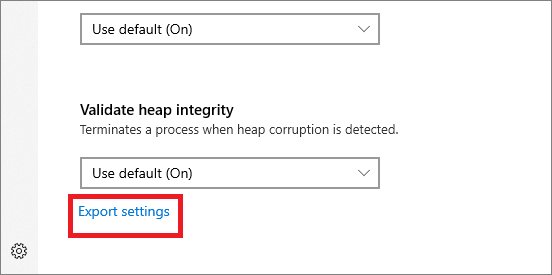
- Set every system mitigation you want carried over to On by default rather than Use default (On), so the value is written to the file.
- On the Exploit protection page, select Export settings at the bottom and save the XML file.
- Alternatively, export from an elevated PowerShell window with
Get-ProcessMitigation -RegistryConfigFilePath C:\ExploitConfigfile.xml. - Copy the file to the target PC.
- On that PC, open PowerShell with Run as administrator and run
Set-ProcessMitigation -PolicyFilePath C:\ExploitConfigfile.xml. - Open Exploit protection settings to confirm the imported rules, then delete the file or store it somewhere secure.
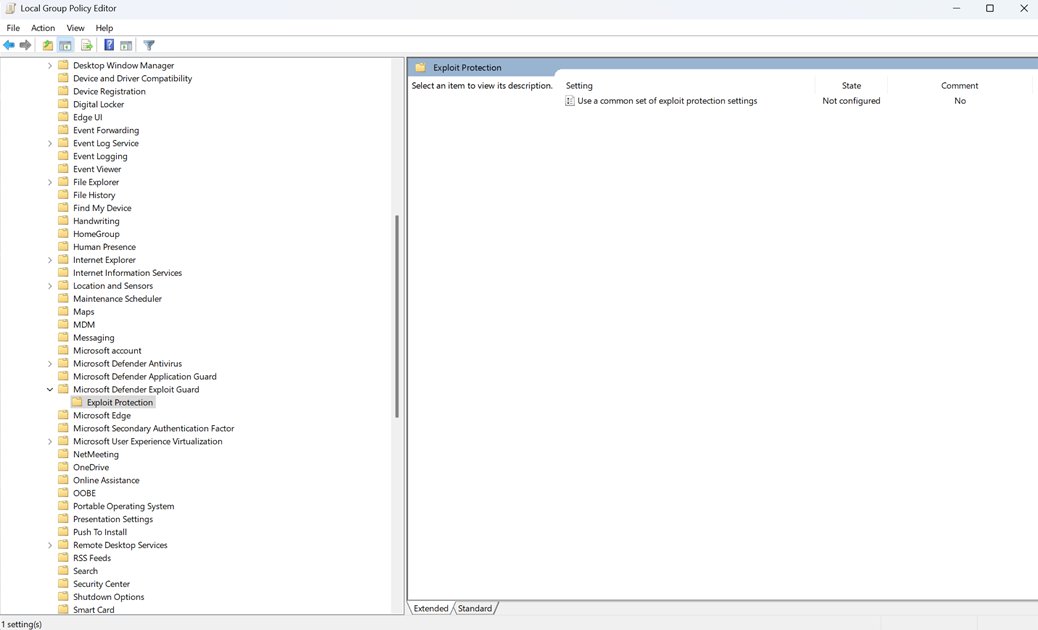
Deploy Exploit Protection with Group Policy
Group Policy points devices at one XML file. Every device must be able to reach that file, so keep it on a share or URL.
- Open Group Policy Management, right-click the GPO and select Edit, or run
gpedit.mscon a single PC. - Go to Computer Configuration > Administrative Templates > Windows Components > Microsoft Defender Exploit Guard > Exploit Protection.
- Double-click Use a common set of exploit protection settings.
- Select Enabled.
- In Options, enter the file location, such as
\\Server\Share\Config.xmlor a local path. - Select OK and let the policy apply, then restart devices for system-level settings.
Group Policy overrides local changes, so build the baseline XML on a PC with no exploit protection policy applied. On a test PC, you can force a Group Policy update rather than wait for the next refresh.
Importing, exporting, and managing Exploit Protection policies at scale
All management tools use the same exported XML file, so build and test it once, then pick the tool your devices already use.
| Management tool | Where the XML goes | Notes |
|---|---|---|
| Microsoft Intune | Endpoint security > Attack surface reduction > Create policy, platform Windows, profile Exploit Protection; set Exploit protection settings to Configured and open the XML | Intune is licensed separately from Defender for Endpoint |
| Any MDM | OMA-URI ./Device/Vendor/MSFT/Policy/Config/ExploitGuard/ExploitProtectionSettings, data type String, value = XML contents | System-level settings need a restart |
| Configuration Manager | Windows Defender Exploit Guard policy, component Exploit protection, Browse to the XML | Keep the XML file secure in transit |
| Group Policy | Use a common set of exploit protection settings, path to the XML | Overrides local settings |
| Single PC | Set-ProcessMitigation -PolicyFilePath | Applies instantly |
Roll out in rings: a small test group first, then a group of IT and help desk staff, then everyone else.
How to check Exploit Protection settings are applied
- Open PowerShell with Run as administrator.
- Run
Get-ProcessMitigation -Systemand check each system mitigation;NOTSETmeans the Windows default is in force. - Run
Get-ProcessMitigation -Name app.exefor an app you configured and confirm the mitigations show ON. - Run
Get-ProcessMitigation -Name app.exe -RunningProcesseswhile the app is open to see what the live process received. - Open Exploit protection settings > Program settings and confirm the app is listed with your overrides.
How to turn off Windows Exploit Protection for one app or setting
Windows Security sets exploit protection one mitigation at a time. Turn off only the mitigation that causes a problem, and only for the app it affects.
- Open Exploit protection settings and select the Program settings tab.
- Select the affected app and choose Edit, or add it with Add program to customize.
- Under the problem mitigation, tick Override system settings and set the switch to Off.
- Select Apply and restart the app.
- To return one mitigation to the system value from PowerShell, run
Set-ProcessMitigation -Name app.exe -Remove -Disable <mitigation>to return to the system value. - To undo a system change, set the row back to Use default and restart Windows.
What to do if an application stops working
An app crashes or will not start after you add a rule
One of the app-level mitigations conflicts with how the app loads code or creates processes.
- Open Event Viewer and check Security-Mitigations events, plus crash events 1000 or 1001 that name the app.
- Match the event ID to a mitigation, for example 4 for Don't allow child processes or 2 for ACG.
- Set that mitigation to Off under Override system settings for the app, or switch it to Audit only.
- Select Apply and restart the app.
An app hangs or fails after a system-wide change
A system setting such as Mandatory ASLR now applies to every app that has no override.
- Look for hang event 1002 or crash event 1000 naming the app.
- Set the changed system mitigation back to Use default and restart Windows.
- If you need the stricter setting, keep it and add an Off override for the one incompatible app.
Older .NET apps fail with Export or Import address filtering on
EAF and IAF are deprecated and incompatible with .NET Framework 2.0 and 3.5 apps.
- Edit the app on the Program settings tab.
- Turn off Export address filtering (EAF) and Import address filtering (IAF).
- Select Apply and restart the app.
Monitoring, testing, and troubleshooting Exploit Protection: event logs, app crashes, and false positives
A block notification appears for a trusted app (false positive)
An enforced mitigation stopped a legitimate action the app performs.
- Open Event Viewer and read the Security-Mitigations event; enforce events are even-numbered (2, 4, 6 and so on up to 24).
- Note the mitigation named in the event description.
- Switch that mitigation to Audit only for the app if it supports audit, or set it to Off.
- Keep the other mitigations for the app enabled.
Settings change back after you edit them
A Group Policy, Intune or MDM exploit protection policy overrides local configuration.
- Ask your IT admin whether an exploit protection policy is assigned to the device.
- Edit the source XML used by the policy rather than the local settings.
- Redeploy the file and restart the device.
Unwanted mitigations remain after importing a new XML file
Import adds and changes rules but does not remove every existing one.
- Remove the extra entries on the Program settings tab, or use Microsoft's reset script from the Troubleshoot exploit protection mitigations page.
- Import a clean baseline with
Set-ProcessMitigation -PolicyFilePath. - Confirm the result with
Get-ProcessMitigation -System.
CFG blocks or untrusted fonts are not in the Security-Mitigations log
Those two mitigations log under different providers.
- Look for WER-Diagnostics event ID 5 for a CFG block.
- Look for Win32K event ID 260 for a blocked untrusted font.
Best-practice recommendations, common pitfalls, and real-world hardening scenarios
| Scenario or pitfall | What to do |
|---|---|
| Home PC with no special apps | Leave every system setting on Use default; it is the baseline Microsoft recommends for home users |
| Hardening a browser-style or file-parsing business app | Add a Program settings rule, audit ACG, child process and code integrity mitigations, then enforce what logs clean |
| Exporting a default setup | Use On by default instead of Use default (On), or the value is not written to the XML |
| Enforcing rules fleet-wide without testing | Test on a small device group with crash monitoring and full user-mode dumps first; untested rollouts cause app breakage |
| Turning on EAF, IAF, SimExec, CallerCheck or StackPivot | Skip them; they are deprecated, and ACG replaces the last three |
| Protecting Office or Adobe Reader with per-app rules | Use attack surface reduction rules instead |
| Leaving the XML file on a shared drive after import | Delete it or store it securely, since it describes your defences |
| Still running EMET | Replace it; EMET support ended on July 31, 2018, and exploit protection can import EMET-era settings |
Windows 11 Exploit Protection FAQ
What is exploit protection?
Exploit protection is a Windows security feature that applies mitigations such as DEP, ASLR and Control flow guard to processes and apps. It makes it harder for malware to turn a software bug into running code, and it replaced most of the older EMET toolkit.
What is exploit protection in Windows 11?
In Windows 11, exploit protection lives in Windows Security under App & browser control. It is on by default with Microsoft's recommended system settings, and you can add per-app rules, audit them, and export the setup as an XML file.
How do I turn off Windows exploit protection?
Windows has no single master switch for it. Open Exploit protection settings, edit the affected app on the Program settings tab, tick Override system settings for the problem mitigation and set it to Off. That keeps every other mitigation working.
Is exploit protection on by default in Windows 11?
Yes. CFG, DEP, Bottom-up ASLR, high-entropy ASLR, SEHOP and heap integrity validation are on by default. Mandatory ASLR is the one system setting that is off by default.
Do I need Microsoft Defender for Endpoint to use exploit protection?
No. The feature is built into Windows 10 version 1709 and later and Windows 11. Defender for Endpoint only adds central reporting, alerts and advanced hunting of exploit protection events.
Do exploit protection changes need a restart?
System-level changes need a Windows restart. App-level changes only need the app restarted, and Windows Security tells you which one applies after you select Apply.
Can I import an exploit protection file from the Windows Security app?
No. Windows Security can export settings, but import is PowerShell-only. Run Set-ProcessMitigation -PolicyFilePath with the XML path in an elevated PowerShell window, and the settings apply instantly.
Should I add Chrome or Office to exploit protection?
Microsoft advises against it. Chrome no longer recommends EMET-style mitigations because its own are stronger, and Office apps are better protected with attack surface reduction rules.
The bottom line on Windows 11 Exploit Protection
Leave the system settings on Use default, and add per-app rules only for apps that handle untrusted data, testing each one in Audit mode first. The defaults already cover every app, while untested app-level mitigations are the main cause of crashes, so audit-then-enforce gives extra protection without breaking work.







How to Activate Windows Security on Your Device: Windows 11, 10 - Techdows
[…] Exploit protection on the same page already runs with preset system settings, so most people never change it. […]