The Genshin Impact download for PC is free on Windows 11 and Windows 10, and you can install it from the Epic Games Store or through Google Play Games on PC. Both routes install the full open-world game on your computer at no cost.
COGNOSPHERE publishes the game, and it charges nothing to download or play. The same game is also on iPhone, iPad, Android, PS5 and Xbox Series X|S.
This guide covers which store to pick, the official links, install steps for both PC routes, requirements, Mac options and fixes for failed installs.
Which Genshin Impact download do you need?
Every platform gets the game from its own store. Match your device to a row and use that link.
| Your device | Where to get it | Space it needs | |
|---|---|---|---|
| Windows 11 or Windows 10 PC, 64-bit | Epic Games Store | 100 GB minimum, 150 GB recommended | |
| Windows PC with a Google account and an SSD | Google Play Games on PC | 110 GB | |
| iPhone or iPad on iOS 13 or later | App Store | 3.7 GB app, then game data | |
| Android phone or tablet | Google Play | Shown on the listing | |
| PS5 | PlayStation Store | Shown on the console | |
| Xbox Series X | S | Xbox store | Shown on the console |
| Mac | Xbox Cloud Gaming in a browser | None, it streams |
The Epic and Google Play figures are storage requirements, not file sizes. Each launcher downloads the game data after you press install.
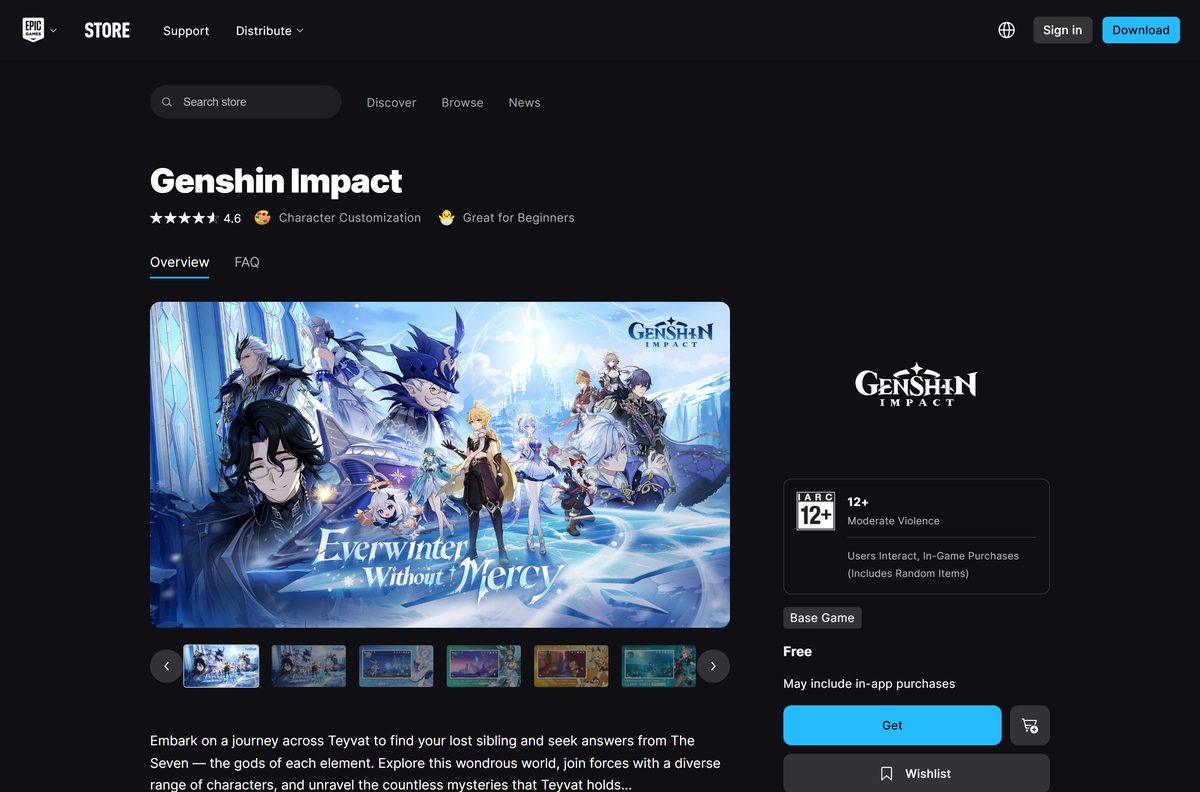
Download Genshin Impact from the official stores
COGNOSPHERE PTE. LTD. is the seller on every listing below. Any other seller name means the page is not the real game.
- Genshin Impact on the Epic Games Store — Windows, free, installs through the Epic Games Launcher
- Genshin Impact on Google Play — Android, plus Install on Windows through Google Play Games on PC
- Genshin Impact on the App Store — 3.7 GB · iPhone and iPad
- Genshin Impact on the PlayStation Store — PS5
- Genshin Impact on Xbox — Xbox Series X|S and Xbox Cloud Gaming
- Official Genshin Impact website — HoYoverse’s home for the game, news and customer service
Steam has no Genshin Impact listing. A Steam page or a download site offering a setup file is not an official source.
Should you install from the Epic Games Store or Google Play Games on PC?
Both stores give you the same free game. They differ in the hardware and settings your PC needs.
Install from the Epic Games Store on most Windows PCs. It runs the Windows edition directly and needs no virtualization settings. Pick Google Play Games only if you already use it, because it needs an SSD, a Windows admin account and hardware virtualization turned on.
Payments differ by store. The Epic FAQ states that in-game purchases in the Epic version go through the Epic Games payment platform.
How to install Genshin Impact on Windows 11 and 10 from the Epic Games Store
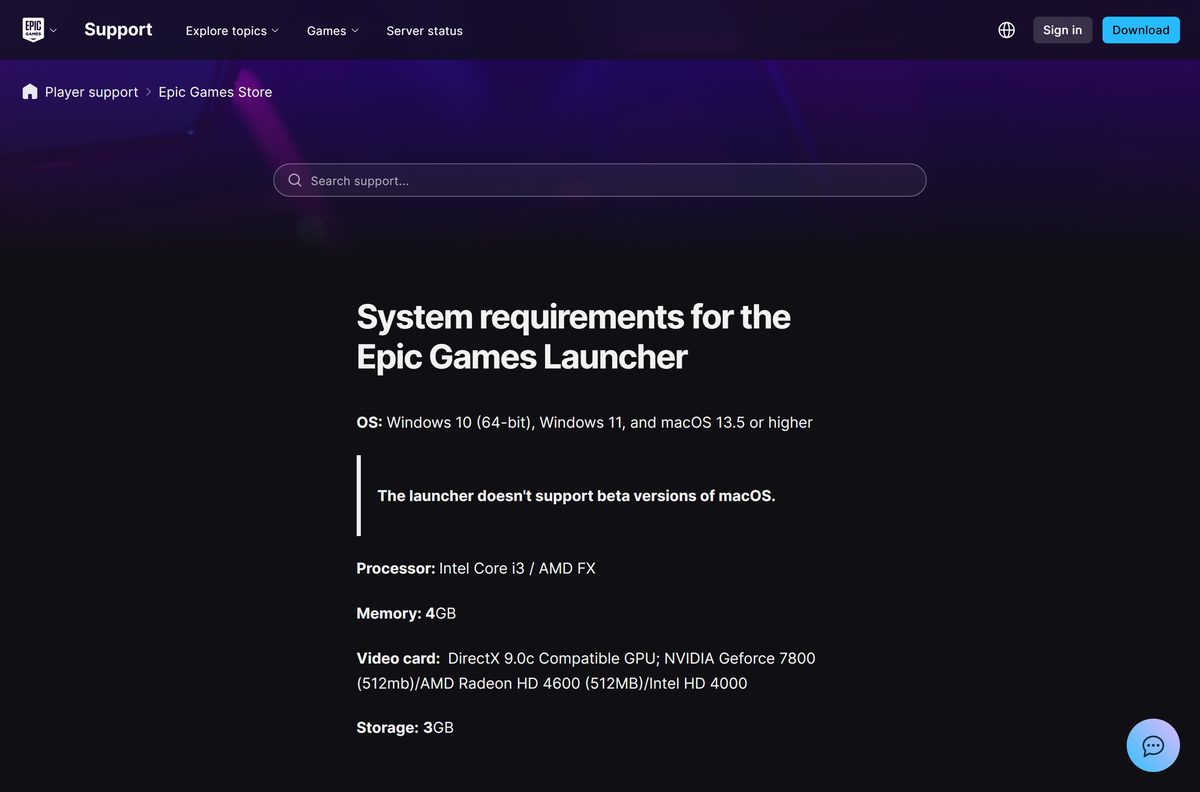
You need the Epic Games Launcher and a free Epic Games account. The launcher supports Windows 10 64-bit and Windows 11.
- Open the Genshin Impact page on the Epic Games Store.
- Select Get, then sign in with your Epic Games account.
- Select Place Order to add the free game to your account.
- Install the Epic Games Launcher if your browser prompts you, then open it.
- Select Library in the launcher and find the Genshin Impact tile.
- Select Install, choose a drive with at least 100 GB free, and confirm.
- Wait for the download to finish, then select Launch.
- Create or sign in to your HoYoverse account in the game and start playing.
Leave room beyond the 100 GB minimum. Epic recommends 150 GB, and version updates add to the install.
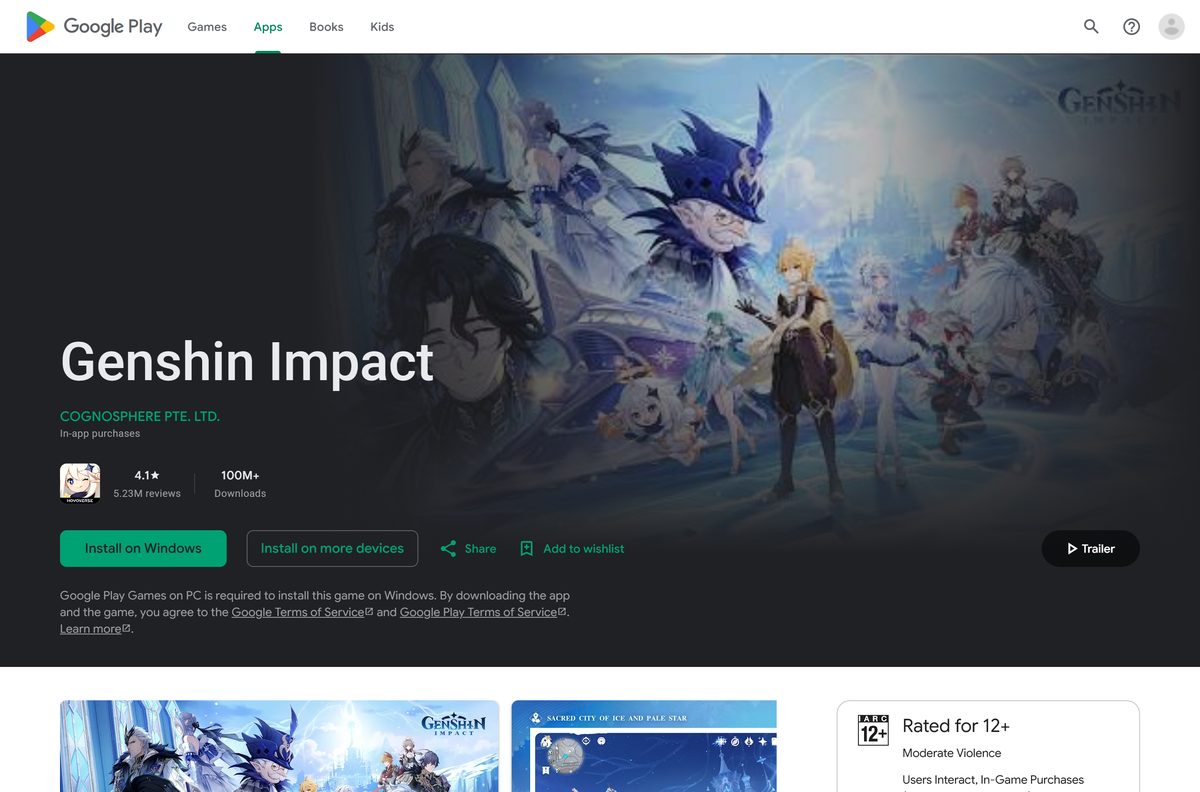
Install Genshin Impact through Google Play Games on PC
Google Play Games is a free Windows app that runs Android games. Google requires Windows 10 v2004 or later, an SSD, 8 GB of RAM and hardware virtualization.
- On your Windows PC, go to play.google.com/googleplaygames and select Download.
- Open the downloaded file and follow the instructions to install Google Play Games.
- Turn on Windows Hypervisor Platform if the installer asks, then restart your PC.
- Sign in with your Google account.
- Open the Genshin Impact listing on Google Play and select Install on Windows.
- Confirm in Google Play Games and wait for the 110 GB install to finish.
- Select Play and sign in to your HoYoverse account.
Sign in with the same Google account on your phone to keep your library in sync across devices.
Check the Genshin Impact PC system requirements before you download
Epic and Google publish slightly different figures. Meet the higher figure in each row to cover both routes.
| Field | Value |
|---|---|
| Game | Genshin Impact |
| Developer | COGNOSPHERE PTE. LTD. |
| Latest version | 7.0 (Everwinter Without Mercy) |
| Price | Free-to-play, optional in-game purchases |
| Supported OS | Windows 10 64-bit and Windows 11 |
| Architecture | 64-bit (x64) only |
| Processor | Intel Core i5 or equivalent; Google names a 6th Generation Core i5 or AMD Ryzen series. Epic recommends a Core i7 |
| Memory | 8 GB minimum, 16 GB recommended |
| Graphics | NVIDIA GeForce GT 1030 on Epic, GTX 1050 on Google Play Games; GTX 1060 6GB recommended |
| DirectX | 11 |
| Storage | 100 GB minimum, 150 GB recommended (Epic); 110 GB (Google Play Games) |
| Offline installer | No, both launchers download the game |
| Official sources | Epic Games Store, Google Play, App Store, PlayStation Store, Xbox |
| Last verified | 2026-09-13 |
To check your own PC, open Settings, select System, then About. The Installed RAM and System type lines show your memory and whether Windows is 64-bit.
Which way can you play Genshin Impact on a Mac?
There is no macOS edition. The App Store app lists iPhone, iPad and iPod touch as its devices, and it does not appear for Mac. Cloud streaming is the route that works.
| Your situation | What to do | Link |
|---|---|---|
| Mac on macOS 14.1.2 or later with Game Pass Ultimate | Stream it through Xbox Cloud Gaming in Safari 16, Edge or Chrome 85 or later | Supported browsers |
| Mac without Game Pass Ultimate | Play on an iPhone or iPad instead | App Store listing |
| Mac and a Windows PC in the house | Install the Windows edition from Epic on the PC | Epic Games Store |
The Xbox listing states that Game Pass Ultimate members can play Genshin Impact on Xbox Cloud Gaming. Mouse and keyboard work in Edge or Chrome on a Mac.
Is Genshin Impact free to download and play?
The game is free on every platform, including PC, PS5 and Xbox. Money only changes hands for optional in-game items.
Yes. Download it free and play the full game without paying. The Epic Games Store FAQ says all in-game purchases are optional and you can experience the full gameplay without them. Paid items include Genesis Crystals, Blessing of the Welkin Moon and battle pass tiers, priced $0.99 to $99.99 on the App Store.
No paid edition of Genshin Impact exists. A site charging for the download, or offering free Genesis Crystals for a login, is a scam.
How to check your Genshin Impact version and update it
Version 7.0 is the current release. Each store delivers new versions as an update to the copy you already have.
- Open the Epic Games Launcher and select Library.
- Select the three dots on the Genshin Impact tile, then Manage.
- Turn on Auto update so new versions download when the launcher runs.
- Leave the launcher open on update day until the download finishes.
- On Google Play Games, open the app and let it apply the update before you select Play.
- On iPhone or iPad, open the App Store, tap your profile picture and select Update next to the game.
The App Store’s version history lists each release with its date, which makes it a quick way to confirm the newest number.
Fix Genshin Impact not downloading or installing on Windows 11 or 10
Find the symptom that matches your screen and follow the fix under it.
The install stops or refuses to start because of disk space
Epic asks for 100 GB and Google Play Games for 110 GB, and updates need room on top of that.
- Open Settings, select System, then Storage.
- Check the free space on the drive you picked.
- Select Temporary files and remove what you do not need.
- Pick a different drive in the install dialog if the first one is still short.
Google Play Games says your PC does not meet the requirements
Hardware virtualization is off, or the PC falls short of Google’s minimums.
- Press Windows + R, type optionalfeatures , and press Enter.
- Tick Windows Hypervisor Platform and select OK.
- Restart the PC when Windows asks.
- If the error stays, turn on virtualization in your PC’s BIOS or UEFI settings.
- Install from the Epic Games Store instead if your PC has no SSD or fewer than 4 physical CPU cores.
The Epic Games Launcher says minimum OS requirements are not met
Epic’s launcher supports only Windows 10 64-bit and Windows 11.
- Open Settings, select System, then About.
- Read System type to confirm a 64-bit operating system.
- Open Windows Update and install every pending update.
- Restart and open the launcher again.
The download sits at 0% or keeps restarting
The launcher lost its connection or a stale download cache is stuck.
- Pause the download in the launcher, wait ten seconds, and resume it.
- Close the launcher completely from the system tray.
- Restart your router or switch to a wired connection.
- Reopen the launcher and resume the install.
How to uninstall Genshin Impact
Remove the game through the store you installed it with, so the launcher stops tracking updates for it.
- Open the Epic Games Launcher and select Library.
- Select the three dots on the Genshin Impact tile.
- Select Uninstall, then confirm.
- For Google Play Games, open Settings, select Apps, then Installed apps.
- Find Genshin Impact, select the three dots, and choose Uninstall.
- Open File Explorer and delete any leftover Genshin Impact folder on the drive you used.
Uninstalling removes the game files only. Your HoYoverse account stays as it is.
Which Genshin Impact alternatives can you download instead?
All three are free to download on the App Store. Wuthering Waves is the only one whose App Store listing includes Mac.
| Game | Publisher | Where to get it | Mac |
|---|---|---|---|
| Honkai: Star Rail | COGNOSPHERE PTE. LTD. | App Store | No |
| Zenless Zone Zero | COGNOSPHERE PTE. LTD. | App Store | No |
| Wuthering Waves | HK KURO GAMES LIMITED | App Store | Yes |
Honkai: Star Rail is also on the Epic Games Store for Windows, so it installs the same way as Genshin Impact.
Frequently asked questions
Is Genshin Impact free to download on PC?
Yes. Genshin Impact is free on the Epic Games Store and through Google Play Games on PC. All in-game purchases are optional, and Epic’s FAQ confirms you can play the full game without spending money.
Where is the official Genshin Impact download for PC?
Use the Epic Games Store listing or the Google Play listing’s Install on Windows button. COGNOSPHERE PTE. LTD. is the seller on both, and genshin.hoyoverse.com is the game’s official website.
Does Genshin Impact work on Windows 11?
Yes. The Epic Games Launcher supports Windows 11 and Windows 10 64-bit, and Google Play Games needs Windows 10 v2004 or later. The game’s own listings name 64-bit Windows 10 as the minimum.
How big is the Genshin Impact download on PC?
Plan for 110 GB. Google Play Games lists 110 GB of storage, and the Epic Games Store lists 100 GB minimum with 150 GB recommended. The iPhone and iPad app is 3.7 GB before game data.
Is there a Genshin Impact offline installer?
No. The Epic Games Launcher and Google Play Games both download the game data over the internet, and neither store offers a standalone setup file. A site offering a full offline setup is not an official source.
Can you download Genshin Impact on a Mac?
Not as a Mac app. The App Store edition runs on iPhone and iPad only. Game Pass Ultimate members can stream it on a Mac through Xbox Cloud Gaming in Safari, Edge or Chrome on macOS 14.1.2 or later.
Is Genshin Impact 64-bit only?
Yes. Both PC listings require 64-bit Windows 10 or later, so a 32-bit Windows installation cannot run it. Check System type under Settings, System, About to confirm what your PC has.
Is it safe to download Genshin Impact?
Yes, from the official stores. The Epic Games Store, Google Play, App Store, PlayStation Store and Xbox all list COGNOSPHERE PTE. LTD. as the seller. Avoid download sites and anything promising free Genesis Crystals.
What is the latest version of Genshin Impact?
Version 7.0, Everwinter Without Mercy, is current. It adds the Snezhnaya region and the characters Odette and Alyosha. The App Store build is 7.0.0, released August 11, 2026.
Why won’t Genshin Impact install on my PC?
The usual causes are too little free space, virtualization turned off for Google Play Games, or an unsupported Windows version. Free at least 110 GB, enable Windows Hypervisor Platform, and install Windows updates.
Is Genshin Impact on Steam?
No. Steam’s store has no Genshin Impact listing. On PC, the official routes are the Epic Games Store and Google Play Games on PC, and both are free.
Is Genshin Impact free on PS5 and Xbox?
Yes. The PlayStation Store lists Genshin Impact free on PS5, and the Xbox listing states it is free-to-play and needs no Game Pass for co-op. Optional in-game purchases apply on both.

Download Honkai: Star Rail for PC, Windows 11/10 (Free) - Techdows
[…] three come from HoYoverse and are free to download. See the Genshin Impact download guide for that game’s own install […]